
MUESTRA / 01
Titular de viaje
Prompt: "Añade CLIFFSIDE MORNINGS en serifa blanca y negrita arriba al centro, con un pequeño subtítulo en cursiva debajo."
Suba un JPG o PNG, describa en lenguaje natural el texto que desea y el GPT Image 2 de Pixazo lo renderiza directamente sobre su foto — en el lugar, con el estilo y en el idioma que indicó. Sin manijas de arrastre, sin selector de fuentes y sin registro para previsualizar.
Muestra · prompt: "leyenda editorial, arriba + abajo a la derecha"
El Añadir texto a la foto de Pixazo se ejecuta en GPT Image 2 — el modelo multimodal de imagen de OpenAI, servido a través de la puerta de enlace de Pixazo. Suba un JPG o PNG, describa en lenguaje natural el texto que desea y dónde colocarlo, y el modelo lee la foto y su prompt en conjunto para renderizar la leyenda. Sin manijas de arrastre, sin menú de fuentes, sin pila de capas: el prompt es la interfaz.
En lo que destaca: generación rápida de leyendas a partir de instrucciones en lenguaje natural, mosaicos para redes sociales por lotes (1–4 variaciones por ejecución), leyendas multilingües (árabe, hebreo, urdu, persa y CJK se renderizan de forma nativa con la dirección y las ligaduras correctas), y tipografía editorial que respeta los sujetos focales de la foto cuando se lo indica. Dónde se detiene: interfaces de arrastre con precisión de píxel, carga exacta de fuentes de marca .woff, efectos de calado / recorte que interactúan con la geometría de la foto — para eso aún se necesita Photoshop o Figma.
Plan gratuito: salida de 1024×1024, 1 variación, marca de agua de Pixazo. Plus / Pro desbloquean salida de alta calidad 2048×1152, hasta 4 variaciones por solicitud, PNG / WebP con opción de fondo transparente y licencia para uso comercial.
Lo escribe en su prompt, en lenguaje natural. GPT Image 2 lee tanto su foto como sus instrucciones, y luego renderiza el texto en el lugar, el tamaño y el estilo que describió. Sin cuadrículas, sin manijas de arrastre, sin entrada de coordenadas.
La columna de la derecha es una hoja de referencia con fragmentos de prompt que aterrizan de forma fiable en el lugar que desea. Combine: posición + tamaño + color + estilo + (opcional) alineación.
→ Si un resultado no es del todo correcto, edite el prompt ("mover ligeramente arriba", "más pequeño", "serifa más fina") y vuelva a ejecutarlo. Cada re-prompt cuesta un crédito.
Cuatro direcciones de muestra: elija una tarjeta para ver el prompt que la genera. Cada una se creó en menos de 10 segundos en la resolución original.
Prompt: "Añade CLIFFSIDE MORNINGS en serifa blanca y negrita arriba al centro, con un pequeño subtítulo en cursiva debajo."

Prompt: "Cita centrada en serifa con atribución debajo, en color crema sobre un fondo de bodegón de bajo contraste."
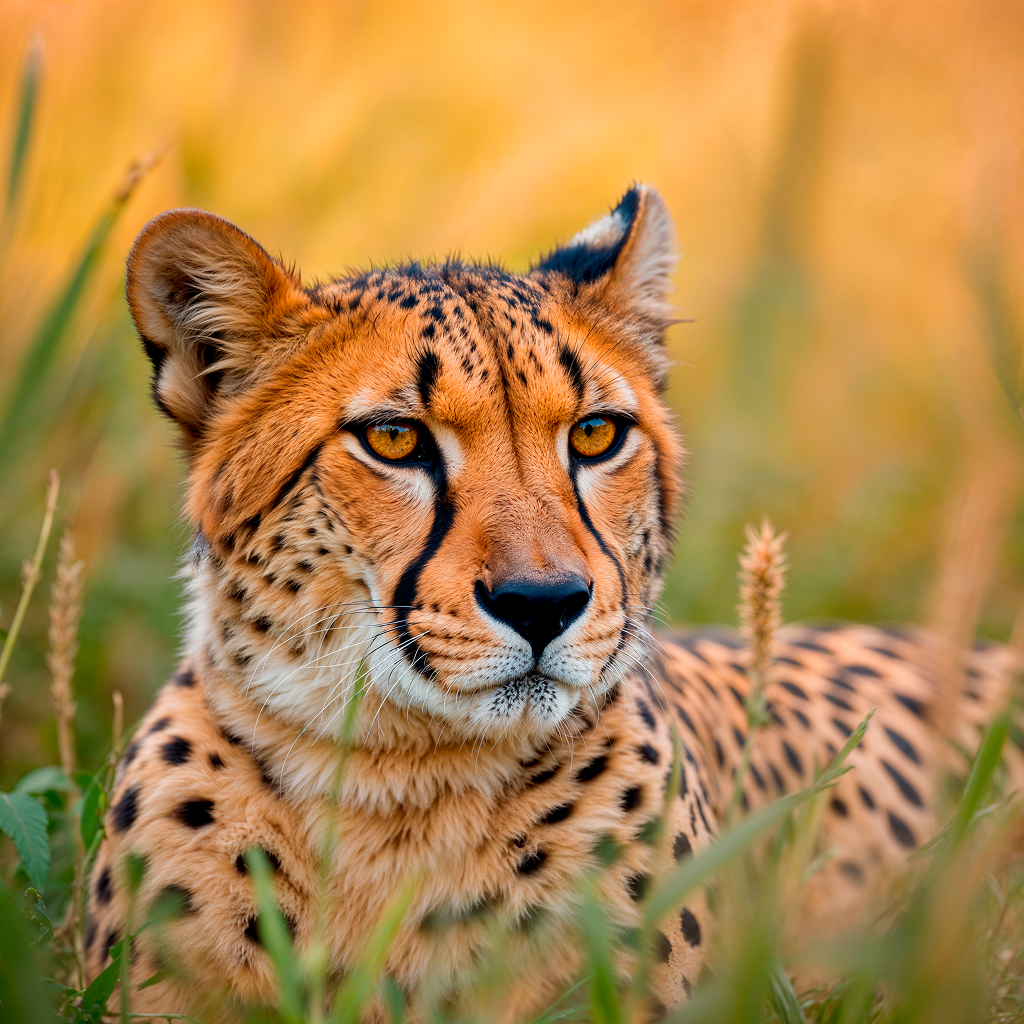
Prompt: "Antetítulo 'NEW ARRIVAL' arriba, un enorme 60% en verde lima centrado, diseñado para un cuadrado de Instagram."

Prompt: "Cabecera completa arriba: título estilo VOGUE, línea de número, etiqueta de reportaje de portada y número de edición abajo a la derecha."
Arrastre un JPG o PNG al cuadro de carga o examine para seleccionar. Hasta 5 MB en el plan gratuito y 25 MB en los planes de pago. La imagen se convierte en la entrada image para GPT Image 2.
Describa el texto, la posición y el estilo en una frase. Por ejemplo: "Añade el titular CLIFFSIDE MORNINGS arriba al centro en serifa blanca y negrita con una sombra paralela sutil."
Elija el tamaño de salida (de 1024×1024 hasta 2048×1152), la calidad (estándar o alta), el formato (PNG o WebP) y cuántas variaciones generar (de 1 a 4).
Haga clic en Generar. GPT Image 2 renderiza su foto con leyenda en 6–12 segundos. Elija la variación que prefiera y descárguela como PNG o WebP. Si un resultado no convence, edite el prompt y vuelva a ejecutarlo.
Cuatro casos en los que la colocación de texto sobre foto de Pixazo se queda corta. Los enumeramos por adelantado para que pueda elegir la herramienta adecuada antes de subir nada.
La colocación está guiada por el prompt: usted describe dónde debe ir el texto, no lo arrastra a una coordenada de píxel. Si el primer resultado queda 50 px desviado, edite el prompt ("un poco más arriba", "más cerca del borde") y vuelva a ejecutarlo. Cada re-prompt cuesta un crédito.
GPT Image 2 dibuja cada glifo a partir de su propia tipografía aprendida: no puede cargar su archivo .woff personalizado. Describa el estilo en el prompt ("serifa de alto contraste tipo Bodoni", "sans geométrica tipo Helvetica") o pase una imagen de referencia mediante la API de Pixazo para una coincidencia 1:1 más cercana.
Esta es una herramienta de imagen estática: la salida es un único PNG o WebP, no un vídeo, GIF o Lottie. Para leyendas animadas (vídeos de letras, tipografía cinética, subtítulos en desplazamiento), utilice el Editor de Vídeo con IA o el Generador de Vídeos con Letra de Pixazo.
GPT Image 2 coloca el texto encima de la foto. No envuelve el texto detrás del contorno de un sujeto, no realiza recortes de calado ni renderiza letras 3D extruidas con iluminación coherente. Para eso, finalice en Photoshop, Figma o Blender después de la generación.
Siete preguntas que los lectores realmente hacen. Pulse cualquier línea para expandir.
Lo decide usted, en lenguaje natural. Indique en el prompt dónde quiere la leyenda ("arriba al centro", "esquina inferior derecha", "a lo ancho del cielo", "debajo del sujeto") y GPT Image 2 la coloca ahí. Si el primer resultado no es del todo correcto, edite el prompt ("mover ligeramente arriba", "texto más pequeño") y regenere. No hay interfaz con manijas de arrastre: la colocación se hace mediante el prompt.
No hay un tope rígido de caracteres, pero las leyendas más cortas se renderizan con mayor nitidez. Para un titular de una sola línea (menos de 40 caracteres), la salida es nítida en resolución 2K. Para bloques más largos (un párrafo, una letra o una cita), describa una fuente más pequeña en el prompt — p. ej., "añade el siguiente bloque con una fuente de leyenda pequeña abajo, máximo 8 líneas" — y la IA lo maquetará.
Describa el aspecto en el prompt: por ejemplo, "serifa de alto contraste tipo Bodoni", "sans geométrica estilo Helvetica" o "Playfair display". GPT Image 2 no carga archivos .woff; dibuja cada glifo a partir de su tipografía aprendida. Para una coincidencia 1:1 exacta con la fuente de marca, use la API de Pixazo con una imagen de referencia: el modelo imita las formas de las letras de referencia.
Solo si se lo indica. El modelo lee su foto y su prompt en conjunto: si dice "encima del sujeto" o "en el cielo, evitando rostros", lo respeta. Si no especifica, GPT Image 2 elige un valor predeterminado razonable (normalmente una franja superior o inferior, lejos de sujetos focales claros). Para tomas sensibles, indique siempre la posición en el prompt.
Sí, describa cada bloque en un solo prompt. Ejemplo: "Añade 'CLIFFSIDE MORNINGS' centrado arriba en serifa blanca y negrita, y añade '— una hora tranquila antes de la marea' en cursiva gris debajo." El modelo maneja con fiabilidad hasta ~3–4 bloques de texto distintos por generación; para más, genere en varias pasadas.
Sí. GPT Image 2 gestiona árabe, hebreo, urdu y persa de forma nativa: la dirección, el interletraje y las ligaduras se renderizan correctamente. Las líneas mixtas árabe + inglés (bidi) también funcionan. Solo escriba el texto del prompt en el idioma de destino; no se necesita ninguna marca especial.
En el plan gratuito, su imagen original se conserva durante 24 horas y luego se elimina automáticamente (solo se usa para renderizar el resultado y permitirle volver a descargarlo). En Plus / Pro, usted controla la retención desde la configuración de la cuenta (24 h / 30 d / nunca). Pixazo no utiliza sus fotos para entrenar modelos. Consulte la Política de privacidad para conocer la sección completa sobre el tratamiento de datos.
Investigador principal de diseño de IA, Pixazo · 8+ años en sistemas de imagen generativa
Deepak lidera la calidad de tipografía y colocación de las herramientas de edición de imagen de Pixazo y es responsable del manual de ingeniería de prompts para el playground de GPT Image 2: los patrones de prompt recomendados, los prompts de respaldo cuando el modelo interpreta mal un brief y el arnés de QA que mide la precisión de colocación en más de 200 pares de foto / prompt. Antes de Pixazo dirigió investigación aplicada para difusión imagen a imagen en dos startups de IA.
Suba, escriba el prompt y genere. Ocho segundos desde la foto original hasta una imagen con leyenda lista para descargar, impulsada por GPT Image 2.