
BEISPIEL / 01
Reise-Headline
Prompt: „Füge MORGEN AN DER KLIPPE in fetter weißer Serife oben mittig hinzu, mit einer kleinen kursiven Unterzeile darunter."
Laden Sie ein JPG oder PNG hoch, beschreiben Sie die gewünschte Bildunterschrift in natürlicher Sprache und Pixazos GPT Image 2 rendert den Text direkt auf Ihr Foto — an der Stelle, im Stil und in der Sprache, die Sie beschrieben haben. Keine Ziehgriffe, keine Schriftauswahl, keine Anmeldung für die Vorschau.
Beispiel · Prompt: „redaktionelle Bildunterschrift, oben + unten rechts"
Pixazos Text zum Foto hinzufügen läuft auf GPT Image 2 — OpenAIs multimodales Bildmodell, bereitgestellt über das Pixazo-Gateway. Laden Sie ein JPG oder PNG hoch, beschreiben Sie in natürlicher Sprache, welchen Text Sie wollen und wo er sitzen soll, und das Modell liest Foto und Prompt gemeinsam, um die Bildunterschrift zu rendern. Keine Ziehgriffe, kein Schriften-Dropdown, kein Ebenenstapel — der Prompt ist die Oberfläche.
Wo es glänzt: schnelle Generierung von Bildunterschriften aus Briefings in natürlicher Sprache, Social-Tiles im Batch (1–4 Varianten pro Durchlauf), mehrsprachige Bildunterschriften (Arabisch, Hebräisch, Urdu, Persisch und CJK werden alle nativ mit korrekter Richtung und Ligaturen gerendert), sowie redaktionelle Typografie, die die fokalen Motive des Fotos respektiert, wenn Sie es verlangen. Wo es aufhört: pixelgenaue Drag-Nudge-UIs, exaktes Laden von .woff-Markenschriften, Knockout-/Cut-Through-Effekte, die mit der Fotogeometrie interagieren — dafür braucht es weiterhin Photoshop oder Figma.
Kostenlos-Tarif: 1024×1024-Ausgabe, 1 Variante, Pixazo-Wasserzeichen. Plus / Pro schalten hochwertige 2048×1152-Ausgabe, bis zu 4 Varianten pro Anfrage, PNG / WebP mit transparenter Hintergrundoption und kommerzielle Nutzungslizenz frei.
Sie schreiben es in Ihren Prompt — in natürlicher Sprache. GPT Image 2 liest sowohl Ihr Foto als auch Ihre Anweisungen und rendert den Text dann an der Stelle, in der Größe und im Stil, den Sie beschrieben haben. Keine Raster, keine Ziehgriffe, keine Koordinateneingabe.
Die rechte Spalte ist ein Spickzettel mit Prompt-Fragmenten, die zuverlässig an der gewünschten Stelle landen. Kombinieren Sie: Position + Größe + Farbe + Stil + (optional) Ausrichtung.
→ Wenn ein Ergebnis nicht ganz stimmt, bearbeiten Sie den Prompt („etwas höher", „kleiner", „dünnere Serife") und führen Sie ihn erneut aus. Jeder erneute Prompt kostet ein Credit.
Vier Beispielrichtungen — wählen Sie eine Karte, um den dahinterliegenden Prompt zu sehen. Jede wurde in unter 10 Sekunden in Originalauflösung erzeugt.
Prompt: „Füge MORGEN AN DER KLIPPE in fetter weißer Serife oben mittig hinzu, mit einer kleinen kursiven Unterzeile darunter."

Prompt: „Zentriertes Serifen-Zitat mit Namensnennung darunter, in Creme über einem Stillleben-Hintergrund mit geringem Kontrast."
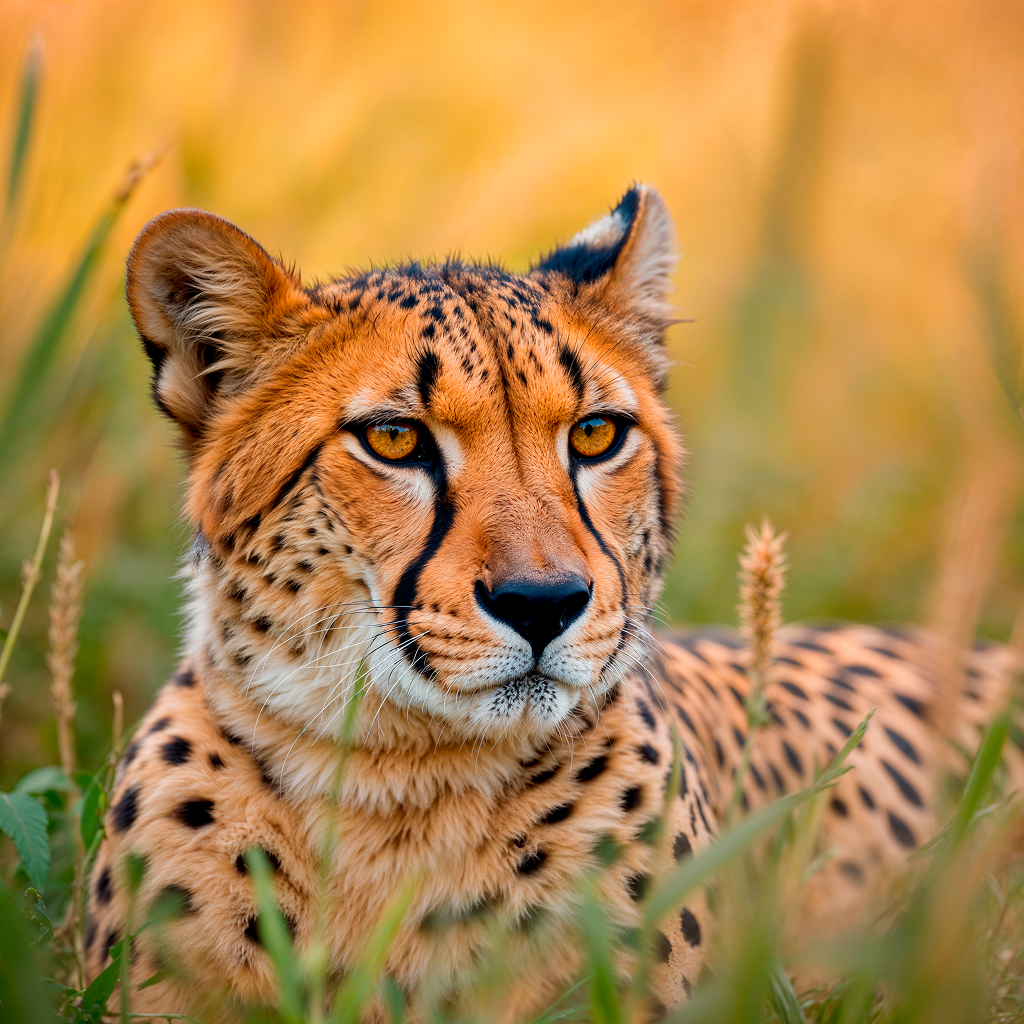
Prompt: „Kicker 'NEU EINGETROFFEN' oben, ein riesiges 60% in Limettengrün zentriert, gestaltet für ein Instagram-Quadrat."

Prompt: „Vollständiger Titelkopf oben — Titel im VOGUE-Stil, Ausgabezeile, Cover-Story-Label, Editionsnummer unten rechts."
Ziehen Sie ein JPG oder PNG in das Upload-Feld oder wählen Sie es per Durchsuchen. Bis zu 5 MB im Kostenlos-Tarif, 25 MB in den Bezahltarifen. Das Bild wird zur image-Eingabe für GPT Image 2.
Beschreiben Sie Text, Platzierung und Stil in einem Satz. Z. B.: „Füge die Headline MORGEN AN DER KLIPPE oben mittig in fetter weißer Serife mit einem dezenten Schlagschatten hinzu."
Wählen Sie die Ausgabegröße (1024×1024 bis 2048×1152), Qualität (standard oder high), das Format (PNG oder WebP) und die Anzahl der zu erzeugenden Varianten (1 bis 4).
Klicken Sie auf Generieren. GPT Image 2 rendert Ihr beschriftetes Foto in 6–12 Sekunden. Wählen Sie die gewünschte Variante und laden Sie sie als PNG oder WebP herunter. Wenn ein Ergebnis nicht passt, bearbeiten Sie den Prompt und führen Sie ihn erneut aus.
Vier Fälle, in denen Pixazos Text-auf-Foto-Platzierung an Grenzen stößt. Wir nennen sie vorab, damit Sie vor dem Upload das passende Tool wählen können.
Die Platzierung erfolgt per Prompt — Sie beschreiben, wo der Text hin soll, statt ihn auf eine Pixelkoordinate zu ziehen. Wenn das erste Ergebnis 50 px daneben liegt, bearbeiten Sie den Prompt („etwas höher", „näher am Rand") und führen Sie ihn erneut aus. Jeder erneute Prompt kostet ein Credit.
GPT Image 2 zeichnet jede Glyphe aus seiner eigenen erlernten Typografie — Ihre eigene .woff-Datei kann es nicht laden. Beschreiben Sie den Stil im Prompt („Bodoni-ähnliche kontrastreiche Serife", „Helvetica-artige geometrische Grotesk") oder übergeben Sie ein Referenzbild über die Pixazo-API für eine genauere 1:1-Übereinstimmung.
Dies ist ein Tool für statische Bilder — die Ausgabe ist ein einzelnes PNG oder WebP, kein Video / GIF / Lottie. Für animierte Bildunterschriften (Lyric-Videos, kinetische Typografie, scrollende Untertitel) nutzen Sie Pixazos AI Video Editor oder Lyric Video Generator.
GPT Image 2 platziert Schrift oben auf das Foto. Er umfließt keinen Text hinter der Kontur eines Motivs, erstellt keine Knockout-Aussparungen und rendert keine 3D-extrudierten Buchstabenformen mit konsistenter Beleuchtung. Dafür finalisieren Sie nach der Generierung in Photoshop, Figma oder Blender.
Sieben Fragen, die Leser tatsächlich stellen. Klicken Sie auf eine Zeile zum Ausklappen.
Sie entscheiden — in natürlicher Sprache. Sagen Sie im Prompt, wo Sie die Bildunterschrift haben wollen („oben mittig", „untere rechte Ecke", „quer über den Himmel", „unter dem Motiv"), und GPT Image 2 platziert sie dort. Wenn das erste Ergebnis nicht ganz stimmt, bearbeiten Sie Ihren Prompt („etwas höher", „kleinerer Text") und generieren Sie erneut. Es gibt keine Drag-Handle-Oberfläche — die Platzierung ist promptgesteuert.
Es gibt keine harte Zeichenobergrenze, aber kürzere Bildunterschriften werden am schärfsten gerendert. Für eine einzeilige Headline (unter 40 Zeichen) ist die Ausgabe in 2K gestochen scharf. Für längere Blöcke (Absatz, Liedtext oder Zitat) beschreiben Sie eine kleinere Schrift im Prompt — z. B. „Füge folgenden Block in einer kleinen Caption-Schrift unten ein, maximal 8 Zeilen" — und die KI übernimmt das Layout.
Beschreiben Sie den Look in Ihrem Prompt — z. B. „Bodoni-ähnliche kontrastreiche Serife", „Helvetica-artige geometrische Grotesk", „Playfair Display". GPT Image 2 lädt keine .woff-Dateien; es zeichnet jede Glyphe aus seiner erlernten Typografie. Für eine exakte 1:1-Übereinstimmung mit einer Markenschrift nutzen Sie die Pixazo-API mit einem Referenzbild — das Modell imitiert die Buchstabenformen der Referenz.
Nur wenn Sie es so vorgeben. Das Modell liest Foto und Prompt gemeinsam — wenn Sie „über dem Motiv" oder „im Himmel, Gesichter aussparen" sagen, hält es sich daran. Ohne Angabe wählt GPT Image 2 einen sinnvollen Standard (meist ein oberes oder unteres Band, abseits klarer Fokusmotive). Geben Sie bei sensiblen Aufnahmen die Platzierung immer im Prompt an.
Ja — beschreiben Sie jeden Block in einem einzigen Prompt. Beispiel: „Füge 'MORGEN AN DER KLIPPE' oben mittig in fetter weißer Serife hinzu, und füge '— eine ruhige Stunde vor der Flut' in kursivem Grau darunter ein." Das Modell handhabt zuverlässig bis zu ~3–4 unterschiedliche Textblöcke pro Generierung; für mehr generieren Sie in mehreren Durchgängen.
Ja. GPT Image 2 beherrscht Arabisch, Hebräisch, Urdu und Persisch nativ — Richtung, Kerning und Ligaturen werden korrekt gerendert. Gemischte Arabisch- + Englisch-Zeilen (Bidi) funktionieren ebenfalls. Schreiben Sie den Text im Prompt einfach in der Zielsprache; ein spezielles Flag ist nicht nötig.
Im Kostenlos-Tarif wird Ihr Quellbild 24 Stunden lang gespeichert und dann automatisch gelöscht (es wird nur verwendet, um das Ergebnis zu rendern und Ihnen den erneuten Download zu ermöglichen). In Plus / Pro steuern Sie die Aufbewahrung über die Kontoeinstellungen (24 h / 30 Tage / nie). Pixazo verwendet Ihre Fotos nicht für das Modelltraining. Den vollständigen Abschnitt zur Datenverarbeitung finden Sie in der Datenschutzrichtlinie.
Lead AI Design Researcher, Pixazo · 8+ Jahre in generativen Bildsystemen
Deepak verantwortet Typografie- & Platzierungsqualität für Pixazos Bildbearbeitungs-Tools und ist Eigentümer des Prompt-Engineering-Playbooks für das GPT-Image-2-Playground — die empfohlenen Prompt-Muster, die Fallback-Prompts, wenn das Modell ein Briefing missversteht, und das QA-Harness, das die Platzierungsgenauigkeit über 200+ Foto-/Prompt-Paare misst. Vor Pixazo leitete er angewandte Forschung zu Bild-zu-Bild-Diffusion bei zwei KI-Startups.
Hochladen, Prompt schreiben, generieren. Acht Sekunden vom Rohfoto zum downloadbereiten, beschrifteten Bild — basierend auf GPT Image 2.