AI Video Generator
Pixazo's AI video generator transforms text and images into professional videos using advanced models including Seedance, Veo 3.1, Sora 2, and Kling AI.

Features of online
video maker
Generate AI videos without a learning curve
Type your idea, add the specifics—like length, platform, voiceover accent, and get AI-generated high-quality videos that put your ideas into focus.
Create VideosEdit videos with a text prompt
Edit your videos with text prompts on Pixazo AI. Give simple commands like change the accent, delete scenes or add a funny intro and watch your videos come to life.
Create VideosAI generated images & videos
Create stories with AI-generated images and videos on Pixazo AI without juggling multiple AI video generator tools.
Create nowThe Most Advanced AI Video Maker
AI powered scripts to save time
Make engaging videos with AI-generated visuals. Use video prompts to tailor scripts for any video topic, saving hours of valuable time and taking the hassle out of video creation.
Realistic AI Voices
Brings your videos to life by grasping the emotion behind every word, adding human-sounding AI voiceovers in multiple languages.
Set yourself up for success
Plan and execute a video content strategy that will significantly increase your exposure, awareness and engagement. Publish videos frequently with AI to keep your viewers engaged.
Latest AI Video Models
Access cutting-edge AI models all in one platform
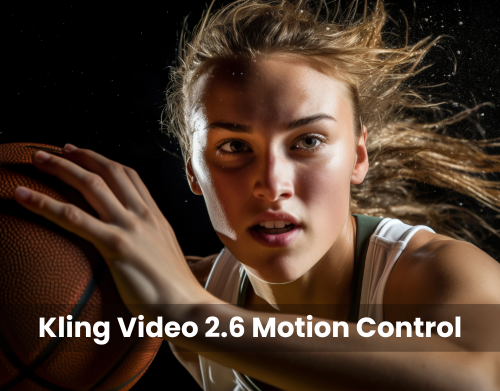
Kling 2.6 Motion Control
Advanced motion control for precise camera movements and dynamic scenes. Perfect for professional video production.
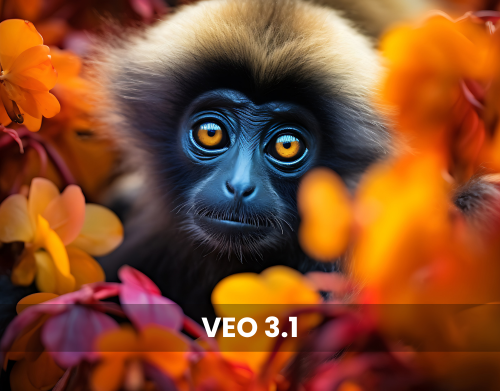
VEO 3.1
Google's latest model with built-in audio, exceptional physics accuracy, and cinematic motion control for realistic videos.
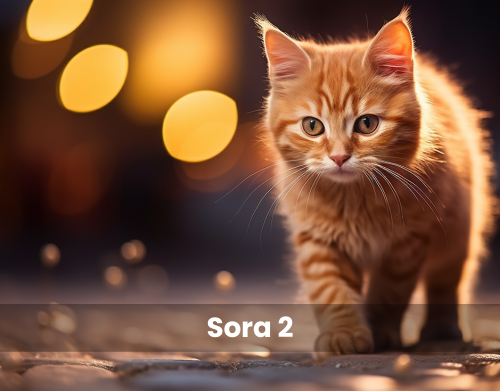
Sora 2
OpenAI's powerful model for narrative depth, complex scenes, and high-resolution 4K output with stunning quality.
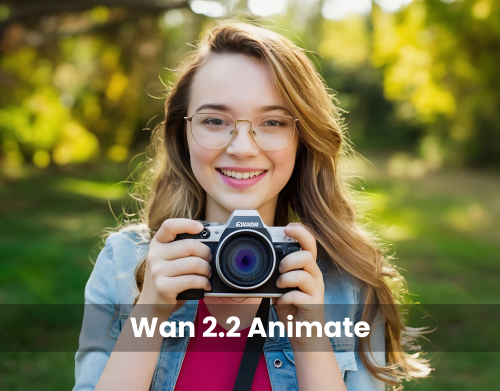
Wan 2.2 Animate
Specialized in smooth animations, character consistency, and precise motion control for dynamic animated scenes.
Built for every team that ships video
From solo creators to marketing teams—Pixazo helps you publish more, with cinematic control.
Content creators
Reels, Shorts, TikToks, faceless channels—generate clips fast, then remix with prompts.
Marketers
Turn product value props into ad creatives, hooks, and variations—ready for A/B testing.
Agencies & studios
Storyboard multiple shots, keep a consistent look, and deliver more concepts per client.
E-commerce teams
Generate product demos, UGC-style clips, and seasonal promos without expensive shoots.
Educators
Create tutorials and explainers with AI visuals, voiceovers, and subtitles in minutes.
Founders & product teams
Ship launch videos, feature walk-throughs, and investor demos on tight timelines.
How to generate videos with Pixazo AI?
Prompt
Enter a text prompt describing your video or upload an image you want to animate.
Style
Choose the video style, format, and creation mode based on your input.
Customize
Adjust aspect ratio, duration, and motion behavior.
Generate
Pixazo processes your input and delivers a downloadable MP4 video ready for use.
Quality, safety, and model attribution
A few quick notes to help you get consistently good results, understand responsible use, and see how model providers fit into Pixazo.
Realistic expectations (so you can plan confidently)
- Consistency improves with shorter clips. For longer sequences, generate in parts and stitch in your editor.
- Small text can be hit-or-miss. For labels or UI, add overlays during editing for perfect readability.
- Facial performance varies by model. Clear direction and tighter shots usually help.
- Rights matter. Protected logos/characters or real-person impersonation may be restricted.
Best-results tips (fast)
- Keep prompts specific and visual: subject, setting, lighting, lens/shot, motion, mood.
- For stability, generate shorter clips and stitch in your editor instead of pushing one long generation.
- Use reference inputs / motion controls (when available) for consistent movement.
- If a result is close, iterate with small edits (one change at a time) instead of rewriting the whole prompt.
Responsible use
- Pixazo follows standard safety policies to prevent harmful or illegal content.
- Avoid requests to create deepfakes or misleading impersonations of real people.
- Respect copyright and trademarks: don’t request protected characters/brands unless you have rights.
- If your use-case needs compliance, use original assets and keep prompts factual and non-deceptive.
Model providers (and what Pixazo adds)
Pixazo lets you generate with multiple third‑party video models such as SeeDance 2.0, Veo 3.1, Sora 2, and Kling AI so you can pick what fits your goal (motion, realism, style). Pixazo adds a workflow layer—prompt help, controls where supported, editing, exports, and a consistent UI—so you can iterate without switching tools.
Your generation request may be processed by the selected model provider to produce the output. For sensitive work, avoid personal data in prompts and use your own assets.
Frequently asked questions
Quick answers about outputs, usage rights, privacy, and getting the best results.
How does Pixazo's AI Video Generator work?
Pick a model, describe your scene (subject, setting, camera, motion), and generate a short clip. Iterate with small prompt tweaks, then stitch clips together for longer edits.
Which video models can I use inside Pixazo?
Pixazo provides access to multiple third‑party video models (availability can vary). Choose based on the look you want—motion, realism, or stylized results—then generate from the same interface.
Can I use the videos commercially?
In most cases, yes—commercial use depends on your plan and the selected model provider's terms. For brand work, use assets you own and avoid protected characters or trademarks unless you have rights.
What should I avoid generating?
Avoid harmful, illegal, or deceptive content, and don't request deepfakes or misleading impersonations of real people. Also avoid copyrighted characters/brands unless you have permission.
Do you store my prompts or uploads?
Generation requests may be processed by the selected model provider to create the output. If your work is sensitive, avoid personal data in prompts and use non-sensitive inputs. (Check your Pixazo plan settings for any additional controls.)
How do I get more consistent results?
Use short clips, keep prompts specific (shot, lighting, motion), and iterate one change at a time. For text or logos, add overlays during editing for perfect accuracy.
Discover more AI tools
Turn your ideas into videos today
Join thousands of creators using Pixazo AI
Get started, It's free!
