iOS app splash screen
iOS 16+LaunchScreen sizes
- iPhone Pro Max1242 × 2688
- iPhone Pro1170 × 2532
- iPhone Plus1284 × 2778
- iPhone XR / 11828 × 1792
- FormatPNG, dropped into Assets.xcassets
No text overlay · no animation · must match the first screen.
Pixazo's free AI App Splash Screen Maker turns a one-sentence brief into a high-resolution splash-screen image at the exact dimensions your platform expects — iOS LaunchScreen sizes, Android 12+ adaptive icon, or PWA manifest size.
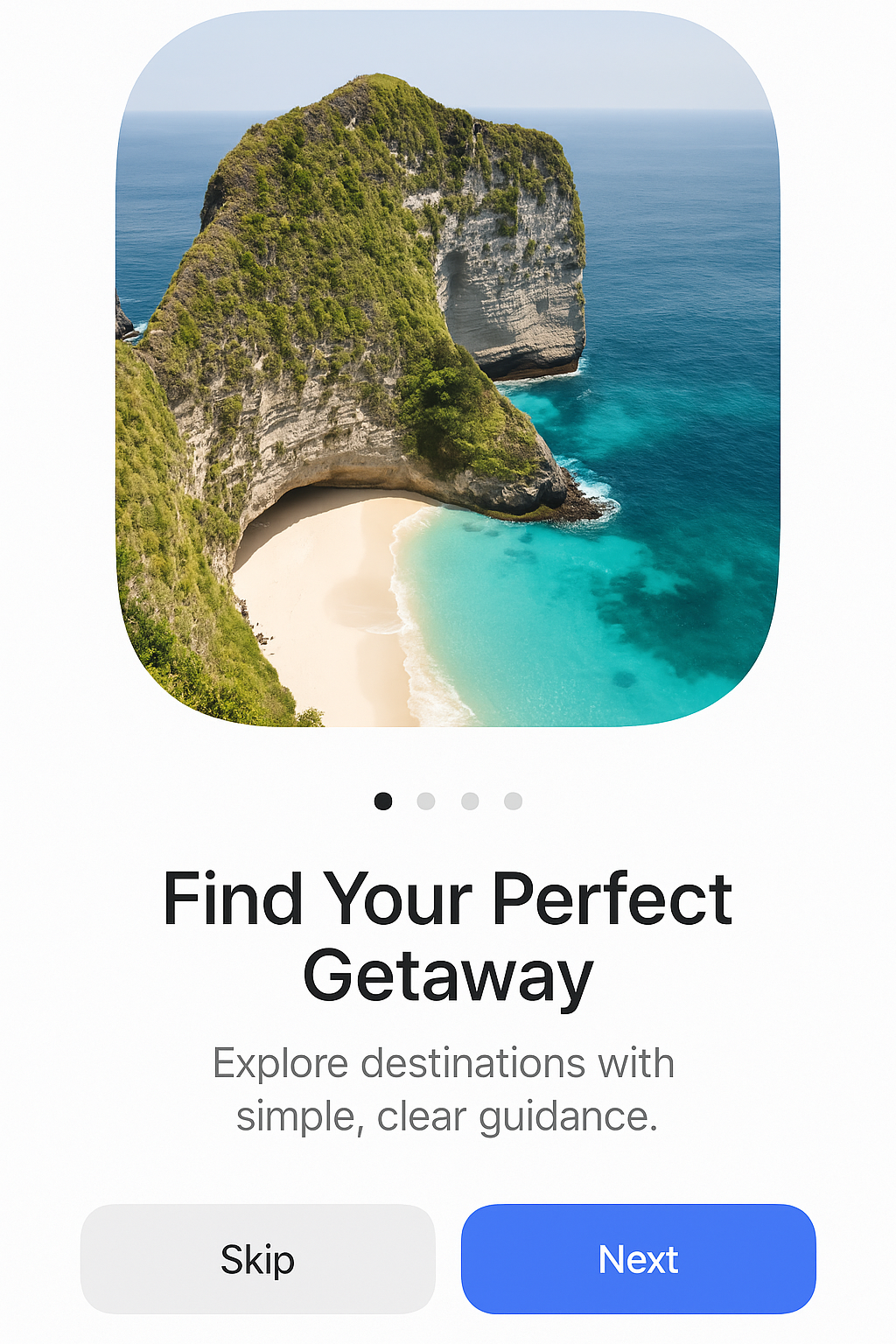
Platform sizes
Whether you call it a splash screen generator, maker or creator, it is the same job. iOS, Android, and the web each define a splash screen at different sizes. Pick the matching canvas size in the App Splash Screen Maker — Pixazo generates the image, you place it into your project's expected asset slot.
If you are building a PWA rather than a native app, the same artwork also serves as the Apple touch startup image — iOS reads it from apple-touch-startup-image link tags, one per device size. This generator produces the images; you still add the tags yourself, because they live in your HTML rather than in the artwork.
res/drawable + theme XMLbackground_color in manifesttheme_color for status bar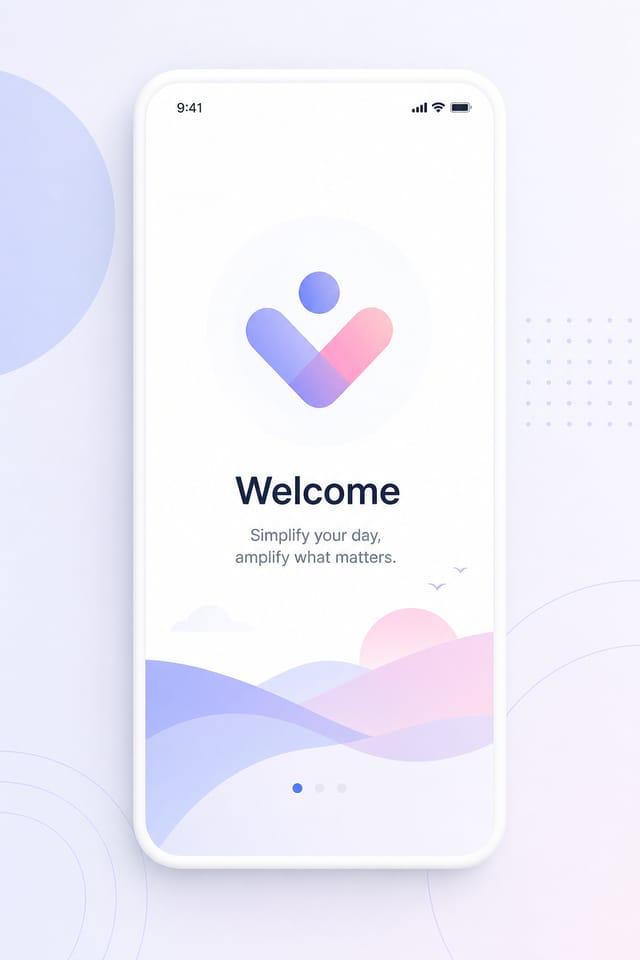
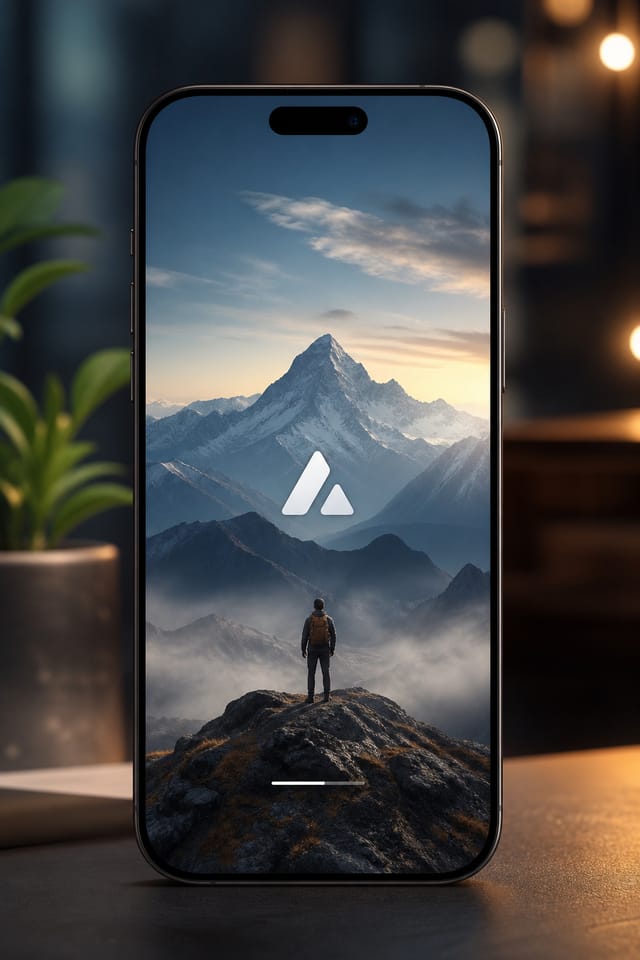
How it works
Four steps from prompt to high-resolution splash image. No design background needed — most splash screens generate in under 60 seconds.
Choose the preset closest to your target — 1024 × 1536 (tall) for a phone launch screen, 1024 × 1024 for an Android adaptive-icon background, or up to 3840 × 2160 for tablet and desktop PWAs. On export you scale or crop to the exact pixel size your platform needs, such as 1170 × 2532 for iPhone Pro or 512 × 512 for a PWA maskable icon.
Tell Pixazo your brand colors, logo motif (or paste a logo description), and the feel you want — minimal, bold, dark, premium. Two or three sentences is plenty.
The AI App Splash Screen Maker renders a high-resolution image at the canvas size you picked. Re-roll the prompt if you want variations until the composition feels right.
Download as PNG or JPG and drop it into the matching slot — Assets.xcassets on iOS, res/drawable on Android, or the icons[] array of your manifest.json.
Specimens
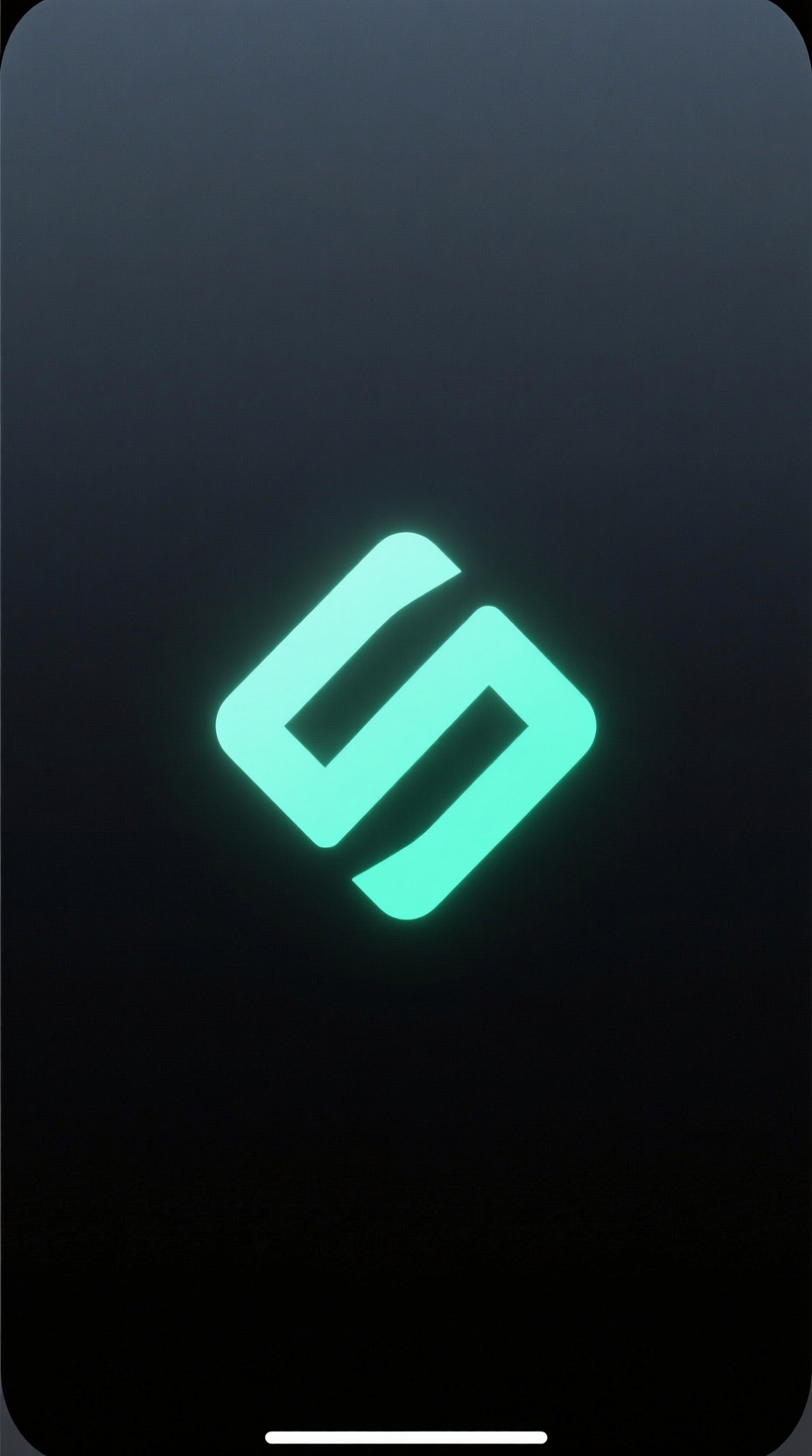
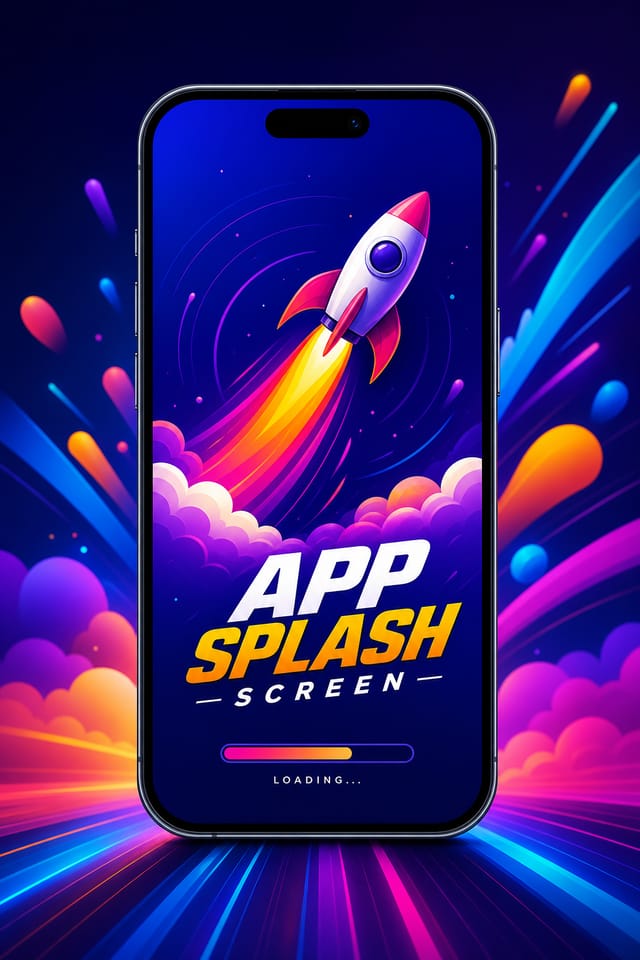
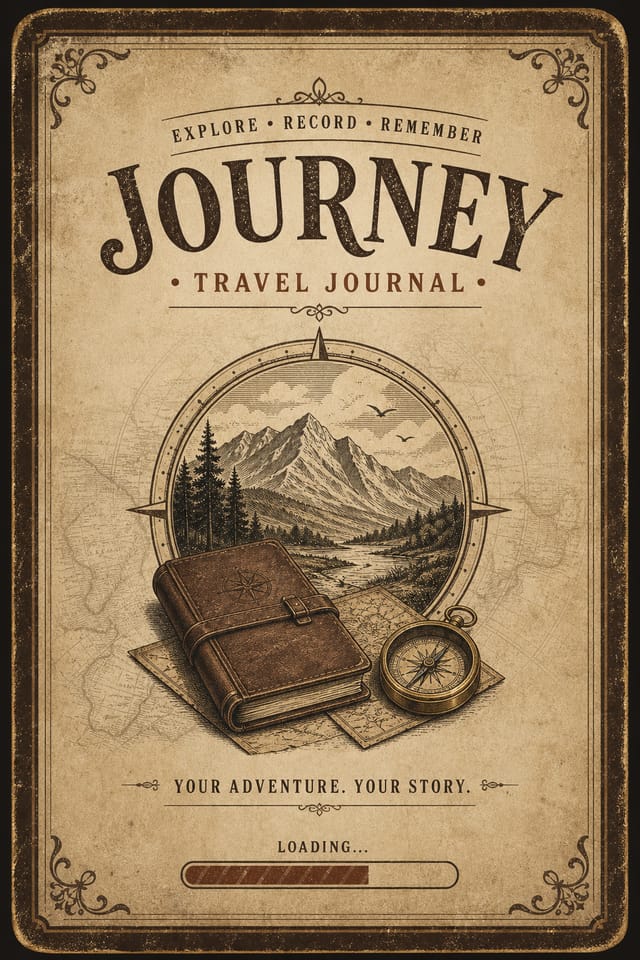
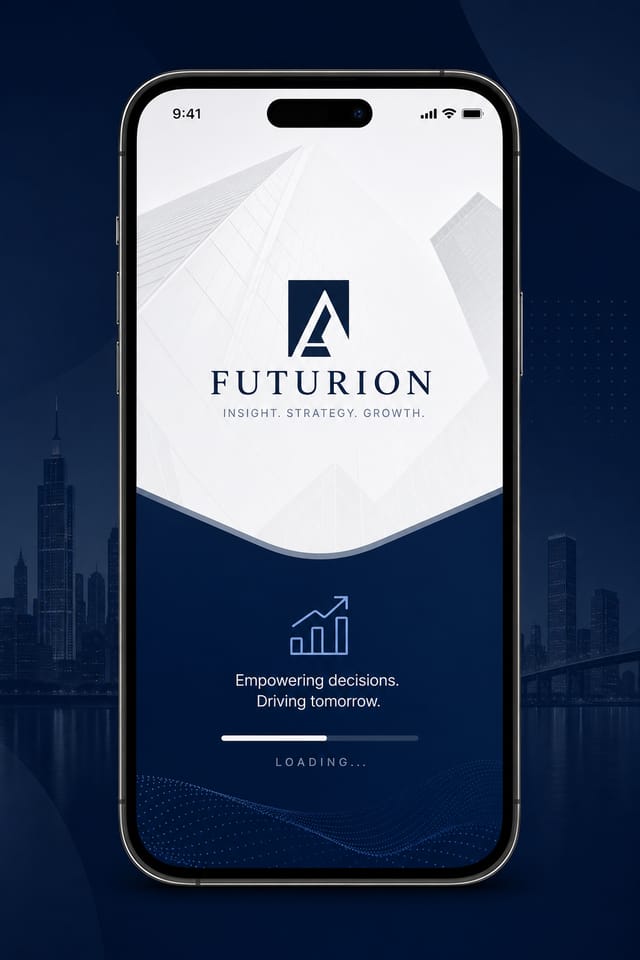
Five real splash designs generated by Pixazo App Splash Screen Maker users (shared with permission).
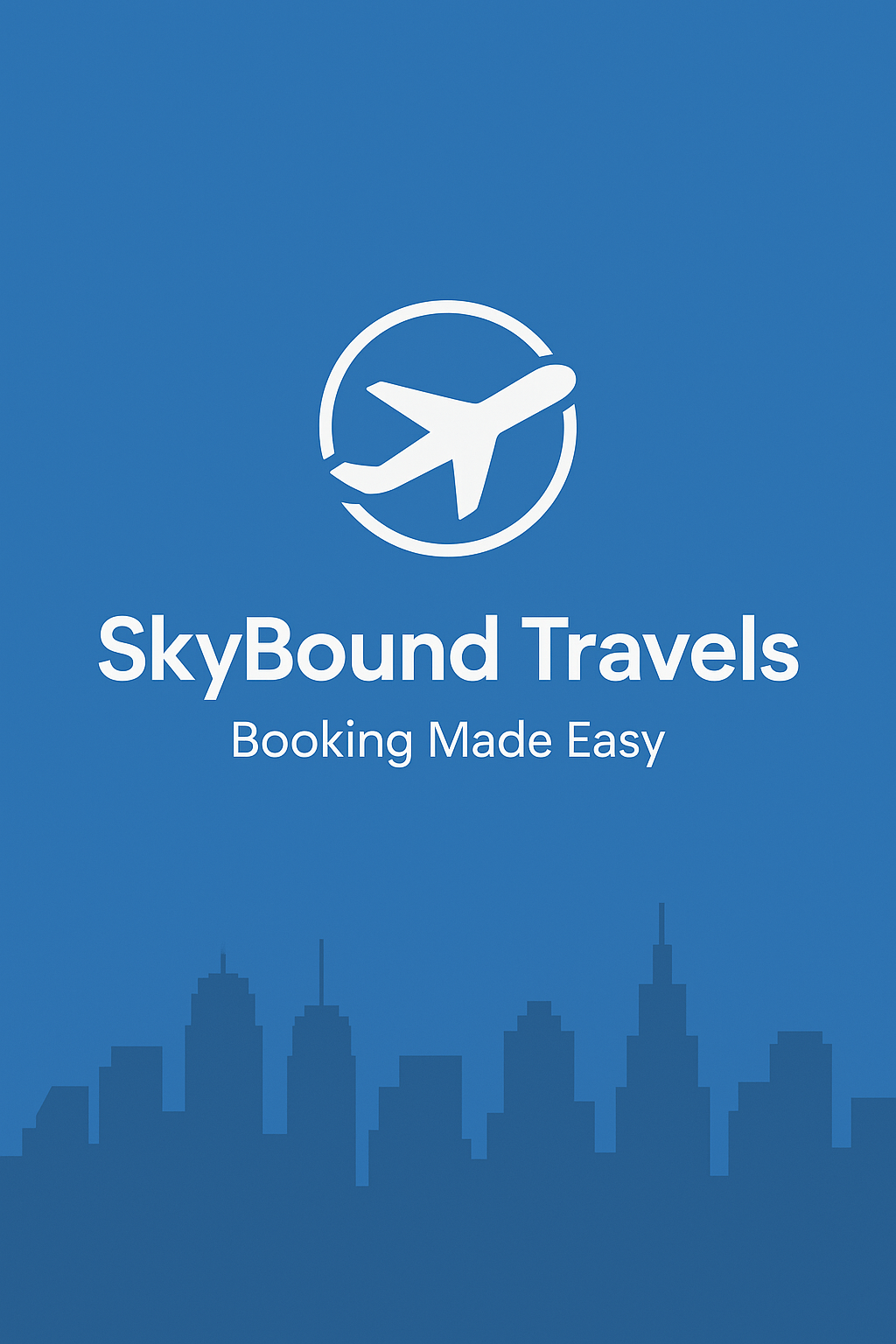
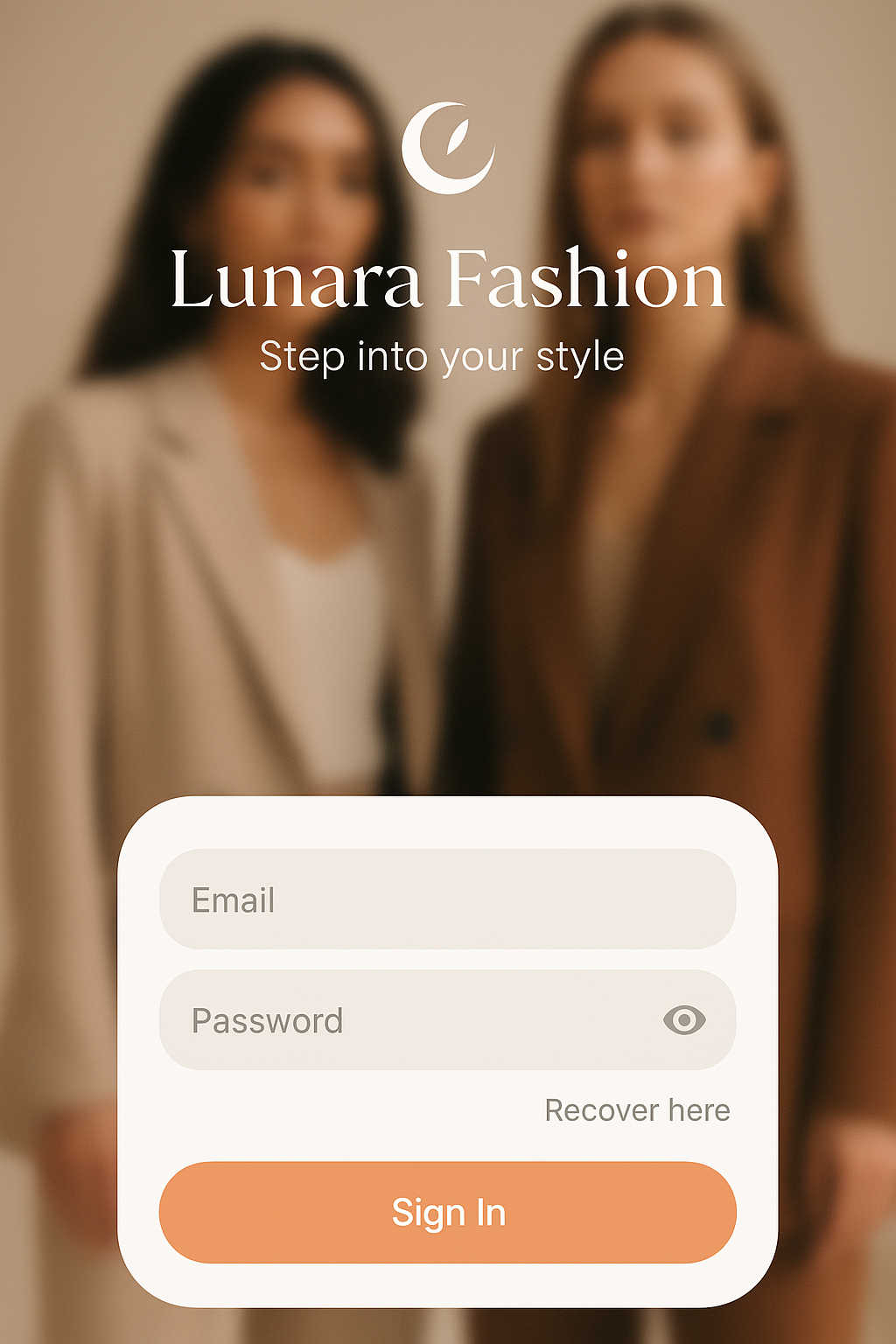
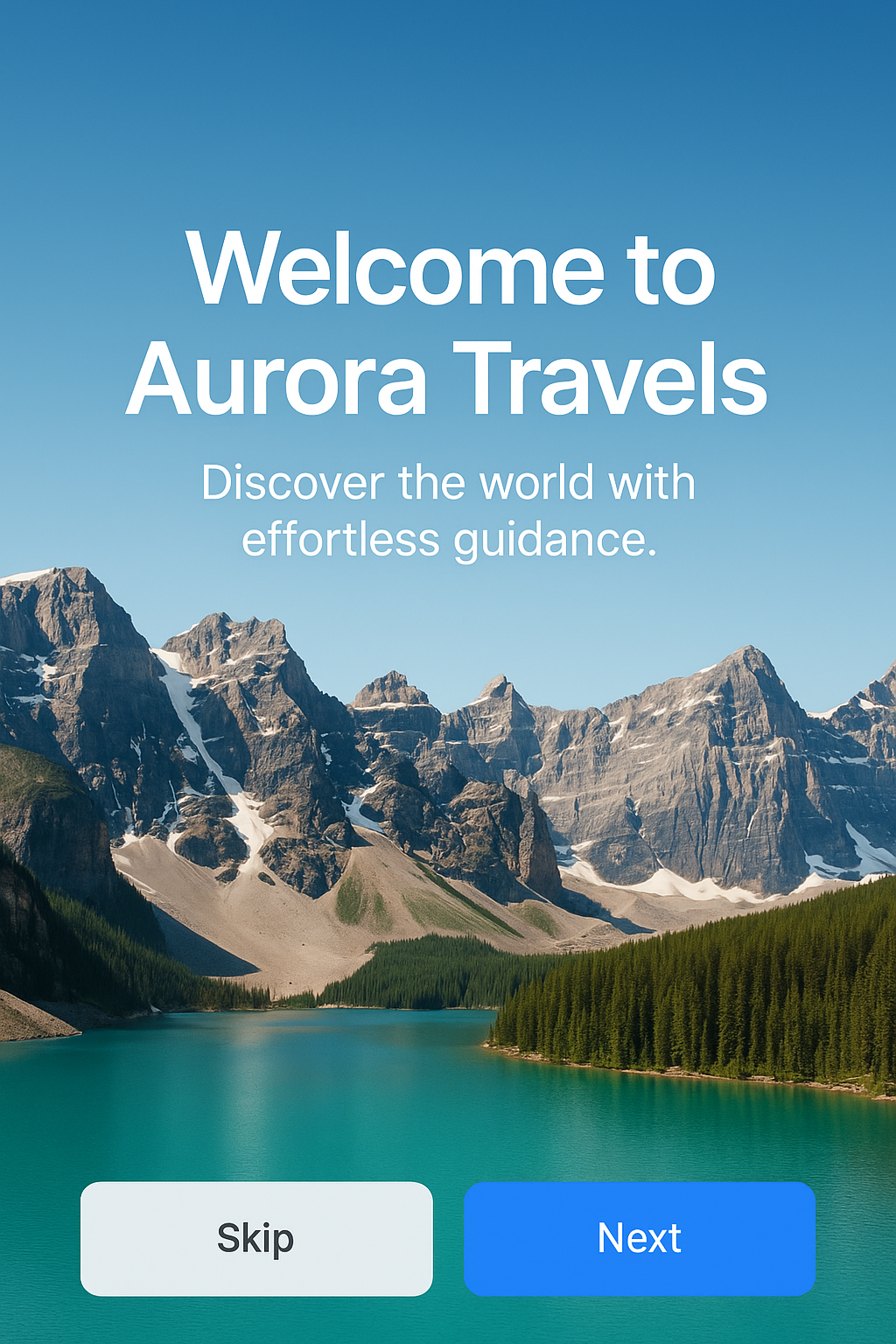
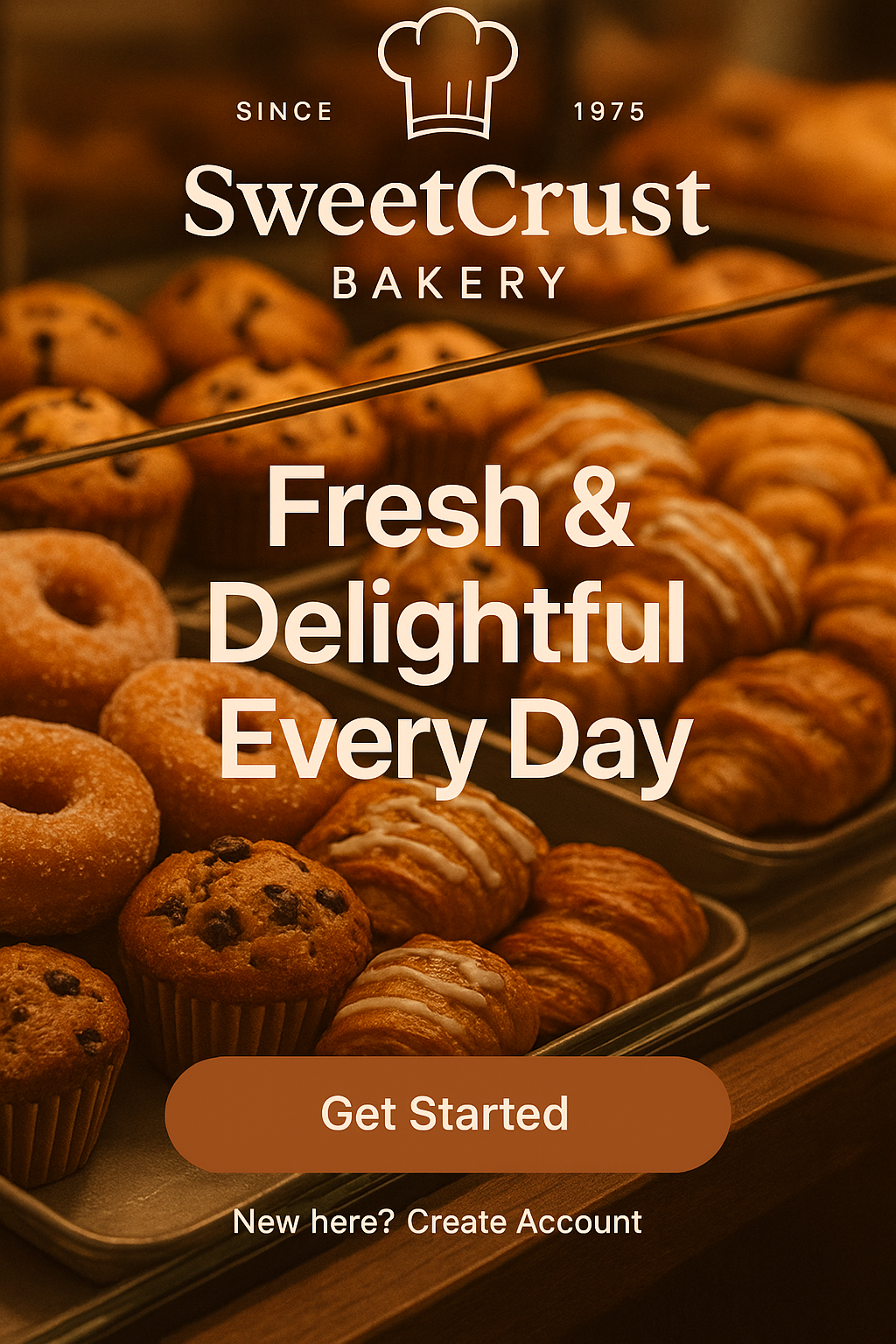
Review rejections
Four reasons Apple and Google bounce splash assets — and what Pixazo's defaults do to keep your AI app splash screen out of the rejection pile.
Apple Guideline 2.3.10
Apple rejects launch screens that show app name, "loading", or marketing copy. The launch screen must match the first interactive screen of the app, not advertise it.
Pixazo's iOS preset strips text by default — logo + background only.
Apple HIG
Apple's Human Interface Guidelines explicitly forbid animation on the launch screen — it should be a static image that feels like the first frame of the app.
The App Splash Screen Maker exports static PNG only — animation is offered as an optional Android intro instead.
Google Play 4.4
Google rejects splash designs that overlay the status bar or notch — system UI must remain visible. The 432 dp adaptive icon must respect safe-area insets.
Pixazo's Android preset uses the adaptive-icon spec — the status bar is guaranteed visible.
Google Play 4.5
Splash that visibly delays app launch counts as a "loading" screen and triggers rejection. Total splash-to-interactive time must be under 4 seconds.
Pixazo exports static assets only — timing remains your app's responsibility.
Limits
If your project depends on any of these, you'll want a different tool. We'd rather you know up front than ship something that surprises you mid-build.
The App Splash Screen Maker exports static images only. Apple rejects animated launch screens anyway, but Android allows them via Lottie or video — you'll need After Effects → Lottie or a motion tool for that.
The App Splash Screen Maker outputs a single PNG or JPG at the canvas size you pick. It does not generate a multi-size Storyboard asset catalog, Android XML drawable + theme, or a packaged manifest. You drop the generated image into the matching slot in your project yourself.
Splash and onboarding are different surfaces. Splash is the first 1.5 seconds before app launch; onboarding is the swipe-through after. Pixazo handles splash only — onboarding is a separate generator.
App Store Connect's Custom Product Pages and Google's Store Listing Experiments are great for testing splash variants. The AI App Splash Screen Maker generates the assets; the A/B test infrastructure is on you.
We follow Apple's HIG and Google's Material 3 defaults — but reviewers exercise judgment. We can avoid common rejection causes, not guarantee outcomes.
Trusted by developers
"I needed a launch screen for a fintech iOS app and didn't want to spend a day in Figma. Set the canvas to 1170 × 2532, two prompts later I had a clean dark-mode splash that dropped straight into Assets.xcassets. The App Store review passed first attempt."
"The Pixazo AI App Splash Screen Maker is the fastest way I've found to get a 432 × 432 adaptive icon for the Android 12+ Splash Screen API. I picked the brand color, prompted a minimal logo treatment, dropped the PNG into res/drawable. Done in ten minutes."
"For our PWA we needed maskable icons at 192 and 512. I generated each size separately with the same prompt and got matching designs both times. Way faster than briefing a designer for what is essentially a one-line job."
FAQ
Ten questions developers ask most often before using the App Splash Screen Maker.
res/drawable and reference it in your Splash Screen theme XML.The AI App Splash Screen Maker is free to preview. Pay only when you download the finished splash image at iOS, Android, or PWA dimensions.
Open the App Splash Screen Maker →