YouTube Banner Size Guide 2026 (Every Device, With Templates)

Your channel banner is the first thing people see when they open your page. The tricky part is that YouTube shows the same image at different sizes on a TV, a laptop and a phone. Get the size wrong and your logo can be cut off on mobile.
Here is the simple rule. Make your banner 2560 x 1440 pixels, and keep your logo, name and main text inside the middle box of 1546 x 423 pixels. That middle box is the safe area. It shows on every device. This guide gives you the exact size for each screen, with real banner examples you can copy. You can build one in a few minutes with the YouTube banner maker.
The one rule: design inside the safe area
You upload one 2560 x 1440 image. YouTube then trims it from the centre to fit each screen. Only the middle 1546 x 423 box is sure to show on every device, phones included. That box is the safe area.
So think of your banner in two parts. The safe area holds the things people need to see: your logo, your channel name, your upload days. The space around it is just background. It can be cut off, so never put anything important there.
full upload canvas
Keep the lime box clean. Put your name, logo and key text inside it. Let the background art fill the rest.
The same banner on every screen
Here is one real banner, shown the way YouTube displays it on three devices. The TV shows the whole image. The desktop shows a wide strip. The phone shows only the middle. This is why the safe area matters.
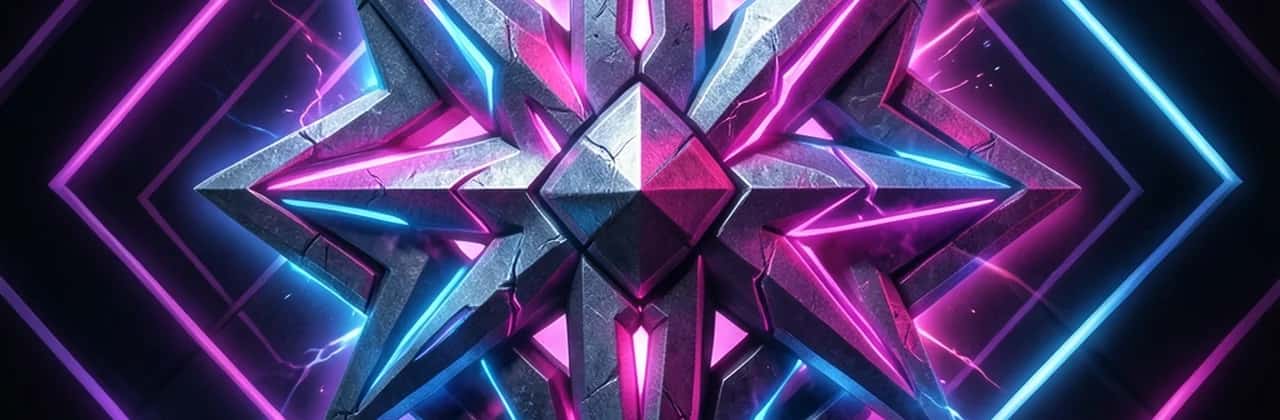
The emblem stays visible on all three because it sits in the middle, inside the safe area. Made with Pixazo AI.
YouTube banner size for each screen
You still upload one 2560 x 1440 image. These are the sizes people actually see on each device:
Four banner styles that work
Each of these keeps its main subject in the safe area while the art fills the frame. Pick one as a starting point, then swap in your own name and colours.
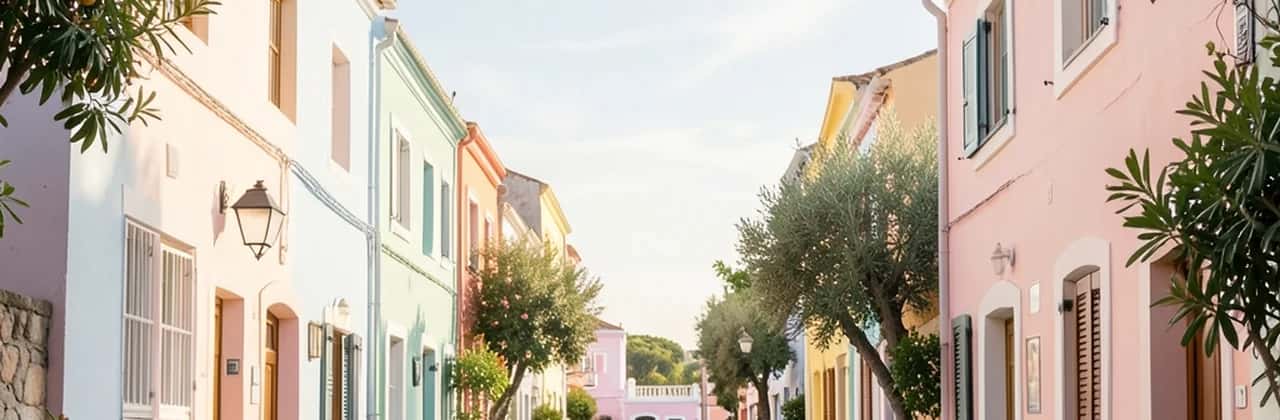

Four banner styles made with Pixazo AI. Every one keeps its subject in the safe area.
Where does your banner show up?
Your banner is used in more than one place, and each place shows a different part of it. That is one more reason to keep the message in the middle.
The main view every subscriber sees. It is widest on desktop and shows the safe area only on mobile.
A thin slice can appear next to your channel in search results. It needs to read at small sizes.
Smart TVs and game consoles show the full 2560 x 1440, so the outer art finally gets seen.
The YouTube phone app shows a narrow crop. The safe area is doing all the work here.
Suggested Read: 9 Best AI Image Extenders and Uncrop Tools
File specs and export settings
Use these settings when you save your banner so it uploads cleanly and stays sharp:
One tip on quality. Heavy JPG compression can leave banding on flat colours and gradients. If your banner is mostly text and a logo, PNG often looks cleaner. If it is a photo, save it as a high-quality JPG under 6 MB.
Suggested Read: Top 15 YouTube Banner Ideas for Your Channel
Make your banner in 4 steps
Open the Pixazo YouTube banner maker and click Get Started. It loads an AI banner generator with a YouTube banner prompt ready to go.
Edit the prompt with your channel name, style and colours, and ask for the key text and logo to sit in the centre so nothing important gets cropped on mobile. You can also upload your own logo or photo.
Choose the 16:9 banner shape so it matches YouTube, then hit Generate. It uses a few credits, and new accounts get 300 free credits to start.
Download your banner, then add it in YouTube Studio under Customisation, then Branding.
Suggested Read: The Best AI Banner Generator Tools in 2026
Common mistakes, and how to fix them
Fix: Move every word back into the 1546 x 423 box. The edges are the first thing phones cut off.
Fix: Always start at 2560 x 1440. Making a small image bigger adds blur you cannot remove.
Fix: Add a soft shadow or a solid panel behind the text so it stands out over busy art.
Fix: Keep the lower middle calm. Your round profile picture sits over that spot on desktop.
Suggested Read: The Ultimate Guide to Social Media Image Sizes
Quick checklist before you upload
- The canvas is 2560 x 1440 px, 16:9.
- Your logo, name and main text sit inside the 1546 x 423 safe area.
- Nothing important is in the lower middle, where your profile photo overlaps.
- The text is still readable when you shrink the preview to phone size.
- You saved it as a JPG or PNG in sRGB, under 6 MB.
Suggested Read: How to Create a Professional LinkedIn Banner
Final word
YouTube banners come down to one habit. Build at 2560 x 1440, but treat the middle 1546 x 423 safe area as the real space. Do that and your banner looks sharp on a phone, a laptop and a TV.
It also helps to update your banner now and then. When you change your schedule, start a new series or run a seasonal promo, refresh it so new visitors see what your channel is about today. The safe area never changes size, so getting it right stays simple. And the Pixazo YouTube banner maker lets you generate a fresh 16:9 banner from a short description whenever you need one.
Suggested Read: YouTube Channel Design: A Complete Guide
Frequently Asked Questions
Q. What is the correct YouTube banner size in 2026?
Upload a 2560 x 1440 px image in 16:9. YouTube crops it for each device, so keep your important content inside the middle 1546 x 423 px safe area.
Q. What is the YouTube banner safe area?
It is the middle 1546 x 423 px of your banner. This part shows on every device, including phones. Keep your logo, channel name and main text inside it.
Q. What is the minimum YouTube banner size?
2048 x 1152 px is the smallest size YouTube accepts. 2560 x 1440 px looks sharper, so use that when you can.
Q. What file type and size should a YouTube banner be?
Use a JPG, PNG, BMP or still GIF, in 16:9, and keep the file under 6 MB.
Q. Why does my YouTube banner look cut off on mobile?
Phones only show the middle safe area. If your text was outside the 1546 x 423 box, it gets cut off. Move it to the middle and upload again.
Q. How do I make a YouTube banner for free?
Open the Pixazo YouTube banner maker and click Get Started. Describe the banner you want, choose the 16:9 shape, then generate and download it. New accounts get 300 free credits to start, and you upload the finished banner in YouTube Studio under Customisation, then Branding.
Deepak Joshi
Author · Pixazo
Deepak writes about generative AI models, APIs, and the workflows teams use to ship them. Reviewed by Abhinav Girdhar.