Retro Poster : Create Free Retro Posters in Minutes with AI
Create Custom Retro Posters Quickly with Pixazo Best AI Retro Poster Maker. Try for Free!
Get Started
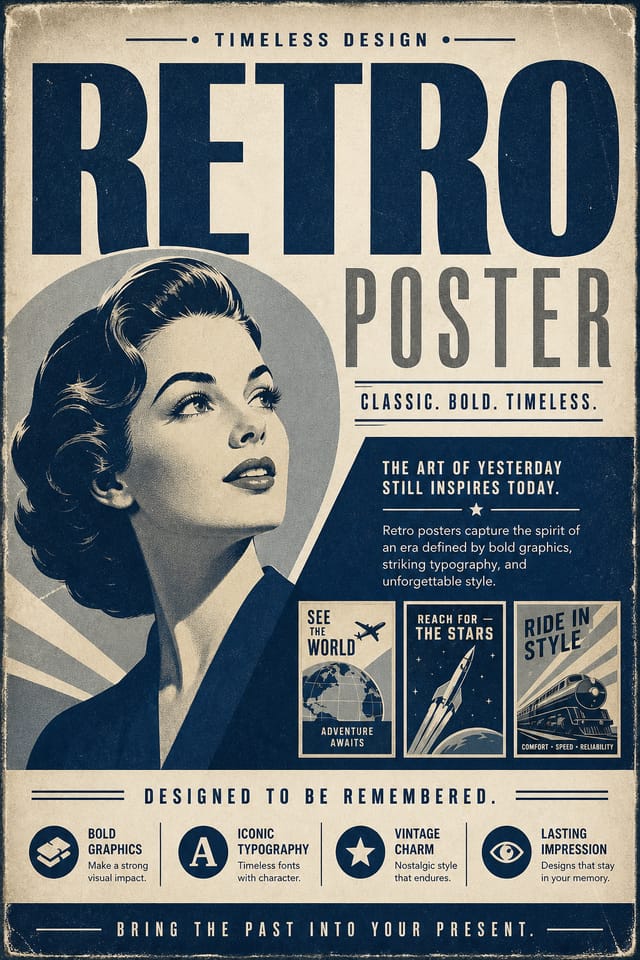
Retro Design Community: Community Creations
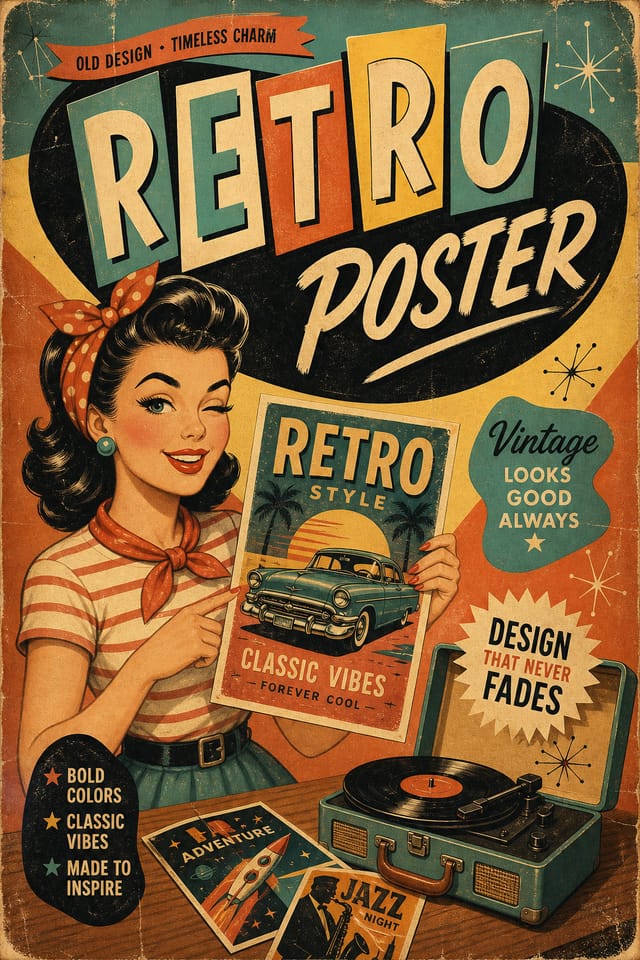
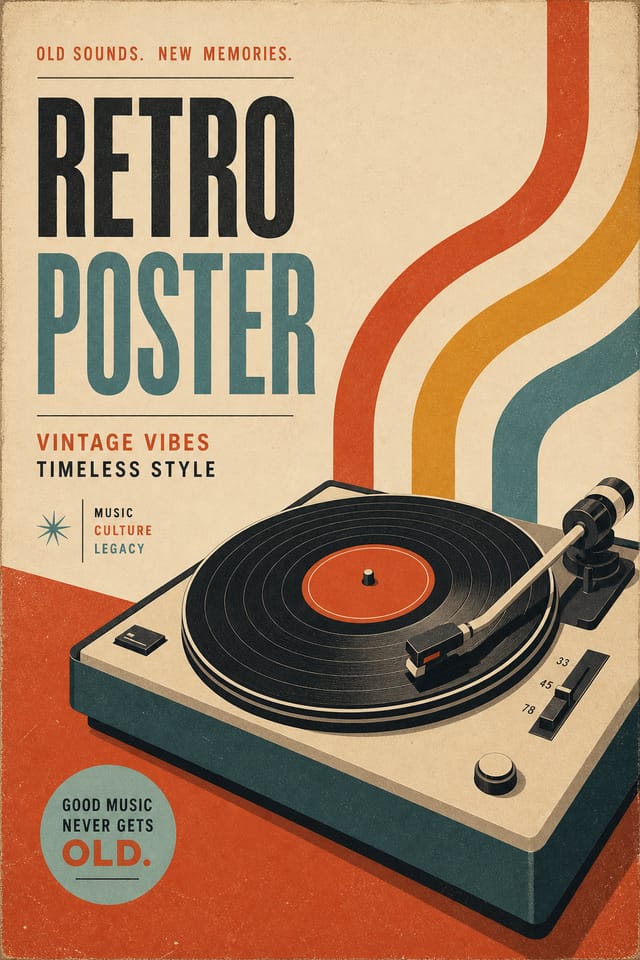
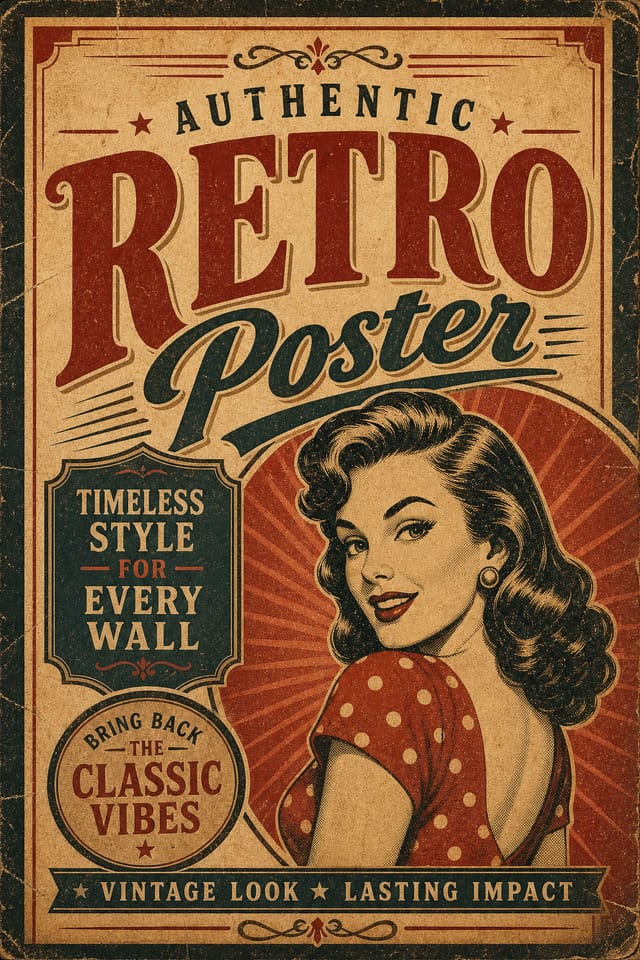
Real creators sharing their retro designs made with Pixazo AI.

Retro poster design, clean typographic hierarchy, palette appropriate to retro aesthetic, high contrast headline, balanced composition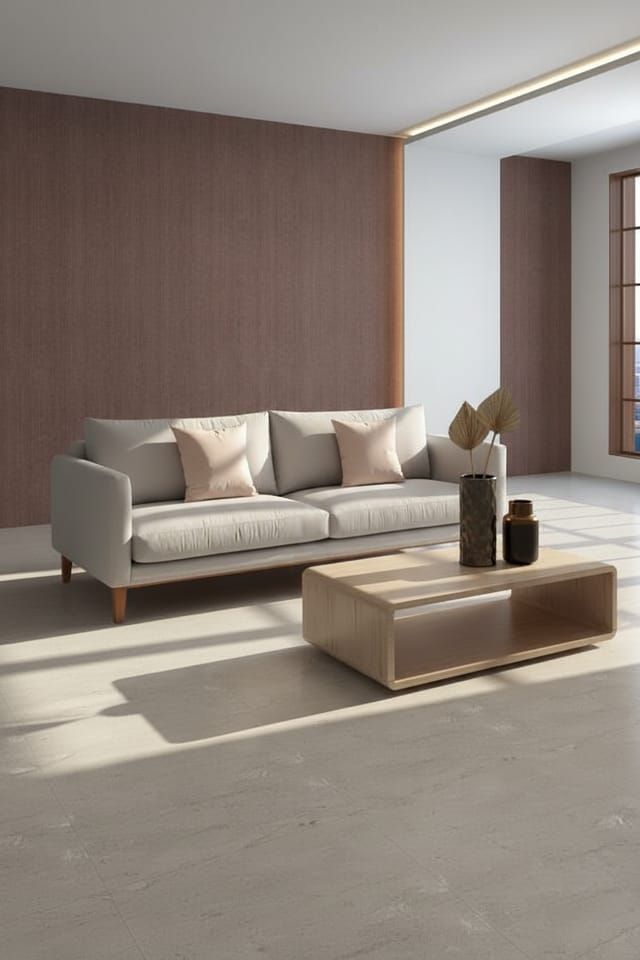
Handmade-feel retro poster with brush stroke textures, imperfect edges, warm color palette, artisanal craft aesthetic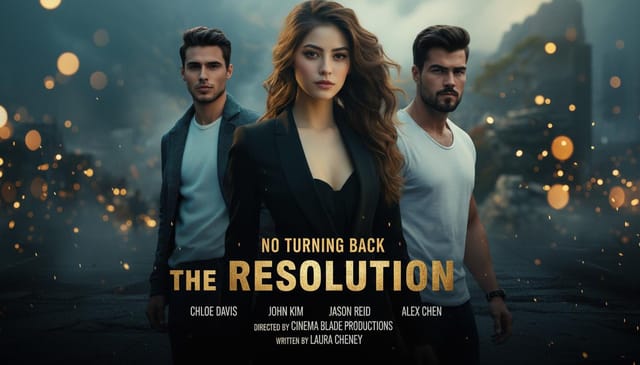
Geometric retro poster design, angular composition, color in blocks, structured grid, no decorative flourishesWho Creates Retro Posters: Who Benefits Most
Religious and Spiritual Organizations
Create retro posters for worship services, community outreach, and faith-based events. Respectful designs that reflect the organization's character.
Educational Materials
Design retro posters for educational contexts. Courses, workshops, and learning materials benefit from the visual clarity of good retro design.
Music and Audio Production
Produce retro posters for album covers, playlist artwork, and music event promotion. Visual identity that matches the sound.
Freelance Design Work
Use Pixazo to generate retro poster concepts for client review. Present multiple directions quickly before committing to detailed execution.
What Powers Retro Poster Design: What It Can Do
Text Placement Options
Describe where you want text elements positioned in your retro poster. The AI follows compositional direction about headline placement and body copy layout.
Color Palette Intelligence
Colors are chosen with retro style awareness. The AI builds palettes that fit retro design conventions rather than selecting arbitrarily.
Color Temperature Control
Specify warm, cool, or neutral color direction for your retro poster. The AI builds the full palette around your temperature preference.
Export Flexibility
Download your retro poster in formats suited for your use case. Web-optimized versions for digital display, high-DPI files for print.
Style-Accurate Generation
The AI interprets retro design conventions and applies them to your poster, producing output that looks correctly styled rather than generically templated.
Compositional Structure
Layout and hierarchy decisions reflect retro design patterns. The proportions and arrangement match how retro designs are conventionally structured.
Comparing Retro Poster Tools: An Honest Look
Adobe Express
Streamlined creative tool backed by Adobe's design ecosystem
Pixazo
AI-powered retro poster generator with prompt-based design and professional output quality
Crello
Template-based design tool with animation and video support
Piktochart
Infographic and presentation maker for data-driven visuals
Snappa
Quick graphic creator focused on social media and marketing visuals
Retro Poster Aesthetics: Worth Exploring
Textured Retro
Retro design with added surface depth. Background treatments add visual interest without disrupting legibility.
Contemporary Retro
Current retro design sensibility with updated proportions, modern typefaces, and contemporary color relationships.
Minimalist Retro
Stripped-back retro approach. Fewer elements, more negative space, typography carries more visual weight.
Atmospheric Retro
Retro poster design where mood takes priority. Color and composition work together to create a specific feeling.
High-Contrast Retro
Bold retro visual treatment with strong tonal contrast. Elements read clearly at any viewing distance.
Get Your Retro Poster: The Simple Process
Convey Your Needs
Describe what you want your retro poster to look like. Include the mood, color palette, typography preference, and content hierarchy. Pixazo reads all of this and uses it to generate an appropriate design.
Review the Output
The AI produces a retro poster based on your description. If the first result isn't exactly right, adjust the prompt to address what needs changing. Most designs reach the target within a few iterations.
Calibrate the Final Version
Refine the retro poster by updating your description with precise changes. Add constraints you didn't include initially or remove elements that aren't working. The AI responds to specific direction.
Pocket the Design
Export your retro poster in the format you need. PNG for web and social, PDF for print production, JPG for email and lightweight sharing. The file is yours to use commercially without restrictions.
Retro Poster Specifications
Watch: Creating Retro Poster designs step by step
Retro Poster Starter Prompt Formulas
Copy any prompt below and paste it into Pixazo to generate your design instantly.
Monochromatic retro poster, single-hue palette with value variation for contrast, typographic hierarchy creates visual interest without color complexityAtmospheric retro poster, background treatment supports the headline without competing with it, visual weight distributed intentionallyEditorial-style retro poster, text-dominant design, typographic treatment carries visual weight, layout proportions inspired by print publication designRefined retro poster, sophisticated color relationships, intentional whitespace, typefaces appropriate to retro style, balanced compositionPortrait-orientation retro poster, vertical composition, headline at natural reading entry point, supporting information flows downward logicallyRetro aesthetic poster, palette drawn from retro design tradition, layout proportions consistent with retro conventions, purposeful use of each elementYour Retro Poster Process: How It All Connects
Research
Collect examples of effective retro poster designs, note what works, and identify patterns relevant to your project goals.
Approve
Get stakeholder approval on the finished retro poster. Verify all text is accurate and the design meets brand and technical requirements.
Brief
Establish the key message, dimensions, color preferences, and target audience for your retro poster before any design work begins.
Review
Compare generated retro poster options against your brief. Mark what works and note specific changes needed for the next iteration.
Refine
Apply targeted edits to your selected retro poster. Adjust typography, spacing, and color until every element meets your quality standard.
Retro Poster Generation: What to Expect
Known limitations and trade-offs of AI-generated retro design. Every AI design tool has boundaries. Knowing these limits before you start helps you get the most out of retro poster generation.
New to Retro Posters? A Quick FAQ
Canva uses fixed templates you customize manually. Pixazo generates original retro poster designs from your description, so every output is unique. For retro work specifically, the AI applies style-specific design decisions rather than offering generic drag-and-drop templates.
Individual retro posters generate in seconds. For batch production, you can submit multiple prompts in sequence and download results as they complete. A series of ten retro poster variations typically takes under five minutes total.
Pixazo works in any modern mobile browser. The interface adapts to phone and tablet screens so you can generate retro posters from anywhere. A dedicated mobile app is in development for an even smoother on-device experience.
Yes. Set up separate brand kits for each client or brand, then switch between them when generating retro posters. Each brand kit stores its own colors, fonts, and logo so the AI applies the correct identity to every retro poster without manual reconfiguration.
Designs created with Pixazo are available for commercial use. You can use your retro posters for client projects, product sales, advertising, and other commercial applications without additional licensing fees.

