AI Face Swap Online
Swap faces in photos and videos with AI for Free.
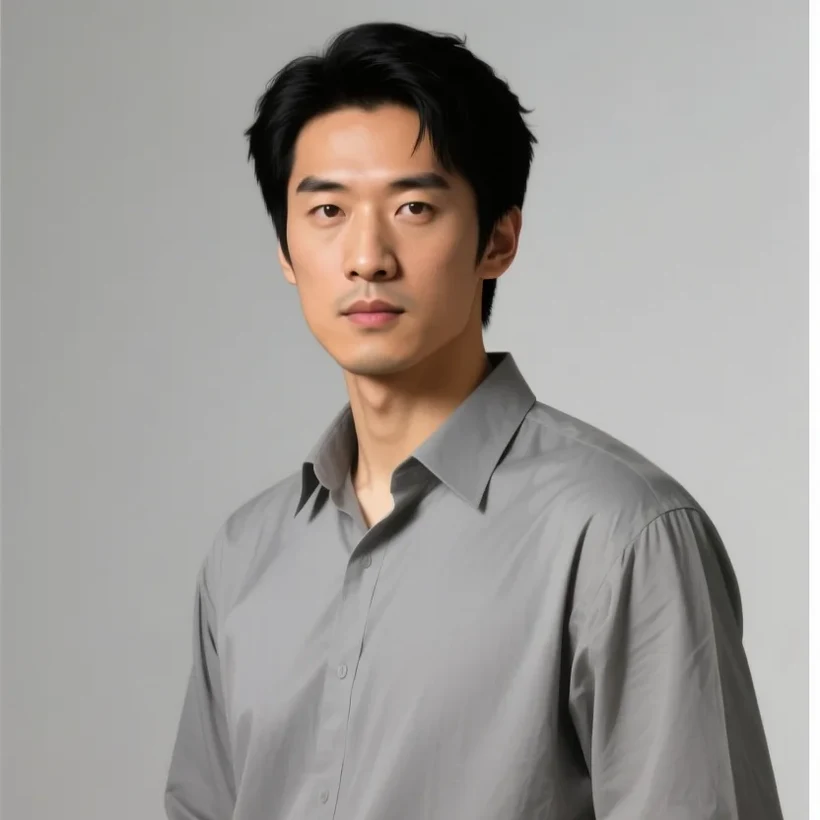
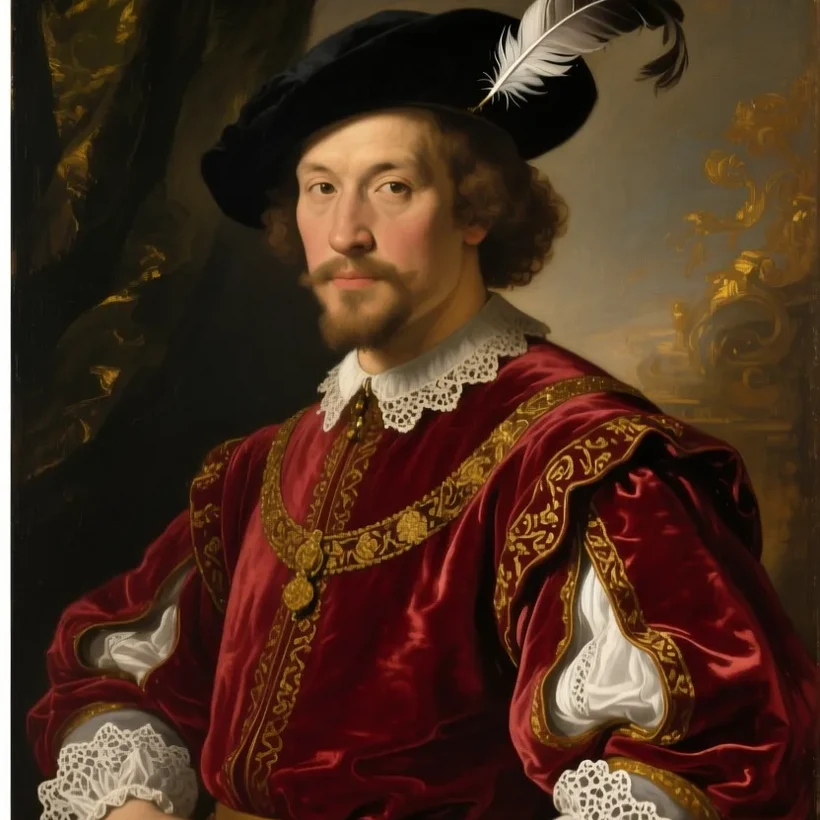 BEFOREAFTER
EXPOSURE 52%
BEFOREAFTER
EXPOSURE 52%
In a nutshell
What is AI Face Swap?
AI Face Swap is a free, browser-based tool that lays your face onto a target photo — an era, a costume, a character — and blends it with matching light and skin tone. Upload one clear source photo, pick a look, and preview the swap in real time; open it in the Pixazo editor to refine and download. No install, no sign-up to preview.
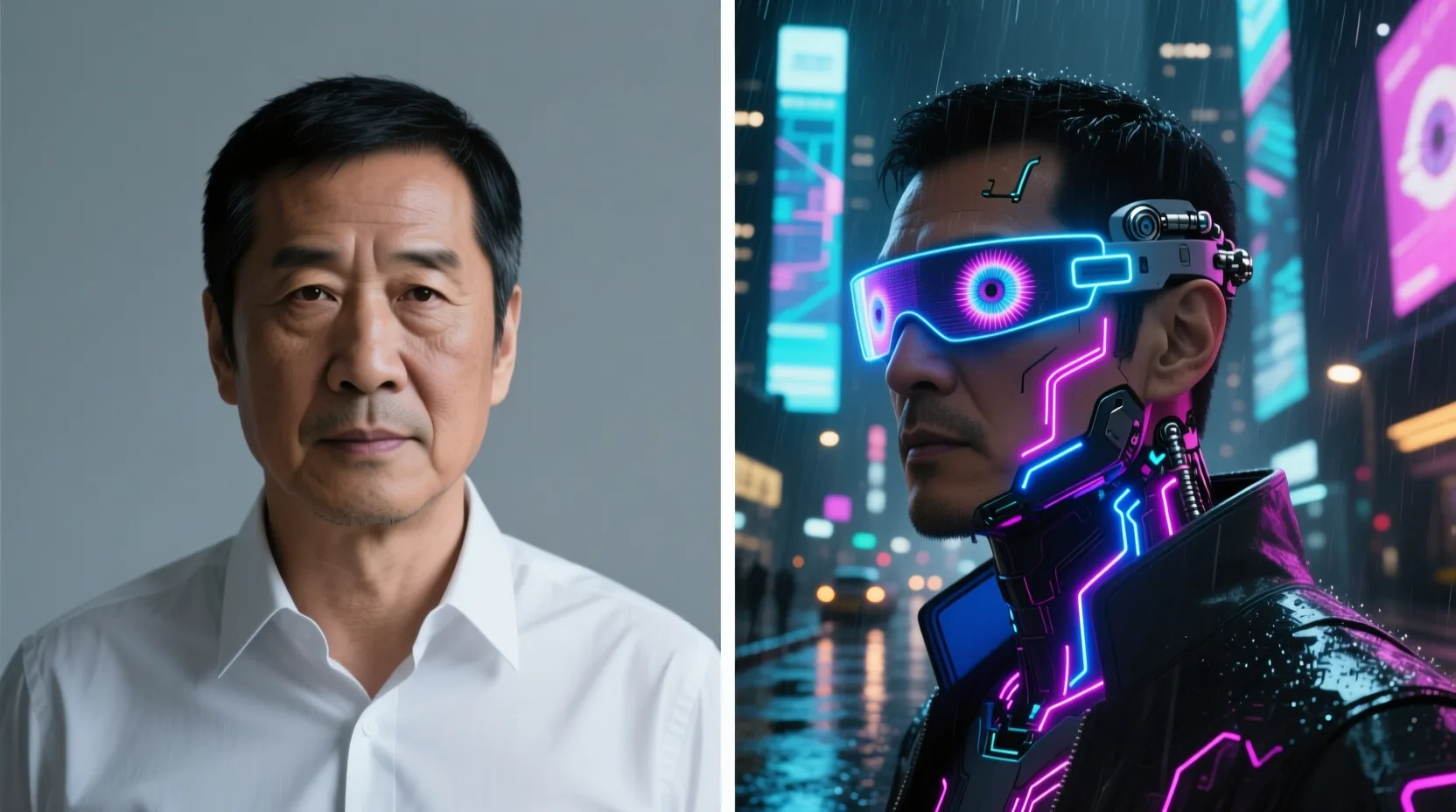
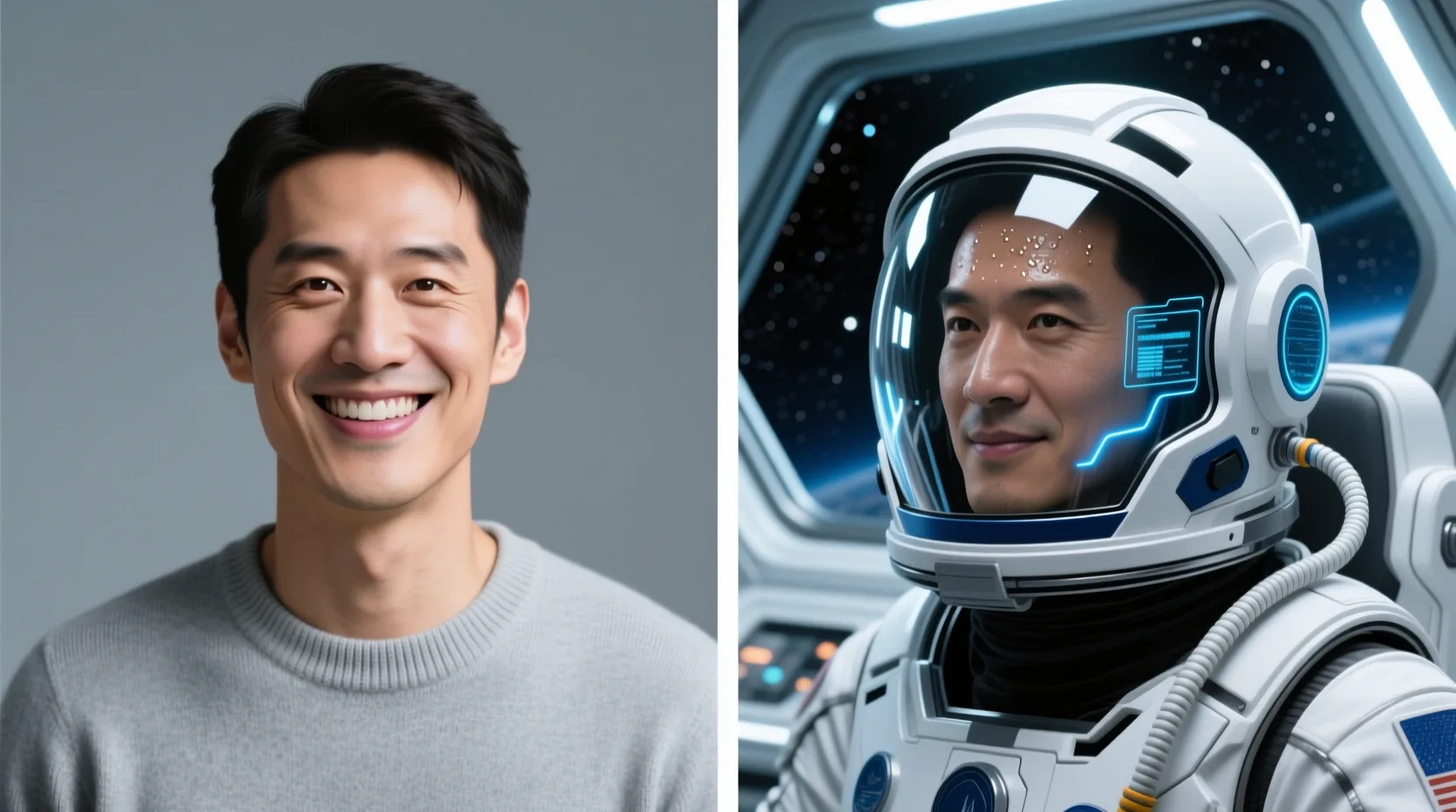
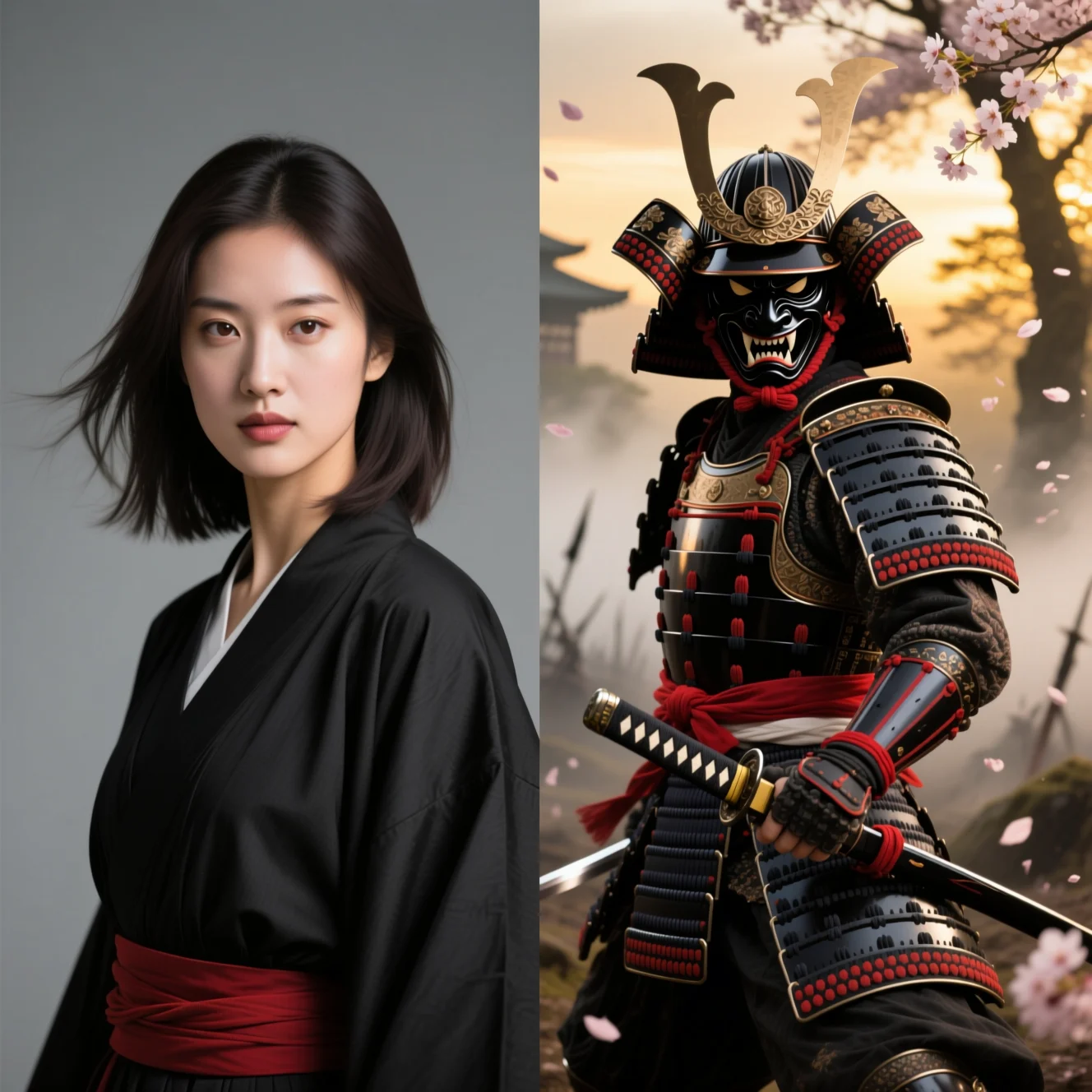
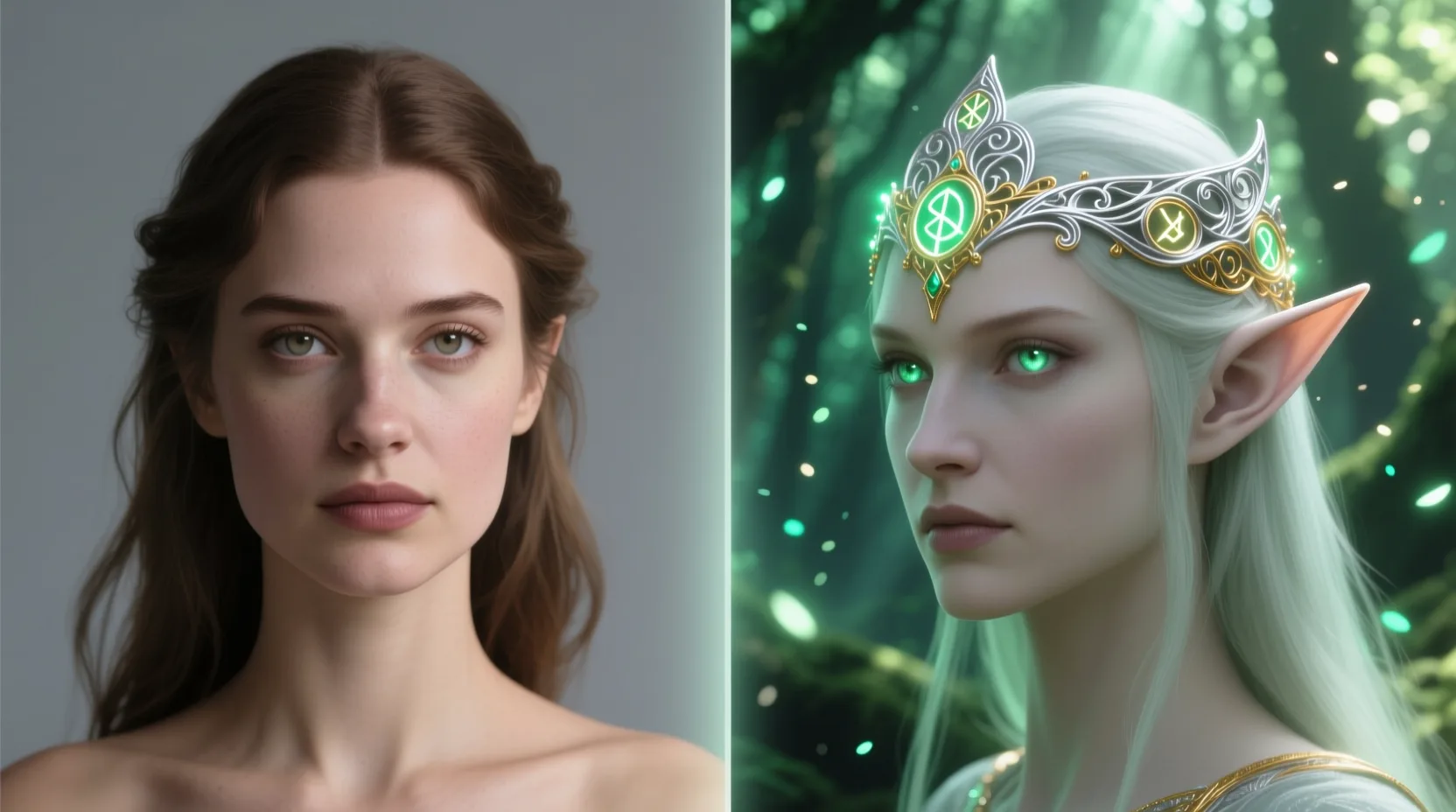
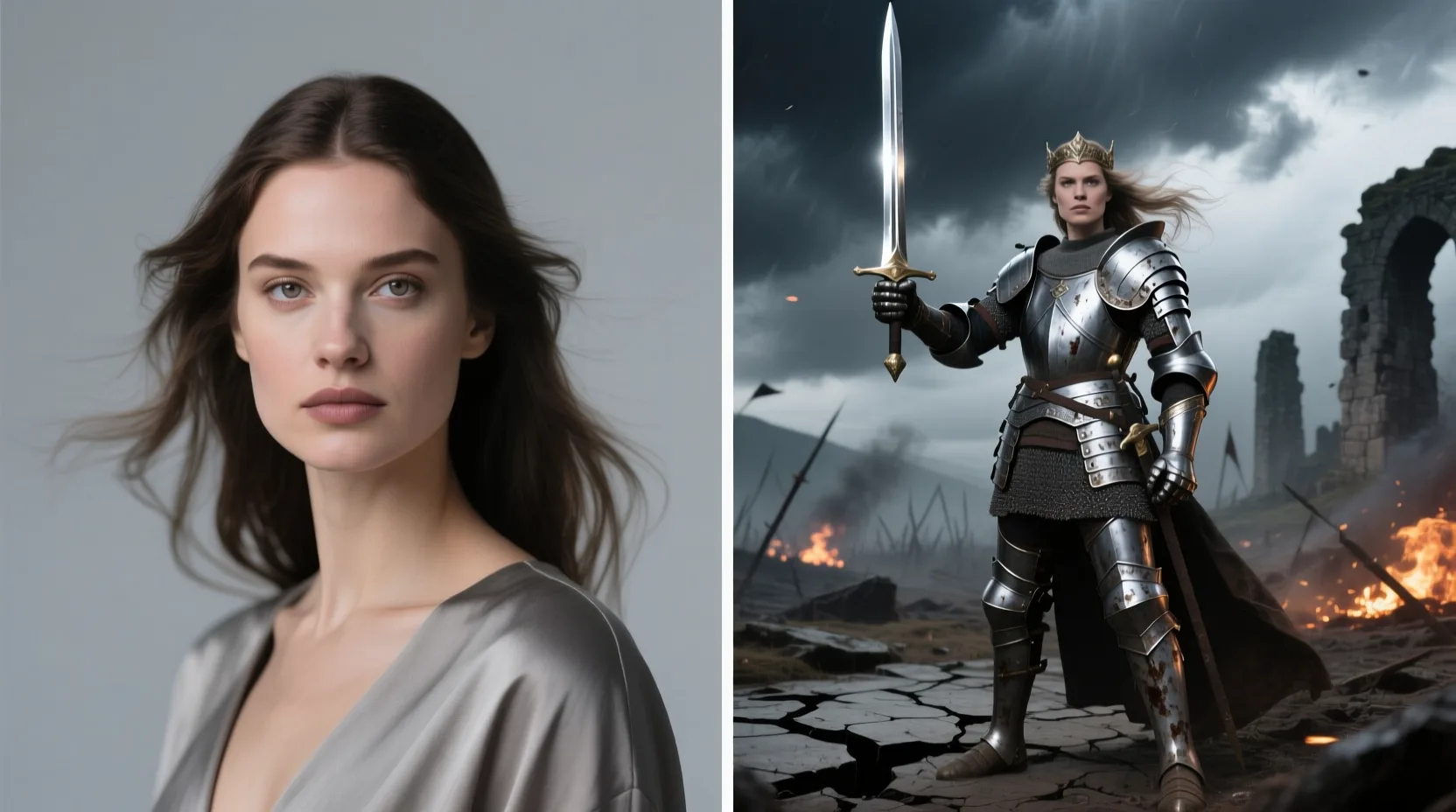
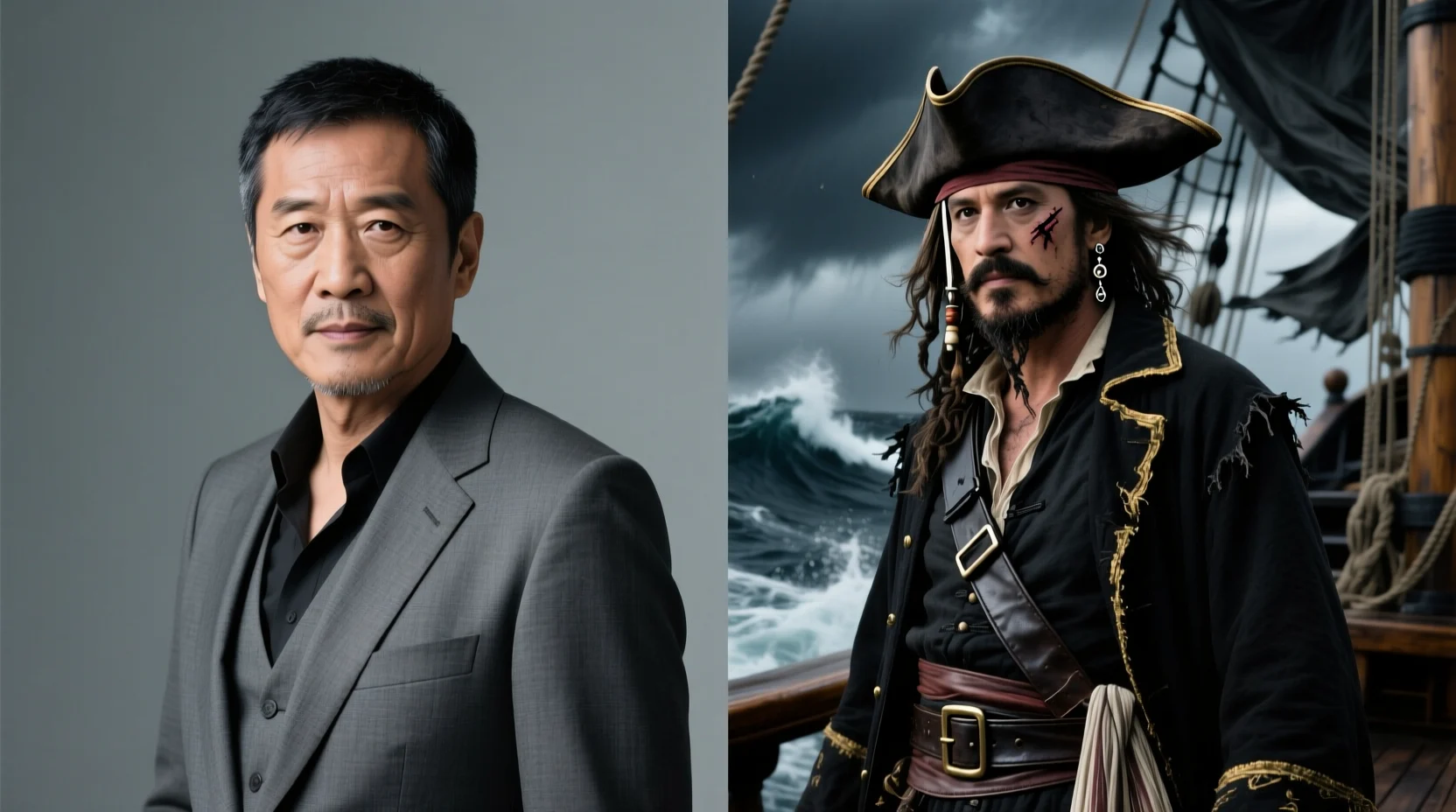
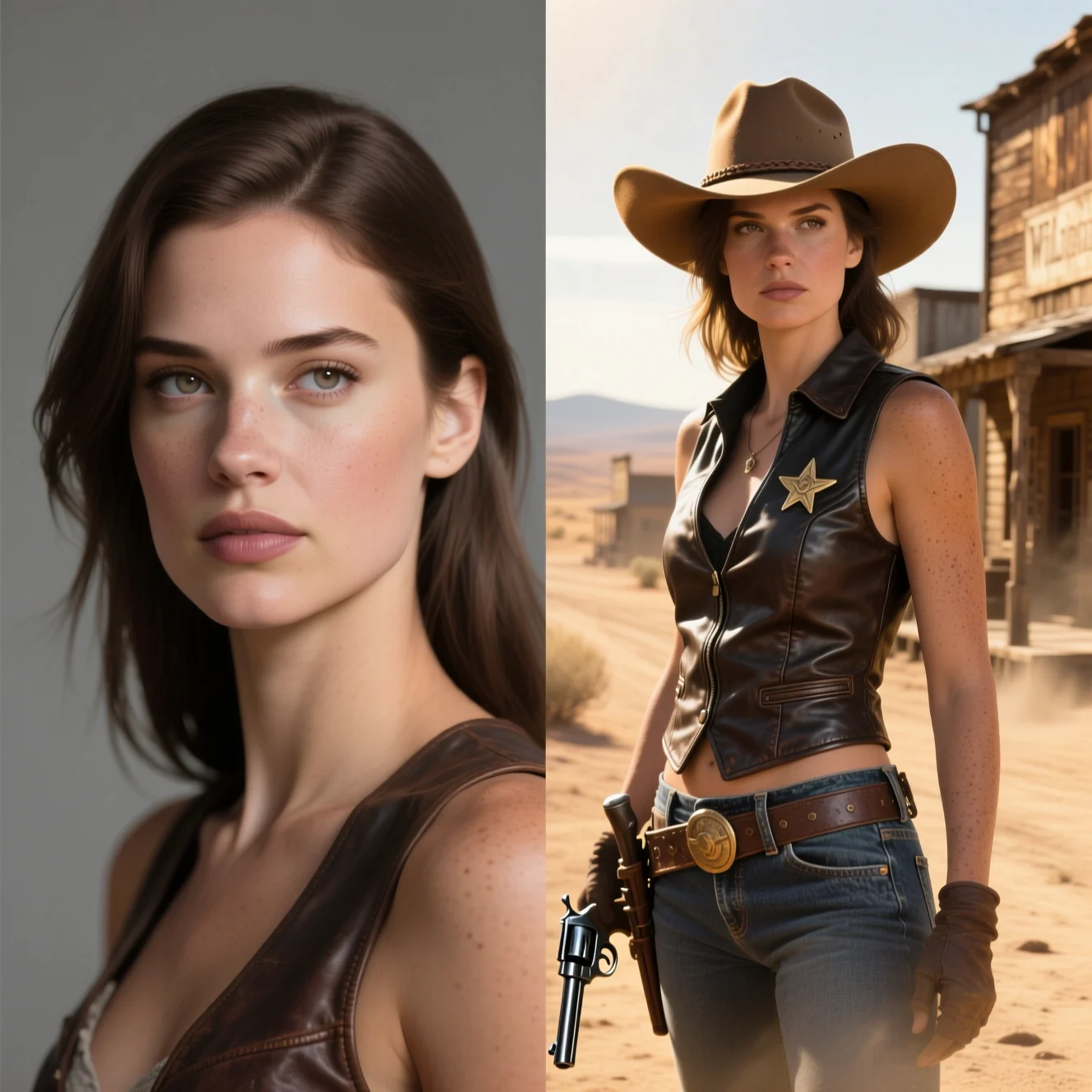
It’s built for people who have the right to the photos they use: creators and cosplayers auditioning a look, friends making throwback-portrait gifts, and social creators building poster homages. Every before-and-after on this page was generated with Pixazo’s AI (PixelForge) and is illustrative — results vary by source photo.
You’ll also see it called a face swapper, an AI faceswapper or face change AI — it’s the same free AI face swap. What makes it different is the light-table workflow: you swap faces one source at a time, see exactly what changed with the loupe, and keep full control — a photo face swap that’s honest about consent and about what the AI can and can’t do.
Before you lay a face down
Responsible use & consent.
- ✓Only swap faces of yourself or people who have given you permission.
- ✓No non-consensual, deceptive or harmful use, and nothing that misleads about a real person.
- ✓No swaps involving minors. A photo face swap is for creative, respectful use only.
- ✓Uploads are screened by an automated safety filter before processing. See our Terms of Use.
Step by step
How do you swap faces with AI?
Upload your face and a target photo, add an optional instruction, then generate — the AI blends the face with matching light and skin tone. Three steps, start to download.
01
Upload your face + target photo
Open the Face Swap tool and add both images in the upload box — your face and the photo you want it on. JPG, PNG or WEBP, up to 16 files.
02
Add an instruction & pick a size
Optionally type what to do — e.g. “put the face from the second image onto the person in the first” — then choose your output photo shape.
03
Generate & download
Hit Generate and the AI renders the swap. Your result appears under History, ready to open in the editor and download.
Who works at the table
Who uses AI face swap?
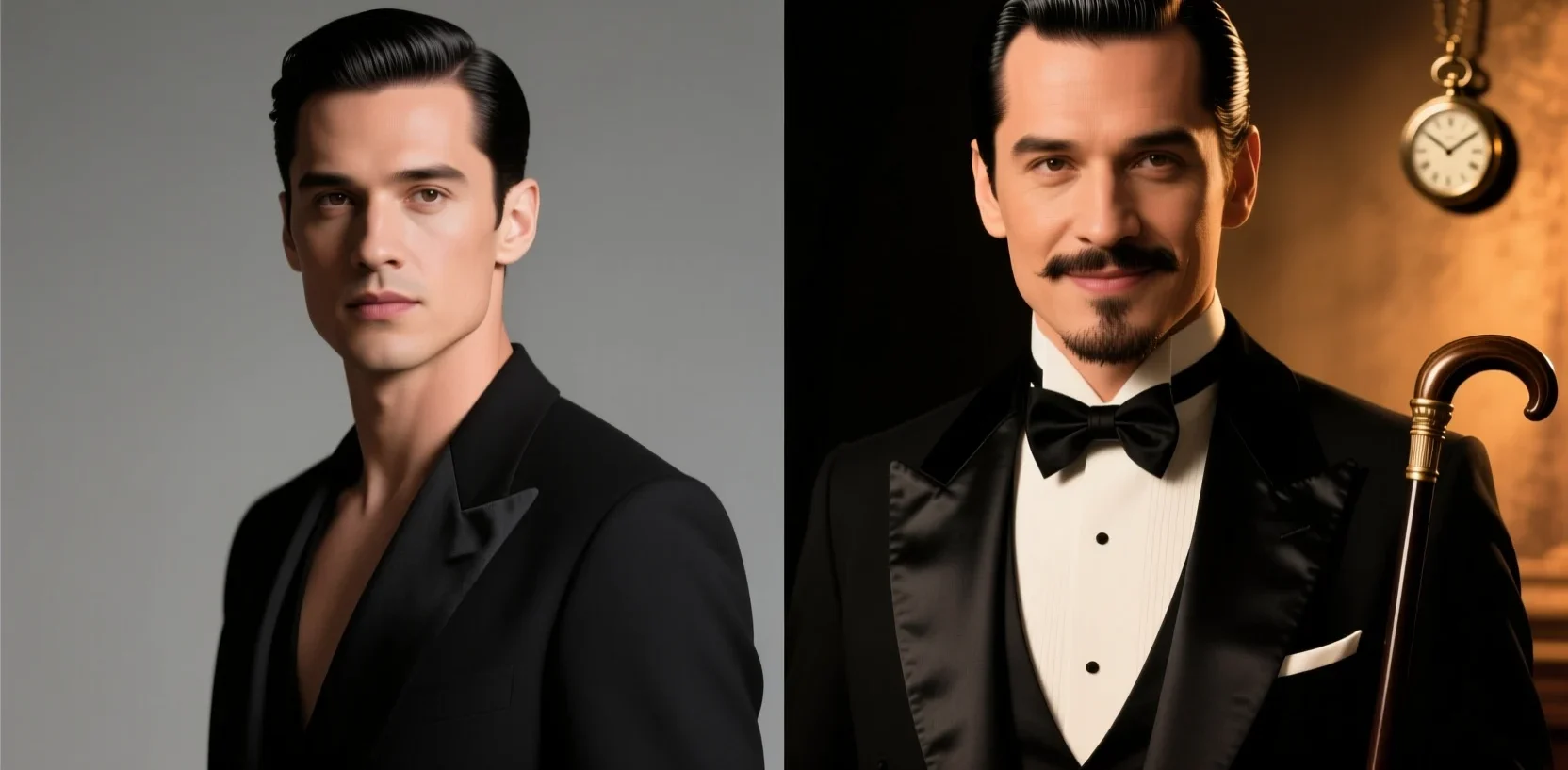
Cosplayers & fans
Audition your face into a character before a shoot — an AI face swap online in seconds.
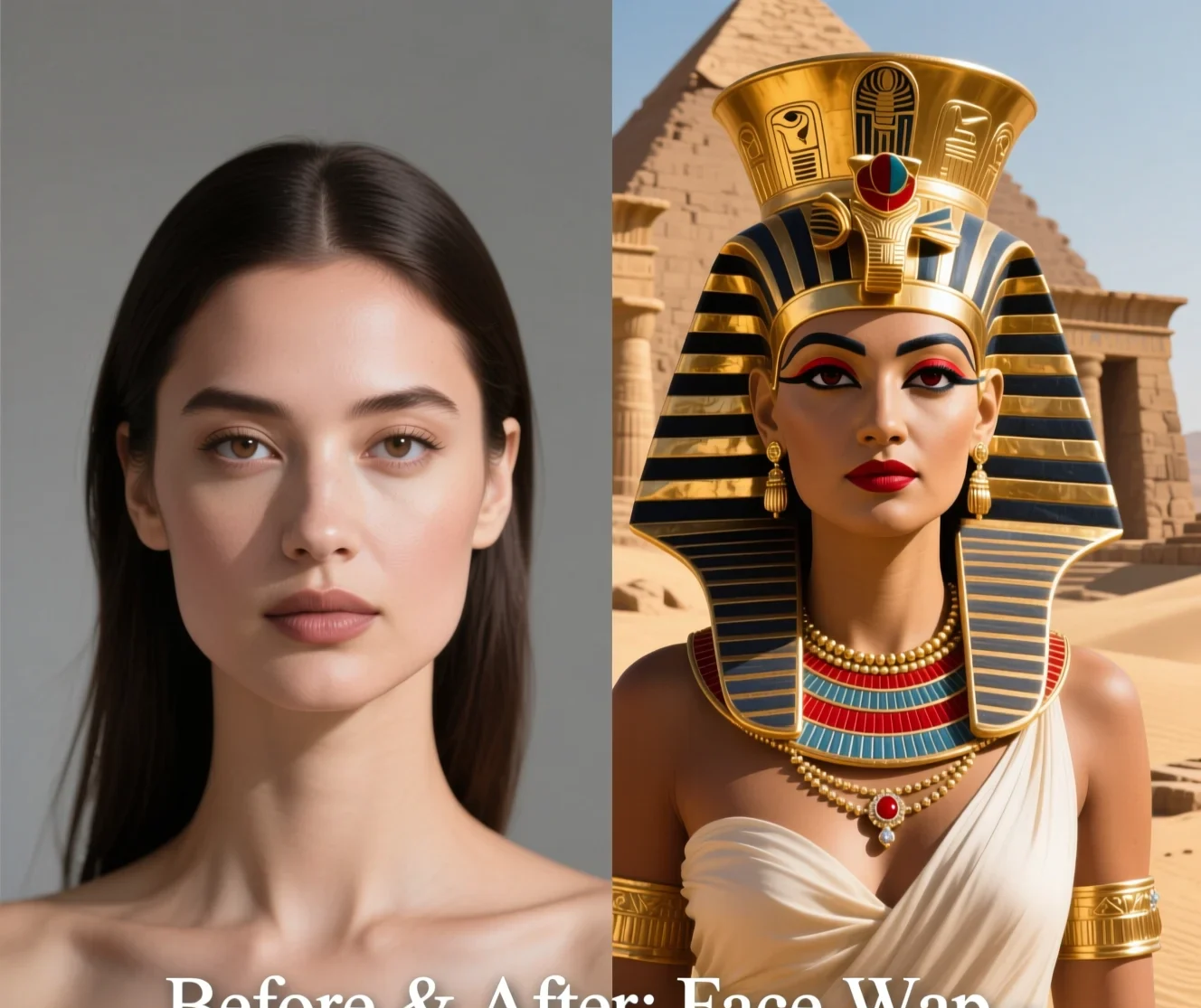
Throwback gifts
Turn a loved one into a Renaissance portrait or a vintage star for a one-of-a-kind gift.
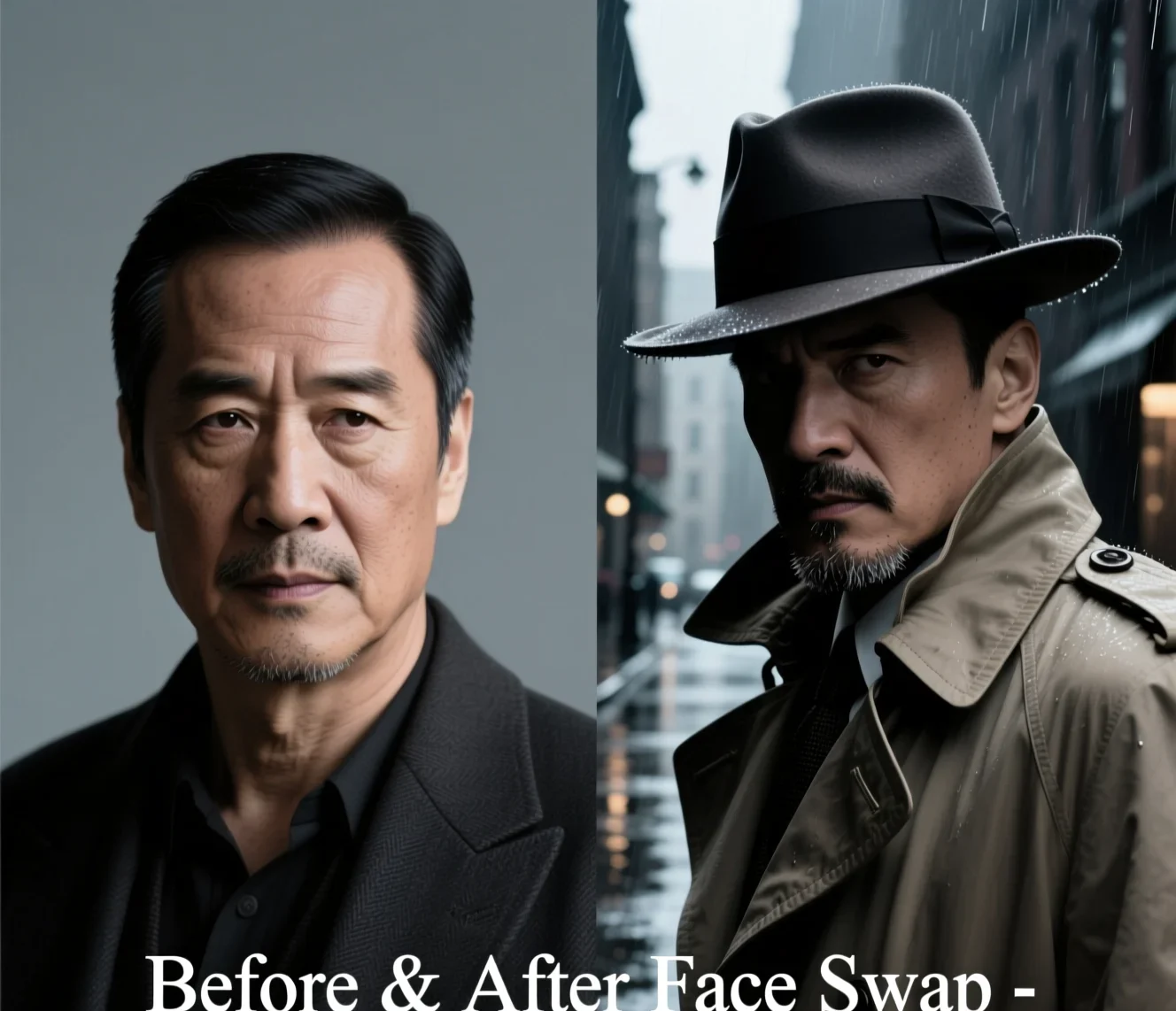
Creators & memes
Swap faces into posters and scenes for social posts that actually stop the scroll.
Spec plate
What does this face swap do?
The exact inputs, formats and output sizes — capabilities only, no invented benchmark numbers.
| Input | A source face + a target photo |
|---|---|
| Input formats | JPG, PNG or WEBP |
| Photos per run | Up to 16 files |
| Max file size | Up to 50 MB each |
| Output sizes | 1024×1024 up to 3840×2160 (4K) |
| Output format | A downloadable image (photo, not video) |
| Optional prompt | Free-text instruction to guide the swap |
| Identity & blending | Keeps your features; retains the target’s lighting, hairline & skin tone |
| Cost | A free face swap to preview in the Pixazo playground |
| Where it runs | Any modern browser — nothing to install |
Get the best result
Tips for a realistic swap.
A few habits make an AI face swap look believable instead of pasted-on.
- 01Use a clear, front-facing source photo — well-lit and unobstructed (no sunglasses, hair over the face or masks).
- 02Match the angle. Pick a target whose head turn and tilt are close to your source; large angle gaps read as fake.
- 03Go high-resolution. A sharp source gives cleaner skin texture and edges than a small, blurry one.
- 04Mind the lighting. The swap keeps the target’s light, so a source lit from a similar direction blends best.
- 05One clear face per photo. For group shots, crop to the person you want — busy scenes confuse the match.
- 06Use the optional instruction when a photo has more than one person, e.g. “put the face from the second image onto the person in the first”.
Honest limits
What can’t it do (yet)?
A face swap is powerful, but it’s worth knowing where it stops.
- 01It needs a clear, front-facing source photo. Heavy shadows, sunglasses or extreme angles reduce the quality of the swap.
- 02Results vary by source and target — identity, hair and lighting won’t always land first try, so expect to regenerate.
- 03It’s for consenting, creative use only. It is not for deceiving people about a real person, and uploads are screened before processing.
- 04This page outputs a still image. For moving clips, use the video tools covered in the next section.
Beyond stills
Can you do a video face swap?
This page swaps faces in photos. For moving clips, Pixazo handles video face swap in its dedicated video tools — here’s where to go.
A video face swap applies your source face across every frame of a clip. It runs in the AI Video Generator — it works in the browser, with a free preview in the playground before you spend credits.
Good for costume and era reveals, reaction clips, meme edits and short social videos. Start from a still here, then take it into the video studio to animate it.
Where do I do a video face swap?+
Is it free to try?+
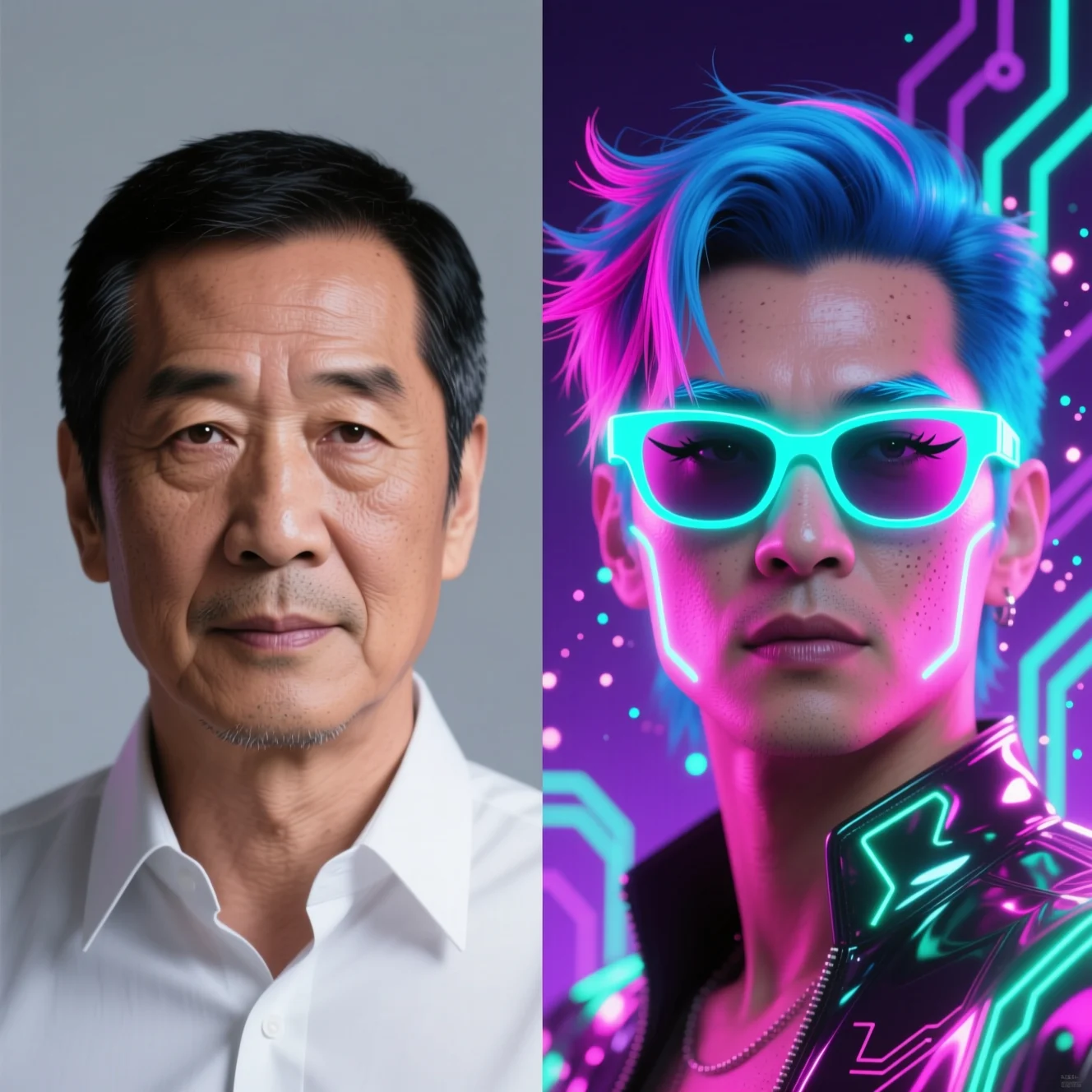
Table notes
AI face swap questions.
Is the AI face swap free?+
You can preview an AI face swap free in the Pixazo playground and open it in the editor. Check the playground for current credit details before heavier use.
Is my photo stored or safe?+
Uploads are screened by an automated safety filter before processing. We only state what we can verify — see the Privacy Policy for how images are handled.
What makes a good source photo?+
A clear, well-lit, front-facing photo gives the best face swap. Avoid heavy shadows, sunglasses or extreme angles.
Do I need anyone’s consent?+
Yes. Only swap faces of yourself or people who gave permission — a photo face swap must never be used to mislead or harm.
Can I do a face swap online without installing anything?+
Yes — this is a browser-based face swap online. Upload, preview, and open it in the studio; nothing to download.
Can I use the results commercially?+
Generally yes on your Pixazo plan — check the current terms before using a face swap AI result in a paid campaign.
How realistic is the result?+
It depends on your source photo and target — the best face swap AI results come from a sharp, front-facing source. A clear, well-lit, front-facing source on a target with a similar angle gives the most believable blend; big differences in angle or lighting show more.
What resolution do I get?+
You choose the output size before generating — anywhere from 1024×1024 up to 3840×2160 (4K).
Can it swap more than one face?+
Best results come from one clear face per photo. For group shots, crop to the person you want, or use the optional instruction to say which face to swap.
Is this a deepfake tool?+
No. It’s a creative face swap for images you have the right to use. Don’t use it to impersonate or mislead about real people — see Responsible Use.
Lay a face on the table.
Upload a photo you have the right to use and preview your free face swap in the Pixazo studio — a face swap AI and AI face swap online, no install.
Open in Face Swap Studio →By Deepak Joshi
Content Marketing Specialist · Pixazo
Deepak Joshi is a Content Marketing specialist having a combined experience of 10+ years working in the digital world. He is one of the active contributors to Pixazo Blog and has keen interest creating and marketing content related to AI tools, No-Code technology, Design Industry, Social Influencers, and other trending topics. A health and sport enthusiast, Deepak loves to indulge in all kinds of sports & games.
AI disclosure: the before-and-after examples on this page were generated with Pixazo’s AI (PixelForge) and are illustrative; results vary by source photo.