9 Best AI Image Extenders and Uncrop Tools


You framed the shot a little too tight, or you need a square photo to run as a wide banner. An AI image extender — also called an uncrop or outpainting tool — fixes both. It keeps your original photo and paints realistic new pixels around it, so you can widen, heighten or reframe an image without cropping your subject out. Below are the 9 best AI image extenders and uncrop tools for 2026, with what each is best at and where it falls short.
See it in action: before and after
Here is the idea in one picture. The ‘before’ is a tight crop of a cabin by a lake. The ‘after’ is the same photo extended outward — the AI invented the extra lake, trees and sky to match, without touching the cabin.
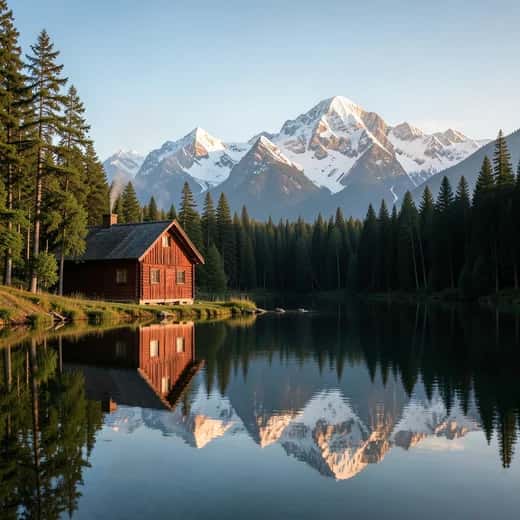
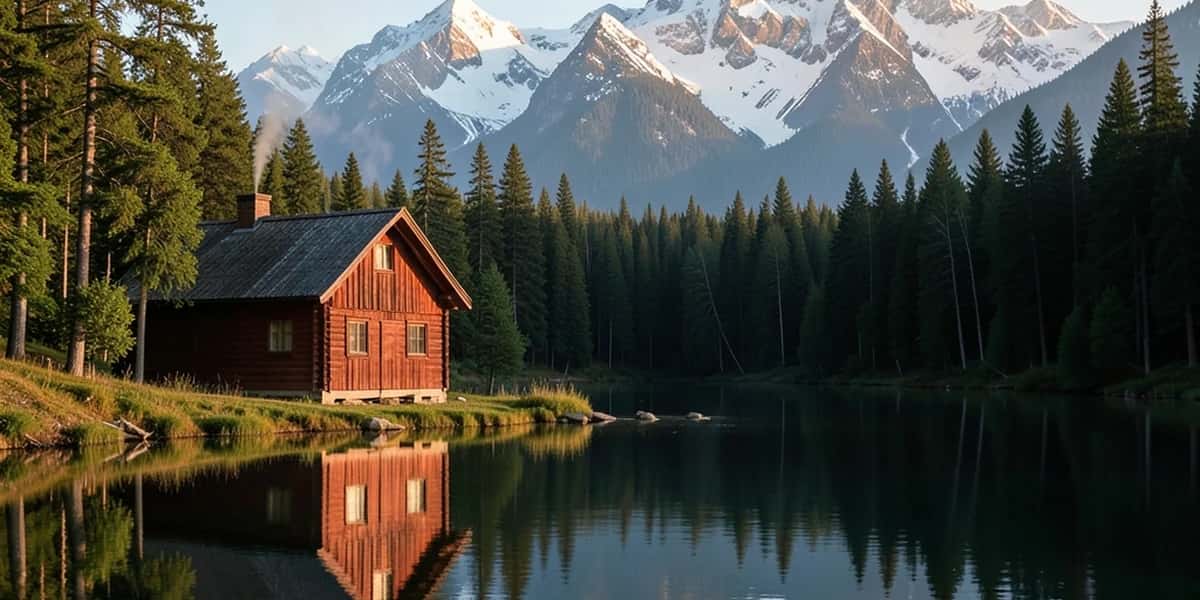
Before → after, made with Pixazo AI. The subject stays put; only the surroundings are new.
What is an AI image extender?
Cropping removes pixels. Uncropping does the opposite — it adds them. The tool reads the edges of your photo, understands the scene, and generates new, matching content outward: more sky above a skyline, more table around a product, more room around a portrait. That technique is called outpainting, and the best tools match the lighting, texture and perspective so the join is invisible.
←→
An extender keeps the original image untouched and paints new, context-aware pixels outward to fill the larger frame.
It matters because one image rarely fits every channel. A single hero shot might need to be a wide banner, a square post and a tall story. Instead of reshooting or awkwardly zooming, you extend — and your subject stays exactly where it is. Pixazo’s AI image extender below does this with add-headroom and uncrop presets.

The 9 best AI image extenders and uncrop tools
Ranked on fill quality, how easily you can set the new size, how much control you get, and whether there is a usable free option. No tool wins every category, so each entry says who it is for and where it struggles.
Adobe Photoshop (Generative Expand)
The professional benchmark. Drag the crop handles past the edge of any photo and Photoshop fills the new space with Firefly-powered pixels that match the lighting, texture and perspective. Add a short prompt to steer what appears, or leave it blank and let it read the scene.
It is part of a paid Creative Cloud plan and uses generative credits that refresh each month, and it runs on Windows and macOS. For retouchers who already live in Photoshop the control is unmatched — you can mask, blend and fix the result by hand — but it is the heaviest option to install and learn.
Adobe Firefly (web)
Firefly is Adobe’s browser app, and it exposes the same generative-expand model without the full Photoshop install. Upload an image, set a new aspect ratio or drag the canvas wider, add an optional prompt, and download the result in a minute.
It has a free tier with a monthly allowance of generative credits; heavier use moves you onto a paid Firefly or Creative Cloud plan. Because it is web-based it works on any machine, and the quality sits very close to Photoshop’s — which makes it the easiest way to get Adobe-grade results for free.
Clipdrop Uncrop (by Stability AI)
Clipdrop’s Uncrop is a focused, no-frills tool. Pick a target ratio, nudge where your image sits in the new frame, and Stability’s model outpaints the rest. It is fast and genuinely good at landscapes, skies and open backgrounds.
There is a free tier with limits plus watermark-free paid plans, and it runs in the browser as well as inside the wider Clipdrop suite. Fine detail and faces near the new edges can look soft, so it shines on scenery and quick social reframes rather than tight portraits.
Canva (Magic Expand)
Magic Expand lives inside Canva’s editor. Drop in a photo, choose a new size, and Canva invents matching surroundings — then you can drop text, logos and graphics straight on top in the same project, which is why marketers like it.
It sits behind Canva Pro, though a free Canva account lets you try the editor first. It is web and app based. For anyone who designs the whole asset in Canva anyway it is the most convenient pick; the trade-off is less fine control than a dedicated photo editor.
Runway
Runway is best known for AI video, but it also does image expansion, and it leans cinematic. It is strong on moody, scene-like extensions where atmosphere matters more than clinical accuracy — think thumbnails, title cards and dramatic stills.
It is credit-based, with a free starter allowance and paid plans for heavier use, and it runs in the browser. For a plain resize it is overkill, but for creators who want an expressive, filmic extend rather than an invisible join, it earns its spot.
Pixazo
Pixazo’s AI image extender is a free, browser-based uncrop tool. Upload an image, drag the sides to set how far to widen or heighten it, and it fills the new frame with matching detail — no install, and no watermark on the result.
It uses a small number of credits per generation, and new accounts get 300 free credits to start, so you can try it before you spend anything. Because it sits alongside Pixazo’s wider image toolkit, you can extend a photo, then edit or upscale it in the same place without switching apps.
Fotor (AI Image Extender)
Fotor bundles an image extender into its online editor, with preset social ratios and one-click expansion. It is a friendly pick for non-designers who just want to reshape a photo for a specific platform without thinking about it.
The free tier is capped and adds limits; Fotor Pro unlocks the best quality and removes them, and it works on the web and in mobile apps. The results are good for casual use, though they trail the Adobe and Stability models on busier scenes.
Pixlr (Generative Expand)
Pixlr is a long-running browser editor that now includes generative expand. You can outpaint an image and then keep editing it with Pixlr’s familiar layers, filters and text tools in the same tab — a tidy two-in-one.
It has a free tier with limits plus affordable paid plans, and it is web and app based. Having an outpaint feature and a full editor in one place is handy, but the generative fills trail the top models on complex backgrounds.
Leonardo.ai (Canvas)
Leonardo’s Canvas lets you place an image and outpaint around it with strong prompt control. It is a favourite of the generative-art crowd for stylised, imaginative extensions rather than photo-true fills.
It runs on free daily credits plus paid plans, in the browser. There is a learning curve, and photoreal edge-matching is not its strong suit, so reach for it when you want a creative, prompt-driven look instead of an invisible join.
Suggested Read: A Guide to Common Aspect Ratios, Image Sizes and Photo Sizes
Quick comparison
| Tool | Platform | Free option | Best known for |
|---|---|---|---|
| Adobe Photoshop | Desktop | Trial only | Pro pixel control |
| Adobe Firefly | Web | Free credits | Adobe quality, no install |
| Clipdrop Uncrop | Web | Free tier | Fast social reframes |
| Canva Magic Expand | Web / app | Pro | All-in-one design |
| Runway | Web | Credits | Cinematic extensions |
| Pixazo | Web | Yes, free | Free online uncrop |
| Fotor | Web / app | Free tier | Casual resizing |
| Pixlr | Web | Free tier | Outpaint + editor |
| Leonardo.ai | Web | Free credits | Stylised outpainting |
Suggested Read: 10 Best AI Image Editors in 2026: Free & Paid AI Photo Editors
How to extend an image in 3 steps
Drag the sides of the frame, or use the Expand Left, Right, Top and Bottom sliders, to set how far to widen or heighten each edge.
Pixazo outpaints the new space to match your scene. It uses a few credits, and new accounts get 300 free credits. Review, regenerate if needed, then download.
Suggested Read: Best AI Image Upscaler Tools in 2026 (extend, then enlarge)
Tips for a clean, seamless extend
- Extend in smaller steps for big changes — two modest expands beat one huge one.
- Keep faces and sharp detail away from the new edge; models fill backgrounds best.
- If the tool allows a prompt, add a short hint like ‘more blue sky’ or ‘wooden table’.
- Regenerate a few times and pick the cleanest seam — results vary per run.
- Upscale after extending so the new pixels sharpen with the rest.
Suggested Read: The Ultimate Guide to Social Media Image Sizes
Final word
If you live in Adobe’s world, Photoshop’s Generative Expand is still the gold standard. For fast, free reframes in a browser, Clipdrop and Pixazo’s AI image extender get you a clean uncrop in seconds, with no install and no watermark. Pick the tool that fits your workflow, extend in small steps, and one good photo can fill every frame you need.
Suggested Read: Instagram Sizes 2026: Posts, Reels, Stories and Profile
Frequently Asked Questions
Q. What is the best free AI image extender?
For a quick, in-browser uncrop with no watermark, Pixazo and Clipdrop Uncrop are strong free picks. Adobe Firefly also offers a limited free credit allowance with excellent quality.
Q. What is the difference between uncrop and outpainting?
They describe the same thing. ‘Uncrop’ is the user-facing term for enlarging an image’s frame; ‘outpainting’ is the AI technique that generates the new pixels around the original.
Q. Can I extend an image without losing quality?
Yes. A good extender adds new pixels at full resolution rather than stretching your photo. For very large expansions, extend in steps and upscale afterwards for the sharpest result.
Q. Does extending an image work on photos with people?
It works best when faces and fine detail stay away from the new edges. Extenders are strongest at filling backgrounds, skies and surfaces, so keep your subject central.
Q. How do I change a photo’s aspect ratio with AI?
Upload it to an image extender and expand the sides to the shape you need, such as a wide 16:9 or a square 1:1, so the tool outpaints the extra space instead of cropping your subject out of frame.
Deepak Joshi
Author · Pixazo
Deepak writes about generative AI models, APIs, and the workflows teams use to ship them. Reviewed by Abhinav Girdhar.