Skip to content
IN

AI Image Extender

Extend any photo past its edges with AI outpainting — turn a square into a banner, add headroom for text, or uncrop a shot that was framed too tight.
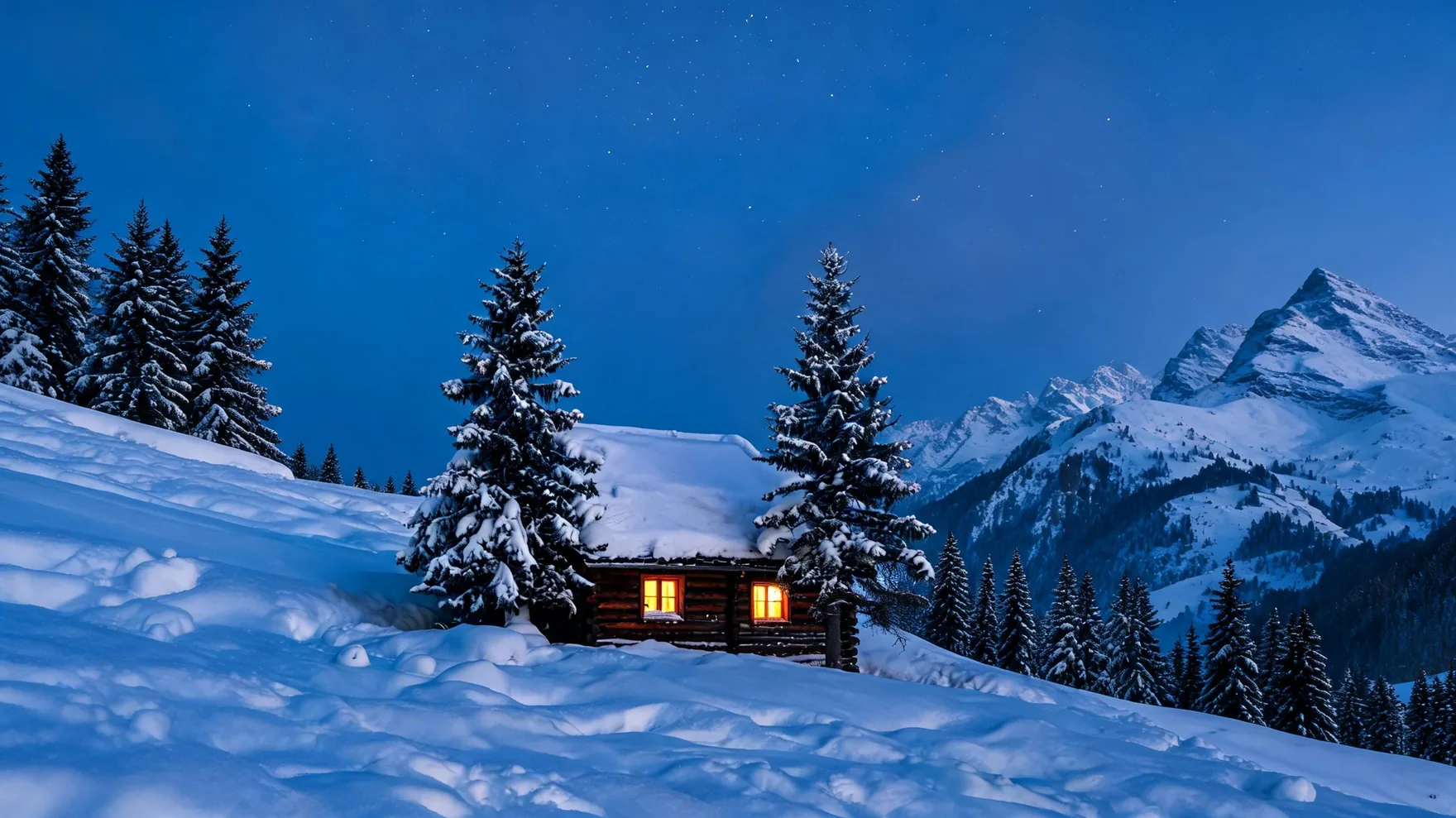
AI Image Extender before and after: a square photo of a snowy mountain cabin extended into a wide 16:9 alpine scene with Pixazo.
1:1 original 16:9 extended
1:1 16:9 4:5 16:9 3:2 1:1 portrait landscape add headroom fill a tight crop extend a background
The short answer

What is the AI Image Extender?

The AI Image Extender is Pixazo's outpainting tool: you upload a JPG or PNG (up to 5 MB), open up empty canvas around it, and the AI fills that new space with content that matches the original photo. It runs in Pixazo's image-to-image editor and downloads as a PNG.

It's built for one job — giving a picture more frame than it was shot with. Change a square into a 16:9 header, add clean space above a subject for a headline, grow a product shot so it has room for layout, or recover the shoulders and scenery a phone crop chopped off. The subject you uploaded stays the same size; the AI invents everything around it.

Because it invents rather than remembers, it works best on clear subjects over simple, continuous backgrounds — sky, water, walls, studio sweeps — and it is not an upscaler: it adds canvas, not resolution. Pixazo is an access layer over third-party image models and doesn't own them.

See it happen — a square photo in, an extended frame out:

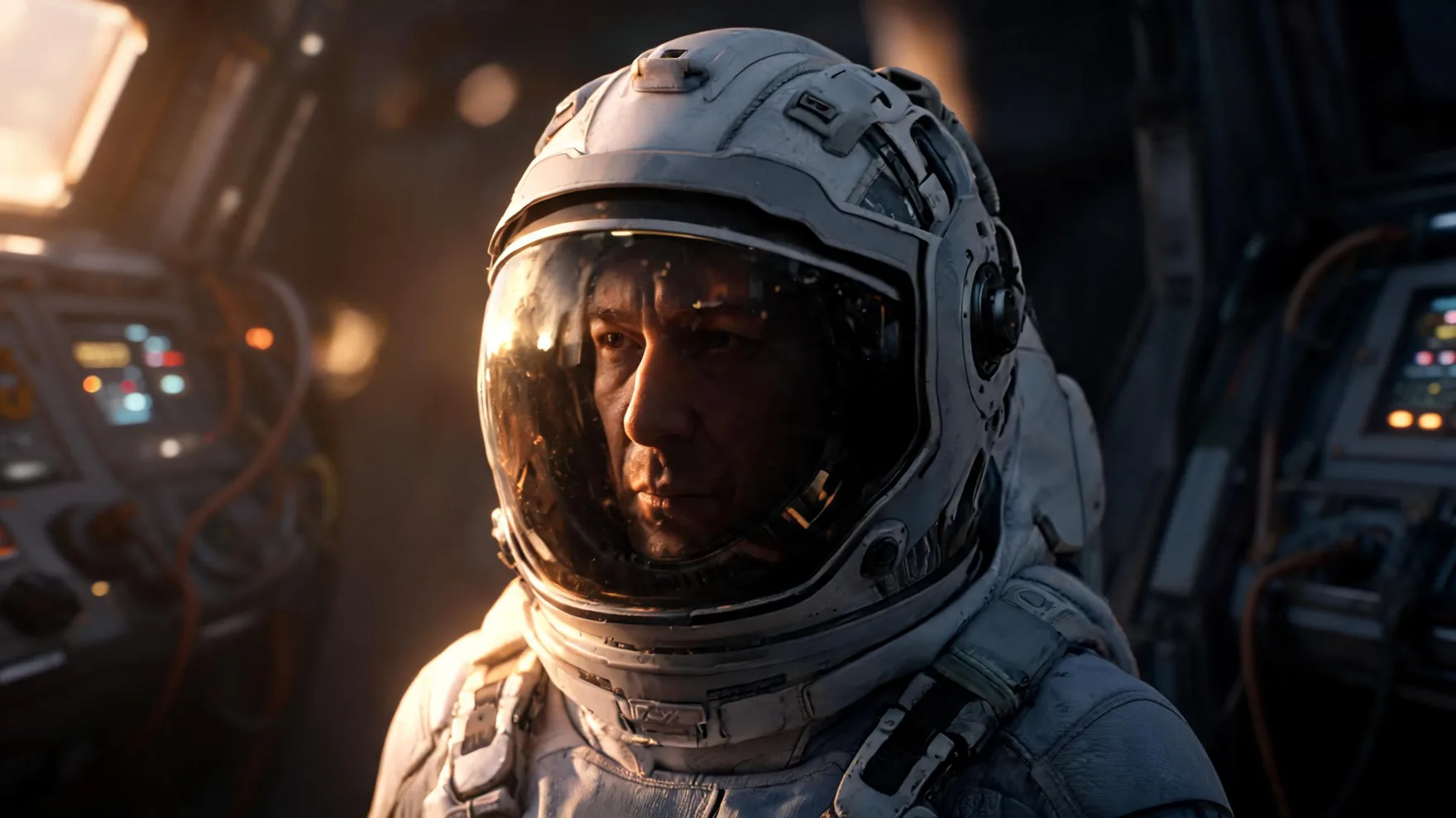
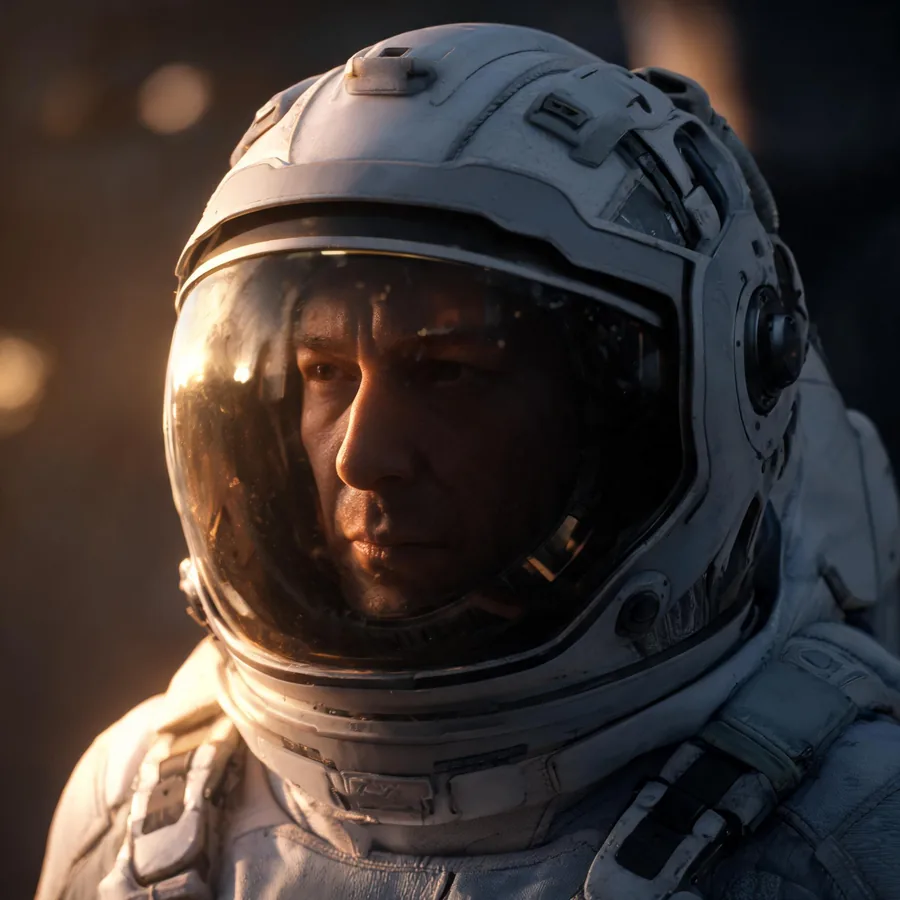
BEFORE · 1:1Original square close-up of an astronaut filling the frame.
AFTER · 16:9Astronaut portrait extended with Pixazo AI into a widescreen shot revealing a spacecraft cockpit.+ cockpit added by AI
Square portrait → widescreenA cockpit, control panels and cabling appear where there was only a tight head-and-shoulders crop.1:1 → 16:9

Honest note: the extender invents the new area to match your image — it's a plausible continuation, not a recovery of a scene that was really there. Results vary with the picture and how far you extend.

Clear this up first

AI image extender vs upscaler: what's the difference?

Extending makes the canvas bigger by inventing new surroundings; upscaling makes the same picture sharper without changing the framing. Mixing the two up is the most common reason people are disappointed — so here's the difference at a glance.

This tool — extend / outpaint

Adds picture around your subject

Keeps the subject the same size and generates new scene to fill a larger frame or a new aspect ratio. Reach for it when you need more scene, not more sharpness.

Not this — upscale / enhance

Adds detail to the same pixels

Raises resolution and sharpness of the picture you already have — the framing doesn't change. If sharpness is what you need, an image upscaler is the right tool, not an extender.

One photo, any shape

Can the AI image extender reframe to any aspect ratio?

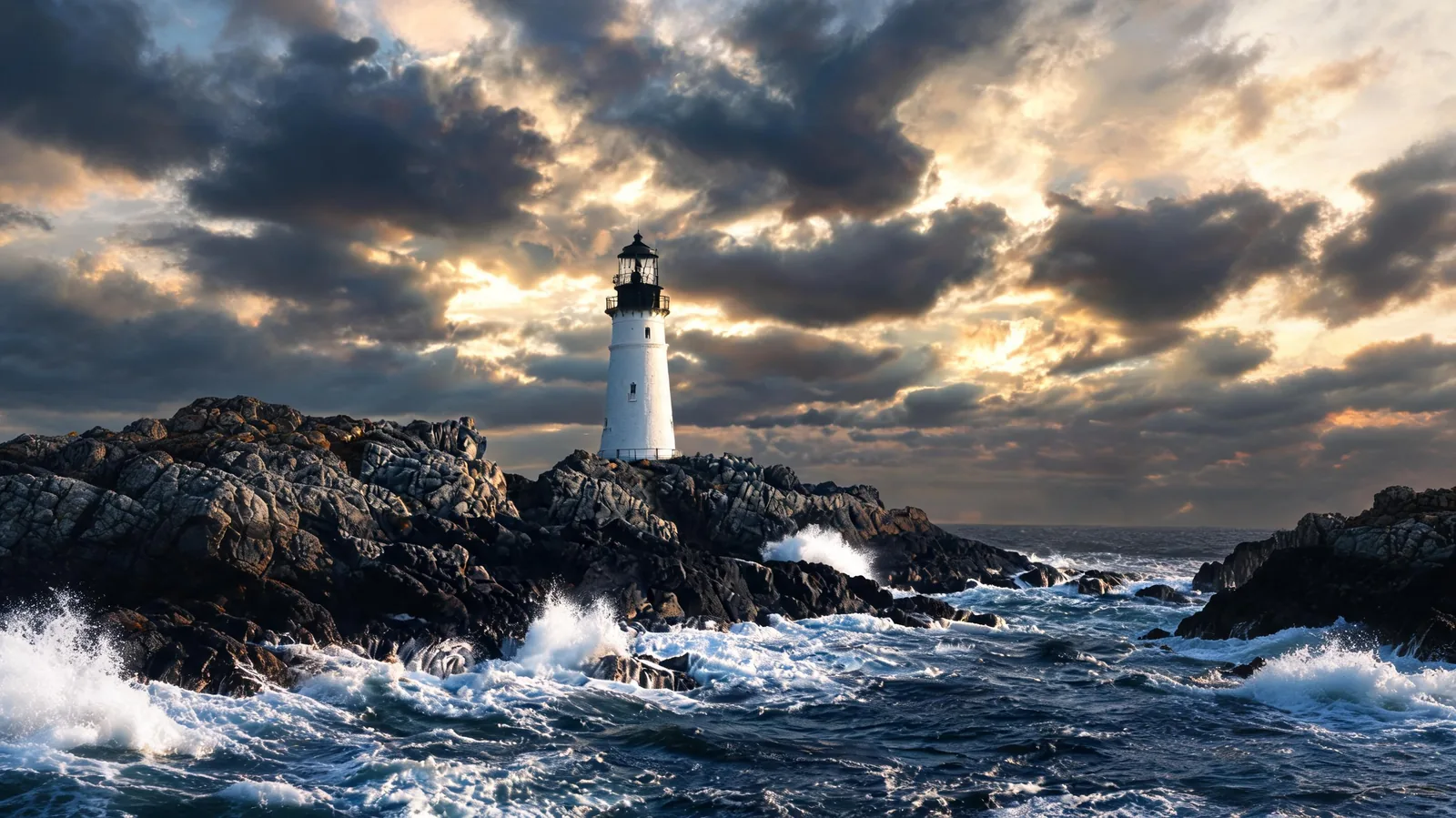
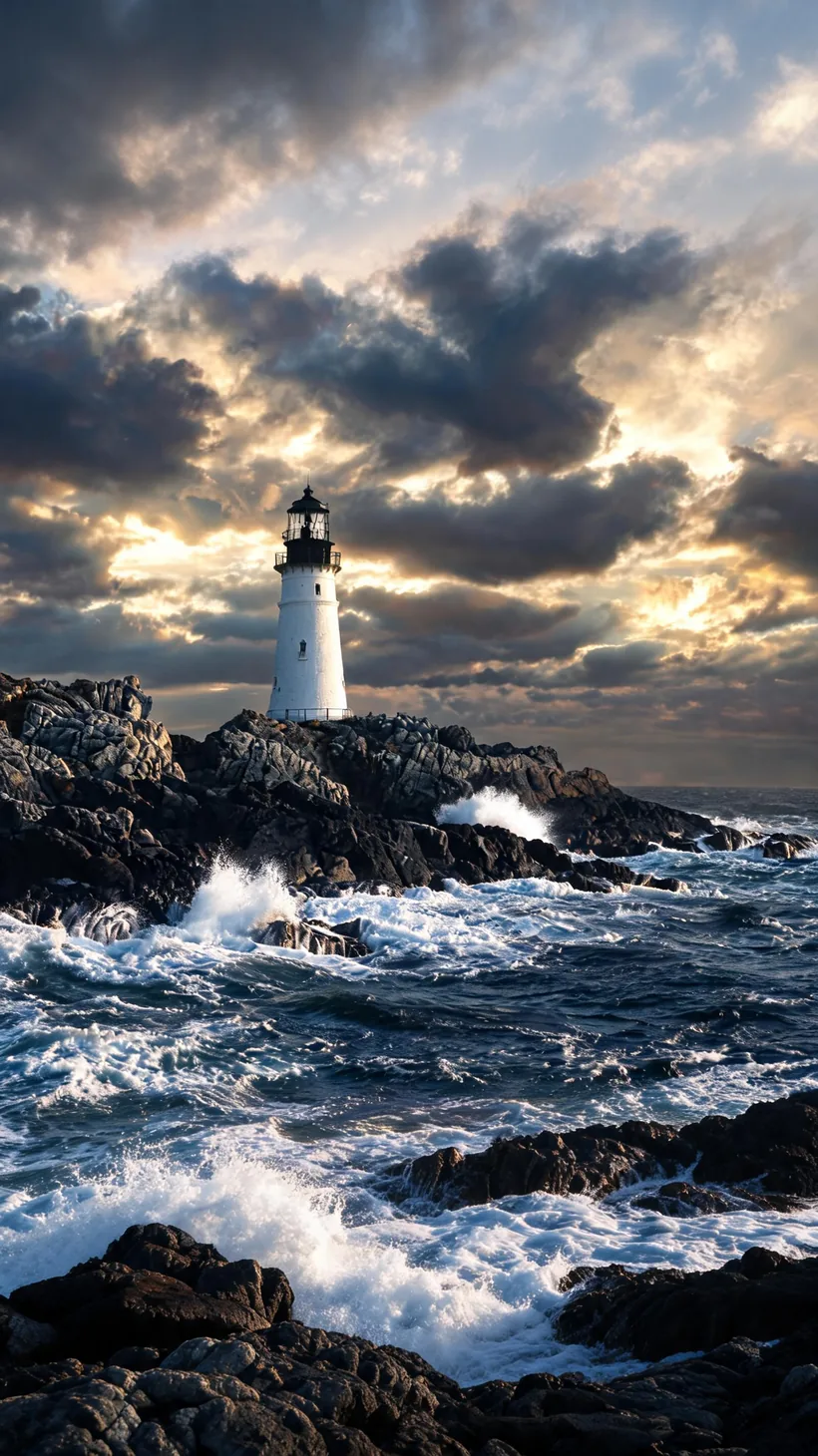
Yes. The same photo can grow into whatever shape you need — wider, taller, or square. Here's one lighthouse shot reframed three ways, all from the single square original.

Lighthouse · one square in, three shapes out
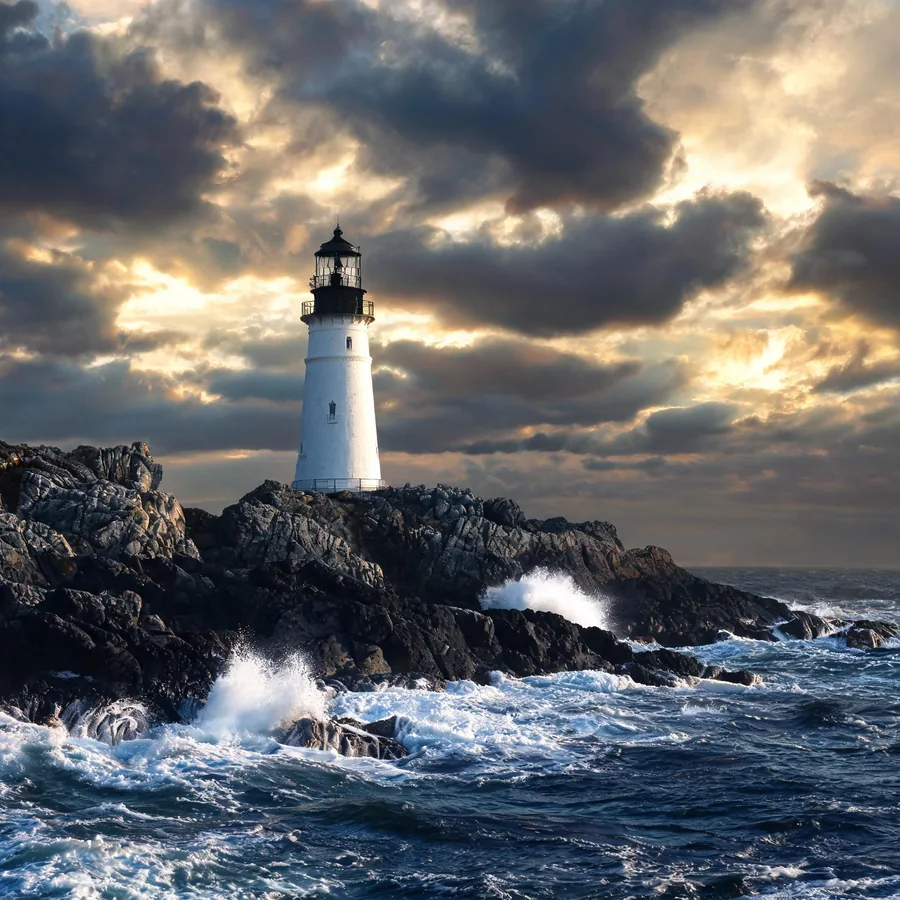
Original square lighthouse photo.
1:1 original
Lighthouse photo extended with Pixazo AI into a wide 16:9 seascape.
16:9 widescreen
Lighthouse photo extended with Pixazo AI into a tall 9:16 vertical scene.
9:16 vertical

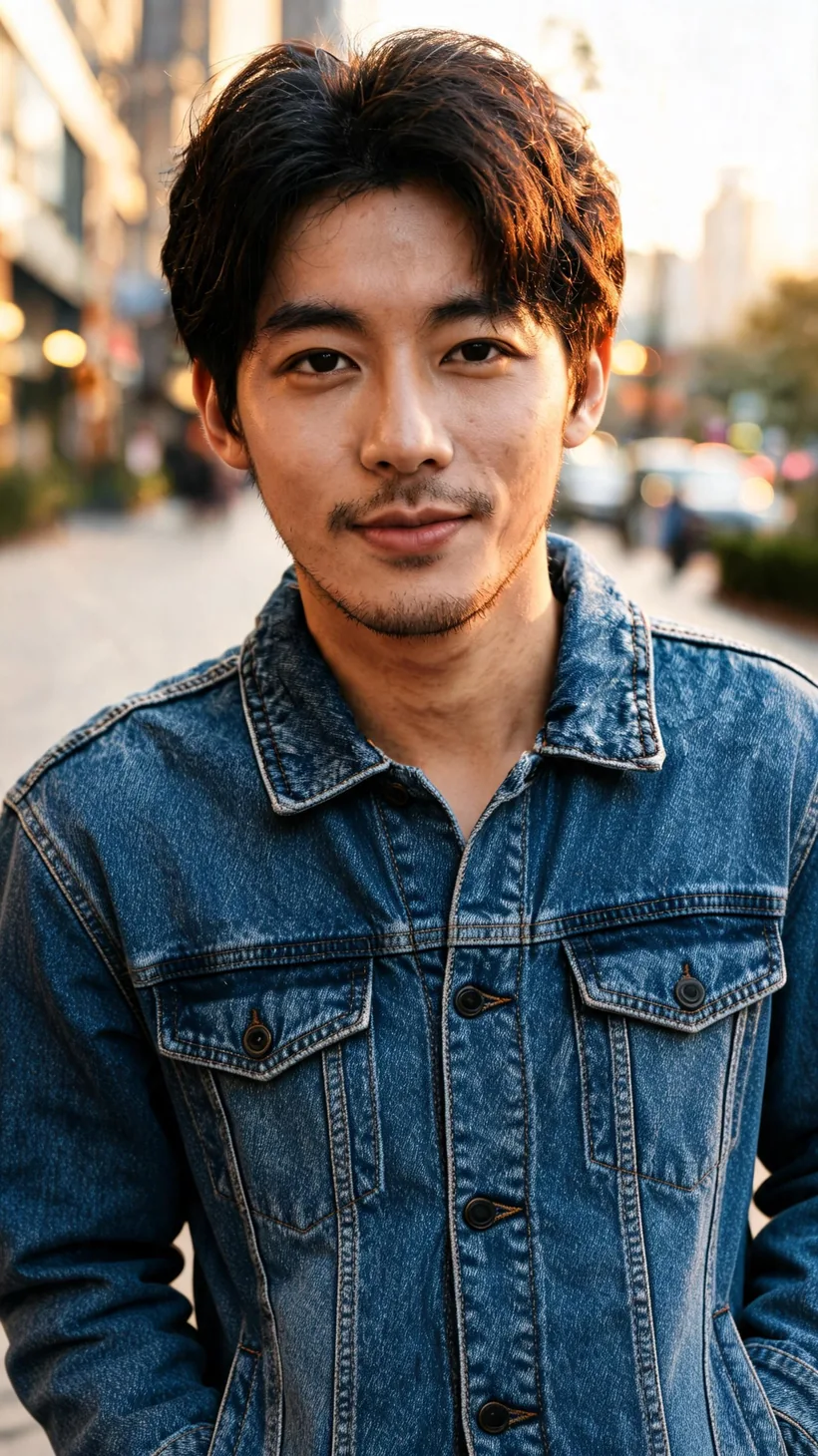
Portrait · square headshot taken tall
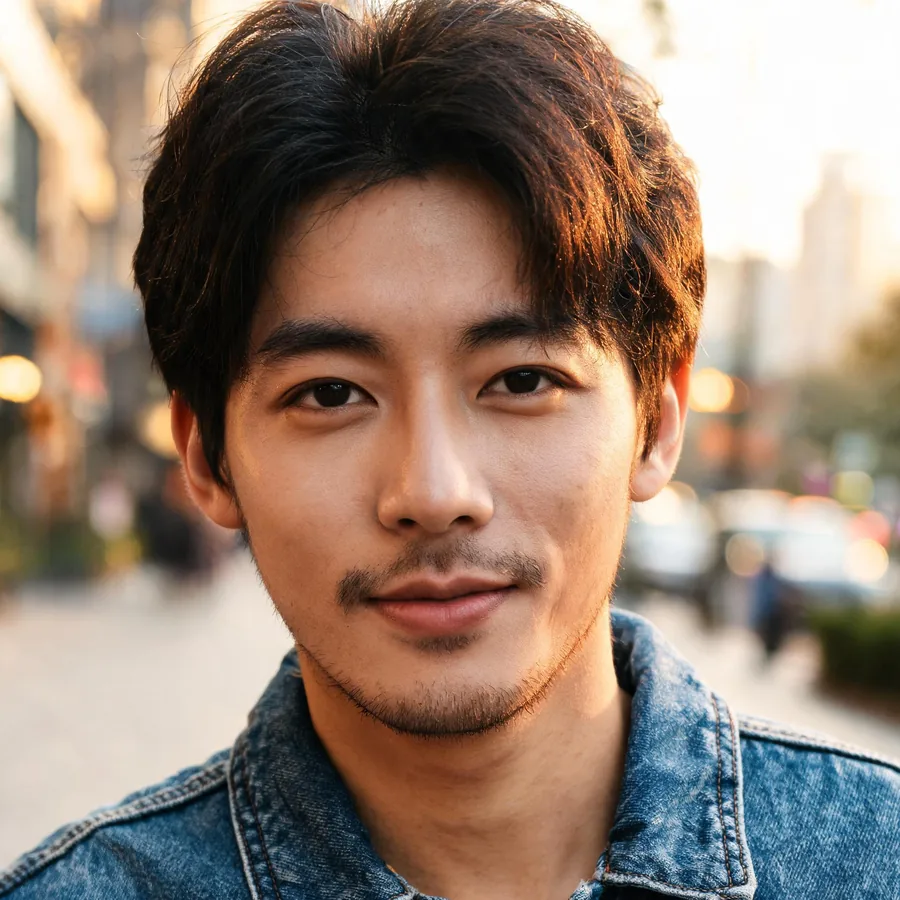
Original square headshot of a man in a denim jacket.
1:1 original
Headshot extended with Pixazo AI into a tall 9:16 portrait showing the full jacket and street.
9:16 vertical
The alternatives

How does extending compare to cropping or adding bars?

There are four ways to make a photo fit a new aspect ratio. Only one of them keeps everything you had and gives you more.

MethodWhat happensKeeps your subject?Best for
CropCuts pixels off the edgesNo — loses contentTrimming distractions
Stretch / squashWarps the image to fitNo — distorts the subjectBest avoided
Letterbox barsAdds blank bars around itYes, but adds empty spaceA quick, plain fit
AI extend (this tool)Paints believable new sceneYes — and gains more pictureReframing without losing anything
Step by step

How do you extend an image with the AI Image Extender?

In four steps, all inside Pixazo's image-to-image editor, where the Expand Image tool is ready as soon as your picture loads.

  1. Upload your image

    Drop in a JPG or PNG up to 5 MB. A clear subject on a simple, continuous background extends most cleanly.

  2. Open up empty space

    Move or resize the picture on the canvas to leave negative space on the sides you want to grow — or switch to a new aspect ratio.

  3. Run Expand Image

    The AI fills the new area to match the original's lighting, colour and content, blending it into the existing edges.

  4. Review & download

    Happy with it? Download a PNG. Not quite? Regenerate — each pass reads the image a little differently.
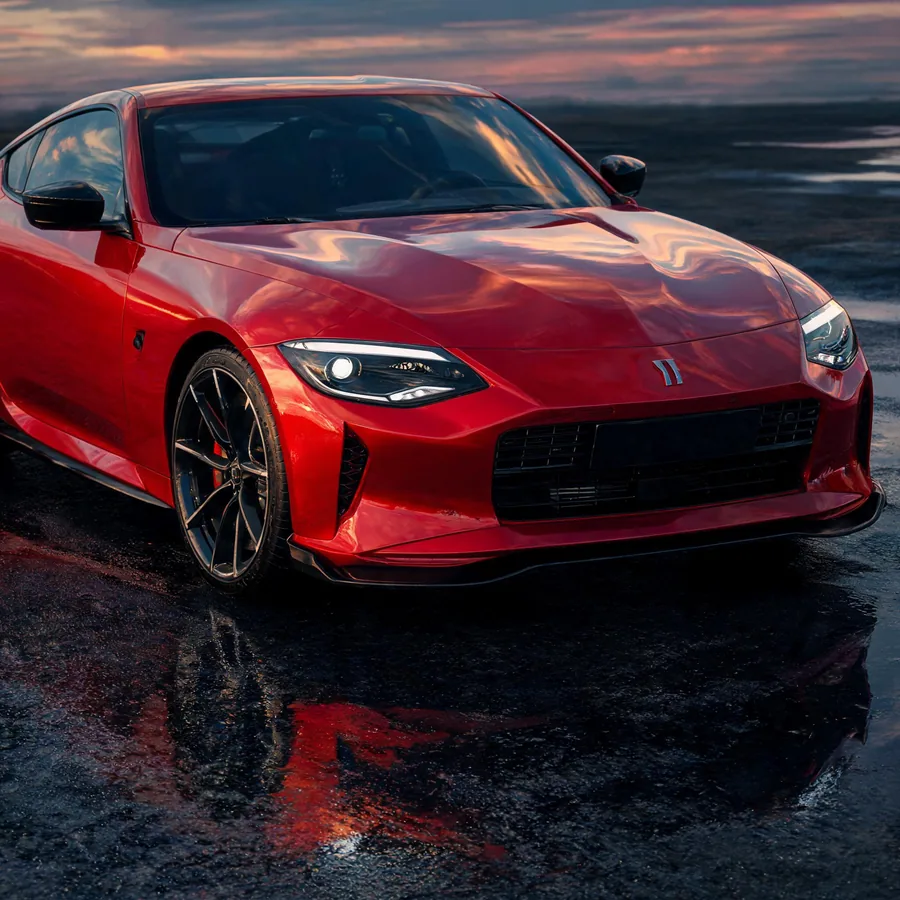
BEFORE · 1:1Original square photo of a red sports car.
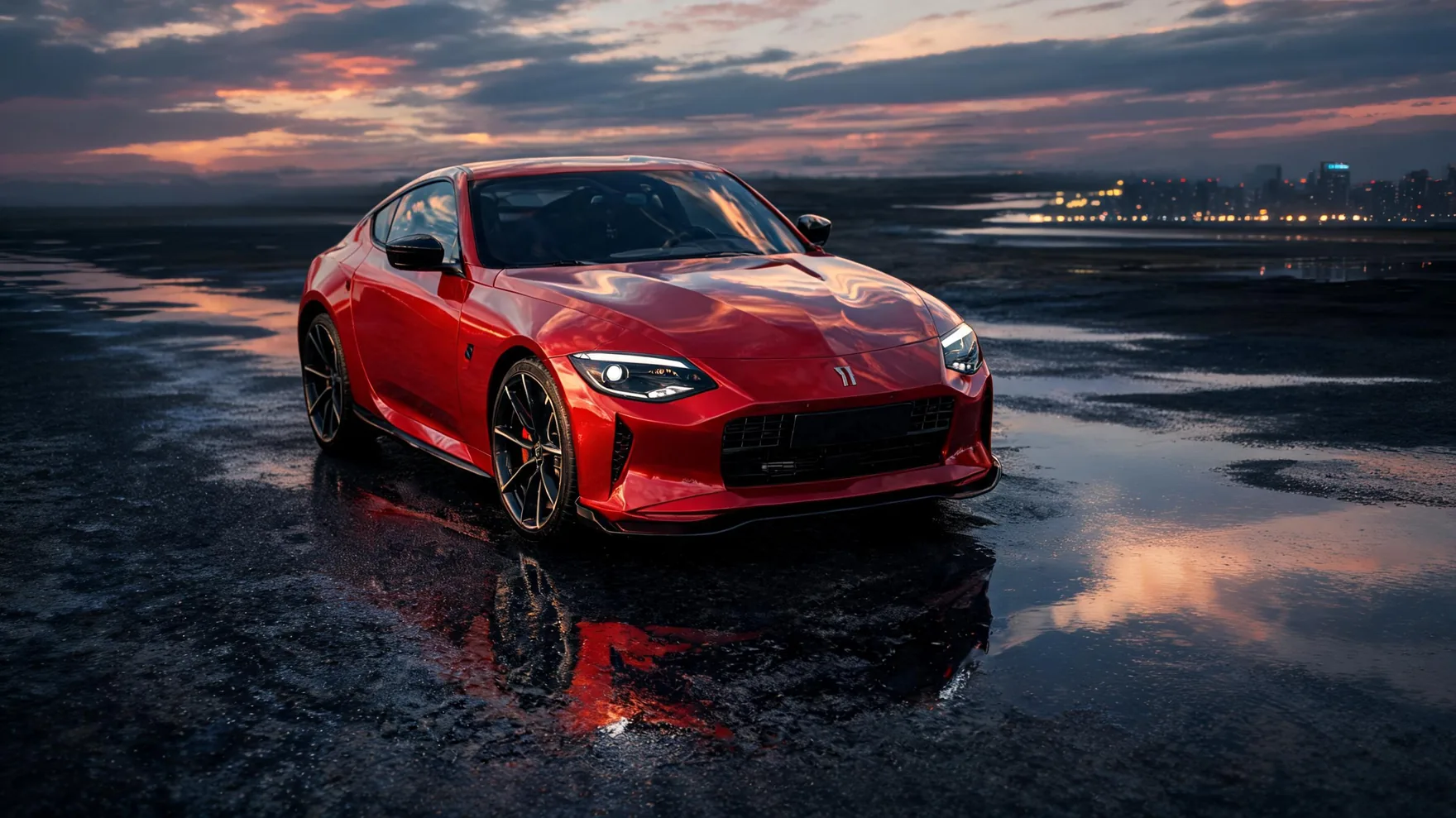
AFTER · 16:9Sports car extended with Pixazo AI into a wide dusk scene of wet road and distant city lights.+ road & skyline added by AI
Pack-shot → cinematic wideA tight car shot becomes a full automotive hero with road, reflections and a dusk skyline.1:1 → 16:9
Use cases

When should you use an image extender?

Whenever you need more frame than you actually shot. The six most common jobs:

  • 01

    Change the aspect ratio

    Refit a square post for a 16:9 cover, a story, or a print layout without squashing or letterbox bars.

  • 02

    Add headroom for text

    Grow clean space above or beside a subject so a headline, logo or CTA has somewhere to sit.

  • 03

    Give products breathing space

    Turn a tight pack-shot into a roomy e-commerce hero with a surface and props around it.

  • 04

    Fix a too-tight crop

    Win back the shoulders, feet or scenery a phone crop cut off, instead of reshooting.

  • 05

    Make wallpapers

    Extend a favourite photo or artwork to fill a desktop or phone screen edge to edge.

  • 06

    Extend AI art

    Grow the world around a generated image — more sky, more landscape, more scene to work with.

BEFORE · 1:1Original square studio shot of a frosted-glass perfume bottle.
AFTER · 4:3Perfume bottle extended with Pixazo AI into a wider studio scene with marble, a dried rose and silk ribbon.+ props & surface added by AI
Product shot → room for propsMarble, petals and a silk ribbon give an e-commerce hero breathing space for text and layout.1:1 → 4:3
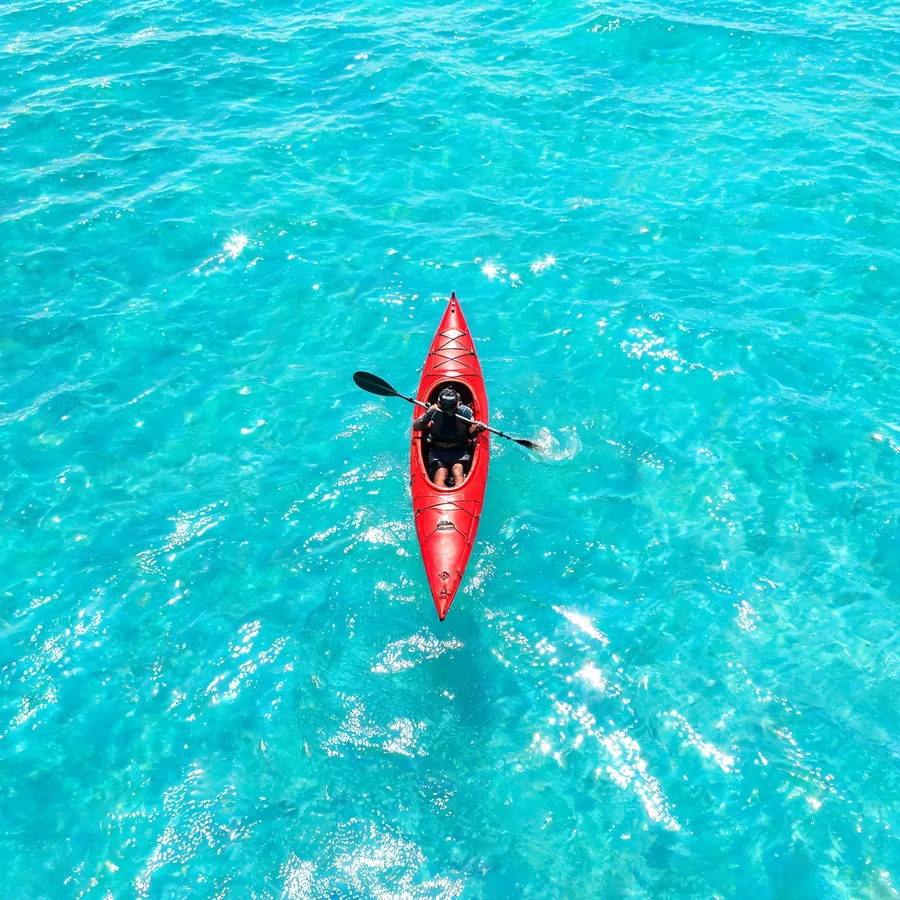
BEFORE · 1:1Original square aerial photo of a red kayak on turquoise water.
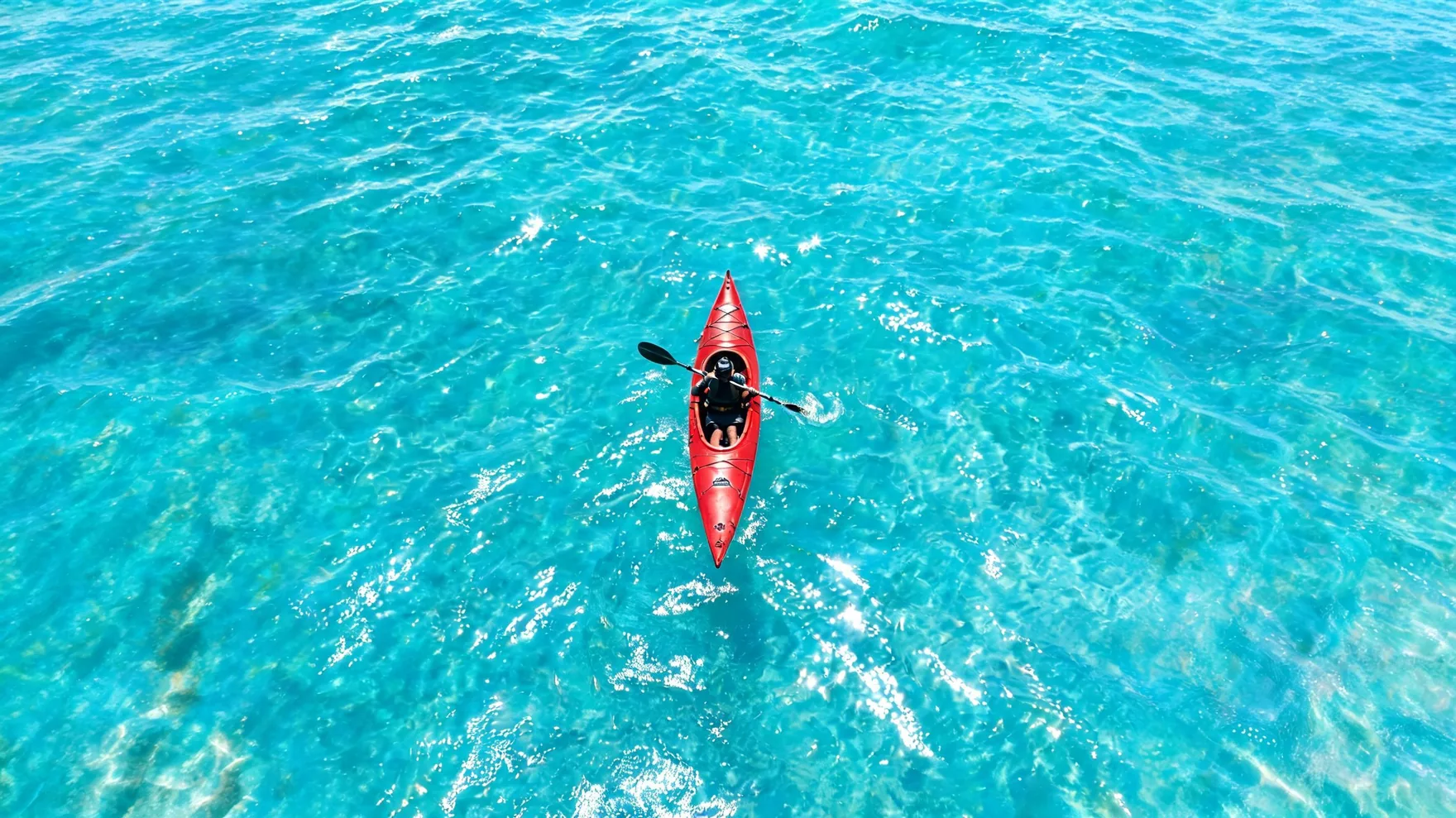
AFTER · 16:9Kayak aerial extended with Pixazo AI into a wide banner of open turquoise sea.+ open sea added by AI
Tight aerial → wide bannerOpen water fills out to a 16:9 header — the kind of hero a website or cover needs.1:1 → 16:9
Pick the right photo

Which images does the AI image extender handle well?

The photo you start with matters more than the prompt. Images with room to "guess into" extend cleanly; images full of structure fight the AI.
Extends cleanly

  • A clear subject with space around it
  • Simple, continuous backgrounds — sky, sea, sand, studio sweep
  • Natural scenes: landscapes, water, foliage, blur
  • Small, gradual extensions on one or two sides
  • Soft, out-of-focus edges the AI can flow into

Fights the AI

  • Straight architecture and repeating tiles or grids
  • Readable text or logos near the edge
  • Extra faces or hands invented in the new area
  • Huge one-shot extensions that quadruple the canvas
  • Busy, detailed scenes with no clear "quiet" edge
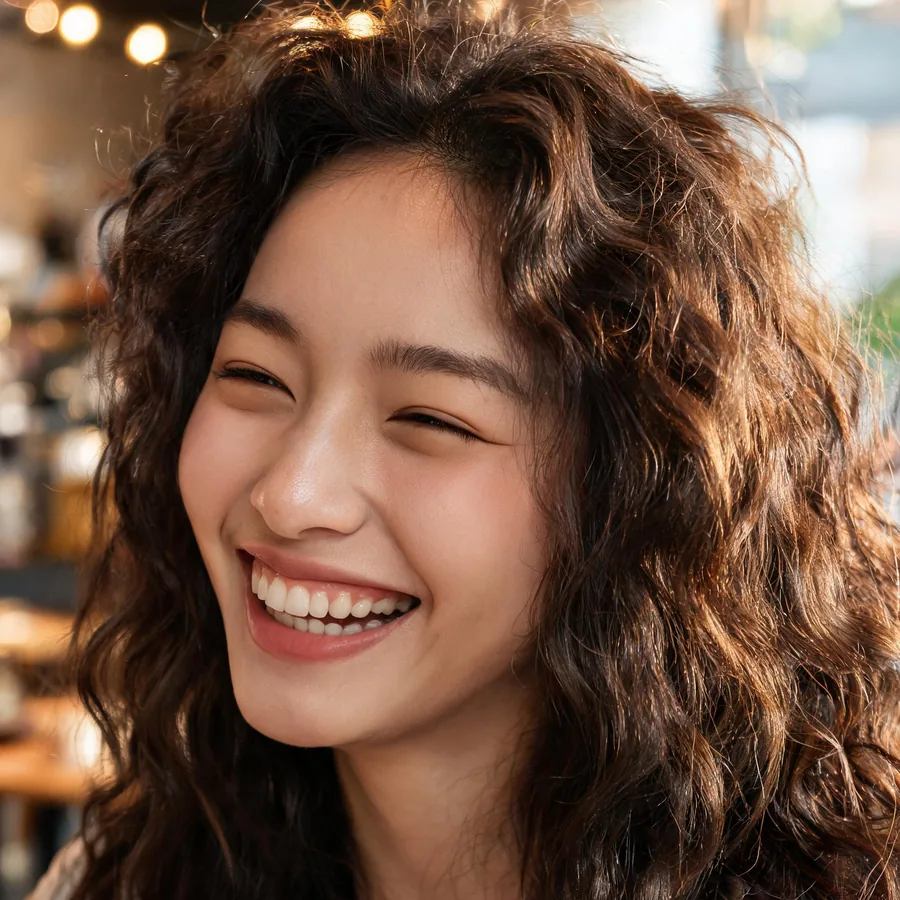
BEFORE · 1:1Original square close-up of a laughing woman.
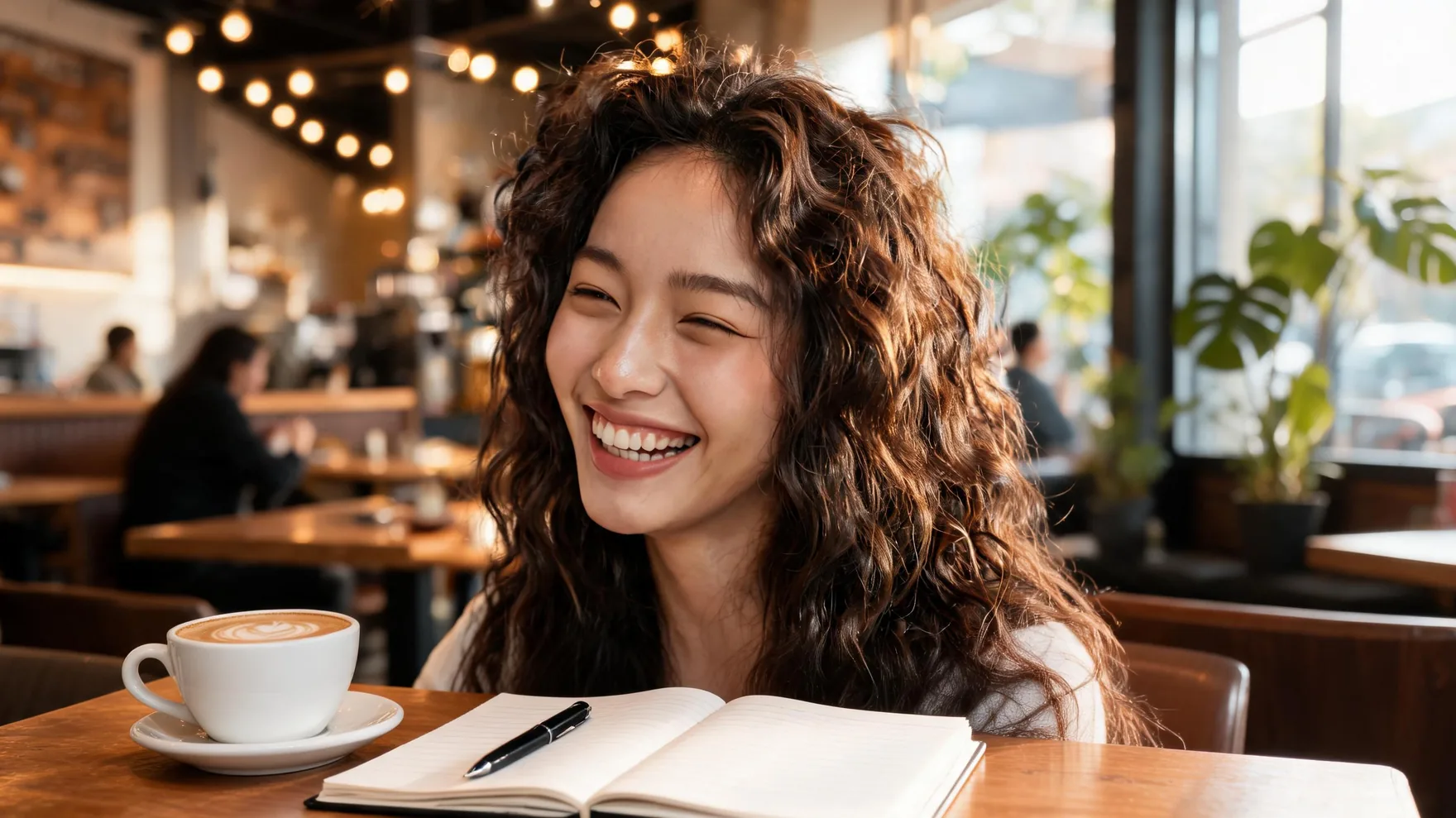
AFTER · 16:9Portrait extended with Pixazo AI to reveal a sunlit cafe with a latte, notebook, window and plants.+ café scene added by AI
Cropped-too-tight → full sceneA latte, a notebook and a sunlit café grow around a portrait that was cut off at the shoulders.1:1 → 16:9
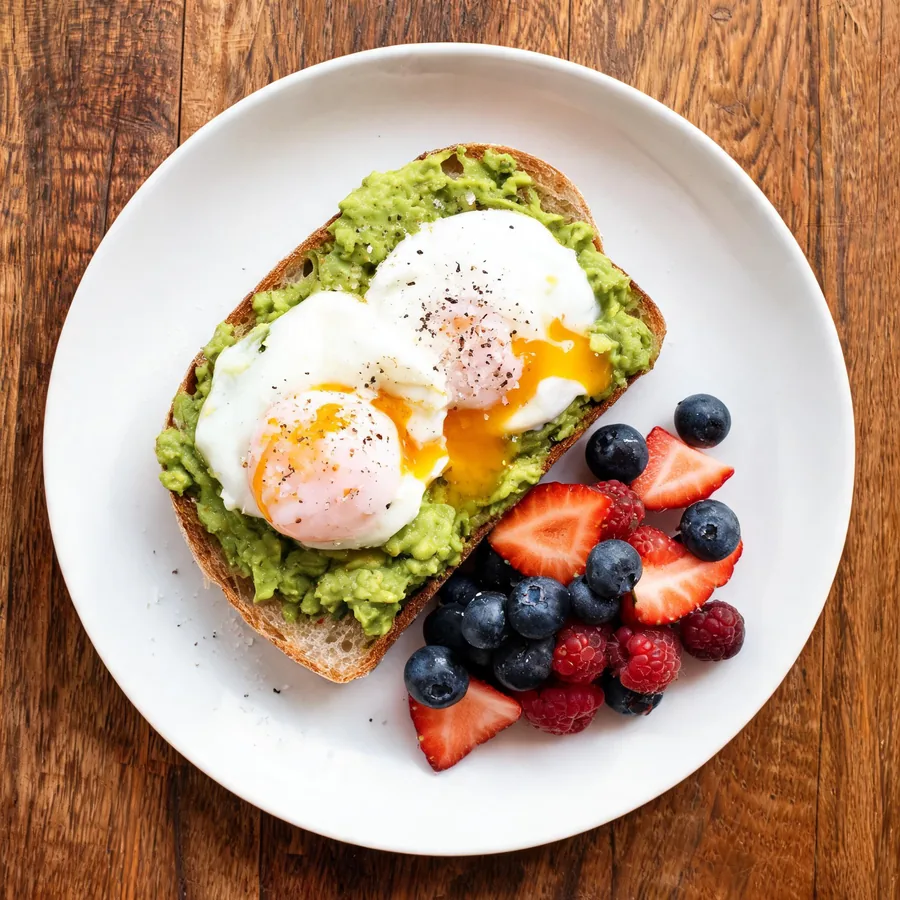
BEFORE · 1:1Original square overhead photo of a breakfast plate.
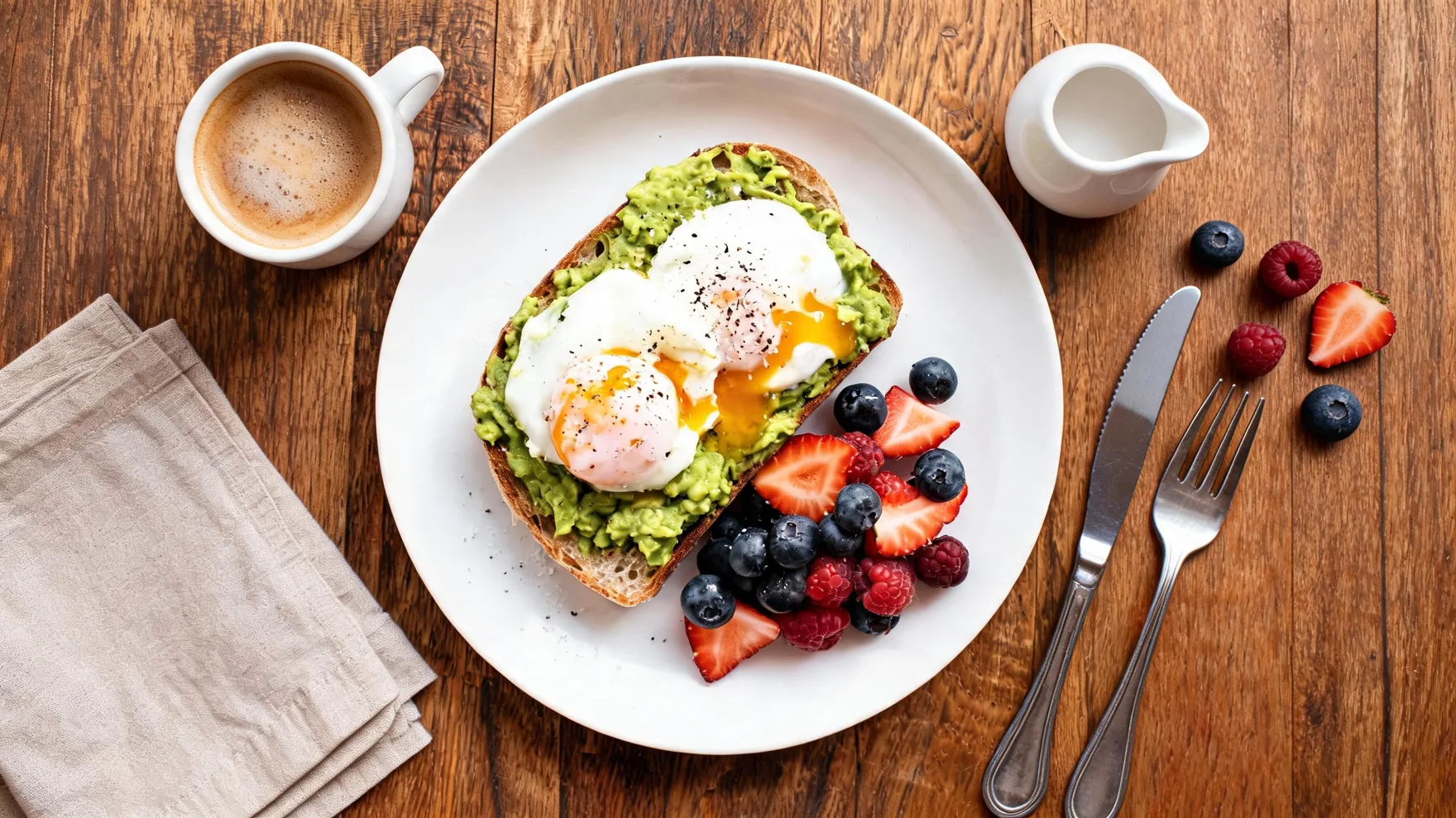
AFTER · 16:9Breakfast plate extended with Pixazo AI into a full table flatlay with coffee, cutlery, napkin and berries.+ table setting added by AI
Single plate → full flatlayCoffee, cutlery, a napkin and scattered berries build a complete overhead scene around one plate.1:1 → 16:9
Pro tips

How do you get the cleanest extend?

Five habits that separate a seamless uncrop from an obvious one.

  1. Start with quiet edges. A clear subject with simple space around it gives the AI room to guess convincingly.
  2. Grow in small steps. Two modest extensions beat one giant jump, where fills drift or repeat.
  3. Extend into the simplest side. Add space where the background is plainest — sky, wall, water — not into busy detail.
  4. Regenerate and choose. Each pass reads the image differently; run a few and keep the best fill.
  5. Keep new area to background. Don't ask it to invent extra faces, hands or text — that's where it strains.
The specs

What goes in, and what comes out?

One image in, a larger PNG out. The full input/output detail:

You uploadOne image — JPG or PNG, up to 5 MB
You get backA PNG at the new, larger canvas size
Where it runsPixazo AI Playground → the image-to-image editor → Expand Image
Best inputA clear subject on a simple or continuous background (sky, water, wall, studio sweep)
Hardest inputBusy patterns, straight architecture, text, and extra faces in the new area
Cost7-day free trial; a subscription after that — see the pricing page
AccessAny modern browser — nothing to install
The honest cut

Where does outpainting still struggle?

In a few predictable places. Knowing them saves you credits and disappointment.

  • It invents, it doesn't remember

    The new area is a believable guess, not the real scene that was outside your original frame.

  • Extend a little at a time

    Small, repeated extensions look far better than one huge jump, where the fill tends to drift or repeat.

  • Structure is hard

    Straight lines, tiled patterns, readable text and clean architecture can bend or smear in the extended zone.

  • Faces in the new space

    Ask for extra people or hidden hands and the AI can distort them — keep the new area to background.

  • Not an upscaler

    It won't sharpen or add resolution to your existing pixels — that's a different job entirely.

  • One image, 5 MB, two formats

    No batch runs; files must be JPG or PNG and under 5 MB, so convert or compress large sources first.

FAQ

Common questions about the AI Image Extender

Is the AI Image Extender free?
You can extend images during a 7-day free trial . After the trial you'll need a Pixazo subscription to keep using it — details are on the pricing page.
What's the difference between extending and upscaling?
Extending (outpainting) makes the canvas bigger by inventing new surroundings; the subject stays the same size. Upscaling makes the same picture sharper and higher-resolution without changing the framing. For sharpness you'd use an image upscaler, not an extender.
What file types and sizes can I upload?
JPG or PNG, up to 5 MB per image. If your file is larger, compress or convert it first, then upload.
Does it keep my original untouched?
Your original stays as-is inside the frame — the tool adds new content around it rather than repainting what you uploaded. You can review each result and regenerate before downloading.
Why does the extended area sometimes look off?
The AI is guessing what continues beyond your photo. Busy patterns, straight architecture, text or extra faces are hardest. Extend in smaller steps and keep the new area to simple background for the cleanest results.
Can I use the extended images commercially?
Commercial use follows your Pixazo plan and the platform terms of use. Check the terms for your subscription tier before publishing.
What format do I download?
Extended images download as PNG at the new, larger canvas size.
Deepak Joshi
Content Marketing Specialist · Pixazo

Deepak Joshi is a Content Marketing specialist having a combined experience of 10+ years working in the digital world. He is one of the active contributors to Pixazo Blog and has keen interest creating and marketing content related to AI tools, No-Code technology, Design Industry, Social Influencers, and other trending topics. A health and sport enthusiast, Deepak loves to indulge in all kinds of sports & games.

Widen your first image free.

Bring a photo that was framed a little too tight — and give it room to breathe.

Extend an image free
With Pixazo’s platform we deliver enterprise-class security and compliance to you and your customers through every interaction.
Follow Pixazo on Google