How to Make an 8-Bit Sprite Sheet GIF From Your Photo?

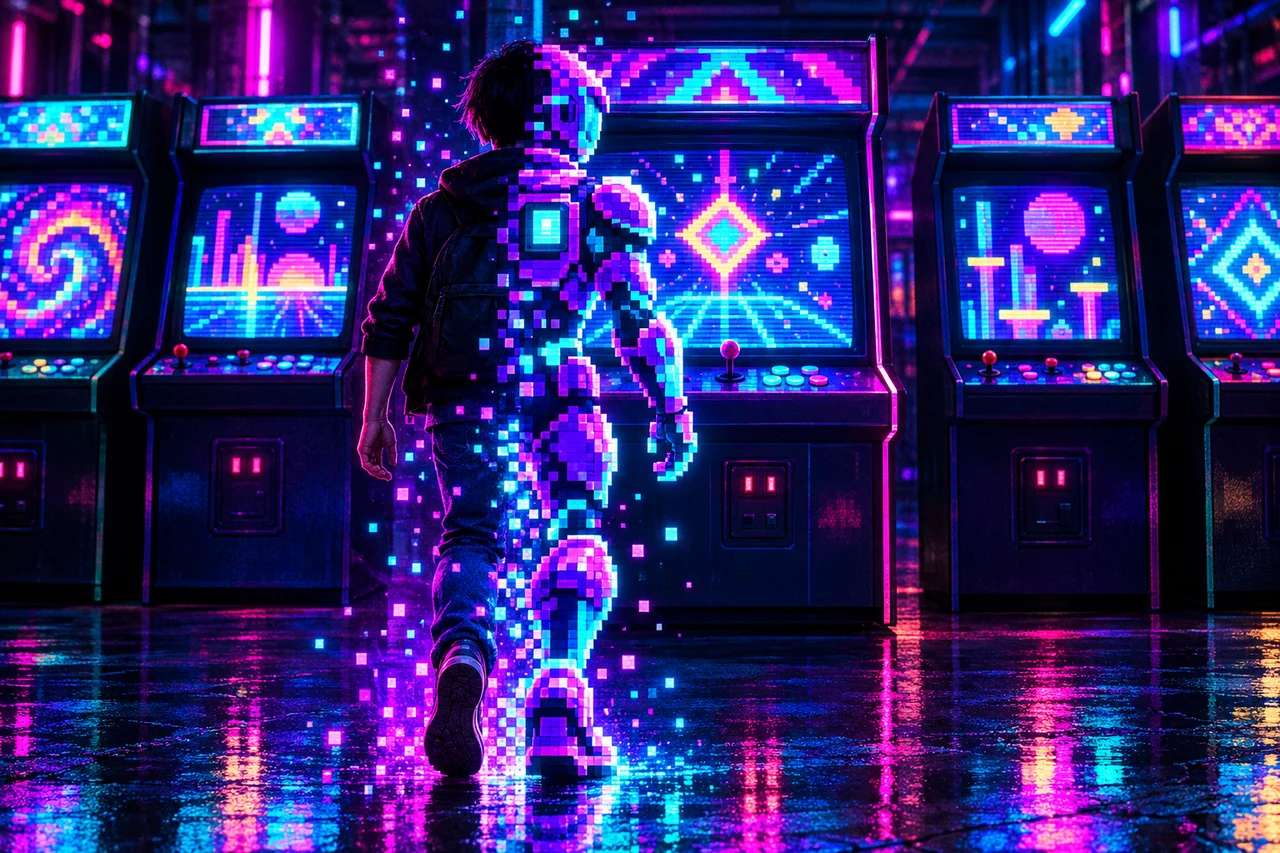
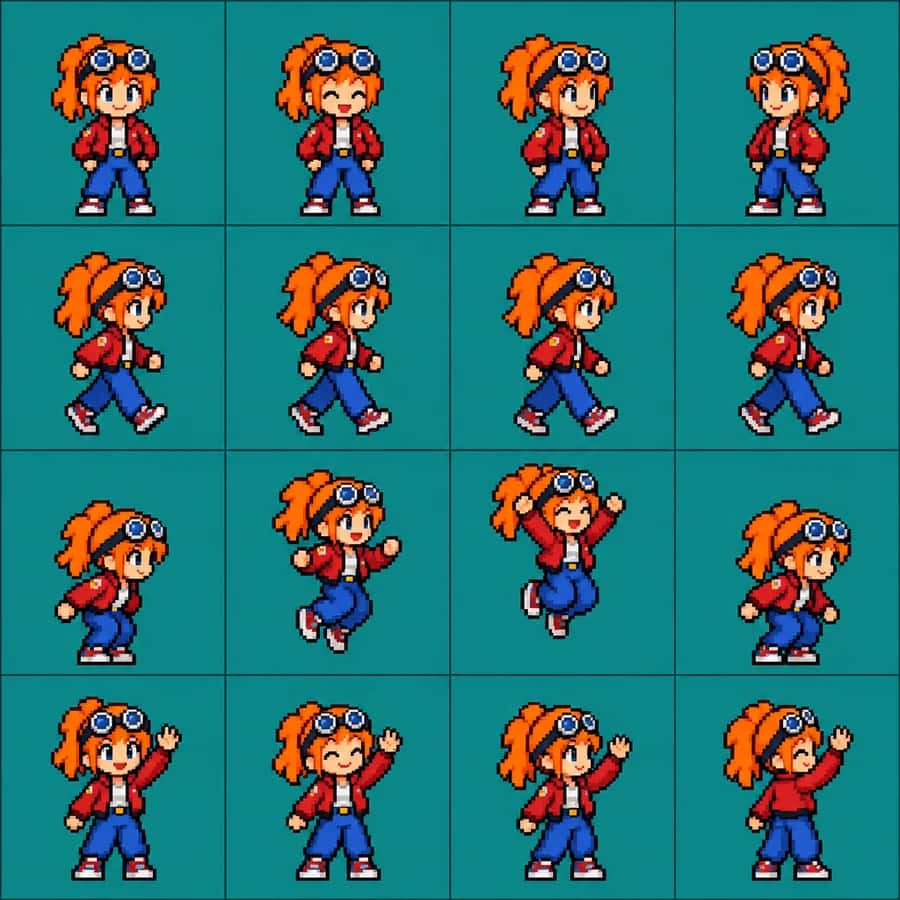
Feed a selfie to an AI, ask for a 4×4 8-bit sprite sheet, and out comes a tiny pixel version of you in sixteen animation frames, ready to loop into a GIF like a character from a 1990s arcade game. That’s the 8-bit sprite sheet look blowing up on X and TikTok right now, and it is refreshingly simple to pull off. This step-by-step guide shows exactly how to make an 8-bit sprite sheet GIF from your photo, what a sprite sheet is, the prompt to use, and how to animate it into a looping GIF, free, with Pixazo’s AI Sprite Generator.
What is an 8-bit sprite sheet?
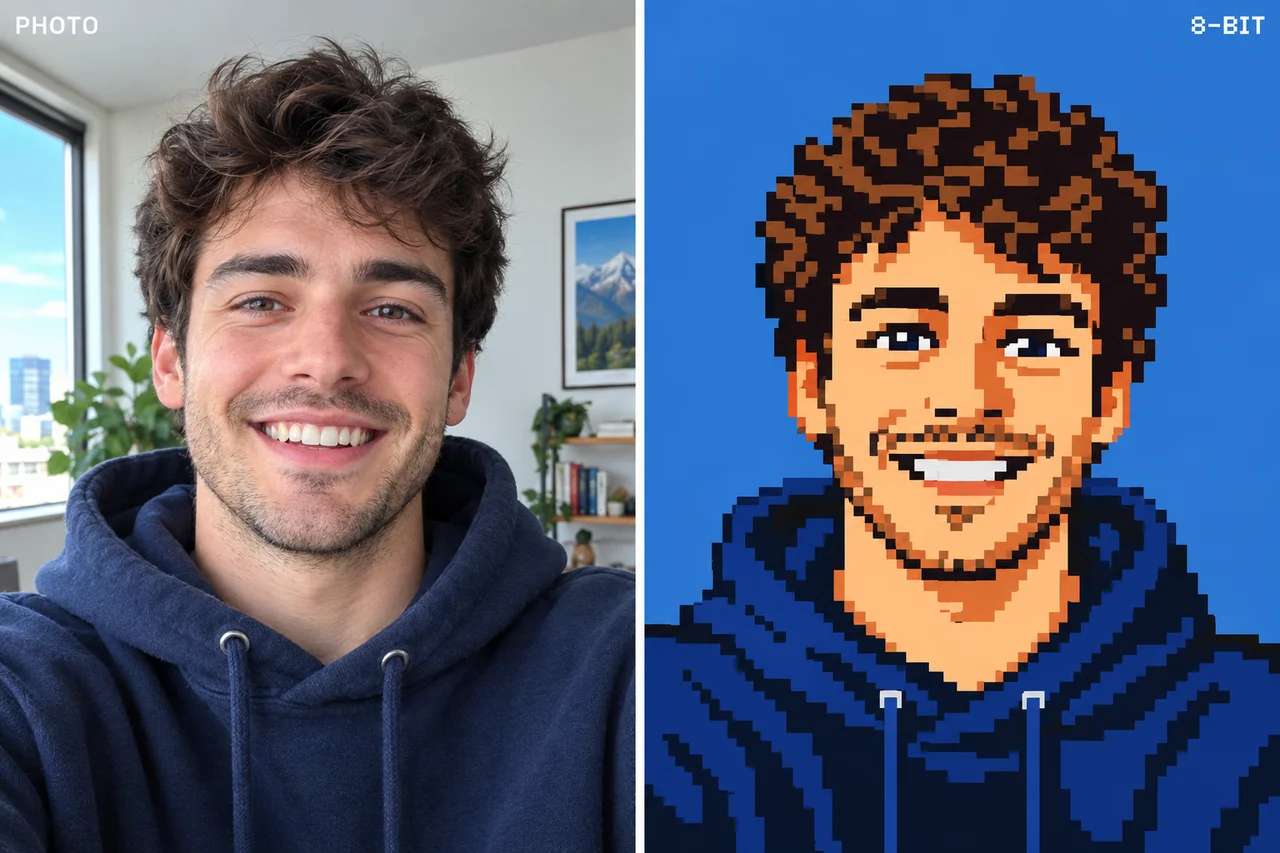
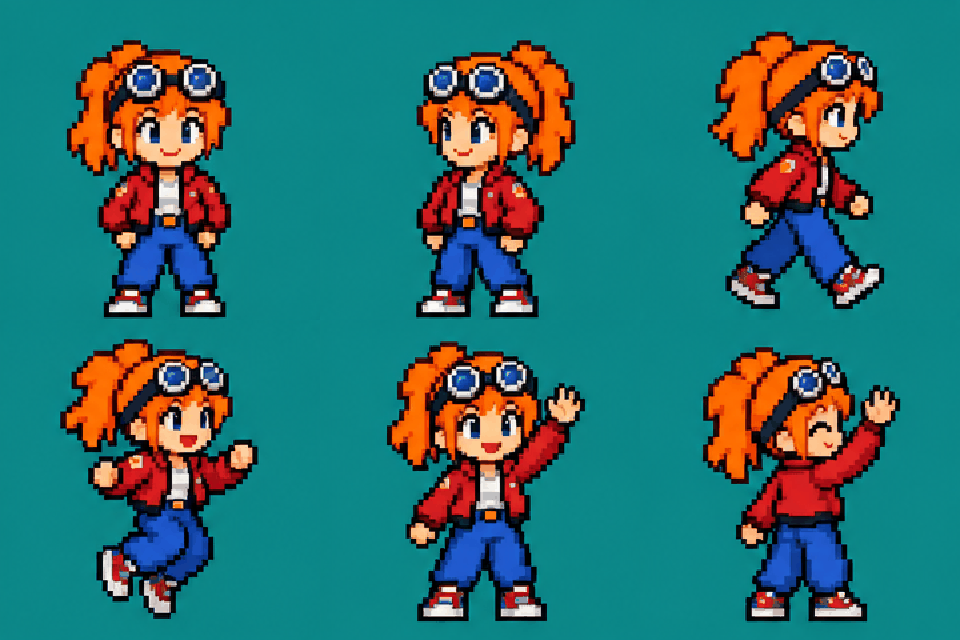
An 8-bit sprite sheet turns a normal photo into a retro pixel-art game character. Instead of one portrait, the AI produces a sprite sheet, a grid of small frames showing the same character idle, walking, jumping and waving. That’s exactly how old console games stored animation: one image, many poses, flipped through fast to create movement. Line those frames up in order and you get a looping pixel GIF of yourself, like a fighter picked off an arcade select screen.
What makes it feel new is that it collapses a whole pipeline, character design, pixel art, animation frames, into a single prompt. What used to take a hobbyist artist an evening now takes one request and a clear photo. The result reads instantly as a game asset, not a filter, which is a big part of the appeal.
Why did it catch on?
The clip that kicked it off summed up the appeal in one line: “this reminds me a lot of Mugen, today it’s easily possible to create the game with GPT.” Mugen is the classic engine hobbyists used to build their own 2D fighting games, frame by painstaking frame. Suddenly anyone can generate a playable-looking character from a phone photo. Three reasons it caught fire:
How do you make an 8-bit sprite sheet?
You can do the whole thing from a phone in a couple of minutes. Pixazo’s AI Sprite Generator runs on the same GPT-style image model behind the look, and the first tries are free.
The best 8-bit sprite prompts
Copy a prompt below and add your uploaded photo. Each keeps your face recognisable and only restyles you into pixels. Tap a block to select it.
▸ CLASSIC 4×4 SPRITE SHEET
Create a 4x4 sprite sheet of the person in this photo as an 8-bit pixel-art video-game character. Keep their face, hair and outfit recognisable. Show the same character across all 16 frames in idle, walking, jumping and waving poses, on a plain flat background with thin grid lines. Crisp hard pixels, limited retro NES colour palette, no text.
▸ 8-BIT AVATAR PORTRAIT
Turn this photo into a single 8-bit pixel-art portrait of the person, keeping their face and outfit recognisable. Blocky hard pixels, classic NES palette, simple flat background, crisp retro game character look. No text.
Suggested Read: 11 Best AI Character Generators in 2026: Top Tools for Creating Stunning Digital Avatars
▸ WALK CYCLE (4 FRAMES)
Create a 4-frame side-view walk cycle sprite of the person in this photo as an 8-bit pixel-art character, keeping them recognisable. Four evenly spaced frames on one row, plain background, consistent character, crisp pixels, retro palette, ready to loop into a GIF. No text.
▸ FIGHTING-GAME SELECT SCREEN
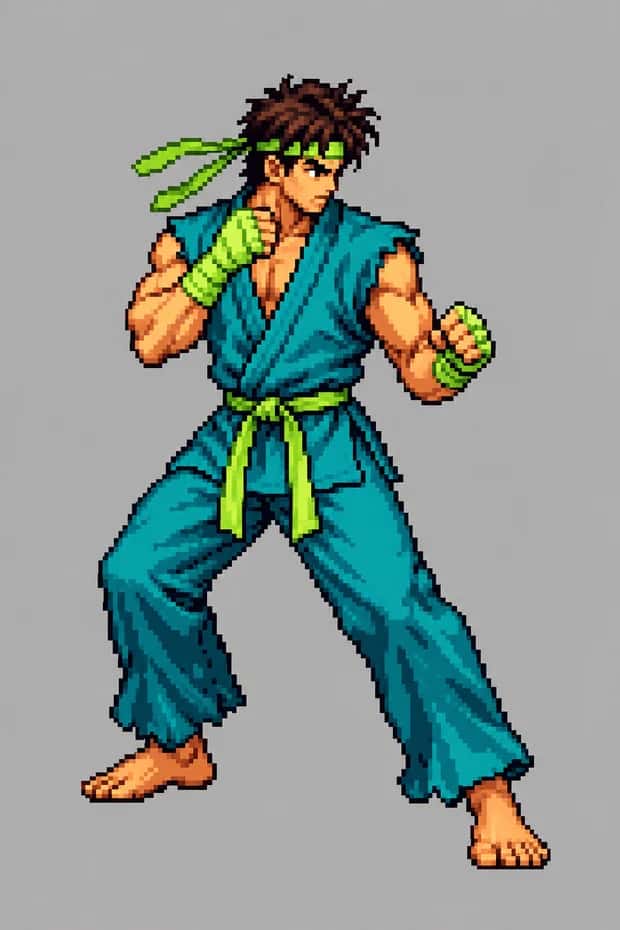
Turn this photo into a 16-bit fighting-game character in a fighting stance, keeping the face and outfit recognisable. Full body, plain background, bold retro arcade colours, crisp pixels, like a 1990s arcade fighter select-screen sprite. No text.
Suggested Read: GPT Image 2.5 Prompt Guide: How to Write Prompts That Get the Image You Want
Tips for a clean sprite
- Ask for a plain background. A flat colour behind the grid makes it far easier to slice the frames and animate them, and to key the background out later.
- Say “same character in every frame.” Consistency is the hardest part, repeat it so your sprite doesn’t change hair or outfit between poses.
- Name the poses. “Idle, walk, jump, wave” gives you a usable animation instead of sixteen random stances.
- Keep it low-res on purpose. Ask for “crisp hard pixels” and a “limited retro palette”, too much detail stops it reading as 8-bit.
- Start from a sharp photo. A clear, front-facing selfie is what keeps your likeness once the resolution drops.
- Regenerate, don’t over-prompt. If one frame is off, generate again rather than piling on more instructions, two or three tries usually lands it.
Pick a style: fun variations to try
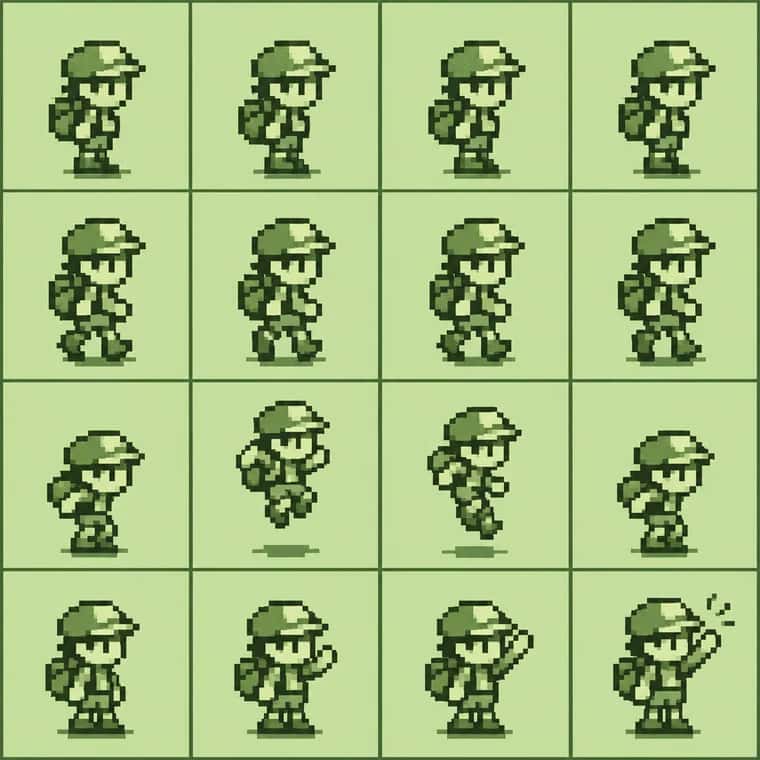
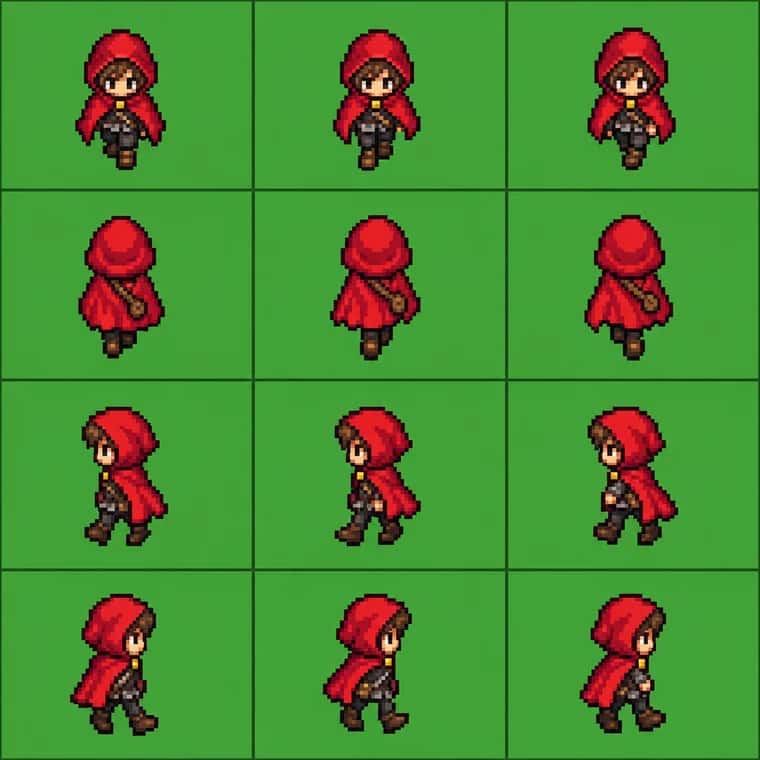
The classic NES look is only the start. Change a few words in the prompt and you get a completely different era of gaming. Here are two we generated with GPT Image 2.5, each from a one-line variation:
Suggested Read: Introducing GPT Image 2.5 API on Pixazo API
- Game Boy green. Ask for a “4-shade Game Boy green monochrome palette” for a handheld throwback.
- 16-bit upgrade. Swap “8-bit” for “16-bit SNES style” for richer colours and smoother shading, great for a full-body fighter.
- RPG overworld hero. Request a “top-down RPG overworld sprite” with four-direction walk frames, like a classic role-playing game.
- Duo or pet sprite. Add a friend or a pet to the prompt for a two-character sheet.
- VHS / arcade. Try “1990s arcade cabinet” or “CRT scanlines” for extra retro grit.
Can you turn it into a real game?
This is where the Mugen comparison comes in. A sprite sheet isn’t just a picture, it’s the raw material games are built from. Once you have consistent frames of a character, you can drop them into a 2D game engine and actually move them around:
- Slice the grid into individual frames (most engines and free tools do this automatically from a sheet).
- Assign the animations, map the idle, walk and jump rows to your character’s states.
- Drop it into an engine like a 2D fighting-game maker or a hobby game kit, and you have a character that runs, jumps and throws a punch.
Suggested Read: 1980s AI Photo Trend: How to Turn Your Photos Into Retro ’80s Portraits
You won’t ship a polished game from one prompt, real games need clean, precisely aligned frames, but this proves how far a single photo can now get you. For most people, a shareable GIF of themselves as a pixel hero is the whole point.
Where to use your pixel sprite
- Profile pictures. A pixel avatar stands out on X, Discord, Twitch and GitHub.
- Animated stickers. The looping GIF makes a perfect reaction sticker or group-chat drop.
- Streamer & creator branding. A signature 8-bit version of yourself for overlays, emotes and thumbnails.
- Game jams & prototypes. A quick placeholder hero when you just need a character to start building.
Suggested Read: Top Viral AI Video and AI Photo Trends in 2026
Frequently Asked Questions
What is an 8-bit sprite sheet?
It is an AI technique where you upload a selfie and ask an AI to create a 4×4 sprite sheet in 8-bit pixel-art style, a grid of animation frames of you as a retro game character, then loop it into a GIF.
How do I turn my photo into an 8-bit sprite sheet?
Upload a clear selfie to an AI image tool like the AI Sprite Generator, then paste: “create a 4×4 sprite sheet of this person, 8-bit pixel-art style, same character in every frame, plain background.” Generate, then animate the frames into a GIF.
How do I turn the sprite sheet into a GIF?
Ask the AI to “animate this sprite sheet into a looping GIF,” or slice the grid into individual frames and load them into any free sprite-to-GIF or animation tool. A plain background makes this much cleaner.
Suggested Read: Best AI Avatar Generators in 2026: 8 Top Picks Reviewed
Can I turn my sprite into a real game character?
Partly. A consistent sprite sheet can be sliced and dropped into a 2D game engine to move around, which is why this is compared to Mugen. Shippable games still need clean, precisely aligned frames, but it’s a genuine starting point.
Do I need any design or gaming skills?
No. The whole point is that one prompt does the work, no pixel art, no game engine. Just a clear photo and a good prompt.
Will the sprite still look like me?
Yes, as long as you ask it to keep your face, hair and outfit recognisable. Starting from a sharp, front-facing selfie helps your likeness survive the pixelation.
Suggested Read: How to Convert Photo to Pencil Sketch: Step-by-Step Guide in 2026
Deepak Joshi
Author · Pixazo
Deepak writes about generative AI models, APIs, and the workflows teams use to ship them. Reviewed by Abhinav Girdhar.