HEIC to PNG converter
Pixazo's HEIC to PNG converter lays that photograph flat. A HEIC is a photograph inside a wrapper only some software knows how to open. Unpack it to PNG and the picture lies flat: lossless pixels, an alpha channel, and a file almost anything can pick up without asking questions. Bring the file to Pixazo's P Agent, say what you want in plain language, and take the flat copy away.
What comes off when a HEIC is unpacked
Converting does not retouch your photograph. It takes the same image data out of Apple's HEIC container and rewrites it in PNG's container instead. Three things change in that handover, and it is worth knowing which.
A wrapper anything can open
HEIC is the container the iPhone has shipped since iOS 11, holding HEVC-compressed stills. PNG is the plain, long-settled alternative: older software, print workflows and upload forms that refuse a HEIC will take a PNG without a word.
Depth and Live frames stay behind
A HEIC can carry depth maps, Live Photo frames, wide colour and high bit depth. PNG is a single still image, so those extras do not travel with it. Keep the original HEIC if you may want them later.
The file gets heavier
HEIC exists because HEVC compression makes a photo markedly smaller than the same shot as JPG at similar quality. PNG keeps every pixel exactly as saved, which is why PNG files of photographs are large. Flat and open costs space.
HEIC and PNG laid out next to each other
The honest comparison is not "better and worse". It is a small, private, feature-rich container against a large, open, lossless one. Read the row that matters to whatever is about to receive your file.
| On the bench | HEIC (as it arrives) | PNG (as it leaves) |
|---|---|---|
| Where it comes from | Apple's stills container, shipped on iPhone since iOS 11. | A long-established still image format with no single vendor behind it. |
| Compression | HEVC-compressed, which is why the file is markedly smaller than the same shot as JPG at similar quality. | Lossless. Every pixel stays exactly as it was saved. |
| Transparency | Not what it is reached for; HEIC's strengths sit elsewhere. | Full alpha transparency, which is why logos, UI exports and screenshots live here. |
| Extras it can hold | Depth maps, Live Photo frames, wide colour, high bit depth. | A single still image. No animation, no depth track. |
| Who will accept it | Comfortable across Apple software and modern browsers; refused by a great deal of other software, print workflows and upload forms. | Accepted about as widely as an image format gets. |
| Best suited to | Keeping camera-roll photographs small on the phone that shot them. | Flat graphics, screenshots, UI exports, logos, and any photo that has to be handed onward without a fuss. |
Where the unpacking actually happens
Pixazo's image conversion lives inside the P Agent. The Studio describes its own remit plainly: video to MP4 from MOV, AVI, WMV, MKV or MXF, or an image between HEIC, JPG, PNG, WebP and AVIF. HEIC to PNG is one of those image pairs, so this is something the Studio does, not something it approximates.
There is no format menu to hunt through. You attach the picture and ask for what you want the way you would ask a colleague — Convert @Image1 to PNG — and the Studio works out for itself that what arrived was a HEIC. You never have to declare the source format.
It runs in the browser, so nothing is installed, and it needs a Pixazo account. That is the whole shape of it: bring a wrapped file to the table, leave with a flat one.
Unpacking a HEIC with the HEIC to PNG converter, move by move
Four moves at the table, in order. None of them asks you to know anything about codecs or containers.
Open the Studio and bring the file over
Go to the P Agent in your browser and sign in to your Pixazo account. Attach the HEIC straight from your phone's export or your desktop folder.
Say what you want in plain language
Type a request such as "Convert @Image1 to PNG". You do not need to tell it the file is a HEIC — the Studio detects the source format on its own.
Compare the flat copy against the original
Conversion rewrites the container, not the picture, so framing, colour and detail should match what went in. Anything that looks wrong was already in the source.
Download and pass it on
Save the PNG and hand it to whatever refused the HEIC — the upload form, the print shop, the older editor, the colleague on a machine that has never heard of HEVC.
Whose hands the flat copy ends up in
Almost nobody converts a HEIC for its own sake. It happens because something further down the line will not take the wrapper, and the flat copy is what gets handed across.
Job portals, council forms, insurance claims and school systems that were built before HEIC existed and validate on extension. PNG is the format they are far more likely to accept.
Print workflows that refuse HEIC outright. Handing over a lossless PNG means nothing has been thrown away between your camera roll and the press.
Anyone who needs the photograph in a layered file next to logos and flat graphics, in a format their tool opens directly and that supports an alpha channel.
Software that was frozen years ago and never learned HEVC stills. PNG has been readable by it since long before either of you had an iPhone.
The colleague who double-clicks your photo and gets an error. Outside the Apple ecosystem and modern browsers, a great deal of software simply refuses HEIC.
What the HEIC to PNG converter will not do for you
A converter changes the wrapper. It is not an editor and it is not a repair shop, and pretending otherwise only wastes your afternoon. Here is where the table stops.
It will not crop, resize or straighten
Conversion does not touch geometry. Do your cropping and resizing first, then convert once, so you are not unpacking the same photo twice.
It will not retouch or colour-correct
No skin work, no exposure fixes, no grading as part of a conversion. What went into the wrapper is what comes out on the bench.
It will not cut out a background
Background removal and upscaling are separate jobs, not side effects of moving from HEIC to PNG. Finish those elsewhere and convert last.
It cannot add detail that was never there
Unpacking a small or already-compressed photo into a lossless PNG preserves what is present. It does not restore what was discarded earlier.
It will not carry the depth map across
Depth data, Live Photo frames and other HEIC extras are not part of a PNG. Keep the original if those matter to you.
It will not make the file smaller
PNG is lossless, so a photograph normally lands heavier than the HEIC it came from. That is the price of a format everything reads.
Habits that keep the handover clean
Small pieces of table discipline. They cost nothing and they save you re-doing the job.
Edit first, unpack last
Because the Studio converts rather than edits, every crop, resize and correction belongs upstream. Convert as the final move and the PNG you download is finished.
Keep the HEIC original
Treat the PNG as the copy you hand out and the HEIC as the master on the shelf. Depth maps and Live frames only exist in the original.
Name the file in the request
Attach the picture and refer to it directly, the way the example does. A specific ask is easier to read back and check than a vague sweeping one.
Send PNG where flatness matters
Screenshots, logos, UI exports and anything needing transparency belong in PNG. For a plain photograph on a web page, weigh the file size before you commit.
Why a smaller file is sometimes the wrong file
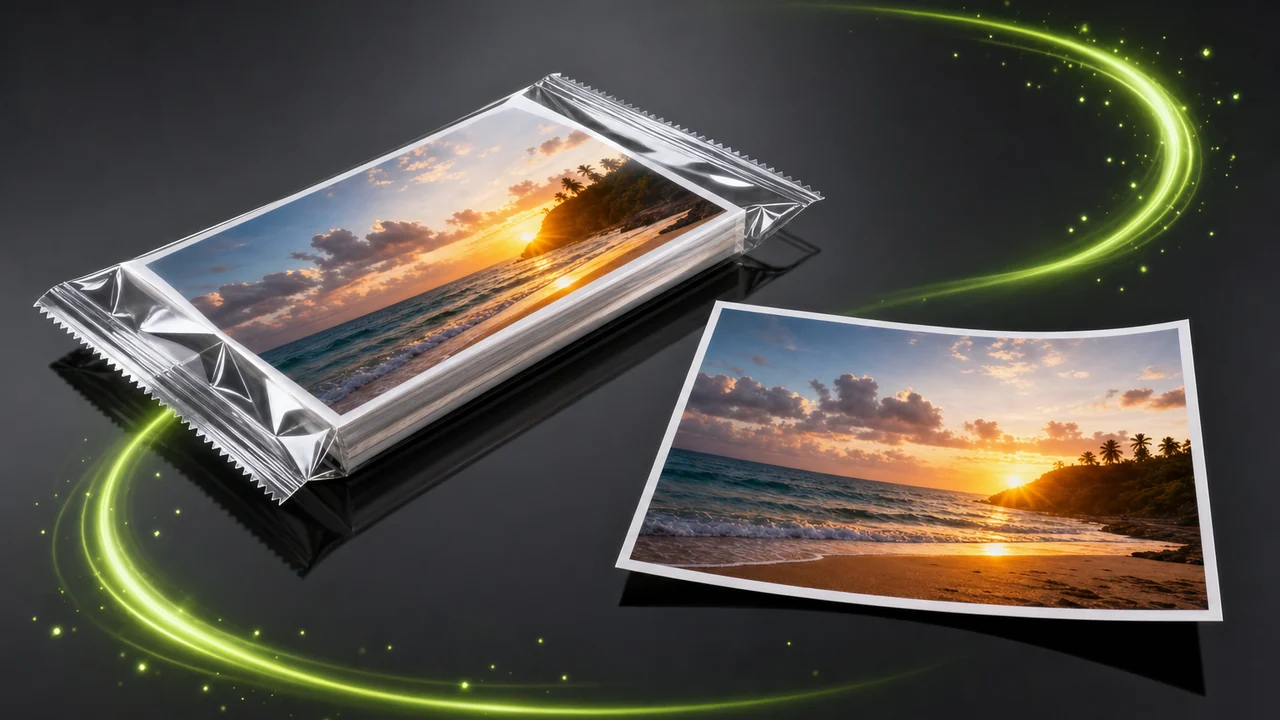
HEIC is genuinely good engineering. Its whole reason for existing is to keep camera-roll photographs small, and it does that better than JPG at similar quality while still finding room for depth maps, wide colour and high bit depth. On the phone that shot the picture, none of this is a problem.
The problem starts the moment the file leaves that phone. Reach is where HEIC is weak: outside the Apple ecosystem and modern browsers, a great deal of software, print workflows and upload forms simply refuse it. A perfectly good photograph becomes an error message.
PNG trades the small file back for reach and for losslessness. It keeps every pixel exactly as saved and it is understood almost everywhere, which is precisely what you want in the copy you are handing to someone else. Unpack once, hand it over, and let the original stay small on your phone.
HEIC to PNG converter answers before you unwrap anything
Does Pixazo actually convert HEIC to PNG?
Yes. The HEIC to PNG converter runs in Pixazo's P Agent, which handles images between HEIC, JPG, PNG, WebP and AVIF.
Do I have to tell it the file is a HEIC?
No. Attach the image and ask for what you want, such as "Convert @Image1 to PNG". The Studio detects the source format itself.
Will the PNG lose quality compared with the HEIC?
PNG is lossless, so it keeps the pixels it is given exactly as they are. It cannot add back detail that HEVC compression discarded before you arrived.
Why is my PNG bigger than the HEIC it came from?
Because PNG stores every pixel without lossy compression, while HEIC leans on HEVC to keep photographs small. For a photograph, PNG is normally the heavier file.
Can it crop or resize the photo while converting?
No. The Studio is a converter, not an editor: no cropping, resizing, retouching, colour correction, background removal or upscaling as part of a conversion. Make those edits first, then convert once.
What happens to the depth map and Live Photo frames?
They stay in the HEIC. PNG is a single still image with no depth track and no animation, so keep the original if you need those extras.
Do I need to install anything?
No. The P Agent runs in your browser. You do need a Pixazo account to use it.
Should I choose PNG or JPG for an iPhone photo a site rejected?
Pick PNG when you want lossless pixels or transparency, such as screenshots, graphics and files heading into a design or print workflow. JPG is the lighter choice for a plain photograph on a web page, and the Studio converts to either.
About the author
By Deepak Joshi
Deepak Joshi is a Content Marketing specialist having a combined experience of 10+ years working in the digital world. He is one of the active contributors to Pixazo Blog and has keen interest creating and marketing content related to AI tools, No-Code technology, Design Industry, Social Influencers, and other trending topics. A health and sport enthusiast, Deepak loves to indulge in all kinds of sports & games.
Bring the wrapped file, leave with the flat one
Open the HEIC to PNG converter in the P Agent, attach your iPhone photo, ask for a PNG in plain language, and hand the unpacked copy to whatever refused the HEIC. Converter, not editor — so bring it finished.
Building it into an app or automating in bulk? Use the HEIC to PNG API.

