Skip to content
IN
Free online video converter

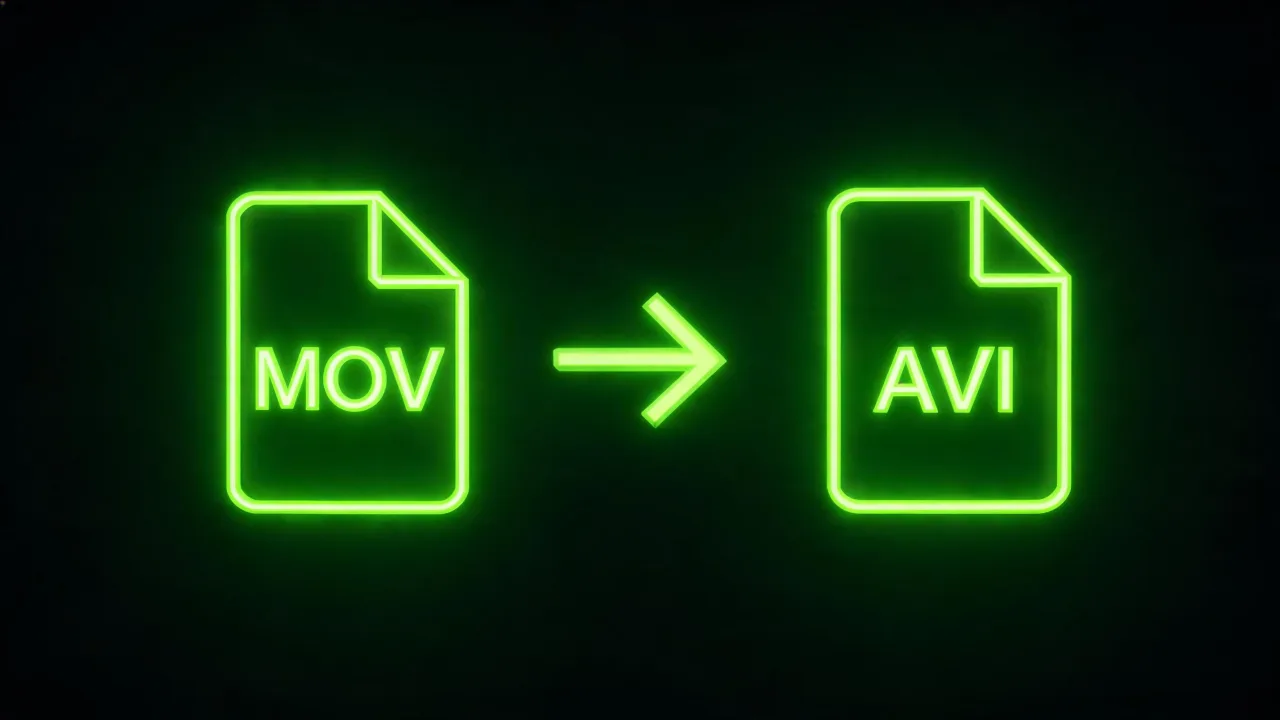
MOV to AVI Converter

Turn a QuickTime .MOV into a legacy .AVI so it opens in older Windows editors, embedded players and archive systems built around AVI. Upload, convert, download. Free to start, no watermark.

Free to start No credit card Legacy-friendly No watermark
A QuickTime MOV being sealed into an AVI archive, created with Pixazo AI
Container swap
MOV converted to AVI playing on an older Windows machine, created with Pixazo AI
Legacy-friendly
A row of archive boxes with a converted AVI clip inside, created with Pixazo AI
Archive-ready
What is MOV to AVI?

A MOV goes in, an AVI comes out

The Pixazo MOV to AVI Converter takes a QuickTime .MOV clip, re-wraps its video and audio into a standard .AVI container, and hands the finished file back to you for download. It's built for the moments when a legacy Windows editor, an archive pipeline or an embedded player will only accept AVI — and modern .MOV files won't open.

There's nothing to install, nothing to configure, and the free tier ships without a watermark. Drop your MOV in, wait a moment, and pull down an AVI that the older tool on the other end recognises without codec drama.

At a glance
Input formatsMOV (QuickTime) and other common video
Output formatsAVI
Best forLegacy Windows editors, archive pipelines, embedded players
Works inAny — conversion is language-independent
Runs inBrowser (desktop & mobile)
WatermarkNone
PriceFree to start · scales with your Pixazo plan
Why the switch?

Why convert MOV to AVI?

Four real reasons this conversion still comes up in 2026 — each one anchored in a system on the other end that has an opinion about your container.

Older Windows editors

A Windows editor from an earlier era will happily open .AVI while stalling on a modern .MOV. Converting is faster than rebuilding the workstation around a new codec pack.

Embedded players

Kiosks, in-store screens and firmware-baked players are often locked to AVI. If the manual says "AVI only", nothing else in the file will change its mind.

Long-term archives

AVI has been in the wild since 1992 and reads reliably on decades of tooling. That deep compatibility is exactly what archive teams standardise on.

Cross-platform handoffs

Handing a Mac-recorded MOV to a Windows-based partner? Delivering an AVI removes the "can you re-export it?" round trip from the conversation.

Workflow

How do you convert MOV to AVI?

Four steps and your QuickTime clip is a legacy-ready .AVI. No account gymnastics, no downloads.

  1. Open the converter

    Head to the AI VFX Studio; nothing to download.

  2. Upload your MOV

    Drag in your QuickTime .MOV or pick it from your device.

  3. Convert to AVI

    Start the conversion and the Studio re-wraps your video into a standard .AVI file.

  4. Download your AVI

    Save the finished .AVI and drop it into whichever legacy tool needs it.

Ready to try it on your own clip?

Open the AI VFX Studio and drop in a MOV — free to start.

Start converting free →
Feature story

What does this converter actually do?

Three things, honestly — the container swap, the legacy-friendly output and the long-term-storage benefit that comes with AVI's staying power.

A QuickTime MOV being sealed into an AVI archive, created with Pixazo AI 01 · Container swap

From Apple MOV to universal .AVI

MOV is QuickTime's home turf. AVI is the legacy container older Windows systems still trust. This converter takes your MOV and hands you an AVI you can send anywhere those systems live.

Convert a MOV now →
MOV converted to AVI playing on an older Windows machine, created with Pixazo AI 02 · Legacy-friendly

Opens where MOV struggles

If a Windows editor, kiosk or archive system can't read your MOV, an AVI version usually opens without wrestling with codec plugins or hunting down obscure QuickTime installers.

Fix a stubborn MOV →
A row of archive boxes with a converted AVI clip inside, created with Pixazo AI 03 · Archive-ready

Long-term preservation ready

AVI has been around since 1992 and remains a common archive-tier format. Convert your MOV once and it's ready to be filed and re-opened years from now on tooling that hasn't been updated in a decade.

Archive as AVI →
Format comparison

MOV vs AVI — what actually changes?

Two containers, two eras. Here is how the source format on your Mac compares to the legacy target format your older Windows tools prefer.

AttributeMOV · SourceAVI · Target
ContainerQuickTime · AppleAVI · Microsoft-era
Best forNative Mac editingLegacy Windows software
EraModern Apple1992 onward
Cross-platformBest on MacBest on older Windows
File sizeVaries (ProRes → larger)Efficient by comparison

Sending files to a legacy Windows tool?

Convert once, hand off the AVI, keep the meeting moving.

Convert now →
Who this is for

Where does the AVI request actually come from?

Real cases where AVI is the specific ask — not a nostalgic pick, but a compatibility requirement from the system on the other end.

  • A-01Archive teams standardising on AVI
  • A-02Legacy Windows editing setups
  • A-03Kiosks and embedded players
  • A-04Old CCTV or security pipelines
  • A-05Anyone whose Windows editor rejected your MOV
  • A-06Teams delivering to a Windows-only partner
Handling notes

Handling notes before you convert

Honest instructions so you know what to expect from the file that comes out.

  • Start from the highest-quality MOV you have. The converter preserves what you give it — a cleaner intake means a cleaner archived copy.
  • Long clips take a moment. Bigger files sit at the counter a little longer while the container is re-wrapped.
  • AVI is older — expect larger files than modern codecs. That's the trade for legacy compatibility.
  • Good to know — it's a converter, not an editor. No trimming, no colour, no mixing at this counter.
  • Good to know — for modern sharing, MP4 is usually a better default than AVI. Reach for AVI only when a legacy tool asks for it by name.
Showcase

Three MOV jobs, three AVI files

A few frames pulled from real jobs — MOV clips that came out the other side as legacy-ready AVI files.

MOV being sealed into an AVI archive vault, created with Pixazo AI
Sample · 01
Old CRT displaying an AVI clip that came from a Mac MOV, created with Pixazo AI
Sample · 02
Row of archive boxes containing converted AVI copies, created with Pixazo AI
Sample · 03
FAQ

What do people ask before converting?

Short answers to the questions we hear most about MOV → AVI.

Is the MOV to AVI converter free?

Yes, you can start free with no credit card.

Why convert MOV to AVI?

Some legacy Windows editors, archive systems and embedded video pipelines only handle AVI cleanly. Converting your MOV is the fastest fix.

Will converting reduce my video quality?

Conversion re-wraps your video into an AVI at the source resolution and aims to preserve quality. It can't add detail that wasn't there.

Does it keep the audio?

Yes.

Can I convert MOV to AVI on iPhone or Android?

Yes. It runs in your mobile browser with no app to install.

Isn't AVI outdated?

AVI is older than MP4 or MKV, but it's still the format many older Windows tools understand. That's specifically what this converter is for.

Do I need to install anything?

No.

Can it also edit or trim my video?

No. It's a converter only.

About the author

DJ

By

Content Marketing specialist · Pixazo · Reviewed & updated July 2026

Deepak Joshi is a Content Marketing specialist having a combined experience of 10+ years working in the digital world. He is one of the active contributors to Pixazo Blog and has keen interest creating and marketing content related to AI tools, No-Code technology, Design Industry, Social Influencers, and other trending topics. A health and sport enthusiast, Deepak loves to indulge in all kinds of sports & games.

Author page · Pixazo on LinkedIn

Convert your MOV to AVI

One upload, one conversion, one download — and your clip is legacy-ready.

Convert MOV to AVI free →
Free to start No install No watermark
With Pixazo’s platform we deliver enterprise-class security and compliance to you and your customers through every interaction.