Skip to content
IN
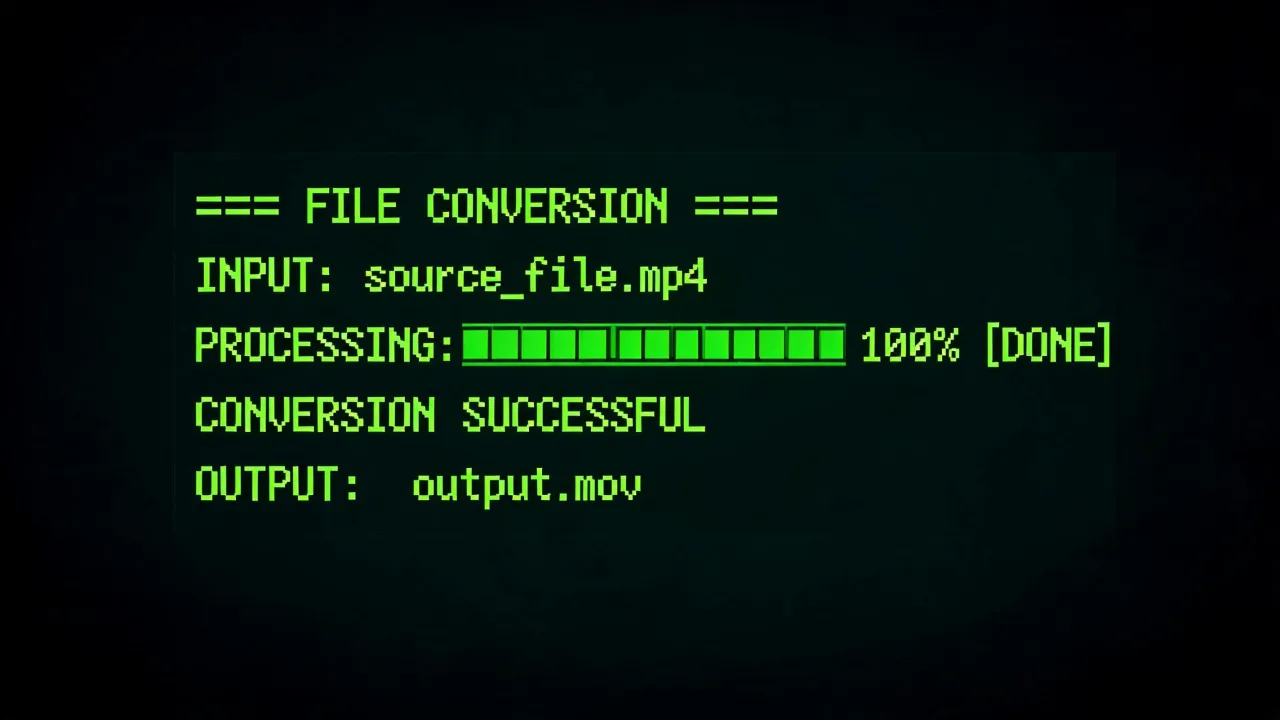
Terminal-style conversion of an MP4 to a MOV file on a Mac, created with Pixazo AI
Free online video converter

MP4 to MOV Converter

Turn any universal .MP4 into an Apple QuickTime .MOV — the native format for Final Cut Pro, iMovie and pro Mac editing workflows. Upload, convert, download in seconds. No app, no watermark, free to start.

Free to start No credit card No install Mac-native output
The swap

Why convert MP4 to MOV?

MP4 is the internet's default video container — the format phones record in and streaming platforms accept without complaint. It's universal, efficient and safe to share anywhere.

MOV is a different animal. It's Apple's QuickTime container, and it's what Final Cut Pro, iMovie and other Mac-native editors reach for first. If you've ever dragged an MP4 into a Mac editor and been asked to "optimise" or "transcode" before you could work with it, that's the exact friction MOV is designed to remove.

This converter reads the real video and audio inside your MP4 and re-wraps them into a clean, editor-ready MOV — no re-shoot, no manual codec juggling, no watermark. Upload, convert, download, and drop the file into your timeline.

Feature set

Built for the way editors actually work

Three things this converter gets right so you can spend your time on the edit, not the wrapper.

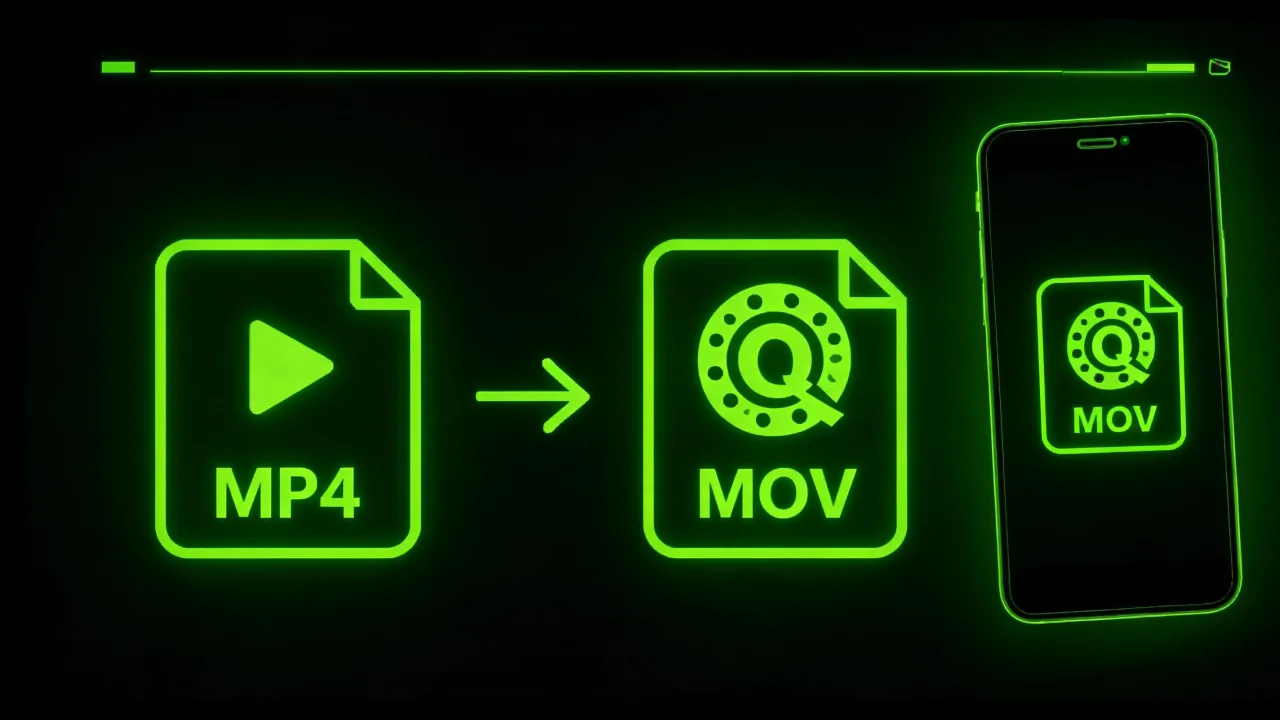
A universal .MP4 file converting into an Apple QuickTime .MOV file, created with Pixazo AI
01 · Container swap

MP4 in, Mac-native .MOV out

MP4 is what phones and the web spit out; MOV is what your Mac editing tools want. This gets you from one to the other in one step, no re-shoot needed and no complicated preset menus to wade through first.

Try MP4 to MOV →
A converted MOV file opening in Final Cut Pro on a MacBook, created with Pixazo AI
02 · Editor-ready

Ready to drop into Final Cut Pro

The output is a real QuickTime .MOV — you can drag it straight into a Final Cut Pro, iMovie or DaVinci Resolve timeline without codec warnings, without "optimise for editing" pop-ups, and without a background transcode blocking your work.

Open in editor →
An MP4 being re-encoded into a MOV for a Mac editing workflow, created with Pixazo AI
03 · Quality preserved

Same quality, different wrapper

The converter reads the real video inside your MP4 and re-wraps it as MOV at your source resolution. No watermark, no forced quality drop, and audio travels with the file so sync stays intact.

Convert without loss →
The flow

How do you convert MP4 to MOV?

Four steps — from upload to a MOV that drops straight onto a Final Cut Pro timeline.

  1. Open the converter

    Head to the AI VFX Studio; it loads in your browser on desktop or mobile with nothing to download.

  2. Upload your MP4

    Drag in your MP4 or pick it from your device. The converter reads the real video inside, whatever codec it uses.

  3. Convert to MOV

    Start the conversion and the Studio re-wraps your video into a QuickTime .MOV that Final Cut Pro, iMovie and other Mac editors handle natively.

  4. Download your MOV

    Save the finished file and drop it straight into your Mac editing timeline.

Head to head

MP4 vs MOV — what's the difference?

Same movie, different envelopes. Here's how the two containers compare at a glance.

 MP4MOV
ContainerMPEG-4 · universalQuickTime · Apple
Best forSharing / uploads / streamingPro Mac editing / Final Cut / iMovie
Native onEverythingmacOS / iOS
Typical codecH.264 + AACVaries (ProRes, H.264…)
File sizeEfficientCan be larger, esp. ProRes
Compatibility

Where does MP4 play, and where does MOV shine?

Both formats play widely; MOV just plays best where Apple's tools live.

QuickTimeNative Mac player
Final Cut ProEditor of choice
iMovieZero friction
DaVinci ResolveDrops right in
Who it's for

Who reaches for MP4 to MOV?

The people who most often need this converter and why.

  • Mac video editorsEditors on a Mac who need clean, native timelines with no transcode step blocking the edit.
  • Final Cut Pro & iMovie usersBringing external MP4s into a fully Apple editing chain.
  • iPhone creatorsRecording on the phone, editing on the Mac — and skipping codec friction between them.
  • Post-production teamsStandardising on QuickTime for a predictable post pipeline.
  • Mac editors that rejected an MP4The exact "please transcode first" friction this tool removes.
  • Deadline-driven editorsSkip the wait — drop an editor-ready MOV on the timeline in seconds.
Do this / don't

Tips and honest limits

What helps the conversion go well — and what this tool intentionally does not do.

  • Start from the highest-quality MP4 you have. A stronger source produces a stronger MOV.
  • Keep audio in the file. Sound travels across into the MOV automatically.
  • Long clips take a moment to process. Give the browser tab a minute for larger files.
  • NoteIt's a converter, not an editor. Trimming and effects live in your editor of choice.
  • NoteThe output is a standard QuickTime MOV, not a ProRes master. ProRes mastering is a separate workflow.
  • Batch what you can. Convert a whole shoot in one browser session before you start editing.
Real output

See it in action

A few MOVs produced by the converter, ready for a Mac editing timeline.

A stack of converted MOV files ready for Mac editing, created with Pixazo AI
Batch a whole shoot into Mac-native MOVs.
A MOV clip on a Final Cut Pro timeline, created with Pixazo AI
Straight onto a Final Cut Pro timeline.
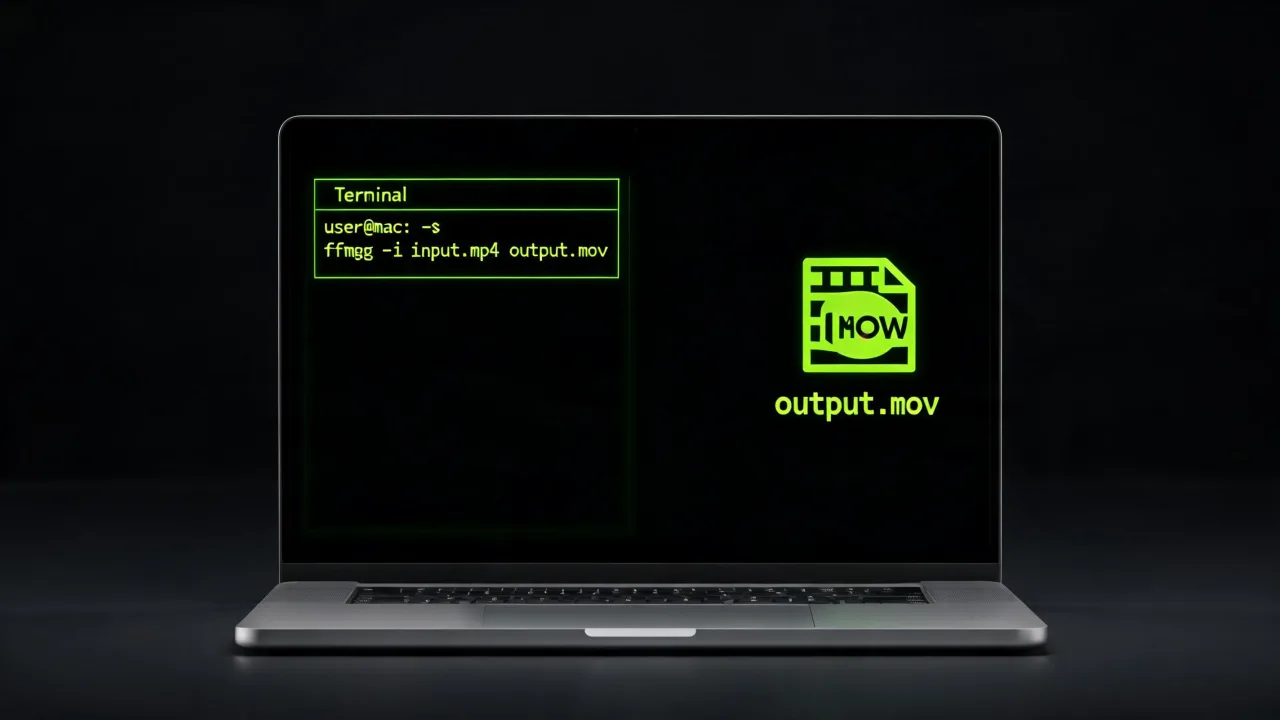
Terminal-style conversion of an MP4 to a MOV file, created with Pixazo AI
MP4 in, MOV out — in seconds.
Questions

Frequently asked questions

The questions people ask most before they hit convert.

Is the MP4 to MOV converter free?

Yes, you can start free with no credit card. It runs in Pixazo's AI VFX Studio, and higher usage follows your Pixazo plan.

Why convert MP4 to MOV?

MOV is Apple's QuickTime container, and it's the format Final Cut Pro, iMovie and other Mac editors handle most natively. Converting saves you codec headaches and messy transcodes.

Will converting reduce my video quality?

Converting re-wraps your video into a QuickTime .MOV and aims to preserve source quality. It can't add detail the original doesn't have, and any re-encode can involve some compression.

Does it keep the audio?

Yes. Audio from your MP4 comes across into the MOV so sound is preserved.

Can I convert MP4 to MOV on iPhone or Android?

Yes. The converter runs in your mobile browser with no app to install.

Is the output ProRes?

No, the output is a standard QuickTime MOV built for editing compatibility. ProRes masters are a separate workflow.

Do I need to install anything?

No. Everything runs in the browser through an upload, convert, download flow.

Can it also edit or trim my video?

No. This is a converter only; trimming and editing are separate steps in a video editor.

About the author

By

Content Marketing specialist · Pixazo · Reviewed & updated July 2026

Deepak Joshi is a Content Marketing specialist having a combined experience of 10+ years working in the digital world. He is one of the active contributors to Pixazo Blog and has keen interest creating and marketing content related to AI tools, No-Code technology, Design Industry, Social Influencers, and other trending topics. A health and sport enthusiast, Deepak loves to indulge in all kinds of sports & games.

Convert MP4 to MOV in your browser — free

Upload, convert, download. Ready for Final Cut Pro, iMovie and every Mac editing timeline.

Convert MP4 to MOV free
Free to start No install No watermark
With Pixazo’s platform we deliver enterprise-class security and compliance to you and your customers through every interaction.