How to Restore Old Photos With AI (Free, No Photoshop)

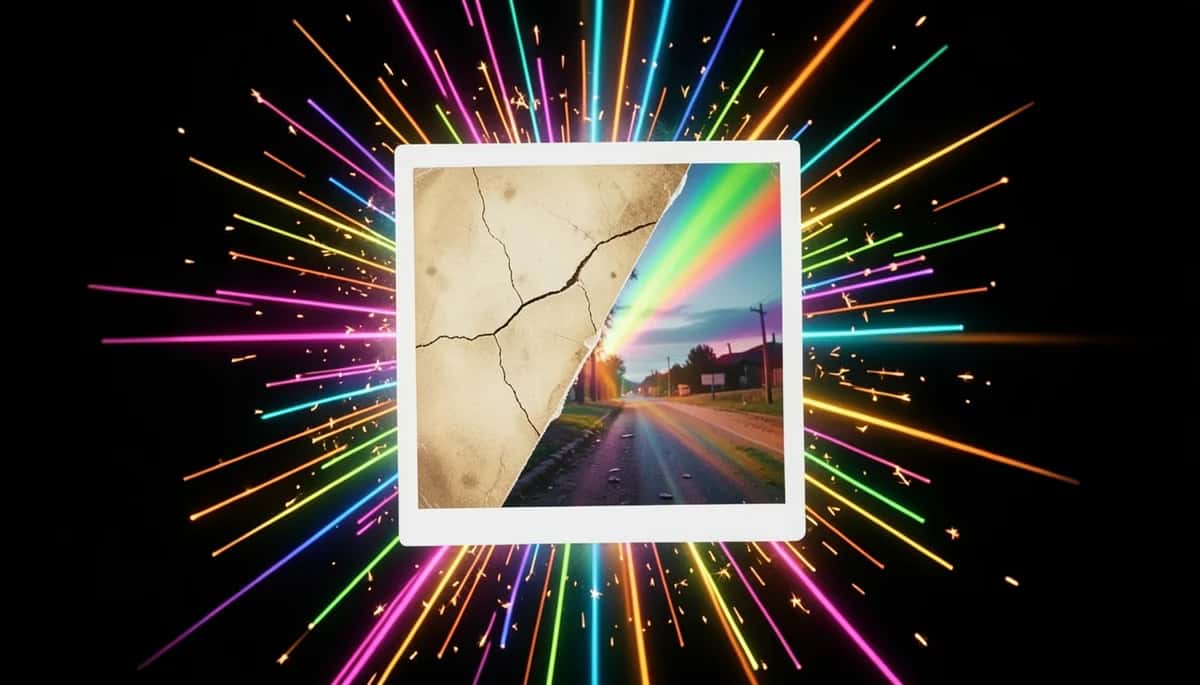
That shoebox of old photos — the faded wedding portrait, the cracked baby picture, the colour print that has gone orange — does not need a trip to a studio or a weekend learning Photoshop. An AI photo restoration tool can repair scratches, bring back faded colour and sharpen a blurry scan in seconds, right in your browser. This guide shows you exactly how to restore old photos with AI, for free, with no editing skills and no Photoshop.
 BEFOREAFTER
What AI photo restoration actually fixes
Restoration is really four repairs happening at once. Knowing what the AI is doing helps you set the right expectations for your own photos:
The model fills in the damaged pixels using the surrounding image, so white scratch lines, fold creases and torn corners disappear into the picture.
Decades of light flatten a photo to a pale, milky grey. AI rebuilds the contrast and brings the blacks and highlights back to life.
Old prints drift orange, yellow or pink as the dyes break down. The AI neutralises that cast and restores believable, natural colour.
Soft scans and tiny snapshots get sharpened and upscaled, so faces and detail read clearly instead of turning to mush.
The clever part is that a good model does all four at once, and in context. It does not just blur the scratches away — it reads what the photo is (a face, a sky, a jacket) and rebuilds the damaged area to match, so the repair is invisible rather than smudged. That is why a one-click AI pass often beats an hour of careful manual cloning. If the background behind your subject is the part that is wrecked, you can go a step further and replace it entirely with an AI background remover after restoring the person.
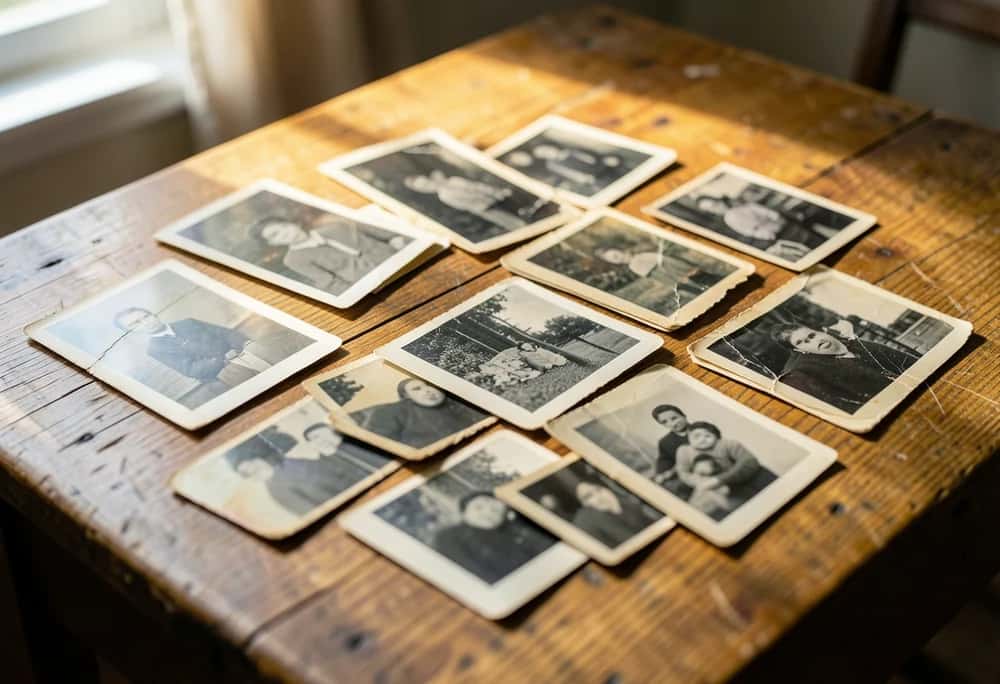
How to restore an old photo in 4 steps
The whole thing takes about a minute. No layers, no masking, no tools to learn — you upload, the AI works, you download. Before you start, grab the best version of the photo you can: a flatbed scan at 300 dpi or higher is ideal, but a sharp, glare-free phone photo of the print works too.
Open the AI photo restoration tool and drop in the old or damaged picture (a JPG or PNG up to 5 MB). A scan or a clear phone photo both work.
Log in, or create a free account if you are new. This is what lets you run the restoration and save the result.
You land in the playground with the image-revive tool already selected, and the restoration runs automatically — detecting and fixing scratches, fading and discolouration. It uses a few credits; new accounts get 300 free.
When you are happy with the result, download the restored photo in high resolution. Reprint it, frame it, or share it with the family group chat.
 BEFOREAFTER
Suggested Read: 10 Best AI Photo Restoration Tools in 2026
Why you do not need Photoshop
Restoring a photo by hand in Photoshop is real work — clone stamp, healing brush, curves, colour balance, often an hour per picture. AI collapses all of that into one step. Here is the honest comparison:
| In Photoshop | AI restoration | |
|---|---|---|
| Skill needed | Years of editing practice | None — it is automatic |
| Time per photo | 30–90 minutes | Under a minute |
| Cost | A paid subscription | Free to start (300 credits) |
| Where it runs | Installed desktop software | Any browser, any device |
| Best for | One hero photo, full manual control | A whole box of photos, fast |
Photoshop still wins when you want to hand-retouch a single irreplaceable portrait. For everything else — and especially for a stack of family photos — AI is faster, cheaper and good enough that most people cannot tell the difference. If you also want to make small prints bigger, pair restoration with an AI image upscaler.
Suggested Read: 11 Best AI Image Enhancers in 2026
5 tips for the best results
- Start from the best copy you have. A flatbed scan beats a quick phone snap, and a phone snap in soft daylight beats one with glare.
- Crop out the album edges and borders first, so the AI spends its effort on the photo itself.
- For badly torn photos, run the restoration, then run it a second time on the result to clean up anything left behind.
- Check faces closely — eyes and teeth are where AI can over-smooth. Keep the version that still looks like the person.
- Always download the high-resolution file if you plan to reprint or frame it.
Suggested Read: Best Image Restoration APIs in 2026 (For Developers)
When AI restoration struggles
It is not magic, and being honest about the limits saves you frustration. AI restoration has a harder time when:
- A face is missing. If a tear removes half of someone’s face, the AI invents what it cannot see — the result may not match the real person.
- Damage is extreme. Photos that are mostly destroyed, water-stuck or mould-covered can only be partly recovered.
- You need exact colours. Colourising a black-and-white photo is a believable guess, not a record of the true colours of that day.
- Fine text must stay accurate. Small writing on a sign or document can be redrawn incorrectly, so check it.
For those cases, use the AI pass as a strong first draft, then touch up the one or two spots that matter. You can also try a dedicated AI image enhancer for a different take on the same photo.
Suggested Read: Best AI Image Upscaler Tools in 2026
Bring your photos back to life
Old photos are memories you can almost touch, and letting them fade is the one thing you do not have to do. With AI you can repair scratches, lift the fading and restore colour in under a minute, free to start and with no Photoshop in sight. Start with your most precious photo so you learn the tool on something that matters, then work through the rest of the box one by one — most people finish a whole stack in an afternoon. Open the AI photo restoration tool, upload the first photo, and watch it come back. Once that first restore lands, the rest of the box tends to fly by — and there is something quietly moving about seeing a face you had almost forgotten turn sharp and clear again.
Suggested Read: 9 Best AI Image Extenders and Uncrop Tools
Frequently Asked Questions
Q. How can I restore old photos with AI for free?
Open Pixazo’s AI photo restoration tool, upload your old photo, sign in, and the AI revives it automatically — repairing scratches, fading and discolouration. New accounts get 300 free credits to start, so you can restore photos without paying.
Q. Do I need Photoshop to restore a photo?
No. AI restoration does the repair for you in one automatic step, so you need no editing skills and no Photoshop. You just upload the photo and download the restored version.
Q. Can AI colourise a black-and-white photo?
Yes. AI can add believable, natural-looking colour to a black-and-white photo. Remember it is an intelligent guess at the colours, not a record of the real ones from that day.
Q. What photo quality do I need to start?
A clear scan or a sharp phone photo of the print both work well. The better your starting copy, the better the restored result — so avoid glare and blur when you capture it.
Q. Will the restored photo be high resolution?
Yes. You can download the restored image in high resolution, which is good enough to reprint or frame. For very small originals, pair restoration with an AI upscaler to enlarge it further.
Deepak Joshi
Author · Pixazo
Deepak writes about generative AI models, APIs, and the workflows teams use to ship them. Reviewed by Abhinav Girdhar.