10 Best AI Photo Restoration Tools in 2026

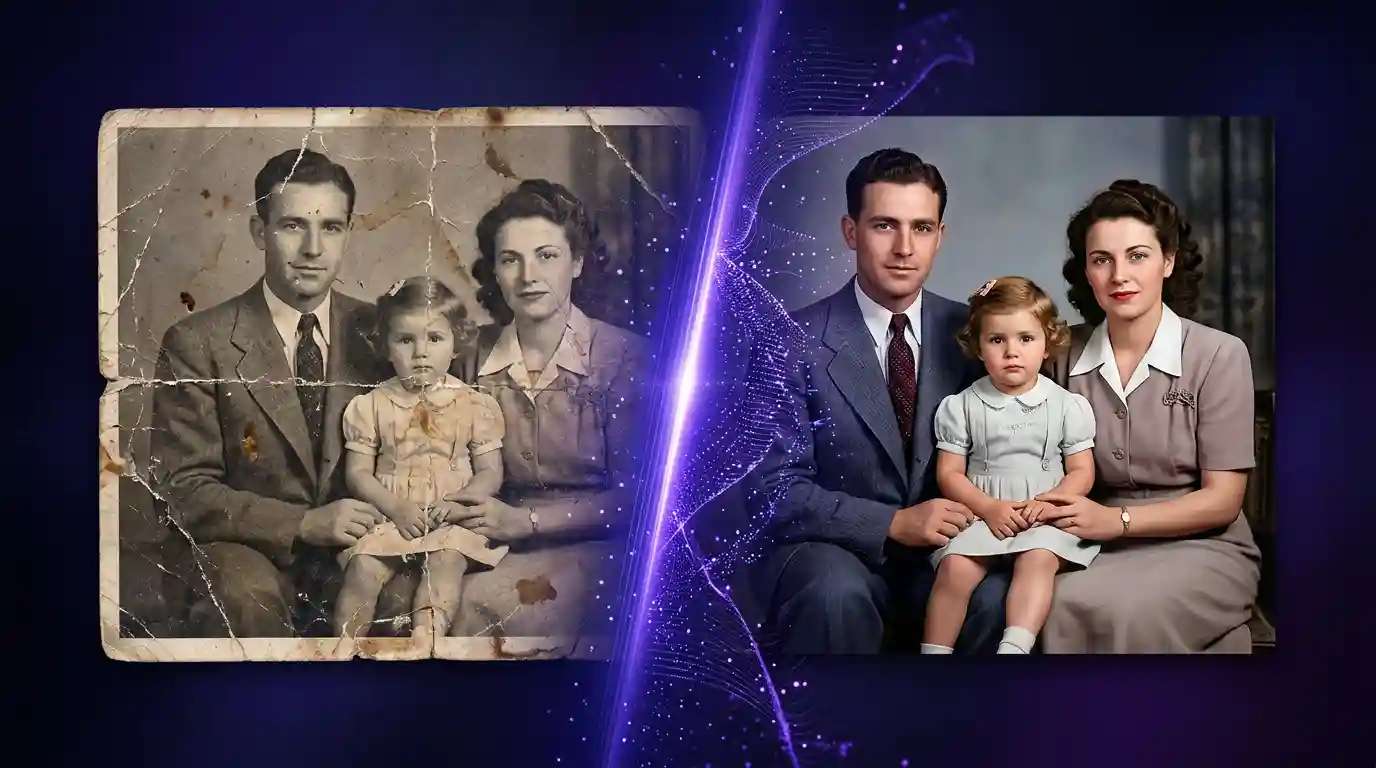
There’s something special about old photographs. They hold memories we never want to lose—like a grandparent’s wedding, a childhood birthday, or a family trip. But over time, photos fade, tear, or get damaged. That’s why restoring them is so important. It helps us keep those precious moments alive. AI Photo Enhancer lets you try this in your browser.
Thankfully, technology makes this easier now. With AI (Artificial Intelligence), you can fix old photos quickly and easily—no need to be an expert. AI tools can remove scratches, sharpen faces, fix colors, and even repair missing parts.
With so many tools out there, how do you pick the right one? Look for something that’s easy to use, gives high-quality results, works fast, and lets you adjust the edits if needed.
In this post, we’ll go over 10 of the best AI photo restoration tools. Some are free, some are paid, but all can help you bring your photos back to life.
Why Use AI for Photo Restoration?
In the past, if you wanted to fix an old photo, it could take hours—or even days. You’d need a lot of patience and some serious editing skills. Sometimes, people take damaged photos to professionals and pay quite a bit to repair them.
But now, things have changed. With AI design tools in the picture, photo restoration is easier and faster than ever. These smart tools use computer learning to understand what’s wrong with an image and fix it automatically. You upload your photo, and the tool goes to work by removing scratches, sharpening blurry faces, fixing colors, and more.
One of the best things about AI photo restoration is that you don’t need to be a tech or design expert. Anyone can do it, irrespective of whether you’re a student, a grandparent, or just someone with a box of old photos in the attic, you can use these tools to breathe new life into your pictures.
Here are some reasons people love using AI for photo restoration:
- It saves time – no more hours of editing.
- It saves money – many tools are free or low-cost.
- It’s easy – just upload and click.
- It brings back memories – in a way that looks fresh and beautiful.
How We Select the Best AI Design Generator Platforms at Pixazo
At Pixazo, we carefully evaluate AI design generator platforms to help users skip the overwhelming trial-and-error process. Our experts, with extensive experience in AI-powered design tools, assess each platform based on creativity, ease of use, customization options, and overall performance. We put these tools to the test by creating designs across different categories to ensure they deliver high-quality results effortlessly. Every recommendation is based on thorough research and real-world testing, with no paid placements or outside influence. Want to know how we pick the best AI design platforms? Explore our detailed evaluation process.
Top 10 AI Photo Restoration Tools to Bring Your Memories Back to Life
There are tons of tools out there, but we’ve picked 10 of the best ones that are easy to use and give great results. Each one has something a little different to offer with its unique features. Some are great for quick fixes, while others are perfect for detailed work with built-in AI Photo Retouching features.
1. Adobe Photoshop (Neural Filters & Retouching)
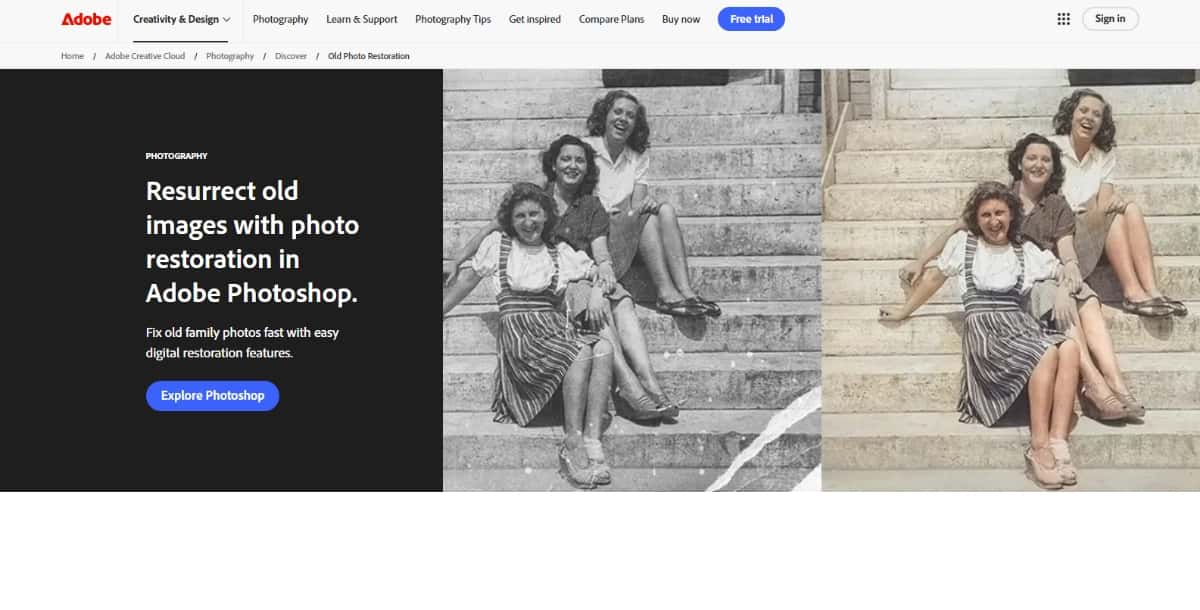
For professionals, Adobe Photoshop remains the gold standard. Its Neural Filters include scratch reduction, colorization, face enhancement, and clarity sharpening in non‑destructive layers. Users can tweak intensity sliders to balance AI intervention with the original detail.
Beyond AI, Photoshop’s manual tools—Spot Healing Brush, Healing Brush, Clone Stamp, Patch Tool, and Content‑Aware Fill—provide pixel‑perfect control for blemish removal and inpainting. The new Generative Fill powered by Firefly AI even extends restoration by synthesizing missing regions based on text prompts.
Best for: professional photographers, designers, and studios requiring full creative control and integration within Adobe Creative Cloud.
Pros:
- Infinite customization with combined AI and manual tools.
- Seamless integration with Creative Cloud and Firefly AI.
- Regular updates with the latest AI capabilities.
Cons:
- Steep learning curve.
- Subscription‑only model can be expensive.
- Requires high‑end hardware for smooth AI operations.
2. Nero AI Photo Restoration
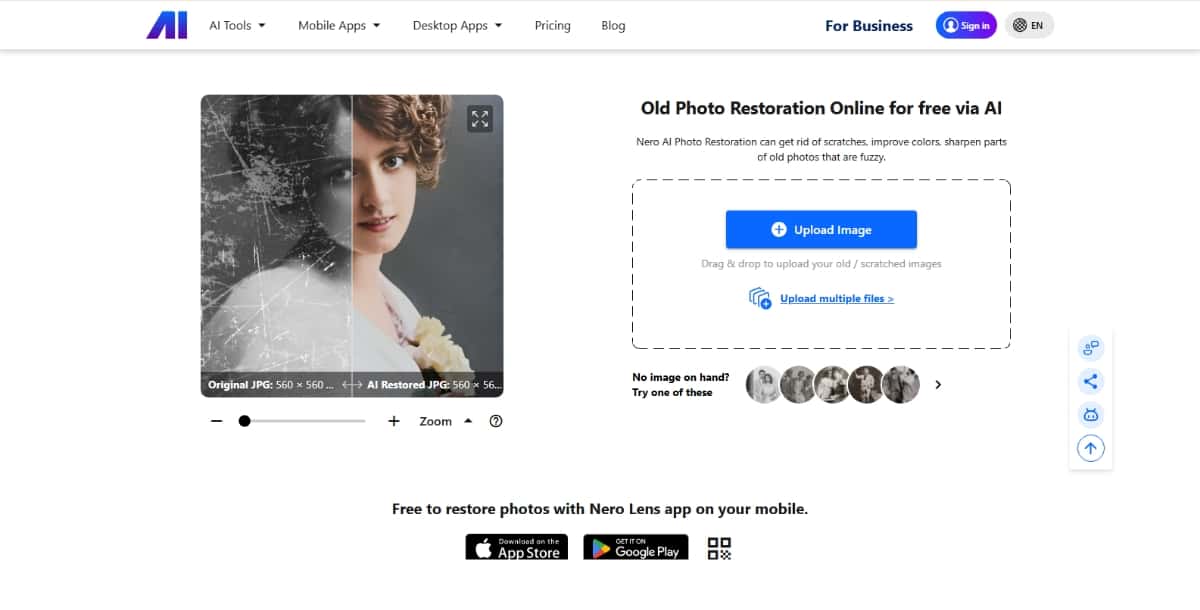
Nero’s AI suite extends its reputation for multimedia tools into photo recovery. Their Photo Restoration webpage offers one‑click scratch removal, color enhancement, and sharpening via proprietary AI filters. A desktop “PhotoSnap” application adds batch processing and offline support for larger workflows, ideal for small studios or agencies.
Underpinning it all is an enterprise‑grade API that handles thousands of images per day with robust security certifications—perfect for businesses integrating restoration into their backends. However, the reliance on preset filters means less granular slider‑based control over color balance or inpainting strength than what manual editors provide.
Best for: users seeking a scalable desktop or API‑driven solution with enterprise reliability.
Pros:
- Bulk processing of hundreds of images in one session.
- Secure API endpoints for custom integrations.
- Free web version plus paid desktop app.
Cons:
- The desktop version requires a paid license.
- Limited manual adjustment options.
- Automatic color enhancements can oversaturate.
3. PicsArt
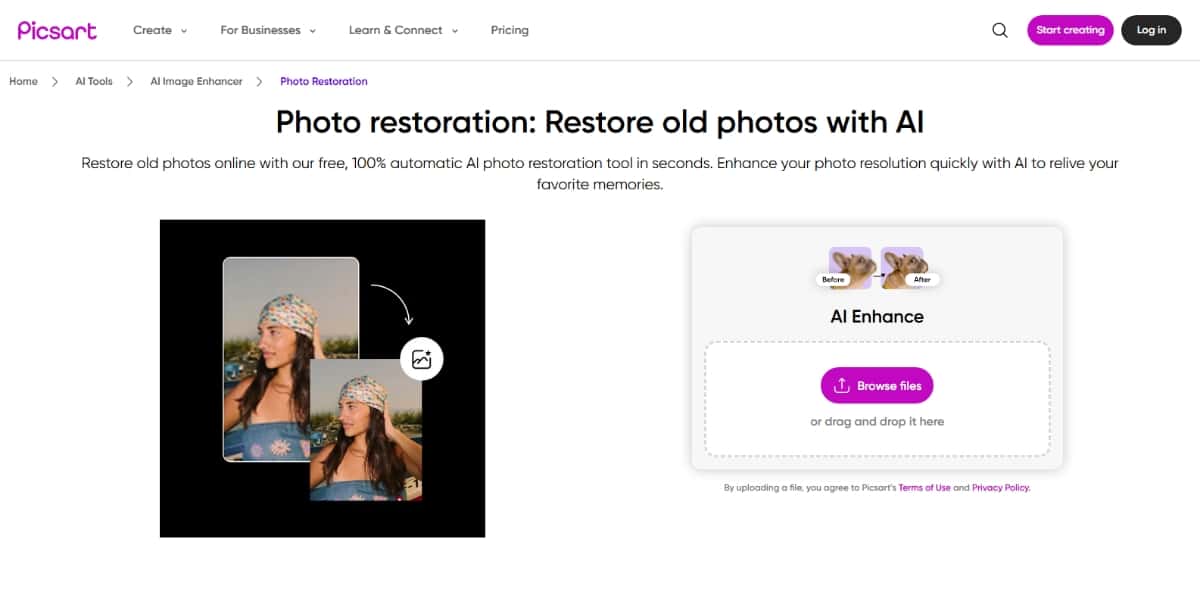
PicsArt blends robust restoration capabilities with its ubiquitous social‑media editing suite. Its AI Enhance tool leverages deep convolutional networks to sharpen details, reduce noise, and correct color imbalances with one click. For photo repair, the same pipeline can detect and inpaint scratches, spots, or tears, reviving aged prints in moments.
Beyond repair, PicsArt’s massive filter library—ranging from vintage sepia looks to bold pop‑art effects—allows you to stylize restored images before sharing or printing. Batch processing is supported in the AI Enhance module, enabling multiple photos to be cleaned up simultaneously, a boon for social‑media managers and content creators.
Best for: users who want both restoration and creative, social‑media‑ready edits.
Pros:
- Integrated retouching, creative filters, and AI tools in a single app.
- Cross‑device sync with mobile and desktop versions.
- Free tier available for basic features.
Cons:
- Advanced features watermark images in free mode.
- Ads and in‑app purchases can interrupt workflow.
- Less precise control when focusing purely on restoration.
4. Vance AI
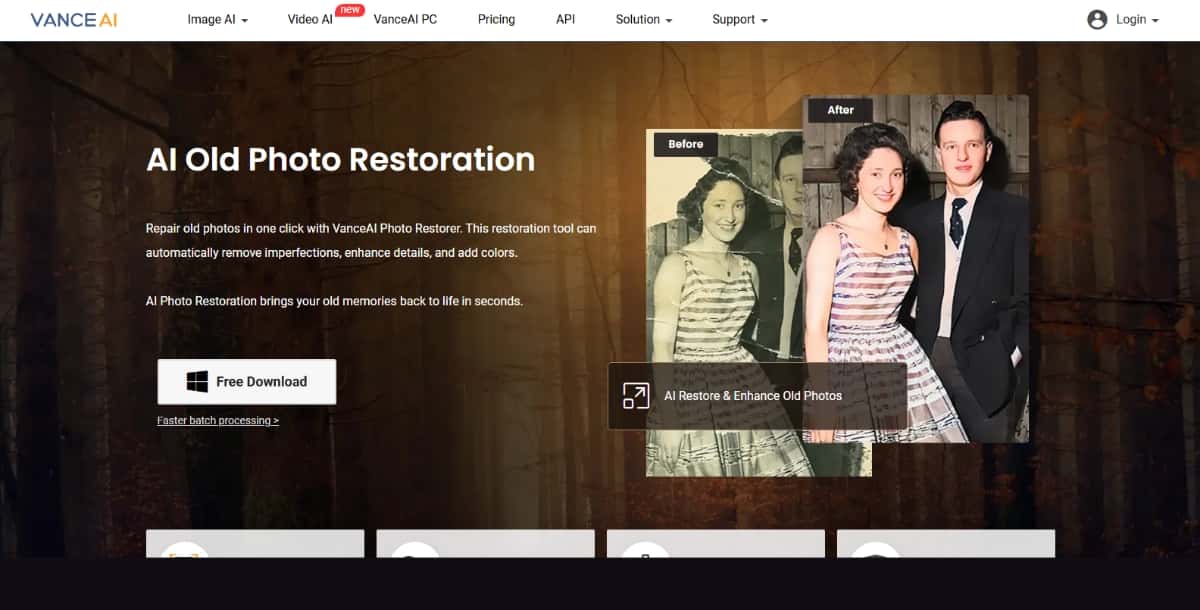
Vance AI bundles a comprehensive suite of restoration tools into one platform. Its Photo Restorer auto‑repairs scratches, tears, spots, and sepia damage, then applies an optional Colorizer for lifelike colorization—all via drag‑and‑drop. A dedicated Image Upscaler can enlarge photos up to 8× resolution with minimal artifacts, while the AI Denoiser removes grain and compression noise to reveal hidden detail.
Batch processing is supported in both the web interface and desktop app, catering to occasional users and power subscribers alike. Results are often indistinguishable from manual, multi‑hour retouch jobs, though colorization can occasionally yield unnatural hues on complex scenes.
Best for: versatile, all‑in‑one restoration projects that span scratch repair, colorization, denoising, and upscaling.
Pros:
- Integrated toolset covering all major restoration needs.
- Batch processing for large projects.
- Available online and as a desktop app.
Cons:
- Free tier limits resolution and daily credits.
- Subscription required for professional‑level throughput.
- Colorization occasionally introduces artifacts.
Let’s take a look at the list first in a simple table, then we’ll break it down one by one.
| Tool Name | Best For | Key Features | Free/Paid | Ease of Use |
|---|---|---|---|---|
| Pixazo AI Photo Restoration | Beginners & casual users | One-click restore, color fix | Free + Paid plans | ⭐⭐⭐⭐⭐ |
| PicsArt | Social media lovers | Retouching, filters, AI Enhance | Free + Paid | ⭐⭐⭐⭐ |
| jpgHD | High-definition results | Upscale, noise reduction | Free | ⭐⭐⭐⭐ |
| Nero | Desktop users | Advanced filters, scratch repair | Paid | ⭐⭐⭐⭐ |
| AIEase | Quick portrait fixes | Facial enhancement, easy restore | Free + Paid | ⭐⭐⭐⭐⭐ |
| Replicate | Tech-savvy users & devs | Custom AI models | Mostly Free | ⭐⭐ |
| CapCut | Photo + video projects | Full editing suite | Free | ⭐⭐⭐⭐ |
| Adobe Photoshop | Professionals | Neural filters, full control | Paid (Subscription) | ⭐⭐⭐ |
| Spyne | E-commerce & product photos | Background cleanup, sharpness boost | Paid | ⭐⭐⭐⭐ |
| Vance AI | All-round restoration | Scratch fix, colorize, upscale | Free + Paid | ⭐⭐⭐⭐⭐ |
5. jpgHD
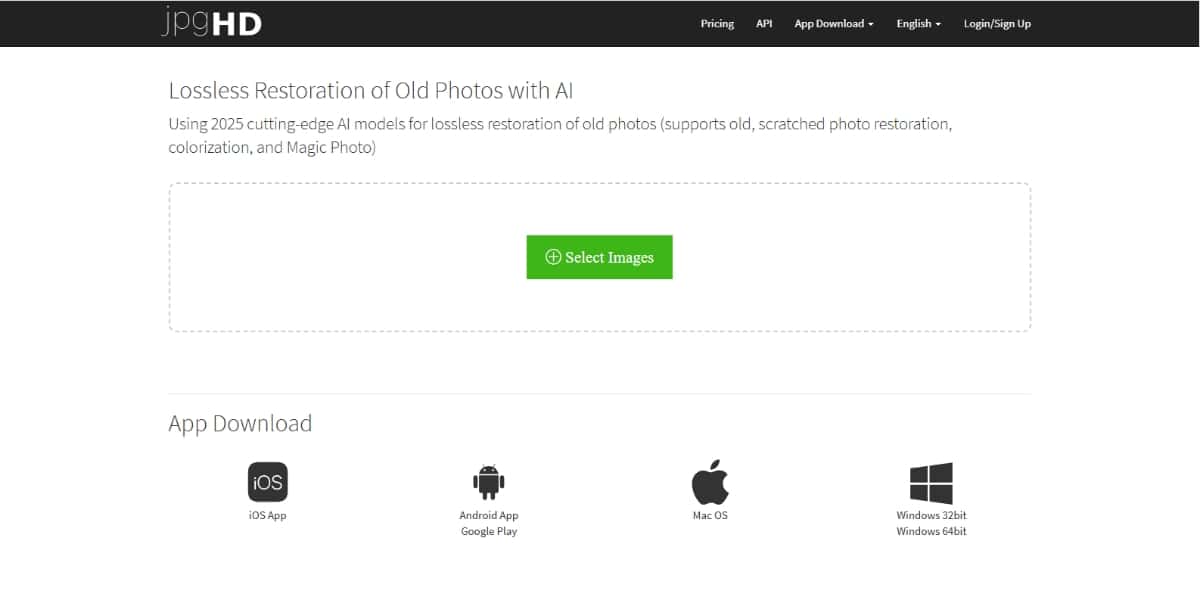
jpgHD specializes in lossless, high‑definition restoration powered by super‑resolution and denoising AI models. Its web interface offers distinct modules for scratch repair, colorization, and 4× super‑resolution upscaling, all driven by 2026‑vintage neural networks. A built‑in denoise option removes grain and compression artifacts while preserving fine texture—a critical feature for archival historians and professional photographers.
Free users can process images up to 3 000×3 000 px, while premium plans unlock larger sizes and priority GPU‑backed servers to reduce wait times to under a minute. The interface remains uncluttered, focusing solely on restoration tasks without the distractions of creative filters or collages.
Best for: detail‑oriented restorations where image fidelity and resolution are paramount.
Pros:
- Lossless enhancement pipeline retains original fidelity.
- Clear before‑and‑after previews.
- Flexible free and paid tiers.
Suggested Read: Introducing FLUX.1 Kontext API, GFPGAN API & CodeFormer API on Pixazo API
Cons:
- Free‑tier size limits (3 000×3 000 px).
- Slower processing on public servers.
- Heavily damaged originals may require multiple passes.
6. Pixazo AI Photo Restoration
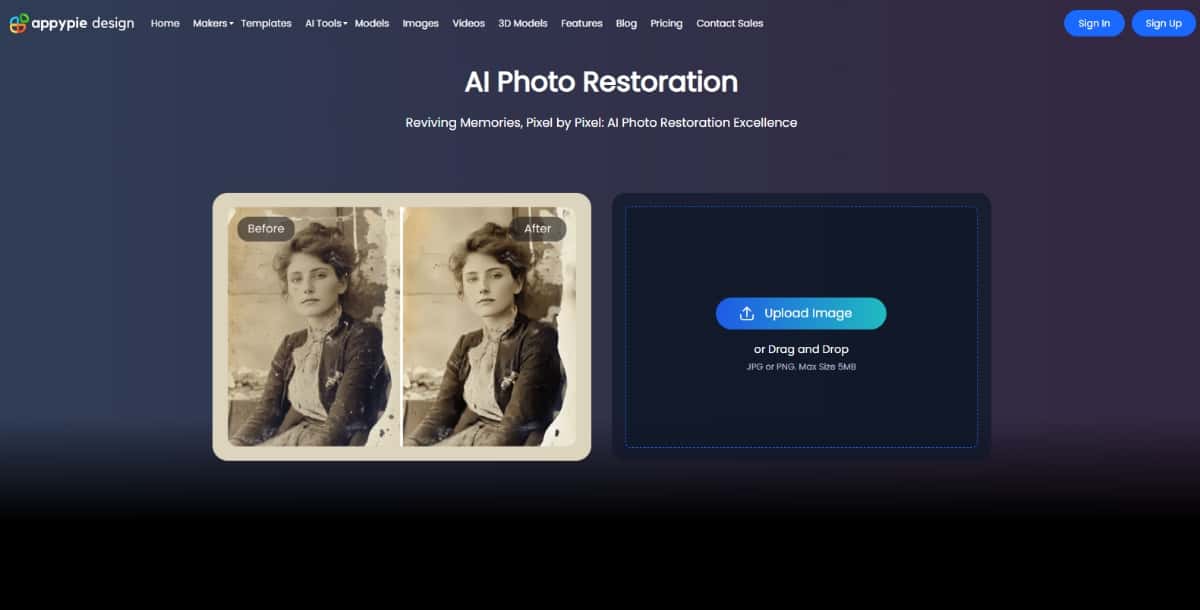
Pixazo’s AI Photo Restoration tool offers a straightforward, entirely browser‑based workflow tailored for beginners. After uploading your old or damaged photo, the system applies pre‑trained inpainting models to remove scratches and fill in missing areas.
Simultaneously, its auto‑colorization model analyzes grayscale tones and maps them to realistic palettes, giving black‑and‑white images a fresh burst of color. The entire process takes under a minute per image, with results previewed side‑by‑side for quick satisfaction checks. It also offer AI Photo Enhancer feature that helps you enhance the quality of your restored image.
Because it runs on Pixazo’s secure, GDPR‑compliant servers, no user photos are stored beyond the session, ensuring privacy. The interface is deliberately minimalist, guiding users through “Upload → Restore → Download” without any technical jargon.
However, its simplicity comes at the expense of fine control: advanced features like layer masking, brush‑based corrections, or batch processing aren’t available yet.
Best for: casual users and hobbyists who need a no‑frills, free, web‑based restoration tool.
Pros:
- Zero installation; works entirely in-browser.
- Fast processing, typically under one minute per image.
- Automatic privacy safeguards with no photo storage beyond the session.
Cons:
- Limited to single images (max 5 MB).
- Basic feature set with no batch processing.
- Requires waitlist access during beta.
Suggested Read: 6 Best Photo Collage Maker Apps in 2026 (Android, iOS & Web)
7. AI Ease
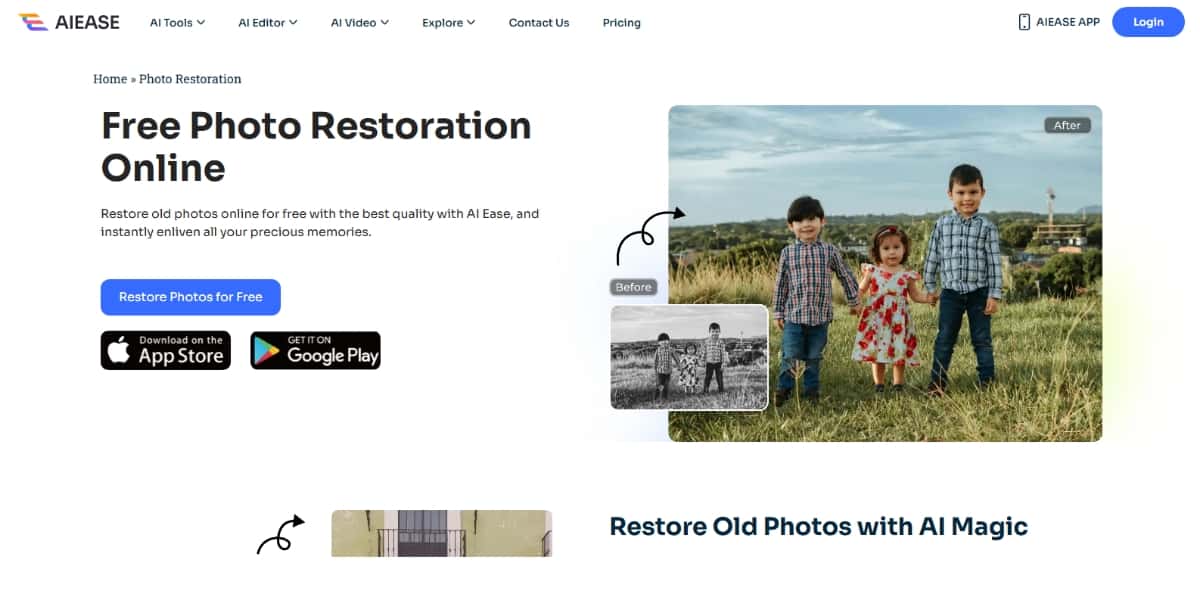
AI Ease offers a completely free, one‑click restoration service with an emphasis on portraits. Its workflow—“Upload → Enhance/Colorizer → Download”—executes scratch removal, spot repair, blur reduction, and face‑focused clarity boosts in under 60 seconds. For family photos or headshots, a dedicated facial enhancement model sharpens eyes, smooths skin, and balances tones automatically.
Because it doesn’t store images and imposes no usage limits, hobbyists can process unlimited photos without subscriptions or watermarks. On the flip side, advanced users will find its two‑preset system (“Enhance” vs. “Colorizer”) too restrictive, with no batch support or brush‑level tweaks.
Best for: free, rapid portrait restorations when simplicity and speed are paramount.
Pros:
- Unlimited free use with no watermarks.
- Sub‑minute processing times.
- Portrait‑optimized enhancements.
Cons:
- No batch processing.
- Very limited user controls.
- Not suited for non‑portrait or heavily damaged images.
Suggested Read: Alternatives
8. Replicate
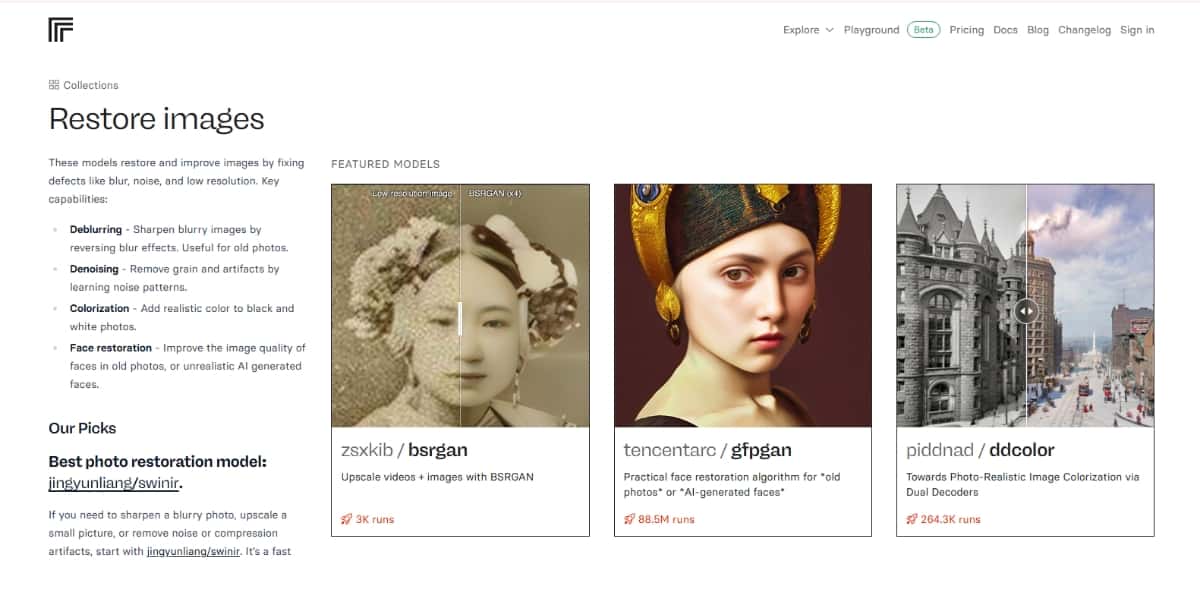
Replicate is a developer‑centric platform hosting an expanding catalog of open‑source AI models for image restoration. Users can deploy networks like GFPGAN (face repair), SwinIR (deblurring & super‑resolution), Real-ESRGAN (upscaling), and DeOldify (colorization)—all via simple Python or HTTP API calls.
This modular approach lets you chain models—denoise with SwinIR, then apply GFPGAN, followed by DeOldify—all programmatically. GPU‑accelerated inference times often dip below three seconds per image, and usage-based pricing eliminates upfront fees. There’s no GUI, so technical expertise is required, and costs can rise quickly with high-volume or high-resolution demands.
Best for: developers and researchers needing customizable restoration pipelines and API access.
Pros:
- Access to state‑of‑the‑art open‑source models.
- Rapid GPU‑backed inference, typically under 3 s/image.
- Pay‑as‑you‑go pricing with no license fees.
Cons:
- No graphical interface—code or API only.
- Requires programming knowledge to integrate.
- Costs can escalate with large-scale usage.
9. CapCut
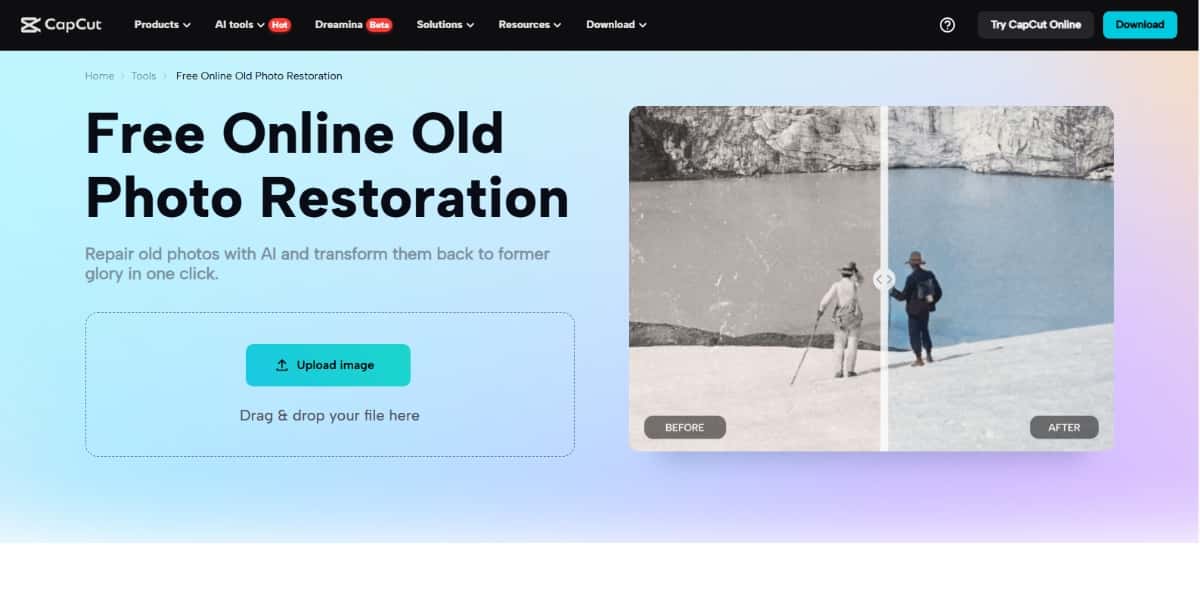
Originally known for video editing, CapCut now includes a suite of online AI photo restoration tools mirroring its video enhancers. Its Old Photo Restoration module auto‑detects and removes scratches, spots, and tears, while an AI Color Correction toggle balances hues and contrast across the frame.
Complementing this is a free AI Image Upscaler—capable of producing 2K and 4K outputs—that denoises, sharpens edges, and reconstructs missing detail with minimal artifacts. Because it’s entirely browser‑based and free, creators can maintain a consistent look across both restored stills and upscaled videos. Manual tweak options are limited, however, and full‑resolution video features require a desktop installation.
Best for: content creators who work with both photos and videos and want consistent, AI‑powered restoration across formats.
Pros:
- Unified platform for photo and video enhancements.
- Completely free and browser‑based.
- Rapid AI processing with an intuitive interface.
Suggested Read: Best AI Image Upscaler Tools in 2026
Cons:
- Limited manual controls.
- Desktop app needed for full‑res video.
- Requires stable internet connection.
10. Spyne
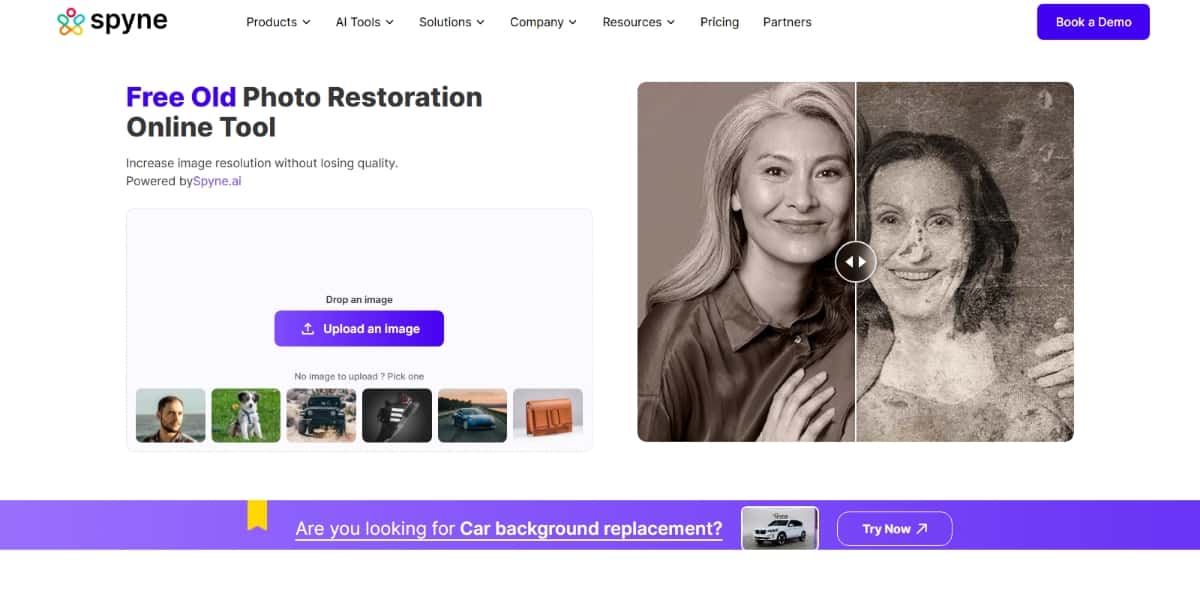
Spyne is an enterprise‑grade solution tailored to e‑commerce imaging workflows. Its Product Background Remover automates subject segmentation and background replacement, while its Photo Refinement suite—crop, color correction, and artifact cleanup—ensures marketplace compliance and visual consistency.
As a scalable API service with a project dashboard, Spyne processes thousands of product shots in minutes, integrating seamlessly with Shopify, Magento, or custom platforms. It uses AI‑powered validation checks (image size, alignment, color cast) to guarantee every upload meets retailer standards. Creative editing beyond product imagery is outside its core focus.
Best for: brands and marketplaces requiring high‑throughput, consistent product photo restoration and background removal.
Pros:
- Enterprise‑scale batch API with an intuitive dashboard.
- Precise subject segmentation and background cleanup.
- Built‑in compliance checks for marketplace standards.
Suggested Read: Best AI Photo Text Editor Tools in 2026
Cons:
- Custom pricing with no free tier.
- The feature set is focused solely on product imagery.
- Complex backdrops may need manual touch‑ups.
Suggested Read: How to Restore Old Photos With AI (Free, No Photoshop)
How to Choose the Right Tool for You
Not every tool works the same for everyone. Here are a few things to think about before picking one:
Skill Level
If you’re new to editing, choose a tool that’s simple with one-click features (like Pixazo or AIEase).
If you’re more experienced, something like Adobe Photoshop or Replicate might give you more control.
Use Case
- Family Photos: Tools like Vance AI, Pixazo, jpgHD, and AIEase are great for restoring portraits and old memories.
- Creative Projects: PicsArt and CapCut are perfect if you want to add extra style or use restored photos in videos.
- Professional Work: For detailed restoration or business needs, Adobe or Spyne might be a better fit.
Free vs. Paid
- Some tools are fully free, while others offer free trials or limited features.
- If you only need to restore a few photos, free options might be enough.
- For regular or advanced use, investing in a paid tool could be worth it.
Suggested Read: Nano Banana AI (Gemini 2.5 Flash): Photo-to-AI Figures, Trends, Tools, and Best Practices
Tips for Better Photo Restoration Results
Using AI photo restoration tools is pretty easy, but if you want the best results, there are a few simple tricks that can make a big difference. If you need to do this, then follow a few smart steps, and you’ll end up with something amazing.
Start with the Best Scan Possible
Before you do anything, make sure you have a good-quality digital copy of your photo. That means scanning the photo at a high resolution (at least 300 DPI). If you’re using your phone, take the photo in a well-lit area and hold the camera steady. No shadows, no glare.
The better your starting image, the better the AI can work its magic. A blurry or dark photo will limit what the tool can do, no matter how smart it is.
Avoid Over-Editing
It’s easy to get carried away when you see how cool the changes look. Sharper faces! Brighter colors! No more scratches! But too much editing can make the photo look unnatural or even cartoonish.
Try to keep the photo looking real. Fix what’s broken, but don’t go overboard. Less is often more when it comes to restoring memories. It is suggested to use HD Photo Converter tool to give the photo more quality.
Combine Tools if Needed for Better Effect
Sometimes one tool won’t do it all. Maybe one app does a great job fixing colors, but another one is better at removing scratches. That’s totally fine! Don’t be afraid to use more than one tool to get the best results.
You can run the photo through one tool first, save it, and then upload it to another app for a second round of edits. Think of it like teamwork—each tool plays its part to make your photo shine.
Conclusion
Old photos are more than just pictures—they’re little time machines that take us back to moments we never want to forget. A smile from a loved one, a childhood memory, or a piece of family history… restoring those photos is like bringing those memories back to life.
So go ahead—pick a tool, try it out, and see the difference for yourself. It’s a small step that can bring a lot of joy, both for you and for the people you share those memories with.
And if you restore something special, we’d love to see it! Feel free to share your before-and-after photos or tell us the story behind them. Sometimes, a simple picture can say more than words ever could.
Suggested Read: AI Aging Filter: Predicting What You’ll Look Like in the Future
Frequently Asked Questions
What is AI photo restoration?
AI photo restoration uses machine learning to repair old or damaged photos by removing scratches, fixing fading, sharpening details, and sometimes adding color. It automates work that once required skilled manual retouching.
Can AI restore very old or badly damaged photos?
Modern tools handle scratches, blur, and fading well, and can reconstruct missing detail, though results depend on how much of the original is intact. Severely damaged images may still need manual touch-ups for the best outcome.
Can AI colorize black and white photos?
Yes, many restoration tools include colorization that adds realistic color to grayscale images. The colors are AI estimated, so they may not exactly match the original scene but usually look natural.
Are AI photo restoration tools free?
Some offer free restorations with limits or watermarks, while high-resolution downloads and batch processing often require a paid plan. Compare quality and output resolution before choosing a tool.
Will restoration change how my photo looks?
Good tools aim to preserve the original likeness while cleaning up damage, but heavy enhancement can slightly alter fine details. Choosing conservative settings helps keep the result faithful to the source photo.
Deepak Joshi
Author · Pixazo
Deepak writes about generative AI models, APIs, and the workflows teams use to ship them. Reviewed by Abhinav Girdhar.