10 Best AI Background Changer Tools for Photos
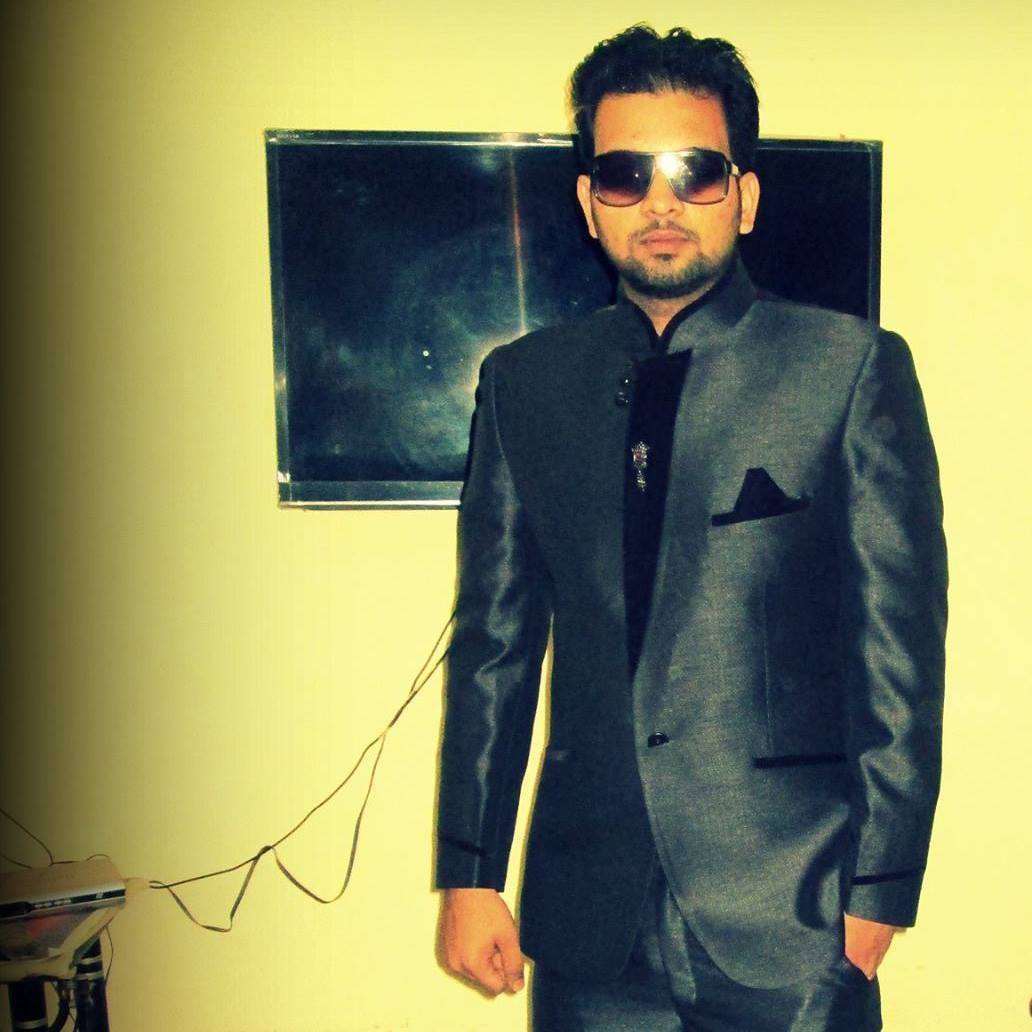


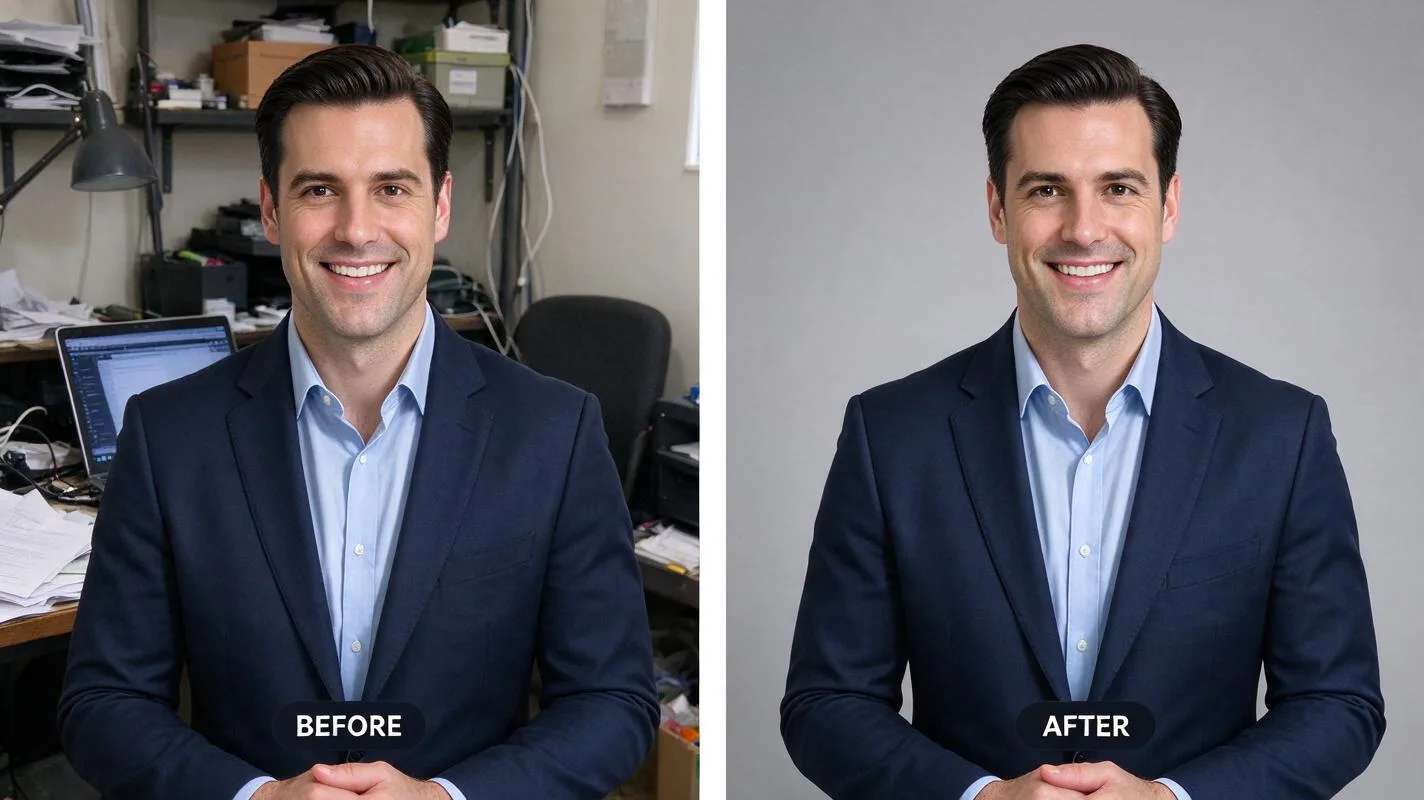
Changing the background of a photo used to mean careful cutting out in Photoshop. Today an AI background changer does the hard part for you: it finds your subject, cuts it out cleanly, and lets you drop in a new colour, a new scene, or a plain studio backdrop in seconds. It is one of the most useful photo tools for anyone who sells products, applies for jobs, or posts online.
This guide ranks the 10 best AI background changer tools for photos in 2026. For each one you get what it is best for, where it runs, and what it costs, so you can pick the right tool for your photos without testing all ten yourself.
What does an AI background changer do?
A background changer has two jobs. First it removes the old background by detecting the edges of your subject, down to tricky areas like hair. Then it replaces that background with something new, which can be a solid colour, your own image, or a scene the tool generates for you. The best tools do both in one click and keep the edges clean, so the result does not look cut out.
The 10 tools at a glance
| # | Tool | Best for | Platforms | Price |
|---|---|---|---|---|
| 1 | Canva | All-round editing | Web, iOS, Android | Free plan |
| 2 | Adobe Photoshop | Full control for pros | Web, Desktop | Paid (trial) |
| 3 | Photoroom | Product and store photos | Web, iOS, Android | Free plan |
| 4 | Picsart | Mobile editing | Web, iOS, Android | Free plan |
| 5 | Fotor | Free online editing | Web, iOS, Android | Free plan |
| 6 | Pixazo | AI-generated backgrounds | Web | Free to try |
| 7 | Pixlr | Browser editor | Web, iOS, Android | Free plan |
| 8 | Clipdrop | Quick one-click cutouts | Web | Free plan |
| 9 | Cutout.pro | Batches of photos | Web, API | Free trial |
| 10 | BeFunky | Creative effects | Web | Free plan |
The 10 best AI background changer tools

Suggested Read: How to Restore Old Photos With AI (Free, No Photoshop)
What should you look for in a background changer?
- Clean edges. The real test is hair and fine detail. Look at examples before you trust a tool with your photos.
- Background choices. Some tools only remove the background. The best ones let you add a colour, your own image, or an AI scene.
- Where it runs. A browser tool needs no install. An app is handier on a phone.
- Batch support. If you edit many photos, a tool that handles them together saves hours.
- Free trial. Test with your own photo first. Results vary a lot between tools.
Suggested Read: How to Change Background Color Using AI: A Step-by-Step Guide
How do you change a photo background with Pixazo?
- Upload your photo. Open the AI Background Changer and drop in the image you want to edit.
- Let the AI cut out your subject. It detects the person or product and removes the old background automatically.
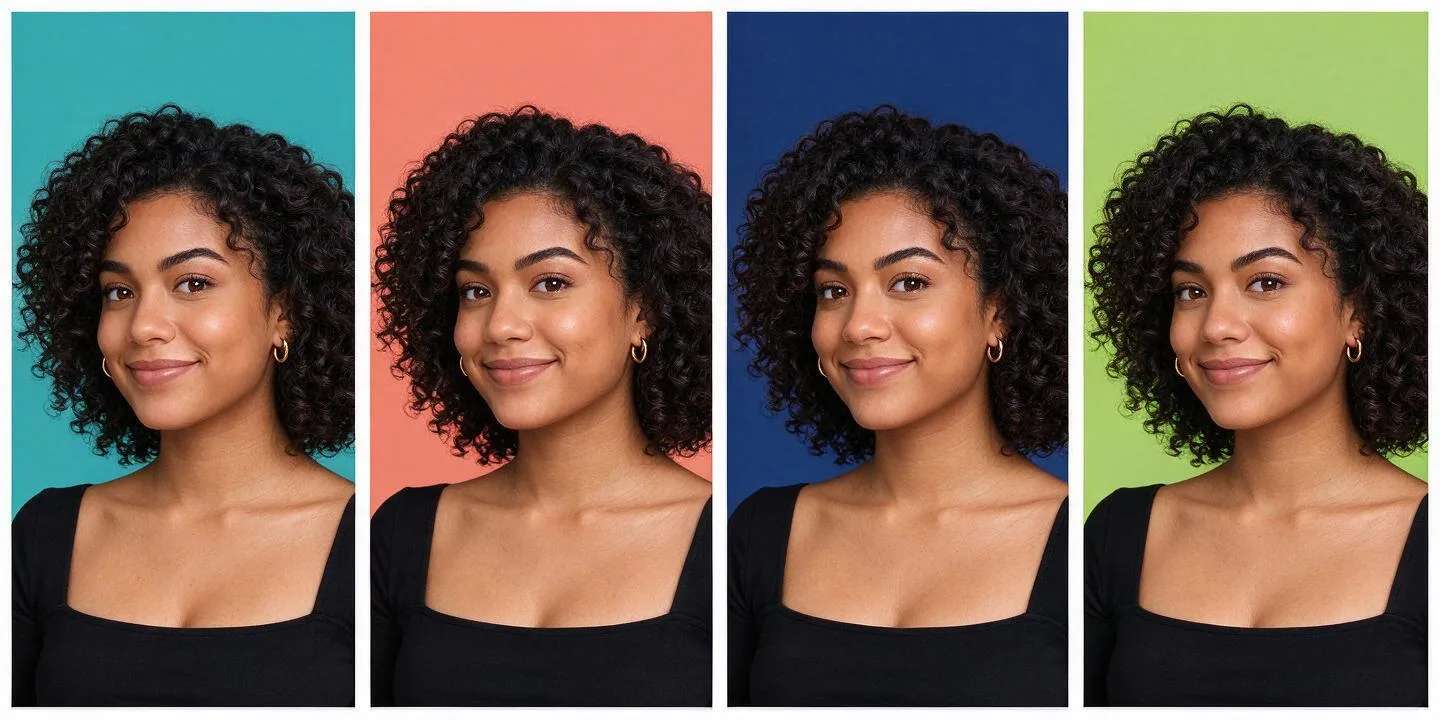
- Choose a new background. Pick a solid colour, upload your own image, or describe a scene and let the AI generate it.
- Download. Save your photo with the new background, ready to post or print.
Suggested Read: Best AI Background Generator Tools in 2026
Tips for clean background swaps
A few habits make the result look natural. Start with a sharp, well-lit photo, because the AI finds edges more easily when the subject stands out from the old background. Match the light: if your subject is lit from the left, pick a background that looks lit the same way. Keep the new background simple for headshots and product shots, since a busy scene pulls attention away from the subject. Finally, zoom in on the edges before you download, and redo the cutout if you see a hard line or missing hair.
Suggested Read: Top 11 AI Blur Background Tools for 2026
Which one should you use?
For everyday edits, Canva and Fotor are the easiest free starting points. For an online store, Photoroom is built for the job. For full control, Photoshop is still the benchmark. And if you want a brand-new background rather than a stock one, try the Pixazo AI background changer, which generates a fresh scene behind your subject. Most of these tools are free to test, so swap a background on one of your own photos and keep the one that gives the cleanest edge.
Suggested Read: 10 Best AI Image Editors in 2026: Free and Paid
Frequently asked questions
Can I change a photo background for free?
Yes. Most tools in this list, including Canva, Fotor, Pixlr, and Pixazo, have a free way to remove and change a background. Paid plans usually add higher resolution, batch processing, or extra backgrounds.
What is the best AI background changer for product photos?
Photoroom is built for product and store photos, with fast cutouts and clean studio backdrops. Pixazo is a good choice when you want the AI to generate a new scene behind the product rather than use a stock one.
Do AI background changer tools work on hair and fine edges?
The better tools handle hair and fine detail well, but results still vary by photo. A sharp, well-lit image with the subject standing out from the background gives the cleanest cutout.
Can I replace a background with an AI-generated scene?
Yes. Tools like Pixazo and Photoshop can create a new background from a short description, so you are not limited to solid colours or stock images.
Is it better to use an app or a browser tool?
A browser tool needs no install and is handy on a laptop. An app is easier on a phone and often faster for quick edits. Several tools here offer both, so you can use whichever fits the moment.
Deepak Joshi
Author · Pixazo
Deepak writes about generative AI models, APIs, and the workflows teams use to ship them. Reviewed by Abhinav Girdhar.