How to Change Background Color Using AI: A Step-by-Step Guide in 2026



What is an AI Background Color Changer?
An AI Background Color Changer is a tool that automatically transforms the background color of your images using artificial intelligence based on your text prompts or preset options. AI Image Editor lets you try this in your browser.
Suggested Read: How to Make a Video Collage Using AI-Enhanced Editing
These tools leverage advanced AI models that detect your image’s subject, separate it from its background, and apply the new color you specify. You simply choose a color or enter a prompt—like “make the background pastel blue”—and the AI does the rest.
Many AI background color changer tools also include templates, shadow and reflection options, and batch-processing features, making them ideal for e-commerce, marketing, and social media content.
Why Should You Use AI to Change Background Colors in 2026?
AI background color tools help you save time, ensure consistency, and elevate your visuals without manual editing.
As of 2026, AI-powered editing has become accessible to everyone—from solo entrepreneurs to large agencies. By using AI to handle background colors, you can:
- Transform dozens of images in seconds without Photoshop skills using tools like an AI background remover
- Maintain uniform branding across product catalogs with automated color changes
- Experiment with seasonal or campaign-specific palettes using a simple background maker
- Prepare images for different platforms (e-commerce, social, ads) without complex design software
- Ensure crisp edges and realistic shadows automatically through AI-powered background editors
Whether you’re refreshing a product shoot, updating your website, or creating social media ads, AI makes background changes effortless—no design expertise required. Learn more in our guide on how to change image backgrounds with AI.
How to Change Background Color Using AI Step by Step?
Follow these six simple steps to transform your image background with AI.
- Step 1: Access AI Background Color Changer Tool
- Step 2: Upload Your Image
- Step 3: Log In or Sign Up to Pixazo
- Step 4: Enter Your Prompt
- Step 5: Preview and Customize
- Step 6: Download and Share
Step 1: Access AI Background Color Changer Tool
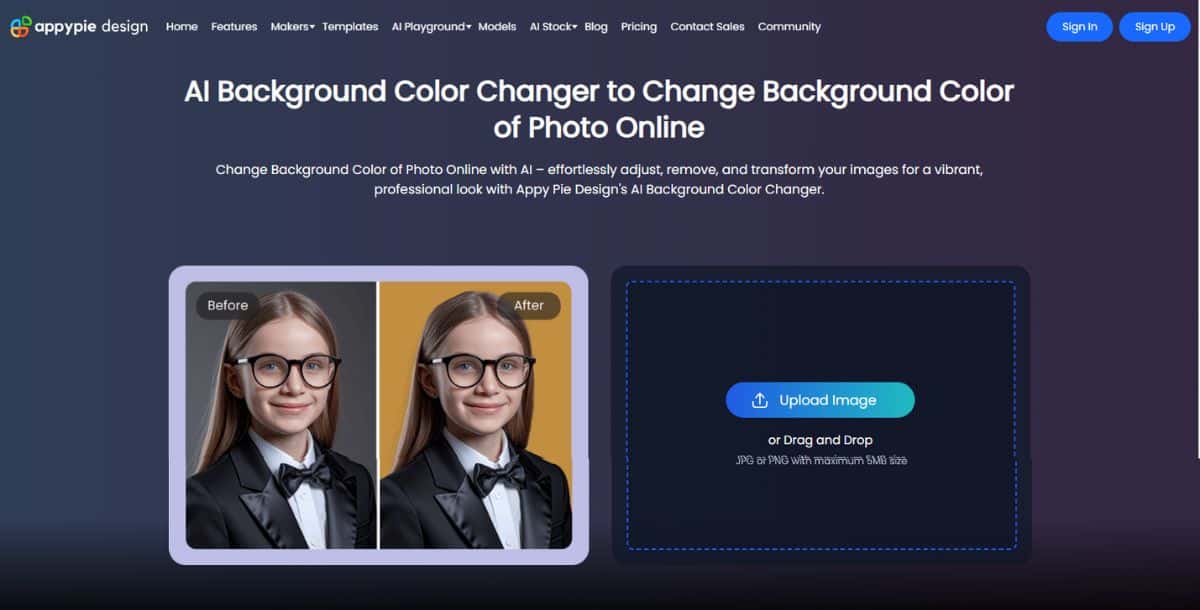
First, navigate to the Pixazo AI Background Color Changer. This intuitive interface guides you through commanding AI to change bg to your desired color via prompt.
Step 2: Upload Your Image
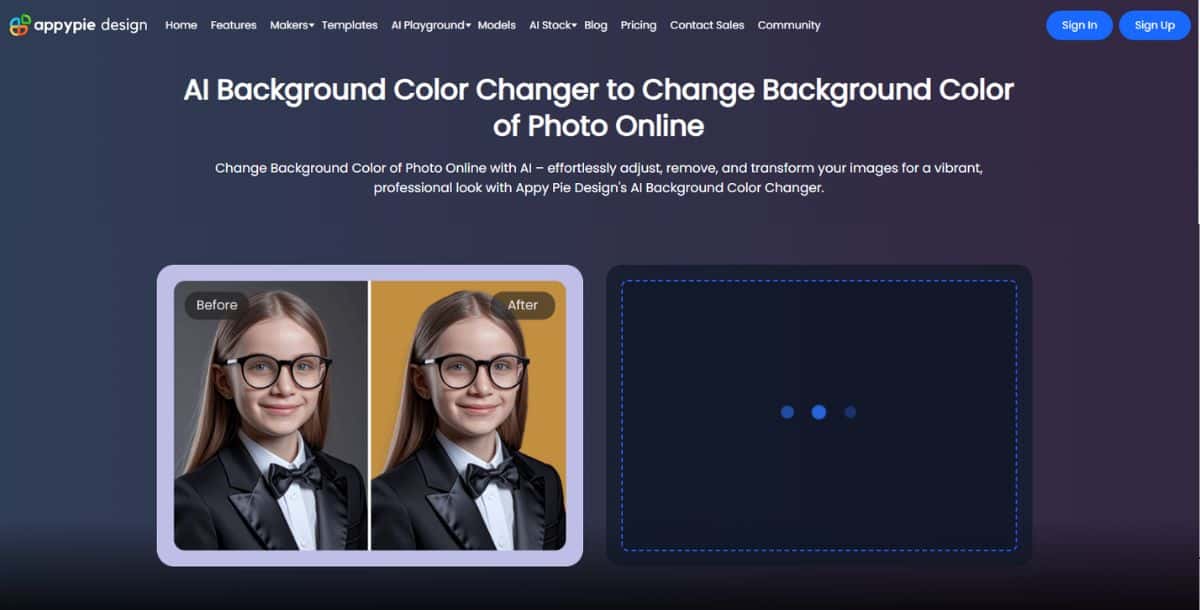
Click “Upload” and choose the file from your computer. The AI will automatically detect and isolate the subject from the existing background.
Suggested Read: How to Make a Product Video with AI: A Complete Guide in 2026
Step 3: Log In or Sign Up to Pixazo

If you’re new, create a free Pixazo account or log in. This lets you save your project, revisit edits, and download high-resolution outputs.
Suggested Read: 11 Best AI Image Enhancers in 2026
Step 4: Enter Your Prompt

Type a clear instruction such as “Change background to pastel pink” or “Make background pure white with soft shadow.” The AI will process and apply your chosen color.
Suggested Read: How to Make an AI Action Figure: Complete Step-by-Step Guide (2026)
Step 5: Preview and Customize
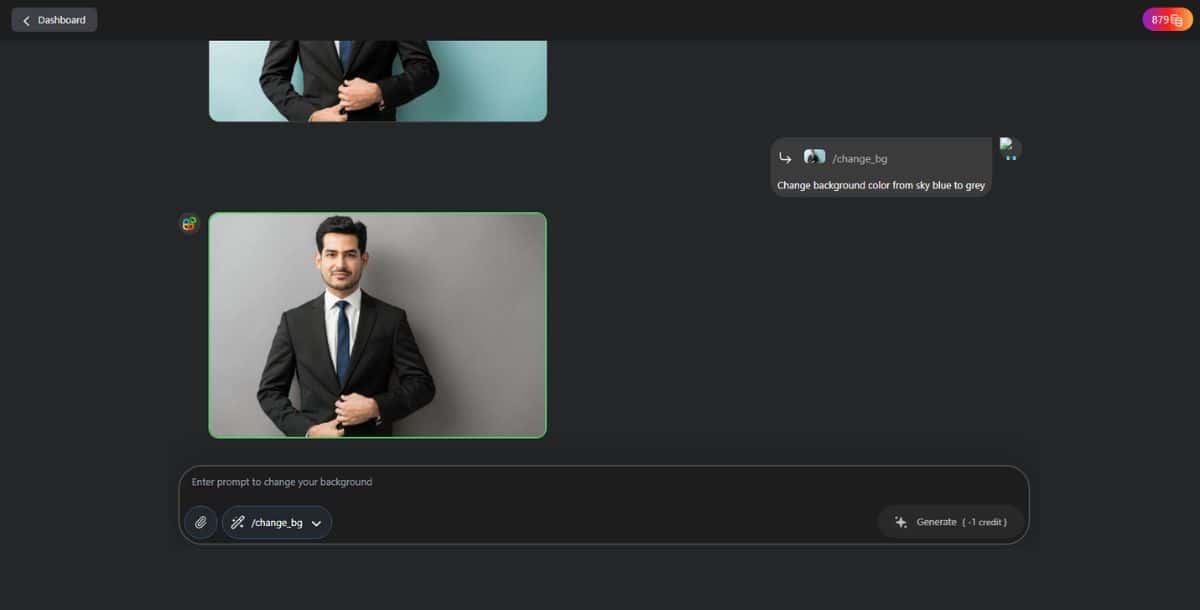
Once the background is changed, review the result. If you’re not satisfied with the initial color, you can enter another prompt to try a different background shade. You can also adjust brightness, contrast, or shadow depth to refine the image further.
Suggested Read: Beautify Photo Online: A Guide to Enhancing Your Digital Images
Step 6: Download and Share
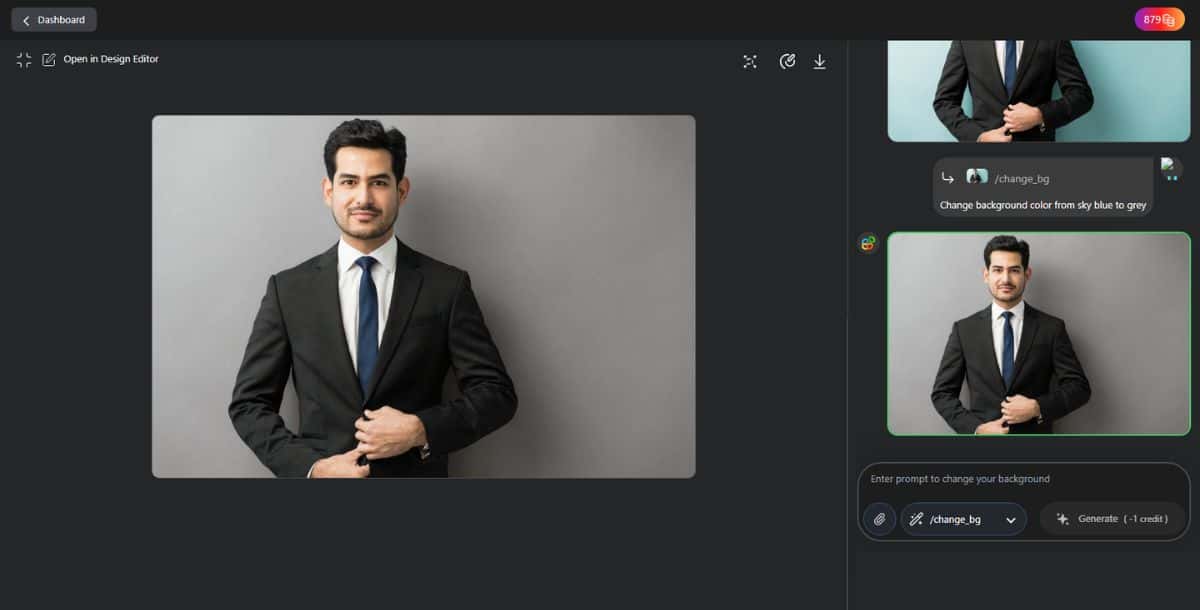
When you’re happy with the edits, click “Download.” Share your refreshed image on social media, your online store, or in marketing campaigns.
Prompt Example: “Change the background of this product photo to #FFFFFF (white) and add a subtle shadow underneath.”
What are the Best Practices for AI Background Color Changes?
Applying a few simple guidelines will help your AI-edited images look polished and professional.
- Choose contrasting colors – Ensure the new background complements your subject without overpowering it.
- Maintain natural shadows – Use the AI’s shadow settings to keep a realistic feel, especially when using advanced tools like color wheel and AI photo editing and culling tool.
- Keep the subject sharp – If needed, slightly boost sharpness around edges to avoid halo artifacts. An AI photo enhancer can refine edge clarity automatically.
- Batch-process for consistency – Edit similar images in one batch to maintain uniformity across a series.
- Optimize for platform requirements – Resize and compress for web, social, or print as appropriate. You can explore more on this in our detailed guide on the best AI background changers.
By following these tips, your background-changed images will stand out and reinforce your brand’s visual identity.
Which Industries Can Benefit from AI Background Color Changes?
Businesses across sectors are leveraging AI for faster, scalable image edits.
- E-commerce & Online Retail – Showcase products on clean, consistent backdrops to boost sales. A background maker can simplify this at scale.
- Real Estate & Property Listings – Present interiors and exteriors with custom background accents and remove distractions using an AI object remover.
- Food & Beverage – Highlight dishes against appetizing colored backgrounds to draw attention and match brand tones.
- Fashion & Apparel – Feature garments on seasonal or brand-aligned backdrops using blur or gradient overlays. See tools for this in our list of top AI blur background tools.
- Marketing & Advertising Agencies – Rapidly iterate campaign visuals with branded palette swaps and automated styling.
Whatever your field, AI background tools help you maintain a professional look at scale.
How Much Does It Cost to Change Backgrounds with AI?
AI background editing is highly cost-effective compared to manual retouching.
Most tools offer a free tier with basic features—ideal for quick tests or personal use. Paid plans typically range from $10–$30 per month and include:
- High-resolution downloads
- Batch processing
- Advanced shadow and lighting controls
- Commercial usage rights
For teams or agencies, enterprise plans add user management and API access, starting around $50/month.
Can AI-Edited Images be Used Commercially?
Yes—most AI background tools permit commercial use under their paid plans.
Always review the platform’s licensing terms. For example, Pixazo’s subscriptions explicitly grant commercial usage rights, so you can use your edited images on product pages, ads, and social campaigns without legal concerns. If you’re generating visuals from scratch, tools like an AI image generator can also be used commercially under the right plan.
For broader creative needs, you can explore the best AI background generator tools to support commercial design workflows across industries.
What are the Best AI Tools for Background Color Changing in 2026?
Choosing the right tool depends on your workflow, budget, and desired level of control.
Some popular AI background color changers in 2026 include:
- Pixazo AI Background Color Changer – Instantly change the background color of any image using AI-powered precision and presets.
- PhotoRoom – Remove backgrounds and replace them with solid colors, gradients, or custom scenes effortlessly.
- Predis AI – Offers creative tools that include AI-powered background color editing for social media content.
- Phot.AI – Change background colors with smart auto-removal and one-click color application using AI.
- iFoto AI – A modern AI tool for automatic background removal and color replacement with real-time preview.
How to Optimize AI-Edited Images for SEO and Social Media?
Proper optimization ensures your images drive traffic and engagement.
- Use descriptive file names – Include target keywords like “white-background-product.jpg” to help search engines understand the image. This is especially useful when working with assets created after removing backgrounds—learn more in our guide on how to remove background from an image.
- Write concise alt text – Describe the subject and new background color for accessibility and better on-page SEO.
- Compress files – Balance quality and load speed—especially important on mobile and image-heavy platforms.
- Leverage appropriate dimensions – Crop or resize for Instagram, Pinterest, Amazon, etc., to match each platform’s specs.
- Embed images in structured data – Use ImageObject schema in your page’s JSON-LD for rich results. For more insight into tools that help, explore the best AI background removers.
Frequently Asked Questions
How does AI detect and separate subjects from backgrounds automatically?
AI background tools use machine learning models trained on thousands of images to recognize common subjects like people, products, or animals. These models apply semantic segmentation and edge detection algorithms to accurately identify and isolate the subject from the background—often in just seconds.
What are the key advantages of using AI background changers over manual editing?
AI background changers significantly reduce time and effort compared to manual tools. They require no design expertise, support batch processing, and deliver consistent results across images. Features like automated shadow rendering and smart color suggestions also enhance image quality with minimal input.
How can I ensure my AI background edits look natural and professional?
To maintain a natural look: choose contrasting but complementary background colors, retain realistic shadows, and sharpen the subject edges if needed. Many AI tools also offer fine-tuning options like shadow depth, brightness, and contrast to help the final image blend seamlessly.
What industries will benefit most from scalable AI background color tools in 2026?
Industries like e-commerce, real estate, fashion, food, and digital marketing benefit the most. These sectors often work with large volumes of visual content and require rapid, on-brand customization—something AI background changers make quick and scalable.
How do different AI tools compare in features like batch processing and customization?
AI tools vary widely in features: Some, like Pixazo and PhotoRoom, support batch editing for product catalogs, while others focus more on single-image creativity. Customization options like manual color input, gradient backgrounds, or shadow adjustments also differ, so choosing the right tool depends on your use case.
Suggested Read: How to Use an AI Hairstyle Changer: Your 2026 Step-by-Step Guide
Deepak Joshi
Author · Pixazo
Deepak writes about generative AI models, APIs, and the workflows teams use to ship them. Reviewed by Abhinav Girdhar.