How to Create Roblox 3D Models with Pixazo: A Step-by-Step Guide

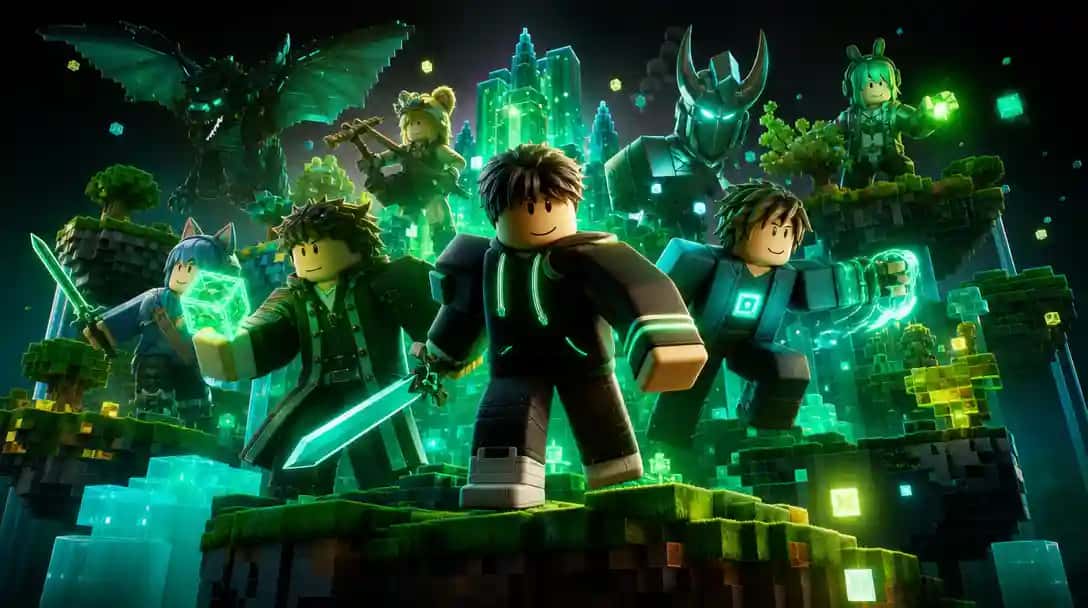
Roblox is one of the most popular online gaming platforms today. Millions of players around the world enjoy building their own games and exploring those created by others. A big part of what makes Roblox so fun is its 3D models. These models can be characters, vehicles, buildings, or other game assets that bring the virtual world to life. Want to try it? Head to AI 3D Model Generator.
In this blog, we will take you through a simple and clear guide on how to create Roblox 3D models using Pixazo’s AI 3D Model Generator. Even if you have never tried making a 3D model before, you will find that this tool is perfect for beginners. It is designed to be easy to use, so you do not need any special skills in coding or design. We will explain everything step by step so that you can follow along and create your very own Roblox models.
What is Roblox?
Roblox is an online platform where users can create, share, and play games. The games are built by the community and include a wide variety of styles and genres. One of the reasons Roblox is so popular is that anyone can use their creativity to build exciting virtual worlds. These worlds come to life with 3D models that represent characters, props, and environments.
Why are 3D Models Important?
AI 3D Model Generation APIs or models, they are both important because they make the game environment look more interesting and real. They add details to the game, such as:
- Characters: The avatars or figures that players control.
- Game Assets: Items like vehicles, buildings, and props.
- Environments: The background settings, like forests, cities, or space stations. Having high-quality 3D models enhances the gameplay and gives players a richer, more immersive experience.
Why Use Pixazo for Roblox 3D Models?
Creating 3D AI models from scratch can be challenging, especially if you are new to design software. Here are some reasons why Pixazo is a great choice for creating Roblox models:
1. Ease of Use
Pixazo has a simple and clear interface. It does not require you to learn complicated software or coding languages. The process is designed so that even beginners can create impressive models without feeling overwhelmed.
2. AI-Powered Design
One of the coolest features of Pixazo is its AI-powered technology. The tool can automatically generate a 3D model based on your text description or image. For example, if you type in a description of a character with red hair and blue armor, the AI will create a model that fits your description. This makes it very fast to bring your ideas to life.
3. Customization Options
After the initial model is created, you can make many changes. You can adjust the colors, add textures, change shapes, and more. This means that your final model can be unique and just the way you want it. Customization is very important because every game on Roblox is different, and your models should match the style of your game.
4. Export Compatibility
When you finish creating your model, Pixazo allows you to export the model in a format that is ready for use in Roblox Studio. Roblox Studio is the software used to build and edit Roblox games. This smooth integration means you can move directly from designing to testing your model in your game without any extra steps.
Getting Started with Pixazo
Now that you know why Pixazo is a great tool, let’s go through how to get started with it.
Step 1: Visit the Pixazo Website
To begin, open your internet browser and go to the Pixazo website. The website is easy to navigate and provides all the tools you need to start creating 3D models.
Step 2: Navigate to the 3D Model Generator Tool
Once you are logged in, look for the “3D Model Generator” tool on the platform. This is where you will do most of your work. The tool is designed to guide you through the process of creating your 3D model, and it offers different methods for getting started.
Step 3: Choose Your Creation Method
There are two ways to create a 3D model with Pixazo:
- Text-to-3D: You type in a description of the model you want to create.
- Image-to-3D: You upload an image that will be used as a reference for creating the model.
Step 4: Create an Account or Log In
If you are new to Pixazo, you will need to create a new account. The registration process is simple and usually only takes a few minutes. If you already have an account, just log in using your username and password.
Creating a Roblox 3D Model: Step-by-Step
Let’s dive deeper into the process of creating your Roblox 3D model using Pixazo. We will break this into two parts: creating a model from text and creating a model from an image.
A) Text-to-3D Model Generation
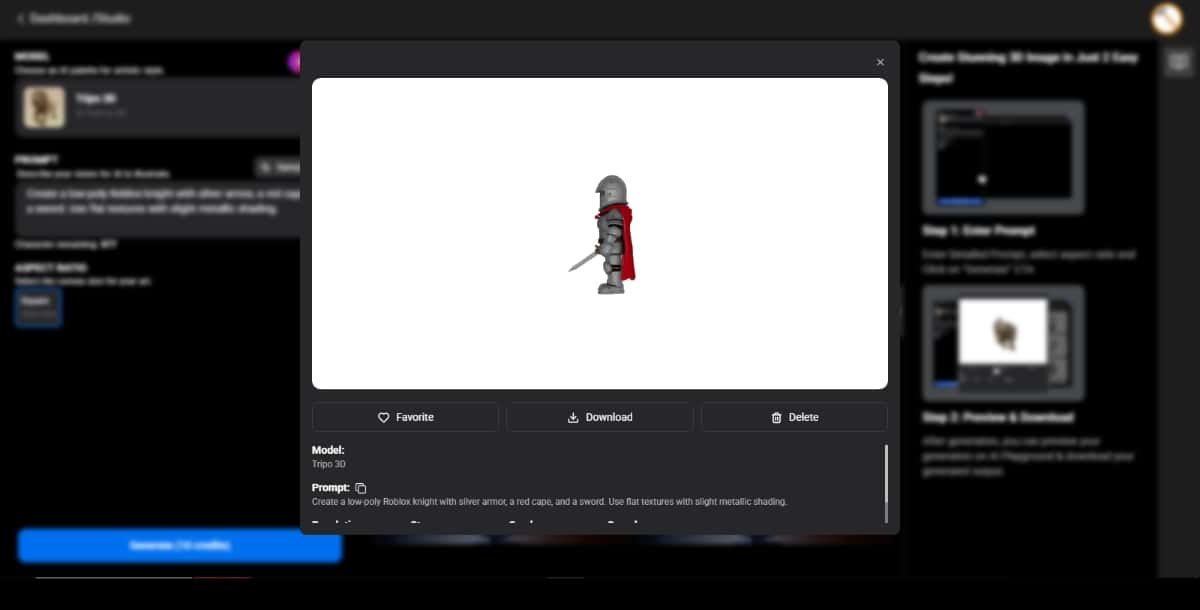
- Enter a Detailed Prompt
- Start by writing a detailed description of the model you want to create. Think about what kind of character or object you want in your game. The prompt I used is “Create a low-poly Roblox knight with silver armor, a red cape, and a sword. Use flat textures with slight metallic shading.”
- Include details such as:
- The type of character (e.g., a superhero, a warrior, or a fantasy creature).
- Any special accessories (e.g., a hat, a sword, or wings).
- Preferred colors (e.g., red hair, blue armor).
- The pose or action (e.g., standing confidently, running, or jumping).
- The more details you provide, the closer the generated model will be to your vision.
- Generate and Preview the Model
- After you enter your prompt, click on the “Generate” button.
- The AI will work on your description and create a 3D model.
- You will be able to see a preview of the model on your screen. Take a look at the preview and see if it meets your expectations.
- Refine Your Model
- If you feel that some parts of the model are not exactly how you imagined them, don’t worry.
- Pixazo allows you to make changes. You can edit the text prompt or use the customization options to tweak the model.
- Adjust details like colors, textures, and shapes until the model looks just right.
B) Image-to-3D Model Conversion
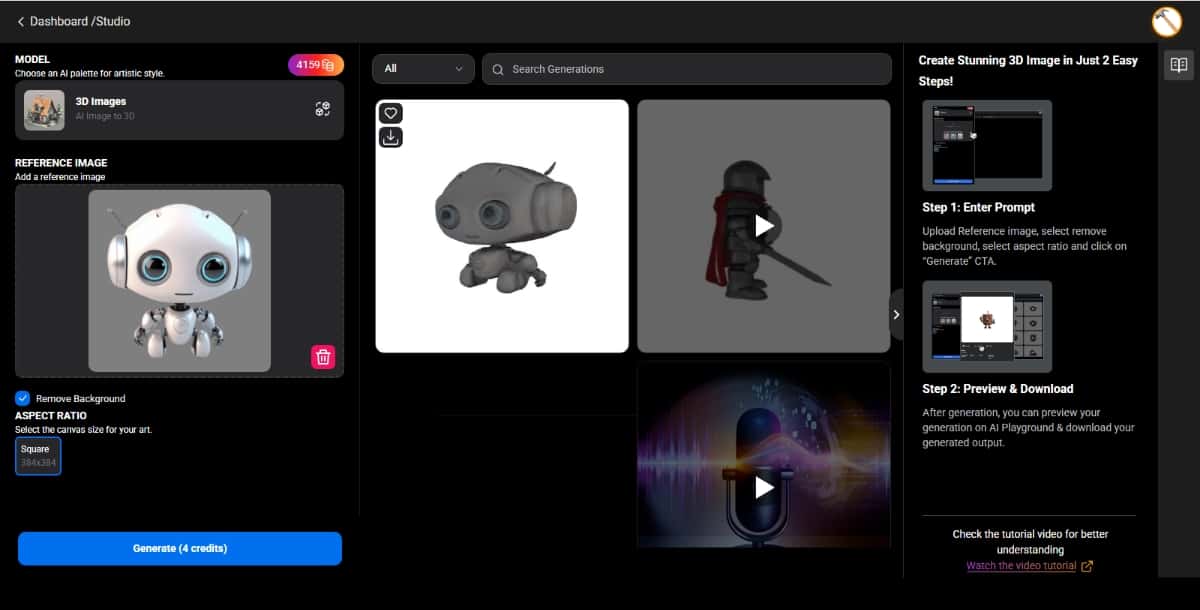
- Upload a Reference Image
Suggested Read: Introducing the Meshy 7 API on Pixazo API: Production-Grade Image to 3D
- If you have an image that represents the model you want, choose this method.
- Click on the option to upload an image.
- The image can be a sketch, a digital drawing, or even a photo that inspires your design.
- Let the AI Create a 3D Model
- Once your image is uploaded, the AI analyzes the image and creates a 3D model that reflects its content.
- This process is similar to the text method, but it relies on the visual details of your image.
- Customize the Output
- After the model is generated, you can use the same customization tools to refine it.
- Adjust aspects such as the model’s size, texture, and color.
- Make sure that the final model fits the Roblox style you are aiming for.
Suggested Read: How to Create a Product Label: A Step-by-Step Guide
Tips for Creating High-Quality Roblox Models
To help you get the best results when creating your Roblox models, choose the best AI 3D Generators like Pixazo. Here are some simple tips:
Use Clear, Detailed Prompts
When you are using the text-to-3D method, make sure your description is very clear. Think of it as giving instructions to a friend. The clearer you are, the more likely it is that the AI will create exactly what you have in mind.
Keep an Eye on Model Size and Complexity
In Roblox, performance is important. Models that are too large or have too many details might slow down the game. Try to keep your models optimized by:
- Reducing unnecessary details.
- Keeping the polygon count low.
- Testing the model in Roblox Studio to ensure it runs smoothly.
Suggested Read: Ultimate Guide to Next-Gen Face Swap: How It Works & Top Use Cases
Choose the Right Textures
Textures add depth and realism to your models. For Roblox, you want to choose textures that are eye-catching but still simple enough to match the game’s style. Avoid overly complex textures that might not display well in the game.
Test Your Models in Roblox Studio
Before you decide that your model is finished, import it into Roblox Studio. This step is very important because it shows you how the model will look and work in your actual game. You can make any needed adjustments at this stage to improve performance or appearance.
Experiment with Different Designs
Don’t be afraid to try out different ideas. Sometimes the first design might not be perfect, and that’s okay. Experiment with different prompts, images, and customization settings. Each attempt will teach you more about what works best for your game.
Suggested Read: How to Convert Photo to Pencil Sketch: Step-by-Step Guide in 2026
Use Cases for Roblox 3D Models
Now that you know how to create your models, let’s look at some of the ways you can use them in your Roblox games.
Game Assets
3D models can serve as the building blocks of your game. You can create:
- Characters: Unique avatars or heroes that players can control.
- Vehicles: Cars, spaceships, or any other mode of transportation.
- Props: Items such as weapons, tools, or decorative objects that add flavor to your game.
Environments
Designing environments is another exciting use case for your 3D models. Consider creating:
- Buildings: Houses, castles, or futuristic structures that players can explore.
- Landscapes: Natural settings like forests, mountains, or deserts that make the game world feel alive.
- Interactive Objects: Items that players can interact with, such as doors, bridges, or secret passages.
Suggested Read: Best 3D Model Generation APIs in 2026: Full Comparison
Avatars and Accessories
Personalization is key in Roblox. With custom 3D models, you can offer:
- Unique Player Skins: Stand-out character designs that allow players to express their personality.
- Accessories: Hats, glasses, or gadgets that players can add to their avatars.
- Special Items: Tools or gear that provide extra abilities or fun interactions in the game.
Custom Game Features
3D models also open up new possibilities for creative game features:
- Special Effects: Animated models that add visual effects like explosions or magical spells.
- Interactive Elements: Models that players can move or change during the game, making gameplay more dynamic.
- Storytelling: Create scenes and characters that help tell the story of your game in a visual and engaging way.
Real-Life Examples of Roblox 3D Models
To give you more ideas, here are a few real-life examples of how Roblox 3D models created with tools like Pixazo have been used:
Example 1: A Fantasy Adventure Game
Imagine a game where players explore a magical kingdom. The game needs:
- Characters: Brave knights, wise wizards, and mysterious creatures.
- Environments: Enchanted forests, ancient castles, and hidden caves.
- Game Assets: Magical weapons, treasure chests, and glowing potions. Using Pixazo, you can quickly create detailed models for all these elements. The AI-powered tool helps bring your imaginative world to life without the need for extensive 3D modeling skills.
Suggested Read: 11 Best AI Character Generators in 2026: Top Tools for Creating Stunning Digital Avatars
Example 2: A Sci-Fi Battle Arena
In a futuristic game set in space, you might need:
- Robotic Characters: Space soldiers with high-tech armor.
- Vehicles: Hovercraft, futuristic tanks, and space shuttles.
- Special Effects: Explosions, laser beams, and holographic displays. With clear text prompts or reference images, Pixazo can help you create these models in a way that fits the modern and sleek look of a sci-fi world.
Example 3: A Role-Playing Game (RPG)
For an RPG game, you can design:
- Custom Avatars: Unique characters with different outfits and accessories.
- Accessories: Special weapons, magical items, and unique tools.
Interactive Environments: Detailed maps with towns, dungeons, and secret areas. Using the customization options available in Pixazo, you can modify each model to match the unique style of your RPG.
Conclusion
Creating 3D models for Roblox can seem like a big challenge at first, but with Pixazo, the process is made simple and accessible for everyone. This step-by-step guide has shown you how to use the tool to create models either from a text description or from an image. You have learned about the importance of detailed prompts, the benefits of customization, and the need to test your models in Roblox Studio.
Suggested Read: Best Open Source 3D Model Generation APIs in 2026: In-Depth Comparison Guide
Frequently Asked Questions
Can I make Roblox 3D models with AI?
Yes, AI tools can generate 3D shapes from text or images that you then refine and import into Roblox Studio. This speeds up early concepting compared to modeling everything by hand.
Do I need modeling experience to create Roblox 3D models?
Not necessarily, since AI can produce a base mesh from a prompt, though basic familiarity with Roblox Studio helps you position, scale, and texture the asset. Pixazo offers text-to-3D generation to give you a starting model quickly.
What file format do Roblox 3D models use?
Roblox commonly imports meshes as OBJ or FBX files, so you should export your AI generated model in a supported format before uploading. Always check polygon limits so it performs well in game.
Are AI generated Roblox models allowed on the platform?
You can upload your own AI assisted assets as long as they follow Roblox’s content and moderation rules. Avoid uploading copyrighted or infringing designs.
How do I import a 3D model into Roblox Studio?
Export your model as a supported mesh file, then use the Import 3D or MeshPart option inside Roblox Studio to bring it in and adjust materials. From there you can texture and script it like any asset.
Deepak Joshi
Author · Pixazo
Deepak writes about generative AI models, APIs, and the workflows teams use to ship them. Reviewed by Abhinav Girdhar.