Modern Business Card : Create Free Modern Business Cards in Minutes with AI
Create Custom Modern Business Cards Quickly with Pixazo Best AI Modern Business Card Maker. Try for Free!
Get Started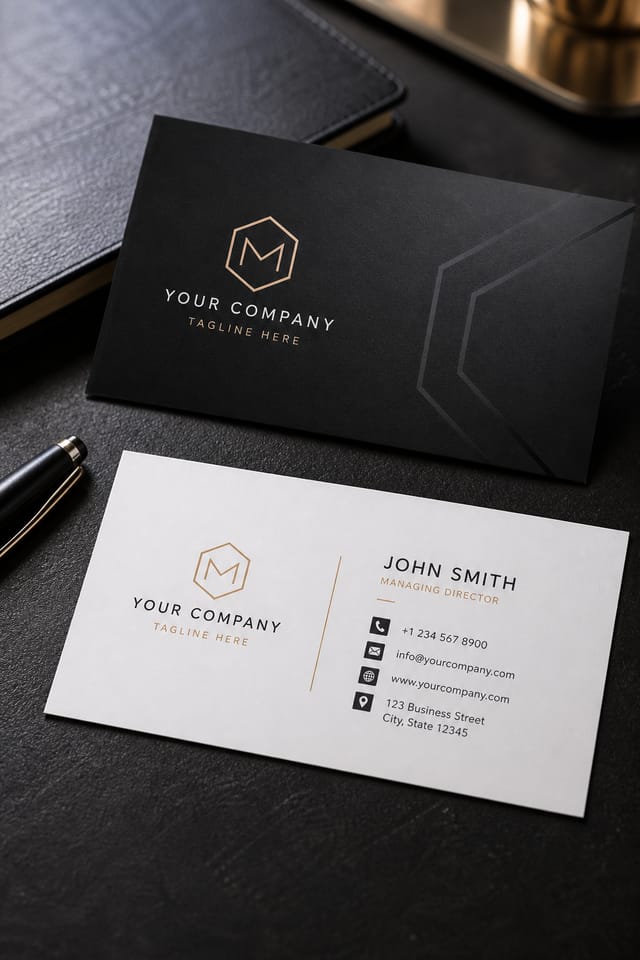
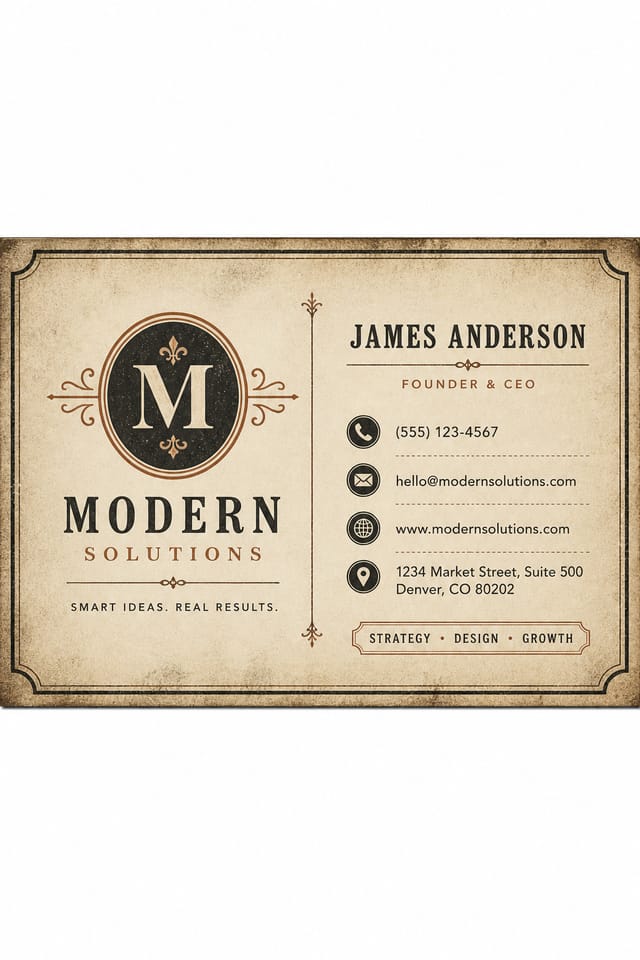
Modern Business-Card Creation Tools: Technical Breakdown
Prompt Refinement
Adjust your description to refine any aspect of the modern business-card design. The AI responds to specific direction about colors, layout, or content.
Instant Iterations
Generate multiple modern business-card variations from a single prompt. Compare options and refine until the design matches your vision.
Print-Ready Output
Generated modern business-cards are sized and structured for professional printing. Download high-resolution files ready for production.
Resolution Control
Specify output dimensions for your modern business-card. Get files sized for web display, social media, or large-format printing.
Where Modern Business-Card Design Is Heading: Where Design Is Going
Dark Mode Aesthetics
Dark backgrounds with high-contrast accents are increasingly common in modern business-card design, reducing visual fatigue and adding sophistication.
Retro Revival
Vintage aesthetics from the 1970s and 1990s are influencing modern business-card design with textured backgrounds, serif fonts, and warm gradients.
Data-Driven Visuals
Incorporating charts, statistics, and structured data directly into modern business-card layouts helps communicate complex messages at a glance.
Muted Earth Tones
Natural color palettes with warm neutrals and desaturated greens are replacing the bright neon trends of previous years in modern business-card work.
Organic Shapes
Flowing, irregular forms are replacing sharp geometric shapes in modern business-card backgrounds and decorative elements for a softer visual feel.
Gradient Overlays
Smooth color transitions are being used as primary design elements in modern business-card work, adding depth without the complexity of photographic backgrounds.
Modern Business-Card Tools in Detail: A Detailed Look
Layout Intelligence
AI understands modern business-card layout conventions and applies them automatically
Typography Matching
Font selection that matches the visual tone of your modern business-card design
Composition Rules
Automatic application of design principles like hierarchy and balance
Putting Modern Business-Cards to Work: Everyday and Professional
Event Promotion
Create modern event business-cards that establish the right visual mood before the event. Modern design signals quality and sets expectations.
Professional Projects
Create modern business-cards for client work, commercial campaigns, and professional applications where quality and style accuracy matter.
Retail and Hospitality
Produce modern in-store and venue business-cards that communicate quality through design. Modern aesthetics signal attention to customer experience.
Content Creation Workflow
Incorporate modern business-card generation into a content production workflow. Fast output enables higher publishing frequency.
Freelance Design Work
Use Pixazo to generate modern business-card concepts for client review. Present multiple directions quickly before committing to detailed execution.
Good Modern Business-Card Prompt Starters
Copy any prompt below and paste it into Pixazo to generate your design instantly.
Series-compatible modern business-card design, visual language that extends to multiple formats, consistent design system across variantsHigh-impact modern business-card, immediate visual read at thumbnail size, clear headline dominance, supporting information structured logicallyEditorial-style modern business-card, text-dominant design, typographic treatment carries visual weight, layout proportions inspired by print publication designContemporary modern business-card design, grid-based layout, typographic precision, restrained color palette, no decorative excessModern aesthetic business-card, palette drawn from modern design tradition, layout proportions consistent with modern conventions, purposeful use of each elementMonochromatic modern business-card, single-hue palette with value variation for contrast, typographic hierarchy creates visual interest without color complexityBuild a Modern Business-Card: What Actually Happens
Transcribe the Brief
Describe what you want your modern business-card to look like. Include the mood, color palette, typography preference, and content hierarchy. Pixazo reads all of this and uses it to generate an appropriate design.
Examine the Render
Pixazo generates your modern business-card in seconds. Review the design and adjust your prompt to refine specific elements: change the color palette, shift the layout weight, or add visual elements you want included.
Take It to Production
Download your completed modern business-card in the format that fits your use case. High-resolution files for print, web-optimized versions for digital, or PDF for production-ready delivery.
Watch: Creating Modern Business Card designs step by step
Visual Styles for Modern Business-Cards: Design Directions
Geometric Modern
Structured modern composition using grid systems and angular forms. Order and precision define the visual approach.
Textured Modern
Modern design with added surface depth. Background treatments add visual interest without disrupting legibility.
Classic Modern
Traditional modern design principles applied to modern business-card format. Clean composition, conventional hierarchy, time-tested visual decisions.
Editorial Modern
Text-dominant modern business-card layout inspired by print publication design. Typographic variety creates visual rhythm.
High-Contrast Modern
Bold modern visual treatment with strong tonal contrast. Elements read clearly at any viewing distance.
AI Modern Business-Card Design: Honest Expectations
Known limitations and trade-offs of AI-generated modern design. Understanding what the AI handles well and where it falls short helps you structure your modern business-card design workflow effectively.
Modern Business-Card Expert Advice: Practical Guidance
Use High Contrast for Readability
Whether your modern business-card is displayed on screen or in print, strong contrast between text and background ensures the message gets through at any size.
Iterate with Variations
Generate 3-5 versions of your modern business-card before committing. Comparing variations side by side often reveals the strongest direction.
Test at Actual Size
Always preview your modern business-card at the dimensions it will be displayed. Design details that look fine at 100% can disappear or crowd at real-world scale.
Keep Typography Simple
Use no more than two typefaces per modern business-card. One for headlines, one for body text. Consistency in typography signals professionalism.
Consider the Context
Think about where your modern business-card will appear. A design optimized for social media needs different proportions and density than one for a physical bulletin board.
Inside the Modern Community: Work in the Wild
Real creators sharing their modern designs made with Pixazo AI.
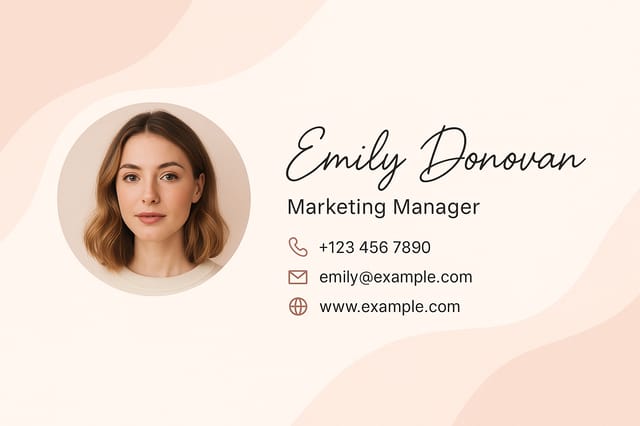
Modern business-card designed for dark mode display, OLED-optimized black background, vibrant accent colors, high contrast text
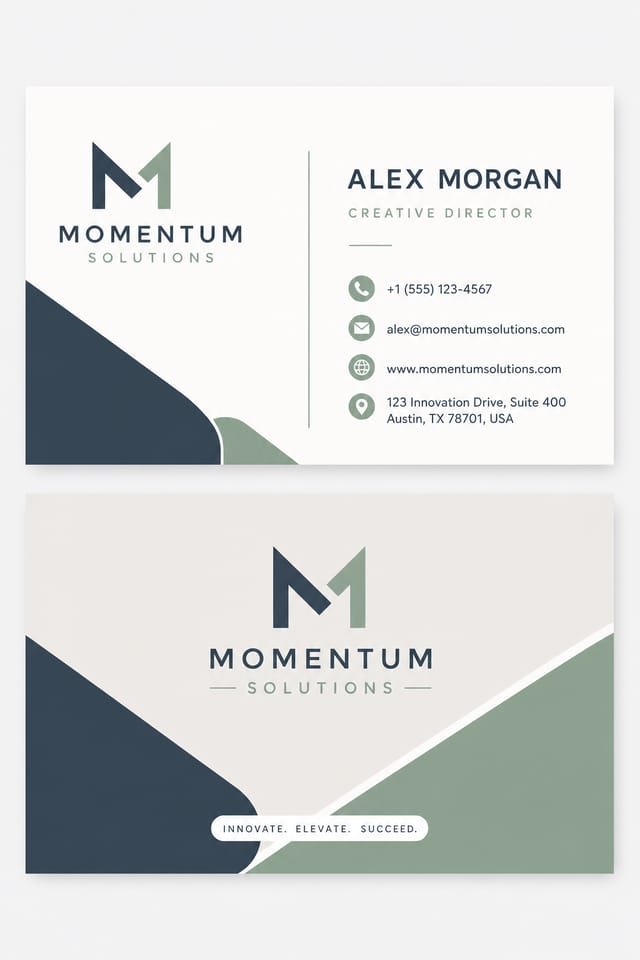
Professional modern business-card, minimalist layout, selective use of color for emphasis, clear visual hierarchy from top to bottom
Luxurious modern business-card with gold foil accents on black, thin serif typography, symmetrical centered layout, premium feelBefore You Start: Plain Answers
Include 'transparent background' in your prompt to generate a modern business-card with no background fill. Download as PNG to preserve transparency. This is useful for modern designs that will be composited over other imagery or placed on colored surfaces.
Common sizes include 1080x1080 for Instagram feed, 1080x1920 for stories and reels, 1200x628 for Facebook links, 1500x500 for Twitter headers, and 1080x1350 for Pinterest. Specify the platform in your prompt and Pixazo optimizes modern layout for that format.
The AI generates designs at the specified dimensions. For professional print production, add 'with bleed area' to your prompt to extend background elements beyond the trim line. Crop marks and registration marks should be added in your print preparation software.
Adjust your prompt to change any element of the design. If a generated modern business-card is close but not quite right, describe what you want changed and regenerate. The AI responds to specific direction about individual elements like color, layout, or typographic weight.
Pixazo generates single-page modern business-card designs per prompt. For multi-page projects, generate each page individually using consistent prompt language to maintain visual continuity across your modern document set.
Generated designs that miss the mark usually need more specific prompts. Add details about the visual hierarchy you want, the feeling the modern business-card should create, or specific elements to include or avoid. More context in the prompt produces more targeted output.

