AI Checklist Maker : Create Free Checklists in Minutes
Create Custom Checklists Quickly with Pixazo Best AI Checklist Maker. Try for Free!
Get Started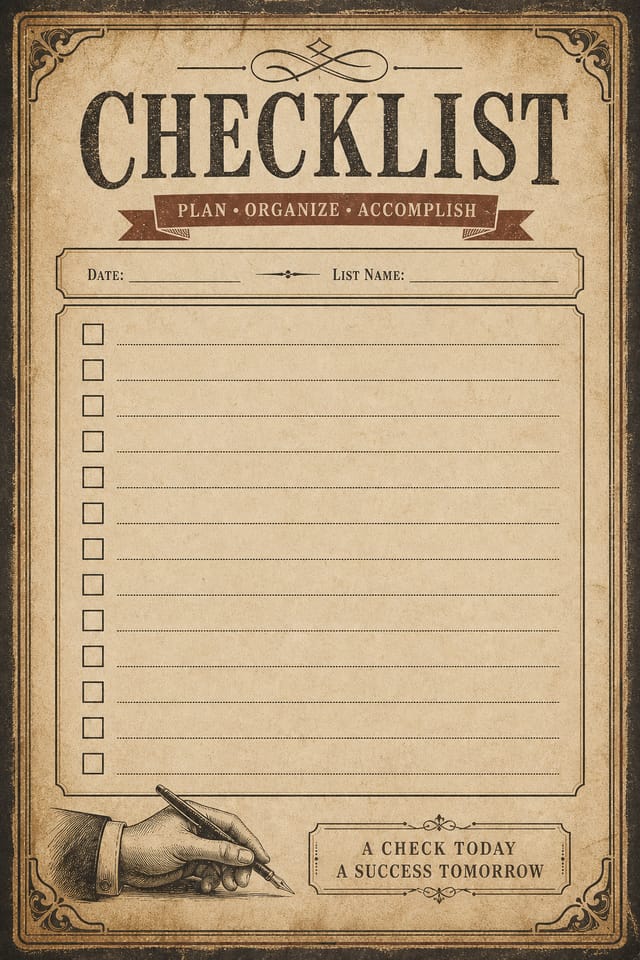
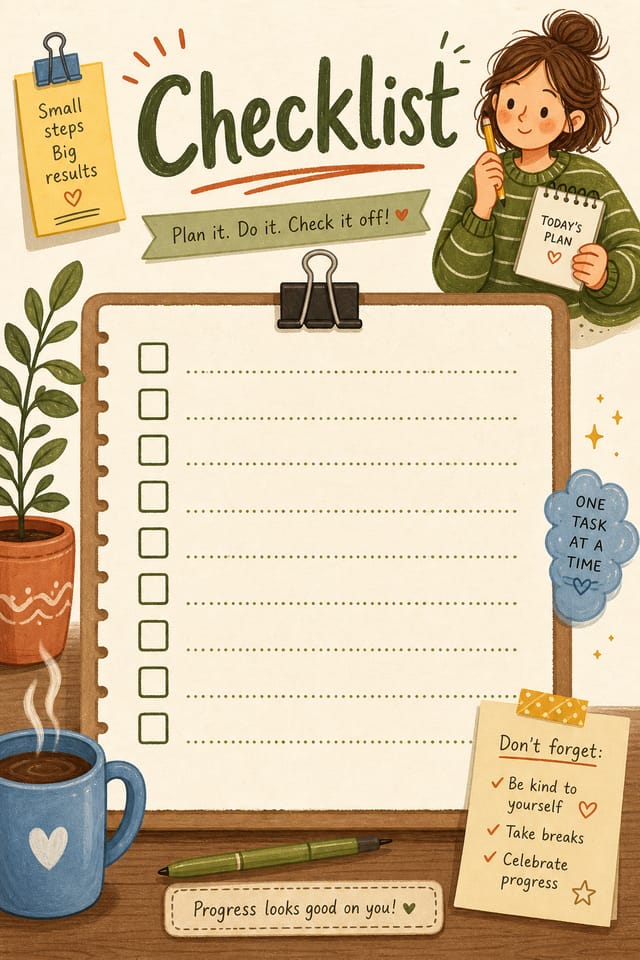
What Separates Good Checklist Design: What the AI Understands
How AI Translates Checklist Style to Final Output
Checklist design carries specific visual associations that viewers pick up on immediately.
The right palette, the right typographic approach, the right compositional balance.
Get these right and your checklist communicates clearly.
Emerging Checklist Patterns: Where Design Is Going
Asymmetric Composition
Breaking grid symmetry in checklist layouts creates visual tension and a modern, editorial feel that stands out.
Organic Shapes
Flowing, irregular forms are replacing sharp geometric shapes in checklist backgrounds and decorative elements for a softer visual feel.
Dark Mode Aesthetics
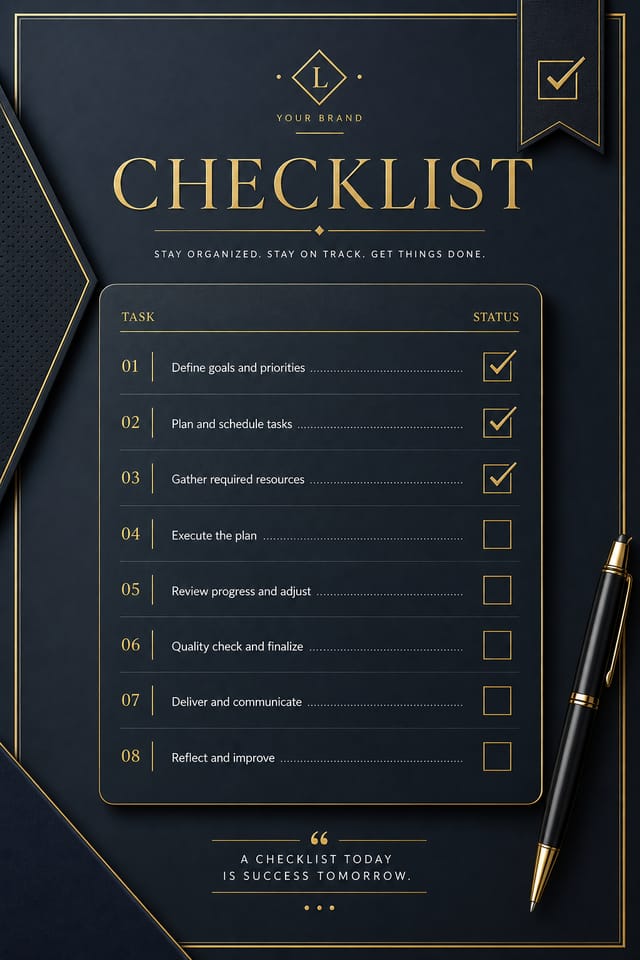
Dark backgrounds with high-contrast accents are increasingly common in checklist design, reducing visual fatigue and adding sophistication.
Brutalist Design
Raw, intentionally unpolished checklist aesthetics with stark contrasts and unconventional layouts are carving a niche in creative industries.
Bold Typography
Oversized type and expressive fonts are dominating checklist design, turning headlines into visual centerpieces rather than just text.
Gradient Overlays
Smooth color transitions are being used as primary design elements in checklist work, adding depth without the complexity of photographic backgrounds.
Visual Quality in Checklists: Design Fundamentals
What Powers Checklist Design: Technical Breakdown
Instant Iterations
Generate multiple checklist variations from a single prompt. Compare options and refine until the design matches your vision.
No Design Software Required
Create professional checklists without Photoshop, Illustrator, or other design applications. The AI handles all technical production.
Print-Ready Output
Generated checklists are sized and structured for professional printing. Download high-resolution files ready for production.
Text Placement Options
Describe where you want text elements positioned in your checklist. The AI follows compositional direction about headline placement and body copy layout.
Good Checklist Design Prompts
Copy any prompt below and paste it into Pixazo to generate your design instantly.
Clean checklist design, geometric structure, disciplined typography, color accent used selectively for emphasis, printer-optimized resolutionSeries-compatible checklist design, visual language that extends to multiple formats, consistent design system across variantsChecklist design, clean layout, strong typography hierarchy, appropriate color palette for checklist aesthetic, high contrast between headline and backgroundTwo-color checklist design, high contrast between primary and secondary color, clean separation between graphic and text zonesChecklist aesthetic checklist, palette drawn from checklist design tradition, layout proportions consistent with checklist conventions, purposeful use of each elementRefined checklist, sophisticated color relationships, intentional whitespace, typefaces appropriate to checklist style, balanced compositionChecklist Dos and Don'ts: A Quality Guide
Use a consistent visual hierarchy
Structure your checklist so the viewer's eye follows a clear path from headline to supporting details to call-to-action.
Maintain brand alignment
Keep your checklist design consistent with existing brand colors, fonts, and visual language for a cohesive identity.
Use grids and alignment
Structured layouts in your checklist create a sense of order and professionalism that unstructured designs cannot match.
Rely solely on AI output
AI-generated checklist designs are a starting point. Human review catches issues with context, tone, and accuracy that AI can miss.
Ignore accessibility
Low-contrast text and tiny font sizes in your checklist exclude a significant portion of your potential audience.
Use too many fonts
More than two or three typefaces in a single checklist creates visual noise and makes the design feel disjointed.
Creating Your Checklist: The Workflow Explained
Transcribe the Brief
Describe what you want your checklist to look like. Include the mood, color palette, typography preference, and content hierarchy. Pixazo reads all of this and uses it to generate an appropriate design.
Peruse the AI Generation
Your checklist generates immediately after submission. Evaluate the design against your requirements and refine the prompt to correct any elements that don't match your intent.
Modify the Elements
Adjust your prompt to modify specific elements of the checklist. Change the color palette, shift typography weight, or reposition the compositional focus. Each iteration gets you closer to the final design.
Commit the Output
Download your completed checklist in the format that fits your use case. High-resolution files for print, web-optimized versions for digital, or PDF for production-ready delivery.
Checklist Specifications
Watch: Creating Checklist designs step by step
Checklists Across Fields: Real Applications
Music and Audio Production
Produce checklists for album covers, playlist artwork, and music event promotion. Visual identity that matches the sound.
Sports and Recreation
Produce checklists for leagues, tournaments, and recreational programs. Energetic designs that build excitement and communicate schedules.
Freelance Design Work
Use Pixazo to generate checklist concepts for client review. Present multiple directions quickly before committing to detailed execution.
Travel and Tourism Promotion
Design checklists for destinations, tour packages, and hospitality brands. Aspirational visuals that inspire booking decisions.
E-Commerce Product Promotion
Design checklists for online store banners, product launches, and seasonal sales. Conversion-focused visuals for digital retail.
Styling Your Checklist: From Classic to Bold
Contemporary Checklist
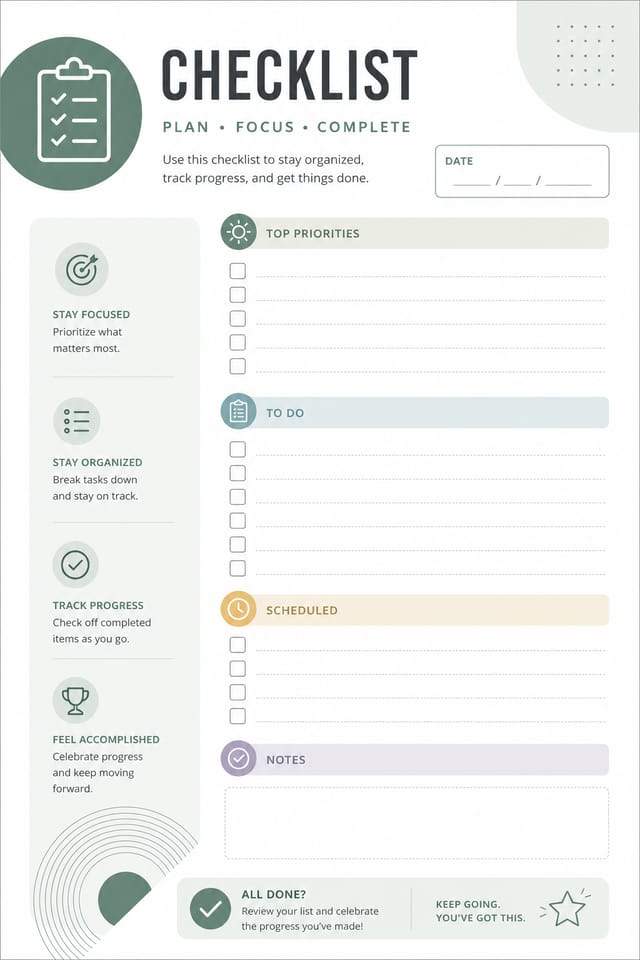
Current checklist design sensibility with updated proportions, modern typefaces, and contemporary color relationships.
High-Contrast Checklist
Bold checklist visual treatment with strong tonal contrast. Elements read clearly at any viewing distance.
Classic Checklist
Traditional checklist design principles applied to modern checklist format. Clean composition, conventional hierarchy, time-tested visual decisions.
Editorial Checklist
Text-dominant checklist layout inspired by print publication design. Typographic variety creates visual rhythm.
Your Checklist Questions: FAQ
Templates apply a fixed visual structure with placeholder content. AI generation produces original designs based on your specific description. Two checklists generated from different prompts will have genuinely different layouts, not just different text in the same box positions.
Individual checklists generate in seconds. For batch production, you can submit multiple prompts in sequence and download results as they complete. A series of ten checklist variations typically takes under five minutes total.
Describe your core design parameters in each prompt and vary only the specific elements that should change across the series. Maintaining consistent color palette, typographic approach, and compositional structure across checklist variations creates a coherent series.
Designs generated through Pixazo are yours to use as you see fit. You retain full usage rights for commercial and personal applications. The platform does not claim ownership over your generated checklist output.
Checklist Design Workflow: A Production Pipeline
Refine Polish the design
Apply targeted edits to your selected checklist. Adjust typography, spacing, and color until every element meets your quality standard.
Generate Create initial designs
Use AI to produce multiple checklist variations based on your brief. Start broad and narrow down from the strongest options.
Brief Define requirements
Establish the key message, dimensions, color preferences, and target audience for your checklist before any design work begins.
Research Gather references
Collect examples of effective checklist designs, note what works, and identify patterns relevant to your project goals.
Approve Final sign-off
Get stakeholder approval on the finished checklist. Verify all text is accurate and the design meets brand and technical requirements.
Checklist Makers: Featured Designs
Real creators sharing their checklist designs made with Pixazo AI.

A3 landscape checklist for conference booth, informational layout with three columns, clear section headers, QR code placement zone
High-contrast checklist, dark background with light text, accent color used for single key element, modern composition
Refined checklist aesthetic checklist, sophisticated color relationships, intentional negative space, type selection matching checklist conventionsAI Checklist Design: Honest Expectations
Known limitations and trade-offs of AI-generated checklist design. AI checklist generation produces strong results within its design domain. These notes describe where human judgment and manual work remain necessary.

