AI Diagram Maker : Create Free Diagrams in Minutes
Create Custom Diagrams Quickly with Pixazo Best AI Diagram Maker. Try for Free!
Get Started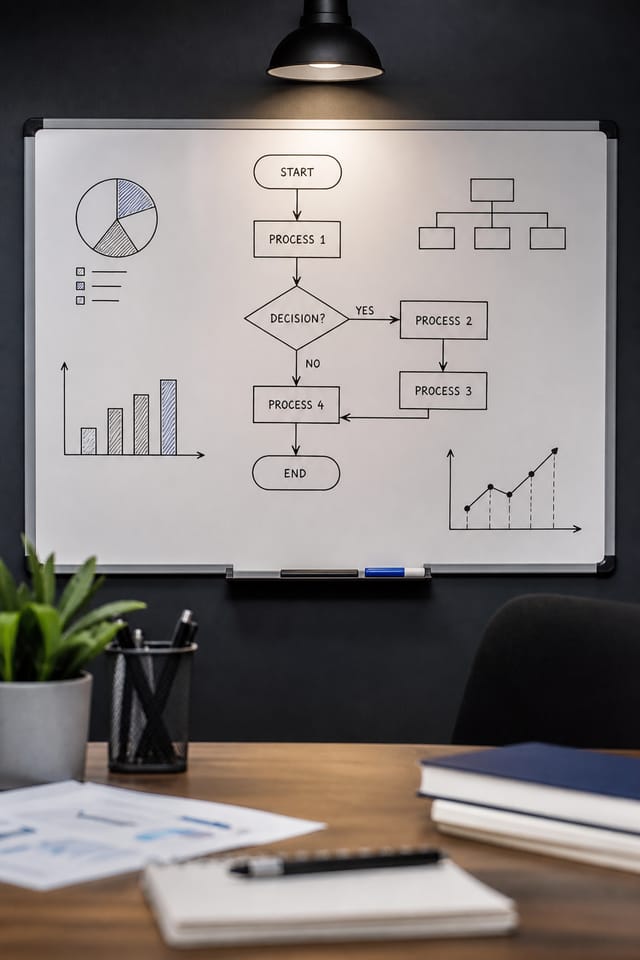
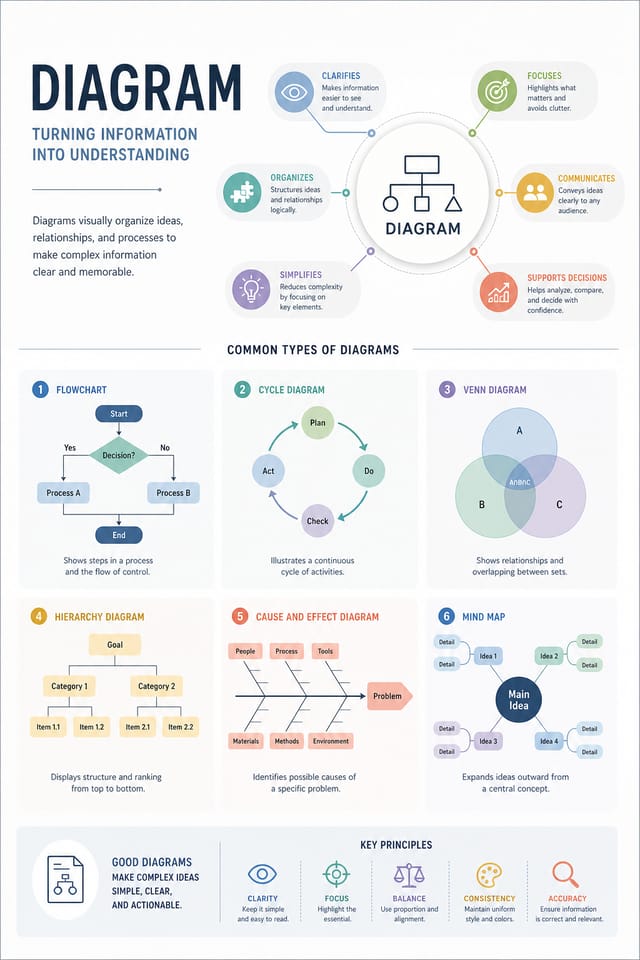
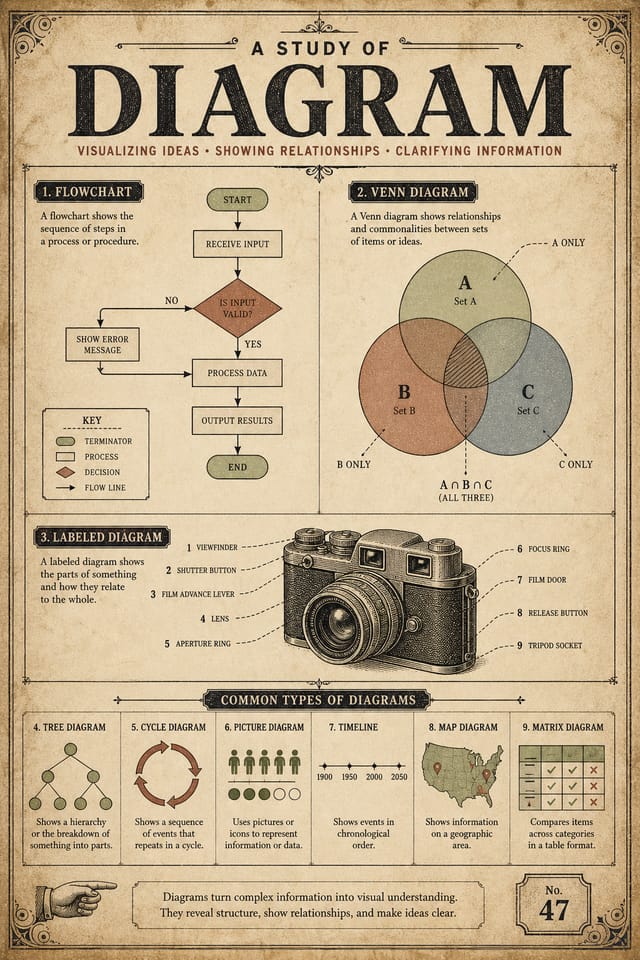
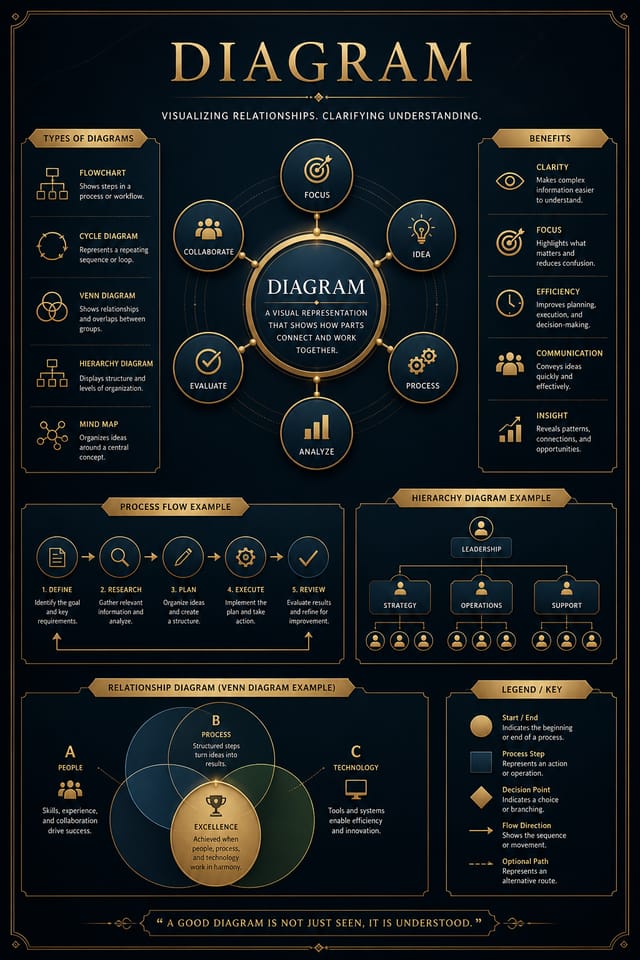
Diagram Production Steps: The Full Process
Export
Export your diagram in the required formats and resolutions. Organize deliverables for handoff to the production or publishing team.
Refine
Apply targeted edits to your selected diagram. Adjust typography, spacing, and color until every element meets your quality standard.
Brief
Establish the key message, dimensions, color preferences, and target audience for your diagram before any design work begins.
Approve
Get stakeholder approval on the finished diagram. Verify all text is accurate and the design meets brand and technical requirements.
Research
Collect examples of effective diagram designs, note what works, and identify patterns relevant to your project goals.
What Powers Diagram Design: Tools That Matter
Fast Generation
Complete diagram designs generate in seconds. No rendering queues, no waiting for batch processing.
Consistency Across Variants
Generate multiple diagrams for a project and maintain visual consistency across the set. Specify your core design parameters and vary secondary elements.
Color Temperature Control
Specify warm, cool, or neutral color direction for your diagram. The AI builds the full palette around your temperature preference.
Text Placement Options
Describe where you want text elements positioned in your diagram. The AI follows compositional direction about headline placement and body copy layout.
Typography Matching
Typefaces are selected to match diagram aesthetic expectations. The AI pairs fonts that reinforce your diagram's visual identity.
The Path to Your Diagram: From Start to Finish
Outline Your Design
Write a prompt describing your diagram. Include style preferences, color direction, the most important text to display, and any specific visual elements you want. The more specific your description, the more targeted the output.
Review What Emerged
The AI produces a diagram based on your description. If the first result isn't exactly right, adjust the prompt to address what needs changing. Most designs reach the target within a few iterations.
Edit the Draft
Refine the diagram by updating your description with precise changes. Add constraints you didn't include initially or remove elements that aren't working. The AI responds to specific direction.
Finalize and Export
Export your diagram in the format you need. PNG for web and social, PDF for print production, JPG for email and lightweight sharing. The file is yours to use commercially without restrictions.
Diagram Specifications
Watch: Creating Diagram designs step by step
New to Diagrams? What People Ask
The AI generates designs at the specified dimensions. For professional print production, add 'with bleed area' to your prompt to extend background elements beyond the trim line. Crop marks and registration marks should be added in your print preparation software.
Pixazo generates original designs rather than copying existing work. The AI creates diagrams from learned design principles, not by stitching together fragments of existing designs. Generated output does not reproduce copyrighted material or identifiable artistic styles of living creators.
Brand kits let you save your logo, fonts, and color palette so every diagram you generate stays on brand. Once configured, the AI applies your brand parameters automatically alongside diagram style conventions.
Your prompt history is saved in your account. You can revisit previous diagram prompts, duplicate them with modifications, and build a library of proven prompt structures for consistent diagram design output.
Pixazo offers a free tier that lets you generate diagrams with standard resolution output. Paid plans unlock higher resolution, priority generation, and additional export formats. You can try diagram generation free with a credit card.
Diagram Style Movements: Trend Report
Dark Mode Aesthetics
Dark backgrounds with high-contrast accents are increasingly common in diagram design, reducing visual fatigue and adding sophistication.
Organic Shapes
Flowing, irregular forms are replacing sharp geometric shapes in diagram backgrounds and decorative elements for a softer visual feel.
Gradient Overlays
Smooth color transitions are being used as primary design elements in diagram work, adding depth without the complexity of photographic backgrounds.
Minimalist Layouts
Stripped-back diagram designs with generous white space and limited elements are gaining favor for their clarity and elegance.
Retro Revival
Vintage aesthetics from the 1970s and 1990s are influencing diagram design with textured backgrounds, serif fonts, and warm gradients.
Motion-Ready Design
Static diagram designs are being created with animation in mind, using layered elements that translate smoothly to motion graphics.
Advanced Diagram Features: A Complete Tour
Layout Intelligence
AI understands diagram layout conventions and applies them automatically
Typography Matching
Font selection that matches the visual tone of your diagram design
Composition Rules
Automatic application of design principles like hierarchy and balance
Who Creates Diagrams: A Practical Guide
Photo Collages and Montages
Design diagrams arranging multiple images into cohesive visual compositions. Grid-based and freeform layouts for photo storytelling.
Comparison and Versus Charts
Create diagrams for product comparisons, feature matrices, and side-by-side analyses. Layouts that make differences and similarities immediately obvious.
Process and Workflow Diagrams
Design diagrams illustrating step-by-step processes, organizational workflows, and decision trees. Clear visual logic for operational documentation.
Mood Boards and Creative Briefs
Generate diagrams assembling visual references, color palettes, and texture samples into inspirational boards. Design communication tools for creative teams.
Diagram Maker: A Technical Snapshot
Diagram Prompts: Prompt Templates
Copy any prompt below and paste it into Pixazo to generate your design instantly.
Diagram style diagram, bold headline placement, supporting text at appropriate scale, color palette consistent with diagram design conventionsEditorial-style diagram, text-dominant design, typographic treatment carries visual weight, layout proportions inspired by print publication designFull-bleed diagram, background treatment extends to edges, foreground elements positioned for compositional balance, strong central hierarchyProfessional diagram, minimalist diagram approach, negative space used intentionally, readable at multiple viewing distances, print-ready compositionMonochromatic diagram, single-hue palette with value variation for contrast, typographic hierarchy creates visual interest without color complexityDiagram Maker Comparison: How They Differ
PicMonkey
Photo editor and design tool with brand kit management
Pixazo
AI-powered diagram generator with prompt-based design and professional output quality
Stencil
Lightweight image creator optimized for fast social media graphics
Snappa
Quick graphic creator focused on social media and marketing visuals
VistaCreate
Visual content platform with templates and a built-in asset library
From the Diagram Community: Creator Highlights
Real creators sharing their diagram designs made with Pixazo AI.
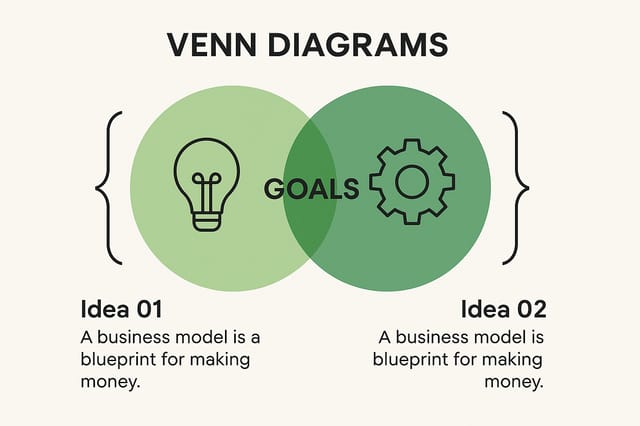
Professional diagram, minimalist layout, selective use of color for emphasis, clear visual hierarchy from top to bottom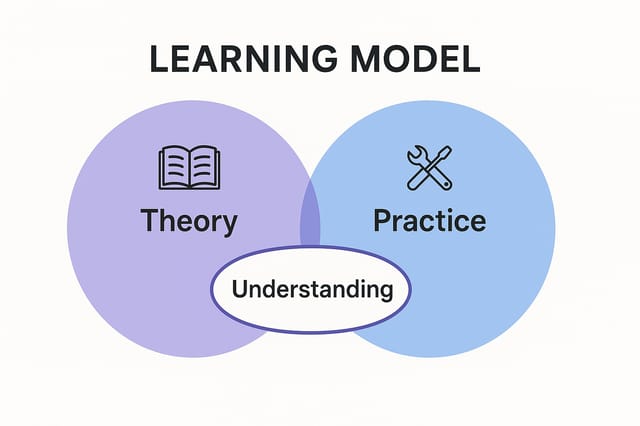
Cool palette diagram, slate and steel tones, sans-serif typography, contemporary diagram sensibility, precise alignment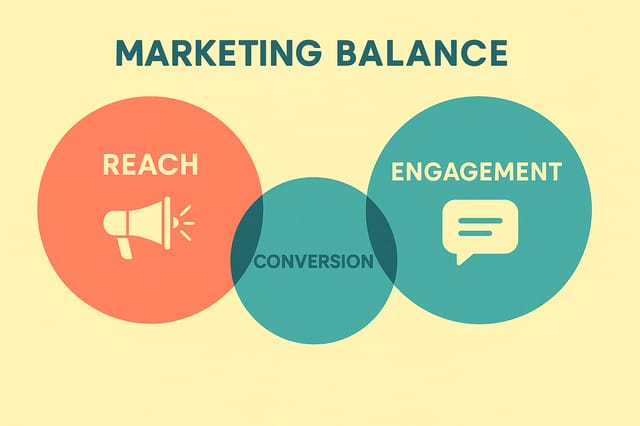
Portrait diagram for social sharing, vertical 4:5 ratio, headline in upper third, supporting content below centerlineWhere Diagram AI: Current Boundaries
Known limitations and trade-offs of AI-generated diagram design. Being specific about what AI diagram generation can and cannot do helps you plan your workflow and set accurate expectations.

