✦ Powered by GPT Image, Nano Banana 2, Seedream 5 & FLUX
AI Image Generator - Text to Image Generator
Pixazo’s AI Image Generator turns your prompt into an image for free. Use simple text prompts to create images for social posts, marketing campaigns, illustrations and more with Text to Image Generator.
- Free100 credits
- No watermarkon every download
- Model choiceswitch anytime
- Commercial useon paid plans
The basics
What is an AI image generator?
An AI image generator is a text-to-image tool that turns written prompts into original, high-quality images in seconds. Type a description — for example, “a red sports car on a mountain road at sunset” — and the AI image generator creates a brand-new image from your text. No stock photos, no camera, and no design skills required.
Pixazo is a free AI image generator that puts several leading text-to-image models — GPT Image, Nano Banana, Seedream and FLUX — behind one prompt box. Write your prompt once and generate images with any model, since each text-to-image AI is stronger at different tasks.
With 100 free starter credits, you can start creating AI-generated images right away. The sections below explain how to write better prompts, choose the right AI image model, and get professional results every time.
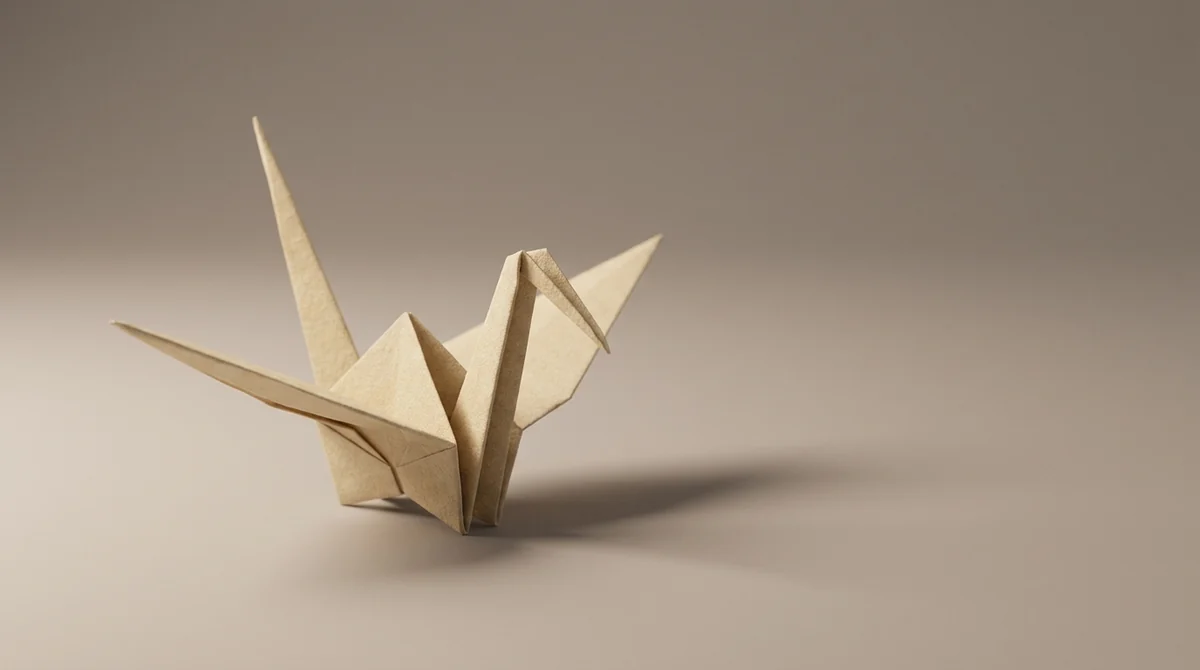
Not sure where to start? The prompt box at the top already works — just type and generate.
Try a prompt now →Writing prompts
How do you write a good AI image prompt?
A clear, detailed prompt is the single biggest factor in the quality of your AI-generated image. Start with your main subject, then add the style, lighting, colours and composition you want — for example, “a cup of coffee on a wooden table, soft morning light, close-up, photorealistic.”
Specific, descriptive words guide the text-to-image AI far better than vague terms like “beautiful” or “high quality.” If your AI-generated image is close but not perfect, adjust one detail at a time rather than rewriting the whole prompt.
You can also upload a reference image and describe the changes you want — swap the background, adjust the colours, or add an object. Used this way, the AI image generator works like a fast, prompt-driven photo editor.
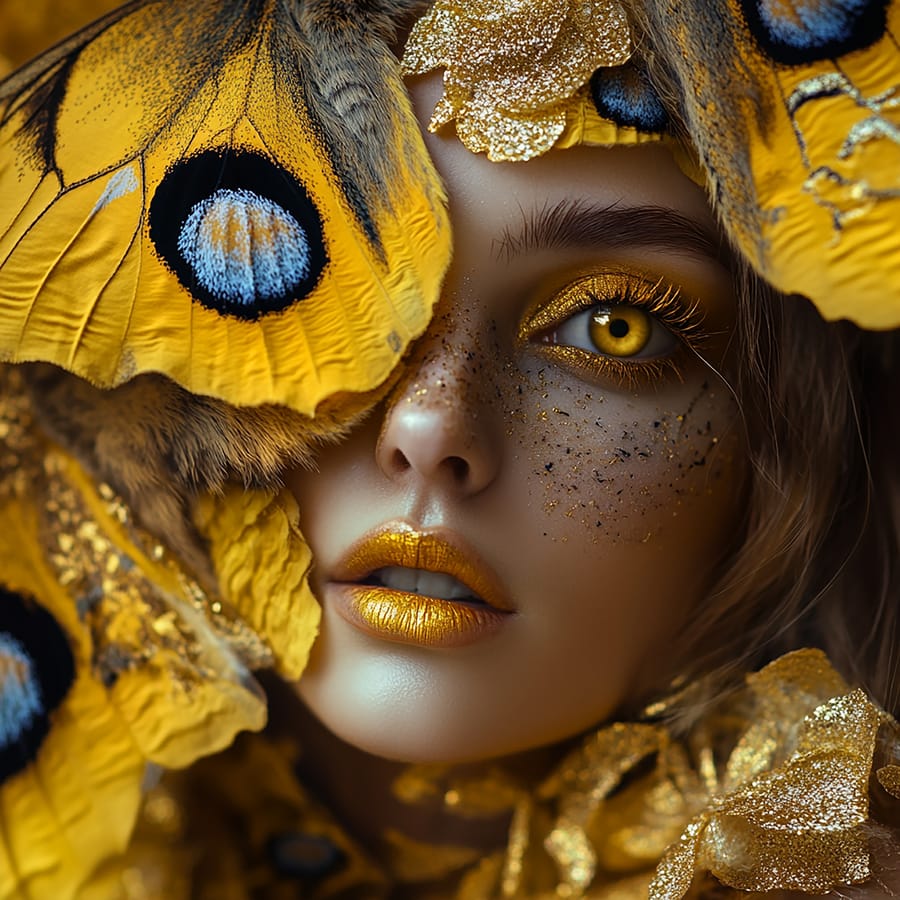
Frame 02 · square crop. The wings and the gold were in the prompt; the freckles were not.
Lead with the subject
The first few words matter most, so name your subject first.
Add style and light
Mention the style, lighting and colours you want to guide the look.
Change one thing at a time
Change one word at a time so you can see what actually helped.
AI models
Which AI image model should you use?
| Model | Best for | Choose it when |
|---|---|---|
| GPT Image 2 | All-round text-to-image | You want the strongest general-purpose result |
| Nano Banana 2 | Generate and edit (Google) | You need to edit an existing image, not just create one |
| Seedream 5 Pro | Cinematic, art-directed images | You want dramatic lighting and a polished, professional finish |
| FLUX 2 Max | Photorealism | The output must look like a real photograph |
Pixazo offers several AI image generation models in one place, so you can match the model to the job and generate images from the same prompt. Each text-to-image AI has its own strengths — switch models, keep your prompt, and compare the results.
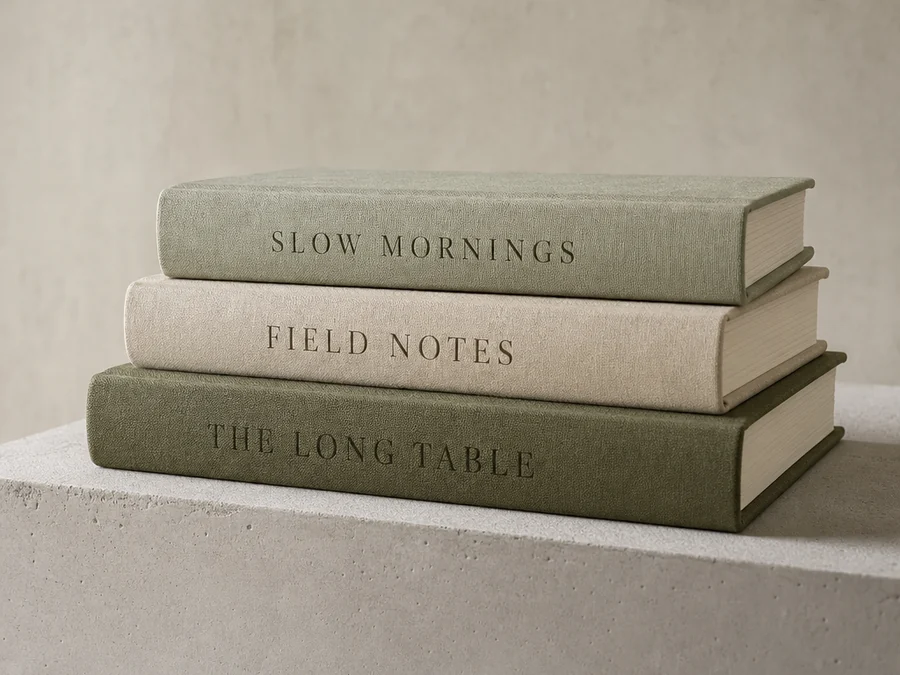
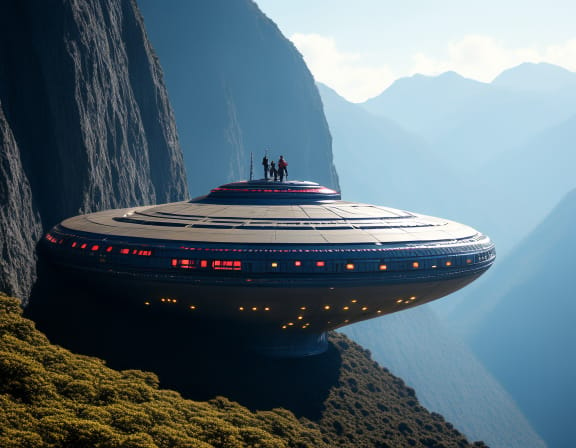
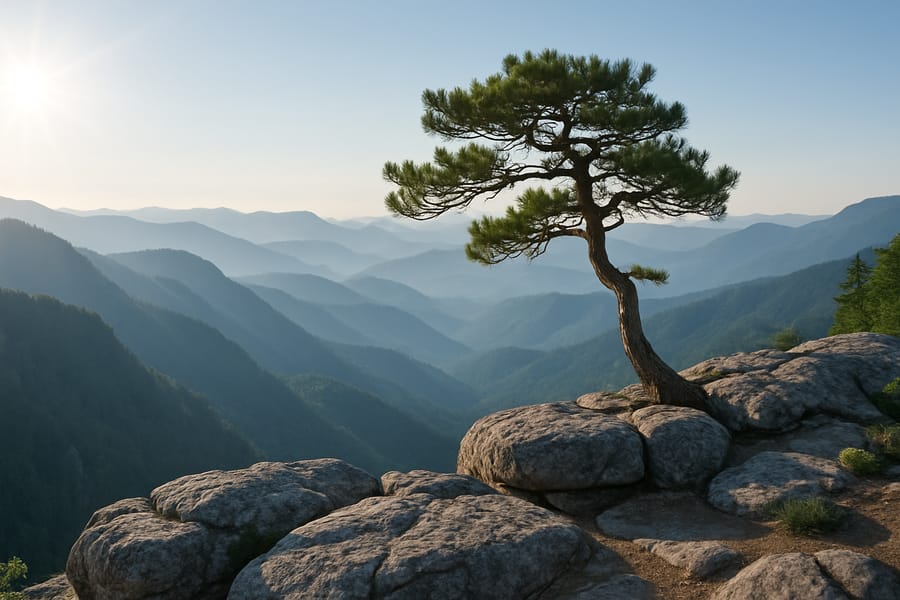
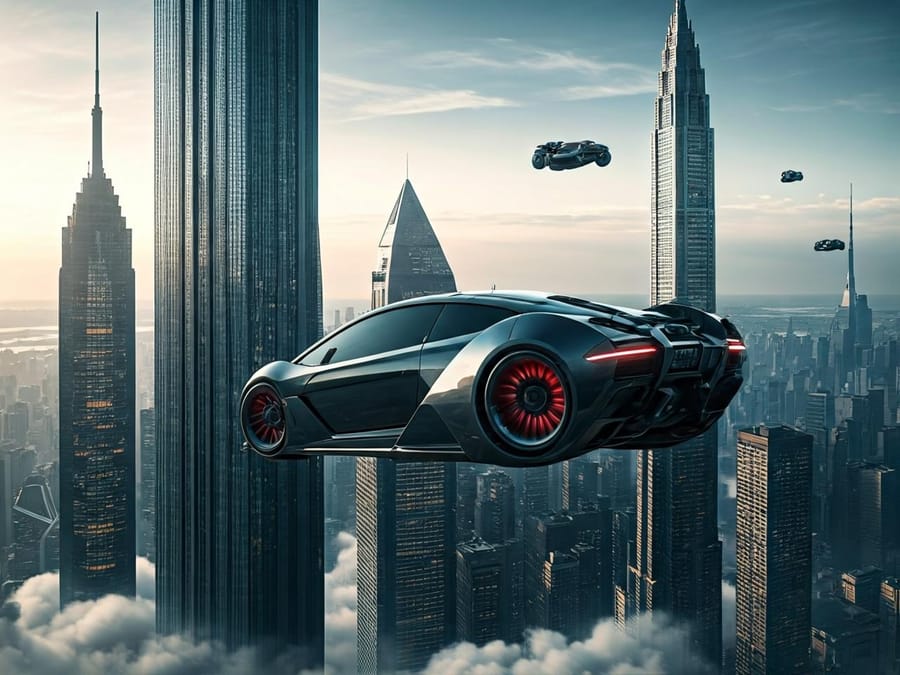
Each model shows its credit cost on the Generate button after you sign in. Tip: draft with a cheaper model first, then re-run your favourite on a higher-quality one.
Text in images
Can an AI image generator add text to images?
Yes — an AI image generator can add text to your images, though accurate typography is the hardest part for any text-to-image AI. Put the exact words in quotes, use about six words or fewer, and check the spelling every time, since it can change on each run.
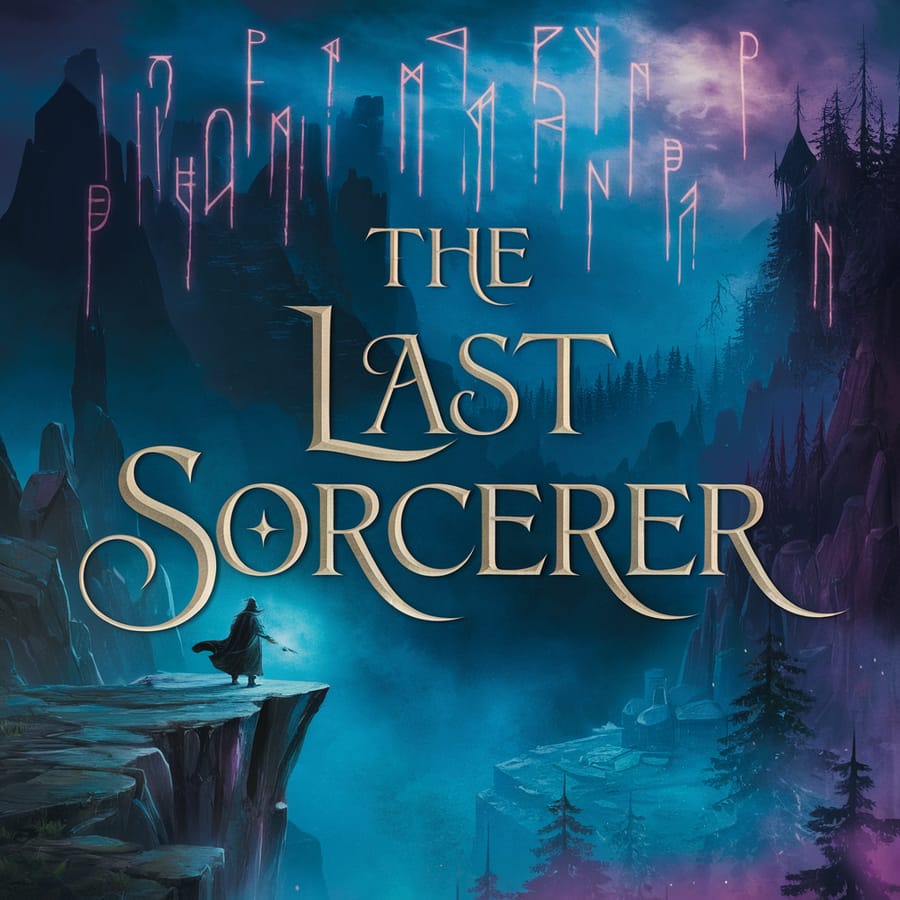
- Came out clean
- The quoted title, five words, one weight, one line.
- Came out wrong
- The runes above it — invented shapes, not a script.
- Never asked for
- The letter spacing. The model chose it, and re-running changes it.
- What to do
- Quote the words, cap them at about six, and check the spelling on every re-roll.
Specimen · one clean frame is no guarantee. Treat any text to image AI as unreliable at typography until a frame proves otherwise.
Styles
What image styles can you create?
An AI image generator isn't limited to photorealistic images — it can produce almost any visual style. The same text-to-image AI can create flat vector illustrations, painted concept art, clean product shots, comic-book art and more, just by changing a few words in your prompt.
Name the style in your prompt — such as “watercolour painting,” “35mm film photo” or “flat vector illustration” — and the AI image generator will match it. Style is the most forgiving part of any text-to-image prompt: there are no facts to get wrong, only a look to capture.
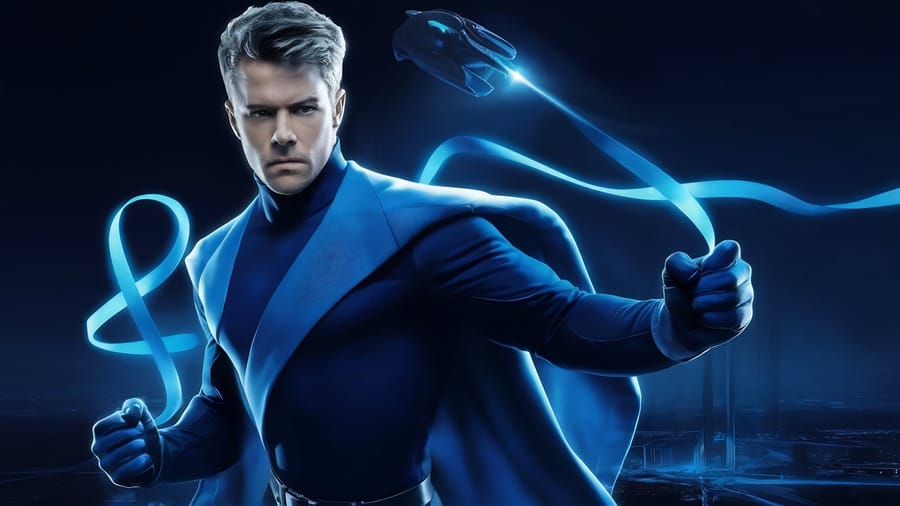
Frame 04 · stylised, illustrative, lit like a poster. Same prompt box as Frame 01.
Free credits to start · no watermark · the credit cost is shown before you spend it
How it works
How do you create an AI image in four steps?
Creating AI-generated images with Pixazo takes under a minute. Here is the full text-to-image workflow, from prompt to finished download.
Describe the image
Type a clear text prompt — subject, style, lighting and colours. Specific descriptions produce better AI-generated images than long, vague sentences.
Choose a model, or attach a frame
Choose the AI image model that fits your look, or upload a reference image to edit instead of generating from scratch.
Generate and compare
Press Generate to create your image. Run the same prompt two or three times and keep the best AI-generated result.
Refine, then export
Refine one detail at a time until it looks right, then download your AI image in high resolution — with no watermark.
Screen recording · the generate panel: model picker, prompt box, style preset, aspect-ratio chips, credit cost on the button. Names and prices on screen are from an earlier build.
Use cases
What do people create with an AI image generator?
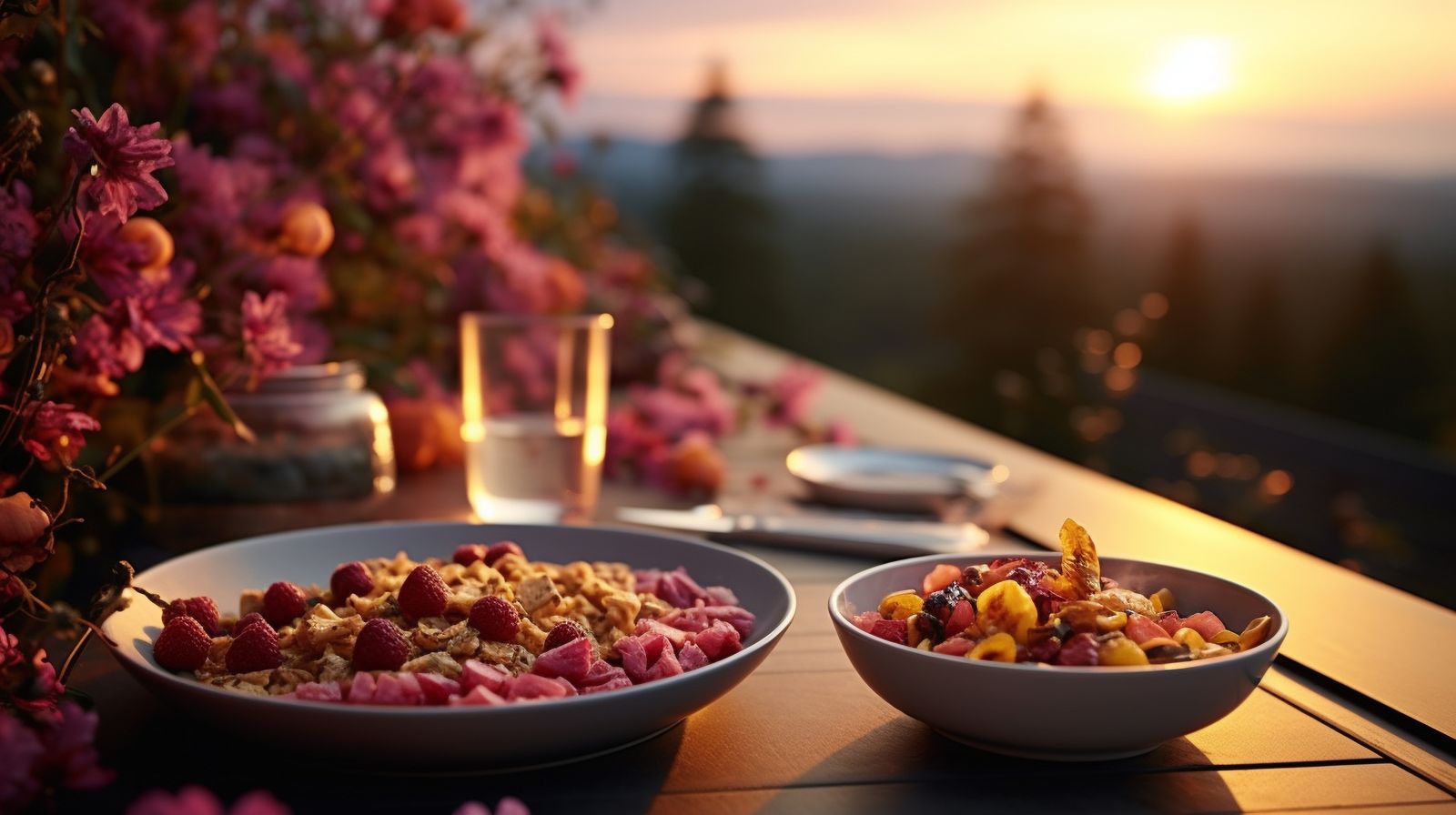
The most popular use of the AI image generator is everyday product and lifestyle images — usually one generation plus a quick edit.
Blog headers, product mockups, social media graphics, thumbnails and mood boards — the everyday AI-generated images most teams need, usually one generation plus a quick edit.
Character designs, concept art, colour studies and ten logo directions from the text-to-image AI before anyone opens a design tool.
Because each AI-generated image costs only a few credits, testing a wrong idea is cheap — and your free credits let you explore plenty. That is where an AI image generator saves the most time.
Credits
How do Pixazo credits work?
Pixazo runs on a simple credit system — no seat fees and no per-export charges. Every new account gets 100 free credits, giving you a free AI image generator to try for 7 days. The credit cost of each text-to-image model is shown on the Generate button before you create an image.
100 credits, free for 7 days. Any model under 100 credits per image is included; unused credits expire at the end.
Buy more credits without a subscription. Bundle credits never expire — good if you create in bursts.
A monthly credit allowance, and Pro accounts pay half the credit cost on premium models.
Each generation makes one AI image, so budget for a few tries. Credits are shared across your whole account, so the same balance also covers AI image editing, upscaling and video generation. Current prices are on the Pixazo pricing page.
Free credits to start · no watermark · the credit cost is shown before you spend it
Limitations
What can’t an AI image generator do?
An AI image generator is excellent for drafts and ideas, but every text-to-image AI has limits worth knowing before you start. Here is where AI-generated images still fall short:
Reliable type
Short words in quotes often come out clean. Long or fancy text usually comes out garbled.
Hands, faces, likeness
Hands and faces vary from run to run, and it can’t make lookalikes of real people.
Exact brand specs
It can’t match exact brand colours or measurements. Draft here, then finish in a design tool.
Identical repeats
The same prompt never gives the exact same image twice. For a matching set, reuse one reference image and one model.
Facts and diagrams
Charts and maps look like the real thing but aren’t accurate — don’t rely on them for facts.
Batches
You get one image per run. Trying five ideas means five runs.
Transparent backgrounds
Images come with a background. To get a cut-out, run it through the background remover afterwards.
Characters across scenes
The same character changes between images. Reuse a reference image to keep them consistent.
Vector output
You get pixel images, not vector files. A logo still needs redrawing in a vector tool.
In short, this is a tool for generating and drafting AI images, not for exact layout or production work. For first drafts the AI image generator is hard to beat — and your free credits let you test it risk-free.
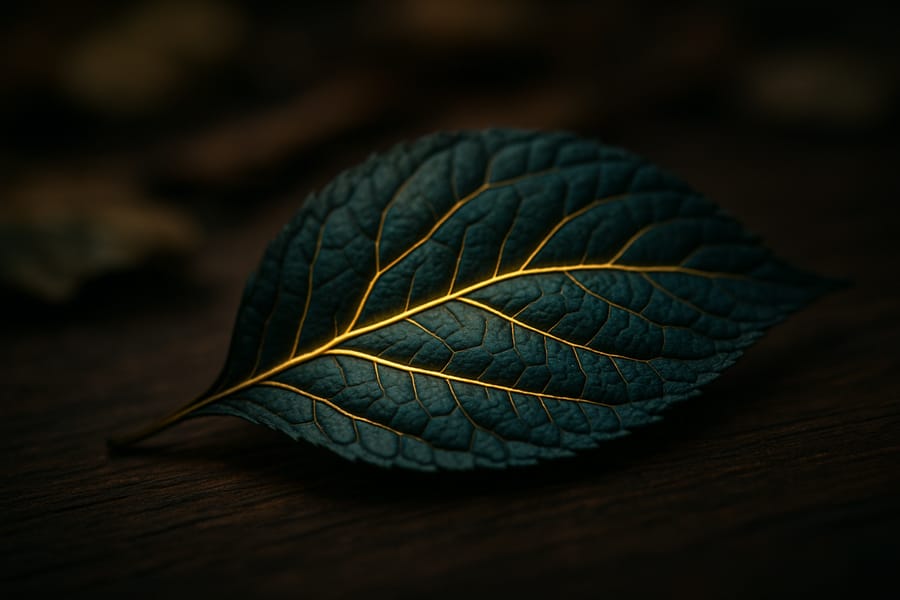
Frame 06 · texture and light are where these models are strongest; measured accuracy is where they are weakest.
FAQ
Frequently asked questions
What is an AI image generator?
It turns a written description into a picture. You type what you want, the AI creates it in seconds, and you improve it by describing changes — no photo editing needed.
Is this AI image generator free, and do I need an account?
Yes, and yes. It’s free to start inside the Pixazo playground, which needs a free account. New accounts get 100 credits, and there’s no watermark on your images.
How many images do I get per prompt?
One image per prompt. To get a different result, just run the prompt again — each try is unique.
Can I edit an image I already have?
Yes. Upload it in the box at the top and describe what to change. Some models accept several reference images, so you can combine them just by describing what you want.
Which model should I pick?
GPT Image 2 for detailed prompts, FLUX 2 Max for photorealism, Nano Banana 2 for 4K and lots of reference images, and Seedream 5 Pro for cinematic looks. You can switch models anytime and keep the same prompt.
Can I use the images commercially?
It depends on your plan, so check yours before using an image in paid work. The free trial and paid plans have different rights.
Reviewed by Deepak Joshi
Deepak Joshi is a Content Marketing specialist having a combined experience of 10+ years working in the digital world. He is one of the active contributors to Pixazo Blog and has keen interest creating and marketing content related to AI tools, No-Code technology, Design Industry, Social Influencers, and other trending topics. A health and sport enthusiast, Deepak loves to indulge in all kinds of sports & games.
Start creating
The fastest way to start is the prompt box at the top of this page — a free AI image generator with no watermark, and the credit cost shown before you spend anything. Type a prompt and generate your first AI image in seconds.