Informational Infographic : Create Free Informational Infographics in Minutes with AI
Create Custom Informational Infographics Quickly with Pixazo Best AI Informational Infographic Maker. Try for Free!
Get Started
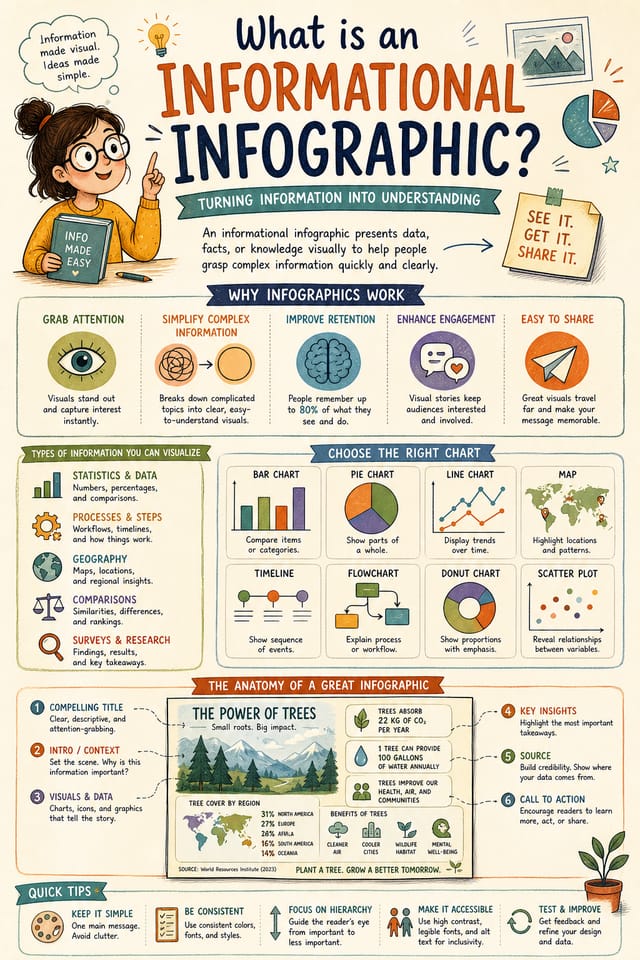
AI Informational Infographic Creator: The Smart Way
Create standout informational infographics using AI that understands informational aesthetics. Precise style control, instant generation, print-ready output.
Create Your Informational Infographic FreeDesign Intelligence for Informational Infographics: What the AI Understands
The Informational Design System Pixazo Uses
Effective informational infographic design depends on understanding what makes informational work visually.
Color relationships, typographic choices, and spatial arrangement all carry different weight depending on the design style.
Pixazo's AI has been trained to recognize these distinctions.
The practical result is that a informational infographic prompt produces designs that fit informational conventions rather than generic poster layouts.
The Reach of Informational Infographics: Who Uses Them
Subscription and SaaS Marketing
Generate informational infographics for software launches, feature announcements, and onboarding campaigns. Clean, modern designs for digital-first audiences.
Freelance Design Work
Use Pixazo to generate informational infographic concepts for client review. Present multiple directions quickly before committing to detailed execution.
Professional Projects
Create informational infographics for client work, commercial campaigns, and professional applications where quality and style accuracy matter.
Personal Creative Work
Generate informational infographics for personal projects, home display, and creative experiments without spending production time on design execution.
Community Organizations
Create informational announcement infographics for community groups, non-profits, and local organizations without requiring design expertise.
Informational Infographic Creation Tools: A Closer Look
No Design Software Required
Create professional informational infographics without Photoshop, Illustrator, or other design applications. The AI handles all technical production.
Resolution Control
Specify output dimensions for your informational infographic. Get files sized for web display, social media, or large-format printing.
Background Variation
Generate informational infographics with different background treatments. Solid, gradient, textured, or pattern backgrounds all available for informational style.
Typography Matching
Typefaces are selected to match informational aesthetic expectations. The AI pairs fonts that reinforce your informational infographic's visual identity.
Creating Informational Infographics: Straight Answers
Individual informational infographics generate in seconds. For batch production, you can submit multiple prompts in sequence and download results as they complete. A series of ten informational infographic variations typically takes under five minutes total.
A informational infographic generates in seconds after submitting your prompt. Total time from prompt submission to downloadable file is typically under a minute, including any server processing time.
The AI renders text as specified in your prompt, so double-check spelling and punctuation before generating. If text renders incorrectly in a informational infographic, adjust your prompt and regenerate. The AI follows your exact text input.
Pixazo works in any modern mobile browser. The interface adapts to phone and tablet screens so you can generate informational infographics from anywhere. A dedicated mobile app is in development for an even smoother on-device experience.
How Informational Infographic AI Works: Made Simple
Sketch It in Words
Write a prompt describing your informational infographic. Include style preferences, color direction, the most important text to display, and any specific visual elements you want. The more specific your description, the more targeted the output.
Confirm the Direction
Pixazo generates your informational infographic in seconds. Review the design and adjust your prompt to refine specific elements: change the color palette, shift the layout weight, or add visual elements you want included.
Elevate the Quality
Adjust your prompt to modify specific elements of the informational infographic. Change the color palette, shift typography weight, or reposition the compositional focus. Each iteration gets you closer to the final design.
Close Out the Project
Export your informational infographic in the format you need. PNG for web and social, PDF for print production, JPG for email and lightweight sharing. The file is yours to use commercially without restrictions.
Watch: Creating Informational Infographic designs step by step
Design Criteria for Informational Infographic: What Good Looks Like
Download Your Informational Infographic: Format Guide
WEBP
Modern web format offering smaller file sizes than PNG or JPG for informational infographic images without significant quality loss.
JPG
Compressed image format suited for informational infographic designs with photographic elements where smaller file size matters more than pixel-perfect edges.
Print-ready format for informational infographic files that preserves fonts, colors, and layout across different devices and print services.
TIFF
High-fidelity format for informational infographic files destined for professional printing, supporting CMYK color and lossless compression.
What Informational Infographic AI: Needs Human Help
Known limitations and trade-offs of AI-generated informational design. Transparency matters when using AI for informational infographic design. The points below describe where you may need to supplement AI output with manual work.
From Brief to Informational Infographic: A Production Pipeline
Refine Polish the design
Apply targeted edits to your selected informational infographic. Adjust typography, spacing, and color until every element meets your quality standard.
Research Gather references
Collect examples of effective informational infographic designs, note what works, and identify patterns relevant to your project goals.
Approve Final sign-off
Get stakeholder approval on the finished informational infographic. Verify all text is accurate and the design meets brand and technical requirements.
Brief Define requirements
Establish the key message, dimensions, color preferences, and target audience for your informational infographic before any design work begins.
Export Deliver final files
Export your informational infographic in the required formats and resolutions. Organize deliverables for handoff to the production or publishing team.
Try These Informational Infographic Prompt Techniques
Copy any prompt below and paste it into Pixazo to generate your design instantly.
Series-compatible informational infographic design, visual language that extends to multiple formats, consistent design system across variantsMonochromatic informational infographic, single-hue palette with value variation for contrast, typographic hierarchy creates visual interest without color complexityInformational infographic design, clean layout, strong typography hierarchy, appropriate color palette for informational aesthetic, high contrast between headline and backgroundHigh-impact informational infographic, immediate visual read at thumbnail size, clear headline dominance, supporting information structured logicallyInformational aesthetic infographic, palette drawn from informational design tradition, layout proportions consistent with informational conventions, purposeful use of each elementInformational style infographic, bold headline placement, supporting text at appropriate scale, color palette consistent with informational design conventionsCommunity Informational Infographic: Community Showcase
Real creators sharing their informational designs made with Pixazo AI.

Moody informational infographic with deep shadows and dramatic lighting feel, dark palette, cinematic atmosphere, headline in condensed uppercase
Refined informational aesthetic infographic, sophisticated color relationships, intentional negative space, type selection matching informational conventions
Professional informational infographic, minimalist layout, selective use of color for emphasis, clear visual hierarchy from top to bottom
