AI Infographic Maker : Create Free Infographics in Minutes
Create Custom Infographics Quickly with Pixazo Best AI Infographic Maker. Try for Free!
Get Started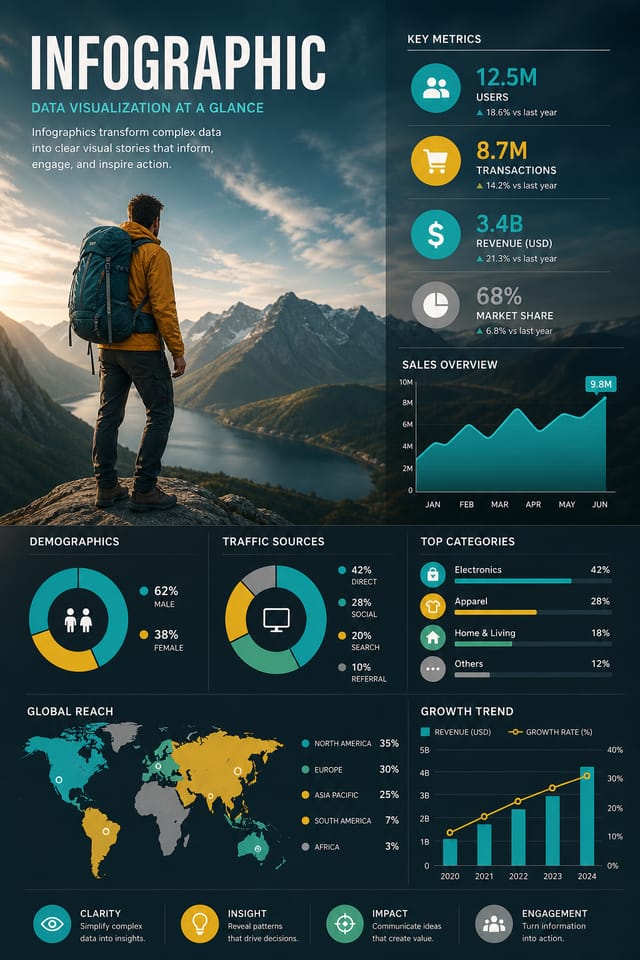
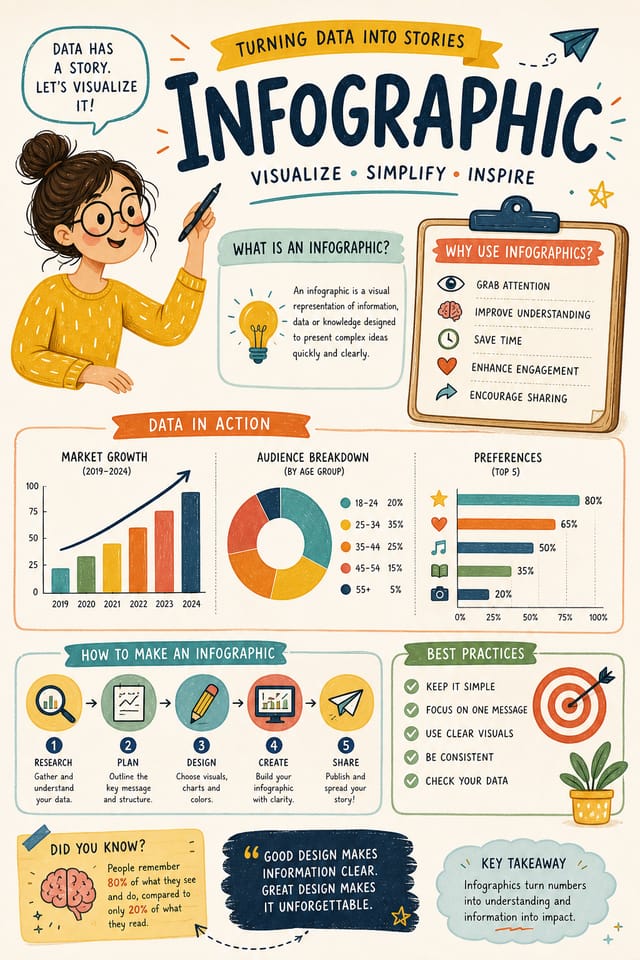
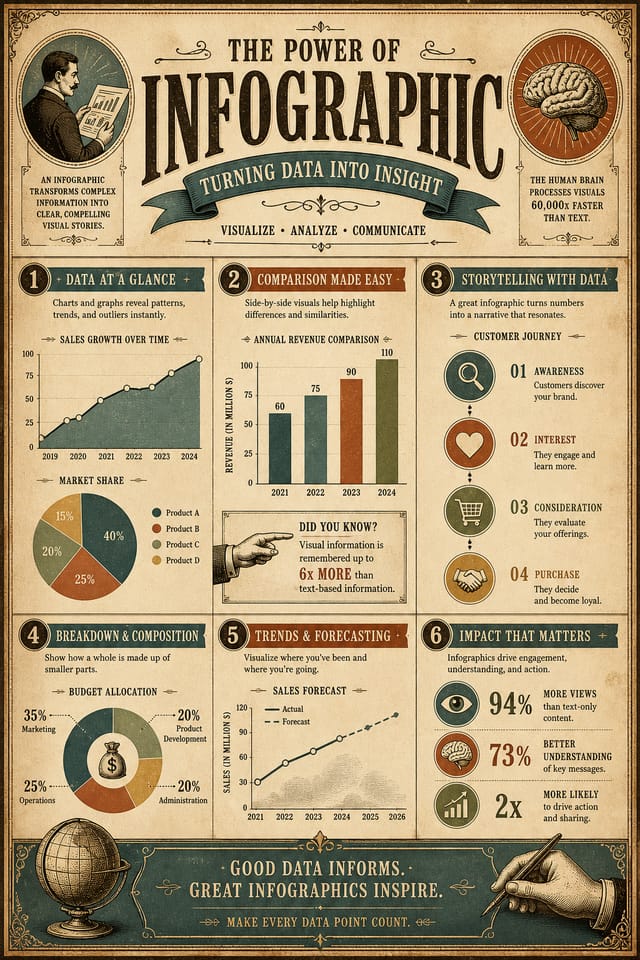
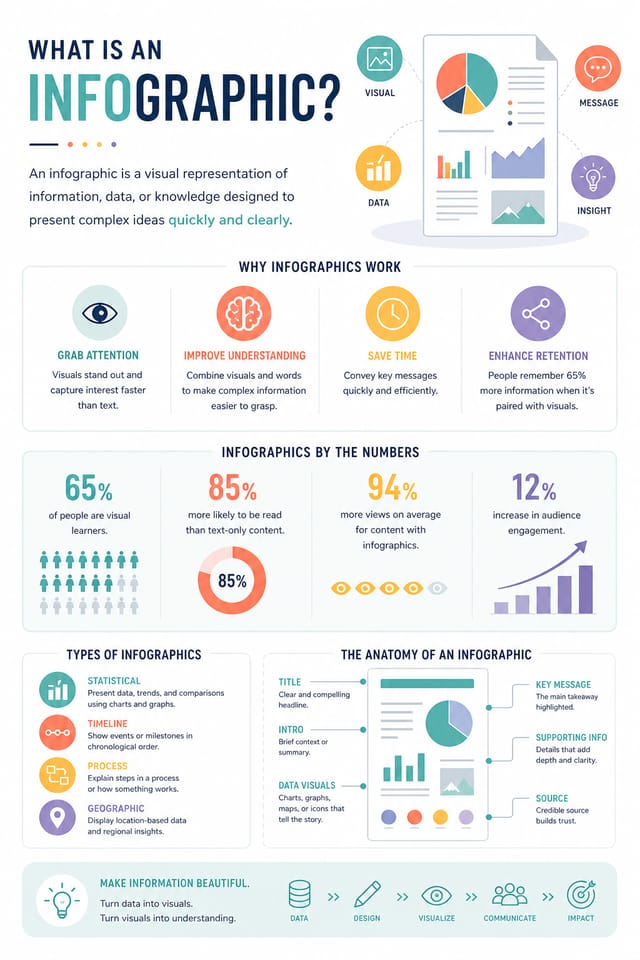
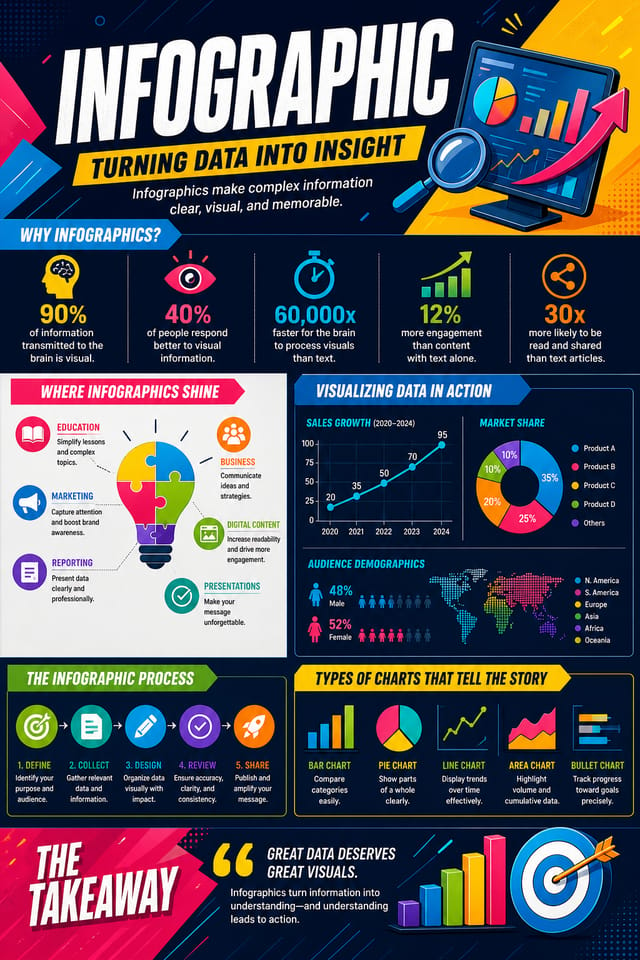
AI-Powered Infographic: From Idea to Reality
Make infographics with real visual personality. The AI selects design elements that fit infographic aesthetics, not generic templates.
Built for designers, marketers, small business owners, and creators who need professional infographic designs without design software.
Create Your Infographic FreeHow AI Translates Infographic Style: Why It Matters
The Logic of Infographic Design
Professional infographic design involves more than applying a color filter to a generic layout.
The visual language of infographic design encompasses distinctive compositional approaches, characteristic color affinities, and typographic choices that signal quality and intentionality.
When you use Pixazo to create a infographic, the AI applies this visual knowledge to your specific request.
The result looks deliberate and style-appropriate, not accidental or template-derived.
Your Infographic Process: Workflow Breakdown
Brief Define requirements
Establish the key message, dimensions, color preferences, and target audience for your infographic before any design work begins.
Research Gather references
Collect examples of effective infographic designs, note what works, and identify patterns relevant to your project goals.
Export Deliver final files
Export your infographic in the required formats and resolutions. Organize deliverables for handoff to the production or publishing team.
Refine Polish the design
Apply targeted edits to your selected infographic. Adjust typography, spacing, and color until every element meets your quality standard.
What Separates Strong Infographics: Design Fundamentals
Infographic Design Guidance: Rules Worth Following
Use a consistent visual hierarchy
Structure your infographic so the viewer's eye follows a clear path from headline to supporting details to call-to-action.
Keep the message focused
A strong infographic communicates one primary idea clearly. Supporting details should reinforce, not compete with, the main message.
Maintain brand alignment
Keep your infographic design consistent with existing brand colors, fonts, and visual language for a cohesive identity.
Rely solely on AI output
AI-generated infographic designs are a starting point. Human review catches issues with context, tone, and accuracy that AI can miss.
Ignore accessibility
Low-contrast text and tiny font sizes in your infographic exclude a significant portion of your potential audience.
Forget the call to action
A infographic without a clear next step for the viewer is a missed opportunity. Always include direction on what to do next.
Overcrowd the layout
Filling every pixel of your infographic with content makes it harder to read and reduces the impact of every individual element.
Infographic Maker Capabilities: What It Can Do
Resolution Control
Specify output dimensions for your infographic. Get files sized for web display, social media, or large-format printing.
Style-Accurate Generation
The AI interprets infographic design conventions and applies them to your infographic, producing output that looks correctly styled rather than generically templated.
Layered Style Application
Combine infographic style with other design parameters in a single prompt. The AI interprets complex requests and applies multiple style constraints simultaneously.
Print-Ready Output
Generated infographics are sized and structured for professional printing. Download high-resolution files ready for production.
Text Placement Options
Describe where you want text elements positioned in your infographic. The AI follows compositional direction about headline placement and body copy layout.
Compositional Structure
Layout and hierarchy decisions reflect infographic design patterns. The proportions and arrangement match how infographic designs are conventionally structured.
Infographic Starter Prompts That Work
Copy any prompt below and paste it into Pixazo to generate your design instantly.
Series-compatible infographic design, visual language that extends to multiple formats, consistent design system across variantsClean infographic design, geometric structure, disciplined typography, color accent used selectively for emphasis, printer-optimized resolutionHigh-impact infographic, immediate visual read at thumbnail size, clear headline dominance, supporting information structured logicallyProfessional infographic, minimalist infographic approach, negative space used intentionally, readable at multiple viewing distances, print-ready compositionRefined infographic, sophisticated color relationships, intentional whitespace, typefaces appropriate to infographic style, balanced compositionFull-bleed infographic, background treatment extends to edges, foreground elements positioned for compositional balance, strong central hierarchyComparing Infographic Tools: Tools Compared
Canva
Drag-and-drop editor with a large template library and collaboration features
Desygner
Multi-format design tool with PDF editing and brand management
Pixazo
AI-powered infographic generator with prompt-based design and professional output quality
Piktochart
Infographic and presentation maker for data-driven visuals
VistaCreate
Visual content platform with templates and a built-in asset library
Infographic Design Steps: Three Easy Steps
Communicate the Goal
Start with a text description of your infographic concept. Specify the visual style, colors, layout direction, and key text. Detailed prompts produce more accurate infographic designs than general ones.
Peruse the AI Generation
Pixazo generates your infographic in seconds. Review the design and adjust your prompt to refine specific elements: change the color palette, shift the layout weight, or add visual elements you want included.
Hand Off the File
Get your final infographic file in one click. Choose your format, download at full resolution, and use the design immediately. No watermarks, no additional fees, no waiting.
Watch: Creating Infographic designs step by step
Who Creates Infographics: Who Uses Them
Mood Boards and Creative Briefs
Generate infographics assembling visual references, color palettes, and texture samples into inspirational boards. Design communication tools for creative teams.
Data-Driven Infographics
Create infographics that transform statistics and research findings into visual narratives. Designs that make complex data accessible and shareable.
Historical and Project Timelines
Generate infographics mapping events, milestones, and project phases along a visual timeline. Designs that make chronology intuitive at a glance.
Photo Collages and Montages
Design infographics arranging multiple images into cohesive visual compositions. Grid-based and freeform layouts for photo storytelling.
Organizational Charts and Hierarchies
Create infographics visualizing team structures, reporting lines, and departmental organization. Professional layouts that clarify complex organizational relationships.
Design Variations for Infographics: Finding Your Look
High-Contrast Infographic
Bold infographic visual treatment with strong tonal contrast. Elements read clearly at any viewing distance.
Textured Infographic
Infographic design with added surface depth. Background treatments add visual interest without disrupting legibility.
Geometric Infographic
Structured infographic composition using grid systems and angular forms. Order and precision define the visual approach.
Minimalist Infographic
Stripped-back infographic approach. Fewer elements, more negative space, typography carries more visual weight.
Infographic Design: What People Ask
Describe your core design parameters in each prompt and vary only the specific elements that should change across the series. Maintaining consistent color palette, typographic approach, and compositional structure across infographic variations creates a coherent series.
A infographic generates in seconds after submitting your prompt. Total time from prompt submission to downloadable file is typically under a minute, including any server processing time.
Designs created with Pixazo are available for commercial use. You can use your infographics for client projects, product sales, advertising, and other commercial applications without additional licensing fees.
You can request high-contrast or color-blind-friendly palettes in your prompt. Specify 'accessible color palette' or 'deuteranopia-safe colors' and the AI will select infographic-appropriate colors that maintain sufficient contrast for users with color vision deficiencies.
Inside the Infographic Community: Real Creator Work
Real creators sharing their infographic designs made with Pixazo AI.

Infographic designed for dark mode display, OLED-optimized black background, vibrant accent colors, high contrast text
Two-color infographic, maximum contrast between primary and secondary color, typography set in one color per level
Eco-friendly themed infographic, natural green and kraft tones, organic shapes, sustainability messaging, handcrafted aestheticInfographic AI Boundaries: Realistic Expectations
Known limitations and trade-offs of AI-generated infographic design. Being specific about what AI infographic generation can and cannot do helps you plan your workflow and set accurate expectations.

