AI Mind Map Maker : Create Free Mind Maps in Minutes
Create Custom Mind Maps Quickly with Pixazo Best AI Mind Map Maker. Try for Free!
Get Started
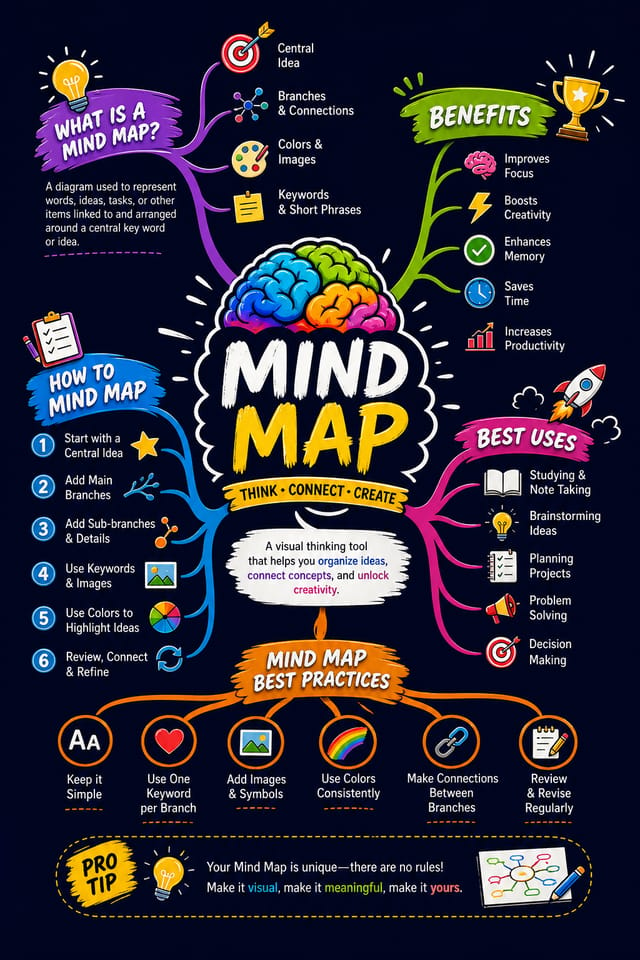
AI Mind-Map Engine: Design Without Limits
Generate mind-maps that capture the right visual mood. Pixazo's AI handles composition, color, and typography so you can focus on your message.
Built for designers, marketers, small business owners, and creators who need professional mind map designs without design software.
Create Your Mind Map FreeElevating Your Mind-Map: What Professionals Know
Check Alignment Carefully
Misaligned elements are one of the most common signs of amateur mind-map design. Use grid lines and snap-to features to keep things precise.
Limit Your Color Palette
Stick to 2-3 primary colors in your mind-map design. Too many colors compete for attention and weaken the visual hierarchy.
Match Tone to Audience
A mind-map for a corporate event needs a different visual tone than one for a music festival. Let the audience guide your style choices.
Iterate with Variations
Generate 3-5 versions of your mind-map before committing. Comparing variations side by side often reveals the strongest direction.
Smart Mind-Map AI: Professional Features
Color Temperature Control
Specify warm, cool, or neutral color direction for your mind-map. The AI builds the full palette around your temperature preference.
Consistency Across Variants
Generate multiple mind-maps for a project and maintain visual consistency across the set. Specify your core design parameters and vary secondary elements.
Commercial Use Rights
Designs generated with Pixazo are yours to use commercially. No additional licensing required for mind-map projects.
Style-Accurate Generation
The AI interprets mind-map design conventions and applies them to your mind-map, producing output that looks correctly styled rather than generically templated.
Instant Iterations
Generate multiple mind-map variations from a single prompt. Compare options and refine until the design matches your vision.
Your Mind-Map Workflow: From Start to Finish
Lead with the Concept
Write a prompt describing your mind-map. Include style preferences, color direction, the most important text to display, and any specific visual elements you want. The more specific your description, the more targeted the output.
Determine the Next Step
Pixazo generates your mind-map in seconds. Review the design and adjust your prompt to refine specific elements: change the color palette, shift the layout weight, or add visual elements you want included.
Commit the Output
Get your final mind-map file in one click. Choose your format, download at full resolution, and use the design immediately. No watermarks, no additional fees, no waiting.
Watch: Creating Mind Map Mind Map designs step by step
Understanding Mind-Maps: What People Ask
Pixazo generates single-page mind-map designs per prompt. For multi-page projects, generate each page individually using consistent prompt language to maintain visual continuity across your mind-map document set.
Common sizes include 1080x1080 for Instagram feed, 1080x1920 for stories and reels, 1200x628 for Facebook links, 1500x500 for Twitter headers, and 1080x1350 for Pinterest. Specify the platform in your prompt and Pixazo optimizes mind-map layout for that format.
Your prompt history is saved in your account. You can revisit previous mind-map prompts, duplicate them with modifications, and build a library of proven prompt structures for consistent mind-map design output.
Canva uses fixed templates you customize manually. Pixazo generates original mind-map designs from your description, so every output is unique. For mind-map work specifically, the AI applies style-specific design decisions rather than offering generic drag-and-drop templates.
You can request high-contrast or color-blind-friendly palettes in your prompt. Specify 'accessible color palette' or 'deuteranopia-safe colors' and the AI will select mind-map-appropriate colors that maintain sufficient contrast for users with color vision deficiencies.
Your Mind-Map Feature Guide: Tools and Capabilities
Resolution Control
Export mind-maps at resolutions from web-optimized to print-quality 4K
Format Flexibility
Download your mind-map as PNG, JPG, or PDF depending on your use case
Batch Generation
Create multiple mind-map variations from a single prompt efficiently
Who Creates Mind-Maps: From Hobby to Pro
Historical and Project Timelines
Generate mind-maps mapping events, milestones, and project phases along a visual timeline. Designs that make chronology intuitive at a glance.
Mood Boards and Creative Briefs
Generate mind-maps assembling visual references, color palettes, and texture samples into inspirational boards. Design communication tools for creative teams.
Process and Workflow Diagrams
Design mind-maps illustrating step-by-step processes, organizational workflows, and decision trees. Clear visual logic for operational documentation.
Comparison and Versus Charts
Create mind-maps for product comparisons, feature matrices, and side-by-side analyses. Layouts that make differences and similarities immediately obvious.
Mind-Map AI Specs: Speed and Quality
Tested Mind-Map Prompts That Work
Copy any prompt below and paste it into Pixazo to generate your design instantly.
Atmospheric mind-map, background treatment supports the headline without competing with it, visual weight distributed intentionallyLarge-format mind-map design, elements sized for visibility at print scale, no fine detail that would be lost in productionSeries-compatible mind-map design, visual language that extends to multiple formats, consistent design system across variantsMind-Map style mind-map, bold headline placement, supporting text at appropriate scale, color palette consistent with mind-map design conventionsMonochromatic mind-map, single-hue palette with value variation for contrast, typographic hierarchy creates visual interest without color complexityMind-Map Creators: A Design Gallery
Real creators sharing their mind map designs made with Pixazo AI.
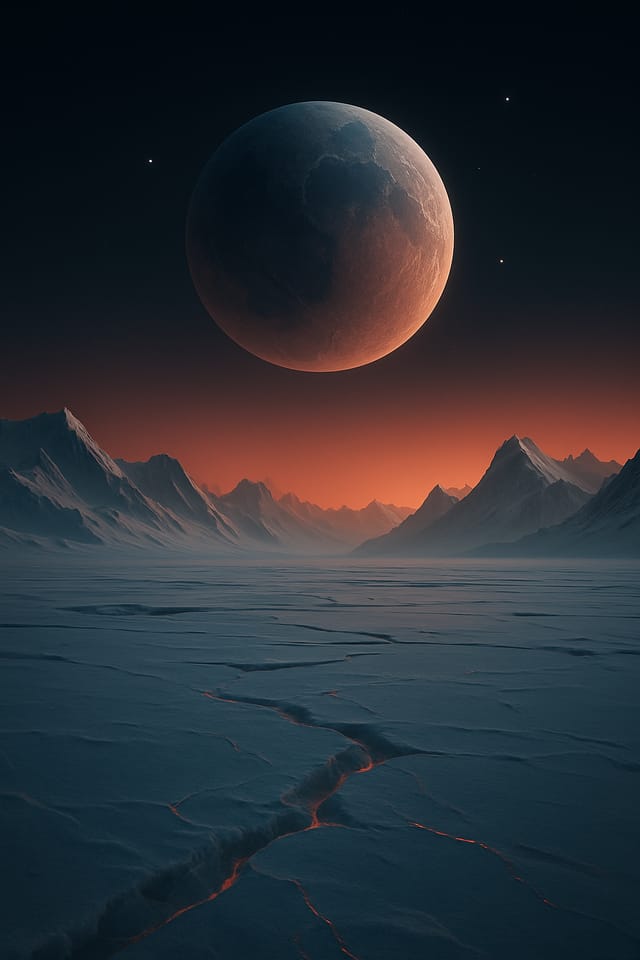
Full-bleed background mind-map, image or texture extends to edges, foreground elements float above, headline anchored to center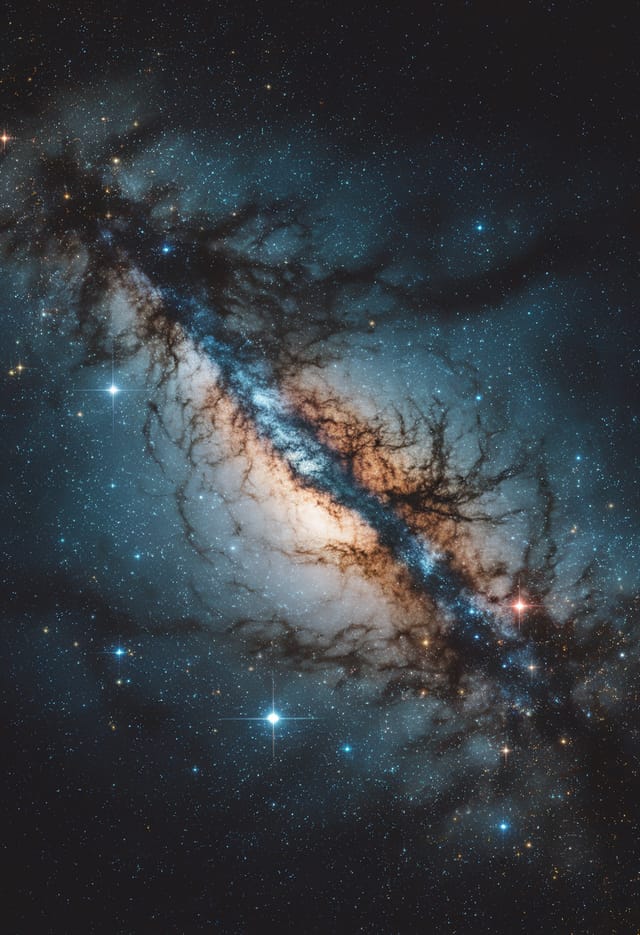
Eco-friendly themed mind-map, natural green and kraft tones, organic shapes, sustainability messaging, handcrafted aesthetic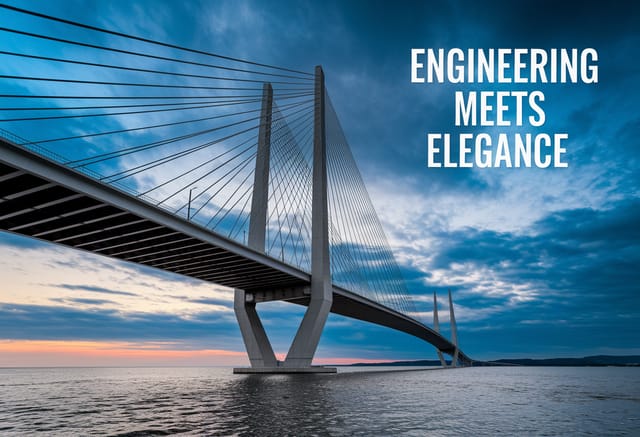
Playful mind-map for a family audience, rounded typography, bright saturated colors, approachable and energetic toneMind-Map Style Movements: What Is Popular Now
Gradient Overlays
Smooth color transitions are being used as primary design elements in mind-map work, adding depth without the complexity of photographic backgrounds.
Motion-Ready Design
Static mind-map designs are being created with animation in mind, using layered elements that translate smoothly to motion graphics.
Asymmetric Composition
Breaking grid symmetry in mind-map layouts creates visual tension and a modern, editorial feel that stands out.
Brutalist Design
Raw, intentionally unpolished mind-map aesthetics with stark contrasts and unconventional layouts are carving a niche in creative industries.
Retro Revival
Vintage aesthetics from the 1970s and 1990s are influencing mind-map design with textured backgrounds, serif fonts, and warm gradients.
What Mind-Map AI: Capabilities and Caveats
Known limitations and trade-offs of AI-generated mind map design. Understanding what the AI handles well and where it falls short helps you structure your mind-map design workflow effectively.

