AI Newsletter Maker : Create Free Newsletters in Minutes
Create Custom Newsletters Quickly with Pixazo Best AI Newsletter Maker. Try for Free!
Get Started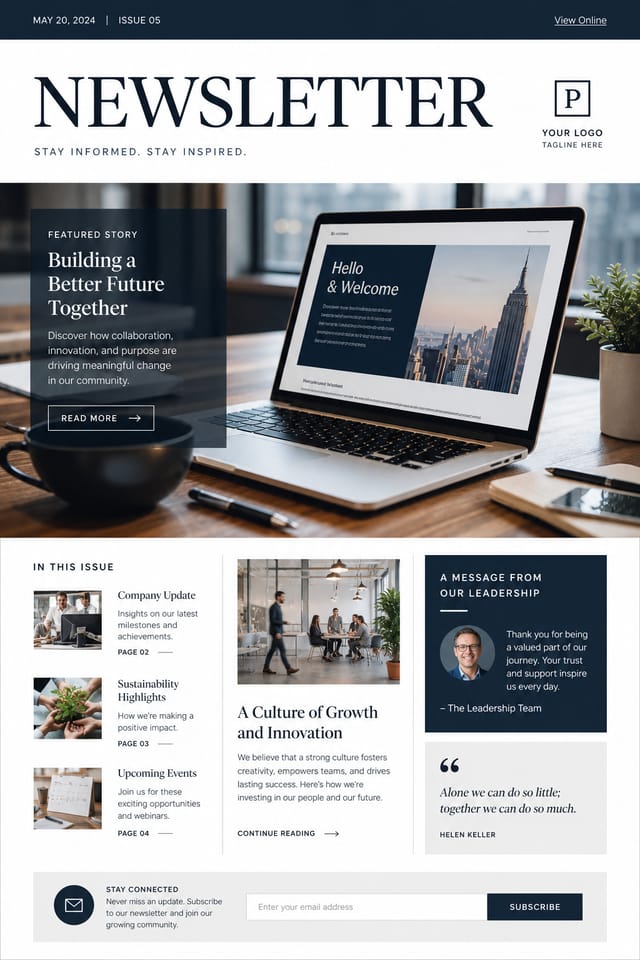
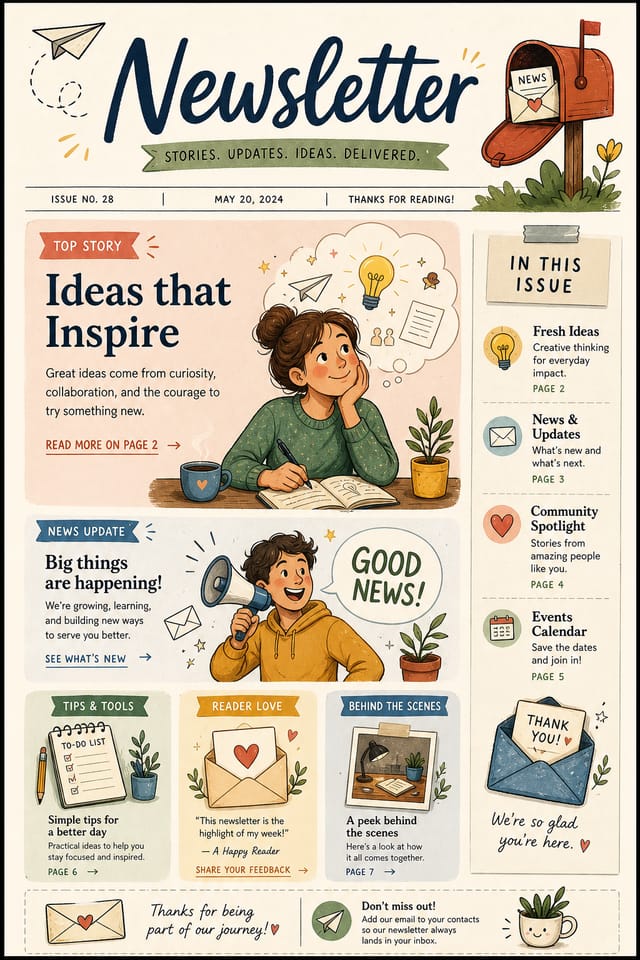
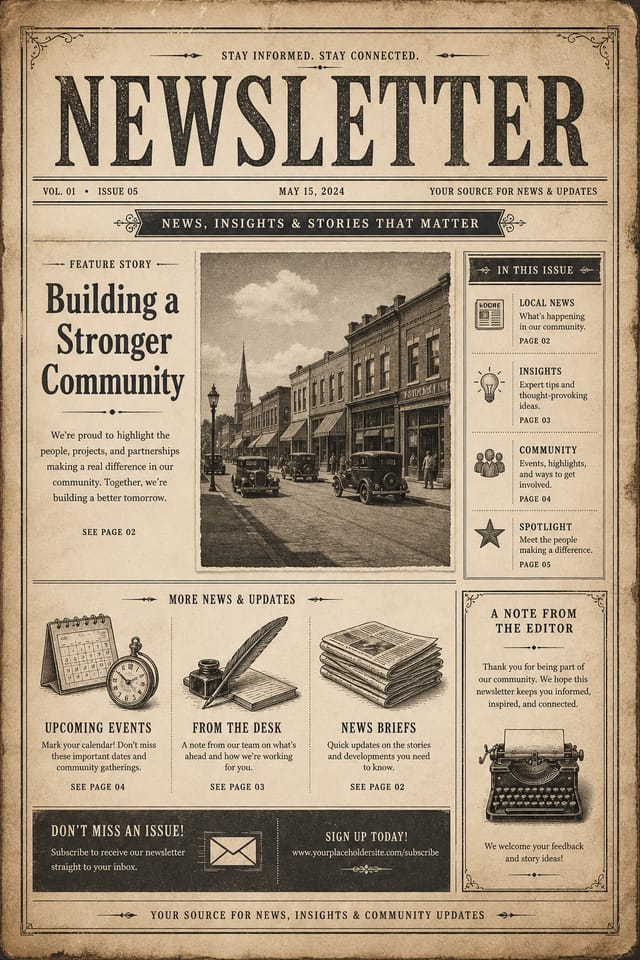
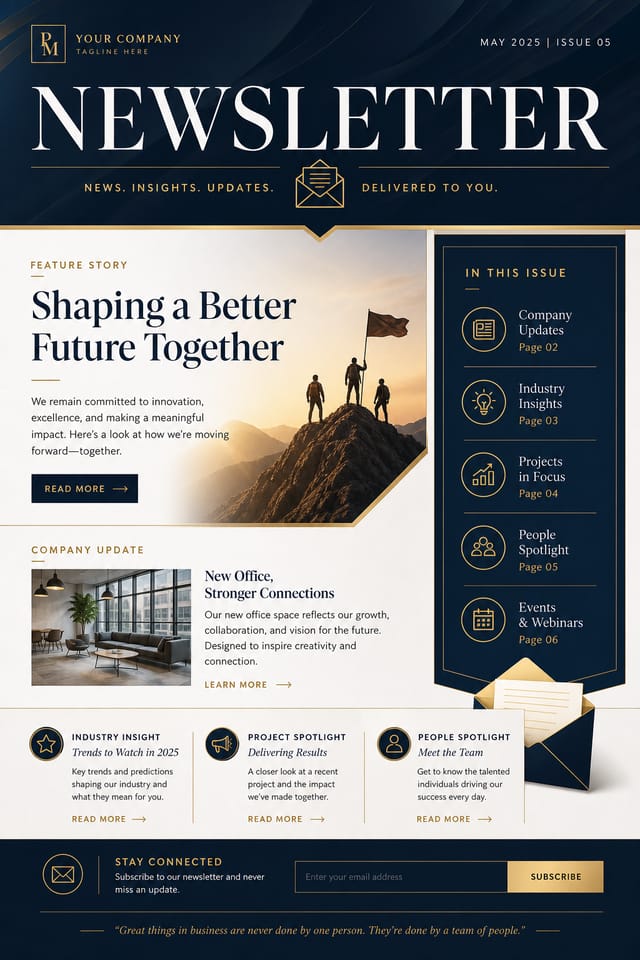
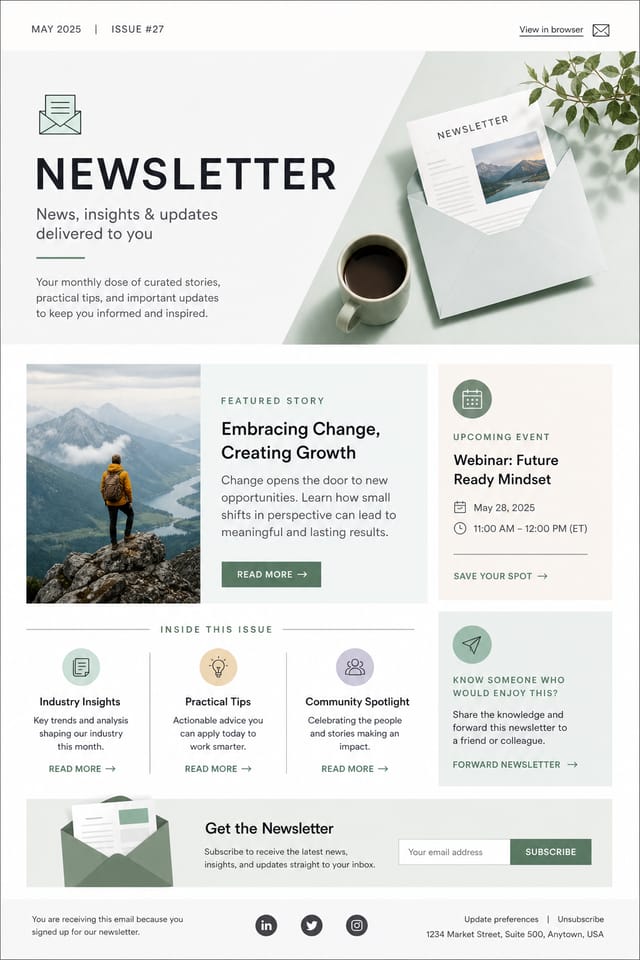
AI Newsletter Design: Effortless Design
From idea to finished newsletter in under a minute. Pixazo understands newsletter design conventions and applies them automatically.
Built for designers, marketers, small business owners, and creators who need professional newsletter designs without design software.
Create Your Newsletter FreeShowcasing Newsletters: Spotlights and Showcases
Real creators sharing their newsletter designs made with Pixazo AI.
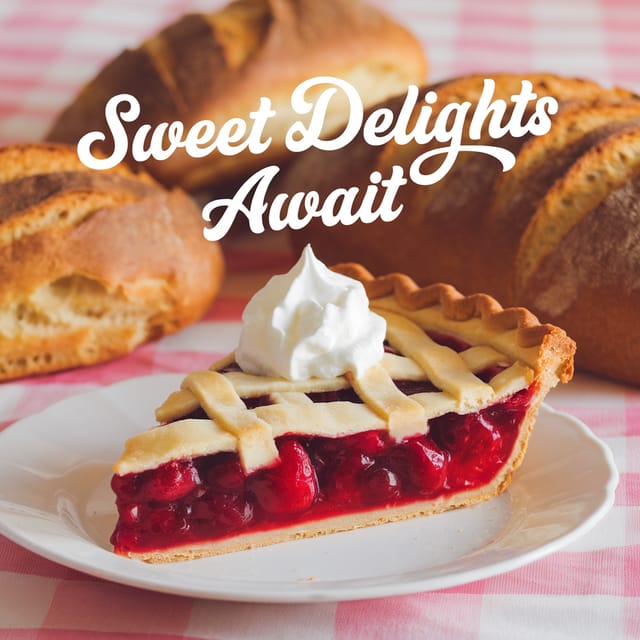
A3 landscape newsletter for conference booth, informational layout with three columns, clear section headers, QR code placement zone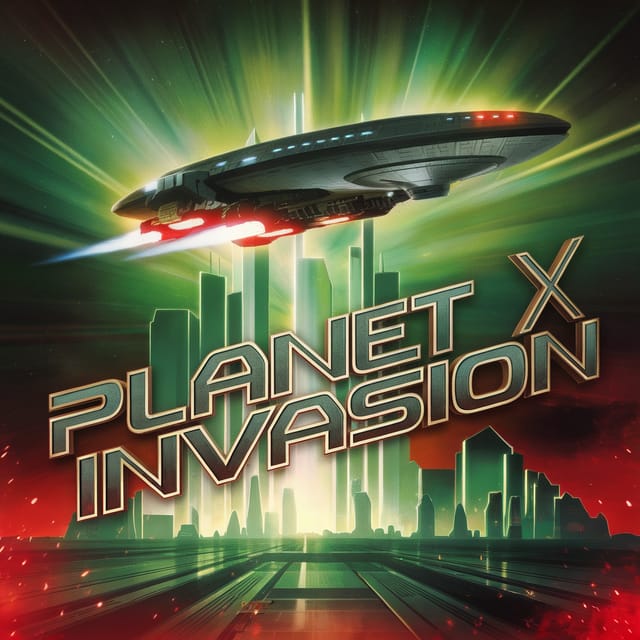
Warm palette newsletter, ochre and brown tones, serif typography, traditional newsletter design reference, tactile feeling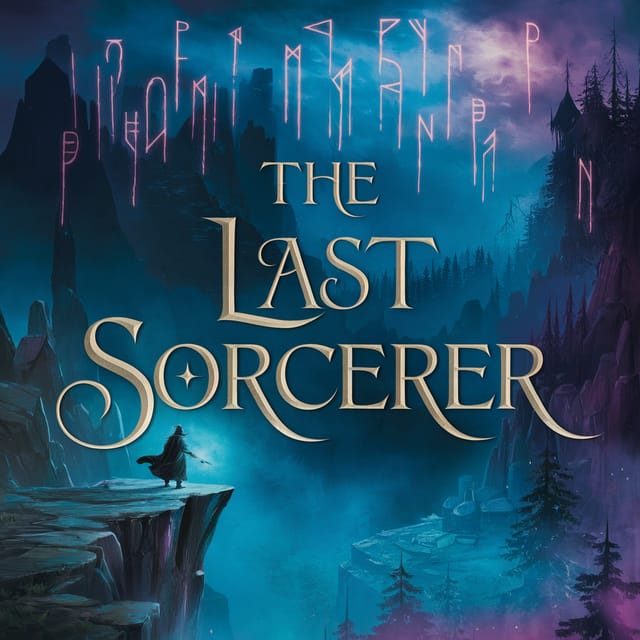
Portrait newsletter for social sharing, vertical 4:5 ratio, headline in upper third, supporting content below centerlinePro Tips for Newsletter Design: Lessons from the Field
Test at Actual Size
Always preview your newsletter at the dimensions it will be displayed. Design details that look fine at 100% can disappear or crowd at real-world scale.
Prioritize Hierarchy
Every newsletter needs a clear reading order. Make sure the most important information is the largest and most prominent element in the layout.
Match Tone to Audience
A newsletter for a corporate event needs a different visual tone than one for a music festival. Let the audience guide your style choices.
Limit Your Color Palette
Stick to 2-3 primary colors in your newsletter design. Too many colors compete for attention and weaken the visual hierarchy.
Get Feedback Early
Share your newsletter draft with someone outside the project. Fresh eyes catch issues you have become blind to after hours of refinement.
Inside the Newsletter Engine: Under the Hood
Color Palette Intelligence
Colors are chosen with newsletter style awareness. The AI builds palettes that fit newsletter design conventions rather than selecting arbitrarily.
Compositional Structure
Layout and hierarchy decisions reflect newsletter design patterns. The proportions and arrangement match how newsletter designs are conventionally structured.
Typography Matching
Typefaces are selected to match newsletter aesthetic expectations. The AI pairs fonts that reinforce your newsletter's visual identity.
Color Temperature Control
Specify warm, cool, or neutral color direction for your newsletter. The AI builds the full palette around your temperature preference.
Avoiding Newsletter Mistakes: A Quality Guide
Optimize for the display medium
Tailor your newsletter resolution, color space, and text size to the specific platform or physical context where it will appear.
Maintain brand alignment
Keep your newsletter design consistent with existing brand colors, fonts, and visual language for a cohesive identity.
Use grids and alignment
Structured layouts in your newsletter create a sense of order and professionalism that unstructured designs cannot match.
Test with real content
Never finalize a newsletter with placeholder text. Real copy often has different lengths and line breaks that affect the design.
Overcrowd the layout
Filling every pixel of your newsletter with content makes it harder to read and reduces the impact of every individual element.
Ignore accessibility
Low-contrast text and tiny font sizes in your newsletter exclude a significant portion of your potential audience.
Rely solely on AI output
AI-generated newsletter designs are a starting point. Human review catches issues with context, tone, and accuracy that AI can miss.
Skip proofreading
Typos and grammatical errors on a newsletter undermine credibility instantly. Always have someone else review the final text.
Making Newsletters: The Workflow Explained
Define Your Concept
Describe what you want your newsletter to look like. Include the mood, color palette, typography preference, and content hierarchy. Pixazo reads all of this and uses it to generate an appropriate design.
Watch: Creating Newsletter designs step by step
Newsletter Production Steps: From Start to Delivery
Export Deliver final files
Export your newsletter in the required formats and resolutions. Organize deliverables for handoff to the production or publishing team.
Approve Final sign-off
Get stakeholder approval on the finished newsletter. Verify all text is accurate and the design meets brand and technical requirements.
Refine Polish the design
Apply targeted edits to your selected newsletter. Adjust typography, spacing, and color until every element meets your quality standard.
Research Gather references
Collect examples of effective newsletter designs, note what works, and identify patterns relevant to your project goals.
Newsletter Applications: Who Uses Them
Freelance Design Work
Use Pixazo to generate newsletter concepts for client review. Present multiple directions quickly before committing to detailed execution.
Travel and Tourism Promotion
Design newsletters for destinations, tour packages, and hospitality brands. Aspirational visuals that inspire booking decisions.
Non-Profit Campaigns
Create compelling newsletter campaign newsletters without allocating budget to design production. Focus resources on mission-critical activities.
Political and Advocacy Campaigns
Create newsletter campaign newsletters for candidates, ballot measures, and social causes. Persuasive designs that mobilize and inform.
Music and Audio Production
Produce newsletters for album covers, playlist artwork, and music event promotion. Visual identity that matches the sound.
Core Ideas Behind Newsletters: A Designer's Perspective
Proven Newsletter Prompts Worth Trying
Copy any prompt below and paste it into Pixazo to generate your design instantly.
Contemporary newsletter design, grid-based layout, typographic precision, restrained color palette, no decorative excessHigh-impact newsletter, immediate visual read at thumbnail size, clear headline dominance, supporting information structured logicallyGeometric newsletter, structured grid system, angular composition, colors in blocks rather than gradients, modern clean finishAtmospheric newsletter, background treatment supports the headline without competing with it, visual weight distributed intentionallyTwo-color newsletter design, high contrast between primary and secondary color, clean separation between graphic and text zonesLarge-format newsletter design, elements sized for visibility at print scale, no fine detail that would be lost in productionNewsletter Maker: Straight Answers
Professional newsletter design comes down to the right color relationships, appropriate typographic hierarchy, and compositional balance that fits newsletter aesthetic conventions. Generic designs miss these details because they apply neutral defaults rather than style-specific decisions. Pixazo applies newsletter design knowledge when you specify the style.
Individual newsletters generate in seconds. For batch production, you can submit multiple prompts in sequence and download results as they complete. A series of ten newsletter variations typically takes under five minutes total.
Include your specific colors in the prompt, either by hex code or descriptive terms. 'Navy and copper with white text' or '#1a1a2e and #c9a84c palette' both work. The AI builds a newsletter-appropriate palette around your specified colors.
The AI renders text as specified in your prompt, so double-check spelling and punctuation before generating. If text renders incorrectly in a newsletter, adjust your prompt and regenerate. The AI follows your exact text input.
Each generation uses your unique prompt text to produce a distinct newsletter design. Even similar prompts produce noticeably different outputs due to the AI's generative process. No two users receive identical designs.
Pixazo works in any modern mobile browser. The interface adapts to phone and tablet screens so you can generate newsletters from anywhere. A dedicated mobile app is in development for an even smoother on-device experience.
Working with Newsletter AI: Needs Human Help
Known limitations and trade-offs of AI-generated newsletter design. Every AI design tool has boundaries. Knowing these limits before you start helps you get the most out of newsletter generation.

