Remove Text from Image with AI
Pixazo's Photo Text Editor scans your image, detects every text element, and lets you choose exactly which ones to erase. Click delete on the text you want gone, hit Apply Edit, and the AI removes it and reconstructs the image — cleanly and in seconds. No manual masking. No clone stamp. Just upload, scan, select, and apply.
Remove Text from Image Now
⚖ Ethical Use of AI Text Removal
Text removal is a powerful capability. Like any tool, its impact depends entirely on how you use it. Pixazo provides the technical capability; the responsibility for ethical use belongs to you. Here is a direct breakdown.
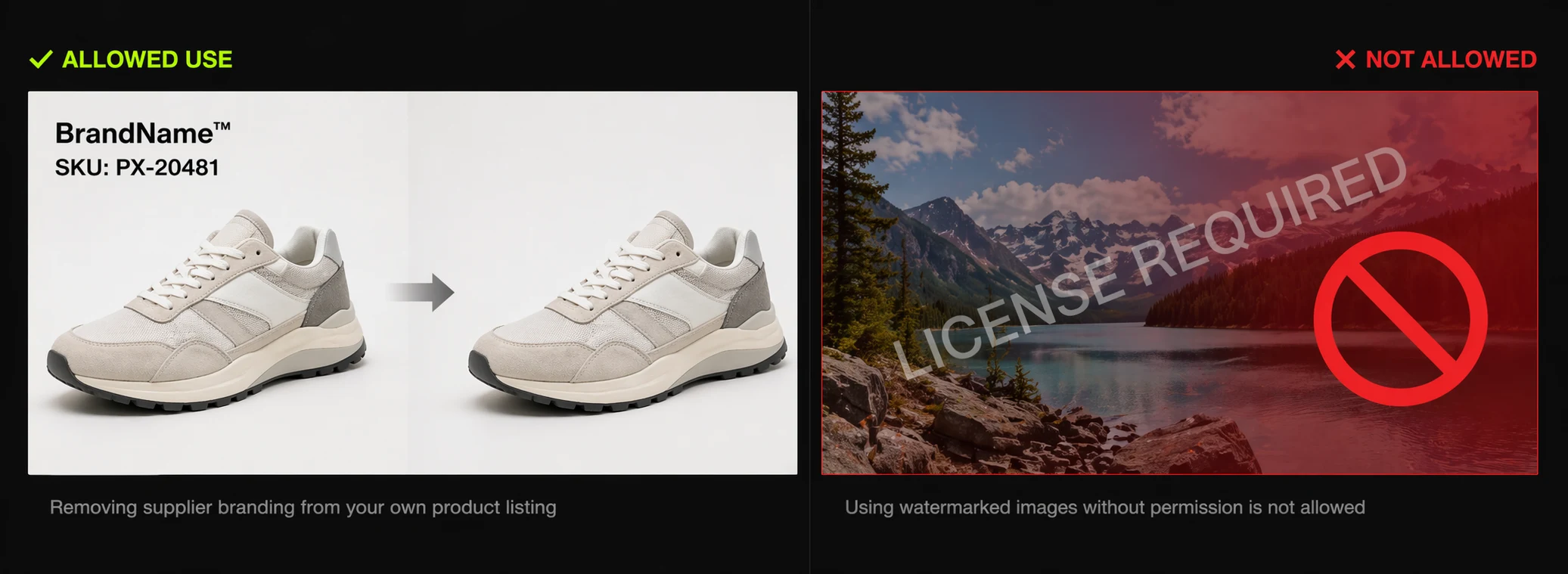
Legitimate Uses
- Removing your own watermarks from your original work
- Cleaning watermarks from images you have already licensed and paid for
- Removing outdated promo text from marketing assets you own
- Erasing debug labels or private data from screenshots for presentations
- Cleaning burned-in subtitles from video stills you captured yourself
Not Legitimate
- Removing watermarks to use stock photos without paying for a license
- Erasing copyright notices to pass off someone else's work as your own
- Removing attribution text required by Creative Commons or similar licenses
- Deleting source credits from journalistic or documentary photography
Watermarks and copyright notices exist to protect creators' intellectual property. Circumventing them to avoid compensation is a violation of copyright law in most jurisdictions, including under the Digital Millennium Copyright Act (DMCA). If you are unsure whether your use is legitimate, consult the image's license terms or contact the rights holder. For guidance on fair use, see the U.S. Copyright Office fair use index.
Every Type of Embedded Text the AI Handles
Different text types present different challenges. Here is what Pixazo removes and what to expect for each.
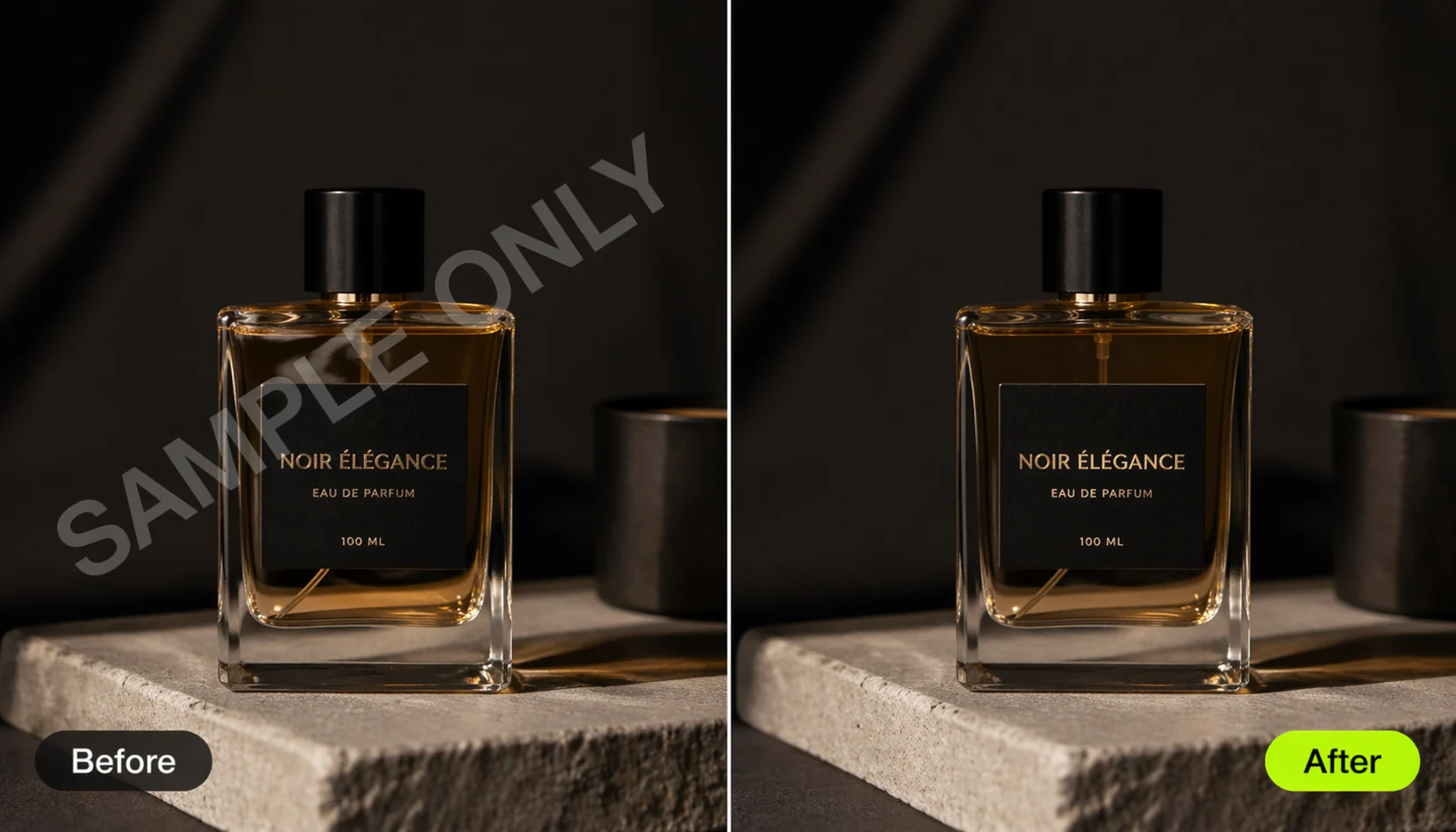
Watermarks
Semi-transparent watermarks placed diagonally, tiled, or centered over images. Works best when the watermark does not heavily overlap fine details. Single-instance watermarks produce the cleanest results; dense tiled patterns may require multiple passes.
Captions & Subtitles
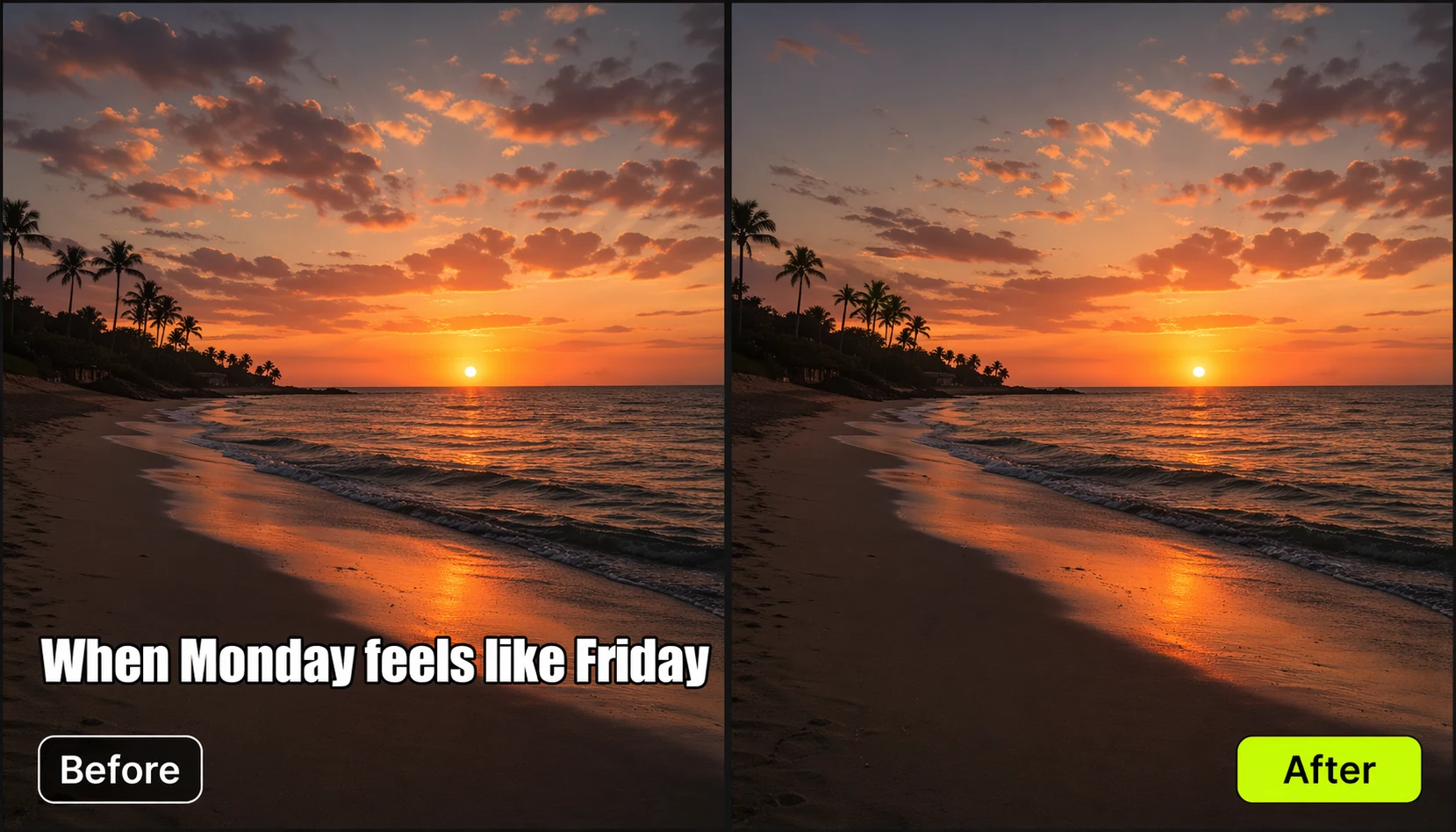
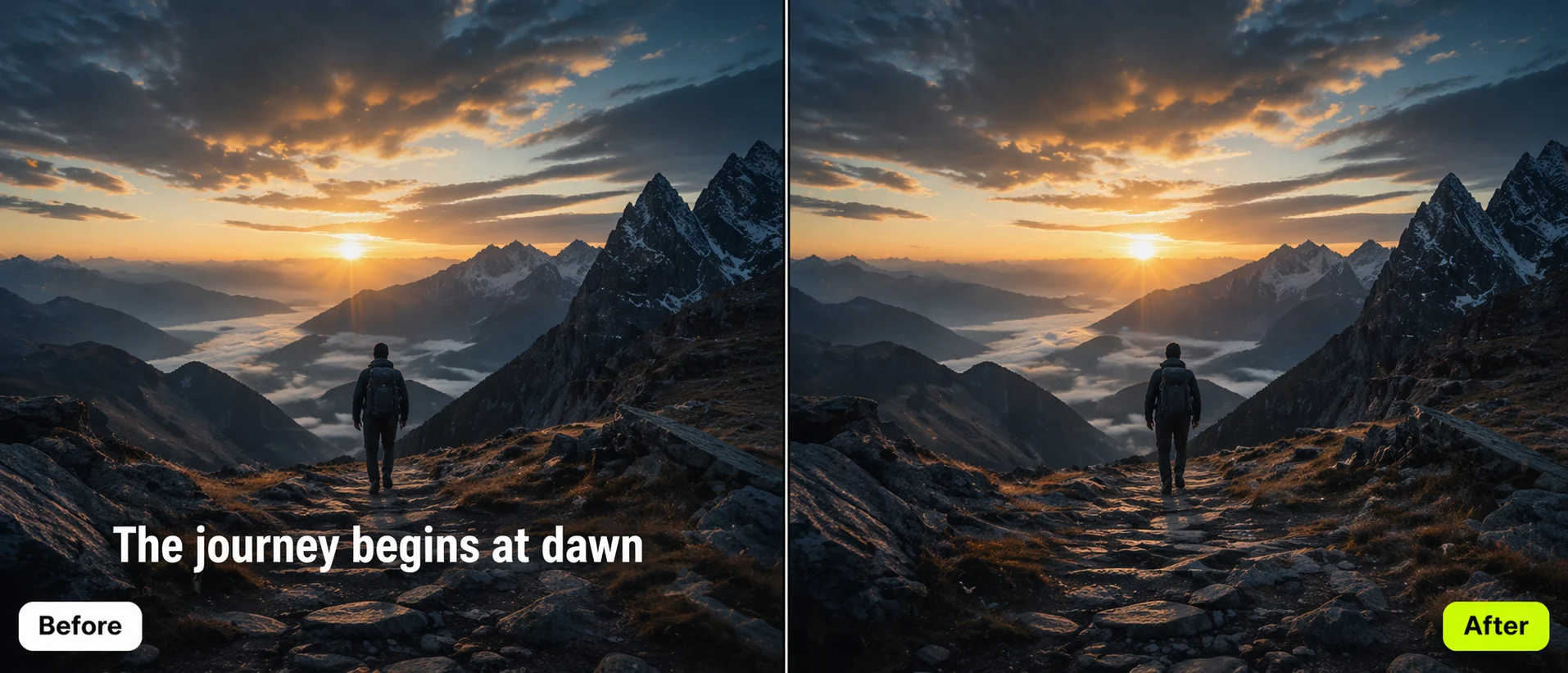
Meme text, social media captions baked into screenshots, and burned-in subtitles at the top or bottom of frames. The AI removes the text and fills the area with the surrounding background pattern.
Annotations
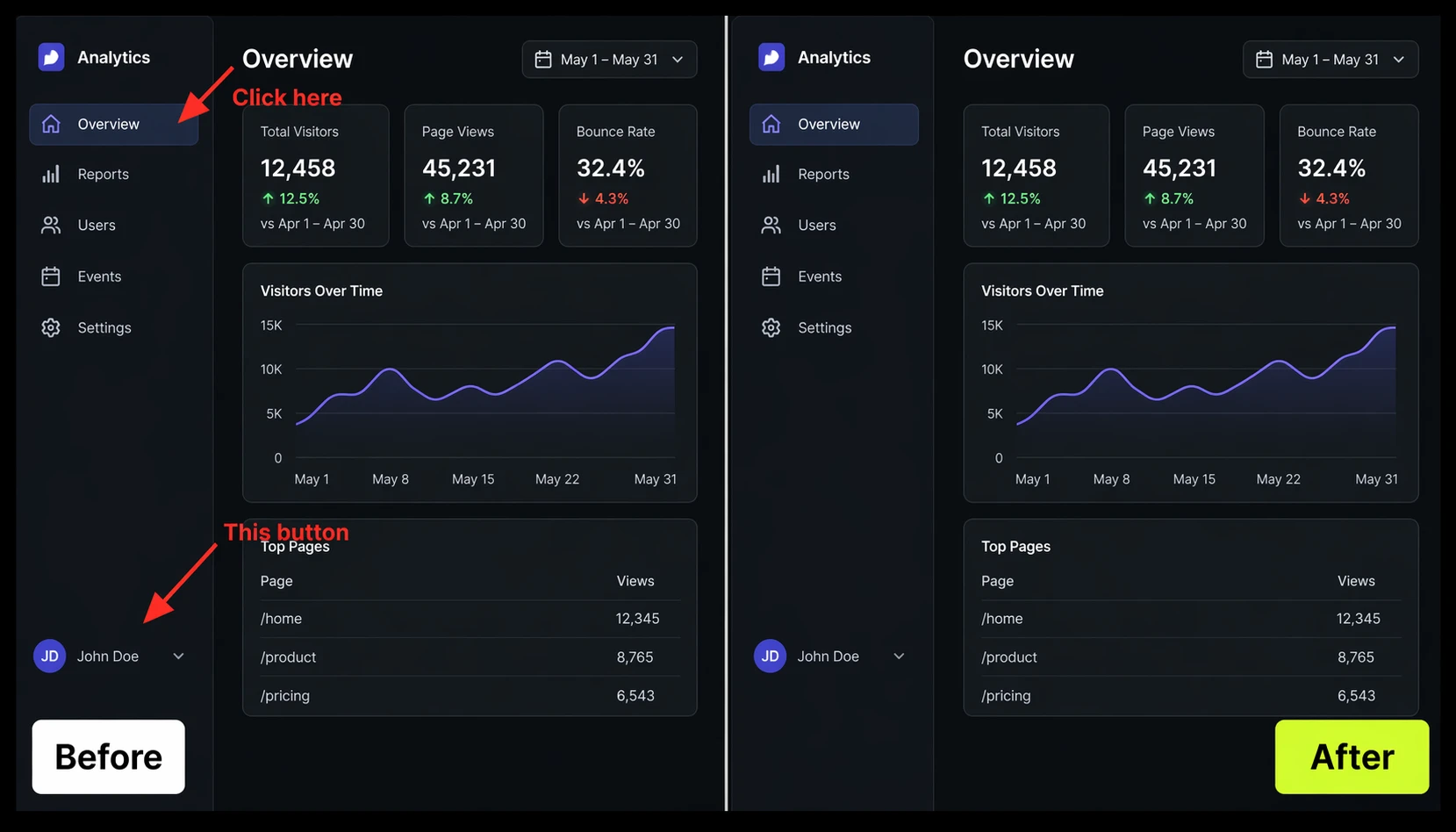
Notes, arrows with labels, and callouts on screenshots. The AI targets the text layer and preserves underlying content.
Labels
Price tags, sale badges, brand labels, and date stamps on product photos. Background is reconstructed from pixel data.
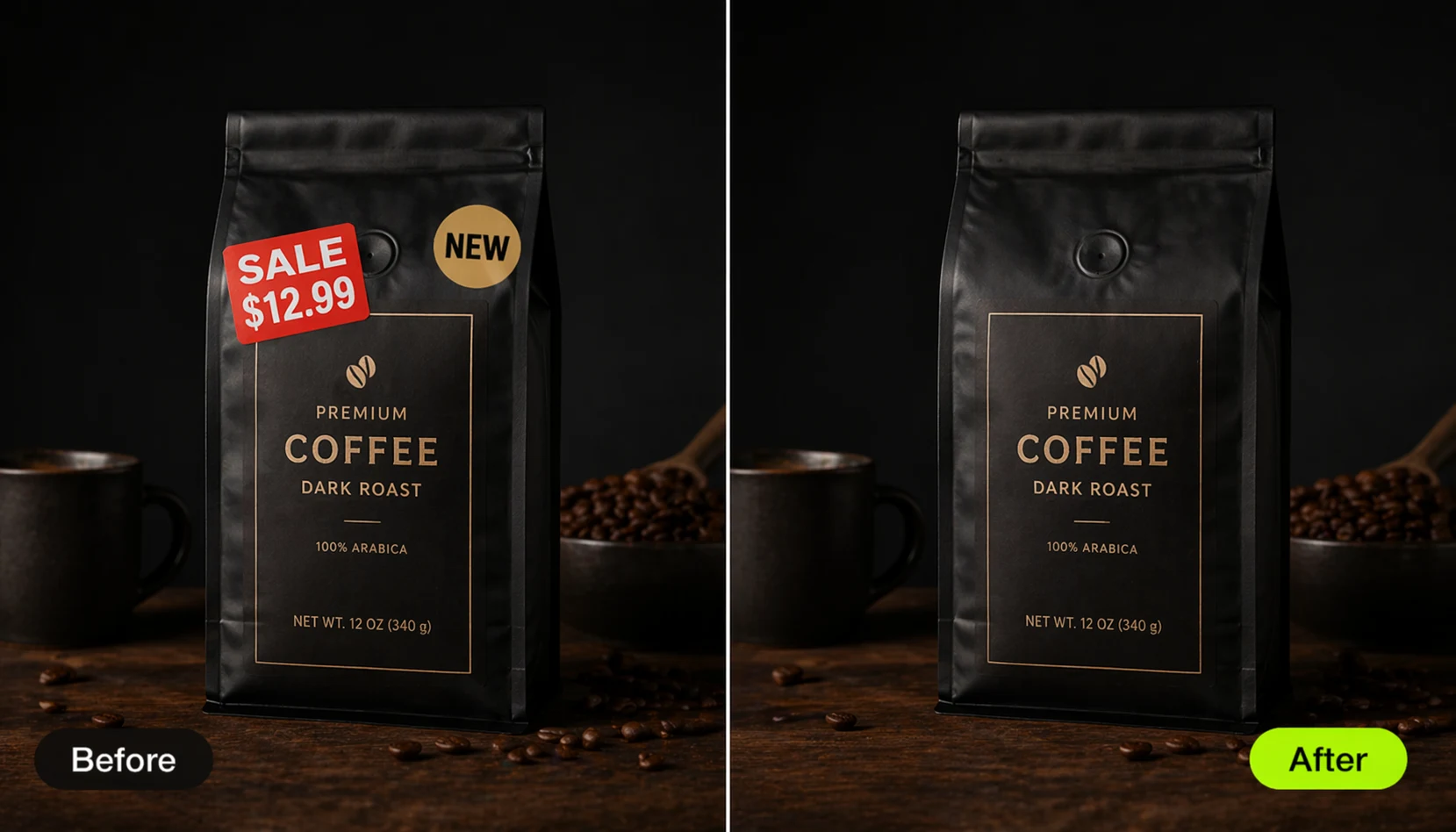
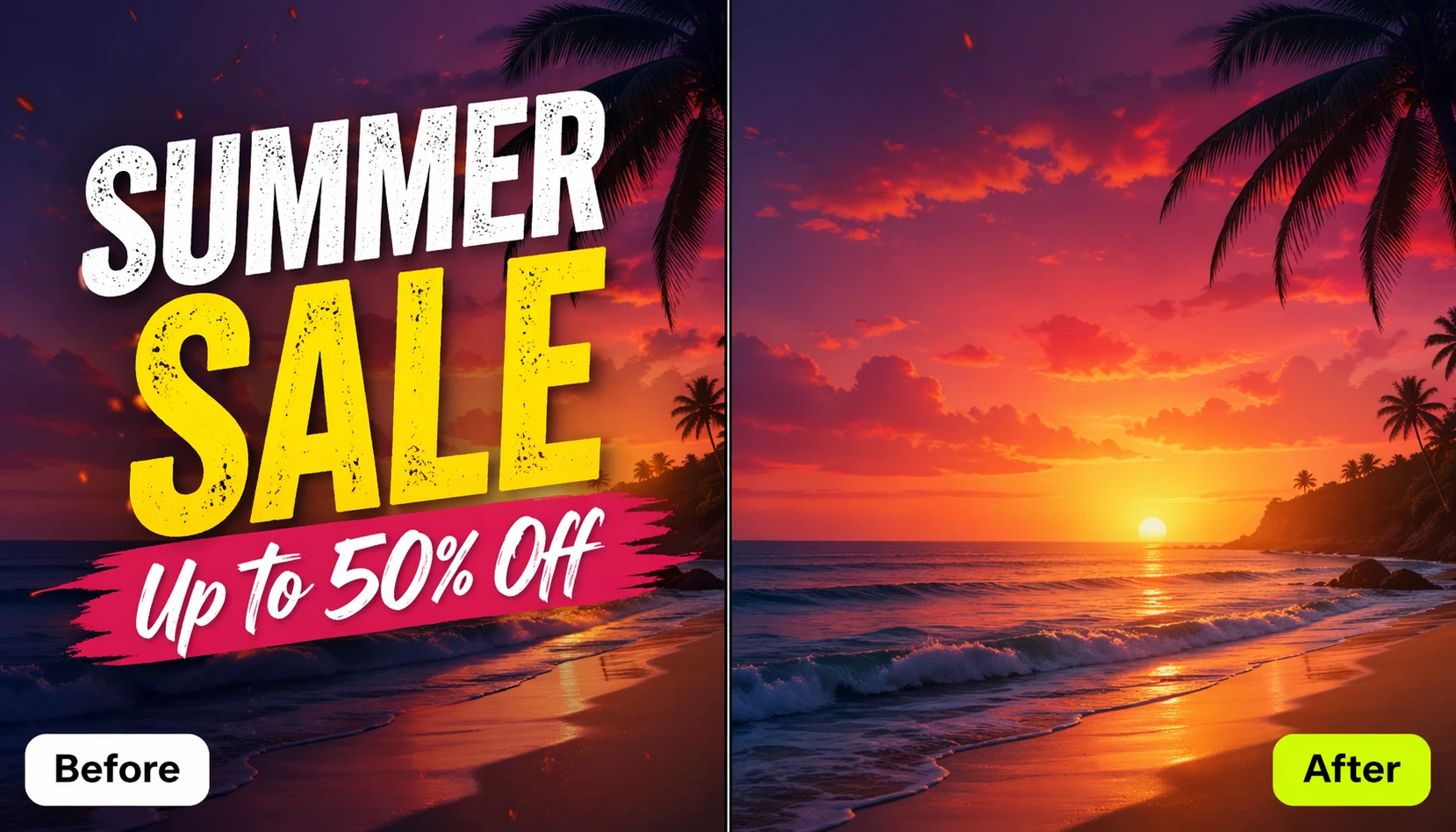
Design Text
Headlines, taglines, and body text on posters, banners, and flyers. Useful when repurposing a visual without the original copy. Handles both large display type and smaller body text in the same pass.
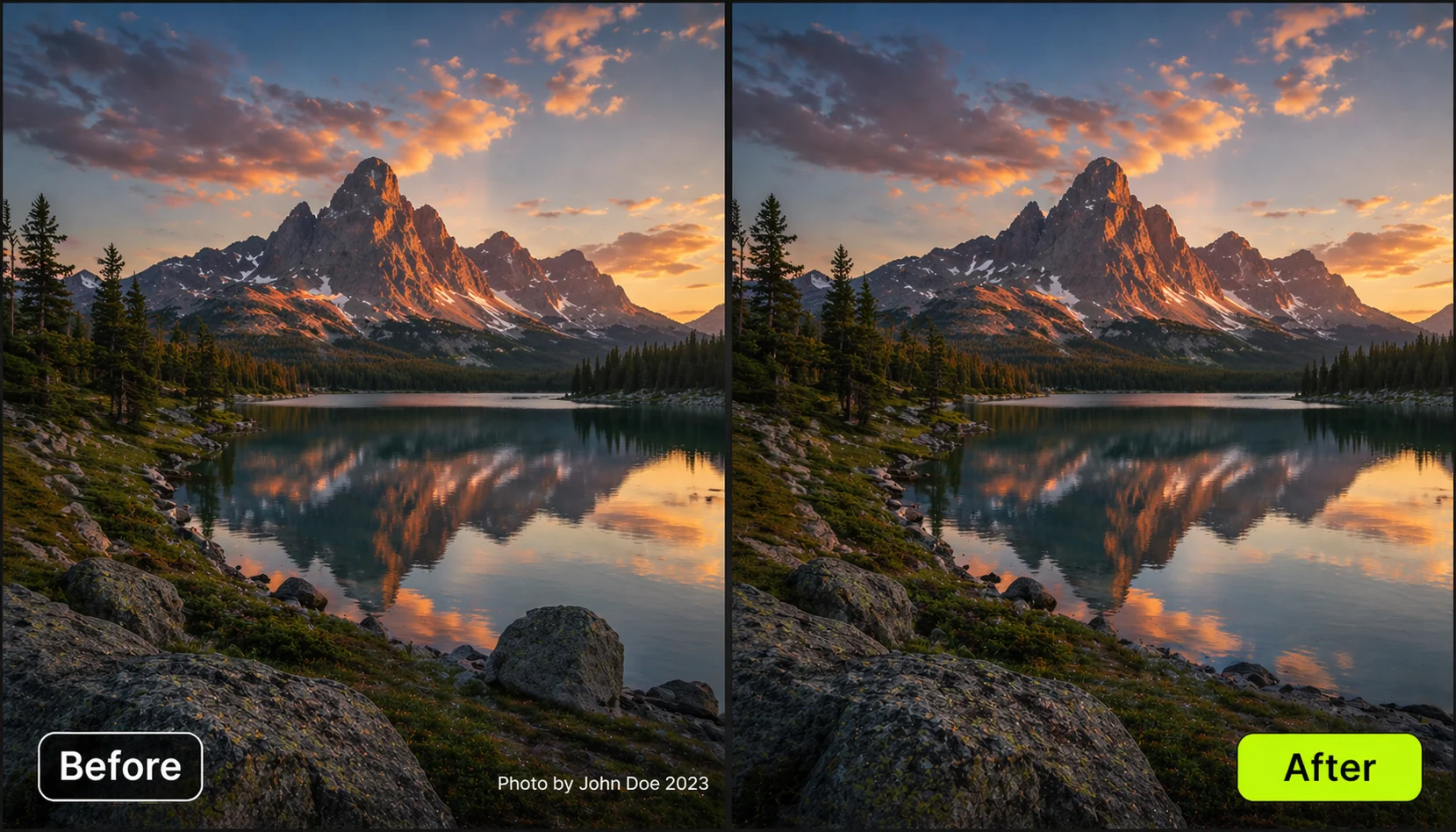
Copyright Notices
Small corner text on stock photos. Straightforward when on solid backgrounds.
What Happens When You Click Apply Edit
When you queue text elements for removal and click Apply Edit, Pixazo's AI handles a multi-step reconstruction process automatically. The first part — isolating text pixels — uses AI-powered text detection. The harder part is filling in the background that was hidden beneath the text. Pixazo uses context-aware inpainting, which analyses the pixel neighbourhood around each removed region and predicts the most plausible fill. It follows texture gradients, matches colour distributions, and respects edge continuity. The result: a seamlessly reconstructed background where the text used to be. Here is what runs behind the scenes:
Remove Text from Any Image in Four Steps
The entire workflow happens in the Pixazo Photo Text Editor — no software to install, no design skills needed.
Upload Your Image
Open the Pixazo Photo Text Editor and upload your image. Supported formats: JPG, PNG, and HEIC. Higher resolution images give the AI more data for background reconstruction.
Click Scan Text
Hit the Scan Text button. The AI analyses the image and places a marker icon on every detected text element — headlines, captions, watermarks, labels, and more — so you can see exactly what it found.
Hover & Click Delete
Hover over any text marker to reveal two icons: a red delete icon and a yellow edit icon. Click the red delete icon to queue that text for removal. A "Will be removed" confirmation appears in the right panel. Repeat for each text element you want gone.
Apply Edit & Download
Click Apply Edit — the button shows you the credit cost before you confirm. The AI removes all queued text and reconstructs the background. Download your clean image at full resolution.
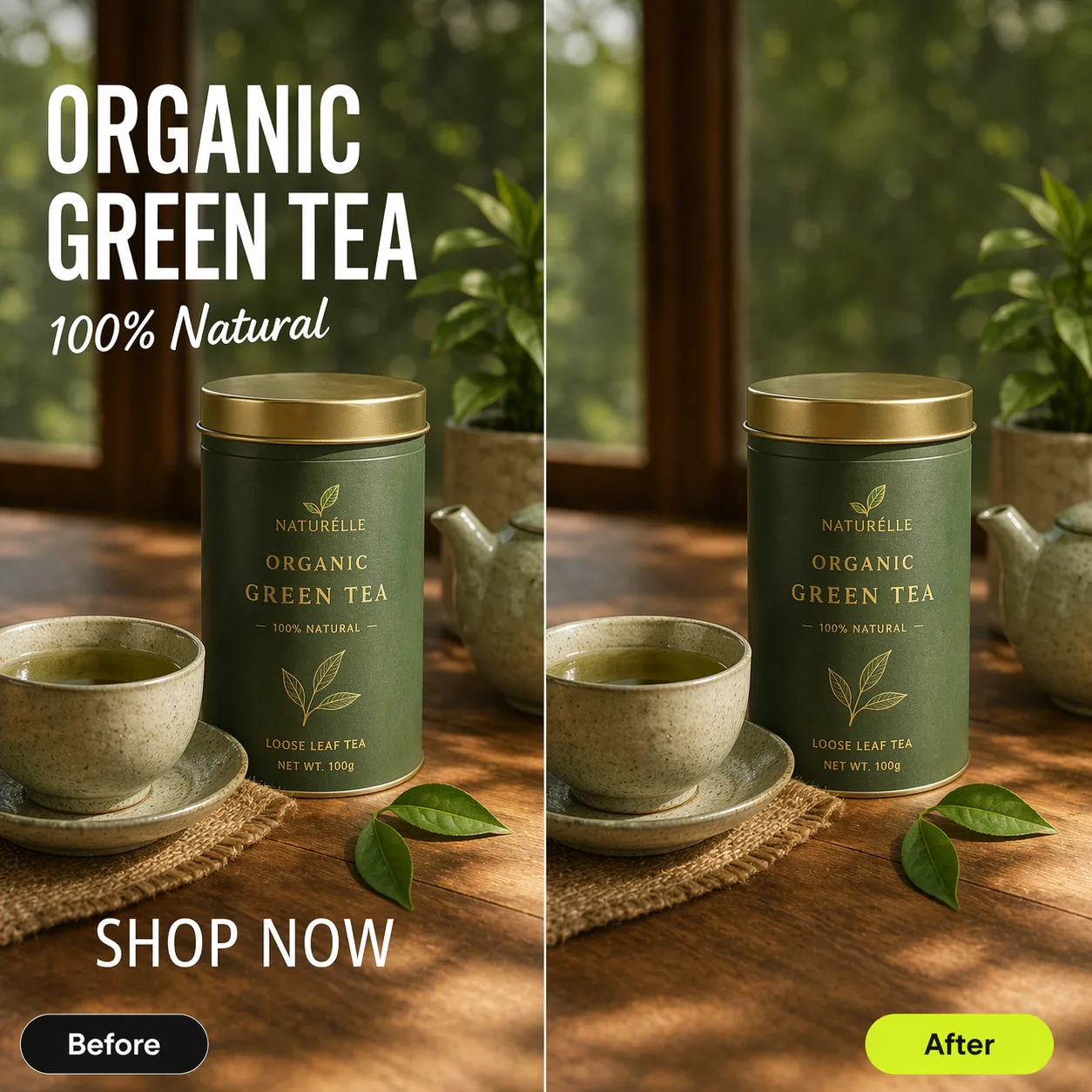
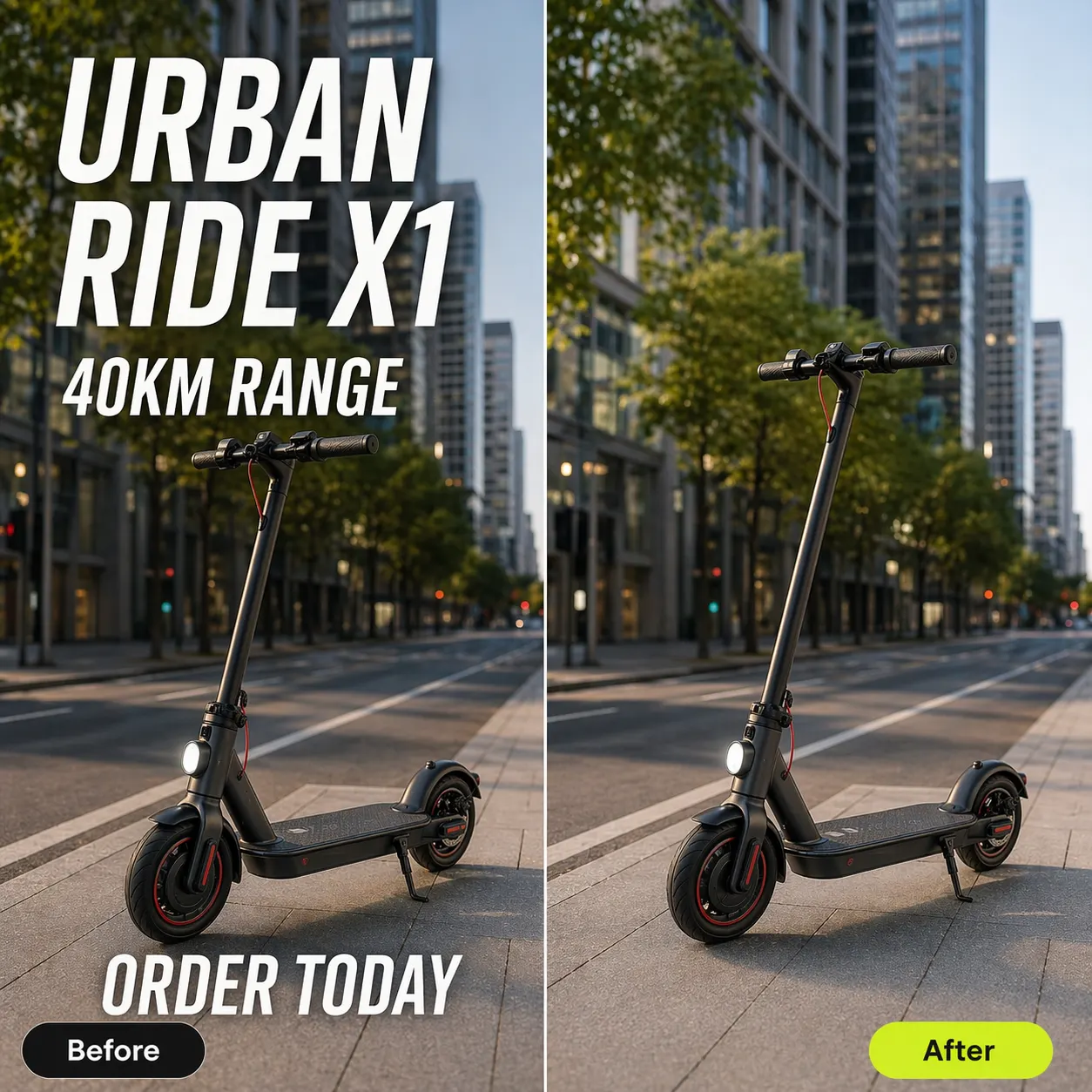
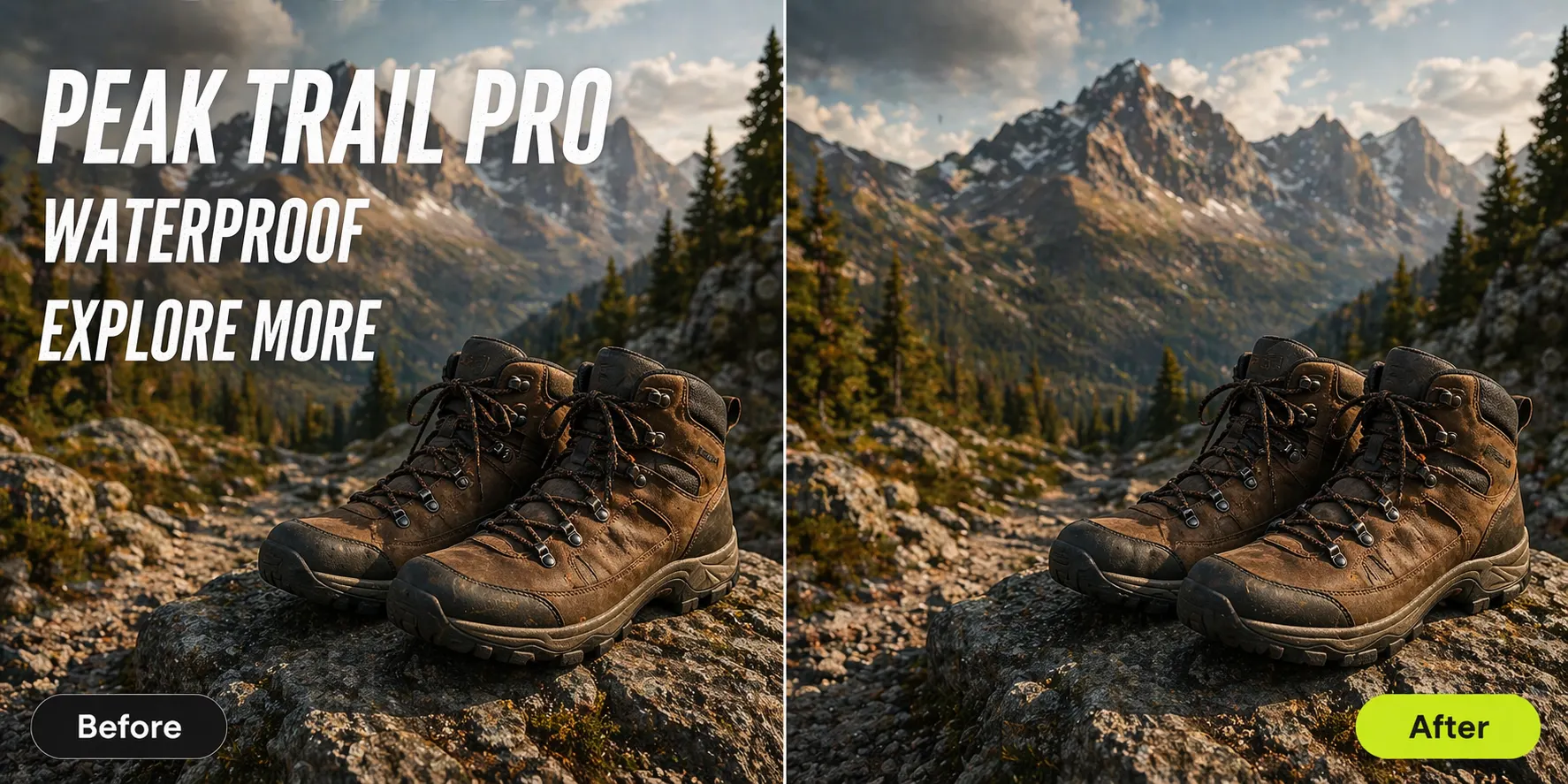
Before & After: AI Text Removal in Action
Real product ad images generated with Pixazo AI, then processed through the Photo Text Editor to erase all embedded text — background reconstruction intact.


Where AI Text Removal Solves Real Problems
Real-world use cases showing how Pixazo handles text removal in practice.
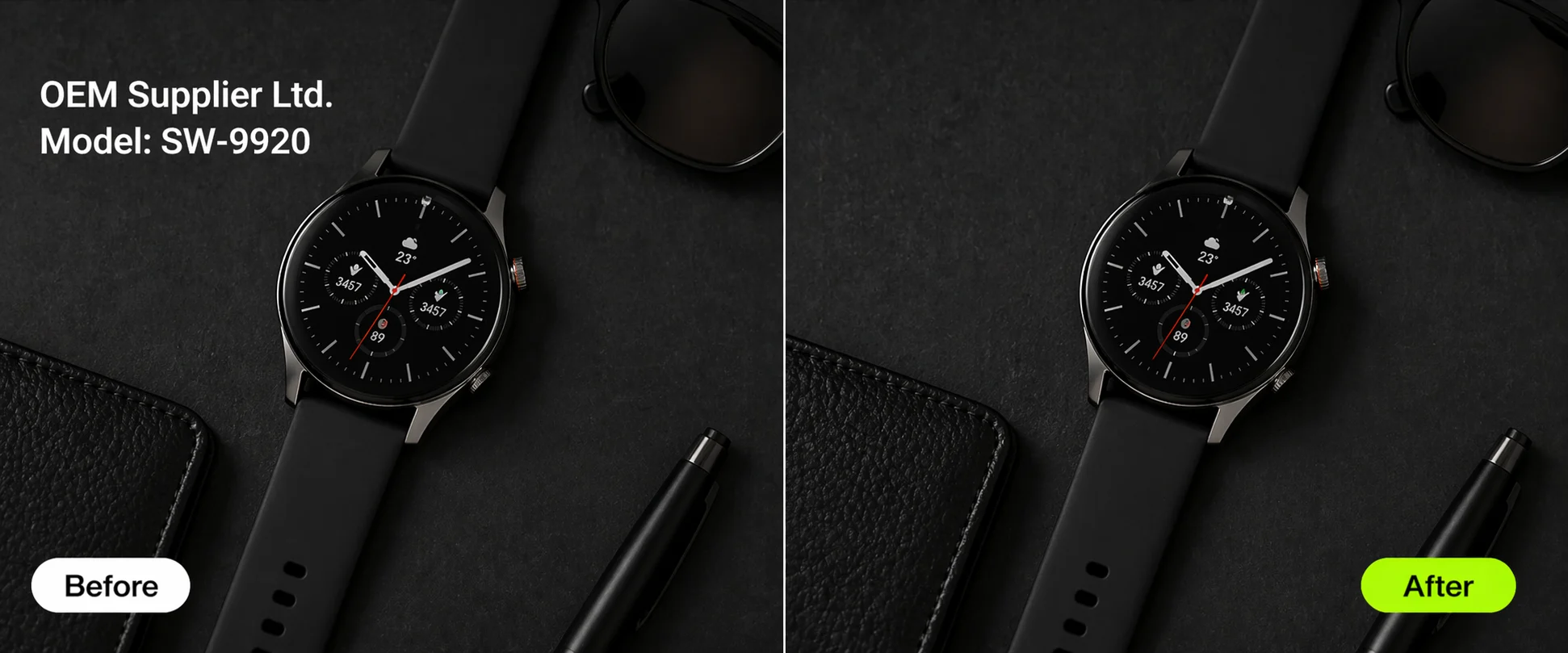
Cleaning Product Photos with Supplier Branding
You received product images from a supplier, but they have the supplier's branding, SKU numbers, or promotional text baked into the photos. You need clean product images for your own store listings. Rather than requesting new photos (which could take weeks) or manually editing in Photoshop (time-consuming at scale), upload the images to Pixazo and remove the unwanted text. The product itself, its colors, and the background remain untouched. This is especially useful for dropshipping businesses that work with multiple suppliers and need fast turnaround on product imagery.
Repurposing Campaign Visuals Without Old Copy
Your team designed a set of banner images with promotional text for a seasonal sale. The sale is over, but the underlying visuals — the photography, gradients, and layout — are still useful. Instead of discarding the assets and starting from scratch, remove the old promotional text and reuse the clean visuals for new campaigns. This saves design time and keeps a consistent visual identity across campaigns. The AI handles both large headline text and smaller body copy in the same pass.

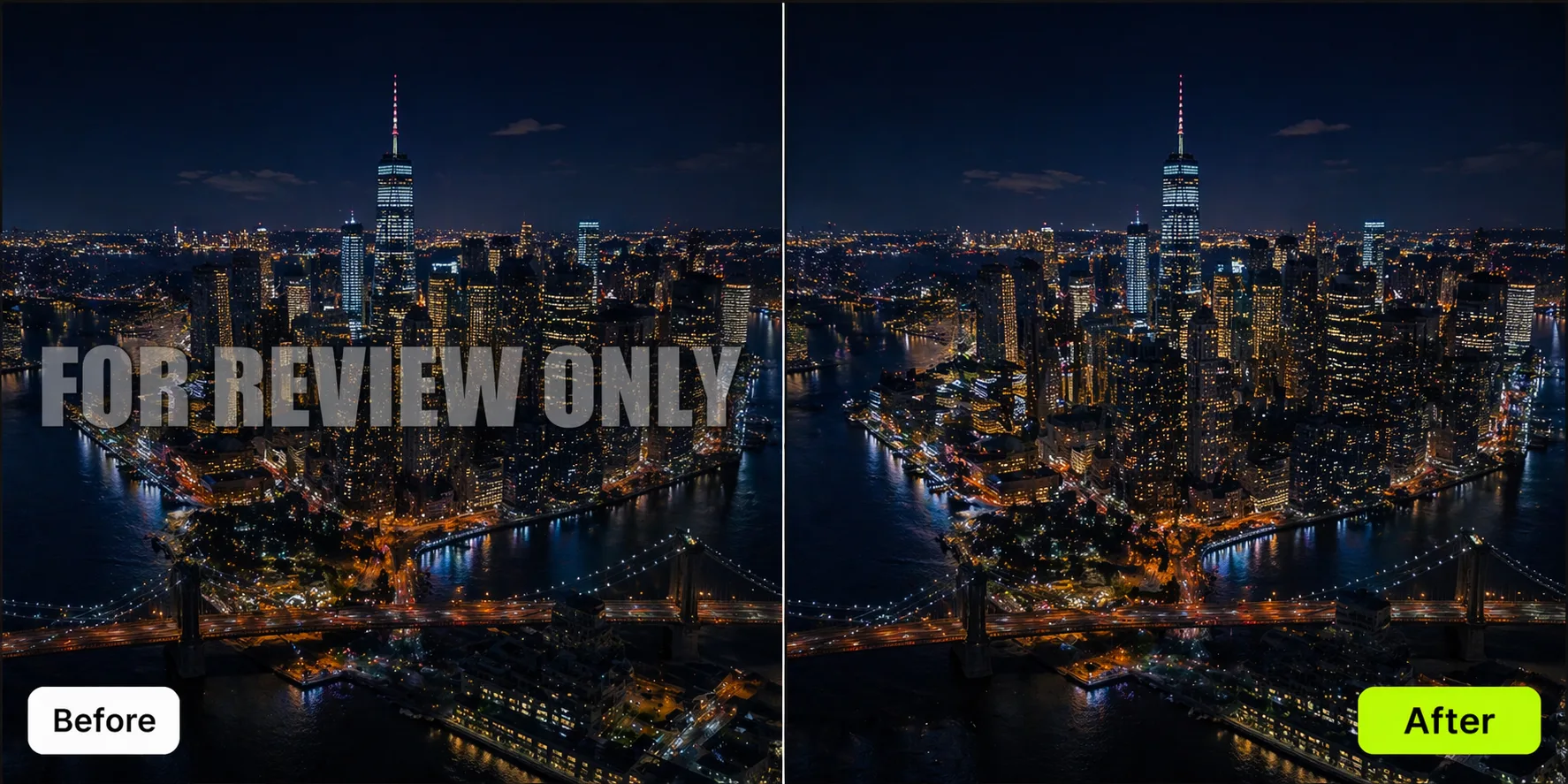
Removing Watermarks from Already-Licensed Stock
After purchasing a stock photo license, you may still have preview versions with watermarks saved in your project files. Rather than re-downloading from the stock site (if the license is valid and you have rights to the image), you can quickly remove the preview watermark. Important: only use this on images where you hold a valid license. Removing watermarks from unlicensed images to avoid payment is a copyright violation and is not a legitimate use of this tool.
Cleaning Screenshots for Decks and Docs
You are preparing a presentation and need to include screenshots of a web application. But the screenshots contain user data, error messages, or debug labels that should not be visible in the presentation. Pixazo can remove those specific text elements while keeping the rest of the UI intact. This is faster than retaking the screenshot with the right conditions, especially when the original application state is hard to recreate.
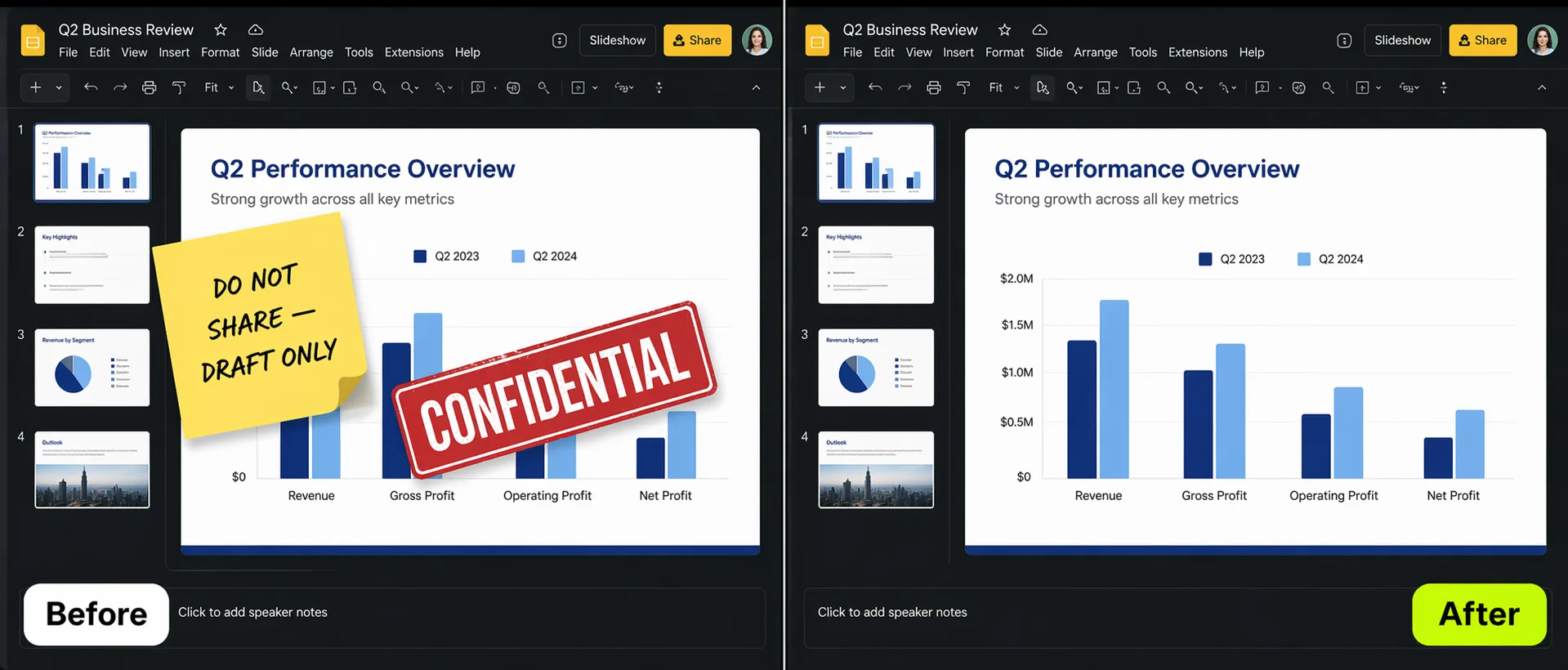
Removing Burned-In Subtitles from Video Stills
If you have captured still frames from a video for use in a blog post or social media, those frames often include burned-in subtitles. The AI identifies the subtitle text — usually white or yellow text at the bottom of the frame — removes it, and reconstructs the scene behind it. This works best when the subtitles are on a relatively simple background area. Subtitles overlapping a person's face or detailed scenery may show some imperfection in the reconstruction.
Real Text Removals by Pixazo Users
Actual before-and-after results shared by users. Each includes the context, what was removed, and how they used it.

“My supplier stamps their brand name across every product photo. I needed clean images for my Shopify listings. Pixazo removed the overlay text and the background reconstruction looked natural — even on the metallic jewelry surfaces.”
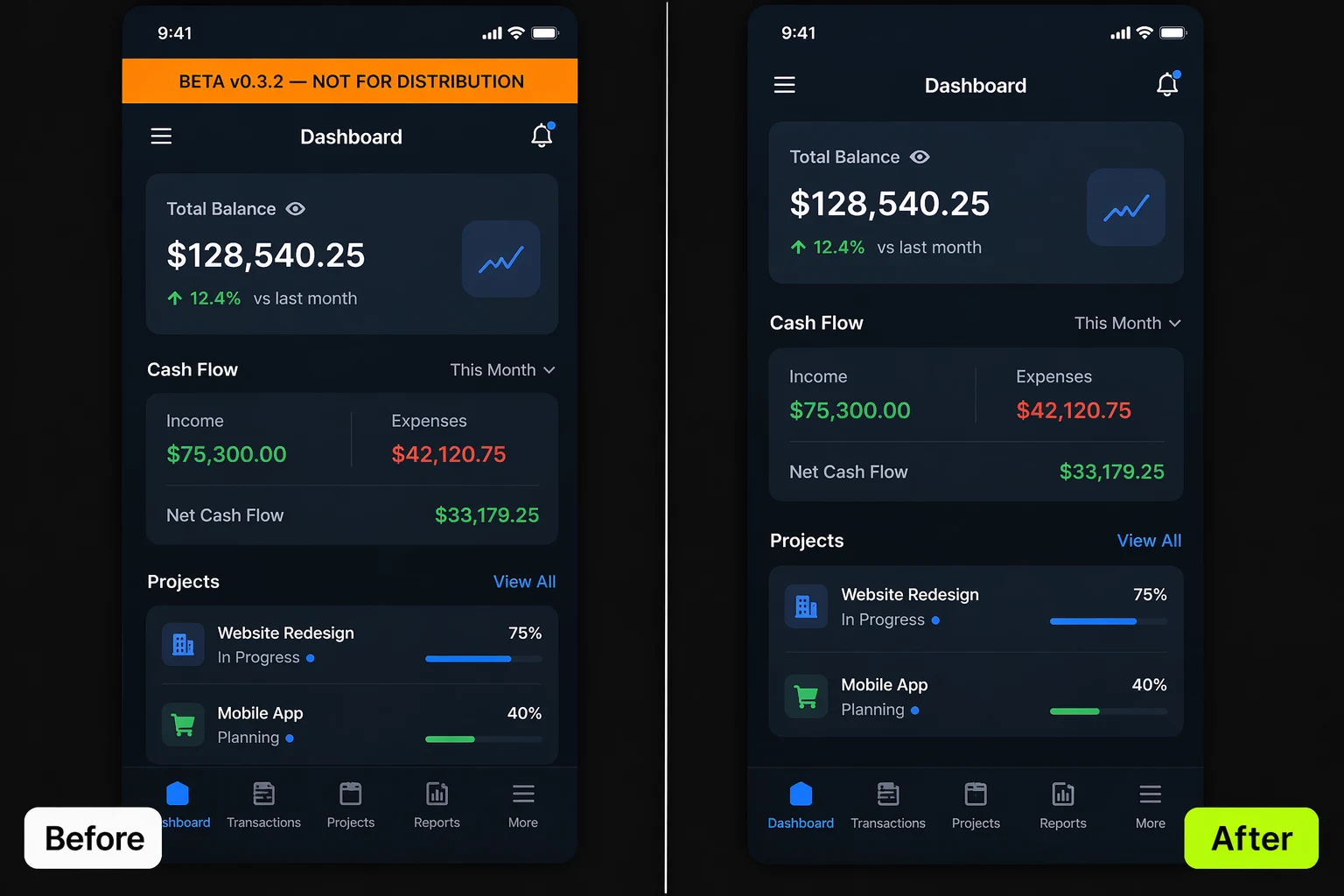
“Our staging environment shows debug text and test user data on every screen. I use Pixazo to clean those screenshots before adding them to investor decks and sales collateral. Saves me from retaking screenshots with production data.”
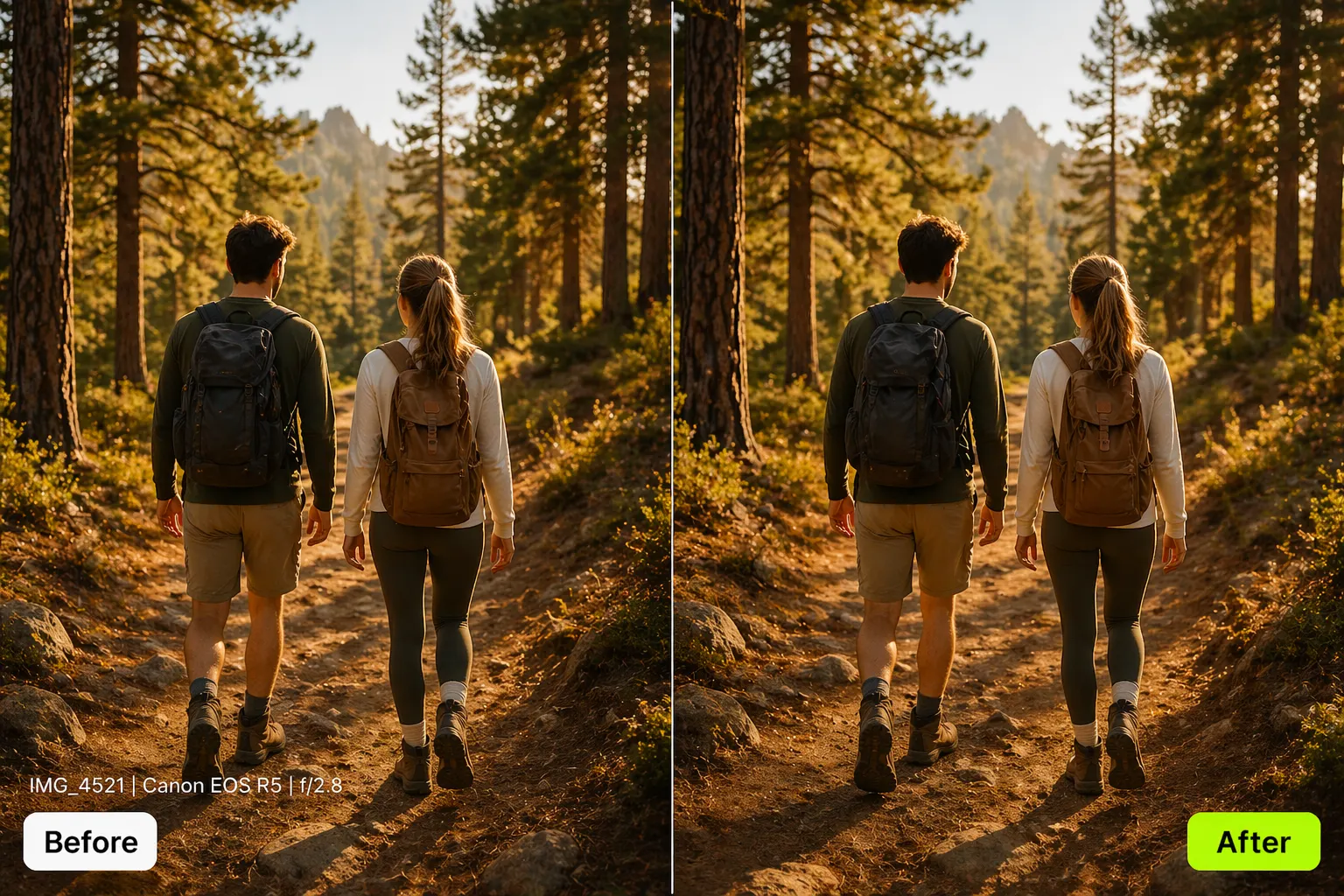
“A client gave me 300 family photos with the camera date stamp burned into every image. The backgrounds were mostly sky and grass — simple enough that the AI reconstructed them perfectly. Batch processing took about two hours total.”
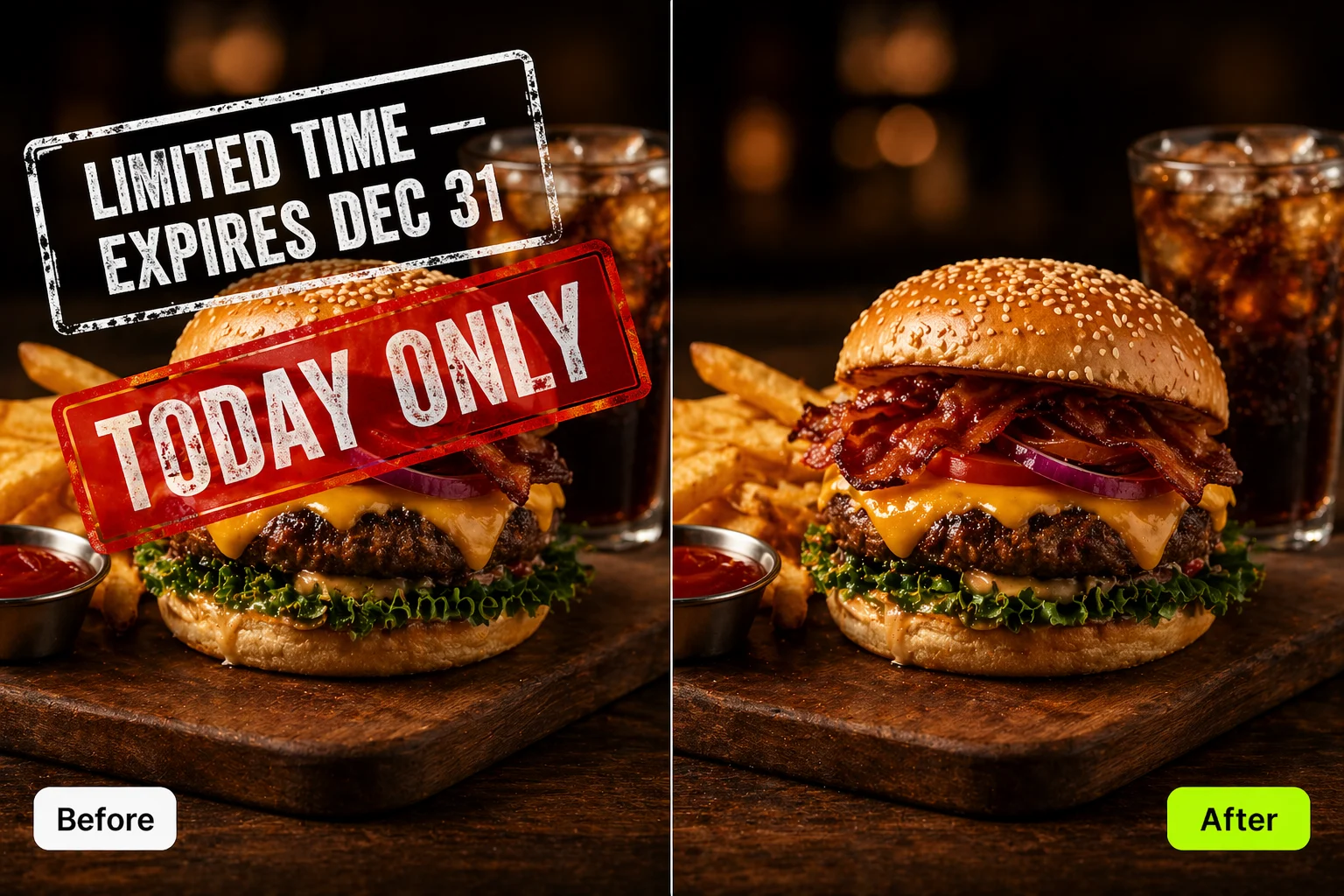
“We remove last season’s promo text from campaign visuals so we can reuse the base photography for new promotions. The AI strips the text cleanly and the product images underneath look untouched. We add new text in Canva afterward.”
Where Results May Need Manual Touch-Up
AI text removal is not magic. These are real limitations you should know before uploading.
Text on detailed backgrounds such as crowd scenes or intricate patterns may show visible artifacts after removal. The inpainting cannot perfectly reconstruct detail it never "saw" because the text was covering it. Simple or repeating backgrounds produce the best results.
Very thin or hairline fonts are harder to mask precisely. The AI may leave faint traces of the text or remove a sliver of surrounding background along with the text. Bold, high-contrast text produces the cleanest removal.
Text covering more than 30-40% of the image leaves less surrounding context for the AI. Results degrade as the text area increases relative to total image size because there is less neighborhood data for inpainting to work with.
Text embedded with shadows, outlines, glows, or 3D extrusion requires removing not just the text but the effect layers. Shadow removal in particular may leave faint ghost traces because the shadow has lower contrast than the text itself.
Text or watermarks with very low opacity may not be fully detected by the OCR pass. You might need to increase the detection sensitivity or process the image twice for complete removal. This is a detection limitation, not an inpainting one.
Curved, rotated, or perspective-distorted text — like text on a product label photographed at an angle — is detected less reliably than straight horizontal text. The masking may be less precise for heavily distorted characters.
Pixazo processes individual images, not video files. For video text removal, you would need to extract frames, process each individually, and reassemble. For burned-in subtitles across many frames, a dedicated video tool is more practical.
Questions About AI Text Removal
Hover-to-Select Interface
Yes. After clicking Scan Text, Pixazo places a marker icon on every detected text element. You hover over each one individually — this reveals a red delete icon and a yellow edit icon. You click delete only on the elements you want removed. Any text you skip stays untouched. This gives you precise, per-element control over what gets erased and what stays.
Background Reconstruction, Not Destruction
No — that is the key innovation. The AI removes the text pixels and then reconstructs the background that was behind them. It predicts what the background would look like based on surrounding pixel data. The result is a clean area where the text used to be, blended with the existing background. However, if the text was covering a unique or complex detail (like a person's eye), the reconstruction will be an educated guess, not a perfect restoration.
Supported Formats
Pixazo's Photo Text Editor accepts JPG, PNG, and HEIC formats. For best results, upload the highest resolution version available — higher resolution gives the AI more pixel data to work with during inpainting and produces cleaner background reconstruction.
Images Only (For Now)
Currently, Pixazo's text removal works on individual images only, not video files. If you need to remove text from a video, you would need to extract the relevant frames as images, process each frame through Pixazo, and then reassemble them. For burned-in subtitles across many frames, a dedicated video editing tool would be more practical.
It Depends on the Watermark
Single-instance watermarks (one logo or text line placed over the image) generally produce clean results, especially on simpler backgrounds. Repeating tiled watermarks that cover the entire image are more challenging — the AI processes each instance, but overlapping regions and dense coverage mean some areas may show minor inconsistencies. Full-image opacity watermarks may require multiple processing passes.
Ethics and Responsibility
Watermarks exist to protect creators' intellectual property. Removing a watermark to use an image without paying for a license is a copyright violation. Legitimate uses include: removing watermarks from images you have already licensed, removing your own watermarks from original work, or removing watermarks from images in the public domain. Pixazo provides the technical capability — the responsibility for ethical use lies with the user.
Handling Missed Text
After Scan Text runs, any detected text element will have a marker icon above it. If a piece of text has no marker, the AI did not detect it — there is no manual selection fallback. Text is most commonly missed when it is very small, low-contrast against the background, uses an unusual or decorative script, or is partially obscured. Uploading a higher-resolution version of the image often helps the AI pick up harder-to-detect text.
Credits Are Shown Before You Confirm
The Apply Edit button displays the credit cost before you commit, so you always know what you are spending. The cost reflects the number of text elements queued for removal. You can queue multiple deletions and apply them all in a single click, which makes it efficient to clean an image with several text elements at once.
Credits Are Shown Before You Confirm
The Apply Edit button displays the credit cost before you commit, so you always know what you are spending. The cost reflects the number of text elements queued for removal. You can queue multiple deletions and apply them all in a single click, which makes it efficient to clean an image with several text elements at once.
Credits Are Shown Before You Confirm
The Apply Edit button displays the credit cost before you commit, so you always know what you are spending. The cost reflects the number of text elements queued for removal. You can queue multiple deletions and apply them all in a single click, which makes it efficient to clean an image with several text elements at once.
Measured Results From Real Teams
"We processed 200+ product images in a single afternoon. Previously, our designer spent 3-4 days on the same batch in Photoshop. That is roughly an 80% reduction in production time for catalog refreshes."
"We repurpose 15-20 campaign visuals per quarter. Removing old promo text and adding new copy in Figma takes about 10 minutes per asset now instead of recreating from scratch, which used to take 45 minutes each."
"On simple backgrounds, results are indistinguishable from the original. On complex textures, about 10% of images need a manual touch-up pass. We factor that into our pipeline and it is still faster than doing everything by hand."
"I prepare 8-12 client decks per month, each with 5-10 annotated screenshots. Cleaning debug text used to mean retaking every screenshot. Now I batch process them in under 5 minutes per deck."
"Our localization pipeline covers 9 languages. Removing English text from UI mockups before handing off to translators cut our design localization cycle from 5 days to 2 days per sprint."
"I process family photo archives for clients — usually 200-500 images per job. Camera date stamps on simple sky and grass backgrounds are removed flawlessly. I charge per image and my margins improved significantly."
Erase the Text. Keep the Image.
Upload any image with unwanted text and get a clean version in seconds.
Remove Text from Image