AI Report Maker : Create Free Reports in Minutes
Create Custom Reports Quickly with Pixazo Best AI Report Maker. Try for Free!
Get Started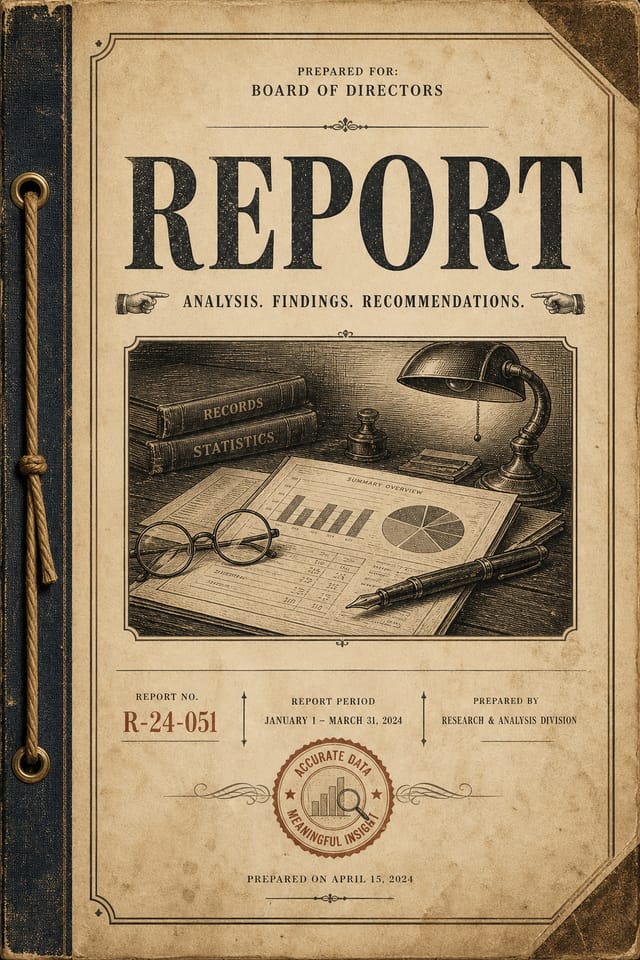
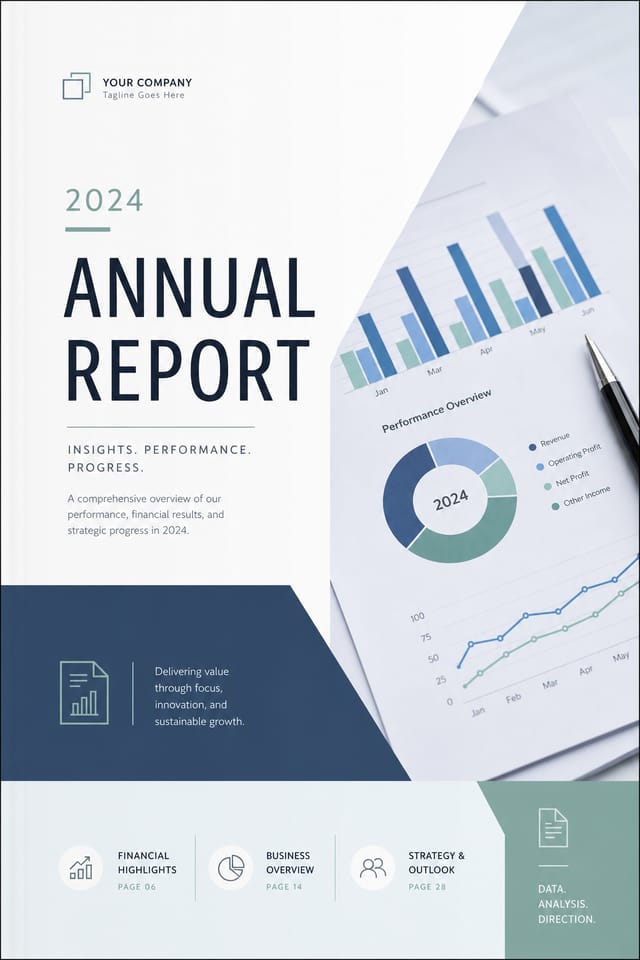
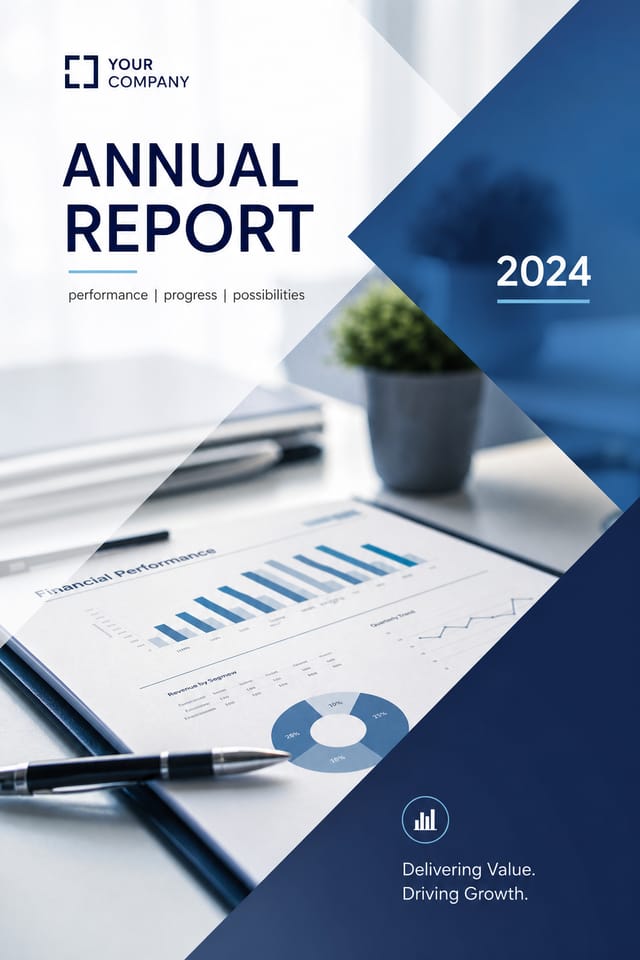
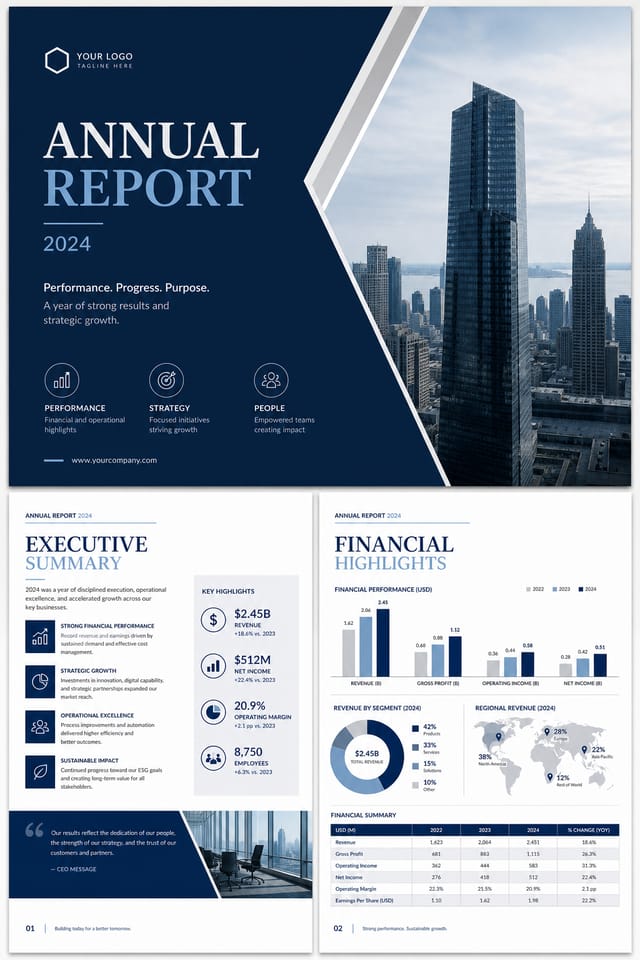
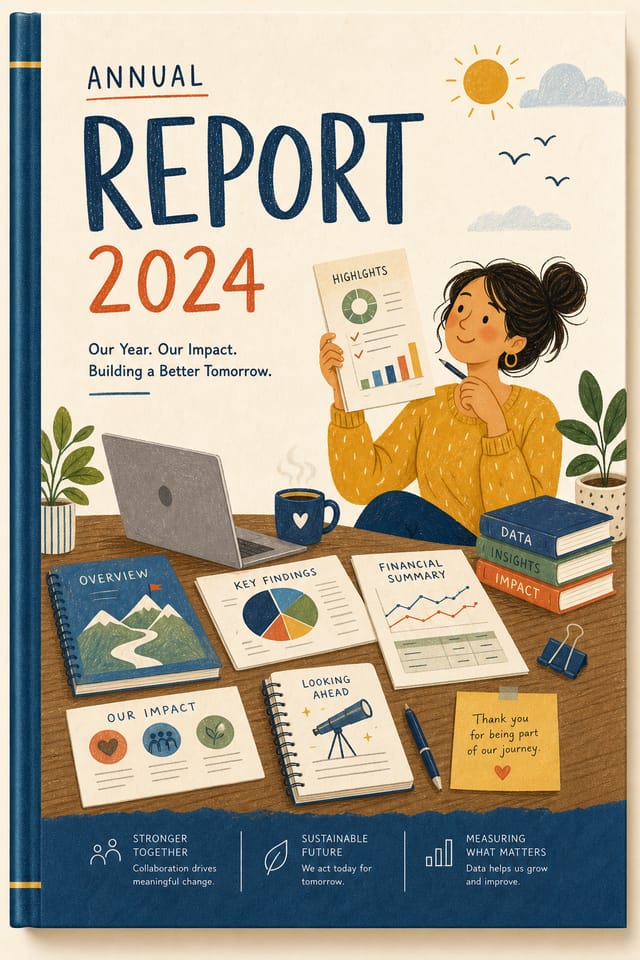
How Report Tools Stack Up: Finding the Right Fit
Piktochart
Infographic and presentation maker for data-driven visuals
Canva
Drag-and-drop editor with a large template library and collaboration features
Pixazo
AI-powered report generator with prompt-based design and professional output quality
VistaCreate
Visual content platform with templates and a built-in asset library
PicMonkey
Photo editor and design tool with brand kit management
From Prompt to Report: Made Simple
Watch: Creating Report designs step by step
The Report Design Approach: The Design System
What Separates Good Report Design from Generic
The strongest report designs succeed because every element reinforces the style rather than contradicting it.
Typography that fits report conventions, colors that carry report associations, layouts that breathe in ways consistent with report design sensibility.
Pixazo's AI understands these relationships.
Describe your report and the system generates designs where all the elements agree.
The Report Feature Set: Tools That Matter
Subcategory Awareness
The AI distinguishes between design subcategories. A report request produces report-appropriate output, not a generic design with report text added.
Export Flexibility
Download your report in formats suited for your use case. Web-optimized versions for digital display, high-DPI files for print.
Layered Style Application
Combine report style with other design parameters in a single prompt. The AI interprets complex requests and applies multiple style constraints simultaneously.
Color Palette Intelligence
Colors are chosen with report style awareness. The AI builds palettes that fit report design conventions rather than selecting arbitrarily.
Report Applications: Contexts and Scenarios
Business Letterheads and Stationery
Design reports for official correspondence, invoices, and branded documents. Consistent visual identity across all business communications.
Pitch Deck and Presentation Covers
Create reports for investor presentations, sales decks, and keynote slides. Opening visuals that establish credibility and capture attention.
Conference Name Badges and Lanyards
Create reports for professional event credentials. Functional designs that balance branding, readability, and attendee information.
Certificate and Diploma Templates
Generate reports for awards, course completions, and professional certifications. Formal designs that convey legitimacy and achievement.
Training and Workshop Materials
Design reports for corporate training sessions, onboarding packets, and skill development programs. Clear, structured layouts for learning contexts.
Report Style Options: Compared
Contemporary Report
Current report design sensibility with updated proportions, modern typefaces, and contemporary color relationships.
Minimalist Report
Stripped-back report approach. Fewer elements, more negative space, typography carries more visual weight.
Atmospheric Report
Report design where mood takes priority. Color and composition work together to create a specific feeling.
Classic Report
Traditional report design principles applied to modern report format. Clean composition, conventional hierarchy, time-tested visual decisions.
Inside the Report Community: Spotlights and Showcases
Real creators sharing their report designs made with Pixazo AI.



Report Prompts: Prompts to Try
Copy any prompt below and paste it into Pixazo to generate your design instantly.
Large-format report design, elements sized for visibility at print scale, no fine detail that would be lost in productionEditorial-style report, text-dominant design, typographic treatment carries visual weight, layout proportions inspired by print publication designTextured report, surface treatment adds depth without obscuring legibility, texture consistent with report aestheticReport for digital display, optimized proportions for screen viewing, colors calibrated for RGB output, legible at typical viewing distanceFull-bleed report, background treatment extends to edges, foreground elements positioned for compositional balance, strong central hierarchyFormat Options for Reports: Choosing the Right Format
TIFF
High-fidelity format for report files destined for professional printing, supporting CMYK color and lossless compression.
PNG
Lossless image format ideal for report designs with transparency, sharp text, and web display at predictable file sizes.
WEBP
Modern web format offering smaller file sizes than PNG or JPG for report images without significant quality loss.
Print-ready format for report files that preserves fonts, colors, and layout across different devices and print services.
Report Essentials: What People Ask
Your prompt history is saved in your account. You can revisit previous report prompts, duplicate them with modifications, and build a library of proven prompt structures for consistent report design output.
You control every major design parameter through your prompt: color palette, typography style, layout structure, visual weight distribution, background treatment, and content hierarchy. The more specific your report prompt, the more precisely the AI follows your creative direction.
Adjust your prompt to change any element of the design. If a generated report is close but not quite right, describe what you want changed and regenerate. The AI responds to specific direction about individual elements like color, layout, or typographic weight.
The AI renders text as specified in your prompt, so double-check spelling and punctuation before generating. If text renders incorrectly in a report, adjust your prompt and regenerate. The AI follows your exact text input.
The Fine Print on Reports: Current Boundaries
Known limitations and trade-offs of AI-generated report design. Transparency matters when using AI for report design. The points below describe where you may need to supplement AI output with manual work.

