AI Slideshow Maker : Create Free Slideshows in Minutes
Create Custom Slideshows Quickly with Pixazo Best AI Slideshow Maker. Try for Free!
Get Started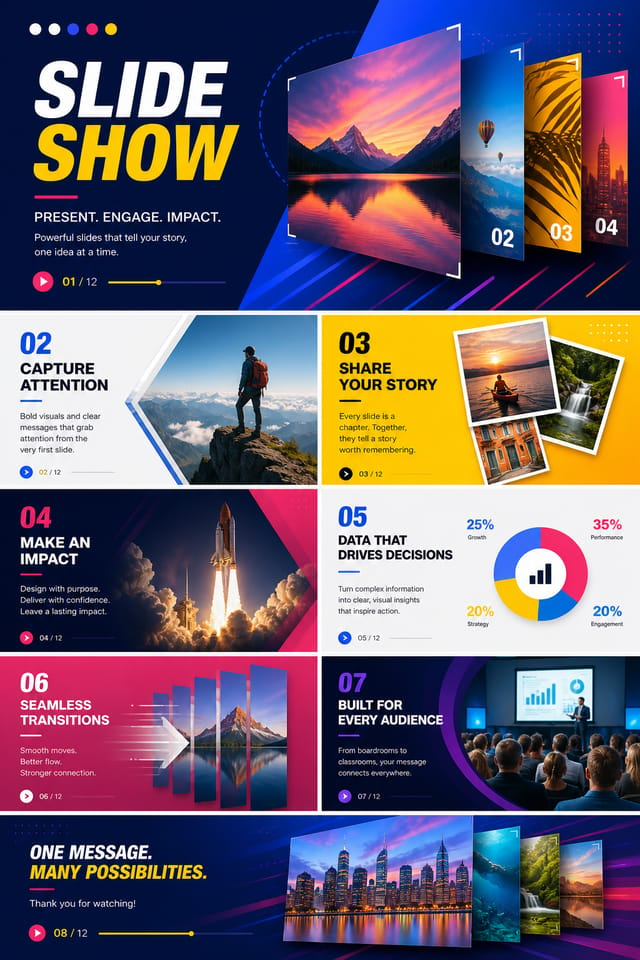
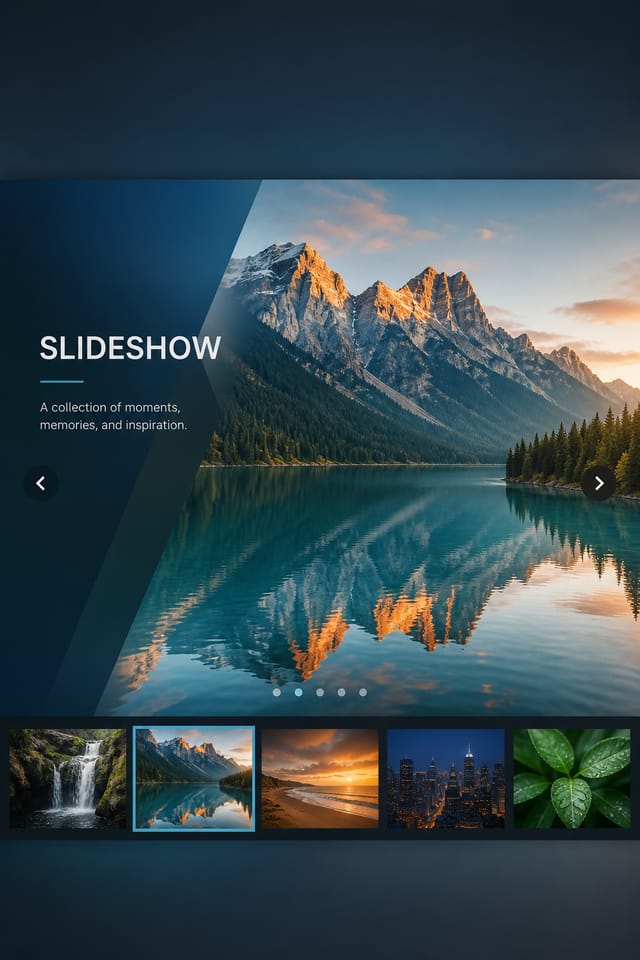
Slideshow Engine: What You Get
What Separates Good Slideshow Design: What Good Design Involves
What Makes Slideshow Design Work
Effective slideshow design depends on understanding what makes slideshow work visually.
Color relationships, typographic choices, and spatial arrangement all carry different weight depending on the design style.
Pixazo's AI has been trained to recognize these distinctions.
The practical result is that a slideshow prompt produces designs that fit slideshow conventions rather than generic poster layouts.
Putting Slideshows to Work: Everyday and Professional
Gig and Show Promotion
Create slideshows announcing upcoming performances, screenings, and shows. Eye-catching designs that drive ticket sales and attendance.
Venue and Festival Signage
Generate slideshows for venue lobbies, festival grounds, and event spaces. Large-format prints that create atmosphere.
Release Day Announcements
Design slideshows for album drops, film releases, and premiere events. Launch-day materials that build buzz across channels.
Fan Community Materials
Create slideshows for fan clubs, viewing groups, and appreciation events. Designs that celebrate fandom and community.
Social Media Event Promotion
Design slideshows sized for Instagram, Twitter, and Facebook event pages. Platform-optimized materials that maximize reach.
The Slideshow Feature Set: Design Powers
Instant Iterations
Generate multiple slideshow variations from a single prompt. Compare options and refine until the design matches your vision.
Prompt Refinement
Adjust your description to refine any aspect of the slideshow design. The AI responds to specific direction about colors, layout, or content.
Export Flexibility
Download your slideshow in formats suited for your use case. Web-optimized versions for digital display, high-DPI files for print.
Compositional Structure
Layout and hierarchy decisions reflect slideshow design patterns. The proportions and arrangement match how slideshow designs are conventionally structured.
Quantifying Slideshow Design: Performance Summary
Number of slideshow variations you can generate per session
Number of slideshow variations you can generate per session
Languages supported for text rendering in slideshow designs
Languages supported for text rendering in slideshow designs
Average generation time for a complete slideshow design from
Average generation time for a complete slideshow design from prompt to output
Comparing Slideshow Tools: A Neutral Comparison
| Tool | Description |
|---|---|
| Adobe Express | Streamlined creative tool backed by Adobe's design ecosystem |
| Pixazo | AI-powered slideshow generator with prompt-based design and professional output quality |
| Canva | Drag-and-drop editor with a large template library and collaboration features |
| Piktochart | Infographic and presentation maker for data-driven visuals |
| Stencil | Lightweight image creator optimized for fast social media graphics |
Your Slideshow Process: How It All Connects
Brief Define requirements
Establish the key message, dimensions, color preferences, and target audience for your slideshow before any design work begins.
Research Gather references
Collect examples of effective slideshow designs, note what works, and identify patterns relevant to your project goals.
Generate Create initial designs
Use AI to produce multiple slideshow variations based on your brief. Start broad and narrow down from the strongest options.
Refine Polish the design
Apply targeted edits to your selected slideshow. Adjust typography, spacing, and color until every element meets your quality standard.
Inside Slideshow Creation: The Creation Flow
Submit Your Description
Start with a text description of your slideshow concept. Specify the visual style, colors, layout direction, and key text. Detailed prompts produce more accurate slideshow designs than general ones.
Browse the Result
Pixazo generates your slideshow in seconds. Review the design and adjust your prompt to refine specific elements: change the color palette, shift the layout weight, or add visual elements you want included.
Conclude with the File
Download your completed slideshow in the format that fits your use case. High-resolution files for print, web-optimized versions for digital, or PDF for production-ready delivery.
Slideshow Specifications
Watch: Creating Slideshow designs step by step
Slideshow Design Quality: Key Principles
Focal Point Clarity
Every slideshow design needs one primary focal point. If everything demands equal attention, nothing stands out. Guide the viewer to the single most important element first.
Typographic Clarity
Type choices in slideshow design should serve legibility first. Font selection should reinforce the slideshow aesthetic while remaining readable at intended viewing distances.
Color Discipline
Effective slideshow color palettes do more with less. A two or three color system applied consistently creates more visual coherence than many competing colors.
Real Slideshows: Work in the Wild
Real creators sharing their slideshow designs made with Pixazo AI.

Slideshow at 1080x1920 pixels for Instagram stories, bold sans-serif headline centered, gradient background in slideshow tones, call-to-action at bottom
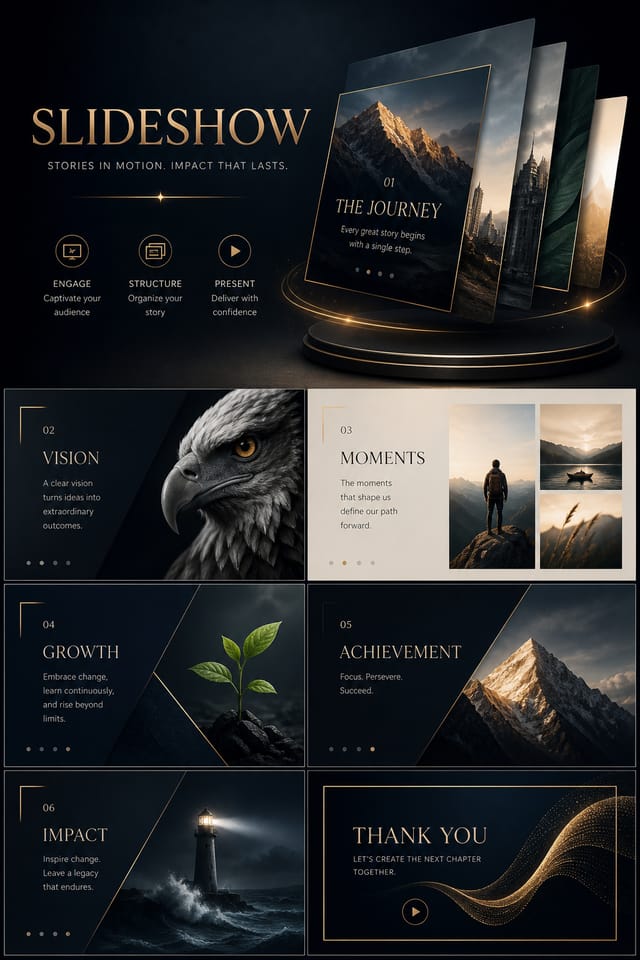
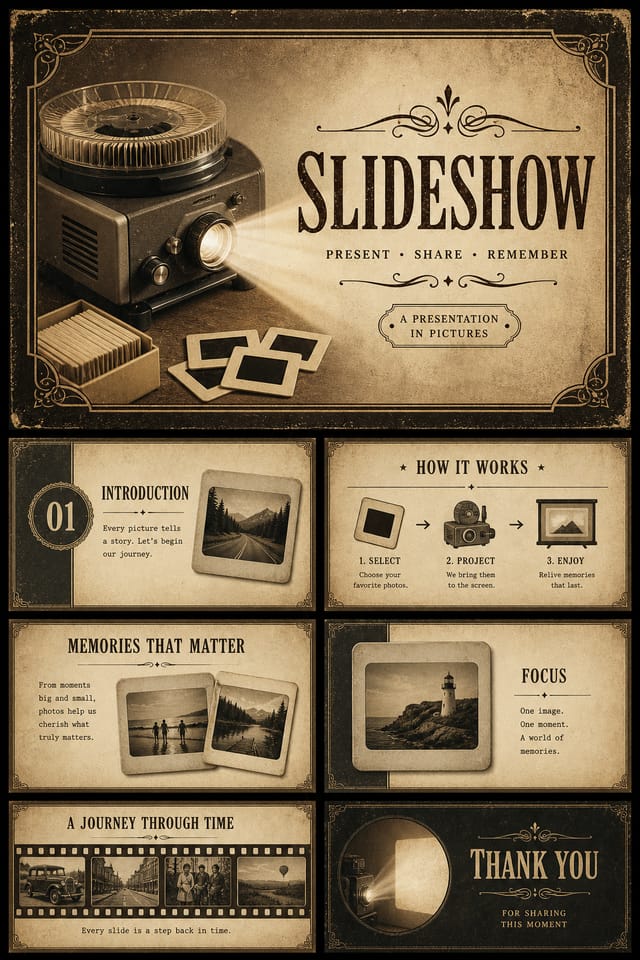
Refined slideshow aesthetic slideshow, sophisticated color relationships, intentional negative space, type selection matching slideshow conventions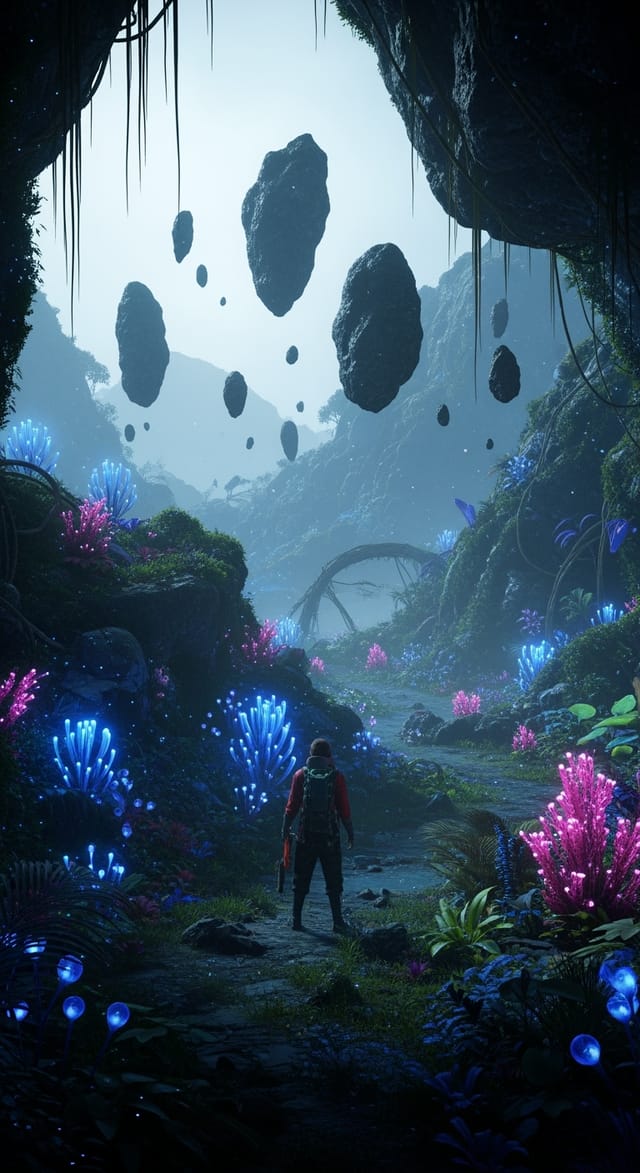
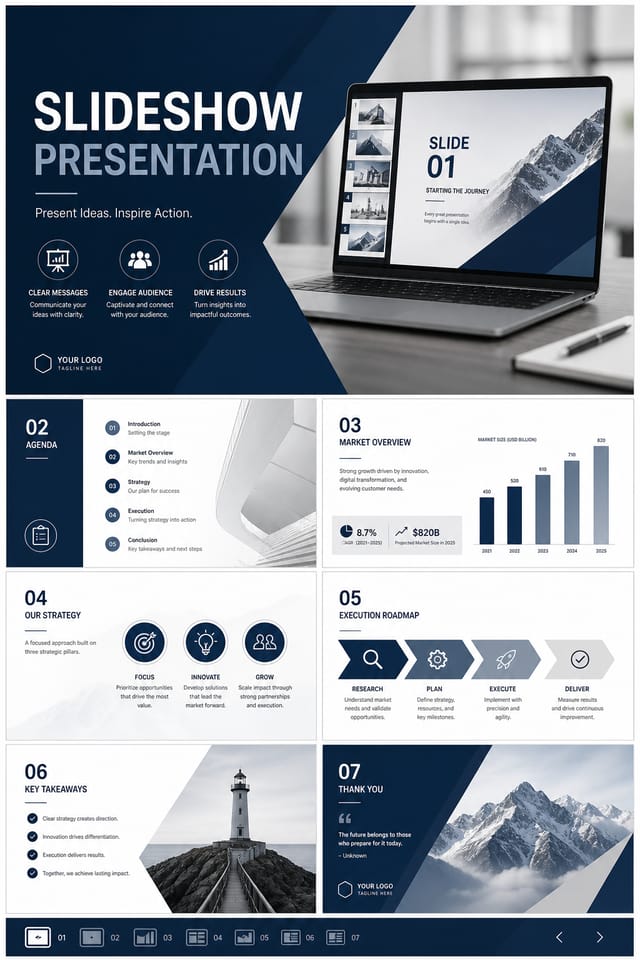
Bold slideshow with strong central headline, supporting information at secondary scale, background treatment consistent with slideshow designSlideshow Constraints: Honest Expectations
Known limitations and trade-offs of AI-generated slideshow design. Every AI design tool has boundaries. Knowing these limits before you start helps you get the most out of slideshow generation.
Your Slideshow Questions: A Quick FAQ
Describe your core design parameters in each prompt and vary only the specific elements that should change across the series. Maintaining consistent color palette, typographic approach, and compositional structure across slideshow variations creates a coherent series.
Professional slideshow design comes down to the right color relationships, appropriate typographic hierarchy, and compositional balance that fits slideshow aesthetic conventions. Generic designs miss these details because they apply neutral defaults rather than style-specific decisions. Pixazo applies slideshow design knowledge when you specify the style.
Team accounts allow multiple users to share prompts, saved slideshow designs, and brand kits within a shared workspace. Team members can iterate on each other's slideshow designs and maintain consistent output across projects.
Generate your initial slideshow, review the output, then modify your prompt to adjust specific elements. Each regeneration produces a fresh design incorporating your changes. Most users reach their final slideshow design within two to four iterations.
Pixazo is free to start with a credit card, so you can generate slideshows at standard resolution. Paid plans unlock higher resolution, priority generation, and additional export formats. You can try slideshow generation free with a credit card.
Pixazo generates single-page slideshow designs per prompt. For multi-page projects, generate each page individually using consistent prompt language to maintain visual continuity across your slideshow document set.
Slideshow Starter Prompt Formulas
Copy any prompt below and paste it into Pixazo to generate your design instantly.
Slideshow with strong visual hierarchy, largest element reads clearly, supporting elements organized by importance, clean background treatmentTwo-color slideshow design, high contrast between primary and secondary color, clean separation between graphic and text zonesPortrait-orientation slideshow, vertical composition, headline at natural reading entry point, supporting information flows downward logicallyAtmospheric slideshow, background treatment supports the headline without competing with it, visual weight distributed intentionallySlideshow aesthetic slideshow, palette drawn from slideshow design tradition, layout proportions consistent with slideshow conventions, purposeful use of each element
