REVEAL
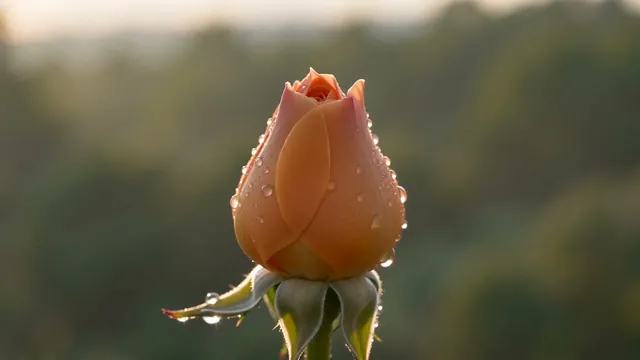
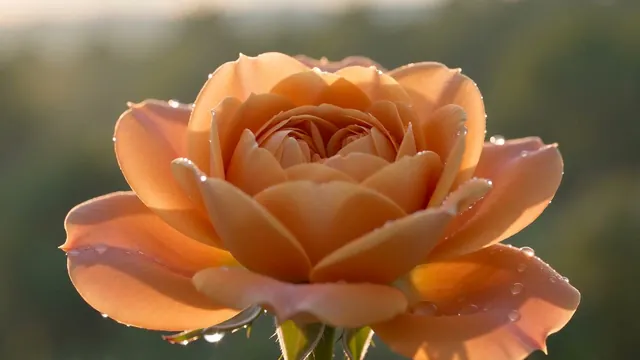
Bloom / reveal
A subject unfolds or grows into the next — a bud blooming into a full flower.
Blend two clips or images into one seamless video — pick a start frame and an end frame, choose an effect, and Pixazo’s AI generates the transition between them. Every clip here is real output.
Free video transitions to start · 7-day trial · MP4 export
Connect your clips with transitions that turn static shots into living, animated video.
01
Start and end from a photo or a video frame — go photo-to-photo, video-to-video, or mix both.
02
Morphs, whip-pans, dissolves, zoom-blurs and match-cuts — a diverse set of effects, not one preset.
03
The transition follows your first shot's aspect ratio, so the join stays clean — square, wide or vertical.
04
Short, vertical-friendly clips built for TikTok and Reels — add your own trending audio and post.
05
Name the style you want — morph, whip-pan, dissolve, zoom-blur — and the model matches it.
06
Exports as a clean MP4 with no audio, ready to place on any timeline.
AI video transitions are short clips that blend one shot into the next — a morph, a whip-pan, a dissolve — generated by AI instead of dragged from a preset library. With Pixazo you give a start shot and an end shot (or a text prompt), and the model renders the seamless motion between them.
There are two honest ways to use them here. Generate a transition clip with Pixazo's video model, then assemble your cut in the P Agent — arrange clips on a timeline and add video editing transitions where two shots meet. Unlike stock video editor transitions dragged from a preset list, these are generated to fit your exact two shots.
The result downloads as an MP4 you can drop into any edit. Pixazo is an access layer over third-party video models and doesn't own them.
Two real frames go in; the AI invents every frame between them. Here's a real forest-to-ocean transition shown as the two shots it was built from — nothing in the middle existed until the model generated it.
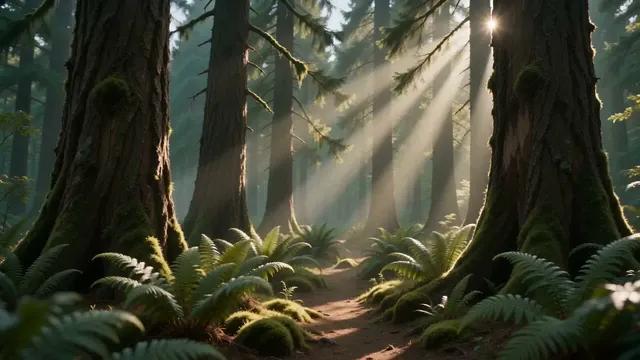
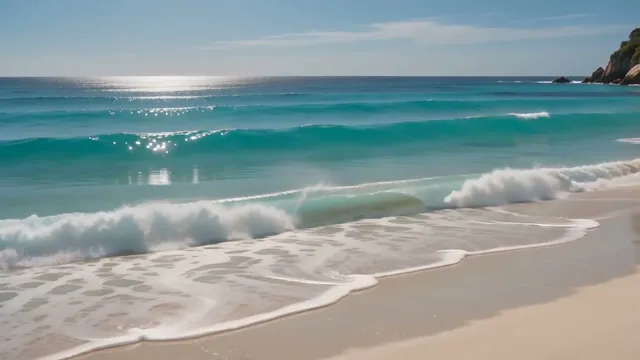
Every transition on this page was generated the same way — real start and end frames, an AI-generated blend between them. No stock library.
See the transformations in action. Four real ones, generated end to end from their start and end frames, plus more video transitions effects the model handles well.
A subject unfolds or grows into the next — a bud blooming into a full flower.
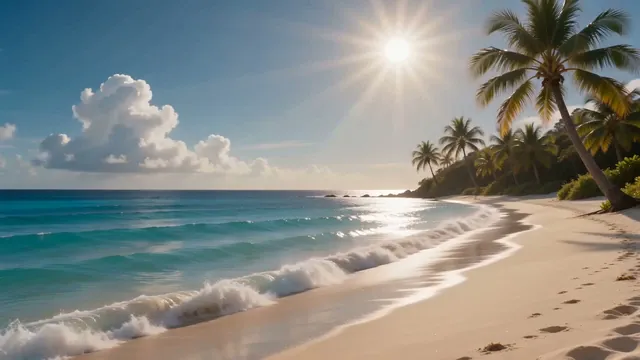
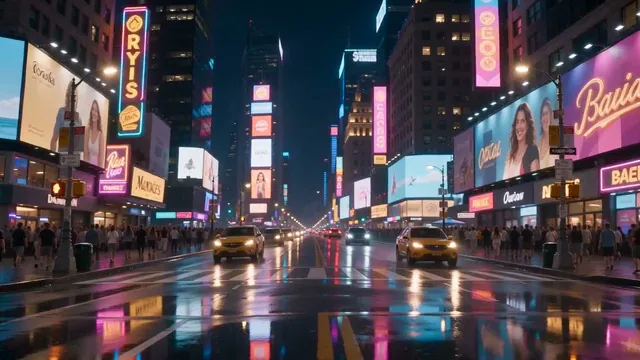
A fast motion-blur swipe throws you from one location to a completely different one.

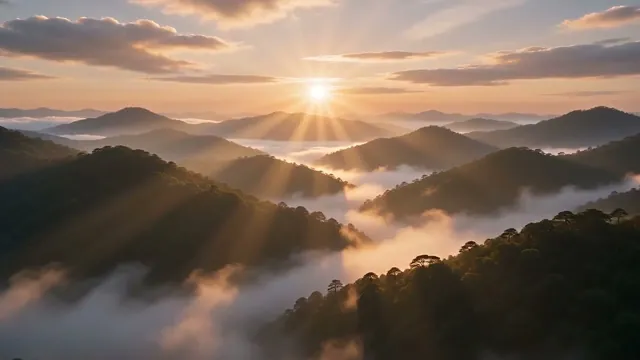
The camera rushes into a detail and emerges somewhere completely new.
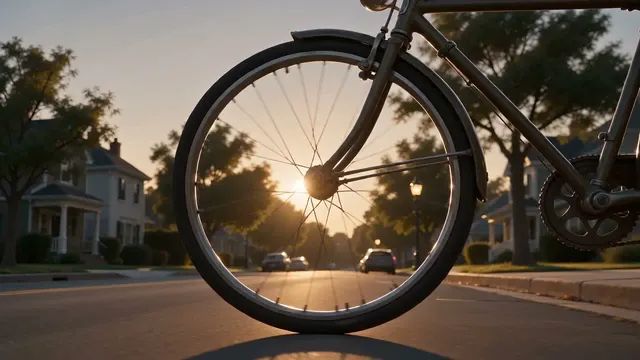
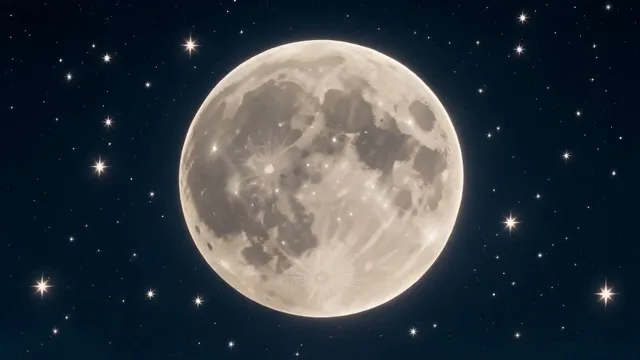
A shape carries across into a new scene — a wheel becoming a full moon.
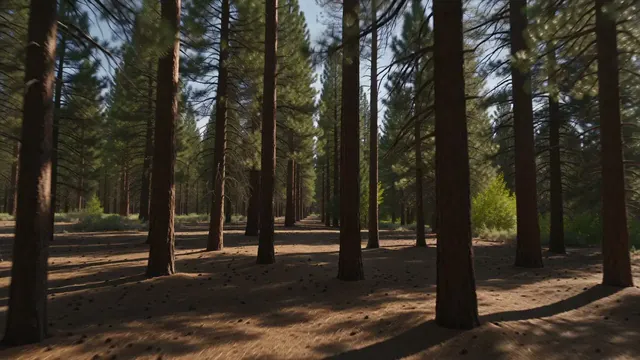
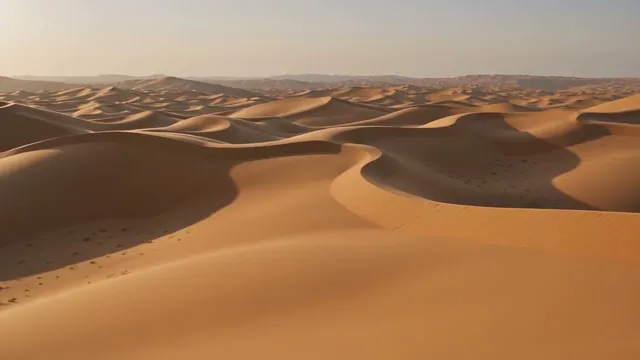
The whole frame whirls around into a completely different place.
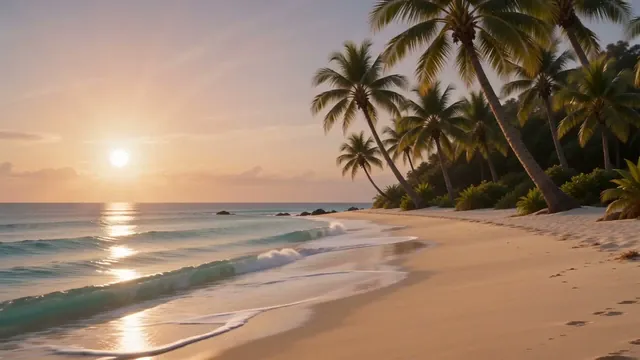
One shot slides out of frame as the next pushes in.
More video transitions effects the model handles well:
Add two clips, choose an effect, and get one seamless video — in four steps.
Upload the clip or photo you're coming from and the one you're going to — or describe them in a prompt.
Pick a transition — morph, whip-pan, dissolve, zoom-blur — so the model knows the style you want.
Pixazo's model renders the motion that blends your two shots into a single continuous MP4 clip.
Drop it where two clips meet in the P Agent, then export an MP4 for Reels, YouTube or ads.
01
Snap between scenes with a whip-pan or morph to keep a short video moving.
02
Smooth over jump cuts and scene changes so an edit feels intentional.
03
Reveal a product or a location change with a clean, branded transition.
04
Turn a set of stills or clips into a flowing sequence instead of hard cuts.
05
Morph a "before" into an "after" for makeovers, renovations or transformations.
06
Stitch travel or event footage together with time-of-day or location transitions.
Every editor can cut or crossfade. An AI transition is worth it when you want the two shots to actually connect, not just swap.
| Method | What it does | Feels seamless? | Best for |
|---|---|---|---|
| Hard cut | Instantly swaps shot A for shot B | No — it's a jump | Fast pacing, on the beat |
| Preset crossfade | Fades A out while B fades in | Somewhat, but generic | Quick, safe blends |
| Manual keyframing | You animate the blend by hand | Yes, with effort | Full control, more time |
| AI transition (this) | Generates new motion that links A to B | Yes — the shots connect | Morphs and reveals in seconds |
They're generated, not scripted frame by frame — so knowing the edges saves you credits.
Transitions run a few seconds. They're the bridge between shots, not a whole scene.
When the start and end share composition, the morph is clean; wildly different shots can look busy.
Fine detail — faces, hands, readable text — may warp mid-transition. Keep those out of the blend.
You steer with shots and a prompt, not keyframes. The same inputs can move a little differently each run.
Transitions generate video, not audio. Add whooshes or music afterward in your editor.
Every generation costs credits and you'll often run a few — draft cheap, finish on the good one.
Five habits that separate a slick blend from a messy one.
| You provide | A start shot and an end shot (images or frames), or a text prompt |
|---|---|
| You get back | A short MP4 transition clip, a few seconds long, no audio |
| Where it runs | Pixazo's video model + the P Agent timeline editor |
| Best inputs | Two shots with similar composition and a named transition style |
| Cost | 7-day free trial; a subscription after — see the pricing page |
| Access | Any modern browser — nothing to install |
Join creators animating photos and merging clips into seamless video — bring two shots and connect them, free to start.
Generate transition
