Online Video Trimmer & Cutter
Drag two handles, keep the good bit. Trim a clip, cut out the dead patches and crop the frame — on a real timeline, in your browser. It’s built into Pixazo’s P Agent, so a cut is one step from dubbing and lip-sync.
 00:00:08:12 / 00:00:24:00
Clip · properties








Three cuts, one timeline
Trim, cut and crop any clip.
The edits you reach for constantly — the ones that usually mean opening heavy desktop software and waiting for it to load. Here they’re two drags and an export.
Trim
Set an in-point and an out-point and keep only the stretch you want. Shorten a long recording down to the moment that actually lands.

Cut
Slice a dead patch out of the middle — a stumble, a pause, a blooper — and close the gap so the clip flows without a jump.
 →
→
Crop
Reframe the picture — vertical for Reels and Shorts, square for the feed, wide for the timeline — without stretching or squashing it.
The workflow
From clip to export in three moves.
No install, no timeline software to learn. The trimmer runs in the P Agent in your browser — open it, and you’re editing in seconds.

Step 01
Open the studio & drop your clip
Add the video you want to cut — a phone clip, a screen recording, a piece of footage, or an AI-generated shot. It loads straight onto the timeline.

Step 02
Mark in & out
Slide the lime handles to frame the keeper, or drop a cut to remove a middle section. Scrub the playhead to preview the edit before you commit to it.
Step 03
Export the MP4
Save a clean, trimmed MP4 — ready for social, a slide deck, or as the input to one of Pixazo’s AI video tools in the same workspace.
Get a clean cut
Small habits that make a big difference.
Trimming is quick, but a few small moves separate a clip that feels tight from one that feels chopped.
Top & tail first
Trim the dead air off the start and end before anything else. Most clips get 30% shorter just from cutting the “is it recording?” moments.
Cut on motion
Make your cut where something is already moving — a gesture, a pan, a step. Cuts on movement read as smooth; cuts on a still frame read as a jump.
Leave a breath
Keep a few frames before the action starts and after it ends. A cut that lands exactly on the beat feels abrupt; a small handle on each side feels intentional.
Crop for the platform, not after
Decide vertical, square or wide before you post — crop once, here, rather than letting the platform crop it badly for you.
Keep one idea per clip
For Reels and Shorts, trim to a single moment. Two ideas in one short clip usually means two clips.
Trim before you enhance
Cut the clip down first, then dub, lip-sync or upscale — you’ll only process the footage you’re actually keeping.
Two ways to cut
Online trimmer vs a desktop editor.
A full editor is the right tool for a full production. For a quick trim, cut or crop, an online trimmer gets you there faster.
| Pixazo online trimmer | Desktop editor | |
|---|---|---|
| Install | None — runs in the browser | Download, install, update |
| Learning curve | Drag two handles | Panels, tracks, keyframes |
| Best for | Quick trim, cut, crop | Full multi-clip productions |
| Where you work | Same place you dub & lip-sync | A separate app |
| Get to a cut in | Seconds | After a project setup |
| Output | A clean MP4 | Any format, more settings |
Inputs & outputs
What goes in and out.
The video cutter is built around the everyday web format: bring an MP4 and get a clean MP4 back. You’re removing sections and reframing — not re-shooting — so your source resolution carries straight through. A trim shouldn’t cost you quality.
And because it lives in the P Agent, the clip you trim is right there for the next step — dub it, lip-sync it, or feed it into a generator without exporting and re-uploading.
Why people trim
Made for the quick cut.
The jobs a trimmer handles every day — each one a couple of drags away.

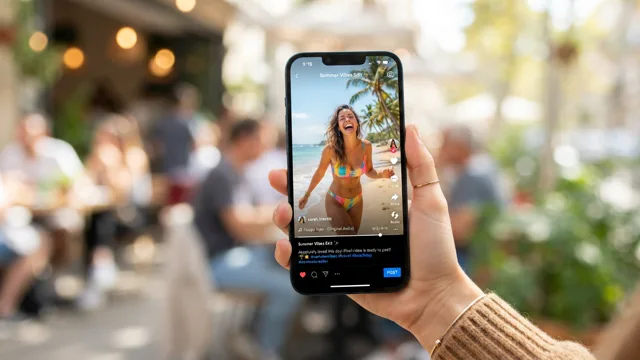
Reels & Shorts
Cut a long take down to the punchy few seconds that hold attention.

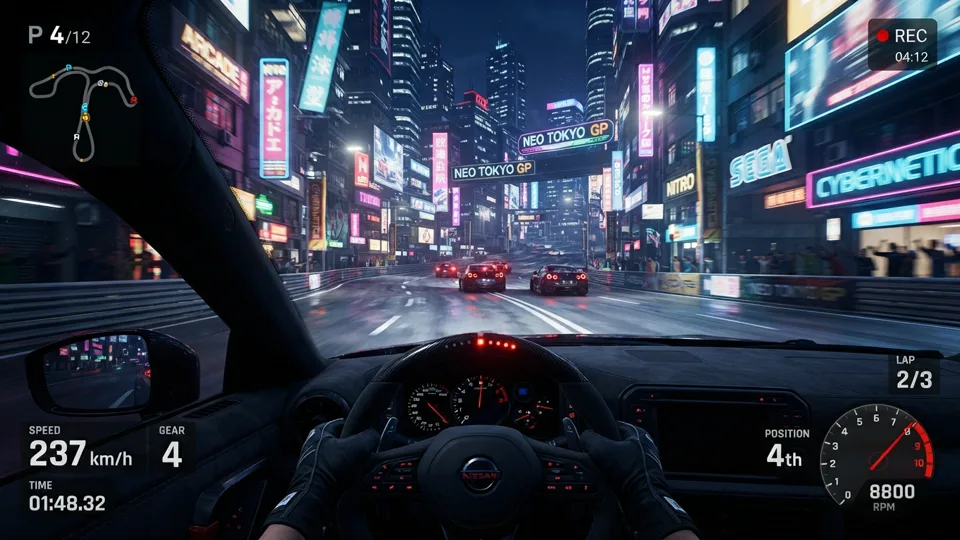
Action highlights
Grab the wave, the trick, the drop — keep the peak, lose the run-up.
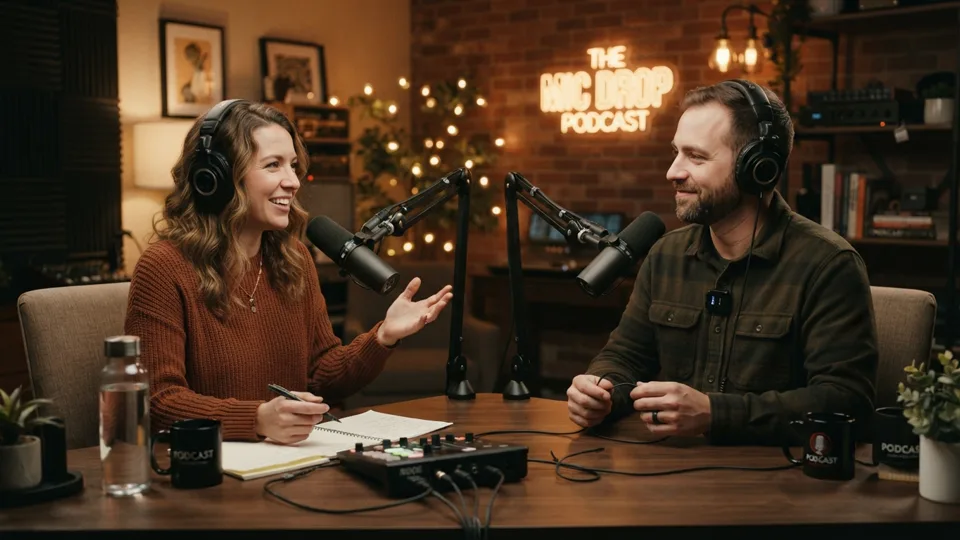
Podcast clips
Pull a shareable soundbite out of a long interview to post.
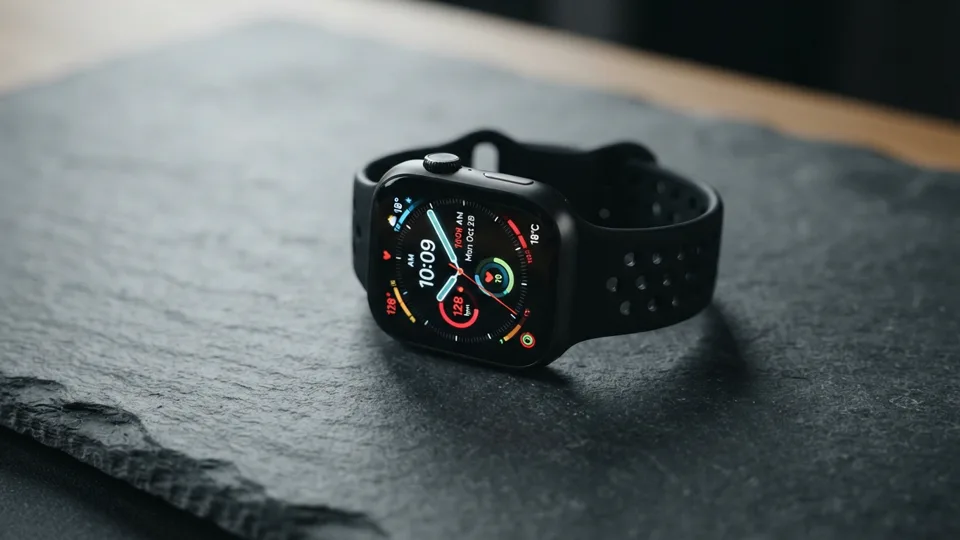
Product promos
Trim a product shot to the hero beat for an ad or a store page.

Cut the dead air
Trim silence and fumbles out of a how-to or tutorial recording.

Event recaps
Pull the best moments out of a long event recording into a recap.
Where it lives
Part of the P Agent.
The trimmer isn’t a one-off page — it’s one move inside Pixazo’s P Agent, a browser workspace where you cut, dub, translate and lip-sync in the same place.
Cut here, finish here.
Trim a clip, then keep going in the same workspace — translate the dialogue, clone the voice, re-sync the mouth, or hand the tidy clip to a generator. No exporting and re-uploading between tools.
Make it, then trim it
Pairs with your Pixazo videos.
Generate a clip with these, then trim it down — all live today.



Good to know
Questions people ask.
Where do I trim a video on Pixazo?
In the P Agent — a browser workspace where trimming, cutting and cropping sit alongside dubbing and lip-sync. Open the studio, add your clip, mark the in- and out-points, and export.
Do I need to install anything?
No. The video cutter runs in your browser — no download, no plugin, no timeline software to learn. Add a clip, drag the handles, export the MP4.
Which formats can I trim?
It’s built around MP4 — the format most cameras, phones and AI tools produce — and exports a standard MP4 that plays anywhere. Bring your clip as MP4 for the smoothest result.
Will trimming lower my video’s quality?
You’re removing sections and reframing, not re-shooting, so your source resolution carries straight through. The goal is a clean cut that looks exactly like your original — just shorter or reframed.
Can I crop a video as well as trim it?
Yes. Alongside trimming and cutting, you can crop a video to reframe it — vertical for Reels and Shorts, square for the feed, or wide for a timeline — without stretching the picture.
How long a video can I trim?
Short clips and long recordings both work — drop in a 10-second phone clip or a 30-minute interview and pull out the segment you need. Longer files take a little longer to load onto the timeline.
How much does it cost?
Trimming lives in the P Agent, which runs on your studio balance. Open the studio for current usage and pricing before a big job — a quick trim is a light operation.
Can I trim, then dub or lip-sync the same clip?
Yes — that’s the point of doing it in the studio. Cut the clip down, then translate the dialogue, clone the voice or re-sync the mouth in the same workspace, with no re-uploading between tools.
What can I make to trim?
Anything — and if you need footage, the AI Video Generator and image to video tool create clips you can trim straight after.
Deepak Joshi
Content Marketing Specialist · Pixazo
Deepak Joshi is a Content Marketing specialist having a combined experience of 10+ years working in the digital world. He is one of the active contributors to Pixazo Blog and has keen interest creating and marketing content related to AI tools, No-Code technology, Design Industry, Social Influencers, and other trending topics. A health and sport enthusiast, Deepak loves to indulge in all kinds of sports & games.
Cut your clip down to size.
Trim, cut and crop your video in the P Agent — then dub, lip-sync or generate right where you left off.
Open the video trimmer →
