AI Image Background Remover
Remove background from photos for free using our AI Image Background Remover.
Free to startTransparent PNG outputWorks in your browser
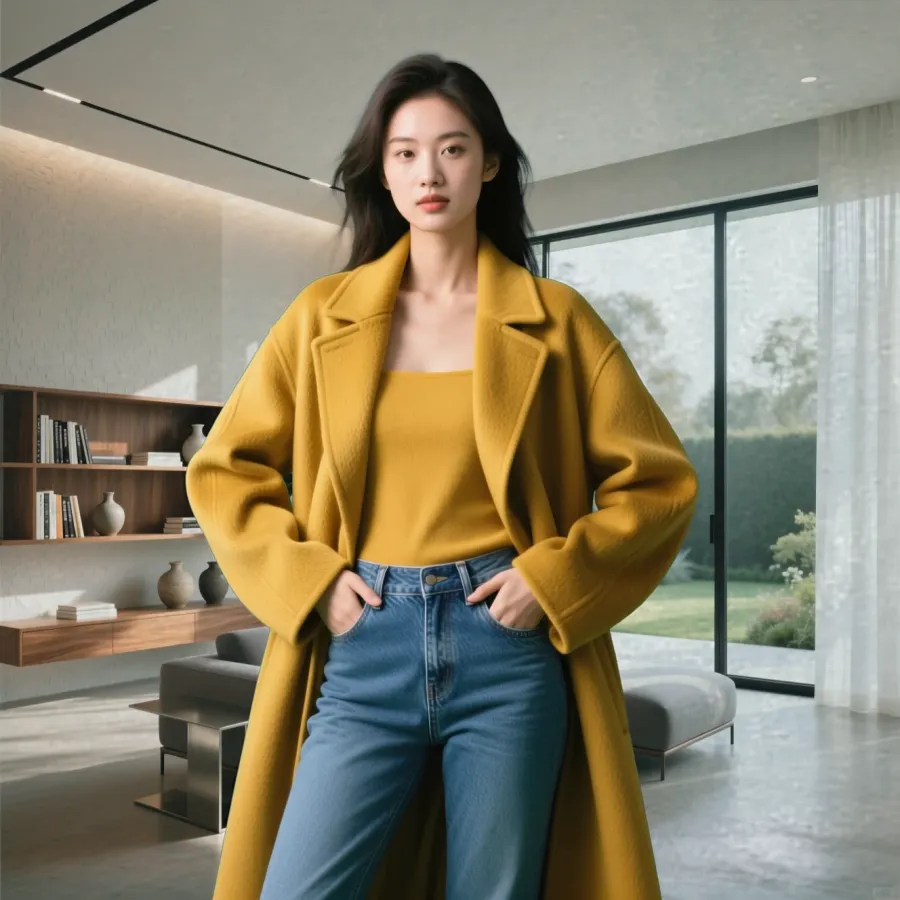
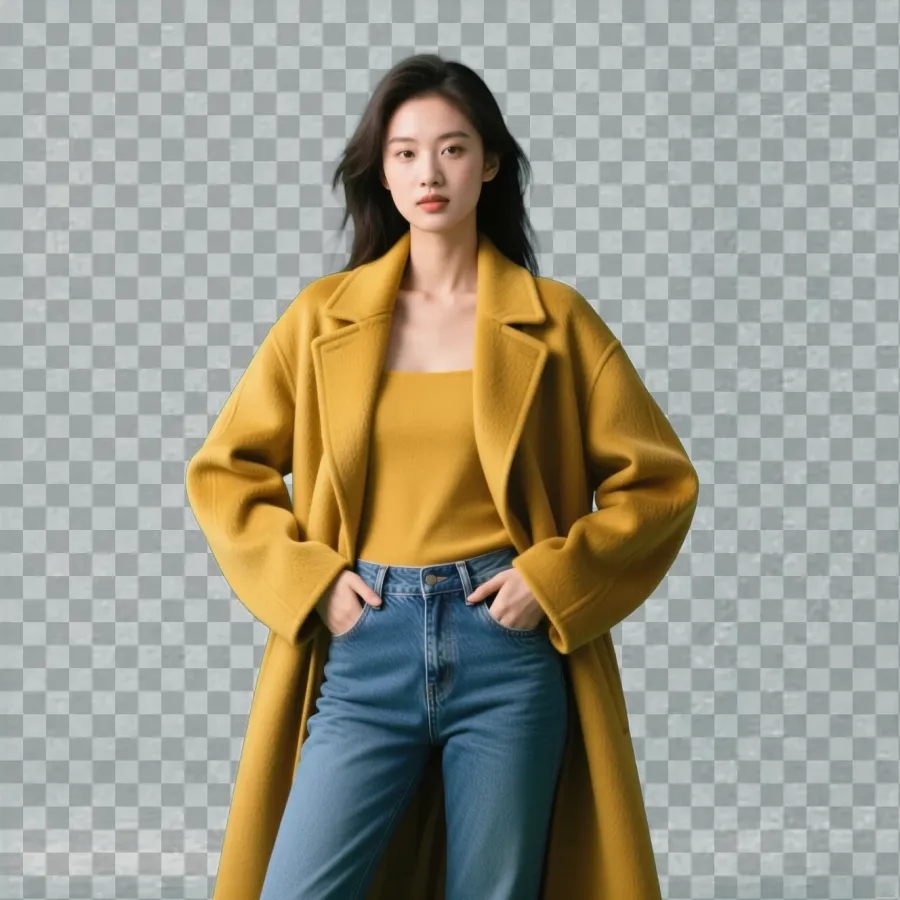 OriginalRemoved
Drag the handle — background removed with Pixazo AI (illustrative, AI-generated).
In a nutshell
What is an AI image background remover?
An AI image background remover automatically detects the main subject in a photo — a person, product, or pet — and erases everything behind it, leaving a clean cut-out on a transparent background. It replaces the slow, pixel-by-pixel masking you’d do by hand in a photo editor.
Upload an image, let the AI separate subject from background, and download a ready-to-use transparent PNG — or drop your subject onto a new colour or scene. It runs in the Pixazo image editor, right in your browser.
Looking to remove backgrounds from clips instead? Use the AI Video Background Remover. Every image on this page was generated with Pixazo’s AI and is illustrative.


Step by step
How do you remove a background?
Three steps, all in the browser.
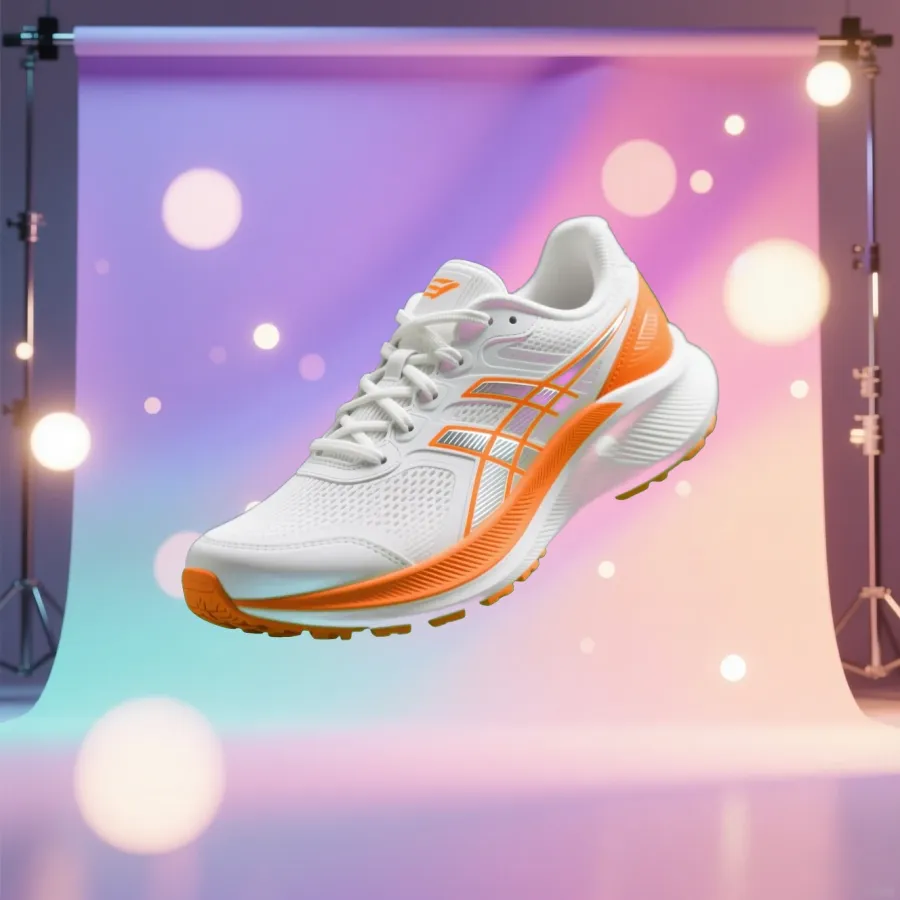
01
Upload your image
Drop in a JPG, PNG or WEBP — a portrait, product shot or pet photo works best.
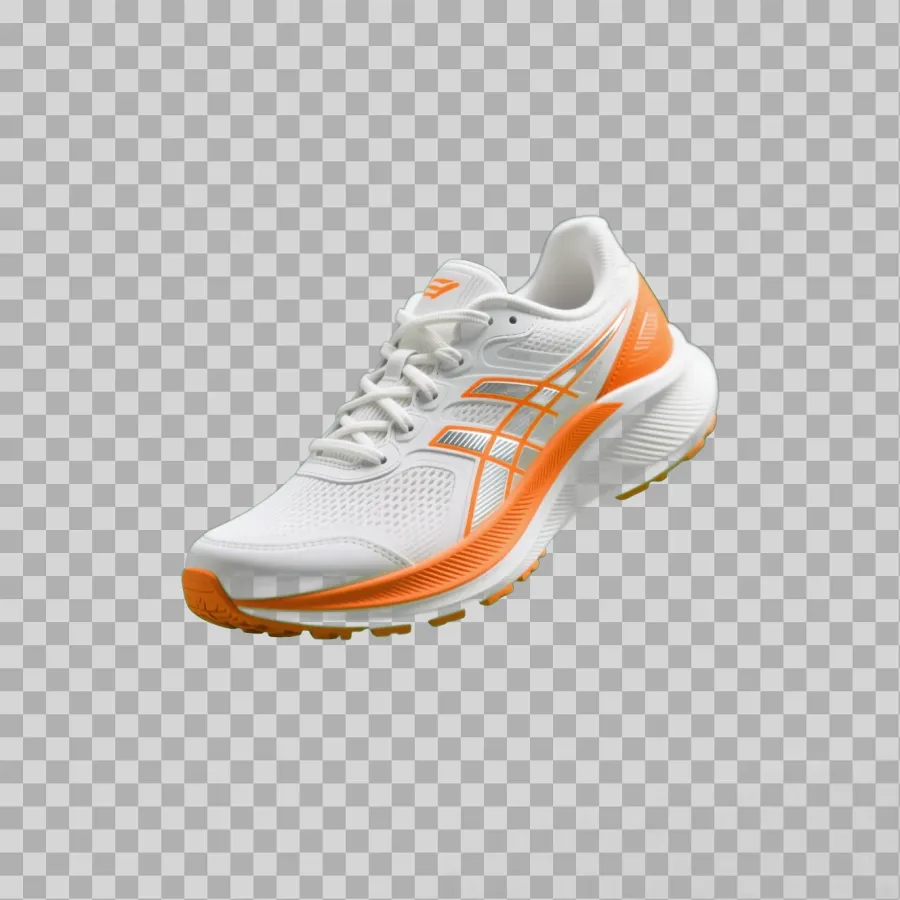
02
AI removes the background
The subject is detected and cut out automatically — no manual selection or masking.
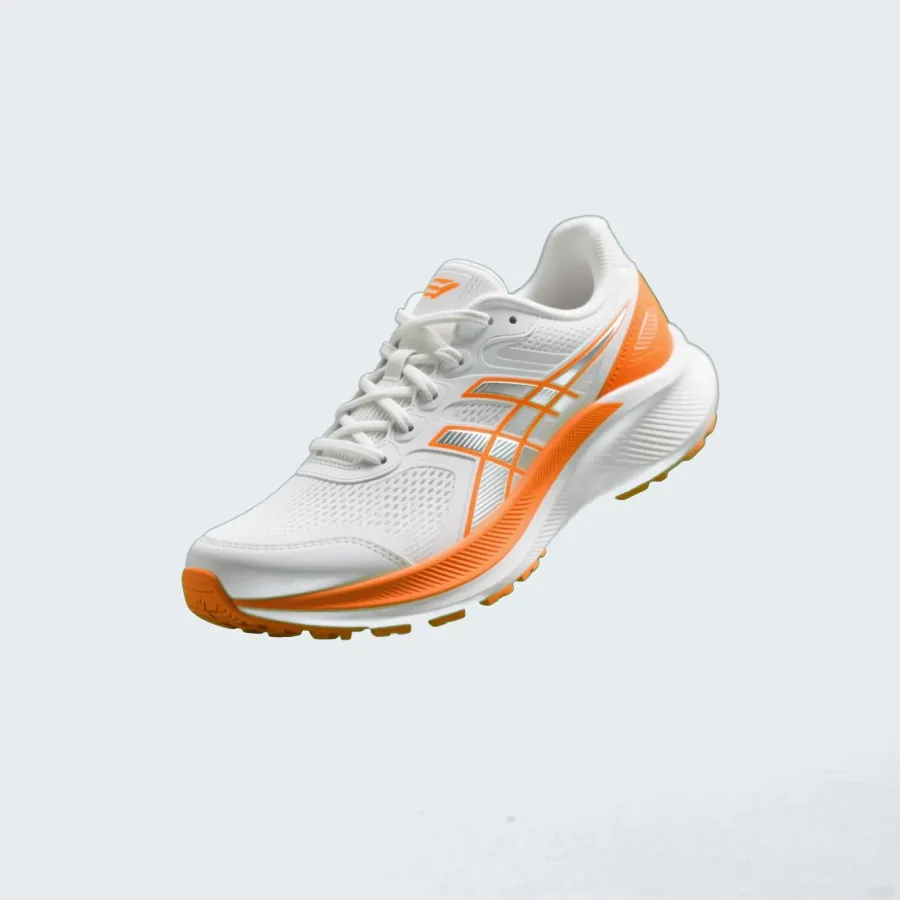
03
Download or restyle
Save a transparent PNG, or drop your subject onto a new colour or background.
Examples
Clean cut-outs, every subject.
People, products and pets — isolated on transparent backgrounds, ready to place anywhere.
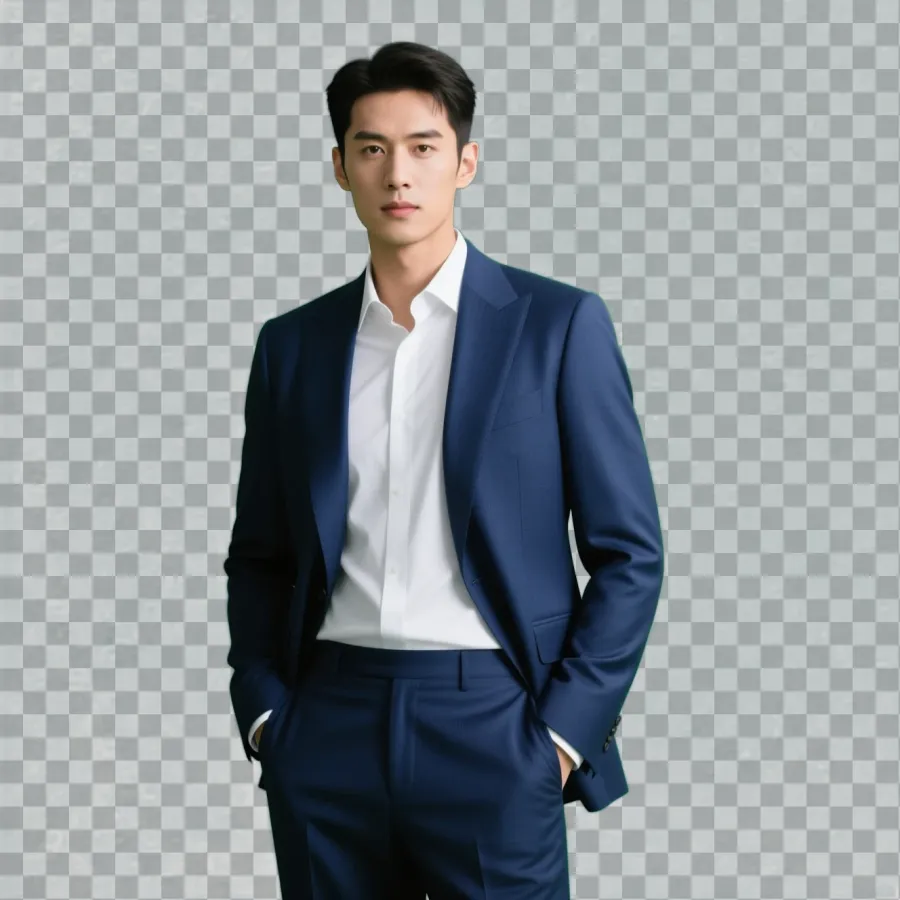
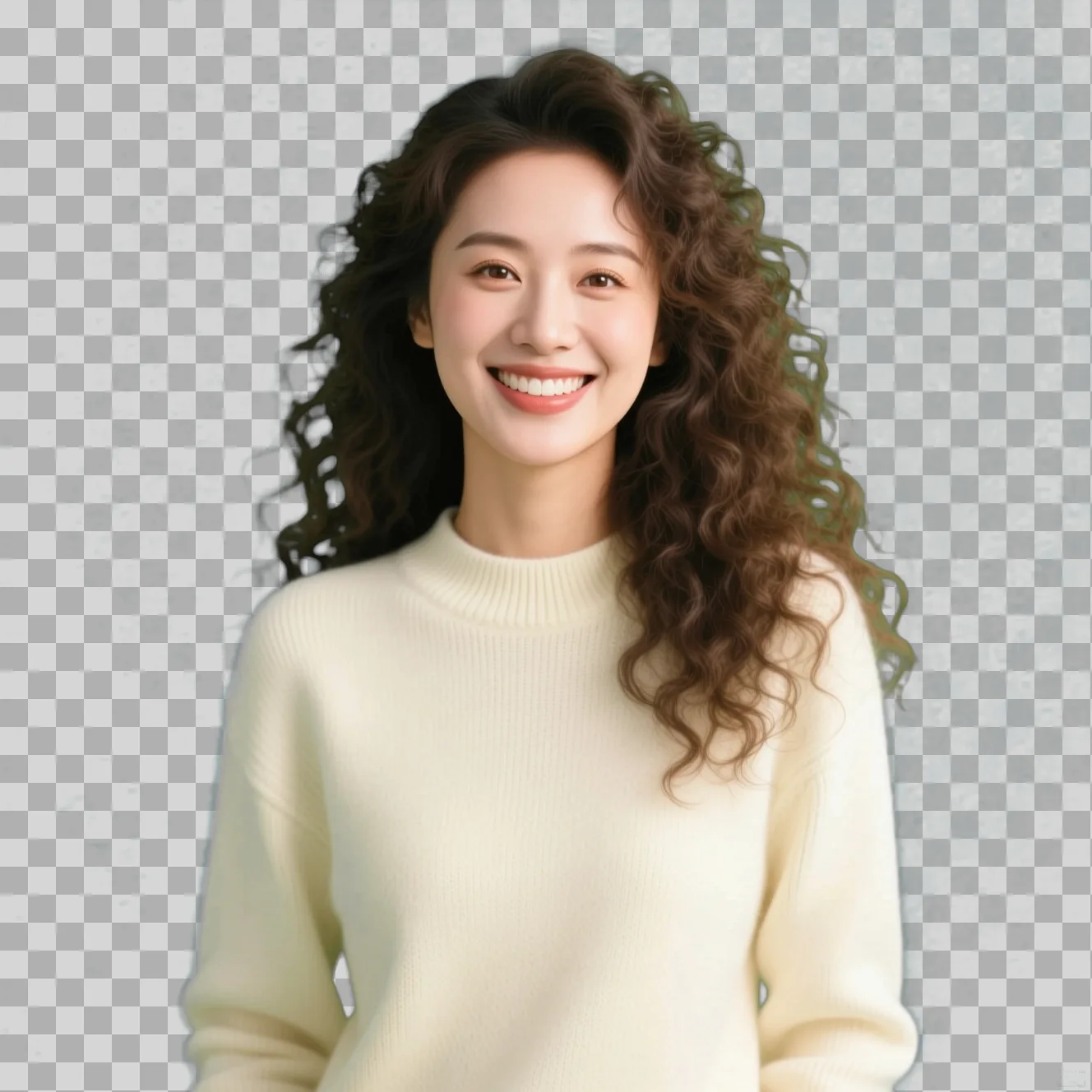
Portraits & headshots
Clean subject cut-outs for profiles, IDs and team pages.
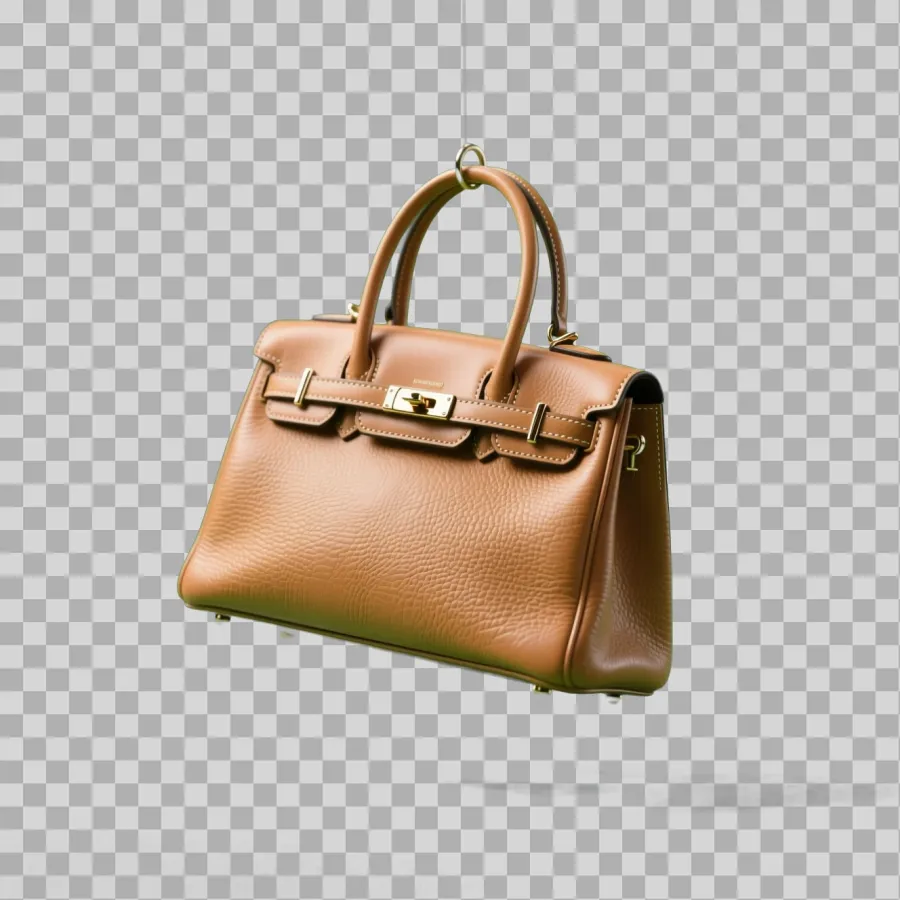
E-commerce shots
Consistent white or transparent product images for listings.
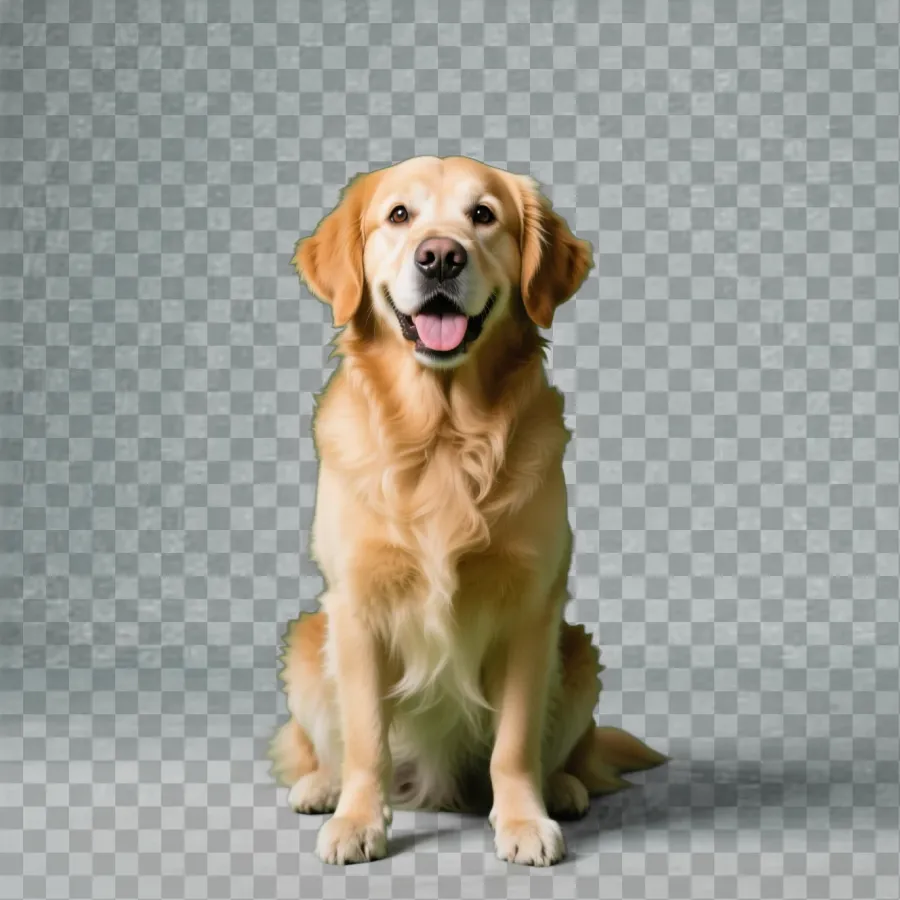
Furry friends
Pets cut out cleanly for collages, cards and stickers.
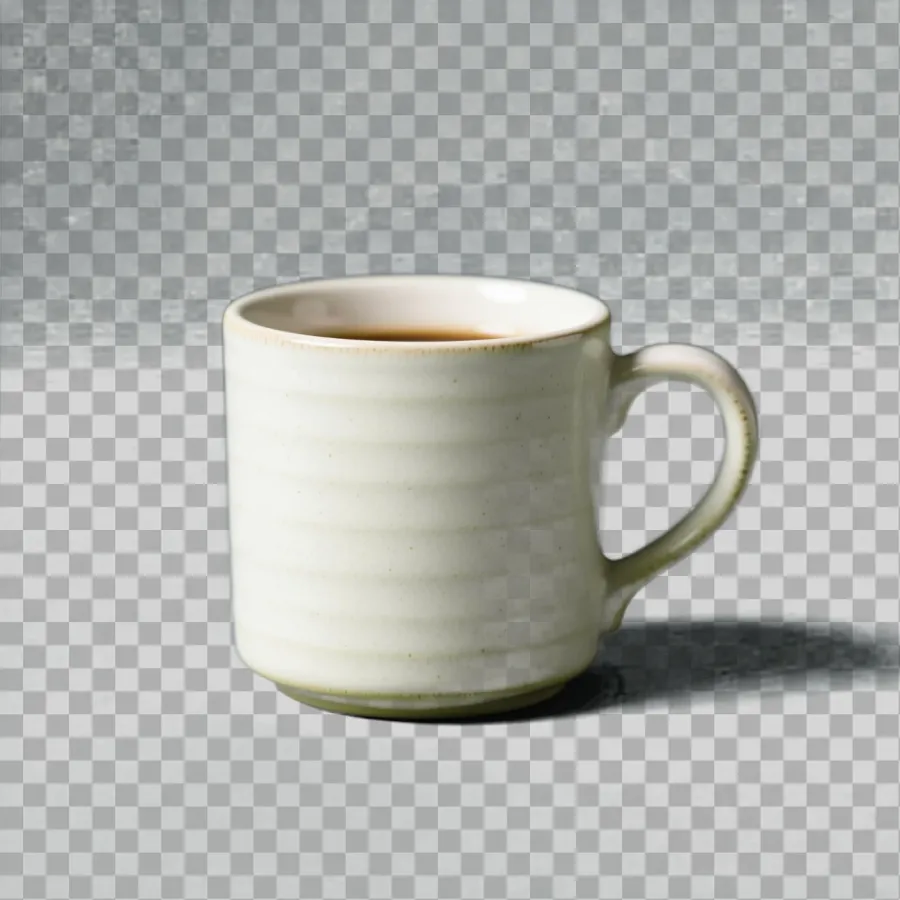
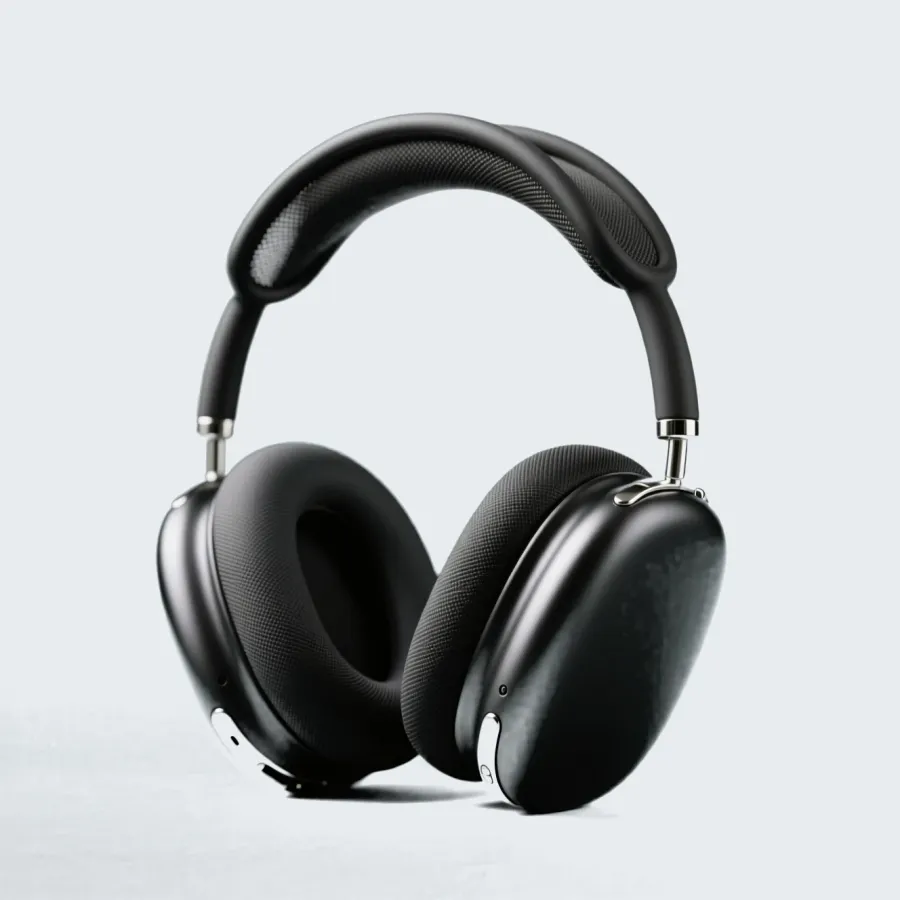
Objects & props
Mugs, gadgets and decor isolated for catalogues and mockups.
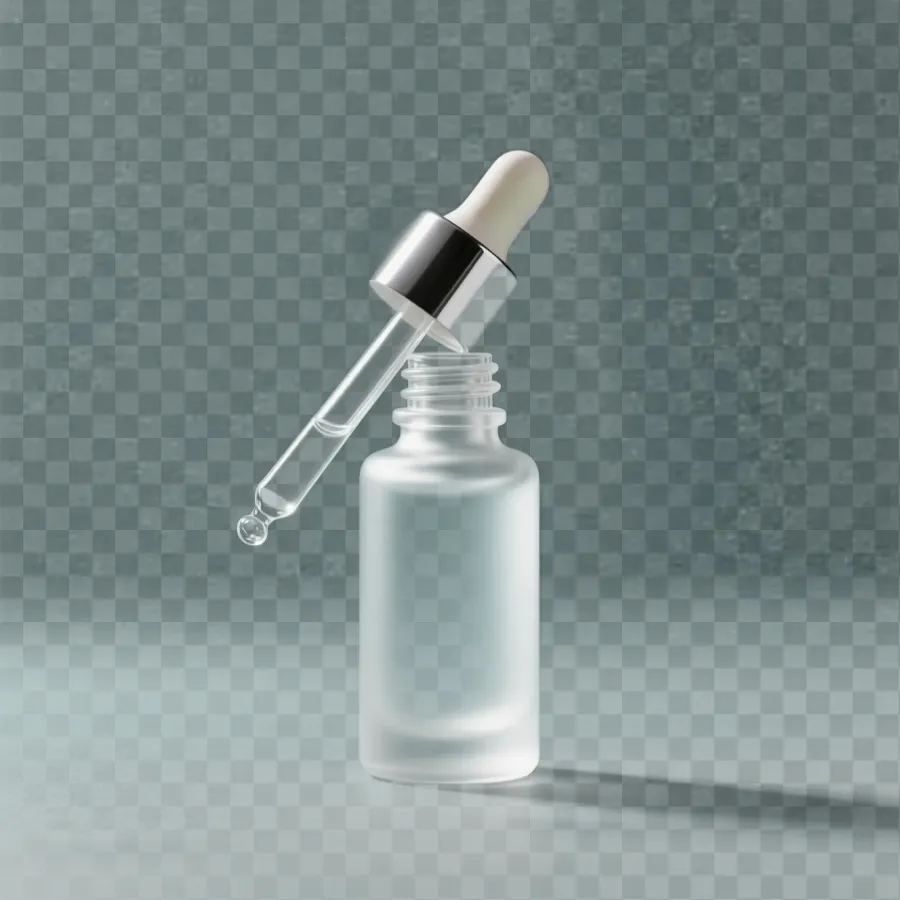
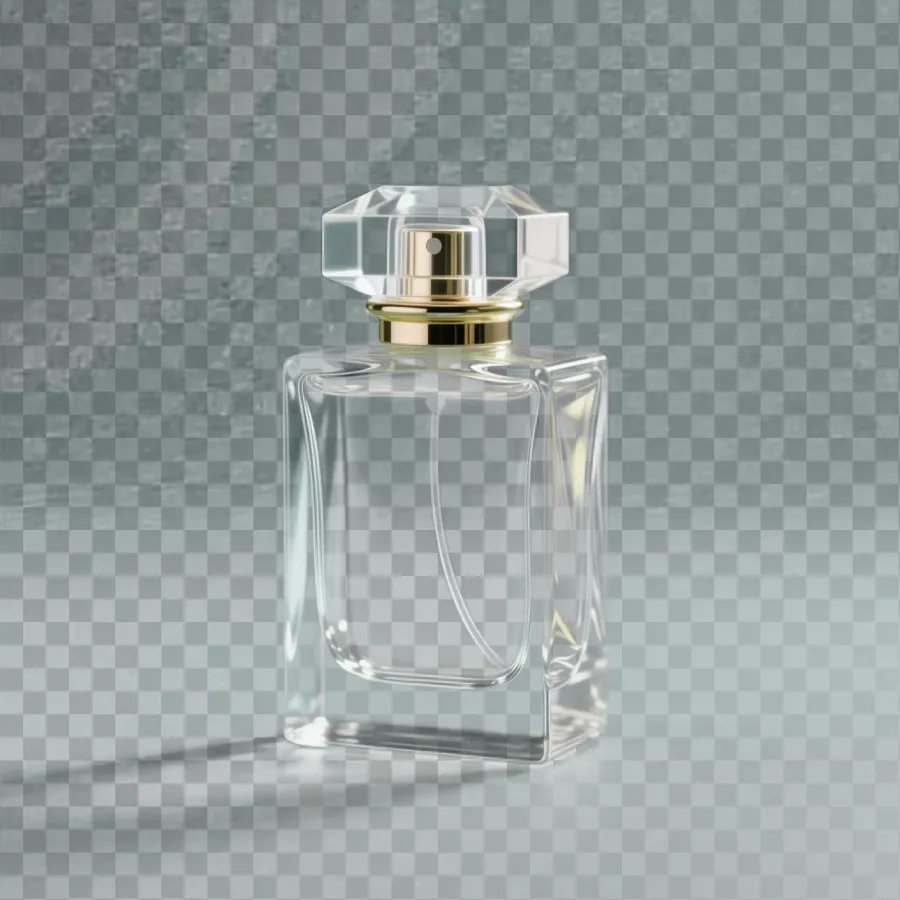
Cosmetics & skincare
Glossy, glass and reflective packaging cut out for clean listings.
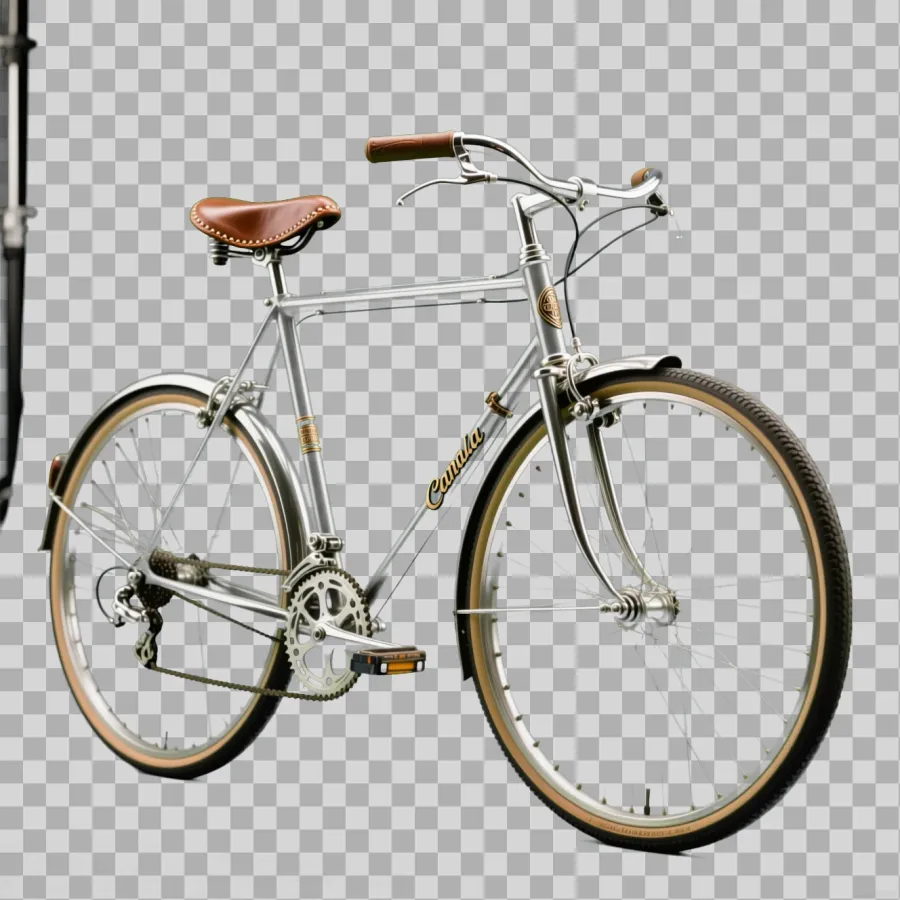
Bikes & furniture
Even big, detailed objects are isolated cleanly for resale shots.
Spec sheet
What you get.
Inputs and outputs — capabilities only, no invented benchmark numbers.
| Input formats | JPG, PNG, WEBP |
|---|---|
| Best subjects | People, products, pets, objects with a clear edge |
| Output | Transparent PNG cut-out (or subject on a new colour/background) |
| Masking | Automatic — no manual selection needed |
| Cost | Free to start in the Pixazo editor |
| Where it runs | Any modern browser — nothing to install |
| Also available | Background removal for clips — see the AI Video Background Remover |
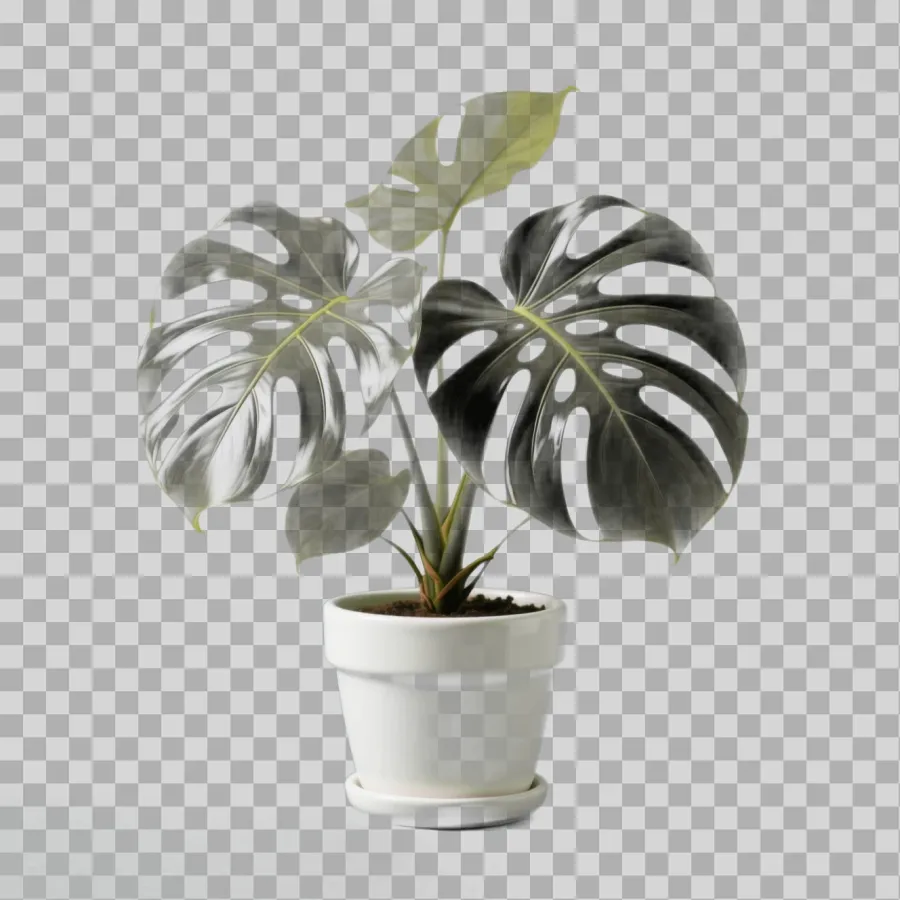
Who uses it
What is it for?
E-commerce & sellers
Put products on clean white or transparent backgrounds for marketplaces and ads.
Profiles & IDs
Turn any photo into a tidy headshot cut-out for CVs, badges and team pages.
Designers & creators
Grab transparent subjects for thumbnails, posters, collages and stickers.
Social & marketing
Drop people and products onto branded backgrounds in seconds.
Why AI
By hand vs with AI.
Removing a background manually means zooming in and tracing edges with the pen or lasso tool — slow, and rarely clean on hair. AI does the selection for you in one step.
The manual way
Open a photo editor, pick the pen or magic-wand tool, trace the subject, refine the mask, feather the edges, then export — a few minutes per image and tricky on fine detail.
The AI way
Upload the photo and the subject is detected and cut out automatically — seconds per image, batch-friendly, and no manual masking.

Pro tips
Get the cleanest cut-out.
A few habits make automatic removal look flawless.
- 01Use a well-lit photo with clear contrast between the subject and the background — it gives the crispest edge.
- 02Keep the subject in focus; motion blur and heavy noise soften the mask.
- 03For products, shoot on a plain surface — the cut-out is cleaner and reflections are easier to keep.
- 04Start from the highest-resolution version you have; you can always scale the transparent PNG down afterwards.
- 05For hair or fur, pick a shot where strands fall against a simpler area of the background.
Honest limits
What to keep in mind.
Automatic cut-outs are fast, but a few things still need a human eye.
- 01Fine detail like flyaway hair, fur and transparent glass can need a touch-up on tricky shots.
- 02Low-contrast subjects (subject and background a similar colour) are harder to separate cleanly.
- 03It edits still images — for moving footage use the AI Video Background Remover.
- 04Always check you have the rights to any photo before editing and publishing it.
Good to know
Background remover questions.
Is the AI image background remover free?+
You can remove backgrounds for free in the Pixazo editor. Check the playground for current limits before heavy use.
Does it give me a transparent PNG?+
Yes — you get a transparent PNG cut-out, or you can drop your subject onto a new colour or background.
What image formats can I upload?+
JPG, PNG and WEBP images work. Clear, well-lit subjects give the cleanest cut-outs.
Can it remove backgrounds from products for my store?+
Yes — it’s widely used for e-commerce product shots on white or transparent backgrounds.
Does it work on hair and fur?+
It handles most edges well; very fine flyaway hair or fur on low-contrast shots may need a small touch-up.
Can I remove the background from a video?+
Not on this tool — use the AI Video Background Remover for clips.
Do I need to install anything?+
No. It runs in any modern browser.
Can I remove backgrounds from many images at once?+
Yes — it’s built for repeat use, so you can process product shots or portraits one after another.
Can I put my subject on a white or coloured background?+
Yes — after removal you can keep it transparent or drop the subject onto white, a brand colour or a new scene.
Will it keep the original image quality?+
The cut-out preserves your subject at its original resolution; start from the sharpest photo you have for the best edge.
Is it good for e-commerce product photos?+
Very — consistent white or transparent product images are one of the most common uses for background removal.
Remove your image background.
Upload a photo and get a clean, transparent cut-out — free to start in the Pixazo editor.
Remove a background free →By Deepak Joshi
Content Marketing Specialist · Pixazo
Deepak Joshi is a Content Marketing specialist having a combined experience of 10+ years working in the digital world. He is one of the active contributors to Pixazo Blog and has keen interest creating and marketing content related to AI tools, No-Code technology, Design Industry, Social Influencers, and other trending topics. A health and sport enthusiast, Deepak loves to indulge in all kinds of sports & games.
AI disclosure: the before/after and cut-out images on this page were generated with Pixazo’s AI and are illustrative examples; results vary by photo.