AI Video Background Remover
Cut your subject out of any clip and drop them on a new scene — or export transparent. A free AI green screen alternative, no green screen needed, right in your browser.
The tool
What is an AI video background remover?
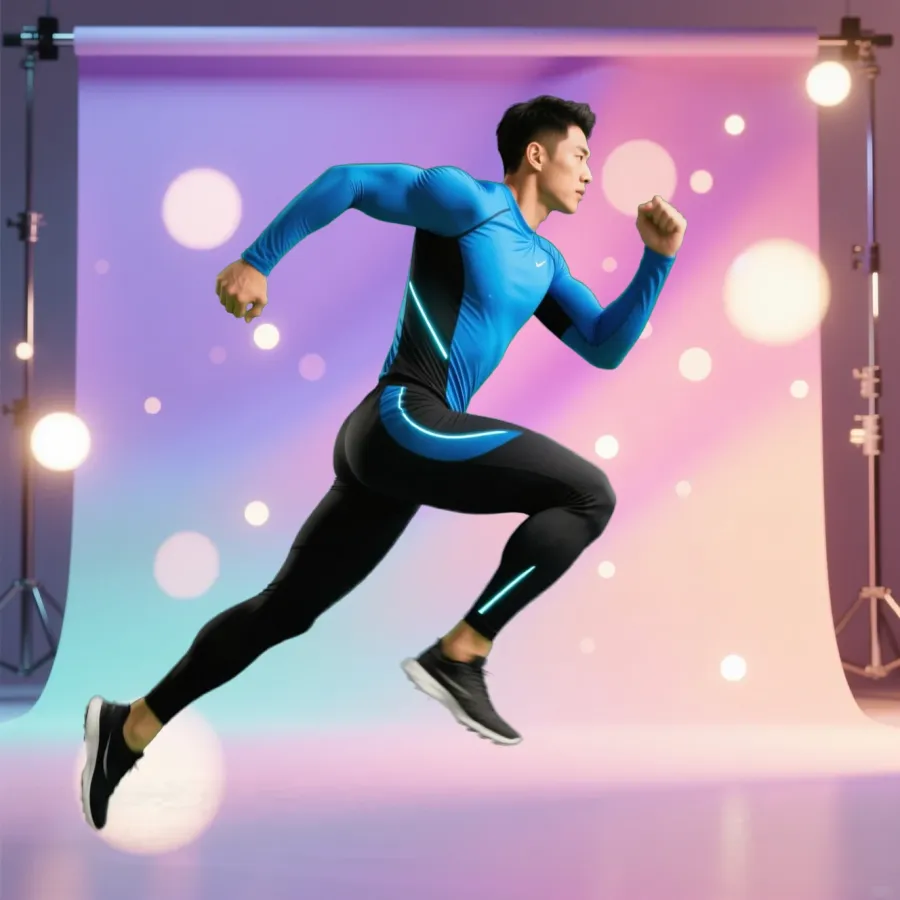
It separates the moving subject in a clip from everything behind them, frame by frame — the modern, automatic version of green-screen keying. Upload a clip, let the AI matte out the subject, then place them on a new background or export a transparent video in the Pixazo agentic editor. Working with a single photo? Use the AI Image Background Remover. Every frame here was generated with Pixazo’s AI and is illustrative.
How it works
Remove a video background in three steps
All in the browser — no green screen, no manual rotoscoping.
Step 01
Upload your clip
Bring in a video of a person or subject — talking-head, product demo or dance clip. Any ordinary background works.
Step 02
AI mattes the subject
The subject is tracked and separated from the background across every frame — no green screen, no manual rotoscoping.
Step 03
Swap or export
Drop your subject onto a new background, or export a transparent video with an alpha channel to use anywhere.
Examples
One clip, any backdrop
Put your subject on a fresh scene, or keep them fully transparent to composite later.
Any subject, any set
Talking-head, fitness or dance clips.
Branded backdrops
Studio or brand backdrops for ads.
Streams & explainers
A clean set without a green screen.
Facecam, upgraded
Matte your webcam onto scenes.
Green screen vs AI
No screen, no keying
A physical green screen means fabric, even lighting and keying in an editor. AI matting removes the background from an ordinary clip — no studio setup.
 Any background
 New backdrop
The green-screen way
Hang and light a screen, avoid spill, shoot, then key and clean up every clip — gear, space and time before you start.
The AI way
Shoot anywhere, upload the clip, and the subject is matted automatically — then swap a backdrop or export transparent. It works like a free online chroma key, and it can even remove green screen footage you already shot — no manual keying.
Spec sheet
What you get
Inputs and outputs — capabilities only, no invented benchmark numbers.
Who uses it
What it’s for
Creators & streamers
Put yourself on any backdrop for videos and streams — without a physical green screen.
Product & UGC ads
Isolate a presenter or product and drop them onto branded scenes.
Editors
Export transparent subjects to composite into bigger edits and motion graphics.
Course & explainer video
Overlay a talking head on slides or screen recordings cleanly.
Field notes
Get the cleanest matte
A few habits make automatic video matting look sharp — and a few honest limits to keep in mind.
FAQ
Video background remover questions
Is the AI video background remover free?+
You can start for free in the Pixazo agentic editor. Check the playground for current limits before heavy use.
Do I need a green screen?+
No — the AI mattes your subject from an ordinary background, so no green screen is required. It works as an AI green screen alternative: shoot anywhere, and if your footage already has a green screen it can key that out for you too.
Can I export a transparent video?+
Yes — you can export the subject transparent, or drop them onto a new background.
What videos work best?+
Talking-head, product-demo and creator clips with a clear, well-lit subject give the cleanest results.
Does it handle hair and motion?+
It handles most footage well; very fast motion or fine flyaway hair can shimmer on tricky clips.
Can I remove the background from a single photo?+
Yes — use the AI Image Background Remover for still images.
Do I need to install anything?+
No. It runs in any modern browser.
Can I put my video subject on a custom background?+
Yes — drop them onto a room, studio or brand backdrop, or keep the background transparent.
What clip length works best?+
Shorter, well-lit clips process fastest; longer or high-resolution clips take more time.
Is it good for streamers and talking-head videos?+
Yes — it’s a popular no-green-screen option for streams, explainers and talking-head content.
Does it keep the audio?+
Background removal works on the picture; your export keeps the clip’s audio.
Remove your video background
Upload a clip and cut your subject out — no green screen, free to start in the Pixazo editor.
Remove a video background →By Deepak Joshi
Content Marketing Specialist · Pixazo
Deepak Joshi is a Content Marketing specialist having a combined experience of 10+ years working in the digital world. He is one of the active contributors to Pixazo Blog and has keen interest creating and marketing content related to AI tools, No-Code technology, Design Industry, Social Influencers, and other trending topics. A health and sport enthusiast, Deepak loves to indulge in all kinds of sports & games.
AI disclosure: the video frames and composites on this page were generated with Pixazo’s AI and are illustrative examples; results vary by footage.