AI Sticker Maker
AI Sticker Generator
Create stickers for free with our AI Sticker Maker. Simply put your idea into words and get your stickers ready.
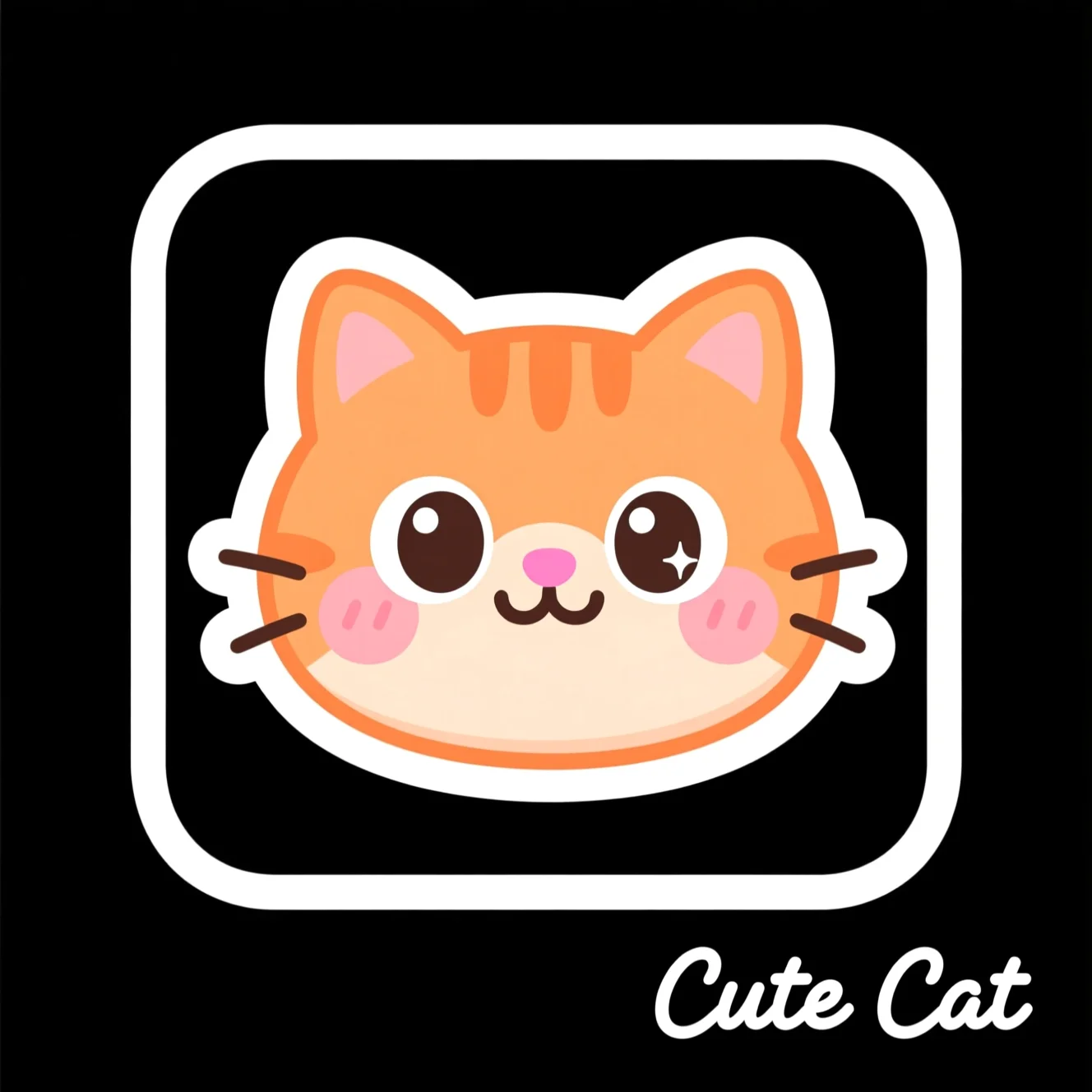
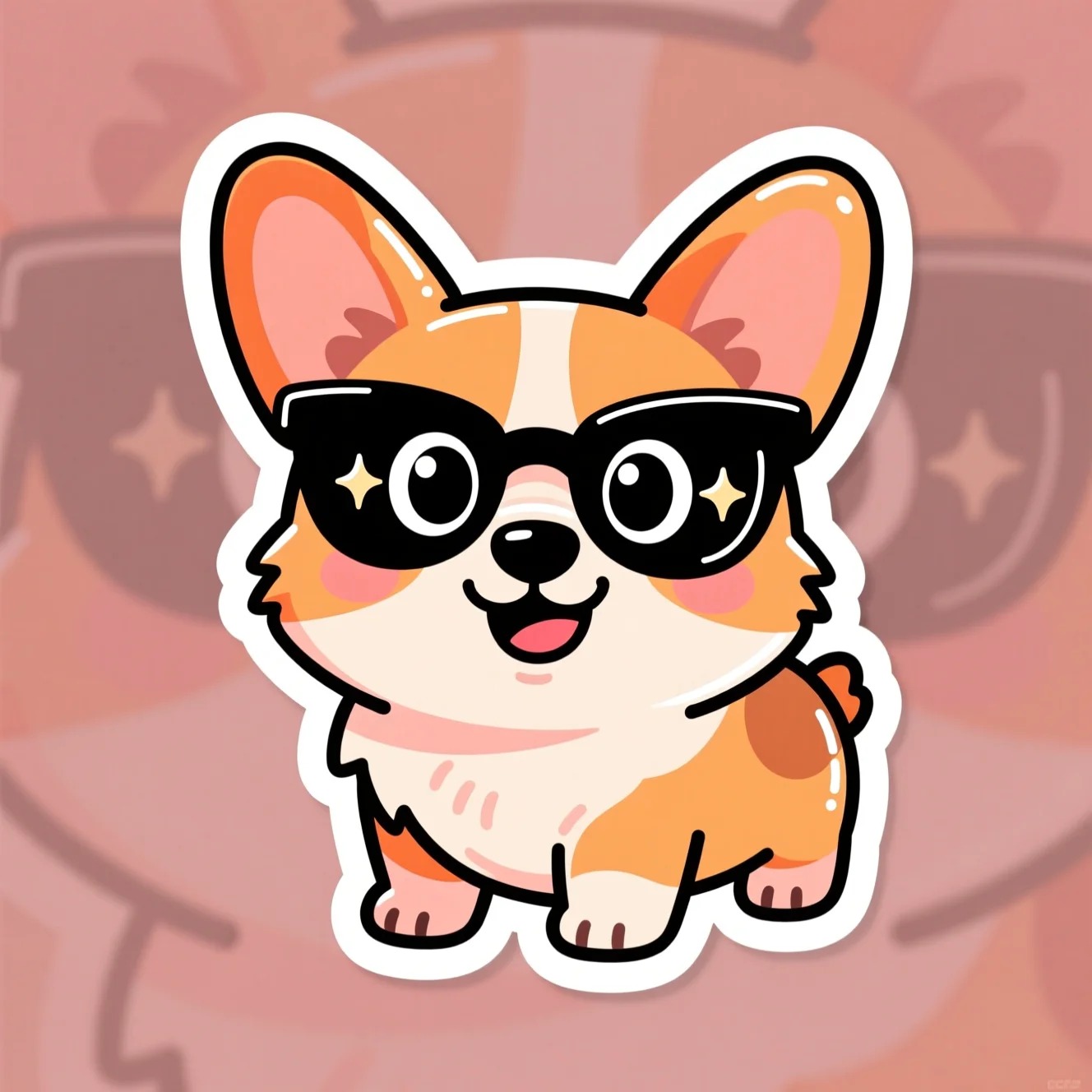
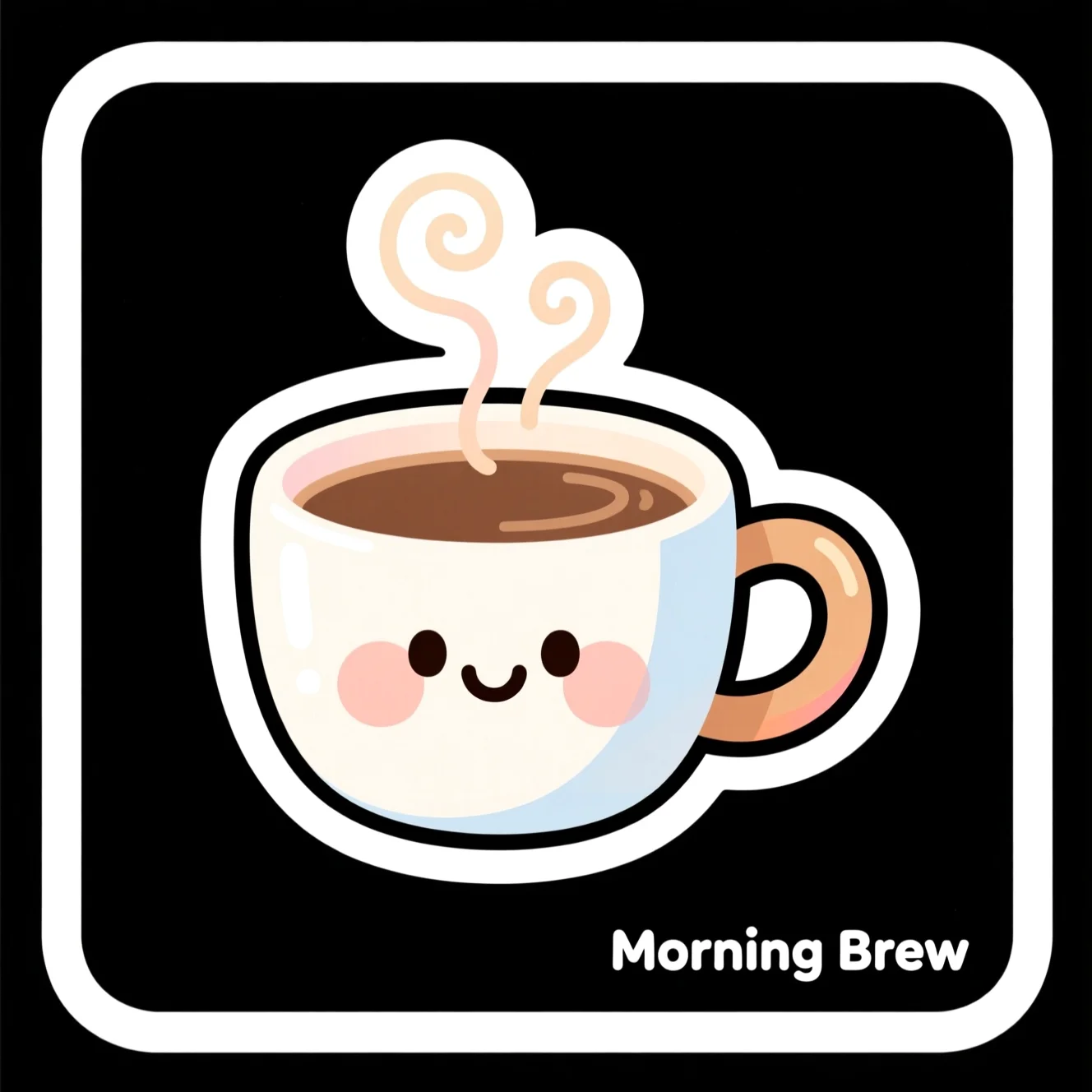
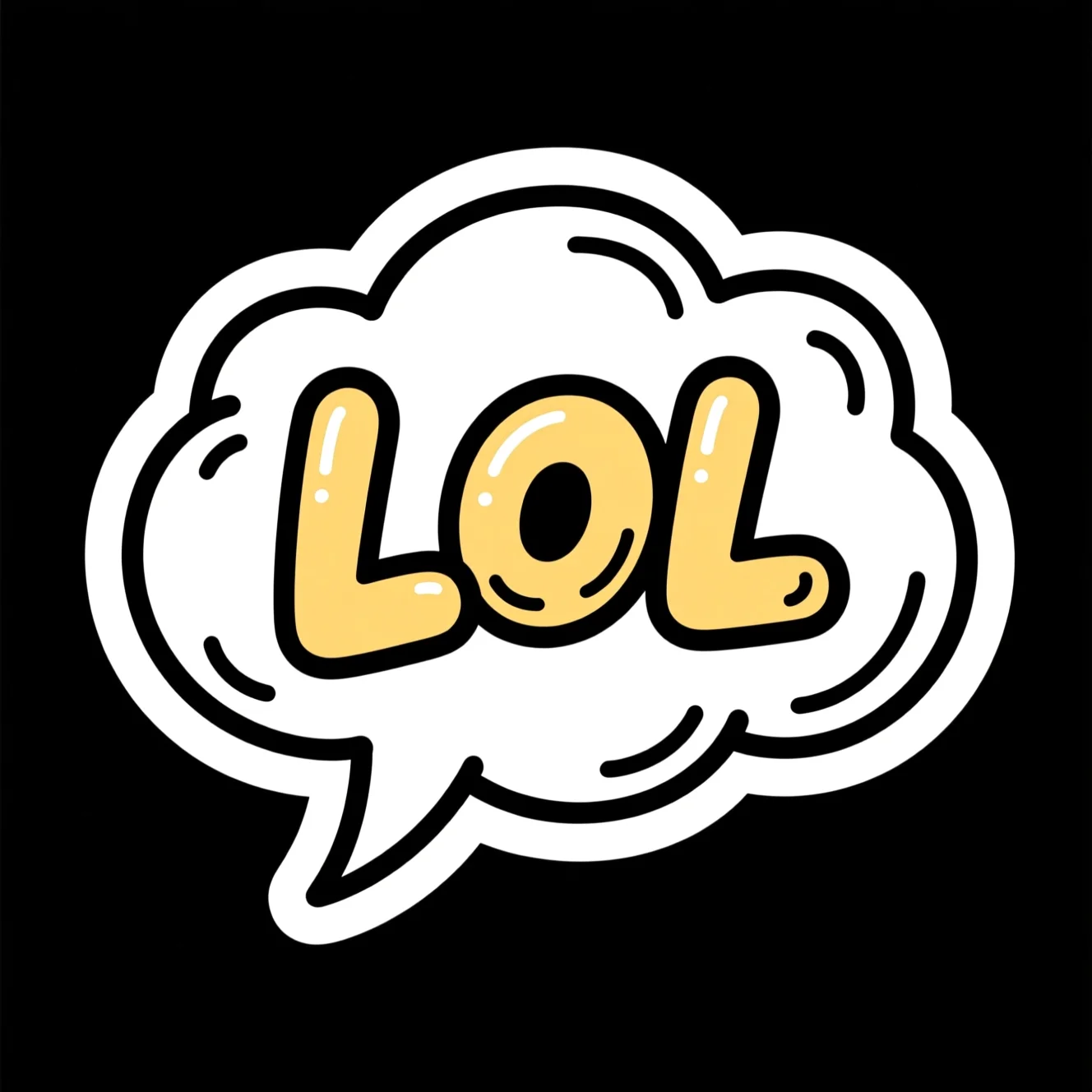
In a nutshell
What is the AI Sticker Maker?
The Pixazo AI Sticker Maker is a free, browser-based tool that turns a short text prompt into a die-cut sticker with a transparent background — no design skills, no software, nothing to install. Type what you want, pick a style, and it draws clean AI stickers you can drop straight into a chat, a shop or a print run.
It’s built for anyone who chats: creators making reaction packs, small brands building mascots and social stickers, streamers designing emotes, and hobbyists making stickers with AI for planners, laptops and messaging apps. Every example on this page was generated with the free AI sticker maker in the Pixazo playground.
The stickers AI reads your words literally, so clear prompts win. What makes it different is the job it’s built around — getting a sticker into your keyboard. You can create stickers with AI in seconds and export a transparent PNG (or SVG, PDF, WEBP, JPG) that’s ready to send.
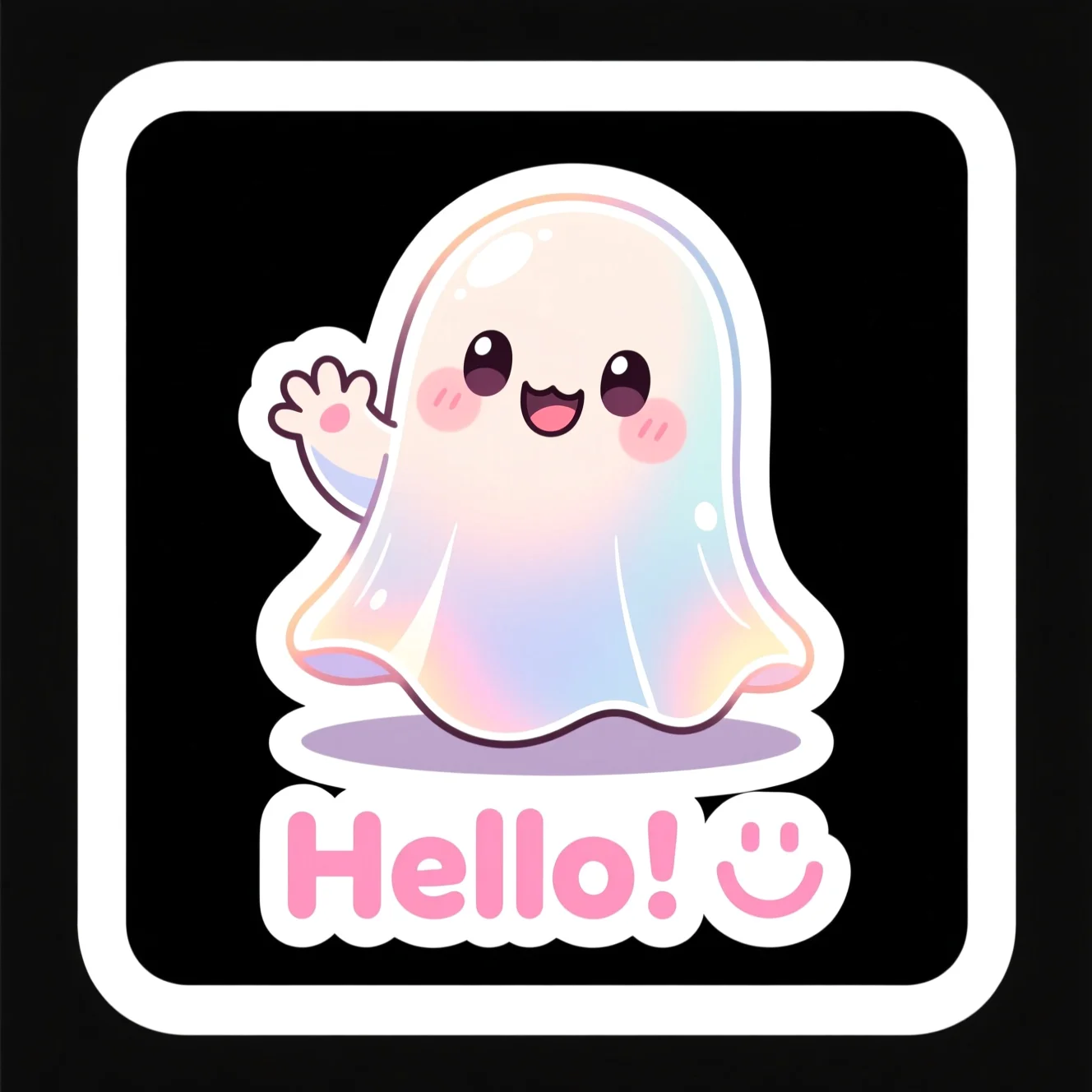
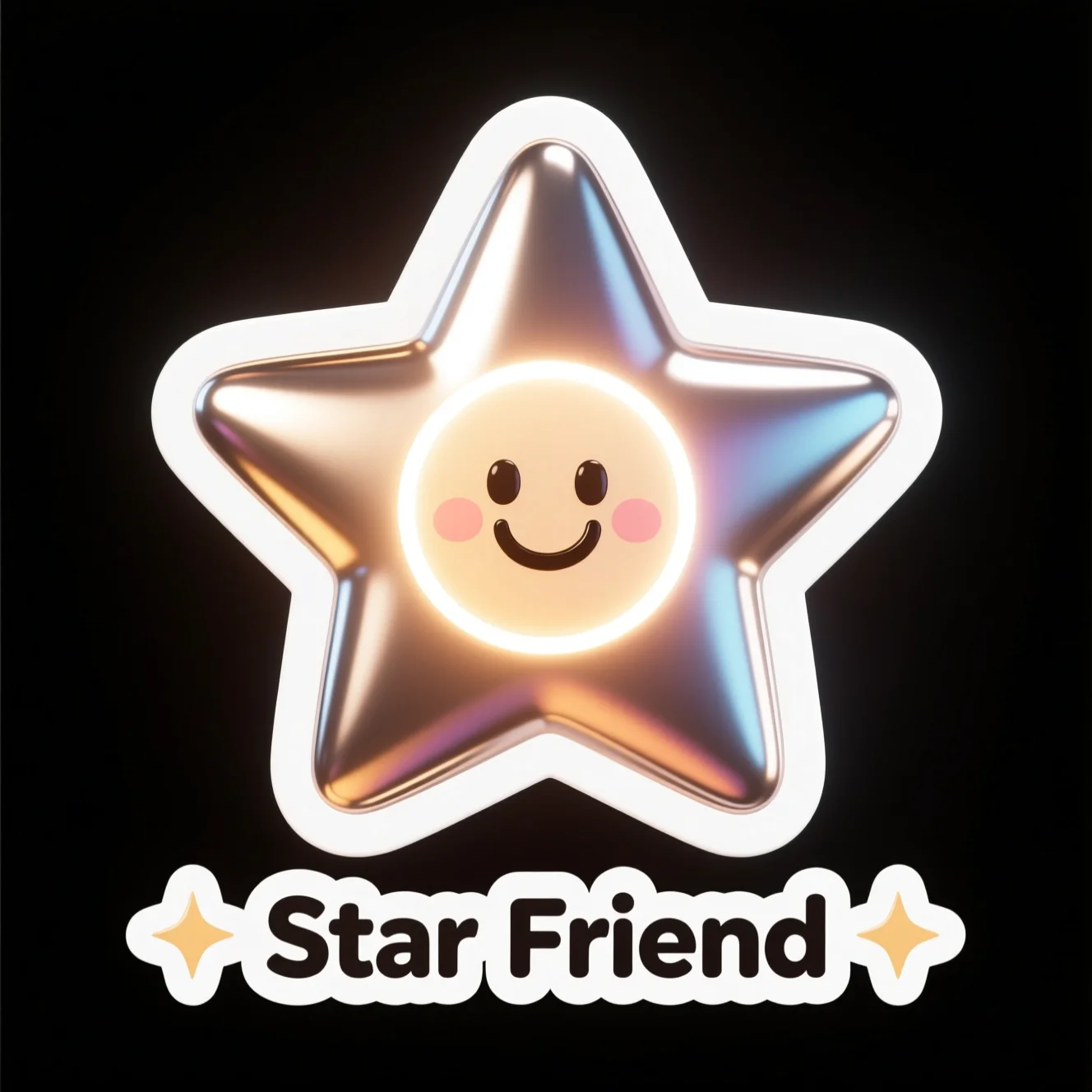
Quick add
The reactions you actually send — as AI stickers.
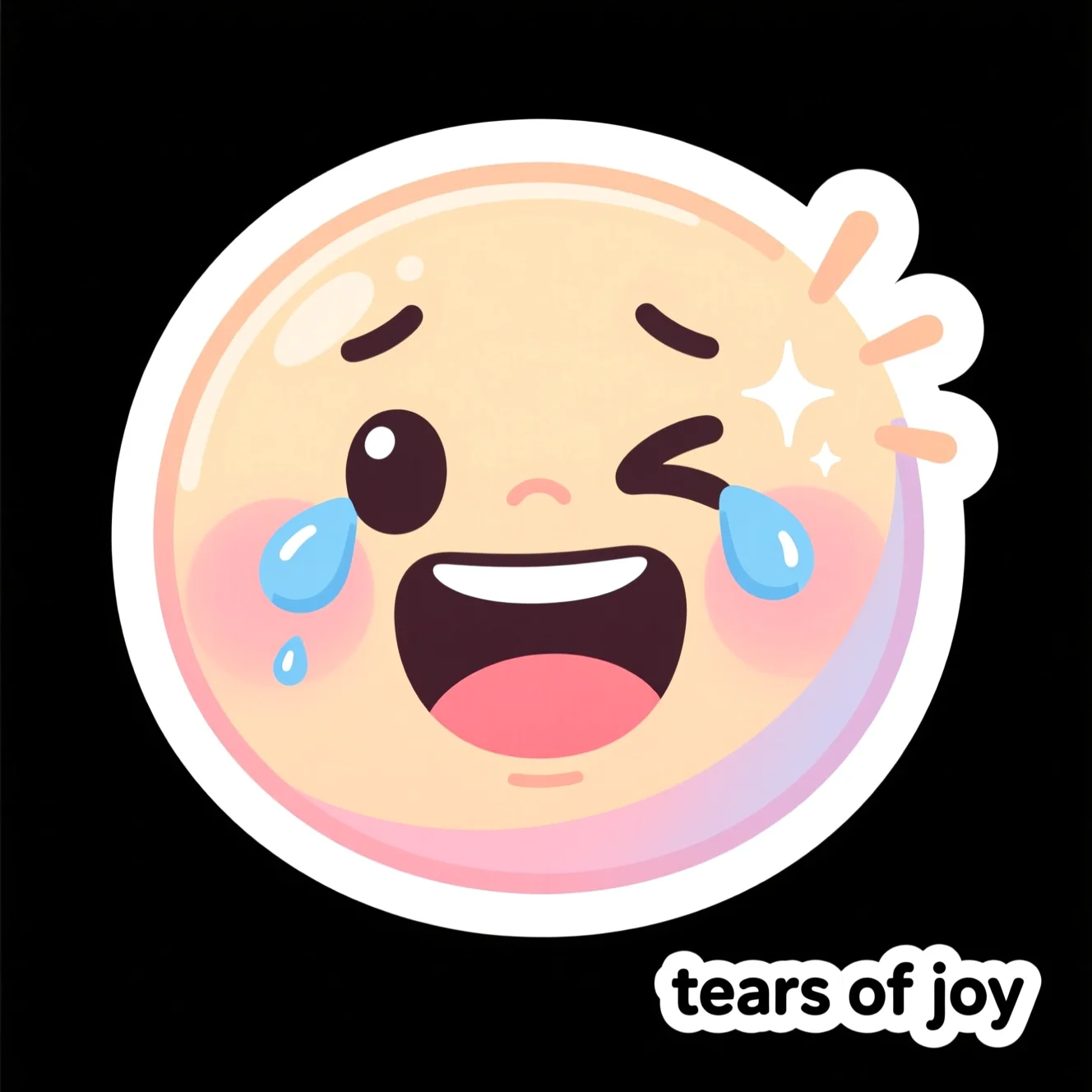
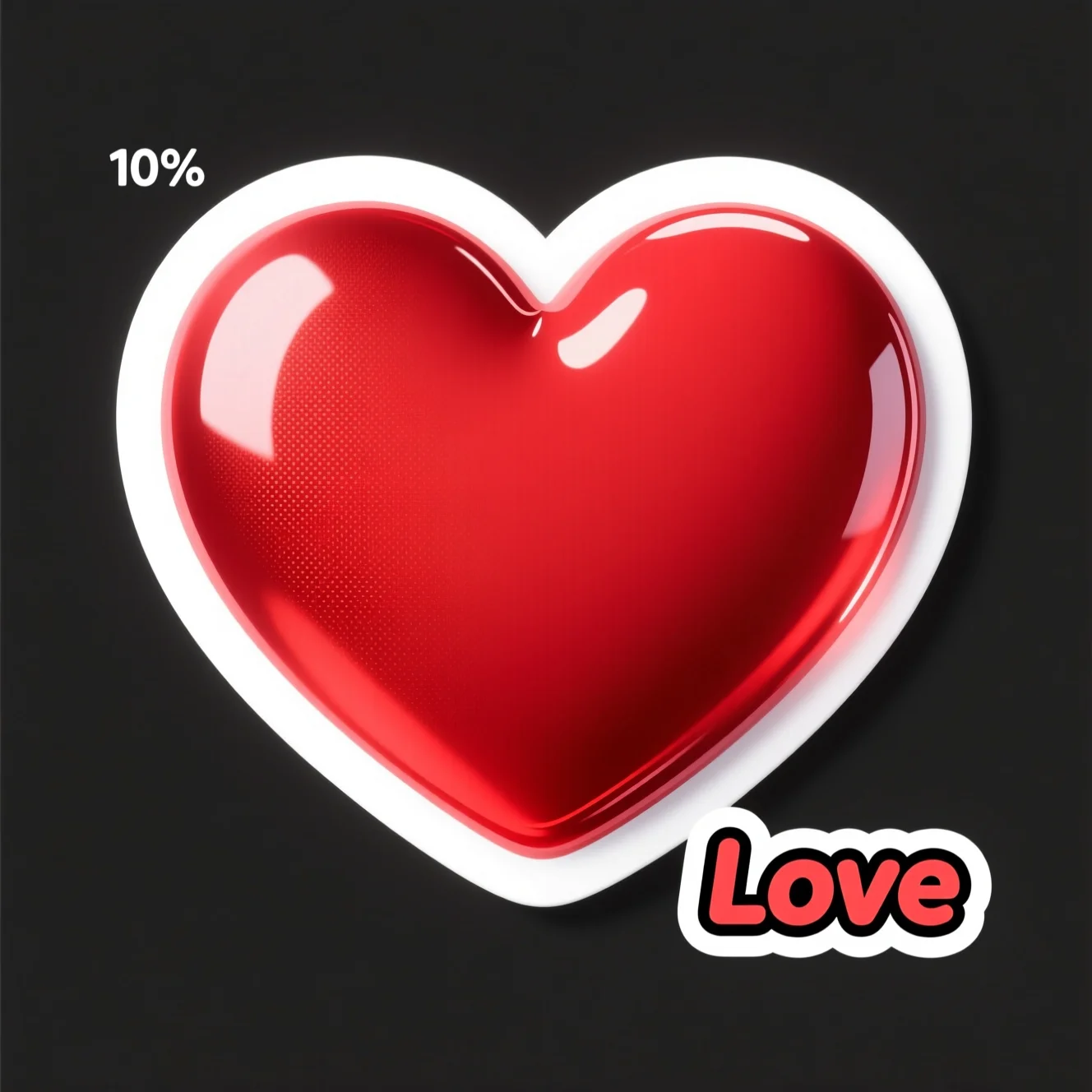
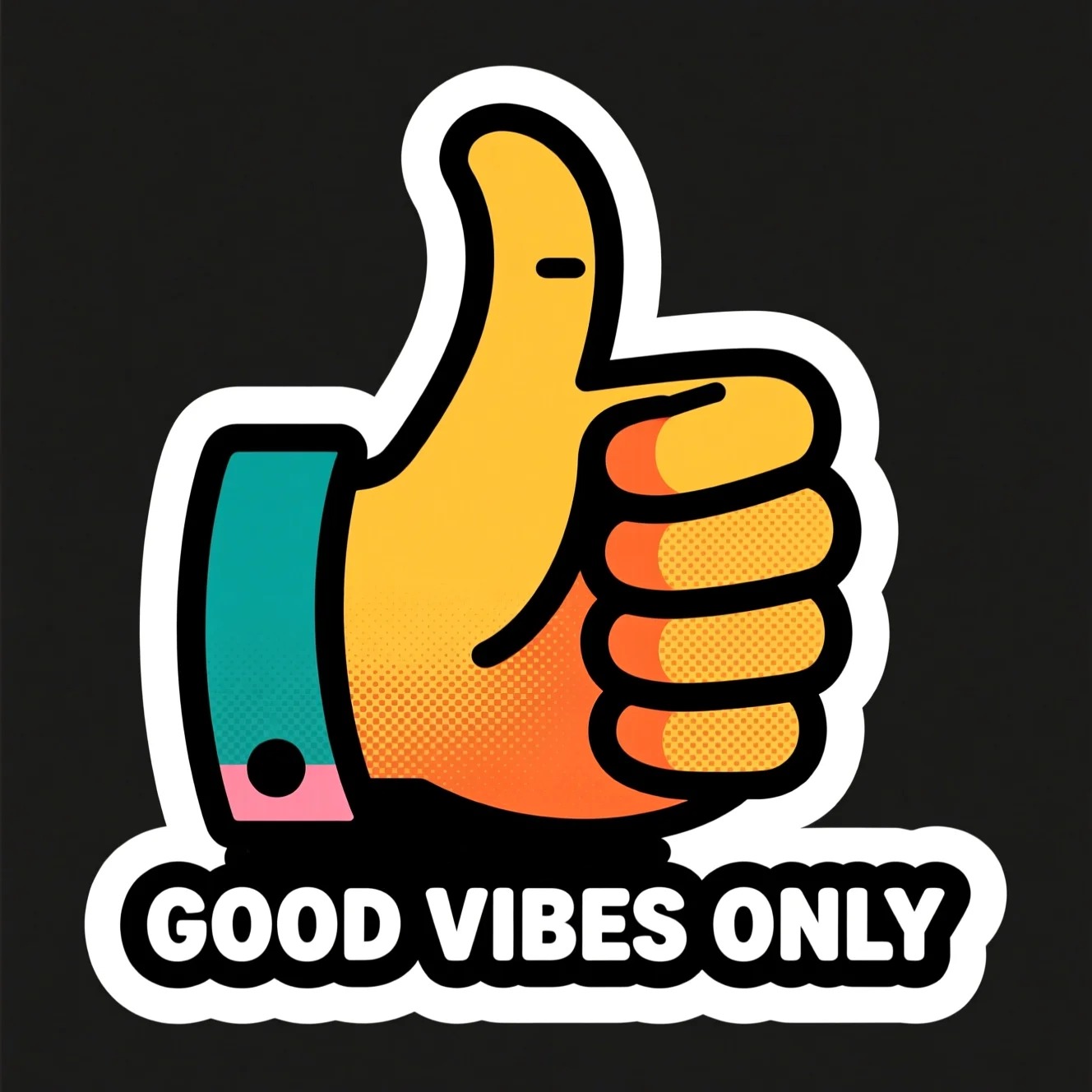
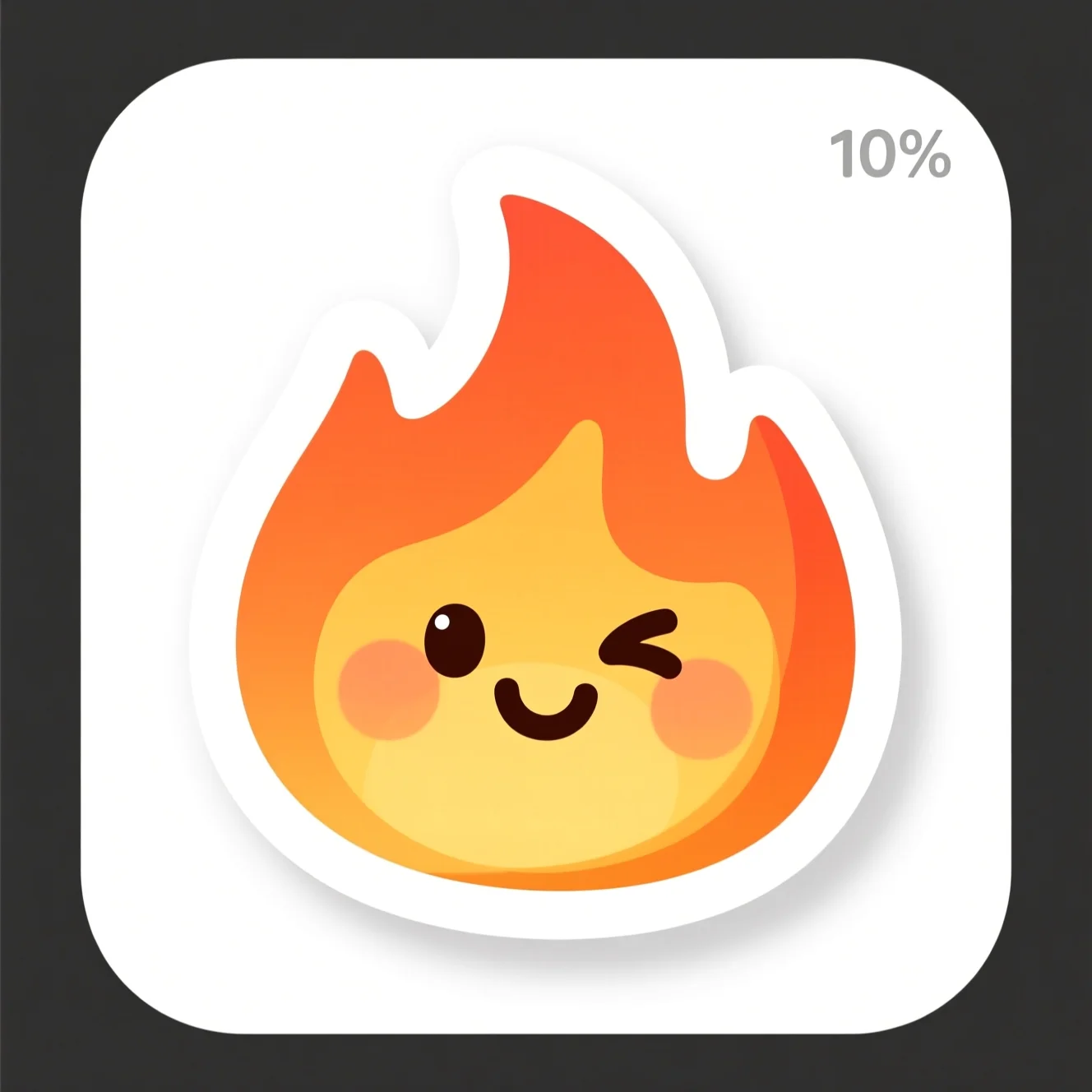
Every reaction below is a real sticker made with AI from the tiny prompt under it. Tap the AI sticker maker and your own reaction is 10 seconds away.
“nice one, thumbs up”
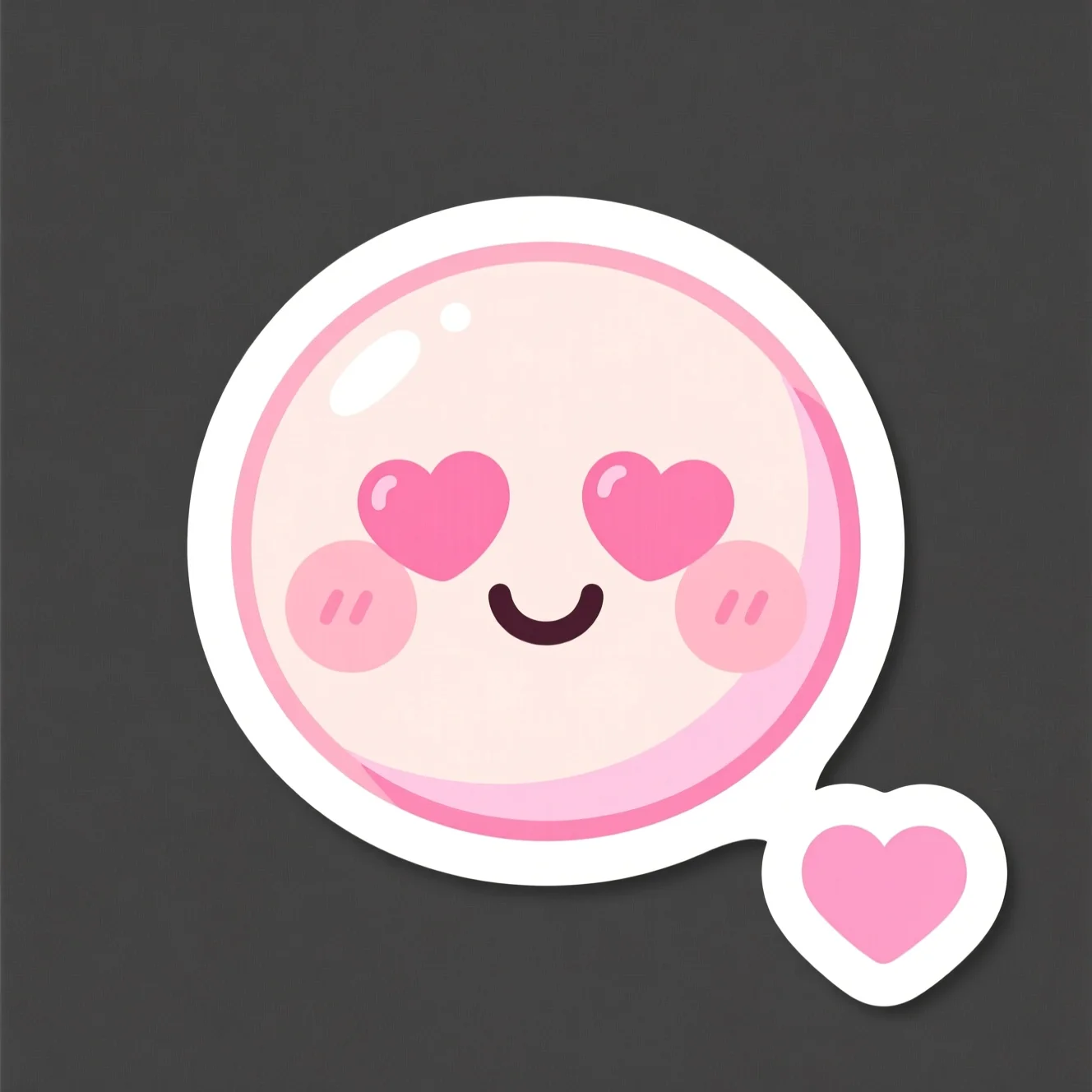
“i love this”
“this is fire”
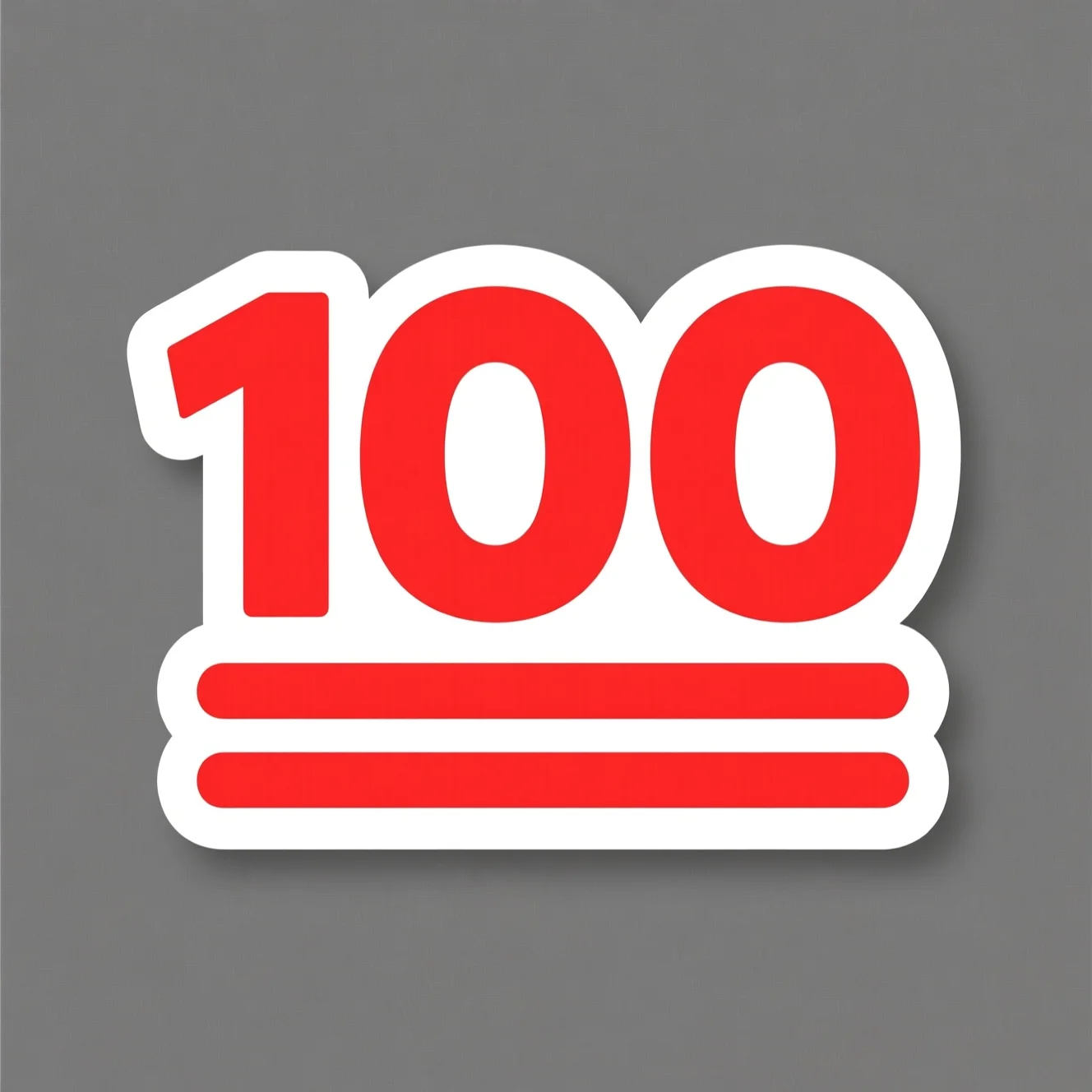
“100, keep going”
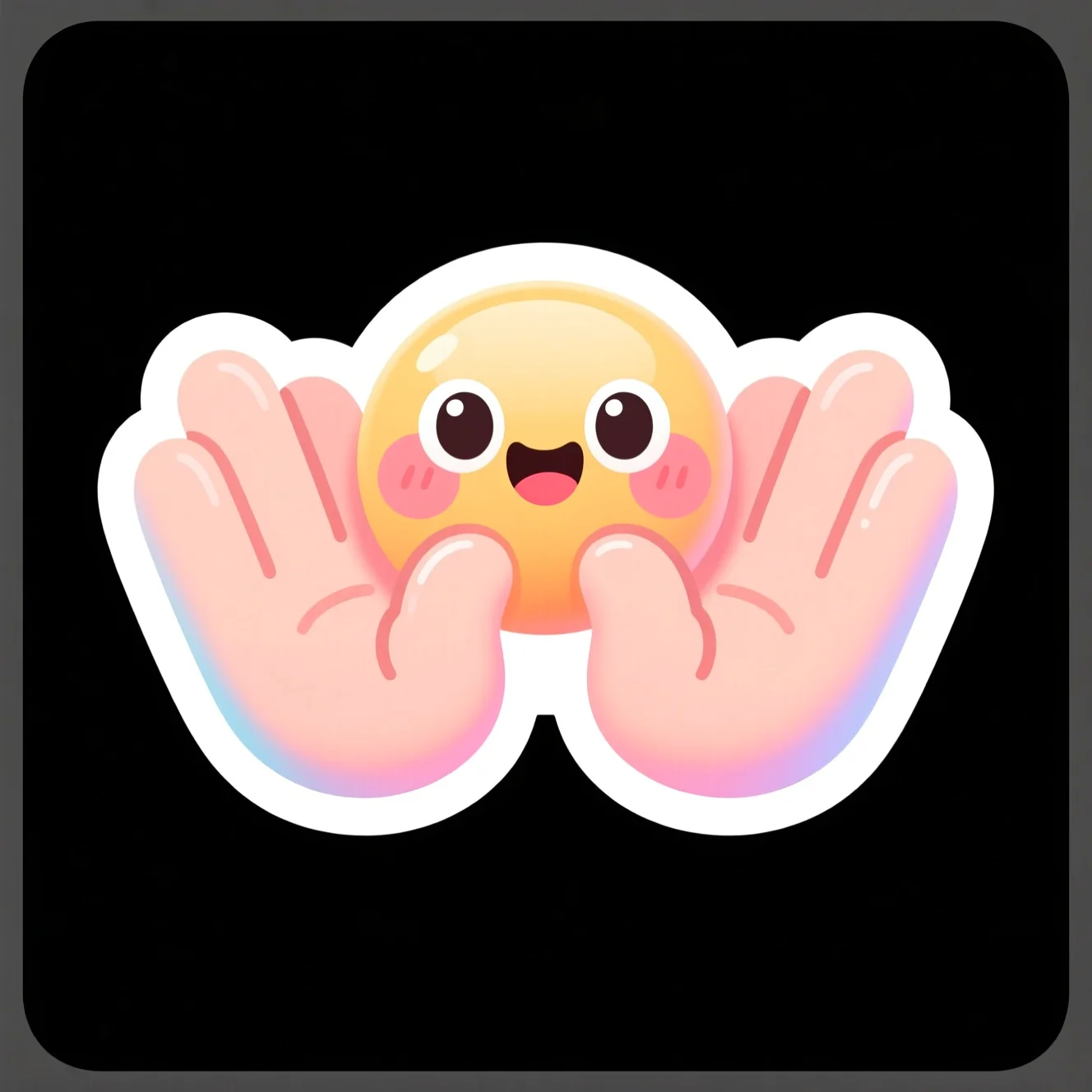
“round of applause”
“laughing so hard”
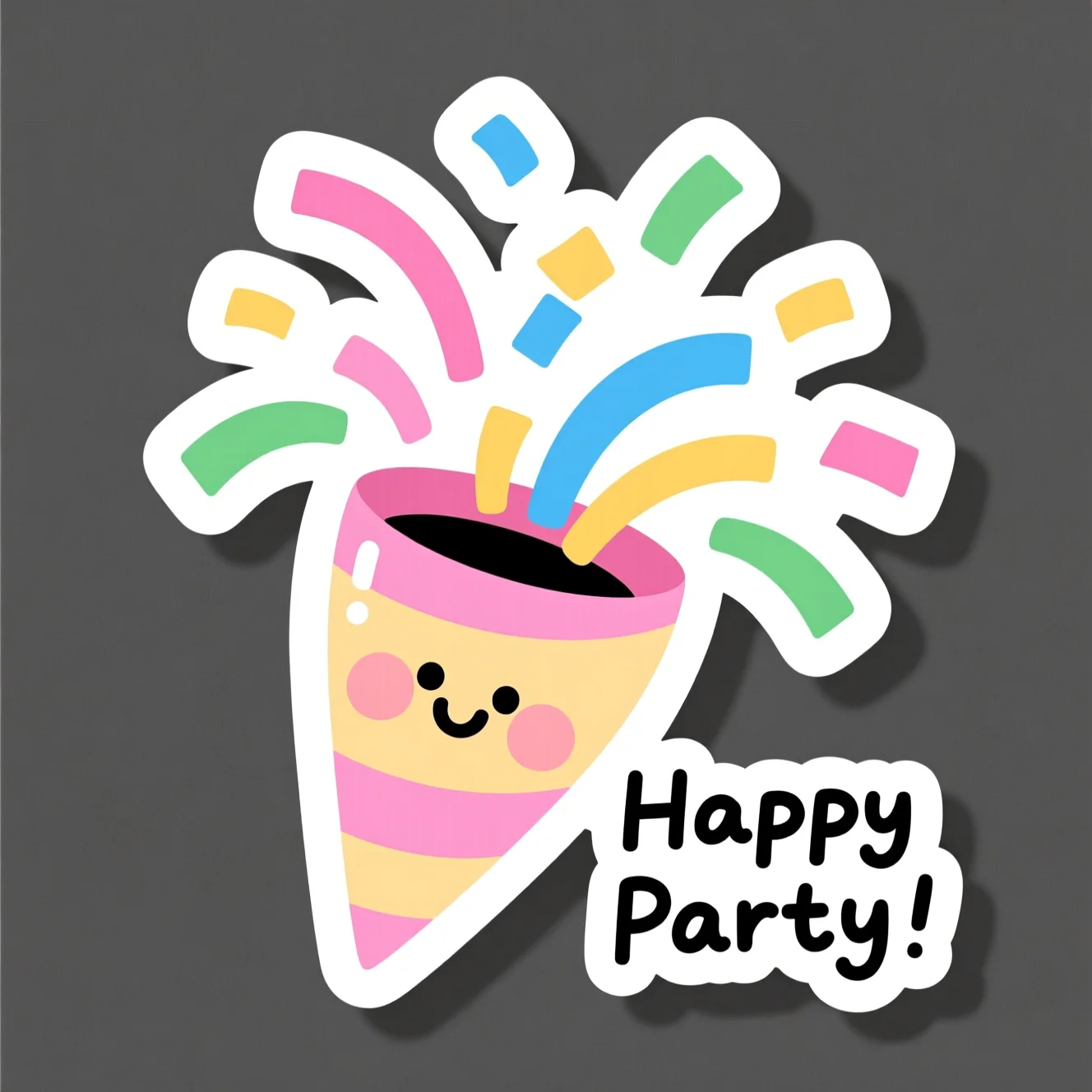
“let's celebrate”
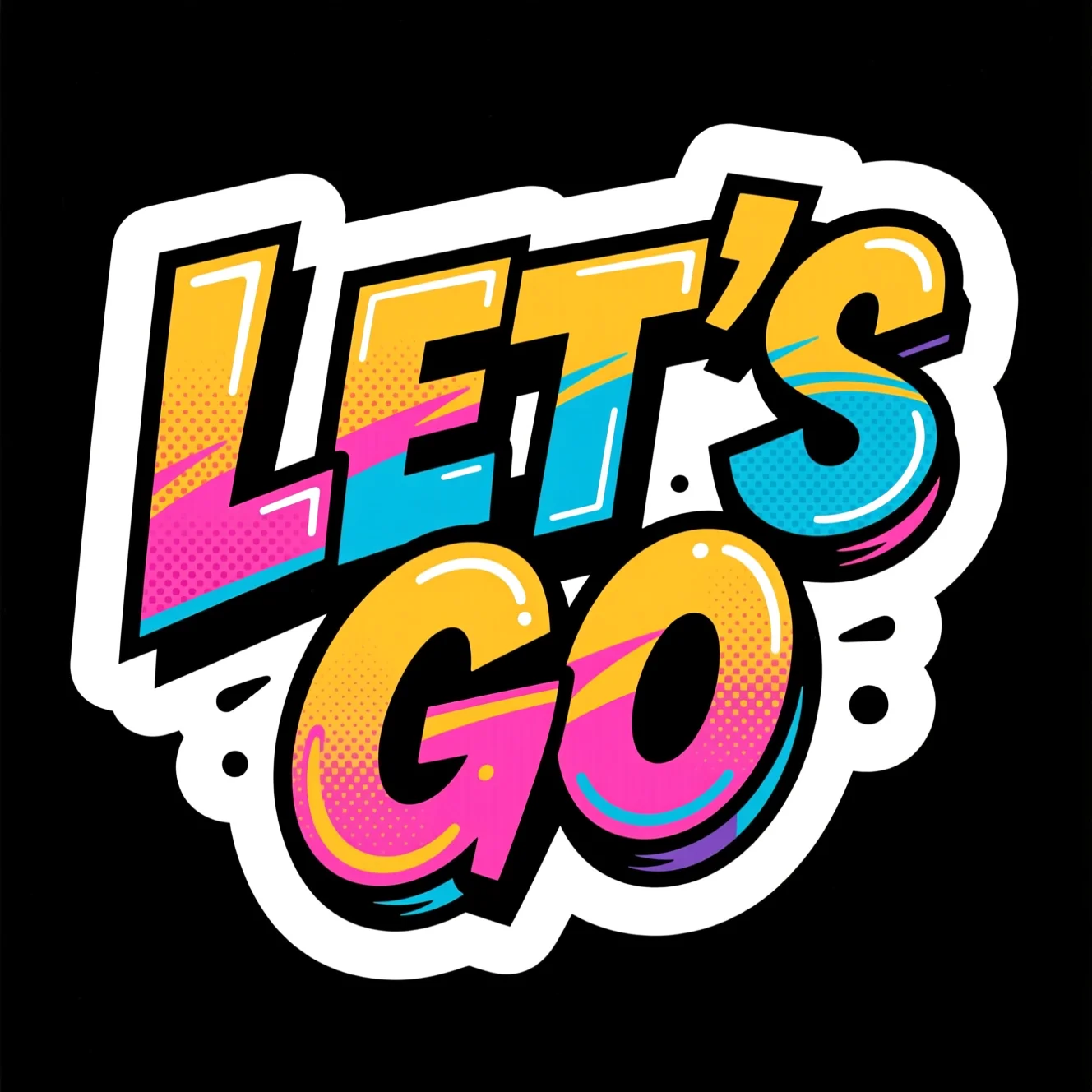
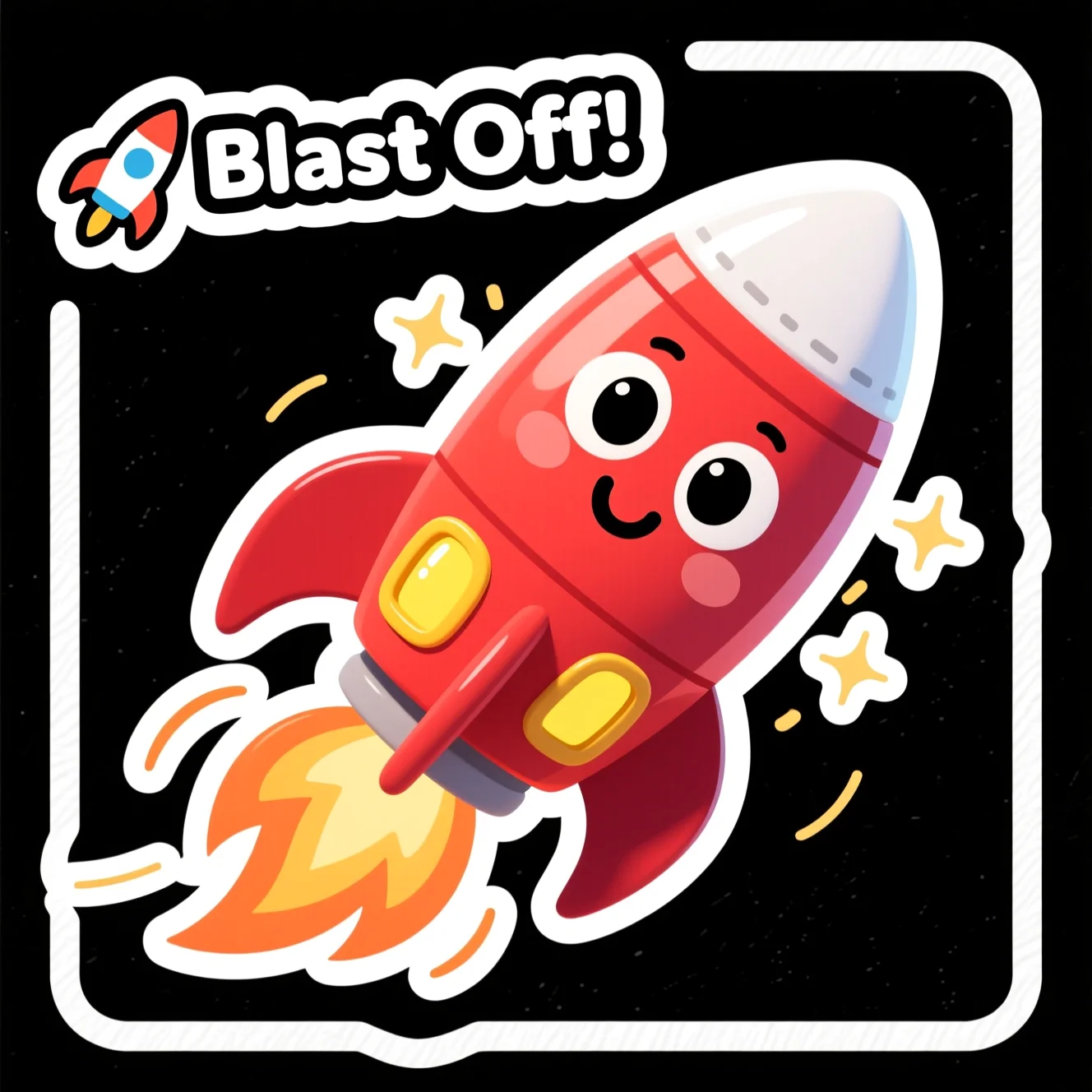
“let's go!”
“nice one, thumbs up”
“i love this”
“this is fire”
“100, keep going”
“round of applause”
“laughing so hard”
“let's celebrate”
“let's go!”
How it works
How do you make a sticker with AI?
No layers, no cutting paths. Make stickers with AI in three taps, then create stickers with AI again for the whole pack.
Key 01
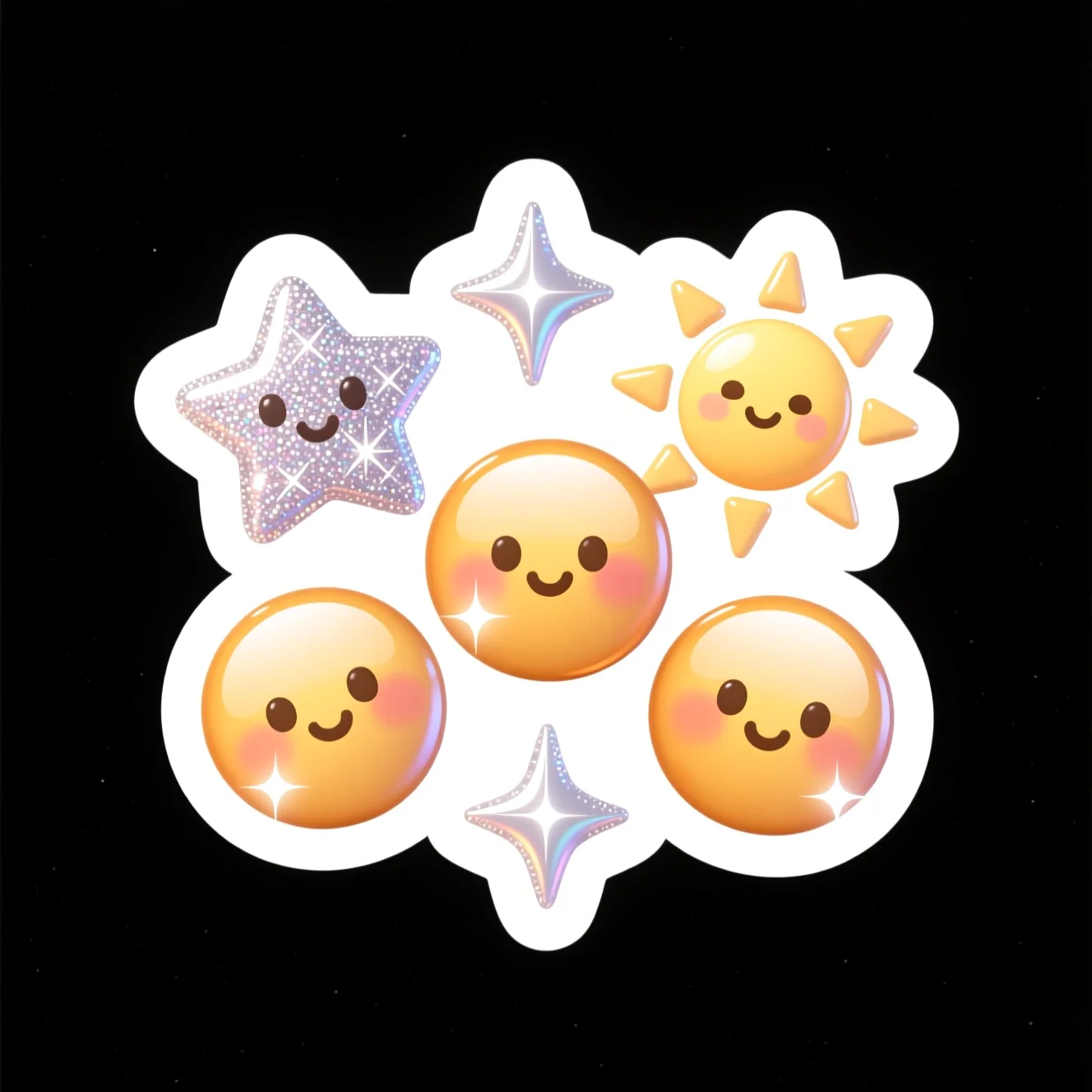
Type a prompt
Describe the subject, mood and a style — kawaii, 3D, pixel or hand-drawn.
Key 02
Pick a style, tap generate
The AI sticker maker returns clean, die-cut options. Regenerate free until it’s right.
Key 03
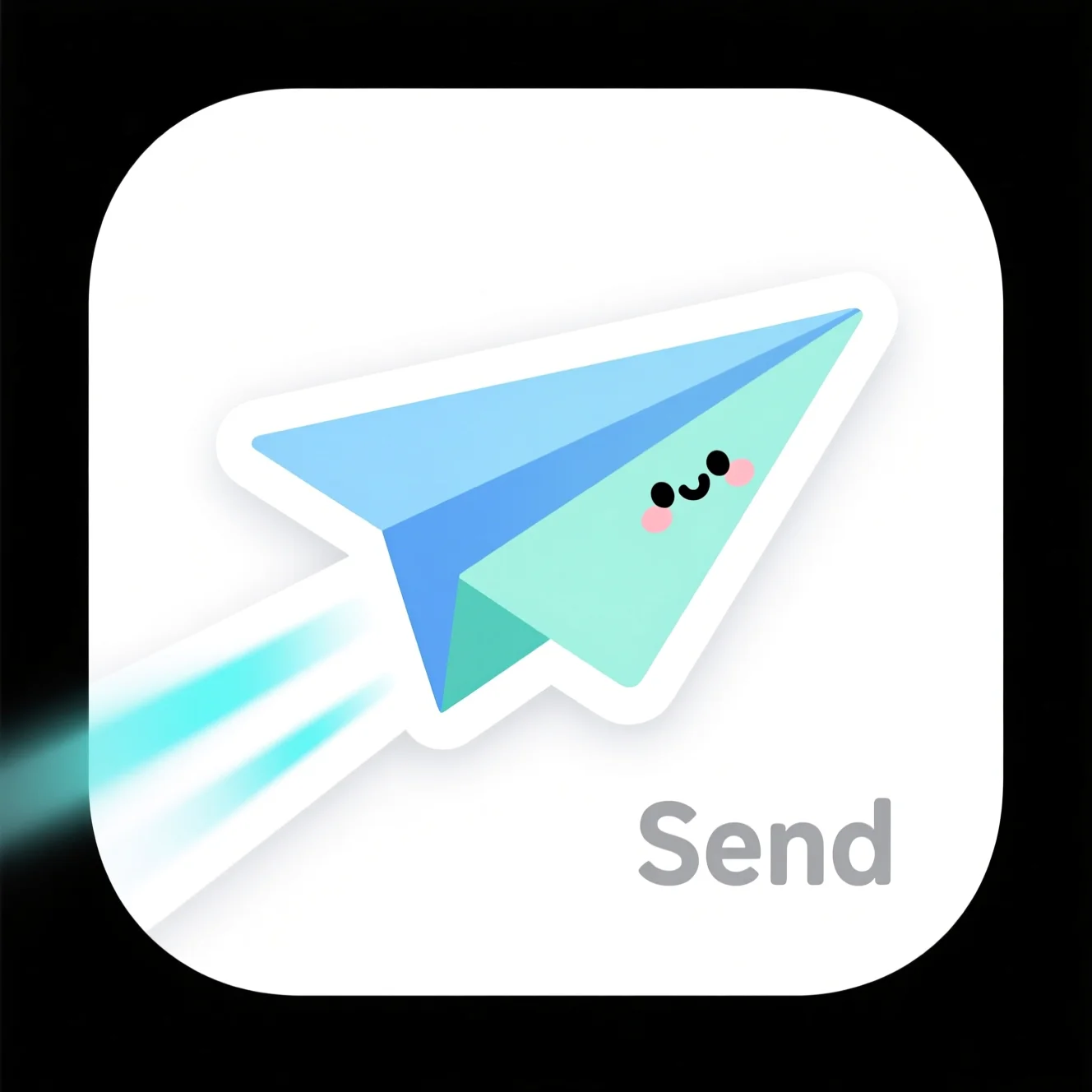
Peel & drop into chat
Download a transparent PNG (or SVG, PDF, WEBP, JPG) and send your AI stickers anywhere.
From a photo
Can you turn a photo into AI stickers?
Prefer to start from a picture? The AI Sticker Generator turns a face or a pet photo into a die-cut sticker — another honest way to create stickers with AI.
The spec sheet
What do you get?
Everything the stickers AI outputs, at a glance.
| What it makes | Die-cut stickers from a text prompt |
|---|---|
| Input | A short written prompt (subject + style) |
| Output formats | PNG, SVG, PDF, WEBP, JPG |
| Transparent background | Yes — export a transparent PNG |
| Styles | Kawaii, 3D, pixel, hand-drawn, bold text & more |
| Cost | Free to start in the Pixazo playground |
| Where it runs | Any modern browser — nothing to install |
| Commercial use | Generally allowed on your plan (check playground terms) |
The tray, expanded
What sticker packs can you make?
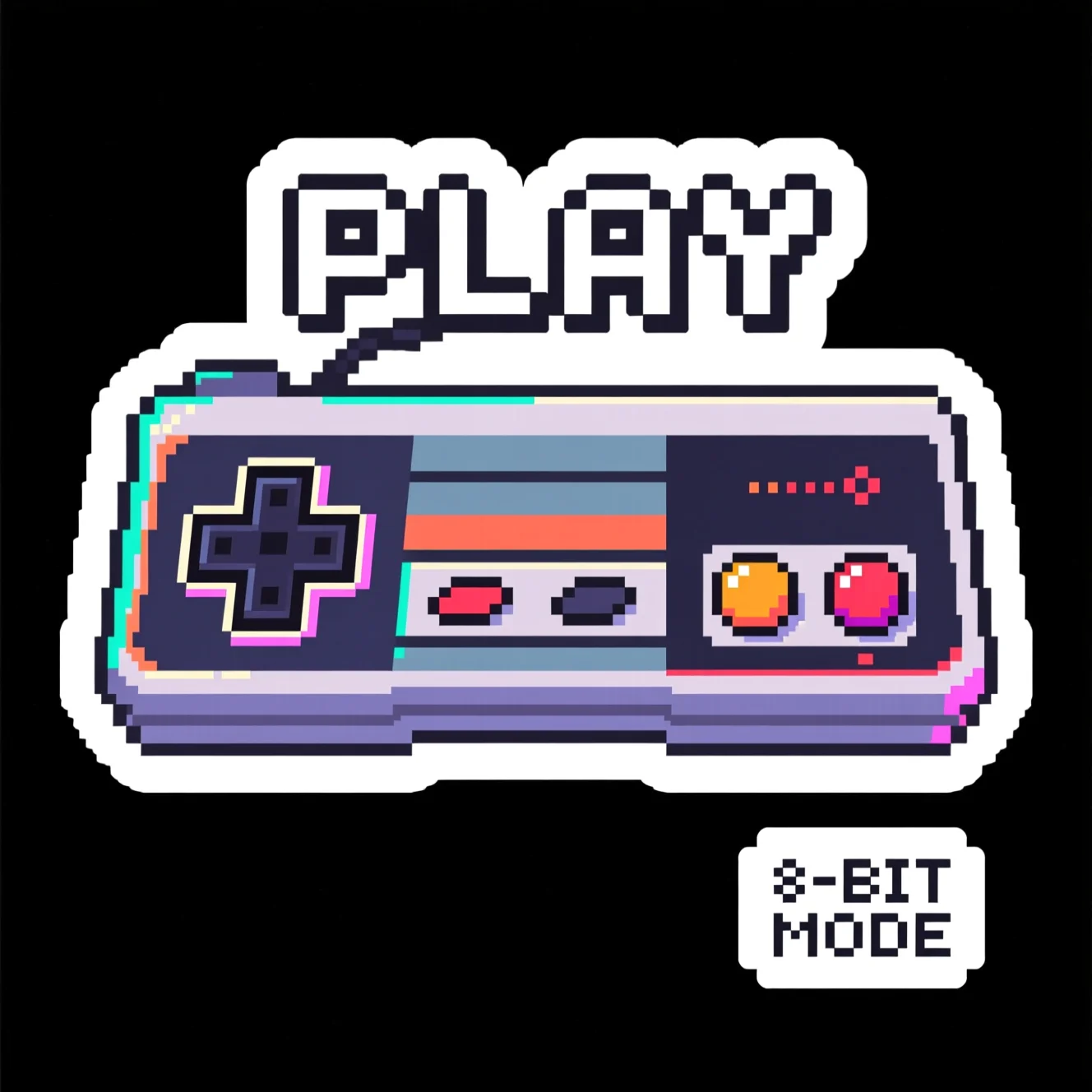
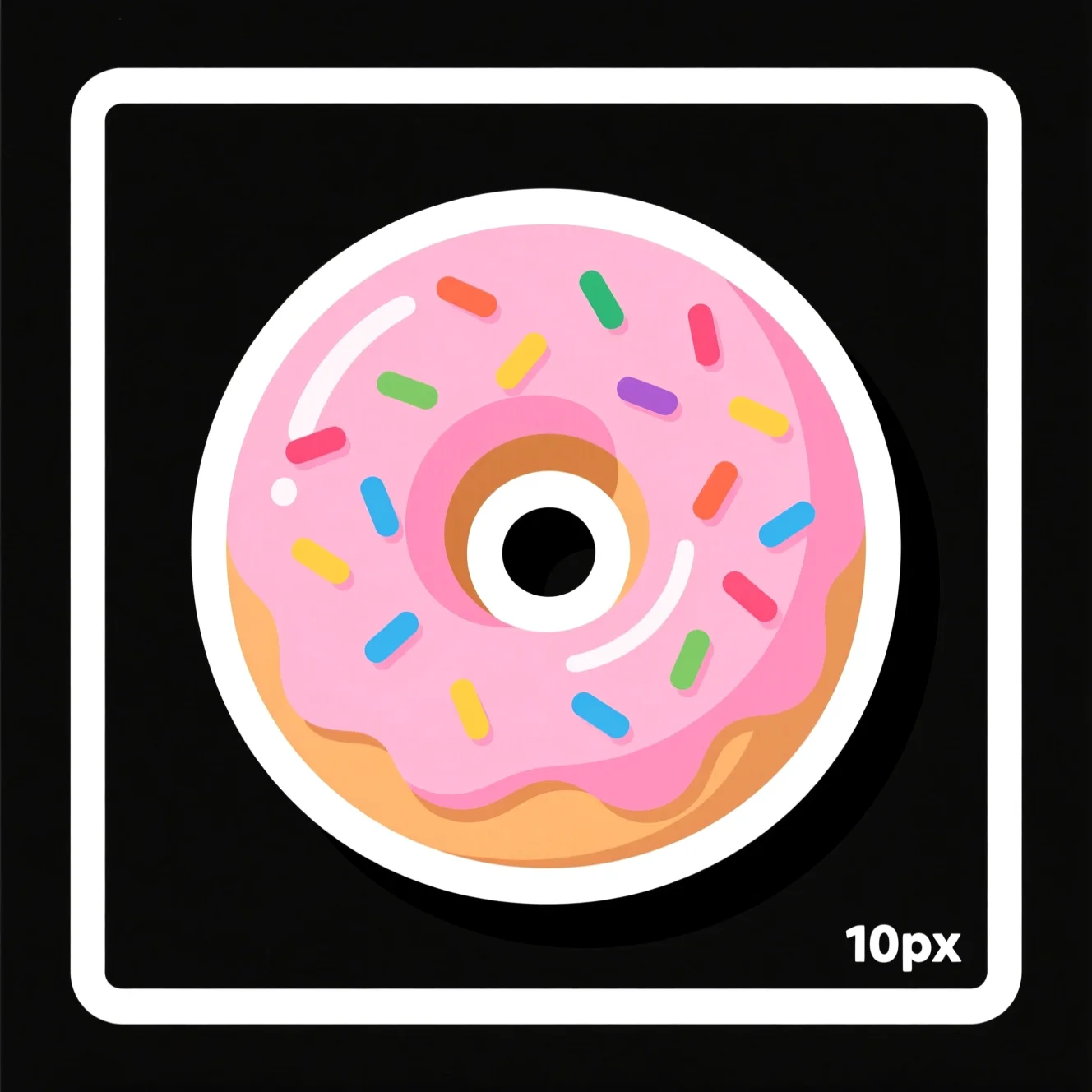
Whole packs of AI stickers, every one stickers AI-generated from the short prompt beneath it — proof you can make stickers with AI in any theme. It’s the AI Sticker Maker free to explore, pack after pack.
Set 01Reactions
Make this pack with AI →“thumbs up”
“heart eyes”
“this is fire”
“100”
“applause”
Set 02Cute
Make this pack with AI →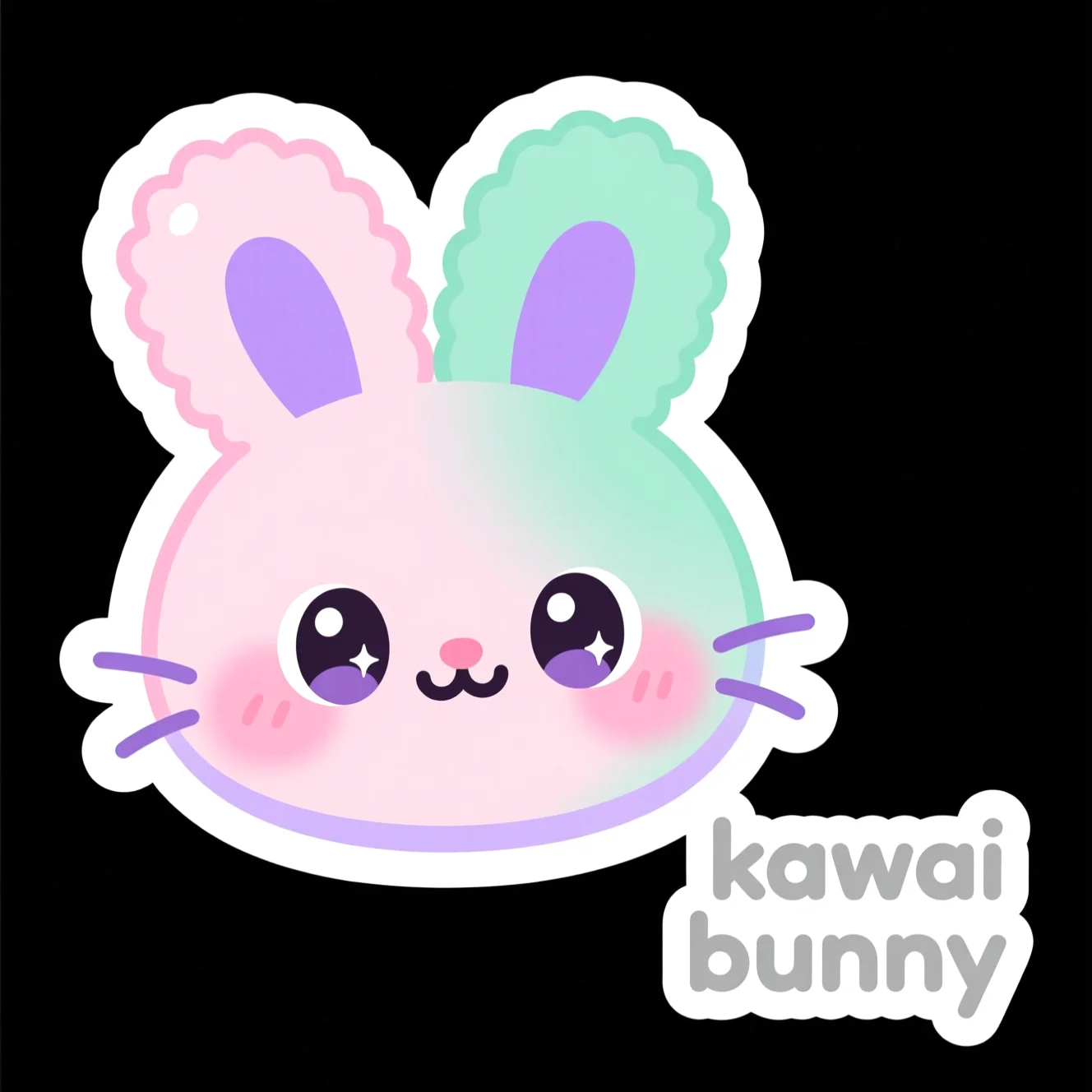
“kawaii bunny”
“friendly ghost”
“star friend”
“happy cat”
“love heart”
Set 03Foodie contact sheet
Make this pack with AI →“coffee”
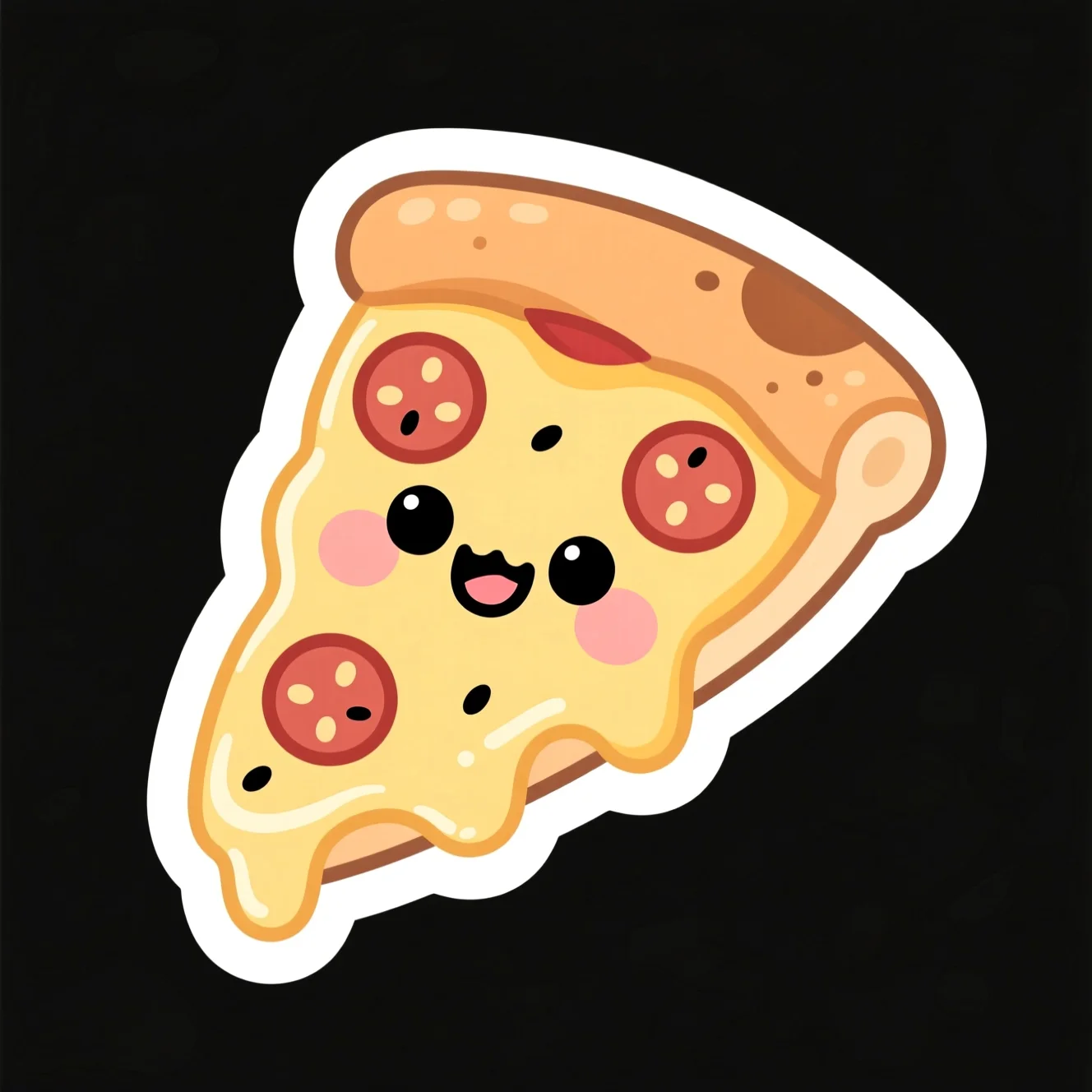
“pizza”
“donut”
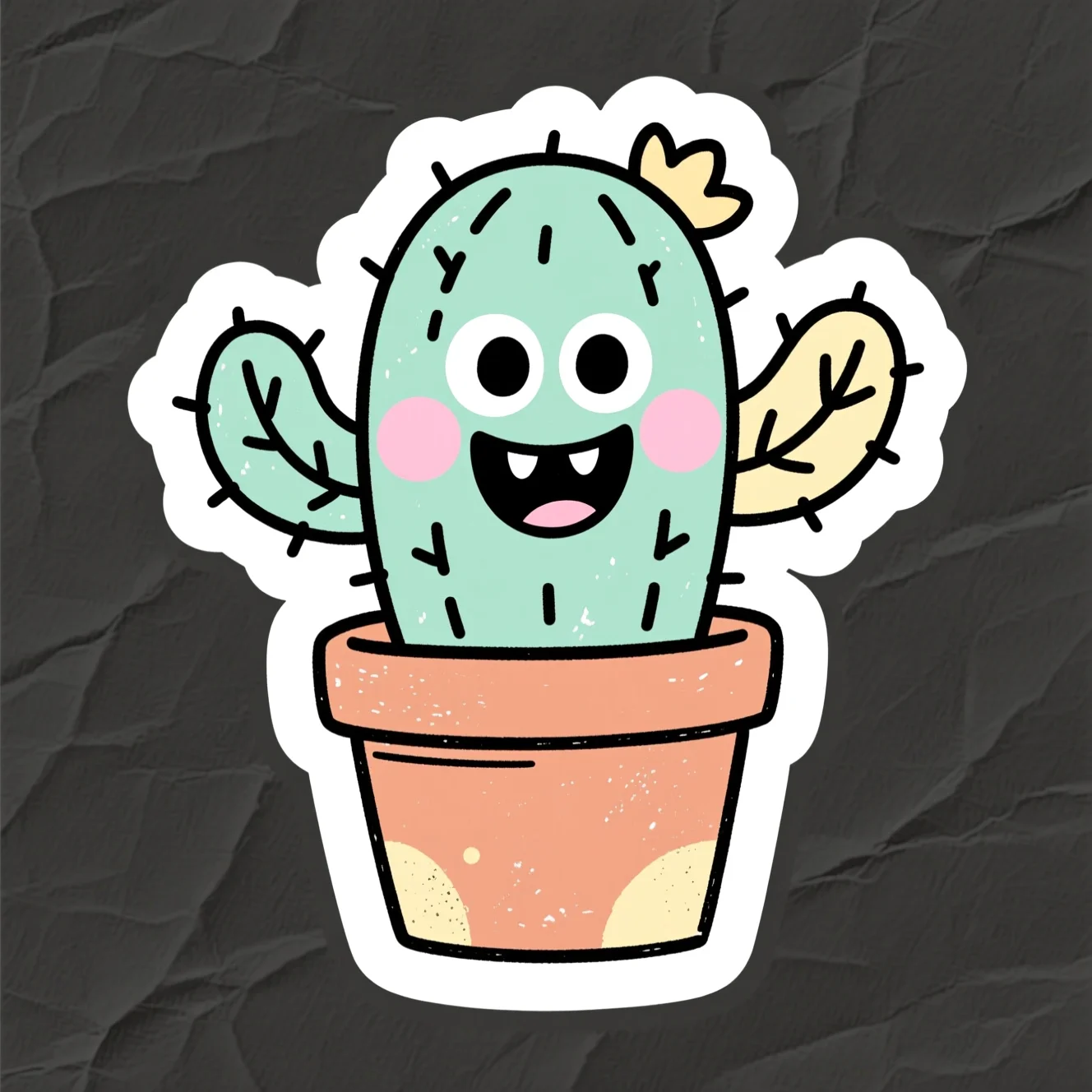
“cactus”
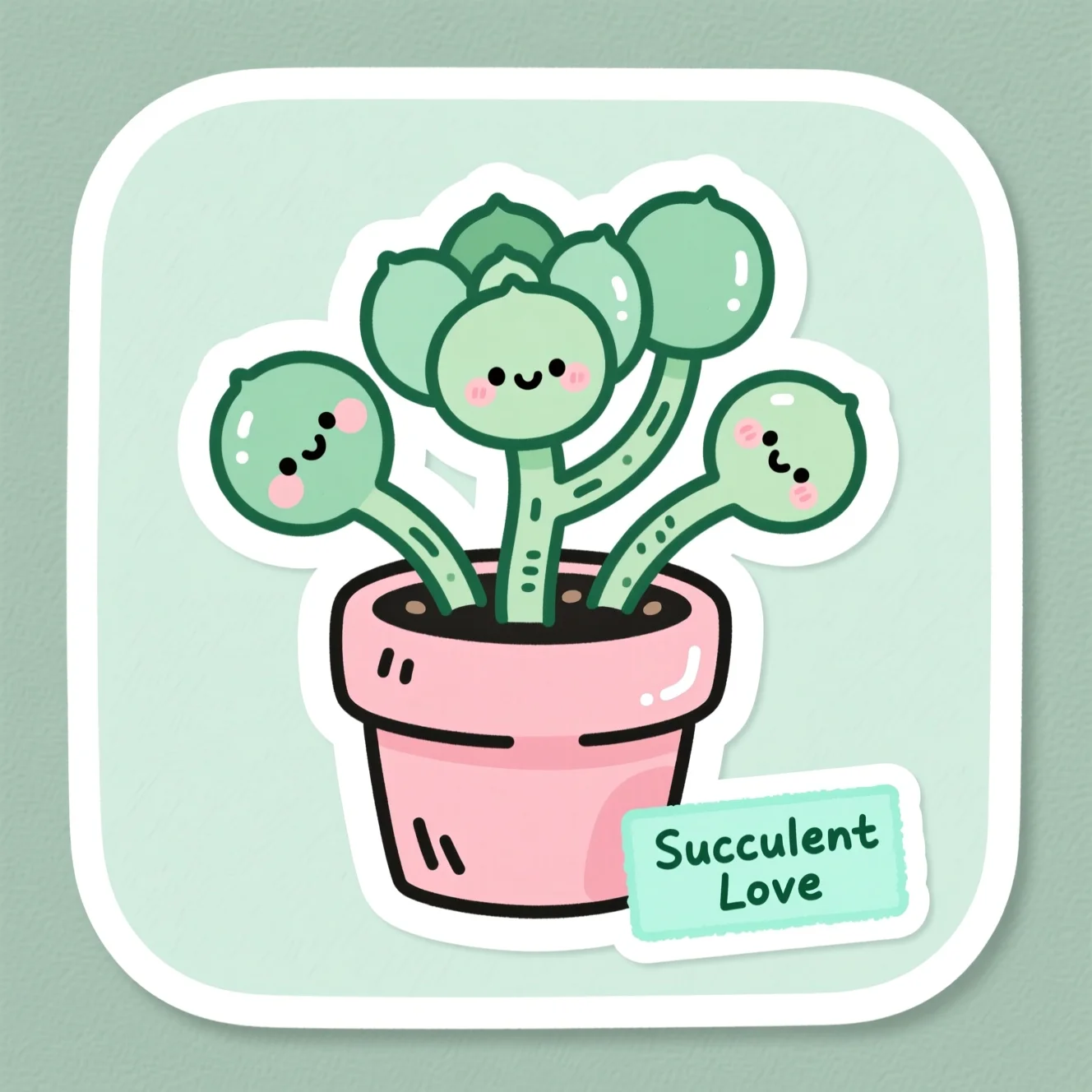
“plant”
Example packs generated with Pixazo’s PixelForge model — not user submissions.
In the wild
Where can you use your AI stickers?
Transparent PNGs read cleanly on light and dark chats alike. This is where stickers AI really earns its place — create stickers with AI, then send them.
Why Pixazo
What this free AI sticker maker gives you.
Only what the stickers AI actually does — no invented star ratings or user counts.
Free to try
Generate and download on the AI Sticker Maker free tier in the Pixazo playground.
Transparent PNG
Export a clean cut-out PNG so your AI stickers sit on any background.
True die-cut edge
Every sticker comes with the classic thick white peel-off border.
High-resolution
Crisp enough for chat, merch and print, straight from the sticker maker.
Fast
Type, tap, done — make stickers with AI in seconds, not hours.
Batch a pack
Regenerate to create stickers with AI by the sheet, not one at a time.
Honest limits
What can’t it do (yet)?
A free AI sticker maker is powerful, but it’s worth knowing where it stops.
- 01Exact lettering can be hit-or-miss. For long or precise text, generate a few and pick the cleanest — or add the words yourself afterwards.
- 02It makes raster art, not a full vector editor. Export SVG for scaling, but fine node-by-node editing belongs in a dedicated design tool.
- 03Results vary run to run — the same prompt returns different stickers. Great for variety, but the stickers AI returns will differ, so expect to regenerate.
- 04This page starts from text, not your photo. To make stickers from a face or pet picture, use the AI Sticker Generator instead.
Yes, it’s really a free AI sticker maker.
Tap Tray runs in the Pixazo playground on free models and free starter credits, so you can make stickers with AI and download them free with a credit card. Check the playground for the latest on credits — no invented limits here.
Keys that expand
Sticker maker questions.
 Is Tap Tray a free AI sticker maker?+
Yes. It runs in the Pixazo playground, which includes free models and free credits to start, so you get the AI Sticker Maker free to try — no design skills and no software to install.
How do I make stickers with AI?+
Type a prompt describing the subject and a style, tap generate, then download your favourite. That’s the whole flow to make stickers with AI — tweak the words and regenerate any time.
Can I create stickers with AI from a photo?+
Yes — use the AI Sticker Generator to turn a face or pet photo into a die-cut sticker. This page is the text-to-sticker maker; both let you create stickers with AI.
What formats do I get, and is the background transparent?+
Export a transparent PNG for chats and overlays, plus SVG, PDF, WEBP and JPG. The stickers AI produces are high-resolution, so they stay crisp at any size.
Do the AI stickers cost anything?+
You can generate and download on the AI Sticker Maker free tier to try it. For heavier use, check the current playground credits — there are no hidden limits stated here.
Can I use the AI stickers commercially?+
Generally yes on your Pixazo plan — check the current playground terms before you sell merch or use the stickers in a paid campaign. Rights can vary by model, so read the fine print first.
What makes a good sticker prompt?+
Name one clear subject, add a style word (kawaii, 3D, pixel…) and ask for a “thick white die-cut border”. Simple subjects read best when you make stickers with AI at small chat size.
Press to make your first sticker.
Type an idea, tap generate, peel the result — the AI Sticker Maker free to start, with stickers AI can turn around in seconds.
Press to make stickers with AI — freeBy Deepak Joshi
Content Marketing Specialist · Pixazo
Deepak Joshi is a Content Marketing specialist having a combined experience of 10+ years working in the digital world. He is one of the active contributors to Pixazo Blog and has keen interest creating and marketing content related to AI tools, No-Code technology, Design Industry, Social Influencers, and other trending topics. A health and sport enthusiast, Deepak loves to indulge in all kinds of sports & games.
AI disclosure: the sticker images on this page were generated with Pixazo’s PixelForge model in the free playground, shown to illustrate what the sticker maker can do.