Facebook Banner : Create Free Facebook Banners in Minutes with AI
Create Custom Facebook Banners Quickly with Pixazo Best AI Facebook Banner Maker. Try for Free!
Get Started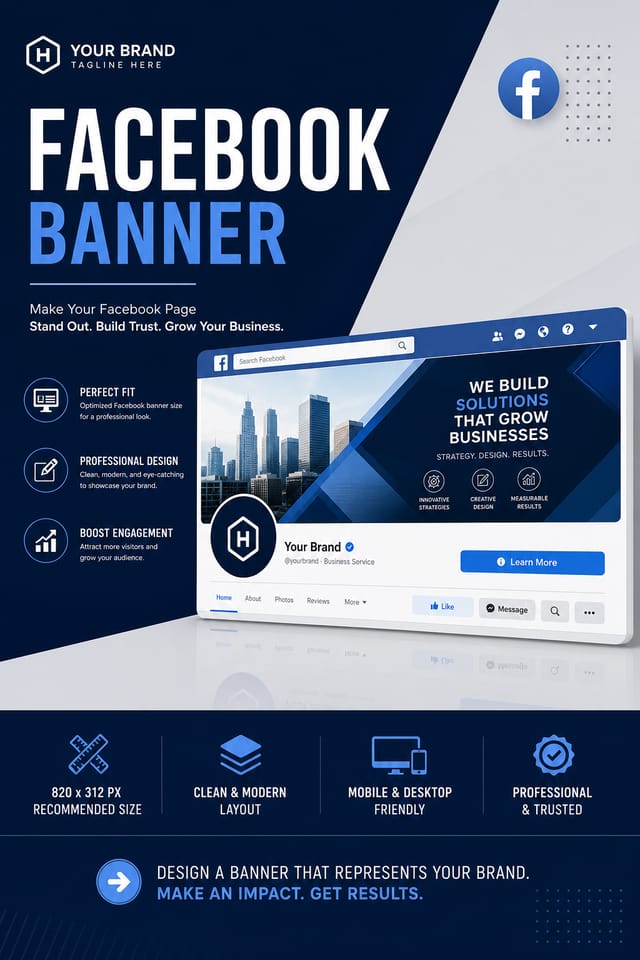
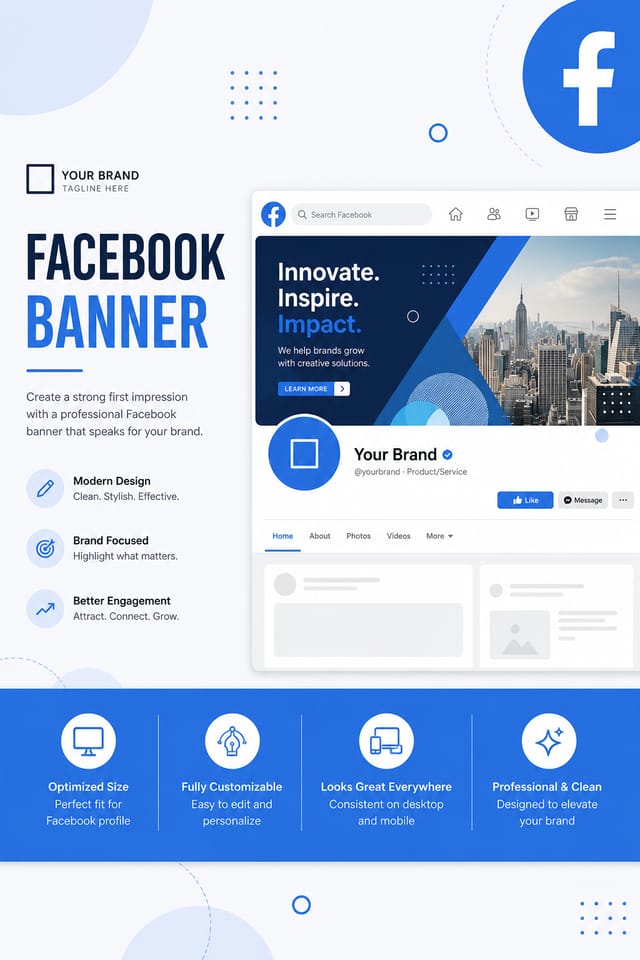
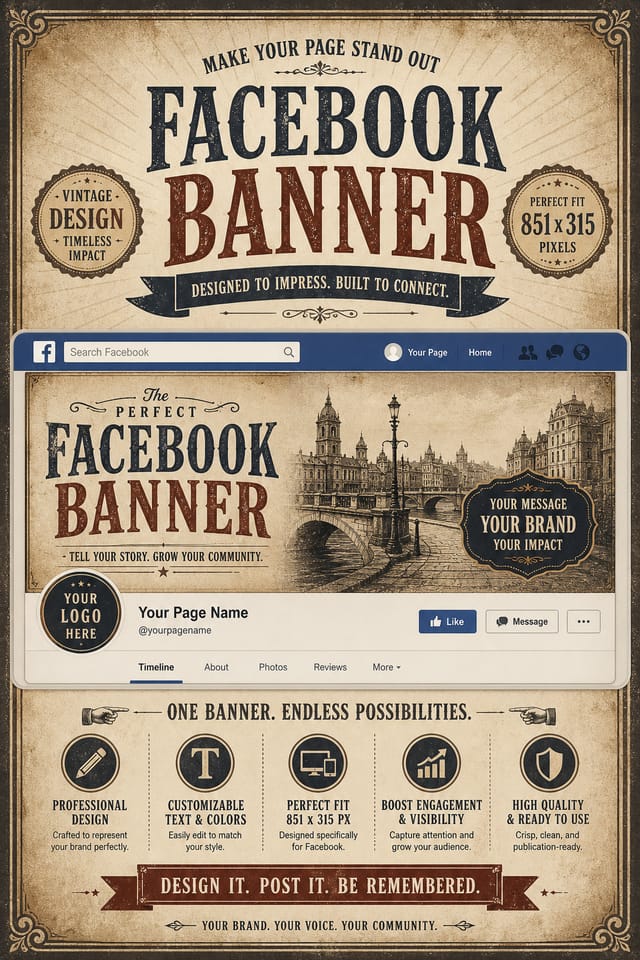
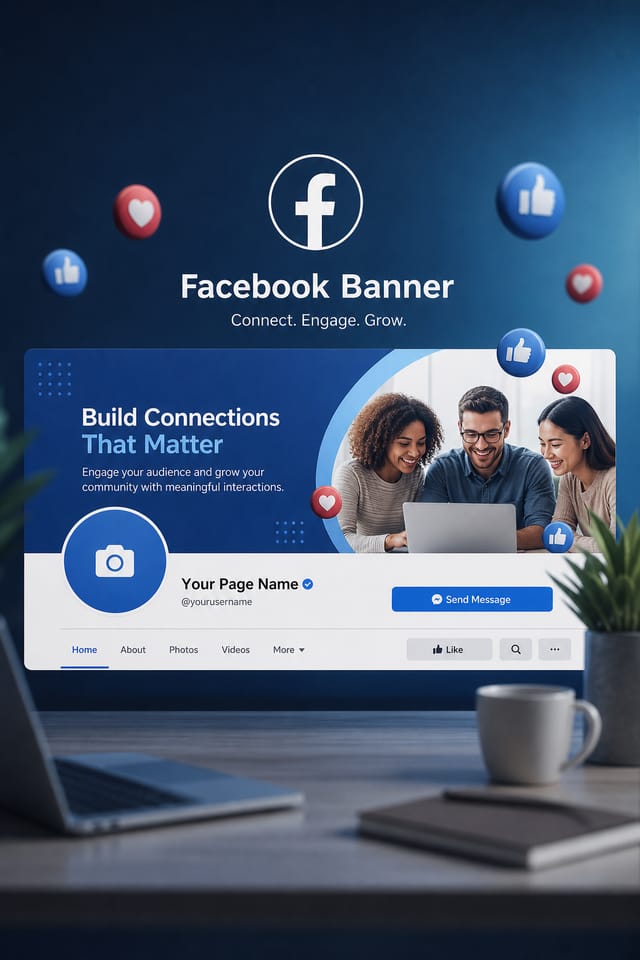
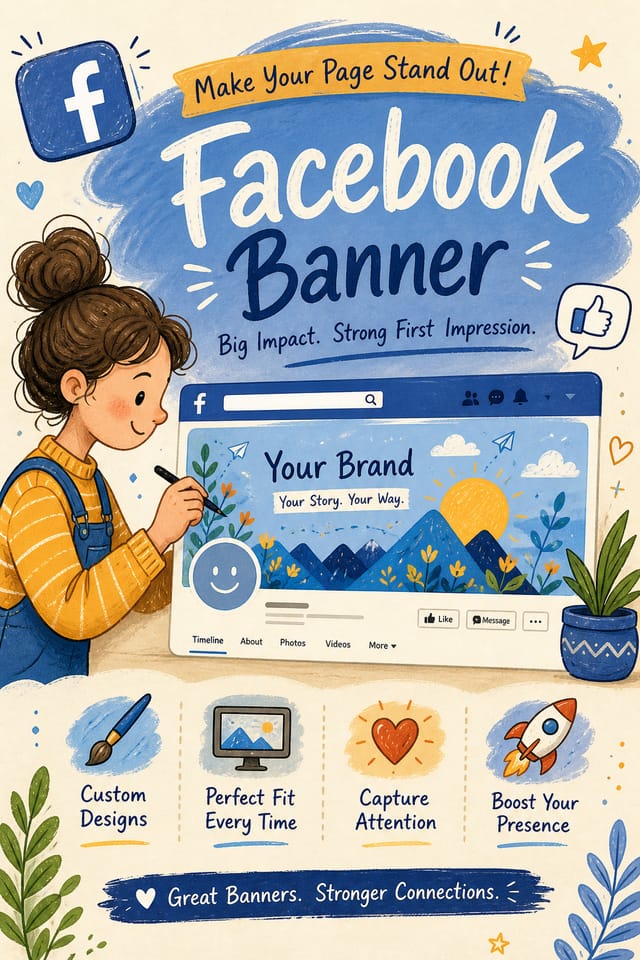
Facebook Banner Creation Tools: Professional Features
Style-Accurate Generation
The AI interprets facebook design conventions and applies them to your banner, producing output that looks correctly styled rather than generically templated.
Text Placement Options
Describe where you want text elements positioned in your facebook banner. The AI follows compositional direction about headline placement and body copy layout.
Commercial Use Rights
Designs generated with Pixazo are yours to use commercially. No additional licensing required for facebook banner projects.
Fast Generation
Complete facebook banner designs generate in seconds. No rendering queues, no waiting for batch processing.
Export Flexibility
Download your facebook banner in formats suited for your use case. Web-optimized versions for digital display, high-DPI files for print.
Instant Iterations
Generate multiple facebook banner variations from a single prompt. Compare options and refine until the design matches your vision.
Facebook Banner AI Deep Dive: The Complete Picture
Layout Intelligence
AI understands facebook banner layout conventions and applies them automatically
Typography Matching
Font selection that matches the visual tone of your facebook banner design
Composition Rules
Automatic application of design principles like hierarchy and balance
Facebook Banners Across Fields: Practical Examples
Subscription and SaaS Marketing
Generate facebook banners for software launches, feature announcements, and onboarding campaigns. Clean, modern designs for digital-first audiences.
Religious and Spiritual Organizations
Create facebook banners for worship services, community outreach, and faith-based events. Respectful designs that reflect the organization's character.
Small Business Marketing
Produce facebook marketing banners without a design agency budget. Get professional results from a text description.
Event Promotion
Create facebook event banners that establish the right visual mood before the event. Facebook design signals quality and sets expectations.
Facebook Banner Generation: Prompt Inspiration
Copy any prompt below and paste it into Pixazo to generate your design instantly.
Refined facebook banner, sophisticated color relationships, intentional whitespace, typefaces appropriate to facebook style, balanced compositionHigh-impact facebook banner, immediate visual read at thumbnail size, clear headline dominance, supporting information structured logicallyGeometric facebook banner, structured grid system, angular composition, colors in blocks rather than gradients, modern clean finishMonochromatic facebook banner, single-hue palette with value variation for contrast, typographic hierarchy creates visual interest without color complexityLarge-format facebook banner design, elements sized for visibility at print scale, no fine detail that would be lost in productionFacebook Banner Design Steps: From Start to Finish
Document the Vision
Describe what you want your facebook banner to look like. Include the mood, color palette, typography preference, and content hierarchy. Pixazo reads all of this and uses it to generate an appropriate design.
Critique the Draft
The AI produces a facebook banner based on your description. If the first result isn't exactly right, adjust the prompt to address what needs changing. Most designs reach the target within a few iterations.
Modify the Elements
Iterate on your facebook banner by modifying the aspects that need work. Regenerate with a more targeted prompt until the design matches your vision. Most refinements take one or two iterations.
Lock In the Design
Export your facebook banner in the format you need. PNG for web and social, PDF for print production, JPG for email and lightweight sharing. The file is yours to use commercially without restrictions.
Watch: Creating Facebook Banner designs step by step
Facebook Design Styles: Aesthetic Choices
Geometric Facebook
Structured facebook composition using grid systems and angular forms. Order and precision define the visual approach.
Atmospheric Facebook
Facebook banner design where mood takes priority. Color and composition work together to create a specific feeling.
High-Contrast Facebook
Bold facebook visual treatment with strong tonal contrast. Elements read clearly at any viewing distance.
Textured Facebook
Facebook design with added surface depth. Background treatments add visual interest without disrupting legibility.
Classic Facebook
Traditional facebook design principles applied to modern banner format. Clean composition, conventional hierarchy, time-tested visual decisions.
Facebook Banner AI Boundaries: Realistic Expectations
Known limitations and trade-offs of AI-generated facebook design. Every AI design tool has boundaries. Knowing these limits before you start helps you get the most out of facebook banner generation.
Current Facebook Banner Directions: Styles Gaining Traction
Data-Driven Visuals
Incorporating charts, statistics, and structured data directly into facebook banner layouts helps communicate complex messages at a glance.
Bold Typography
Oversized type and expressive fonts are dominating facebook banner design, turning headlines into visual centerpieces rather than just text.
Asymmetric Composition
Breaking grid symmetry in facebook banner layouts creates visual tension and a modern, editorial feel that stands out.
Brutalist Design
Raw, intentionally unpolished facebook banner aesthetics with stark contrasts and unconventional layouts are carving a niche in creative industries.
Retro Revival
Vintage aesthetics from the 1970s and 1990s are influencing facebook banner design with textured backgrounds, serif fonts, and warm gradients.
Hand-Drawn Elements
Illustrations, doodles, and hand-lettering bring a personal, approachable quality to facebook banner designs in an era of polished digital output.
Facebook Banner File Formats: Choosing the Right Format
Print-ready format for facebook banner files that preserves fonts, colors, and layout across different devices and print services.
PNG
Lossless image format ideal for facebook banner designs with transparency, sharp text, and web display at predictable file sizes.
JPG
Compressed image format suited for facebook banner designs with photographic elements where smaller file size matters more than pixel-perfect edges.
WEBP
Modern web format offering smaller file sizes than PNG or JPG for facebook banner images without significant quality loss.
SVG
Scalable format for facebook banner designs that need to render crisply at any resolution, commonly used for web and responsive layouts.
Facebook Banner Creators: Real Creator Work
Real creators sharing their facebook designs made with Pixazo AI.
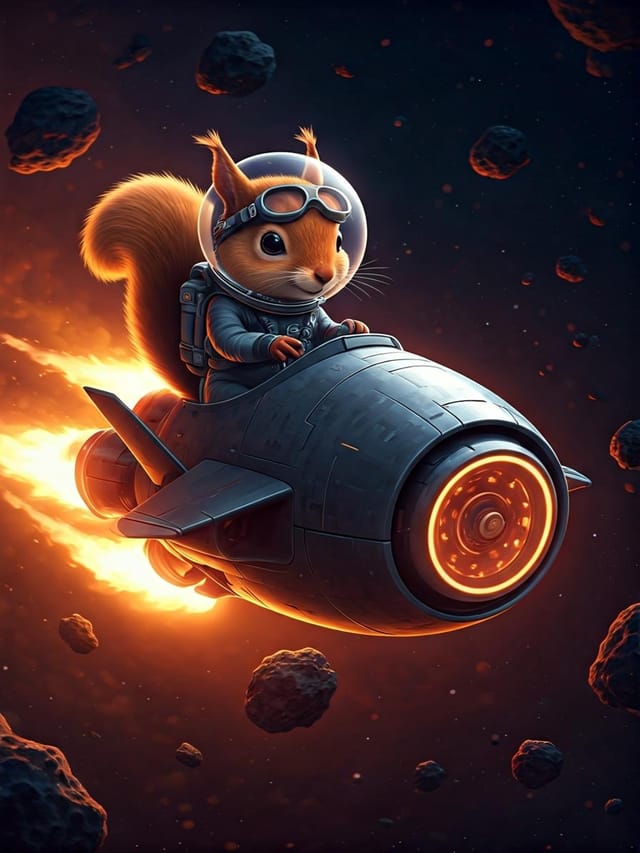
High-contrast facebook banner, dark background with light text, accent color used for single key element, modern composition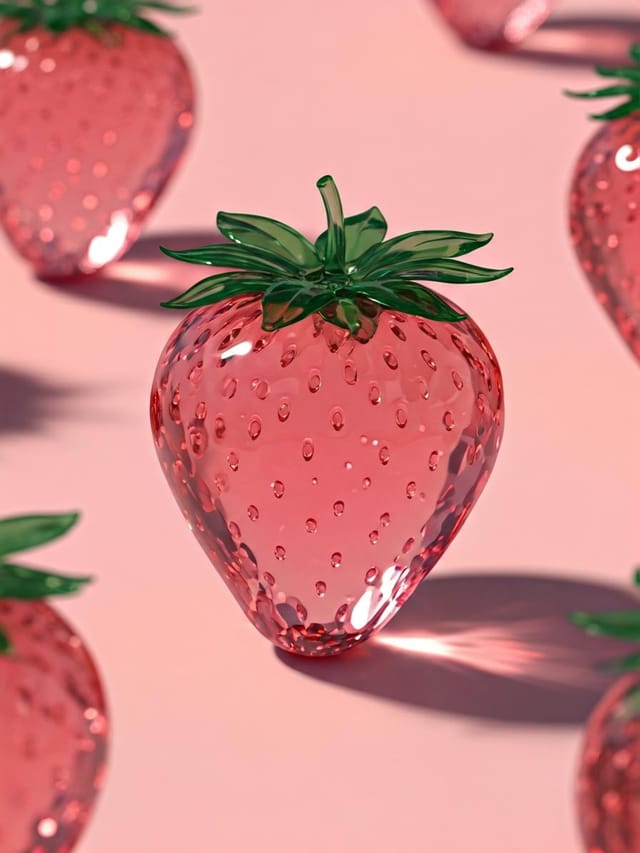
Luxurious facebook banner with gold foil accents on black, thin serif typography, symmetrical centered layout, premium feel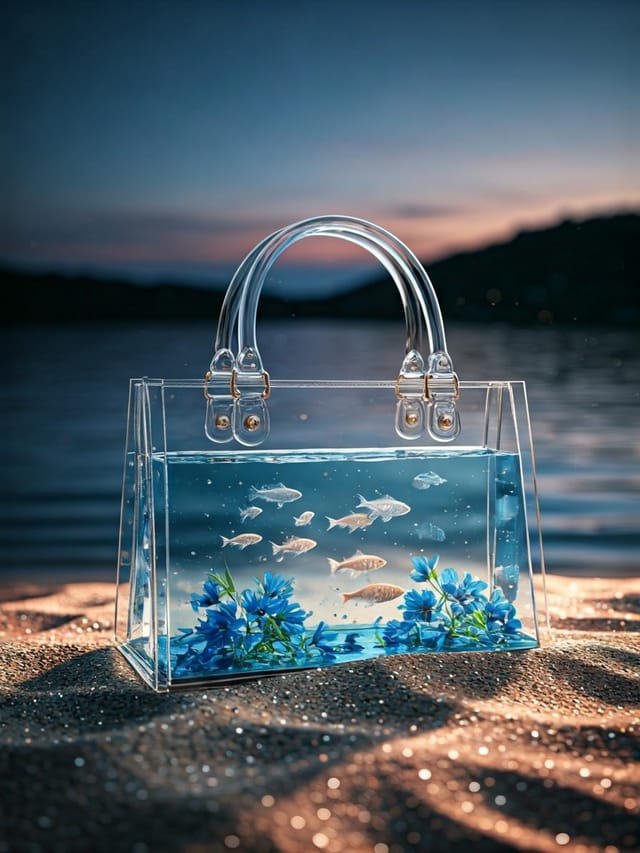
Corporate facebook banner for a B2B audience, clean and authoritative, navy and white palette, structured grid, data-friendly layoutPractical Facebook Banner Tips: Lessons from the Field
Limit Your Color Palette
Stick to 2-3 primary colors in your facebook banner design. Too many colors compete for attention and weaken the visual hierarchy.
Keep Typography Simple
Use no more than two typefaces per facebook banner. One for headlines, one for body text. Consistency in typography signals professionalism.
Prioritize Hierarchy
Every facebook banner needs a clear reading order. Make sure the most important information is the largest and most prominent element in the layout.
Consider the Context
Think about where your facebook banner will appear. A design optimized for social media needs different proportions and density than one for a physical bulletin board.
Before You Start: What People Ask
Templates apply a fixed visual structure with placeholder content. AI generation produces original designs based on your specific description. Two facebook banners generated from different prompts will have genuinely different layouts, not just different text in the same box positions.
Describe your core design parameters in each prompt and vary only the specific elements that should change across the series. Maintaining consistent color palette, typographic approach, and compositional structure across facebook banner variations creates a coherent series.
Specific prompts produce better results than vague ones. Include the visual style you want, any color preferences, the most important text to display, and the intended use. For facebook design specifically, noting whether you want a contemporary or classic interpretation of facebook style helps the AI make the right design decisions.
You can specify any aspect ratio in your prompt. Common options include 1:1 for social posts, 4:5 for Instagram, 9:16 for stories, 16:9 for presentations, and standard print sizes like A4 or letter. The AI adapts facebook composition to fit your chosen ratio.
Brand kits let you save your logo, fonts, and color palette so every facebook banner you generate stays on brand. Once configured, the AI applies your brand parameters automatically alongside facebook style conventions.
Generated designs that miss the mark usually need more specific prompts. Add details about the visual hierarchy you want, the feeling the facebook banner should create, or specific elements to include or avoid. More context in the prompt produces more targeted output.

