AI Banner Maker: Create Free Banners in Minutes
Create Custom Banners Quickly with Pixazo Best AI Banner Maker. Try for Free!
Get Started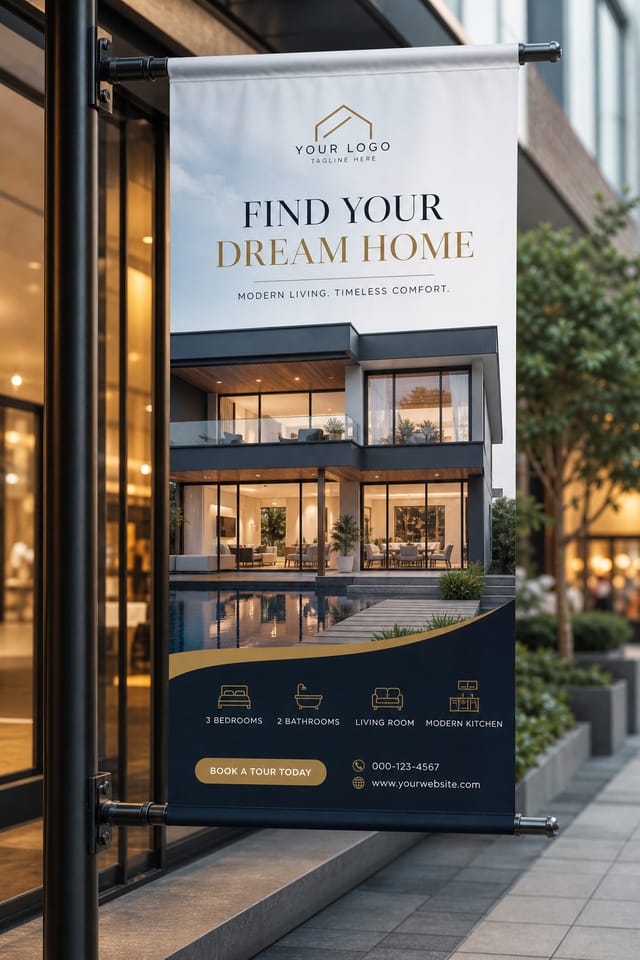
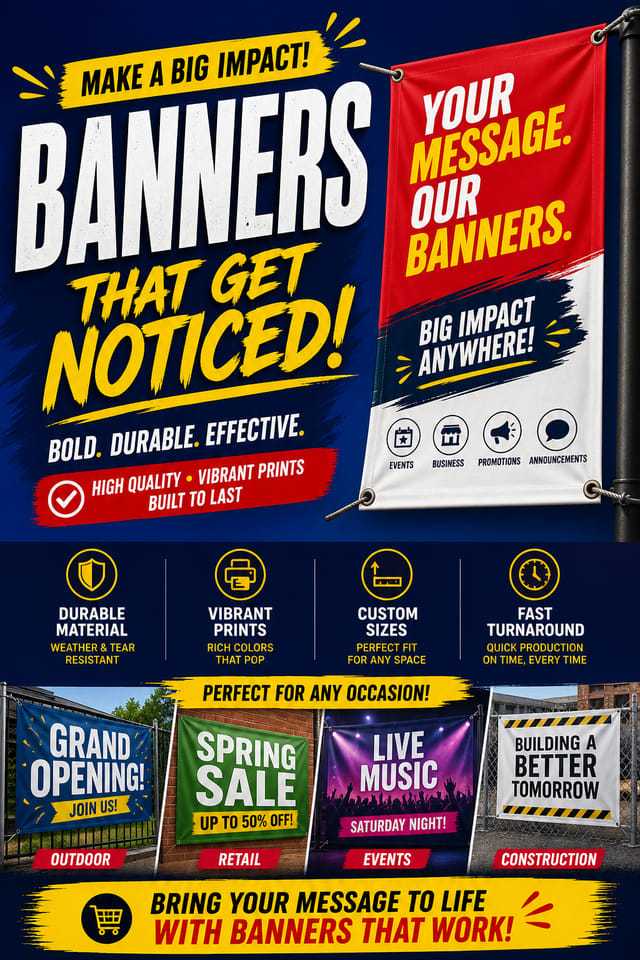
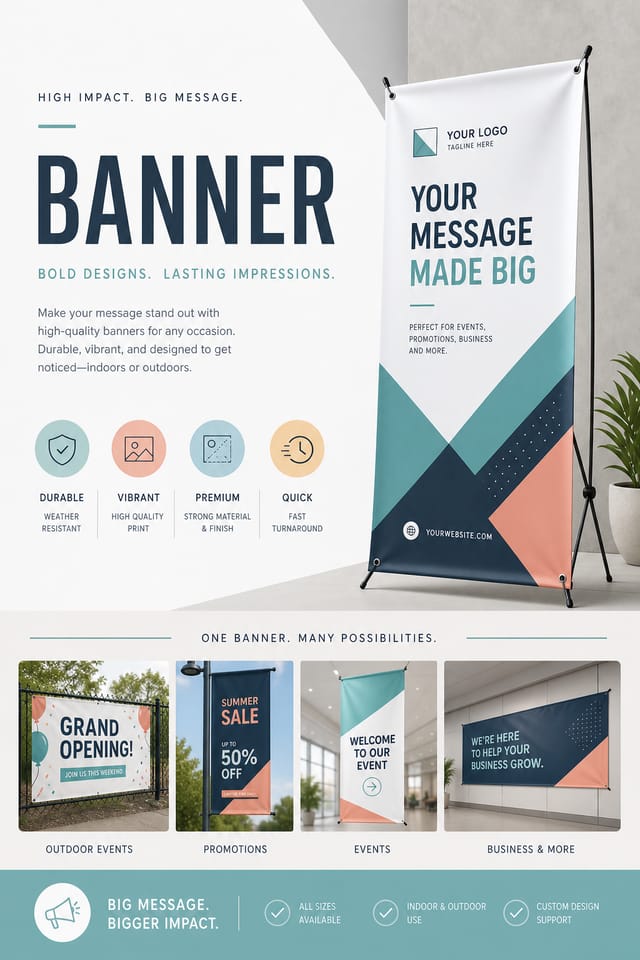
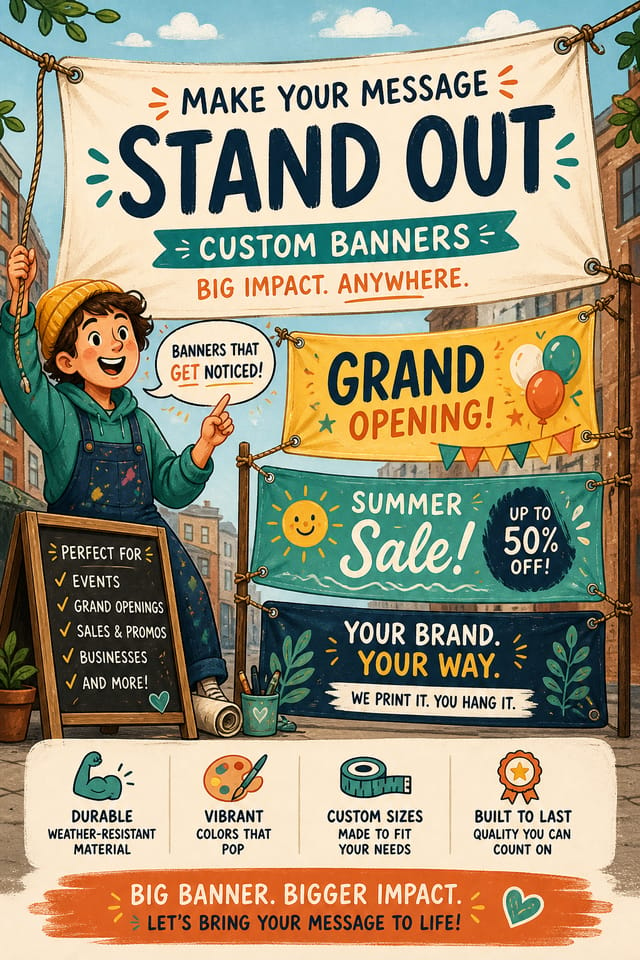
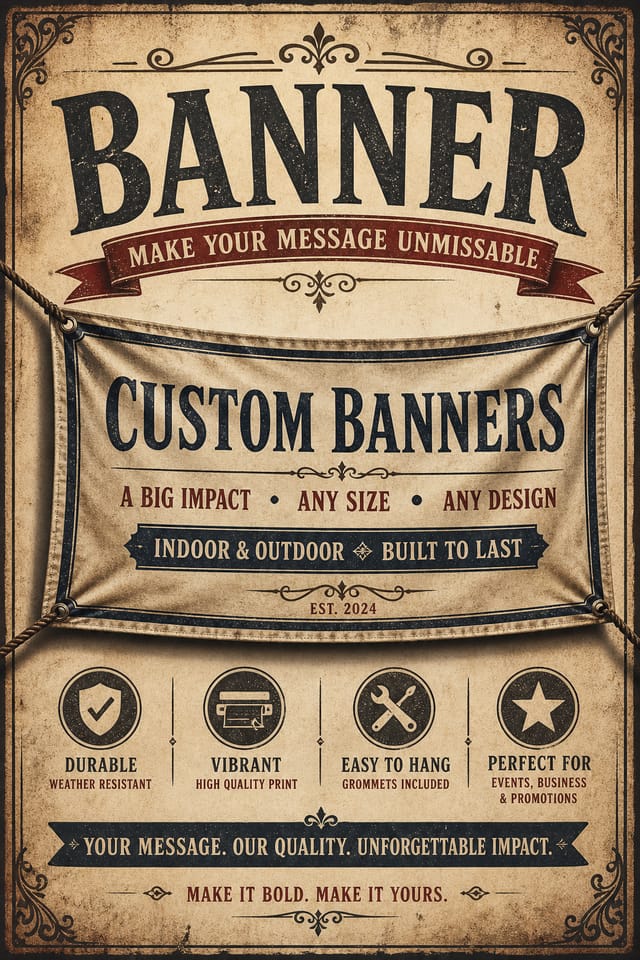
AI-Powered Banner: Professional Results Fast
Turn your banner ideas into finished designs with one prompt. No software to learn, no design background required.
Built for designers, marketers, small business owners, and creators who need professional banner designs without design software.
Create Your Banner FreeHow AI Translates Banner Style: The Design System
Why Banner Design Requires Specific Knowledge
The gap between a professional banner and a mediocre one usually comes down to design decisions made early in the process: palette selection, type hierarchy, and compositional structure.
These choices determine whether the final output reads as banner or just looks generic.
Pixazo's AI makes these foundational decisions based on your prompt.
Specify a banner and the system selects design parameters that match banner visual expectations, giving you a solid starting point rather than a blank-slate template.
How to Evaluate Banners: Best Practices
Texture and Depth
Subtle texture in banner design adds visual interest without competing with content. Surface treatments create depth and suggest quality when used sparingly.
White Space as Luxury
The most expensive-looking banner designs have the most unused space. Crowded layouts signal low quality. Let each element breathe.
Repetition and Consistency
Repeating visual elements in banner design creates cohesion. Consistent use of shapes, colors, and spacing makes the design feel unified rather than assembled from random parts.
Banner Design Workflow: Stages Explained
Research
Collect examples of effective banner designs, note what works, and identify patterns relevant to your project goals.
Review
Compare generated banner options against your brief. Mark what works and note specific changes needed for the next iteration.
Generate
Use AI to produce multiple banner variations based on your brief. Start broad and narrow down from the strongest options.
Approve
Get stakeholder approval on the finished banner. Verify all text is accurate and the design meets brand and technical requirements.
The Banner Feature Set: What It Can Do
No Design Software Required
Create professional banners without Photoshop, Illustrator, or other design applications. The AI handles all technical production.
Subcategory Awareness
The AI distinguishes between design subcategories. A banner request produces banner-appropriate output, not a generic design with banner text added.
Text Placement Options
Describe where you want text elements positioned in your banner. The AI follows compositional direction about headline placement and body copy layout.
Layered Style Application
Combine banner style with other design parameters in a single prompt. The AI interprets complex requests and applies multiple style constraints simultaneously.
Consistency Across Variants
Generate multiple banners for a project and maintain visual consistency across the set. Specify your core design parameters and vary secondary elements.
Instant Iterations
Generate multiple banner variations from a single prompt. Compare options and refine until the design matches your vision.
Copy-Paste Banner Prompt Collection
Copy any prompt below and paste it into Pixazo to generate your design instantly.
High-impact banner, immediate visual read at thumbnail size, clear headline dominance, supporting information structured logicallyTwo-color banner design, high contrast between primary and secondary color, clean separation between graphic and text zonesSeries-compatible banner design, visual language that extends to multiple formats, consistent design system across variantsRefined banner, sophisticated color relationships, intentional whitespace, typefaces appropriate to banner style, balanced compositionBanner with strong visual hierarchy, largest element reads clearly, supporting elements organized by importance, clean background treatmentYour Banner Workflow: From Start to Finish
Lead with the Concept
Describe what you want your banner to look like. Include the mood, color palette, typography preference, and content hierarchy. Pixazo reads all of this and uses it to generate an appropriate design.
Witness the Result
Your banner generates immediately after submission. Evaluate the design against your requirements and refine the prompt to correct any elements that don't match your intent.
Ship the Final File
Get your final banner file in one click. Choose your format, download at full resolution, and use the design immediately. No watermarks, no additional fees, no waiting.
Banner Specifications
Watch: Creating Banner designs step by step
What Is Trending in Banners: Styles Gaining Traction
Brutalist Design
Raw, intentionally unpolished banner aesthetics with stark contrasts and unconventional layouts are carving a niche in creative industries.
Hand-Drawn Elements
Illustrations, doodles, and hand-lettering bring a personal, approachable quality to banner designs in an era of polished digital output.
Asymmetric Composition
Breaking grid symmetry in banner layouts creates visual tension and a modern, editorial feel that stands out.
Organic Shapes
Flowing, irregular forms are replacing sharp geometric shapes in banner backgrounds and decorative elements for a softer visual feel.
Retro Revival
Vintage aesthetics from the 1970s and 1990s are influencing banner design with textured backgrounds, serif fonts, and warm gradients.
Banner Applications: Where They Fit
Facebook Event and Page Covers
Design banners for Facebook page covers, event banners, and group headers. Platform-compliant dimensions with strong visual presence.
TikTok and Reels Cover Frames
Generate banners for short-form video cover images. Vertical designs that represent video content and attract clicks.
Pinterest Pins and Idea Pins
Create banners in tall vertical formats optimized for Pinterest discovery. Designs that perform well in search and recommendation.
YouTube Thumbnails and Channel Art
Design banners for video thumbnails and channel banners. Bold, legible designs that stand out in recommendation feeds.
Design Variations for Banners: Worth Exploring
Minimalist Banner
Stripped-back banner approach. Fewer elements, more negative space, typography carries more visual weight.
Atmospheric Banner
Banner design where mood takes priority. Color and composition work together to create a specific feeling.
Geometric Banner
Structured banner composition using grid systems and angular forms. Order and precision define the visual approach.
Editorial Banner
Text-dominant banner layout inspired by print publication design. Typographic variety creates visual rhythm.
Exporting Your Banner: Choosing the Right Format
PNG
Lossless image format ideal for banner designs with transparency, sharp text, and web display at predictable file sizes.
TIFF
High-fidelity format for banner files destined for professional printing, supporting CMYK color and lossless compression.
Print-ready format for banner files that preserves fonts, colors, and layout across different devices and print services.
SVG
Scalable format for banner designs that need to render crisply at any resolution, commonly used for web and responsive layouts.
New to Banners? What You Should Know
Canva uses fixed templates you customize manually. Pixazo generates original banner designs from your description, so every output is unique. For banner work specifically, the AI applies style-specific design decisions rather than offering generic drag-and-drop templates.
The AI recognizes banner design as a distinct visual category with its own conventions. Specifying banner style in your prompt triggers appropriate design decisions around color, typography, and composition rather than defaulting to generic poster layout.
Pixazo generates single-page banner designs per prompt. For multi-page projects, generate each page individually using consistent prompt language to maintain visual continuity across your banner document set.
Designs created with Pixazo are available for commercial use. You can use your banners for client projects, product sales, advertising, and other commercial applications without additional licensing fees.
Include the target language in your prompt when generating banners with non-English text. The AI selects typographic approaches appropriate for the language and applies banner design conventions to the overall layout regardless of language.
Yes. A FiveM banner is the header image on a FiveM server's Discord or forum listing. Say the server name, the roleplay theme and the colours, and the AI banner maker lays it out at the size the listing expects.
Most FiveM server banners run 1920 × 1080 px for a forum header and 960 × 540 px for a Discord embed. Ask for the size by name and the export comes out at that ratio without cropping the logo.
Yes. Discord server banners are 960 × 540 px and Twitch profile banners are 1200 × 480 px. Describe the community and the AI banner generator keeps the safe area clear of the avatar overlay.
Yes. Give the IP, the join code or the Discord invite in the prompt and it is placed as live text along the lower edge, where it stays readable after the listing compresses the image.
Yes. Describe the emblem you want and the banner maker draws a stand-in you can swap later. If you have a PNG with a transparent background, upload it and it is placed instead.
Showcasing Banners: Community Creations
Real creators sharing their banner designs made with Pixazo AI.
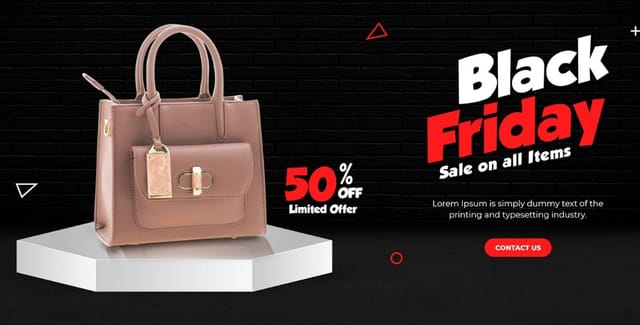
Portrait banner for social sharing, vertical 4:5 ratio, headline in upper third, supporting content below centerline
Banner with retro 1970s color palette, warm oranges and browns, groovy display type, textured paper background feel
Square banner at 1080x1080 for LinkedIn post, professional tone, balanced text-to-visual ratio, brand-safe compositionBeing Realistic About Banners: Current Boundaries
Known limitations and trade-offs of AI-generated banner design. AI banner generation produces strong results within its design domain. These notes describe where human judgment and manual work remain necessary.

