School Brochure : Create Free School Brochures in Minutes with AI
Create Custom School Brochures Quickly with Pixazo Best AI School Brochure Maker. Try for Free!
Get Started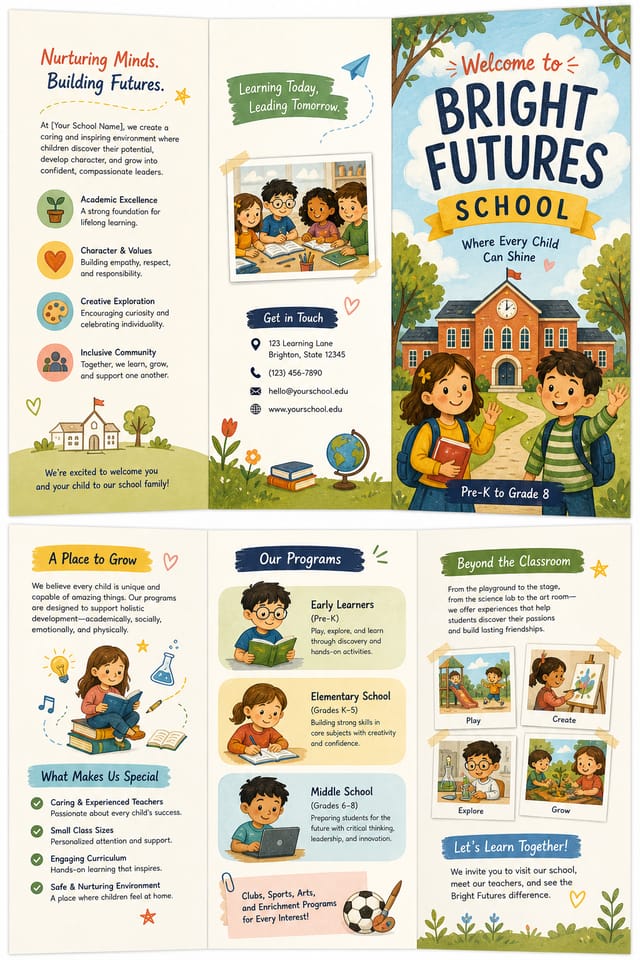
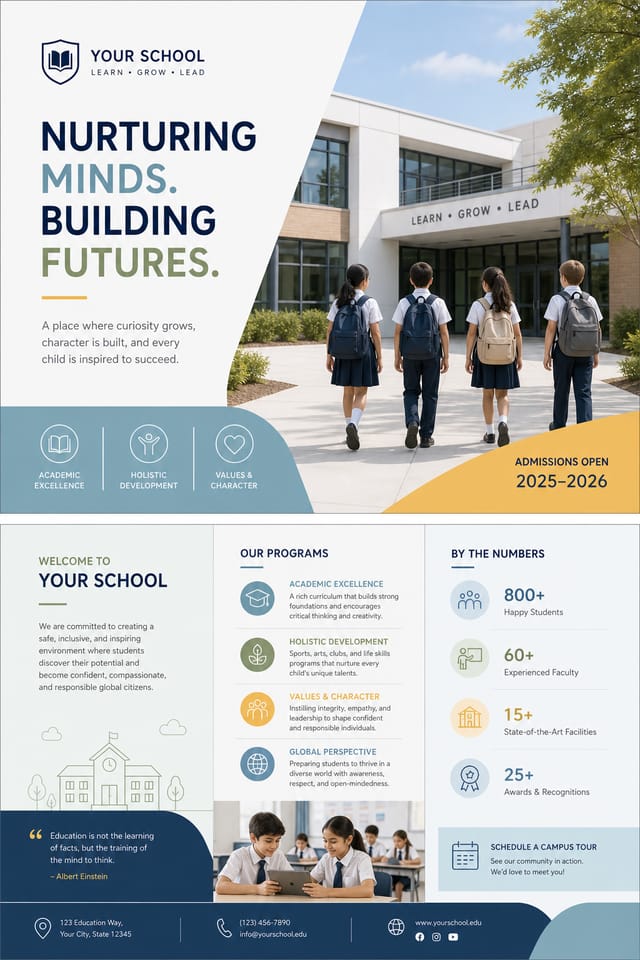
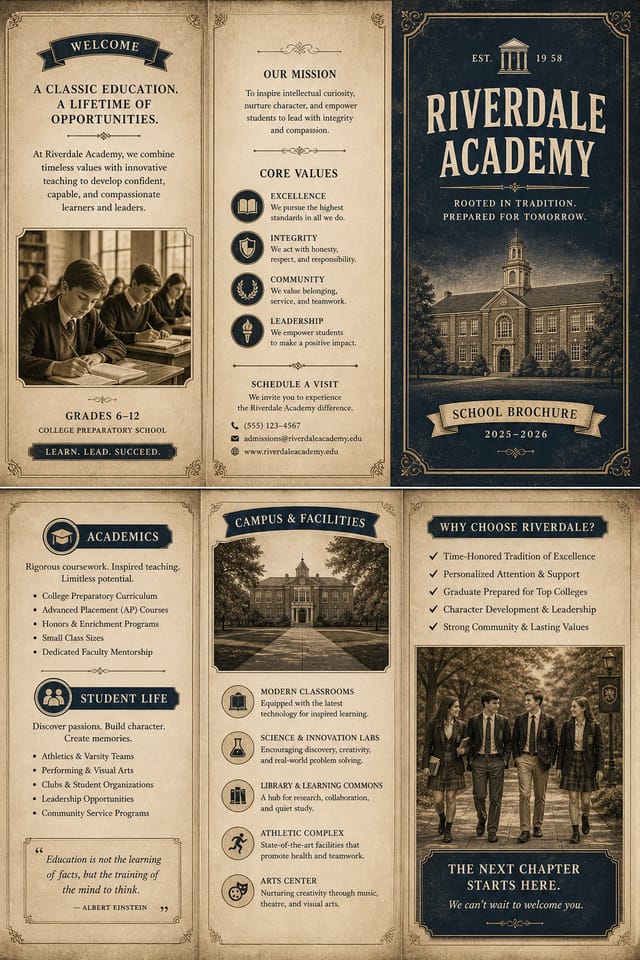
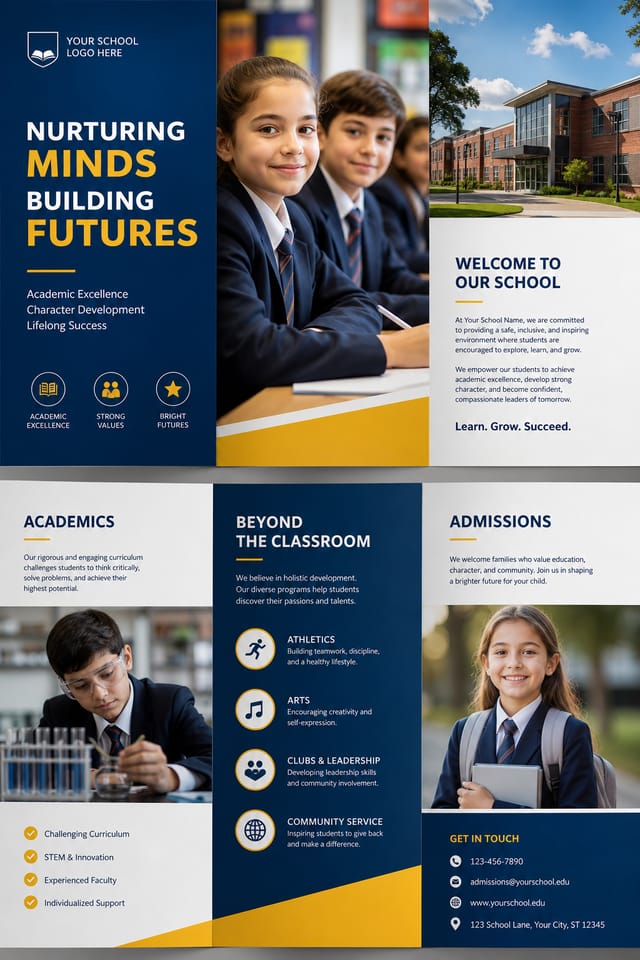
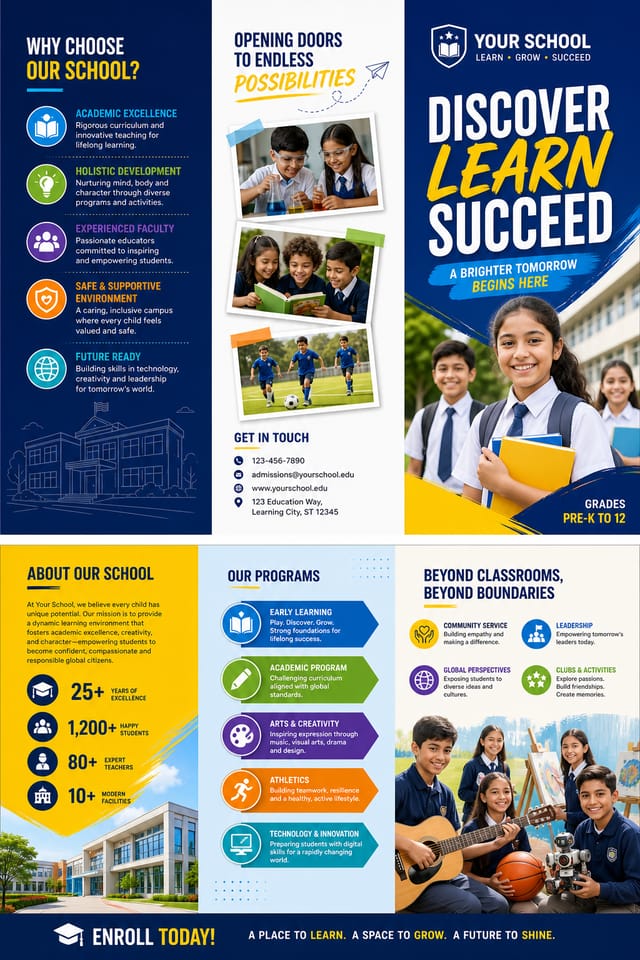
School Brochure At a Glance: What You Get
School Brochure Software Options: Finding the Right Fit
PicMonkey
Photo editor and design tool with brand kit management
Pixazo
AI-powered school brochure generator with prompt-based design and professional output quality
Desygner
Multi-format design tool with PDF editing and brand management
VistaCreate
Visual content platform with templates and a built-in asset library
Fotor
Photo editing platform with design templates and batch processing
Precision School Brochure Tools: Professional Features
Print-Ready Output
Generated school brochures are sized and structured for professional printing. Download high-resolution files ready for production.
Layered Style Application
Combine school style with other design parameters in a single prompt. The AI interprets complex requests and applies multiple style constraints simultaneously.
Color Temperature Control
Specify warm, cool, or neutral color direction for your school brochure. The AI builds the full palette around your temperature preference.
Prompt Refinement
Adjust your description to refine any aspect of the school brochure design. The AI responds to specific direction about colors, layout, or content.
Typography Matching
Typefaces are selected to match school aesthetic expectations. The AI pairs fonts that reinforce your school brochure's visual identity.
Consistency Across Variants
Generate multiple school brochures for a project and maintain visual consistency across the set. Specify your core design parameters and vary secondary elements.
School Brochure Applications: Who Uses Them
Student Recruitment Materials
Generate school brochures for program open days, scholarship announcements, and enrollment campaigns. Designs that appeal to prospective students.
Grant and Funding Presentations
Create school brochures to support funding applications and donor presentations. Visual summaries that make research impact tangible.
Thesis and Dissertation Defense
Design school brochures for viva presentations and thesis defenses. Clear visual aids that support oral examination of research.
Conference Presentations
Create school brochures for academic conferences, symposia, and research showcases. Designs that present complex findings in a scannable visual format.
Workshop and Seminar Notices
Generate school brochures announcing guest lectures, skill workshops, and study groups. Practical materials for academic community notice boards.
School Brochure Generation: Prompt Templates
Copy any prompt below and paste it into Pixazo to generate your design instantly.
Geometric school brochure, structured grid system, angular composition, colors in blocks rather than gradients, modern clean finishClean school brochure design, geometric structure, disciplined typography, color accent used selectively for emphasis, printer-optimized resolutionSchool brochure with strong visual hierarchy, largest element reads clearly, supporting elements organized by importance, clean background treatmentHigh-impact school brochure, immediate visual read at thumbnail size, clear headline dominance, supporting information structured logicallyEditorial-style school brochure, text-dominant design, typographic treatment carries visual weight, layout proportions inspired by print publication designMaking School Brochures: Made Simple
Begin with Your Vision
Start with a text description of your school brochure concept. Specify the visual style, colors, layout direction, and key text. Detailed prompts produce more accurate school brochure designs than general ones.
Evaluate the Result
Pixazo generates your school brochure in seconds. Review the design and adjust your prompt to refine specific elements: change the color palette, shift the layout weight, or add visual elements you want included.
Download the Result
Download your completed school brochure in the format that fits your use case. High-resolution files for print, web-optimized versions for digital, or PDF for production-ready delivery.
Watch: Creating School Brochure designs step by step
School Brochure Design Insights: Lessons from the Field
Limit Your Color Palette
Stick to 2-3 primary colors in your school brochure design. Too many colors compete for attention and weaken the visual hierarchy.
Match Tone to Audience
A school brochure for a corporate event needs a different visual tone than one for a music festival. Let the audience guide your style choices.
Consider the Context
Think about where your school brochure will appear. A design optimized for social media needs different proportions and density than one for a physical bulletin board.
Test at Actual Size
Always preview your school brochure at the dimensions it will be displayed. Design details that look fine at 100% can disappear or crowd at real-world scale.
Get Feedback Early
Share your school brochure draft with someone outside the project. Fresh eyes catch issues you have become blind to after hours of refinement.
Design Standards for School Brochure: A Designer's Perspective
Alignment and Grid
Strong school brochure layouts align elements to an invisible grid. Consistent alignment builds trust and professionalism, while deliberate breaks from the grid create emphasis.
Compositional Balance
Visual weight in school brochure design should be intentional. Asymmetric balance often creates more interest than centered symmetry, but both can work when executed with purpose.
Purposeful Negative Space
Empty space in school brochure design is not wasted space. Generous margins and breathing room around elements signal quality and make the design easier to read.
From the School Community: Work in the Wild
Real creators sharing their school designs made with Pixazo AI.

Full-bleed background school brochure, image or texture extends to edges, foreground elements float above, headline anchored to center
Editorial-inspired school brochure, text-dominant layout, typographic variety creates visual interest, clean structured alignment
School brochure at 1080x1920 pixels for Instagram stories, bold sans-serif headline centered, gradient background in school tones, call-to-action at bottomSchool Brochure AI Boundaries: Current Boundaries
Known limitations and trade-offs of AI-generated school design. Being specific about what AI brochure generation can and cannot do helps you plan your workflow and set accurate expectations.
School Brochure File Formats: Export Options Explained
JPG
Compressed image format suited for school brochure designs with photographic elements where smaller file size matters more than pixel-perfect edges.
WEBP
Modern web format offering smaller file sizes than PNG or JPG for school brochure images without significant quality loss.
TIFF
High-fidelity format for school brochure files destined for professional printing, supporting CMYK color and lossless compression.
Print-ready format for school brochure files that preserves fonts, colors, and layout across different devices and print services.
PNG
Lossless image format ideal for school brochure designs with transparency, sharp text, and web display at predictable file sizes.
Before You Start: What You Should Know
The AI renders text as specified in your prompt, so double-check spelling and punctuation before generating. If text renders incorrectly in a school brochure, adjust your prompt and regenerate. The AI follows your exact text input.
Common sizes include 1080x1080 for Instagram feed, 1080x1920 for stories and reels, 1200x628 for Facebook links, 1500x500 for Twitter headers, and 1080x1350 for Pinterest. Specify the platform in your prompt and Pixazo optimizes school layout for that format.
Pixazo generates high-resolution files suitable for both print and digital use. Specify your intended output format in your prompt. Print school brochures benefit from high-DPI settings, while web and social media use works well with standard resolution output.
Pixazo generates original designs rather than copying existing work. The AI creates school brochures from learned design principles, not by stitching together fragments of existing designs. Generated output does not reproduce copyrighted material or identifiable artistic styles of living creators.
Pixazo supports PNG, JPEG, and PDF export for school brochures. PNG preserves transparency if your design uses it. JPEG works well for web and social media. PDF is the preferred format for print production of school brochures.

