Weekly Calendar : Create Free Weekly Calendars in Minutes with AI
Create Custom Weekly Calendars Quickly with Pixazo Best AI Weekly Calendar Maker. Try for Free!
Get Started
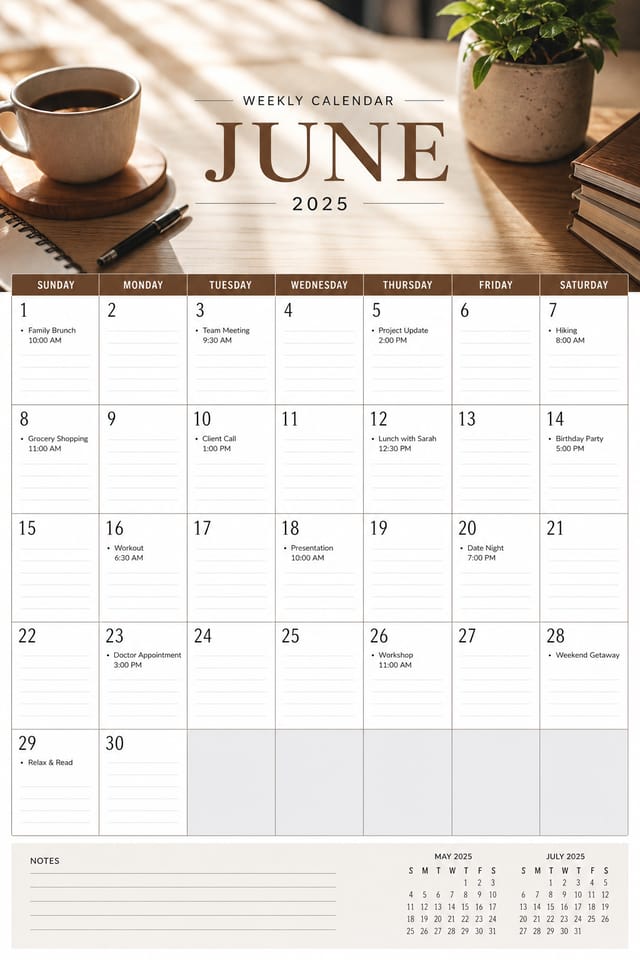
AI Weekly Calendar Platform: The Smart Way
Create weekly calendars with accurate style interpretation. Pixazo understands weekly visual language and applies it to your specific request.
Create Your Weekly Calendar FreeYour Weekly Calendar Tool: Capabilities at a Glance
The Logic of Weekly Calendar Design: Visual Processing Explained
Weekly Visual Language: AI Interpretation
Weekly design carries specific visual associations that viewers pick up on immediately.
The right palette, the right typographic approach, the right compositional balance.
Get these right and your weekly calendar communicates clearly.
Weekly Calendar Workflow Stages: Stages Explained
Review Evaluate and refine
Compare generated weekly calendar options against your brief. Mark what works and note specific changes needed for the next iteration.
Research Gather references
Collect examples of effective weekly calendar designs, note what works, and identify patterns relevant to your project goals.
Generate Create initial designs
Use AI to produce multiple weekly calendar variations based on your brief. Start broad and narrow down from the strongest options.
Brief Define requirements
Establish the key message, dimensions, color preferences, and target audience for your weekly calendar before any design work begins.
Export Deliver final files
Export your weekly calendar in the required formats and resolutions. Organize deliverables for handoff to the production or publishing team.
Weekly Calendar Design Rules: Rules Worth Following
Use grids and alignment
Structured layouts in your weekly calendar create a sense of order and professionalism that unstructured designs cannot match.
Keep the message focused
A strong weekly calendar communicates one primary idea clearly. Supporting details should reinforce, not compete with, the main message.
Use a consistent visual hierarchy
Structure your weekly calendar so the viewer's eye follows a clear path from headline to supporting details to call-to-action.
Ignore accessibility
Low-contrast text and tiny font sizes in your weekly calendar exclude a significant portion of your potential audience.
Forget the call to action
A weekly calendar without a clear next step for the viewer is a missed opportunity. Always include direction on what to do next.
Skip proofreading
Typos and grammatical errors on a weekly calendar undermine credibility instantly. Always have someone else review the final text.
Rely solely on AI output
AI-generated weekly calendar designs are a starting point. Human review catches issues with context, tone, and accuracy that AI can miss.
How People Use Weekly Calendars: From Hobby to Pro
Sports and Recreation
Produce weekly calendars for leagues, tournaments, and recreational programs. Energetic designs that build excitement and communicate schedules.
Interior Display
Generate weekly calendars for home and office wall display. Get print-ready files that look considered rather than stock-photo generic.
Event Promotion
Create weekly event calendars that establish the right visual mood before the event. Weekly design signals quality and sets expectations.
Non-Profit Campaigns
Create compelling weekly campaign calendars without allocating budget to design production. Focus resources on mission-critical activities.
Freelance Design Work
Use Pixazo to generate weekly calendar concepts for client review. Present multiple directions quickly before committing to detailed execution.
Weekly Calendar Creation Tools: A Closer Look
Context-Aware Design
Describe your weekly calendar's purpose and audience. The AI adjusts visual weight, complexity, and clarity based on the intended use context.
Resolution Control
Specify output dimensions for your weekly calendar. Get files sized for web display, social media, or large-format printing.
Compositional Structure
Layout and hierarchy decisions reflect weekly design patterns. The proportions and arrangement match how weekly designs are conventionally structured.
Subcategory Awareness
The AI distinguishes between design subcategories. A weekly calendar request produces weekly-appropriate output, not a generic design with weekly text added.
Color Temperature Control
Specify warm, cool, or neutral color direction for your weekly calendar. The AI builds the full palette around your temperature preference.
No Design Software Required
Create professional weekly calendars without Photoshop, Illustrator, or other design applications. The AI handles all technical production.
What Weekly Calendar AI Delivers: Quality Indicators
From initial prompt to finished weekly calendar in a simple
From initial prompt to finished weekly calendar in a simple workflow
Maximum output resolution for print-quality weekly calendar
Maximum output resolution for print-quality weekly calendar designs
Average generation time for a complete weekly calendar desig
Average generation time for a complete weekly calendar design from prompt to output
From Prompt to Weekly Calendar: A Quick Guide
Tell the AI What You Need
Write a prompt describing your weekly calendar. Include style preferences, color direction, the most important text to display, and any specific visual elements you want. The more specific your description, the more targeted the output.
Compare to Your Brief
Pixazo generates your weekly calendar in seconds. Review the design and adjust your prompt to refine specific elements: change the color palette, shift the layout weight, or add visual elements you want included.
Refine the Output
Refine the weekly calendar by updating your description with precise changes. Add constraints you didn't include initially or remove elements that aren't working. The AI responds to specific direction.
Walk Away with the Design
Export your weekly calendar in the format you need. PNG for web and social, PDF for print production, JPG for email and lightweight sharing. The file is yours to use commercially without restrictions.
Watch: Creating Weekly Calendar designs step by step
How to Evaluate Weekly Calendars: Standards That Matter
Download Your Weekly Calendar: Export Options Explained
SVG
Scalable format for weekly calendar designs that need to render crisply at any resolution, commonly used for web and responsive layouts.
PNG
Lossless image format ideal for weekly calendar designs with transparency, sharp text, and web display at predictable file sizes.
JPG
Compressed image format suited for weekly calendar designs with photographic elements where smaller file size matters more than pixel-perfect edges.
WEBP
Modern web format offering smaller file sizes than PNG or JPG for weekly calendar images without significant quality loss.
TIFF
High-fidelity format for weekly calendar files destined for professional printing, supporting CMYK color and lossless compression.
Inside the Weekly Community: Showcase Gallery
Real creators sharing their weekly designs made with Pixazo AI.
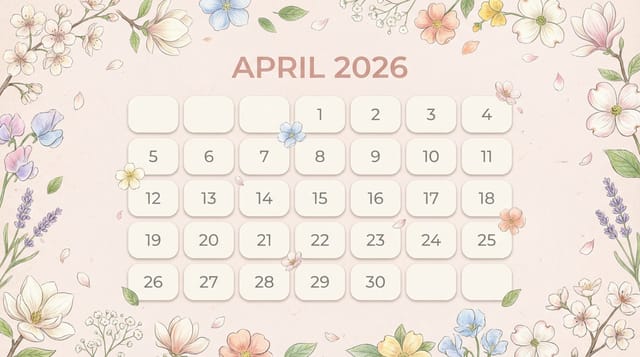
Two-color weekly calendar, maximum contrast between primary and secondary color, typography set in one color per level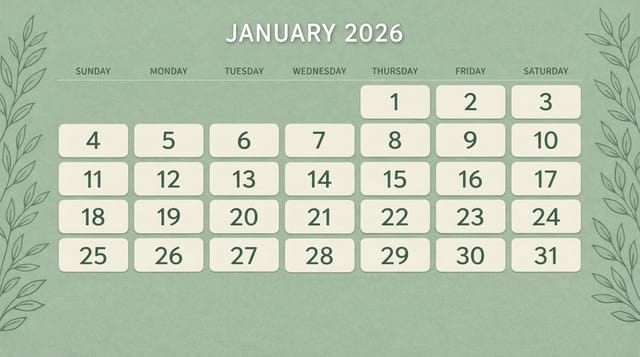
Portrait weekly calendar for social sharing, vertical 4:5 ratio, headline in upper third, supporting content below centerline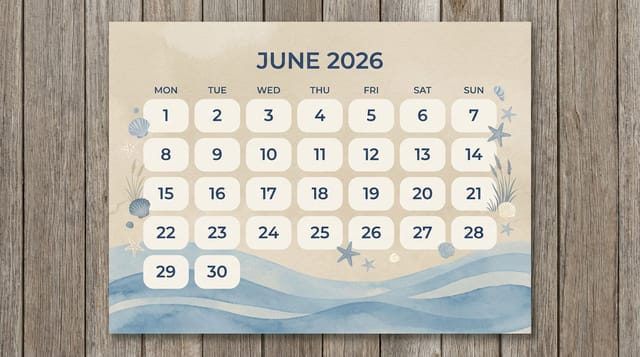
Square weekly calendar at 1080x1080 for LinkedIn post, professional tone, balanced text-to-visual ratio, brand-safe compositionCurrent Weekly Calendar Limits: Where It Falls Short
Known limitations and trade-offs of AI-generated weekly design. Transparency matters when using AI for weekly calendar design. The points below describe where you may need to supplement AI output with manual work.
Creating Weekly Calendars: Questions and Answers
Brand kits let you save your logo, fonts, and color palette so every weekly calendar you generate stays on brand. Once configured, the AI applies your brand parameters automatically alongside weekly style conventions.
Generate your initial weekly calendar, review the output, then modify your prompt to adjust specific elements. Each regeneration produces a fresh design incorporating your changes. Most users reach their final weekly calendar design within two to four iterations.
Pixazo works in any modern mobile browser. The interface adapts to phone and tablet screens so you can generate weekly calendars from anywhere. A dedicated mobile app is in development for an even smoother on-device experience.
Team accounts allow multiple users to share prompts, saved weekly calendar designs, and brand kits within a shared workspace. Team members can iterate on each other's weekly calendar designs and maintain consistent output across projects.
Specific prompts produce better results than vague ones. Include the visual style you want, any color preferences, the most important text to display, and the intended use. For weekly design specifically, noting whether you want a contemporary or classic interpretation of weekly style helps the AI make the right design decisions.
Sample Weekly Calendar Prompt Ideas
Copy any prompt below and paste it into Pixazo to generate your design instantly.
Geometric weekly calendar, structured grid system, angular composition, colors in blocks rather than gradients, modern clean finishEditorial-style weekly calendar, text-dominant design, typographic treatment carries visual weight, layout proportions inspired by print publication designWeekly calendar for digital display, optimized proportions for screen viewing, colors calibrated for RGB output, legible at typical viewing distanceTextured weekly calendar, surface treatment adds depth without obscuring legibility, texture consistent with weekly aestheticWeekly calendar design, clean layout, strong typography hierarchy, appropriate color palette for weekly aesthetic, high contrast between headline and backgroundPortrait-orientation weekly calendar, vertical composition, headline at natural reading entry point, supporting information flows downward logically
