AI Calendar Maker : Create Free Calendars in Minutes
Create Custom Calendars Quickly with Pixazo Best AI Calendar Maker. Try for Free!
Get Started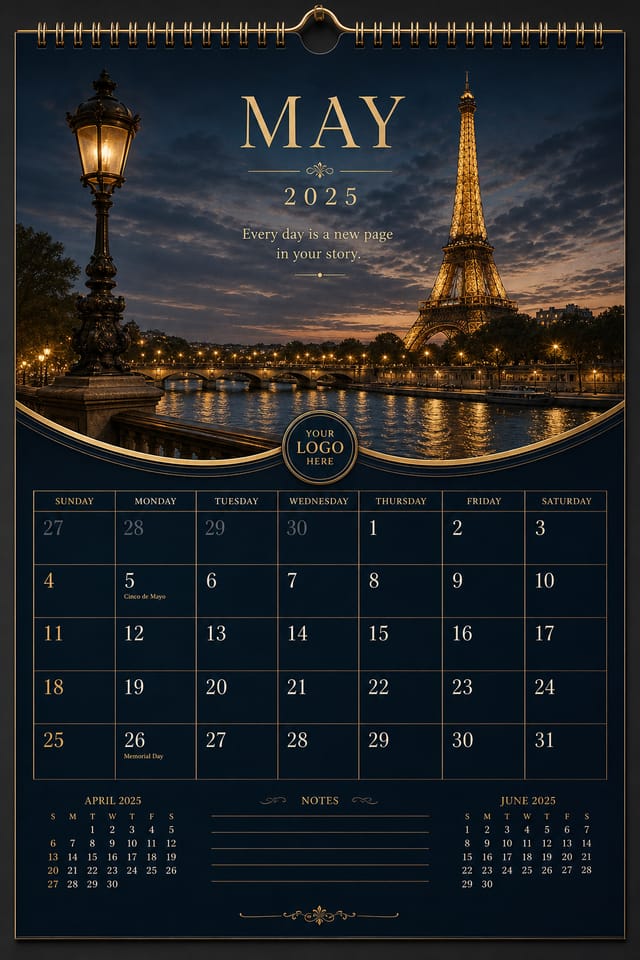
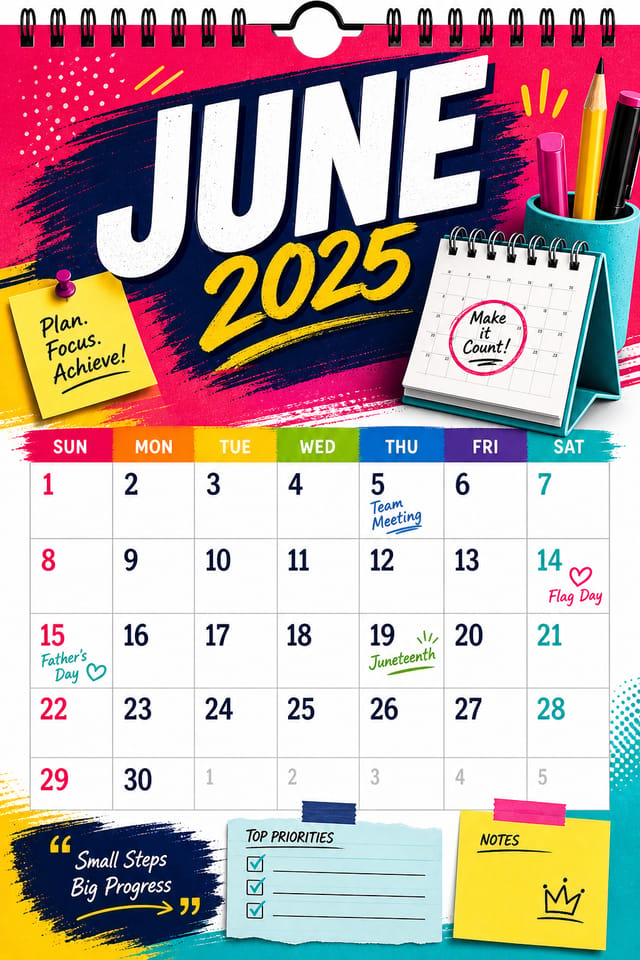
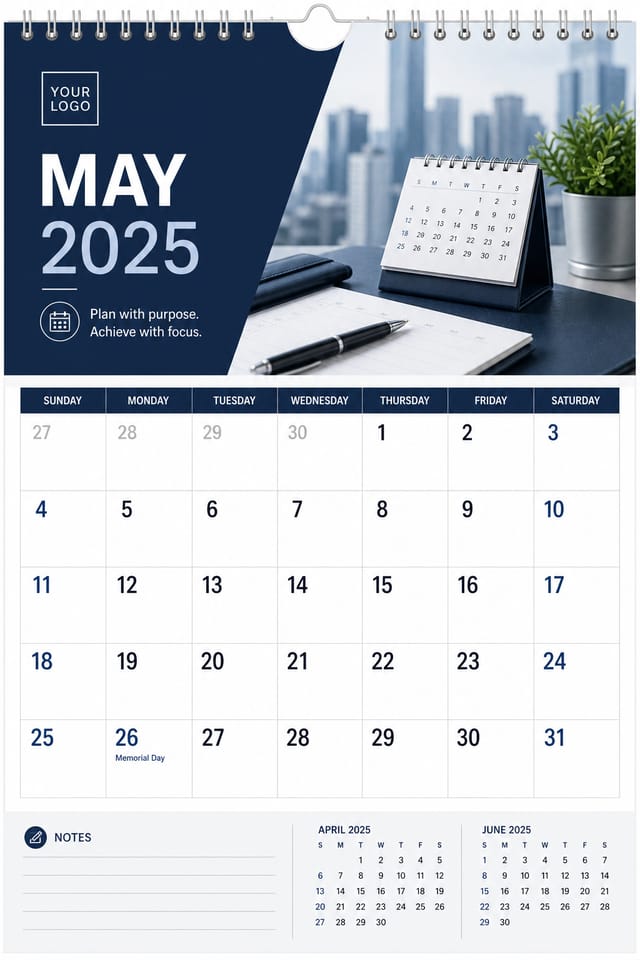
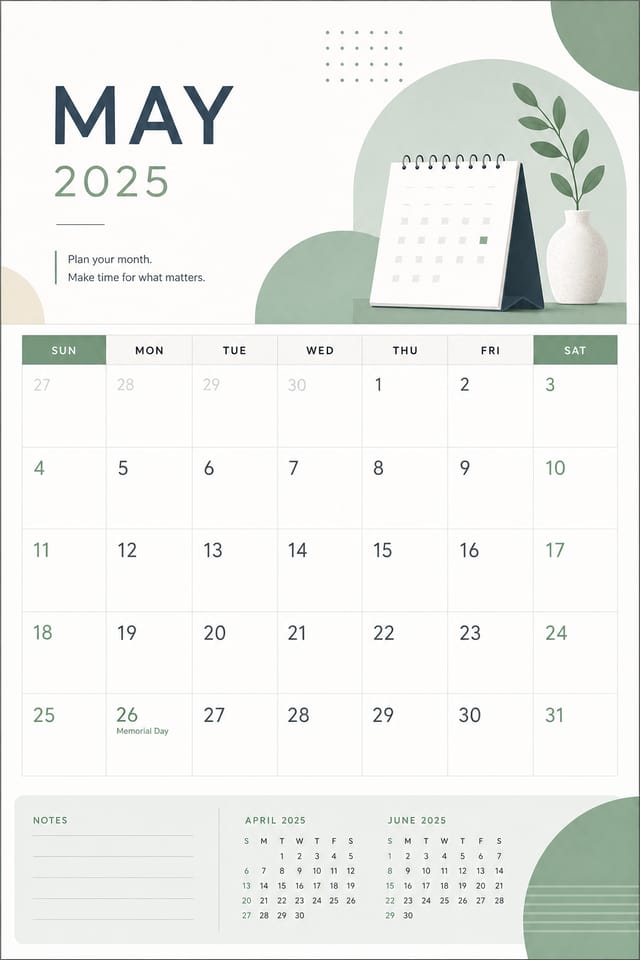
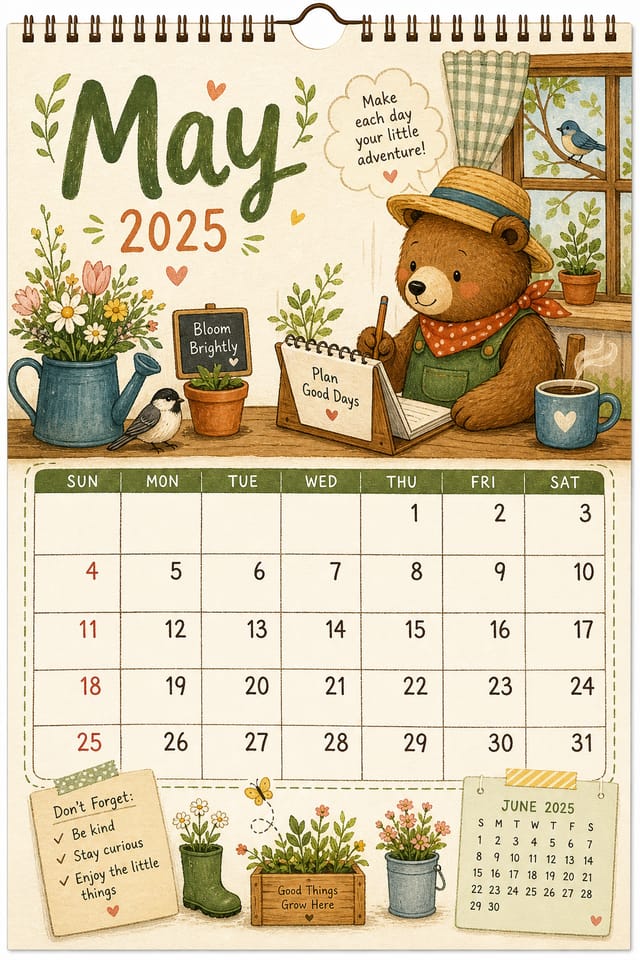
How Pixazo Reads Calendar Style: Visual Processing Explained
What Separates Good Calendar Design from Generic
Not all calendar design styles work the same way.
Calendar design has specific characteristics that distinguish it from other approaches: particular color affinities, compositional tendencies, and typographic conventions that trained designers recognize immediately.
Pixazo applies this style knowledge automatically.
When you request a calendar, the AI pulls from a visual vocabulary appropriate to calendar design, producing output that reads correctly to anyone familiar with the style.
How to Evaluate Calendars: Quality Markers
Color Discipline
Effective calendar color palettes do more with less. A two or three color system applied consistently creates more visual coherence than many competing colors.
Focal Point Clarity
Every calendar design needs one primary focal point. If everything demands equal attention, nothing stands out. Guide the viewer to the single most important element first.
Typographic Clarity
Type choices in calendar design should serve legibility first. Font selection should reinforce the calendar aesthetic while remaining readable at intended viewing distances.
Avoiding Calendar Mistakes: What to Do and What to Avoid
Maintain brand alignment
Keep your calendar design consistent with existing brand colors, fonts, and visual language for a cohesive identity.
Keep the message focused
A strong calendar communicates one primary idea clearly. Supporting details should reinforce, not compete with, the main message.
Test with real content
Never finalize a calendar with placeholder text. Real copy often has different lengths and line breaks that affect the design.
Use too many fonts
More than two or three typefaces in a single calendar creates visual noise and makes the design feel disjointed.
Forget the call to action
A calendar without a clear next step for the viewer is a missed opportunity. Always include direction on what to do next.
Overcrowd the layout
Filling every pixel of your calendar with content makes it harder to read and reduces the impact of every individual element.
Where Calendars Shine: Who Benefits Most
Personal Creative Work
Generate calendars for personal projects, home display, and creative experiments without spending production time on design execution.
Small Business Marketing
Produce calendar marketing calendars without a design agency budget. Get professional results from a text description.
Sports and Recreation
Produce calendars for leagues, tournaments, and recreational programs. Energetic designs that build excitement and communicate schedules.
Travel and Tourism Promotion
Design calendars for destinations, tour packages, and hospitality brands. Aspirational visuals that inspire booking decisions.
Getting Started with Calendars: Key Things to Know
Team accounts allow multiple users to share prompts, saved calendar designs, and brand kits within a shared workspace. Team members can iterate on each other's calendar designs and maintain consistent output across projects.
You can specify any aspect ratio in your prompt. Common options include 1:1 for social posts, 4:5 for Instagram, 9:16 for stories, 16:9 for presentations, and standard print sizes like A4 or letter. The AI adapts calendar composition to fit your chosen ratio.
Specify the dimensions in your prompt. Common formats like A3, 18x24 inches, or 1080x1920 pixels for social media stories all work. The AI generates a calendar composition appropriate for the specified aspect ratio and use case.
Templates apply a fixed visual structure with placeholder content. AI generation produces original designs based on your specific description. Two calendars generated from different prompts will have genuinely different layouts, not just different text in the same box positions.
Pixazo works in any modern mobile browser. The interface adapts to phone and tablet screens so you can generate calendars from anywhere. A dedicated mobile app is in development for an even smoother on-device experience.
Inside the Calendar Engine: Technical Breakdown
Instant Iterations
Generate multiple calendar variations from a single prompt. Compare options and refine until the design matches your vision.
Negative Space Handling
The AI manages whitespace in calendar designs according to calendar aesthetic conventions, not generic poster defaults.
Text Placement Options
Describe where you want text elements positioned in your calendar. The AI follows compositional direction about headline placement and body copy layout.
Background Variation
Generate calendars with different background treatments. Solid, gradient, textured, or pattern backgrounds all available for calendar style.
The Calendar Pipeline: Stages Explained
Refine
Apply targeted edits to your selected calendar. Adjust typography, spacing, and color until every element meets your quality standard.
Approve
Get stakeholder approval on the finished calendar. Verify all text is accurate and the design meets brand and technical requirements.
Generate
Use AI to produce multiple calendar variations based on your brief. Start broad and narrow down from the strongest options.
Brief
Establish the key message, dimensions, color preferences, and target audience for your calendar before any design work begins.
Review
Compare generated calendar options against your brief. Mark what works and note specific changes needed for the next iteration.
Calendar Generation: The Creation Flow
Articulate Your Vision
Write a prompt describing your calendar. Include style preferences, color direction, the most important text to display, and any specific visual elements you want. The more specific your description, the more targeted the output.
Evaluate the Result
The AI produces a calendar based on your description. If the first result isn't exactly right, adjust the prompt to address what needs changing. Most designs reach the target within a few iterations.
Tweak and Polish
Refine the calendar by updating your description with precise changes. Add constraints you didn't include initially or remove elements that aren't working. The AI responds to specific direction.
Claim Your Output
Export your calendar in the format you need. PNG for web and social, PDF for print production, JPG for email and lightweight sharing. The file is yours to use commercially without restrictions.
Calendar Specifications
Watch: Creating Calendar designs step by step
From the Calendar Community: Showcase Gallery
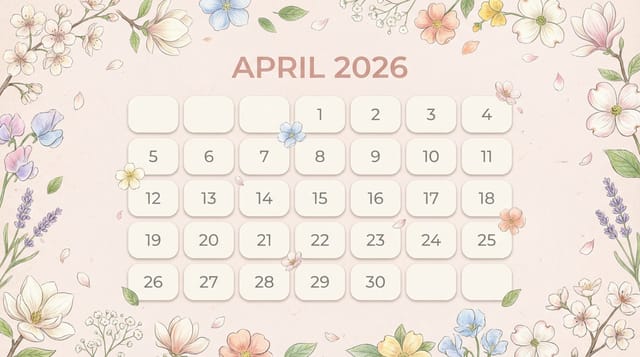
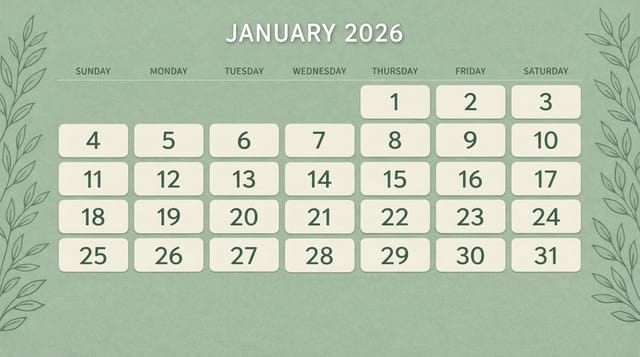
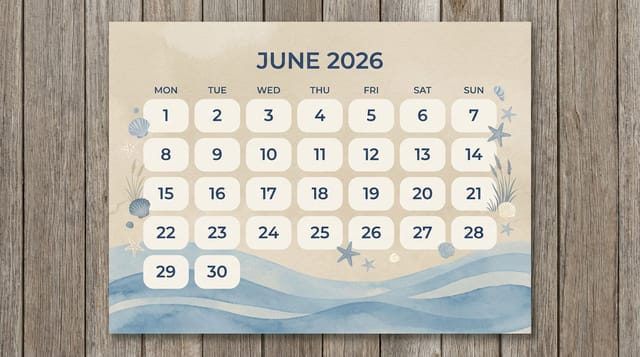
Real creators sharing their calendar designs made with Pixazo AI.
Which Calendar Tool Fits: Finding the Right Fit
| Tool | Description |
|---|---|
| Stencil | Lightweight image creator optimized for fast social media graphics |
| Crello | Template-based design tool with animation and video support |
| Pixazo | AI-powered calendar generator with prompt-based design and professional output quality |
| VistaCreate | Visual content platform with templates and a built-in asset library |
| Snappa | Quick graphic creator focused on social media and marketing visuals |
Ready-to-Use Calendar Prompt Collection
Copy any prompt below and paste it into Pixazo to generate your design instantly.
High-impact calendar, immediate visual read at thumbnail size, clear headline dominance, supporting information structured logicallyContemporary calendar design, grid-based layout, typographic precision, restrained color palette, no decorative excessProfessional calendar, minimalist calendar approach, negative space used intentionally, readable at multiple viewing distances, print-ready compositionEditorial-style calendar, text-dominant design, typographic treatment carries visual weight, layout proportions inspired by print publication designRefined calendar, sophisticated color relationships, intentional whitespace, typefaces appropriate to calendar style, balanced compositionCurrent Calendar Limits: Realistic Expectations
Known limitations and trade-offs of AI-generated calendar design. AI calendar generation produces strong results within its design domain. These notes describe where human judgment and manual work remain necessary.

