MOV to GIF converter to Convert MOV to GIF
Convert MOV to GIF in minutes with Pixazo MOV to GIF Converter for Free using AI.

Illustrative render — not an in-app screenshot.
Works with .mov exports from iPhone, iPad, and macOS screen recordings.
These four numbers explain what a GIF is. A GIF keeps up to 256 colours, has no audio, uses on/off transparency, and loops forever. Keep them in mind and your converted GIF will look just as you expect.
What You Get
What This MOV to GIF Converter Does
This tool turns your MOV video into an animated GIF. It reads the frames from your MOV file and saves them as one looping GIF. Pixazo lets you convert MOV to GIF free, online, and with AI, so you get a quick, shareable GIF without any video editing app. You don't need to know anything about codecs or file formats. Just upload your MOV and download the GIF.
Keeps every frame
Pixazo reads every frame of your MOV in order, so the motion and timing stay smooth in the GIF. A tap, a wave, or a product spin plays back just like the original clip.
Smart 256-colour palette
A GIF can hold up to 256 colours per frame. Pixazo builds a custom palette for your clip, so colours and skin tones look as clean as GIF allows instead of using one generic palette for every video.
Loops forever on its own
Every GIF loops automatically. Pixazo writes the loop into the file, so it replays on its own wherever GIFs are supported. No play button and no player needed.
Works in your browser
There is nothing to install. Upload your MOV, wait a few seconds, and download the GIF right in your browser. It works the same on a laptop, a Chromebook, or an iPad.
Renders
See MOV to GIF Conversion in Action
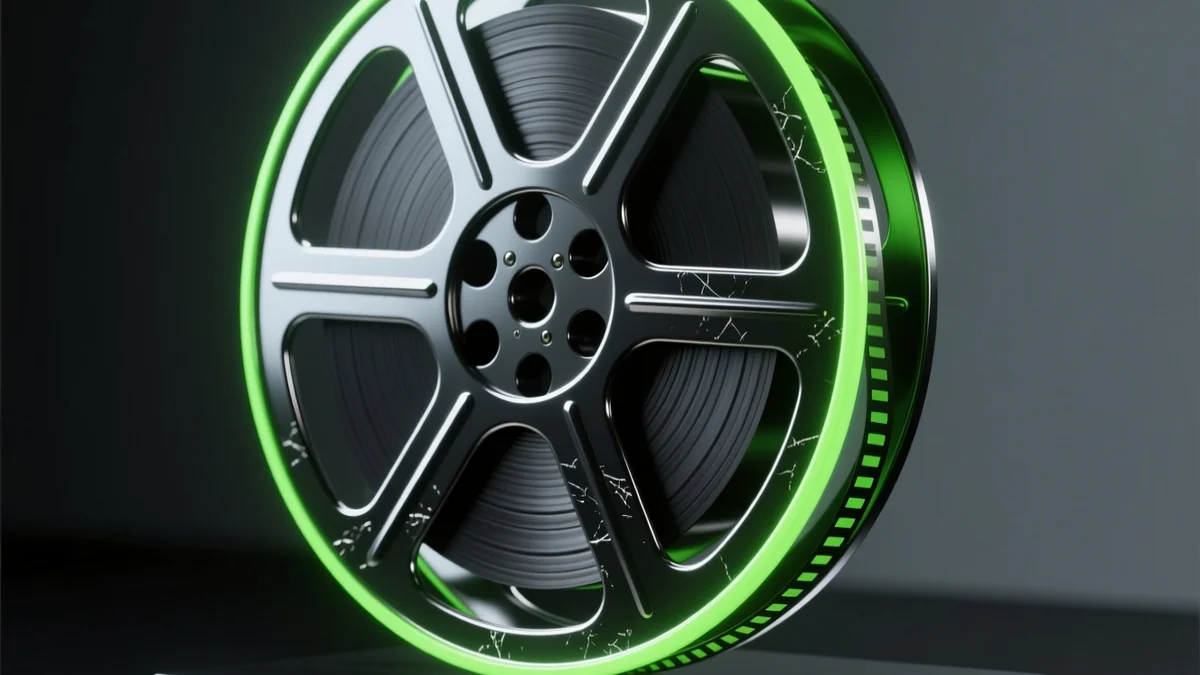
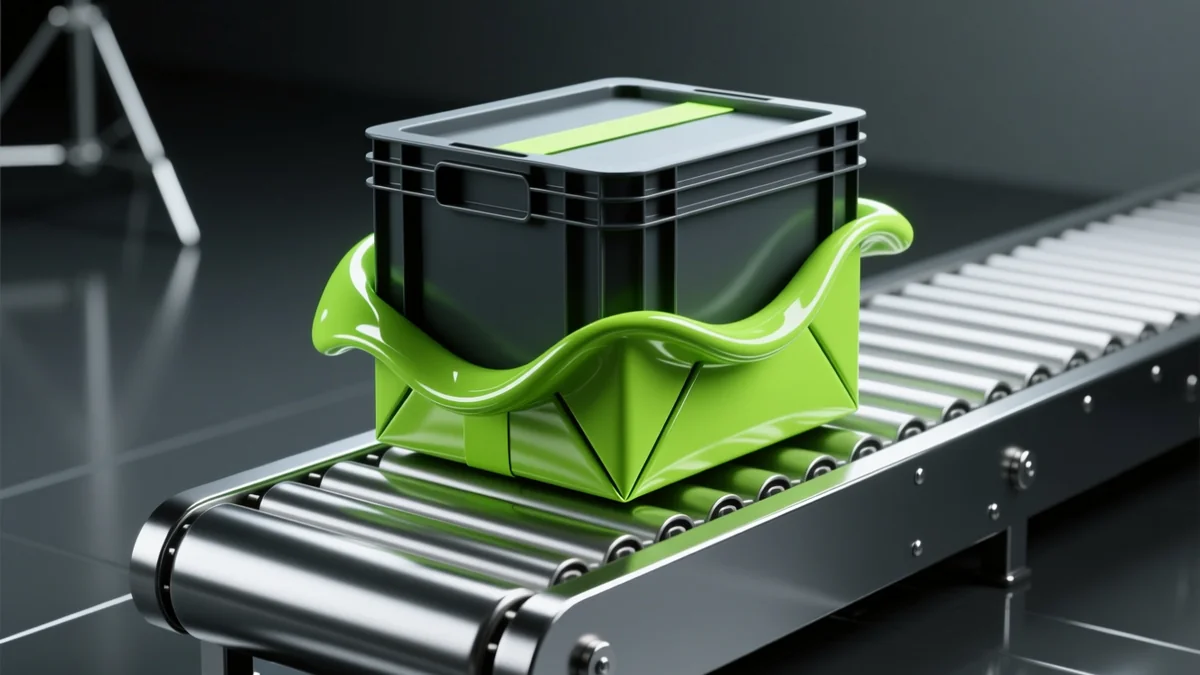
These renders show what happens when you convert MOV to GIF. Full-colour video frames go in, and a small, looping, 256-colour GIF comes out.

Walkthrough
How to Convert MOV to GIF
You can convert MOV to GIF in four simple steps. There is no timeline to learn and no export settings to guess. Most of your time goes into step two, where you pick the part worth keeping.
Open Agent P
Open the free Agent P in Pixazo's playground and sign in once. It handles image, video, and audio from your Mac, iPhone, or screen recording.
Attach your MOV
Click Attach and add your .mov file, or type @ to use one of your own files. Agent P reads it in a few seconds.
Ask Pixazo to build your GIF
Tell Agent P to convert your MOV to a GIF, and add trim to the best part to keep it small. It maps every frame to a 256-colour palette and writes the loop into the file so it replays automatically.
Download and share
Your finished GIF appears in the Assets panel. Download it and drop it into a chat, doc, slide, or social post — it plays anywhere GIFs work, with no extra app needed.
Read Before You Convert
GIF Limits to Know Before You Convert
A GIF is a simple, old format, and it has a few limits no converter can change. It works best for short, silent, low-colour loops. These are not bugs in Pixazo. They are just how GIF works. Knowing them first means no surprises after you download.
- There is no audio. A GIF has no audio track, so any sound in your MOV is gone after you convert. This is how GIF works, not a bug.
- Colour is capped at 256 per frame. A GIF holds only 256 colours per frame, so smooth gradients and skin tones can look slightly banded compared to your MOV.
- Long clips make big files. A GIF stores frames with little compression, so a long MOV can become a much larger GIF. Trim your clip first instead of converting the whole thing.
- Transparency is on or off only. A GIF pixel is either fully see-through or fully solid. Soft, feathered edges from a PNG or a green screen turn into a hard outline.
- The loop is set when you convert. The loop is written into the GIF at conversion time, not by the app you post it in. This tool always writes an endless loop, with no repeat-count option.
Three ways to keep your GIF small before you convert:
- Aim for 2 to 6 seconds. A short highlight loops better than a long recording. Pick the one moment worth repeating.
- Trim in your phone or Photos app first. Most MOV clips have a few extra seconds of dead time at the start and end. Cut them before you upload to shrink the file for free.
- Downscale a large 4K clip. A GIF rarely needs to be that big. A smaller frame size makes a smaller, faster GIF.
These limits apply to every GIF, from every tool, not just Pixazo. Trimming your clip first fixes most common GIF complaints, and it takes less than a minute.
Format Specs
MOV vs GIF: A Simple Comparison
Here is how MOV and GIF compare side by side. When you convert, you trade colour and audio for a file that loops anywhere, instantly, with no player. Neither format is wrong. They are built for different jobs.
| Property | .MOV | .GIF |
|---|---|---|
| Colour depth | Millions of colours (H.264/HEVC) | 256 colours per frame, LZW |
| Audio | Full audio track supported | None — audio can't exist in GIF |
| Transparency | Alpha channel, soft edges | 1-bit — hard edge only |
| Playback | Needs a video player or codec | Loops in any browser or app |
| Typical source | iPhone, Mac screen recordings | Reactions, memes, previews |
| File size (long clip) | Compresses efficiently | Can balloon — trim first |
| Where it's used | Cameras, editors, screen capture | Chat apps, wikis, slide decks, forums |
This does not make MOV the better format. MOV is built to play back on a device with modern video codecs. GIF is built to play instantly, everywhere, with less colour and no audio. A MOV to GIF converter simply moves your clip from one job to the other.
What are the specs of the Pixazo MOV to GIF Converter?
These are the key specs when you convert MOV to GIF with Pixazo — free, no watermark, in your browser.
| Spec | Value |
|---|---|
| Converter | Pixazo MOV to GIF Converter |
| Input format | MOV (QuickTime — iPhone / Mac) |
| Output format | Animated GIF |
| Colours | Up to 256 (GIF palette) |
| Audio | Dropped |
| Transparency | 1-bit, on/off |
| Looping | Infinite |
| Price | Free |
| Sign-in | Required (the Pixazo playground) |
| Watermark | None |
| Runs in | Your browser |
Questions
MOV to GIF FAQ
Will my GIF have sound?
No. A GIF has no audio track, so a MOV to GIF converter always makes a silent file. This is a limit of the GIF format, not a setting. If sound matters, keep sharing the original MOV.
Why does my GIF look less colourful than my MOV?
Because a GIF holds only 256 colours per frame, while a MOV holds millions. Gradients, skies, and skin tones can show slight banding. Pixazo's palette mapping keeps this as clean as GIF allows, but it cannot fully remove the limit.
Why is my GIF file so much bigger than I expected?
Because a GIF does not compress frames as well as MOV video does, so the size grows fast with every second. Trim your clip to the key seconds before you convert instead of uploading the whole recording.
Will the GIF loop automatically?
Yes. The loop is written into the file when you convert. This tool always writes an endless loop, and there is no repeat-count setting to change it.
What's the real difference between MOV and GIF?
A MOV is a video file with full colour and audio, recorded by a camera. A GIF is an image that animates, with no audio and fewer colours, but it plays instantly anywhere without a video player. That is why GIFs are still everywhere online.
Can I convert a MOV that has transparency?
Yes, but GIF transparency is on or off only. A pixel is either fully solid or fully invisible, with nothing in between. Soft edges from a green screen or a transparent PNG turn into a hard outline, so expect a rougher edge than the source.
Do I need to install anything to use this converter?
No. The MOV to GIF converter runs in Pixazo's free playground right in your browser, so there is nothing to download. You do need to sign in to run a conversion.
What exactly is a MOV file?
A MOV is Apple's QuickTime video file. It is the default format for videos from an iPhone or Mac and for macOS screen recordings. It holds video, audio, and metadata in one file, which is why a MOV to GIF converter strips most of that out to make an animated image.
Ready to Convert Your MOV?
Trim your clip and convert MOV to GIF with Pixazo. You get a looping, shareable GIF in under a minute, free and with AI, and no editing software or export settings to figure out.
Convert MOV to GIF freeFree to use · sign-in required · works in any modern browser