PNG to AVIF converter
Pixazo's PNG to AVIF converter files the copy you publish. Keep the PNG as your master copy. Serve an AVIF to everybody else. Pixazo's P Agent takes the file you attach, works out on its own that it is a PNG, and hands back an AVIF with the transparency intact.
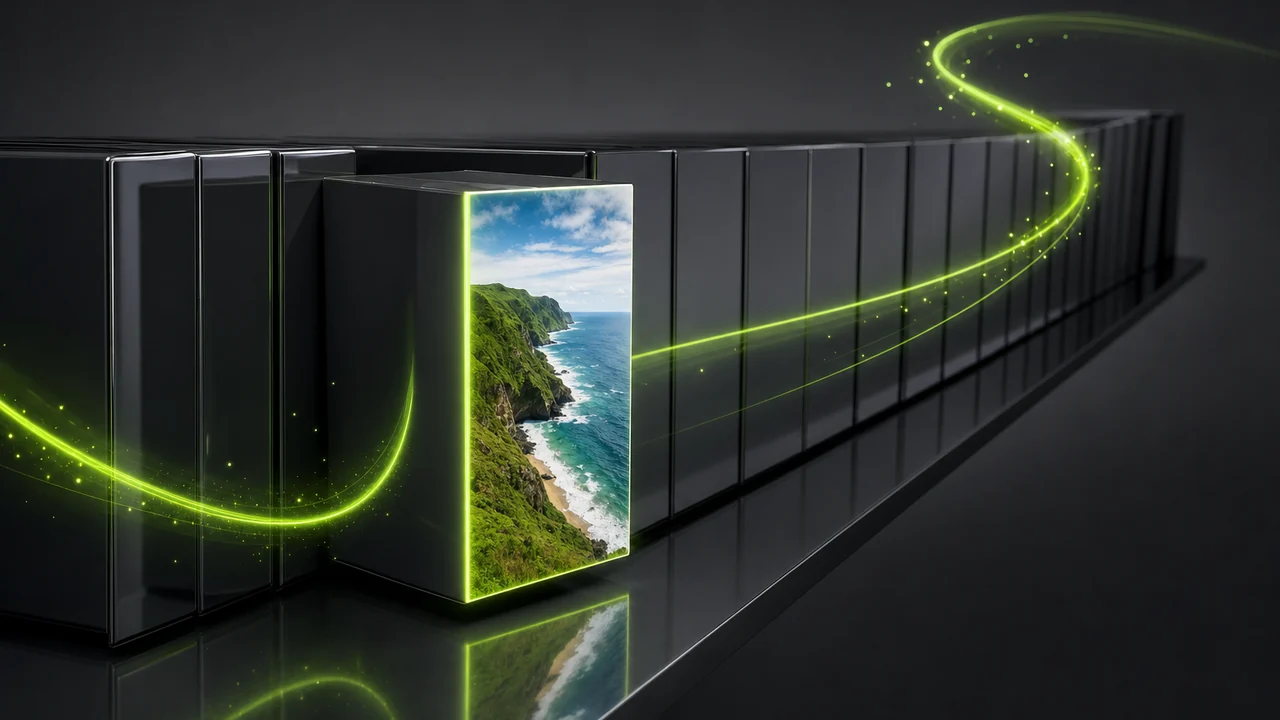
What moves onto the shelf when a PNG becomes an AVIF
A conversion is a re-shelving job, not a rewrite. What changes is the container the picture sits in and the rules that container follows.
PNG stores your image losslessly. AVIF is built on the AV1 video codec and gives you a choice: a lossless copy, or a lossy one that is usually smaller than the equivalent WebP at similar quality.
The transparency travels. Both formats hold an alpha channel, so a cut-out packshot, a logo on a clear background or a UI export with soft edges arrives on the AVIF shelf still transparent.
The colour handling improves. AVIF can carry wide colour gamut and high bit depth, so gradients, dusk skies and soft studio backdrops hold together where other formats band into visible steps.
What does not change is the content. This is a converter, not an editor: it does not crop, resize, retouch, colour-correct, remove backgrounds or upscale on the way through.
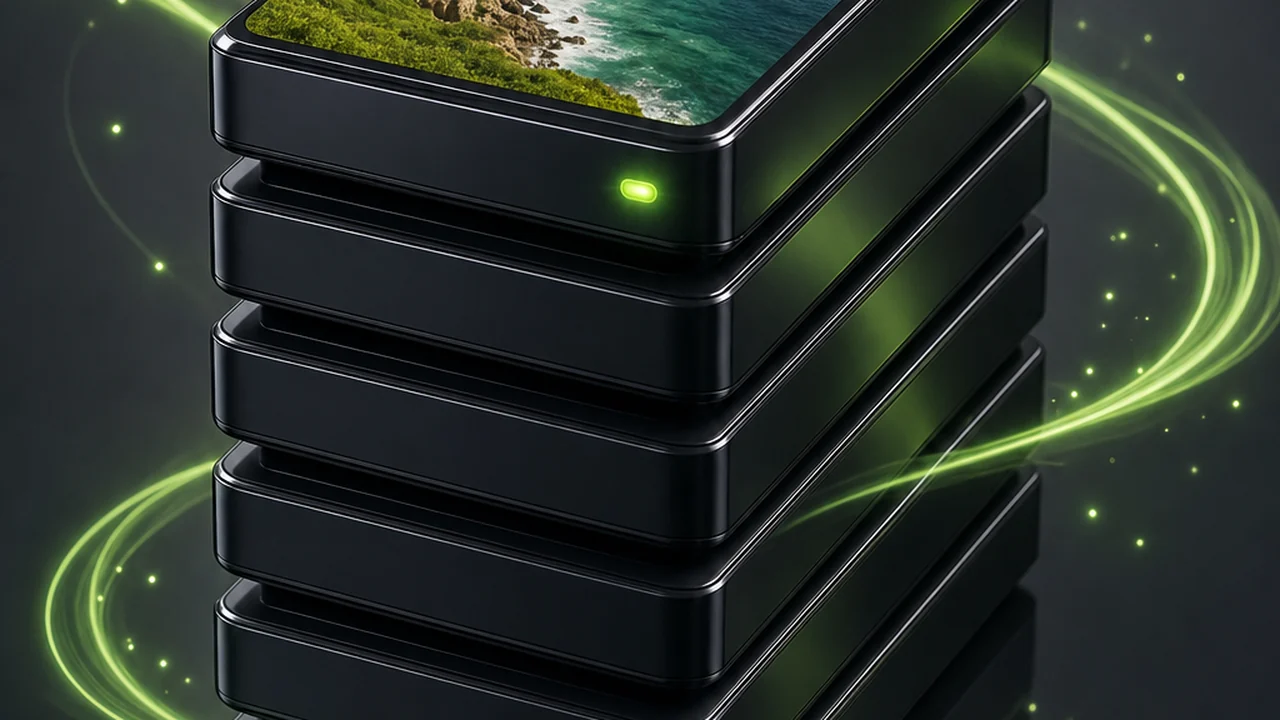
PNG and AVIF, entry by entry
The honest version: no benchmark numbers, just what each format is built to do and what that means for the copy you keep versus the copy you serve.
| Register entry | PNG | AVIF | Shelf decision |
|---|---|---|---|
| Compression | Lossless only. Every pixel is kept exactly as it was saved. | Lossy and lossless modes, so you pick per job. | PNG for the master, AVIF for whichever mode the delivery needs. |
| Transparency | Alpha transparency supported. | Alpha transparency supported. | Either shelf is safe for cut-outs and logos. |
| Size for photographs | Large, because nothing is discarded. | Usually smaller than WebP at similar quality. | Photographs are the strongest case for moving to AVIF. |
| Colour and gradients | Faithful to the saved file, no gamut extras. | Wide colour gamut and high bit depth available. | Skies, ramps and soft backdrops favour AVIF. |
| Support outside modern browsers | Accepted almost everywhere. | The newest of the four formats; support is still thin. | Keep the PNG for anything that has to open anywhere. |
| Encoding effort | Quick and simple. | Takes longer to encode. | Convert once, then reuse the AVIF rather than regenerating it. |
| Animation | Carries none. | Not part of what the PNG to AVIF converter handles. | Treat both as single-frame holdings. |
| Natural home | Flat graphics, screenshots, UI exports, logos. | Delivery copies where size and colour both matter. | Store the PNG, publish the AVIF. |
You can settle the whole question in one sentence typed at the Studio: attach the file, say where you want it shelved.
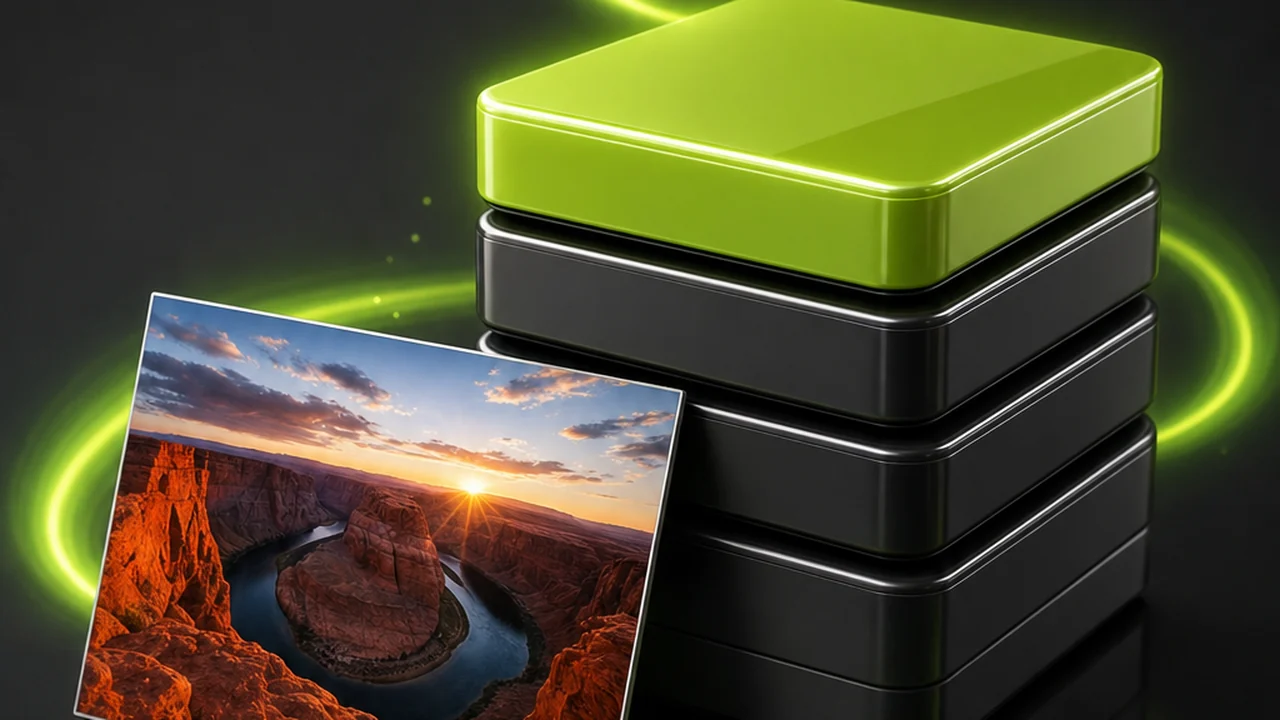
Filing a PNG through the PNG to AVIF converter in four moves
The Studio works from plain language, so this is closer to handing a file across a desk than to configuring an export dialog. Nothing is installed; it runs in the browser and needs a Pixazo account.
Open the Studio and sign in
Go to the P Agent in your browser and sign in to your Pixazo account. There is nothing to download and no separate converter app to find.
Attach the PNG you want copied
Add the image to the conversation the way you would attach it to a message. You do not have to tell the Studio it is a PNG — it detects the source format itself.
Ask for the AVIF in plain words
Write the request the way you would say it out loud, for example Convert @Image1 to AVIF. There are no format menus, checkboxes or preset lists to work through first.
Check the copy, then file both
Open the returned AVIF at full size and look at the gradients and the transparent edges. Save it as your delivery copy and keep the original PNG as the master you go back to.
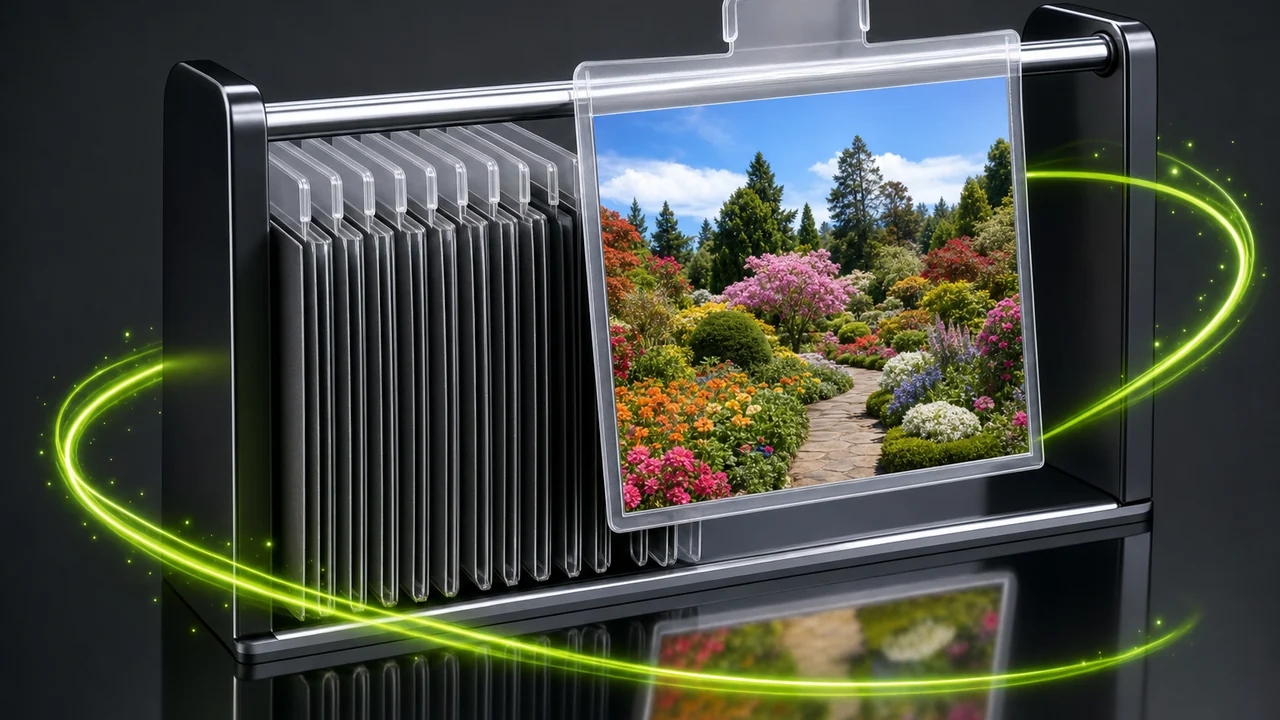
Whose files belong on the AVIF shelf
Not every PNG needs re-shelving. These are the cases where the AVIF copy earns its place next to the original.
If your PNG library is mostly photographs, you are carrying lossless storage for pictures that never needed it, and AVIF will usually land smaller than the WebP you might otherwise reach for.
If you are shipping cut-outs, the alpha channel is the deciding factor. AVIF keeps it, so the transparent version stays one file rather than becoming a flattened variant for each background it lands on.
Product and catalogue teams
Transparent packshots exported as PNG are heavy for what they hold. The AVIF copy keeps the cut-out edge; the PNG stays on file for print.
Designers handing off UI exports
Soft shadows, rounded corners and glass panels rely on alpha. AVIF carries it, so the handoff copy behaves the same on a light or dark page.
Anyone publishing gradient-heavy artwork
Skies, mesh gradients and studio backdrops are where wide gamut and high bit depth show. Those are the PNGs worth converting first.
Anyone who was sent a PNG and needs an AVIF
No format knowledge required. Attach whatever arrived, ask for AVIF, and let the Studio work out what it was given.
Bring one file across first, judge the copy on screen, then decide how much of the shelf to move.
Convert PNG to AVIF freeRequests the PNG to AVIF converter will turn down
A converter that is honest about its edges is easier to plan around. Here is what this one does not do, so nothing surprises you halfway through a batch.
It will not edit while it converts. No cropping, resizing, retouching, colour correction, background removal or upscaling happens as part of a conversion. Make those changes first, then convert once, so you are not re-encoding the same picture twice.
It will not add detail the PNG never held. If the source is small or was already compressed before it reached PNG, the AVIF preserves what is there and no more. A lossless container cannot restore information that was thrown away earlier.
It will not make AVIF universally readable. AVIF is the newest of these formats and support outside modern browsers is still thin. Anything that has to open in old software, unknown tools or a client's mystery pipeline should stay a PNG.
It will not encode instantly. AVIF takes longer to encode than the older formats. That is a property of the format, not a fault in the tool, and it is a reason to keep the converted copy rather than regenerate it each time.
It will not work without an account. The Studio runs in the browser, but it needs you signed in to a Pixazo account before it will accept a file.
How to keep the copy clean on its way across
Mostly about the order you do things in. Follow these and the AVIF you file is one you can hand straight to a page.
Finish the edit before the transfer
Crop, resize and colour-grade in your editor while the file is still a PNG. Converting afterwards means the picture is encoded once, in its final shape.
Never delete the master
Keep the PNG. It is your lossless reference, the copy you re-export from, and your fallback for anywhere AVIF is not read.
Inspect the alpha edge at full size
Open the AVIF over both a light and a dark backdrop and look along the cut-out edge. That is where a transparency problem would show first, if there were one.
Look at the smooth areas, not the busy ones
Detail-heavy corners hide differences. Judge the copy on skies, shadows and gradients, because that is where AVIF's colour handling is doing the work.
Say it simply
One plain sentence naming the attached image and the format you want is all the request needs. There is no syntax to learn and no need to declare the source format.
Everything above is one conversation in the Studio: attach, ask, inspect, file.
Convert PNG to AVIF freePNG to AVIF converter questions asked at the desk
Answers grounded in what the Studio actually does and what these two formats actually are.
Does Pixazo convert PNG to AVIF?
Yes. Image conversion runs inside the P Agent, which converts images between HEIC, JPG, PNG, WebP and AVIF. PNG to AVIF is one of those pairs.
Do I have to tell it the file is a PNG?
No. The Studio detects the source format itself. You attach the image and ask in plain language for the format you want, for example Convert @Image1 to AVIF.
Will the transparency survive the PNG to AVIF converter?
AVIF keeps alpha transparency, the same as PNG, so a cut-out or a logo on a clear background stays transparent. Open the copy over a light and a dark backdrop to check the edge.
Is AVIF smaller than PNG for photographs?
PNG is lossless, which is why PNGs of photographs are large. AVIF has lossy and lossless modes and at similar quality is usually smaller than WebP, so photographs are where the move makes most sense. Exact figures depend entirely on the image.
Can it crop or resize the image at the same time?
No. This is a converter, not an editor: it does not crop, resize, retouch, colour-correct, remove backgrounds or upscale as part of a conversion. Make those edits first, then convert once.
Will converting improve a low-quality PNG?
No. It cannot add detail that is not in the source. Moving a small or already-compressed image into another format preserves what is there; it does not restore what was discarded before you got the file.
Should I delete the PNG once I have the AVIF?
Keep it. PNG is lossless and accepted almost everywhere, while AVIF is the newest of these formats and support outside modern browsers is still thin. The PNG is the master; the AVIF is the copy you publish.
Do I need to install anything?
No. The Studio runs in the browser. It does require a Pixazo account, so sign in first and then attach your file.
About the author
Who wrote this page, and when it was last checked against what the Studio does.
By Deepak Joshi
Deepak Joshi is a Content Marketing specialist having a combined experience of 10+ years working in the digital world. He is one of the active contributors to Pixazo Blog and has keen interest creating and marketing content related to AI tools, No-Code technology, Design Industry, Social Influencers, and other trending topics. A health and sport enthusiast, Deepak loves to indulge in all kinds of sports & games.
Hand over the PNG, take back the AVIF
Attach the file, ask in one sentence, and file the copy. The Studio detects the source format, keeps the transparency, and leaves your master PNG exactly as it was.
Building it into an app or automating in bulk? Use the PNG to AVIF API.

