Data Flow Diagram : Create Free Data Flow Diagrams in Minutes with AI
Create Custom Data Flow Diagrams Quickly with Pixazo Best AI Data Flow Diagram Maker. Try for Free!
Get Started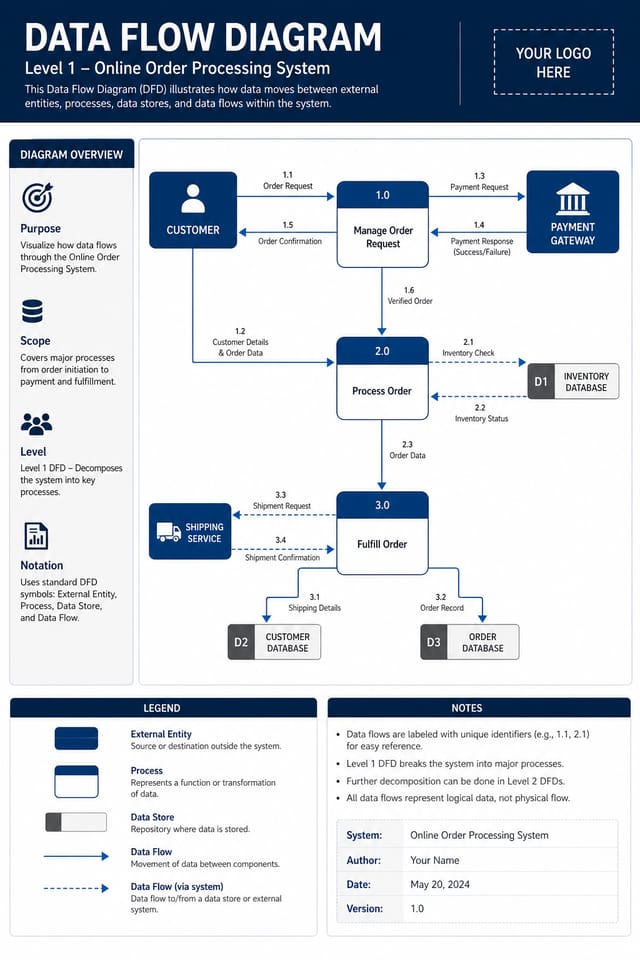
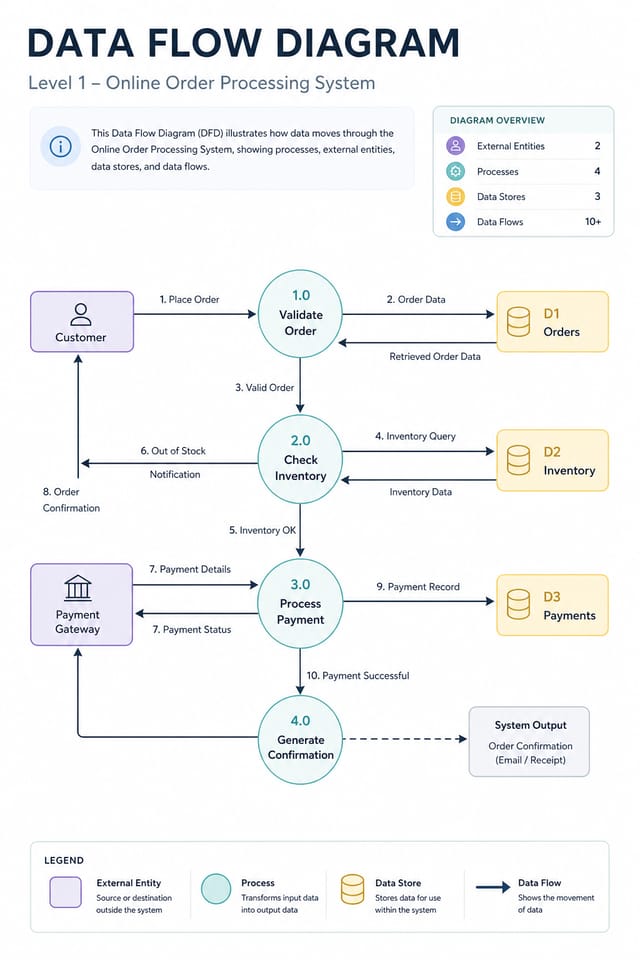
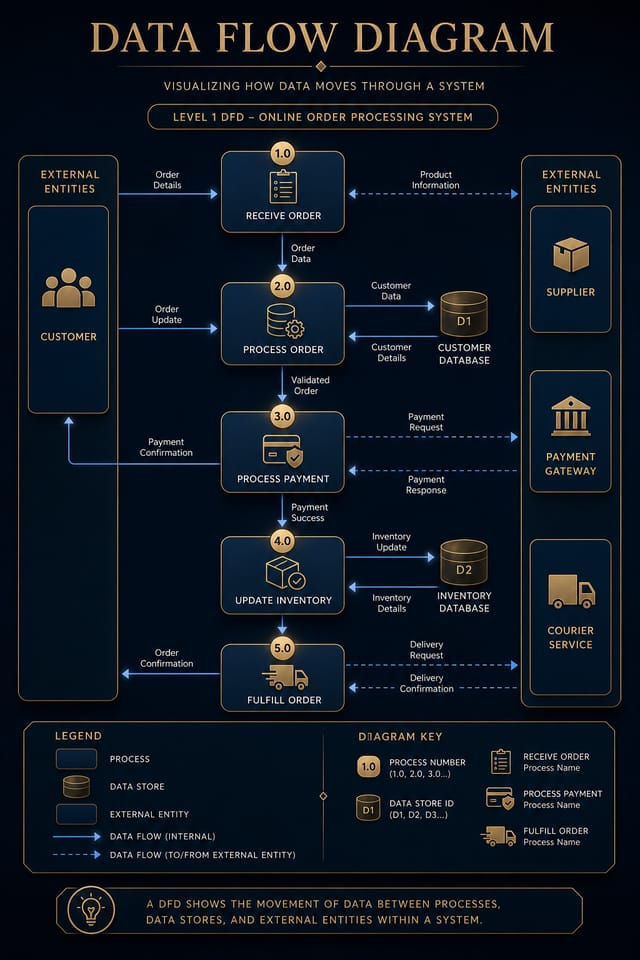
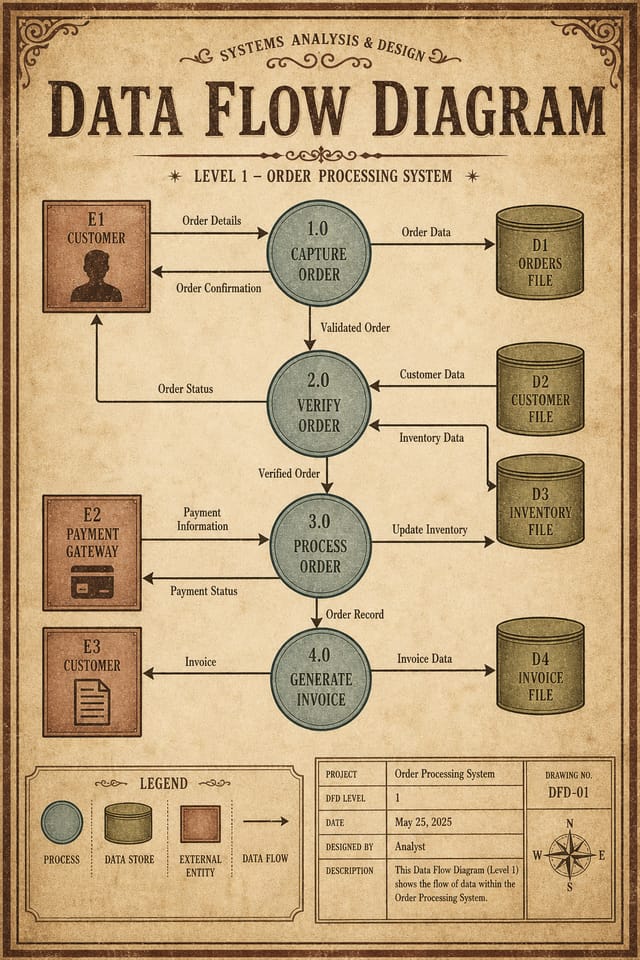
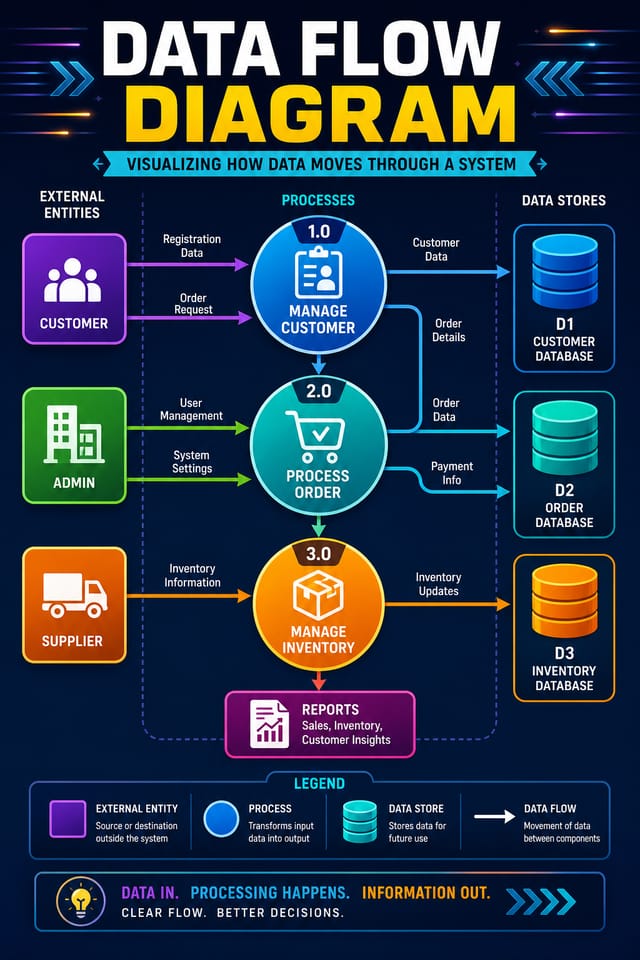
Visual Thinking Behind Data-Flow Diagrams: Visual Processing Explained
The Data-Flow Design Approach: How Pixazo Handles It
Data-Flow design carries specific visual associations that viewers pick up on immediately.
The right palette, the right typographic approach, the right compositional balance.
Get these right and your data-flow diagram communicates clearly.
Data-Flow Diagram Generation: The Workflow Explained
Compose Your Request
Write a prompt describing your data-flow diagram. Include style preferences, color direction, the most important text to display, and any specific visual elements you want. The more specific your description, the more targeted the output.
Sample the Design
Your data-flow diagram generates immediately after submission. Evaluate the design against your requirements and refine the prompt to correct any elements that don't match your intent.
Retrieve the Finished File
Download your completed data-flow diagram in the format that fits your use case. High-resolution files for print, web-optimized versions for digital, or PDF for production-ready delivery.
Watch: Creating Data Flow Diagram designs step by step
Behind Data-Flow Diagram Design: Under the Hood
Prompt Refinement
Adjust your description to refine any aspect of the data-flow diagram design. The AI responds to specific direction about colors, layout, or content.
Color Temperature Control
Specify warm, cool, or neutral color direction for your data-flow diagram. The AI builds the full palette around your temperature preference.
Print-Ready Output
Generated data-flow diagrams are sized and structured for professional printing. Download high-resolution files ready for production.
Layered Style Application
Combine data-flow style with other design parameters in a single prompt. The AI interprets complex requests and applies multiple style constraints simultaneously.
Instant Iterations
Generate multiple data-flow diagram variations from a single prompt. Compare options and refine until the design matches your vision.
New to Data-Flow Diagrams? A Quick FAQ
Canva uses fixed templates you customize manually. Pixazo generates original data-flow diagram designs from your description, so every output is unique. For data-flow work specifically, the AI applies style-specific design decisions rather than offering generic drag-and-drop templates.
Common sizes include 1080x1080 for Instagram feed, 1080x1920 for stories and reels, 1200x628 for Facebook links, 1500x500 for Twitter headers, and 1080x1350 for Pinterest. Specify the platform in your prompt and Pixazo optimizes data-flow layout for that format.
Generated designs that miss the mark usually need more specific prompts. Add details about the visual hierarchy you want, the feeling the data-flow diagram should create, or specific elements to include or avoid. More context in the prompt produces more targeted output.
Longer, more detailed prompts generally produce more accurate results for data-flow diagram design. Include all the relevant information: style direction, color preferences, content to display, intended use, and any specific design elements you want. There is no strict character limit.
The AI generates designs at the specified dimensions. For professional print production, add 'with bleed area' to your prompt to extend background elements beyond the trim line. Crop marks and registration marks should be added in your print preparation software.
Pixazo generates high-resolution files suitable for both print and digital use. Specify your intended output format in your prompt. Print data-flow diagrams benefit from high-DPI settings, while web and social media use works well with standard resolution output.
The Evolution of Data-Flow Diagram Design: Trend Report
Muted Earth Tones
Natural color palettes with warm neutrals and desaturated greens are replacing the bright neon trends of previous years in data-flow diagram work.
Motion-Ready Design
Static data-flow diagram designs are being created with animation in mind, using layered elements that translate smoothly to motion graphics.
Organic Shapes
Flowing, irregular forms are replacing sharp geometric shapes in data-flow diagram backgrounds and decorative elements for a softer visual feel.
Minimalist Layouts
Stripped-back data-flow diagram designs with generous white space and limited elements are gaining favor for their clarity and elegance.
Data-Driven Visuals
Incorporating charts, statistics, and structured data directly into data-flow diagram layouts helps communicate complex messages at a glance.
Asymmetric Composition
Breaking grid symmetry in data-flow diagram layouts creates visual tension and a modern, editorial feel that stands out.
How People Use Data-Flow Diagrams: Practical Examples
Freelance Design Work
Use Pixazo to generate data-flow diagram concepts for client review. Present multiple directions quickly before committing to detailed execution.
Political and Advocacy Campaigns
Create data-flow campaign diagrams for candidates, ballot measures, and social causes. Persuasive designs that mobilize and inform.
Non-Profit Campaigns
Create compelling data-flow campaign diagrams without allocating budget to design production. Focus resources on mission-critical activities.
Music and Audio Production
Produce data-flow diagrams for album covers, playlist artwork, and music event promotion. Visual identity that matches the sound.
Avoiding Data-Flow Diagram Mistakes: Common Pitfalls
Optimize for the display medium
Tailor your data-flow diagram resolution, color space, and text size to the specific platform or physical context where it will appear.
Maintain brand alignment
Keep your data-flow diagram design consistent with existing brand colors, fonts, and visual language for a cohesive identity.
Use grids and alignment
Structured layouts in your data-flow diagram create a sense of order and professionalism that unstructured designs cannot match.
Rely solely on AI output
AI-generated data-flow diagram designs are a starting point. Human review catches issues with context, tone, and accuracy that AI can miss.
Ignore accessibility
Low-contrast text and tiny font sizes in your data-flow diagram exclude a significant portion of your potential audience.
Forget the call to action
A data-flow diagram without a clear next step for the viewer is a missed opportunity. Always include direction on what to do next.
Use too many fonts
More than two or three typefaces in a single data-flow diagram creates visual noise and makes the design feel disjointed.
Data-Flow Diagram AI Advantages: Key Strengths
Iterative Refinement
Start with an initial generation and refine your data-flow diagram through follow-up prompts that adjust specific elements while preserving what already works.
Multi-Format Export
Export your completed data-flow diagram in the format that fits your workflow. PNG for web, PDF for print, and JPG for universal compatibility.
Data-Flow Diagram Export Guide: Output Formats Compared
WEBP
Modern web format offering smaller file sizes than PNG or JPG for data-flow diagram images without significant quality loss.
JPG
Compressed image format suited for data-flow diagram designs with photographic elements where smaller file size matters more than pixel-perfect edges.
TIFF
High-fidelity format for data-flow diagram files destined for professional printing, supporting CMYK color and lossless compression.
PNG
Lossless image format ideal for data-flow diagram designs with transparency, sharp text, and web display at predictable file sizes.
Design Variations for Data-Flow Diagrams: Across Contexts
Atmospheric Data-Flow
Data-Flow diagram design where mood takes priority. Color and composition work together to create a specific feeling.
Minimalist Data-Flow
Stripped-back data-flow approach. Fewer elements, more negative space, typography carries more visual weight.
High-Contrast Data-Flow
Bold data-flow visual treatment with strong tonal contrast. Elements read clearly at any viewing distance.
Editorial Data-Flow
Text-dominant data-flow diagram layout inspired by print publication design. Typographic variety creates visual rhythm.
Good Data-Flow Diagram Prompt Ideas
Copy any prompt below and paste it into Pixazo to generate your design instantly.
Data-Flow diagram design, clean layout, strong typography hierarchy, appropriate color palette for data-flow aesthetic, high contrast between headline and backgroundClean data-flow diagram design, geometric structure, disciplined typography, color accent used selectively for emphasis, printer-optimized resolutionData-Flow diagram for digital display, optimized proportions for screen viewing, colors calibrated for RGB output, legible at typical viewing distanceHigh-impact data-flow diagram, immediate visual read at thumbnail size, clear headline dominance, supporting information structured logicallySeries-compatible data-flow diagram design, visual language that extends to multiple formats, consistent design system across variantsWhat Data-Flow Creators Built: Creator Highlights
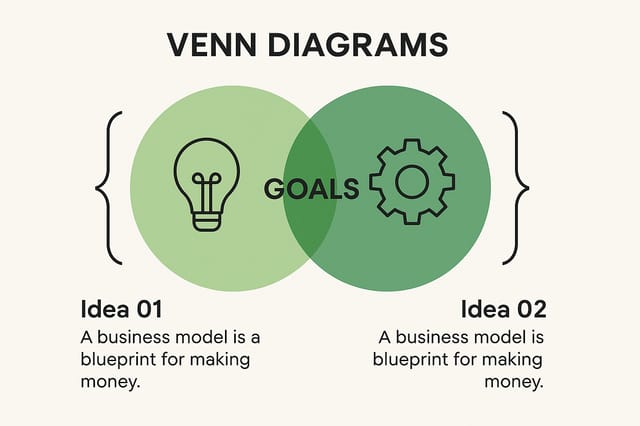
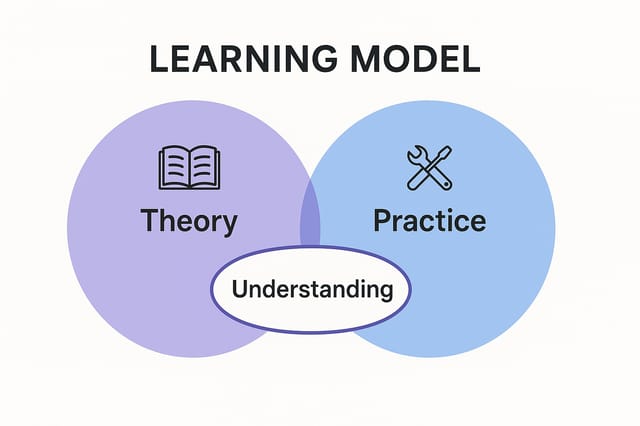
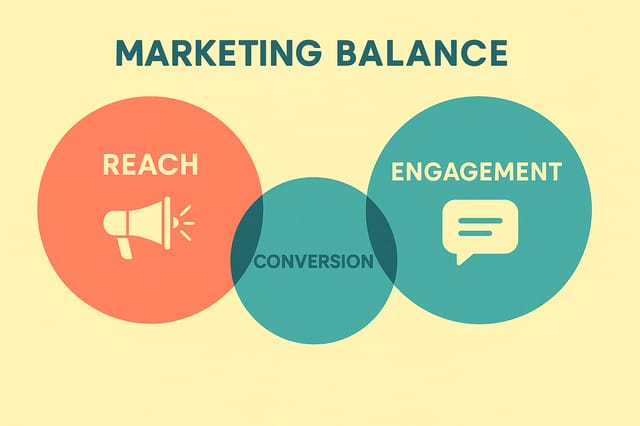
Real creators sharing their data flow designs made with Pixazo AI.
Data-Flow Diagram Generation: Known Limitations
Known limitations and trade-offs of AI-generated data flow design. Understanding what the AI handles well and where it falls short helps you structure your data-flow diagram design workflow effectively.

