Salon Flyer : Create Free Salon Flyers in Minutes with AI
Create Custom Salon Flyers Quickly with Pixazo Best AI Salon Flyer Maker. Try for Free!
Get Started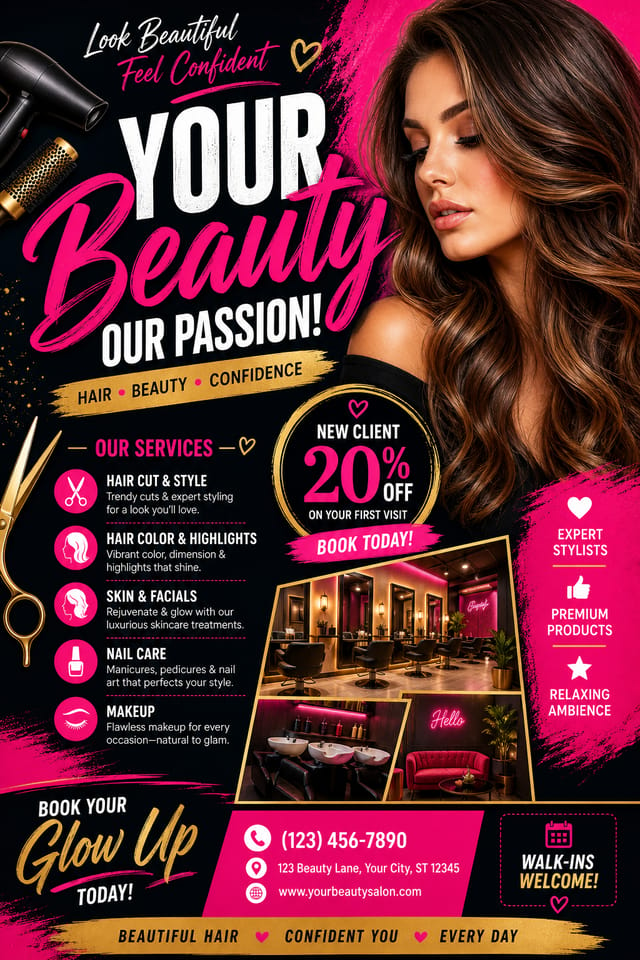
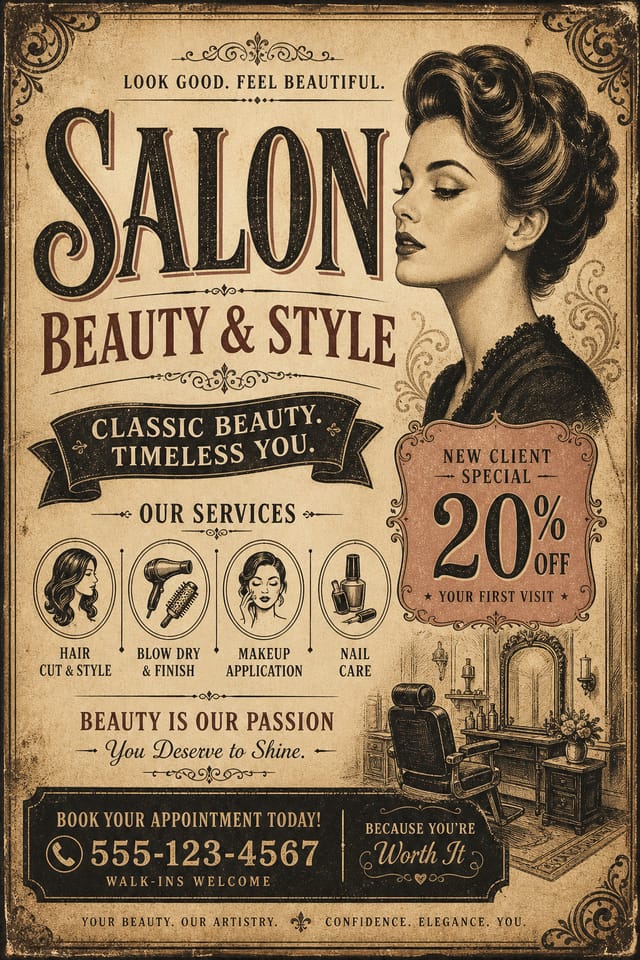
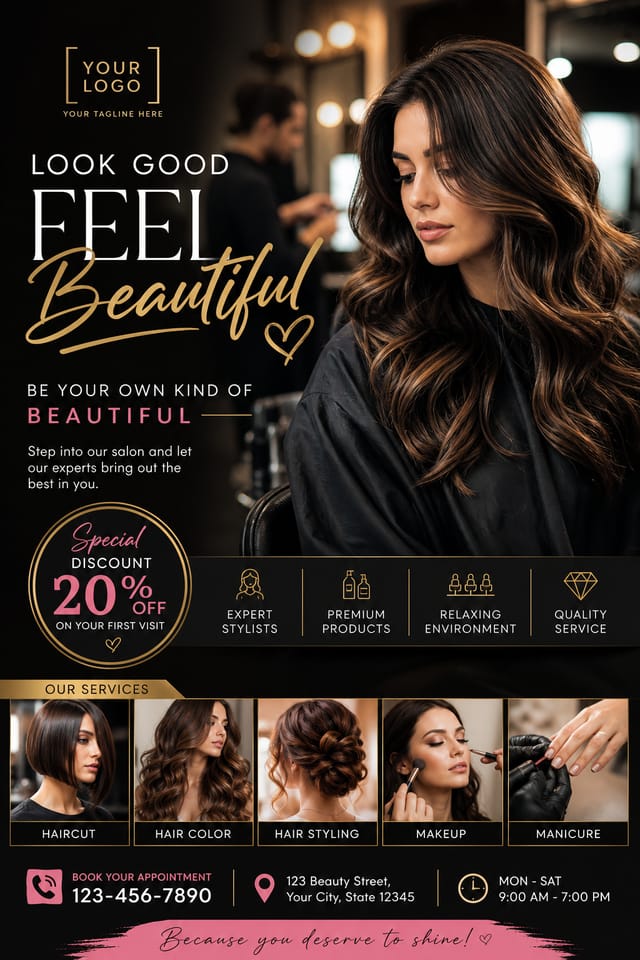
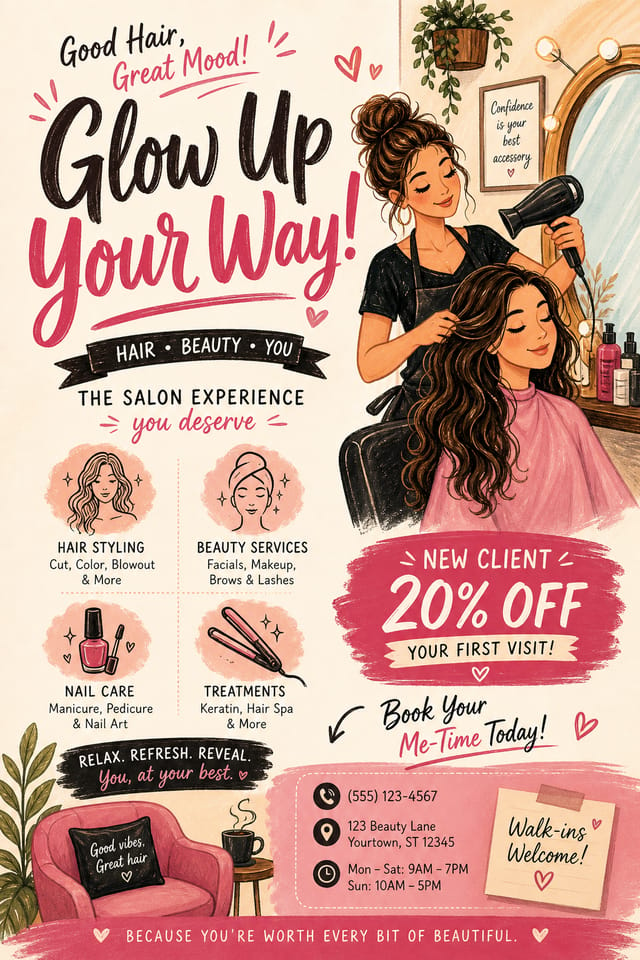
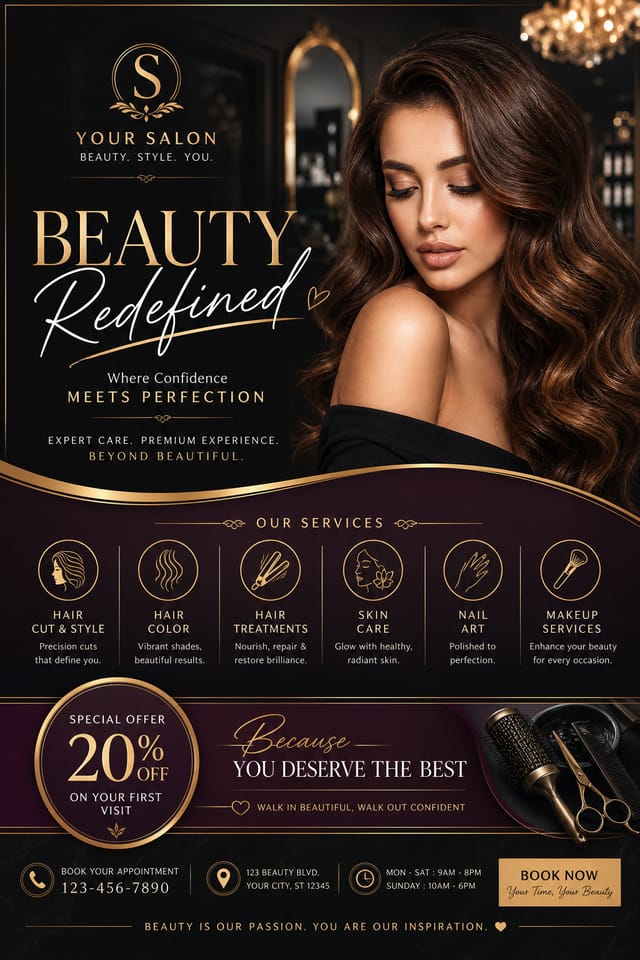
Expert Salon Flyer Examples You Can Customize
Generate salon flyers with clean layouts, readable fonts, and branded color schemes in seconds. AI creates multiple variations from your prompt—then you pick, tweak, and export print-ready or social-ready files without design tools.
Popular Salon Flyer Formats To Explore
A good salon flyer balances clarity and elegance—clear service names, bold pricing, and a visual rhythm that draws the eye without clutter. It should feel professional enough to hang in a waiting room and sharp enough to stop a scroll on Instagram.
Pixazo starts with your text and intent, then generates 10–20 design variations in seconds. You refine by selecting preferred layouts, colors, or fonts—no manual dragging or resizing. This cuts hours of design work down to minutes, with consistent quality across every version.
AI Salon Flyer ideas
Pick a direction, then regenerate variations to match your exact style.
All examples shown were generated using Pixazo with the prompts described on this page.
Why Pixazo Makes Creating Salon Flyers Faster And Cleaner
Zero design skills needed
Generate professional layouts without knowing Photoshop or Illustrator.
Instant brand alignment
Match your salon’s colors, fonts, and tone across all flyer versions automatically.
Print and digital ready
Export high-res PDFs, PNGs, or social-sized images with correct bleed and resolution.
Consistent typography
Every flyer uses legible, paired fonts optimized for small print and mobile screens.
Batch variations
Generate 15+ versions of the same flyer in under a minute for A/B testing.
Style locking
Save your favorite layout as a template to reuse across promotions or locations.
Why Pixazo Works Well for Salon Flyer
Pixazo’s image models are tuned to understand visual hierarchy, color harmony, and motifs that show up in real posters. Instead of remixing fixed templates, the AI builds layouts from scratch from your prompt—balancing symbolism, spacing, and readability for print and digital use.
Learn more: About Pixazo · Product overview
Where To Use Salon Flyers: Invitations, Posts, And Prints
Use salon flyers to announce new services, seasonal deals, or location openings—whether printed at the front desk, shared on Instagram Stories, or mailed to local neighborhoods.
Grand Opening Promotion
Announce your new location with a limited-time discount—highlight the address, date, and first-50-customer perk.
Include a QR code linking to your booking page—track conversions directly.
Seasonal Hair Color Special
Push balayage or ombre services during spring and summer with imagery that evokes sunlight and freshness.
Use a single model photo—avoid cluttering with multiple before/afters.
Referral Program Flyer
Encourage clients to bring friends with a “bring one, get one free” offer printed on durable cardstock.
Add a unique promo code for each referrer to measure campaign success.
Monthly Membership Drop
Introduce a subscription for weekly blowouts or monthly trims with a clean pricing grid.
Use a bold subscription icon (like a calendar or clock) to signal recurring value.
Holiday Gift Card Campaign
Position gift cards as the perfect present—with a countdown timer and limited stock messaging.
Add a small icon of a wrapped gift or ribbon to trigger emotional association.
Stylist Spotlight
Feature your top stylist with their photo, specialties, and booking link to build personal connection.
Keep the bio under 15 words—focus on results, not credentials.
Making Your First Salon Flyer: Quick Start
Start with your message
Write the core details: service name, price, date, and call to action. No design notes—just the facts.
Generate 15+ variations
Pixazo turns your text into layout options—different fonts, color blocks, image placements—all in seconds.
Refine and export
Choose your favorite, adjust one element like color or spacing, then download print or web-ready files.
Advanced prompt ideas
Use “minimalist with negative space,” “warm tones only,” “bold sans-serif headings,” or “vertical layout for Instagram stories.” Keep prompts focused on structure, not decoration.
AI Salon Flyer FAQs: Copy, Sizes, Printing, And Downloads
What’s the simplest layout that still looks premium?
A single vertical column with centered text, one accent color, and a subtle texture or gradient background works best. Avoid borders, icons, or multiple fonts. Less is more—your audience reads the message, not the decoration.
How do I keep text readable on a dark background?
Use white or light gray text with a slight drop shadow or stroke outline. Avoid pure black backgrounds—opt for deep charcoal or navy instead. Test contrast with a free online checker—aim for at least 4.5:1 for body text.
Which export size works best for social sharing?
Use 1080x1350px for Instagram posts and stories. For Facebook, 1200x630px works well. Pixazo auto-scales exports to these standards. Always download the highest resolution option—even if you’re posting online, it ensures clarity on high-DPI screens.
How many elements should I keep in one design?
Stick to four core elements: headline, service list, price, and call to action. Add one visual (photo, icon, or pattern) if it enhances clarity. More than six elements overwhelms the eye and reduces conversion.
What prompt constraints produce cleaner results?
Specify “no clipart,” “no borders,” “no gradients behind text,” and “only two typefaces.” These constraints remove clutter before the AI generates anything. Clear limits lead to focused, professional outputs.
How do I keep variations consistent in one style?
After generating your first batch, select one design you like and click “Lock Style.” This preserves fonts, colors, and spacing across new variations. You’ll get fresh layouts without losing your brand identity.

