Technology Flyer : Create Free Technology Flyers in Minutes with AI
Create Custom Technology Flyers Quickly with Pixazo Best AI Technology Flyer Maker. Try for Free!
Get Started


Smart Technology Flyer AI: Under the Hood
Background Variation
Generate technology flyers with different background treatments. Solid, gradient, textured, or pattern backgrounds all available for technology style.
Layered Style Application
Combine technology style with other design parameters in a single prompt. The AI interprets complex requests and applies multiple style constraints simultaneously.
Text Placement Options
Describe where you want text elements positioned in your technology flyer. The AI follows compositional direction about headline placement and body copy layout.
Typography Matching
Typefaces are selected to match technology aesthetic expectations. The AI pairs fonts that reinforce your technology flyer's visual identity.
Technology Creator Community Showcase
Real creators sharing their technology designs made with Pixazo AI.

Warm palette technology flyer, ochre and brown tones, serif typography, traditional technology design reference, tactile feeling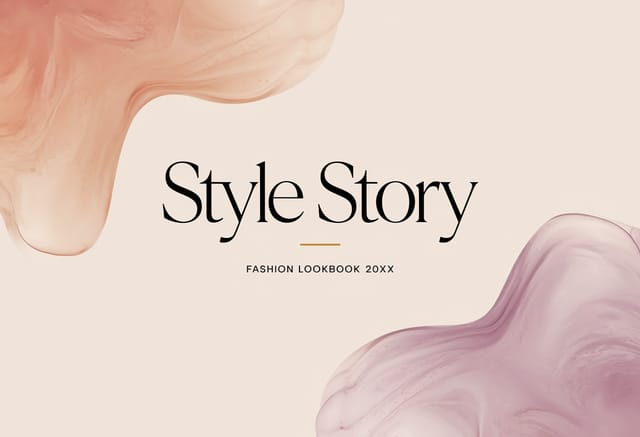
Portrait technology flyer for social sharing, vertical 4:5 ratio, headline in upper third, supporting content below centerline
Professional technology flyer, minimalist layout, selective use of color for emphasis, clear visual hierarchy from top to bottomPutting Technology Flyers to Work: Everyday and Professional
Non-Profit Campaigns
Create compelling technology campaign flyers without allocating budget to design production. Focus resources on mission-critical activities.
Community Organizations
Create technology announcement flyers for community groups, non-profits, and local organizations without requiring design expertise.
Event Promotion
Create technology event flyers that establish the right visual mood before the event. Technology design signals quality and sets expectations.
Podcast and Media Branding
Generate technology flyers for podcast covers, episode artwork, and media channel identity. Consistent visual branding across audio and video platforms.
Freelance Design Work
Use Pixazo to generate technology flyer concepts for client review. Present multiple directions quickly before committing to detailed execution.
The Technology Flyer Process: Made Simple
Log Your Requirements
Write a prompt describing your technology flyer. Include style preferences, color direction, the most important text to display, and any specific visual elements you want. The more specific your description, the more targeted the output.
Watch: Creating Technology Flyer designs step by step
Technology Flyer AI Metrics: Data-Backed Results
Full commercial usage rights for all generated technology fl
Full commercial usage rights for all generated technology flyers
Start with a 7-day free trial (credit card required)
Start with a 7-day free trial (credit card required)
Average generation time for a complete technology flyer desi
Average generation time for a complete technology flyer design from prompt to output
How Technology Style Varies: Worth Exploring
High-Contrast Technology
Bold technology visual treatment with strong tonal contrast. Elements read clearly at any viewing distance.
Geometric Technology
Structured technology composition using grid systems and angular forms. Order and precision define the visual approach.
Textured Technology
Technology design with added surface depth. Background treatments add visual interest without disrupting legibility.
Classic Technology
Traditional technology design principles applied to modern flyer format. Clean composition, conventional hierarchy, time-tested visual decisions.
Smart Technology Flyer Decisions: Common Pitfalls
Maintain brand alignment
Keep your technology flyer design consistent with existing brand colors, fonts, and visual language for a cohesive identity.
Use a consistent visual hierarchy
Structure your technology flyer so the viewer's eye follows a clear path from headline to supporting details to call-to-action.
Optimize for the display medium
Tailor your technology flyer resolution, color space, and text size to the specific platform or physical context where it will appear.
Test with real content
Never finalize a technology flyer with placeholder text. Real copy often has different lengths and line breaks that affect the design.
Overcrowd the layout
Filling every pixel of your technology flyer with content makes it harder to read and reduces the impact of every individual element.
Rely solely on AI output
AI-generated technology flyer designs are a starting point. Human review catches issues with context, tone, and accuracy that AI can miss.
Forget the call to action
A technology flyer without a clear next step for the viewer is a missed opportunity. Always include direction on what to do next.
Skip proofreading
Typos and grammatical errors on a technology flyer undermine credibility instantly. Always have someone else review the final text.
Tested Technology Flyer Prompts Worth Trying
Copy any prompt below and paste it into Pixazo to generate your design instantly.
Professional technology flyer, minimalist technology approach, negative space used intentionally, readable at multiple viewing distances, print-ready compositionAtmospheric technology flyer, background treatment supports the headline without competing with it, visual weight distributed intentionallyClean technology flyer design, geometric structure, disciplined typography, color accent used selectively for emphasis, printer-optimized resolutionHigh-impact technology flyer, immediate visual read at thumbnail size, clear headline dominance, supporting information structured logicallyMonochromatic technology flyer, single-hue palette with value variation for contrast, typographic hierarchy creates visual interest without color complexityGeometric technology flyer, structured grid system, angular composition, colors in blocks rather than gradients, modern clean finishHonest Notes on Technology Flyers: Where It Falls Short
Known limitations and trade-offs of AI-generated technology design. Understanding what the AI handles well and where it falls short helps you structure your technology flyer design workflow effectively.
Where Technology Flyer Design Is Heading: Design Movements
Dark Mode Aesthetics
Dark backgrounds with high-contrast accents are increasingly common in technology flyer design, reducing visual fatigue and adding sophistication.
Retro Revival
Vintage aesthetics from the 1970s and 1990s are influencing technology flyer design with textured backgrounds, serif fonts, and warm gradients.
Bold Typography
Oversized type and expressive fonts are dominating technology flyer design, turning headlines into visual centerpieces rather than just text.
Asymmetric Composition
Breaking grid symmetry in technology flyer layouts creates visual tension and a modern, editorial feel that stands out.
Creating Technology Flyers: Your Questions Answered
Templates apply a fixed visual structure with placeholder content. AI generation produces original designs based on your specific description. Two technology flyers generated from different prompts will have genuinely different layouts, not just different text in the same box positions.
Include the target language in your prompt when generating technology flyers with non-English text. The AI selects typographic approaches appropriate for the language and applies technology design conventions to the overall layout regardless of language.
Pixazo generates single-page technology flyer designs per prompt. For multi-page projects, generate each page individually using consistent prompt language to maintain visual continuity across your technology document set.
Pixazo supports PNG, JPEG, and PDF export for technology flyers. PNG preserves transparency if your design uses it. JPEG works well for web and social media. PDF is the preferred format for print production of technology flyers.
Each generation uses your unique prompt text to produce a distinct technology flyer design. Even similar prompts produce noticeably different outputs due to the AI's generative process. No two users receive identical designs.

