Yard Sale Flyer : Create Free Yard Sale Flyers in Minutes with AI
Create Custom Yard Sale Flyers Quickly with Pixazo Best AI Yard Sale Flyer Maker. Try for Free!
Get Started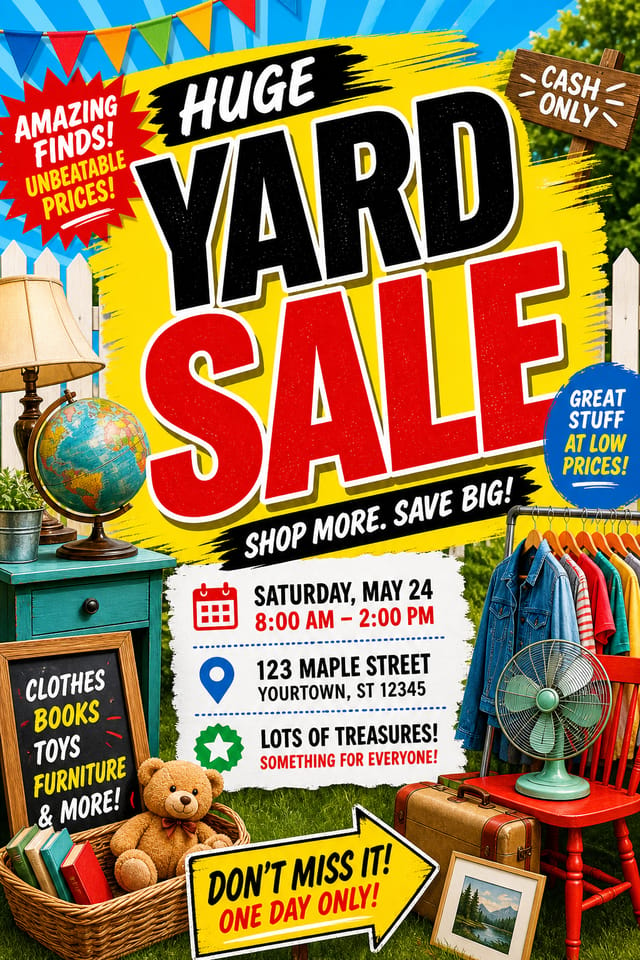
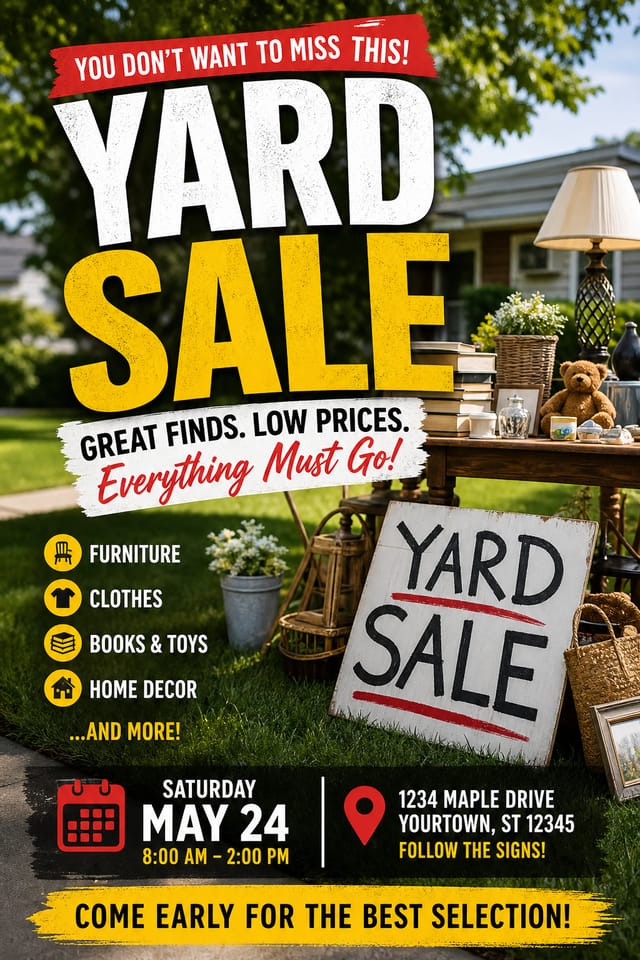
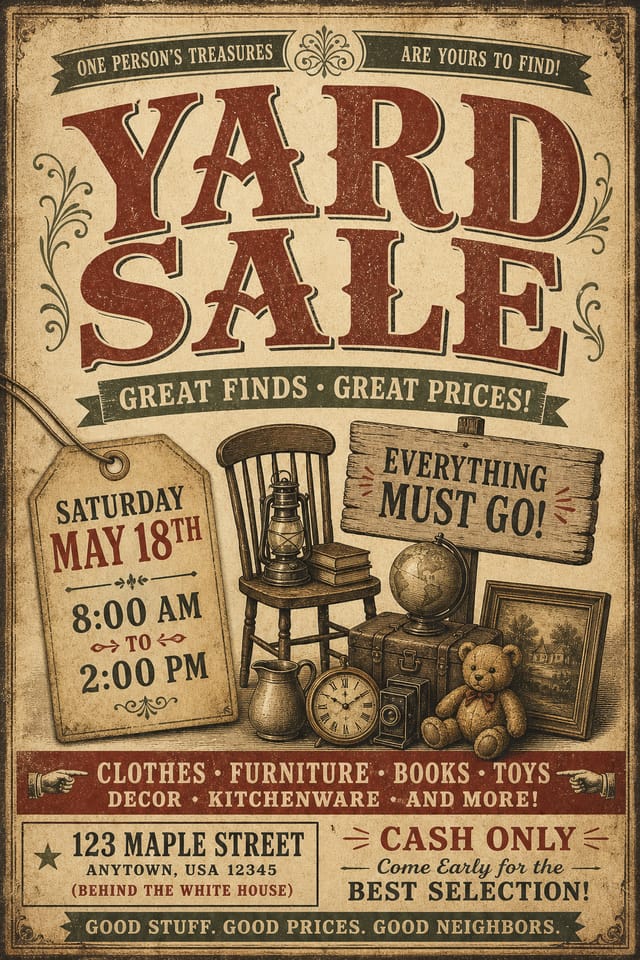
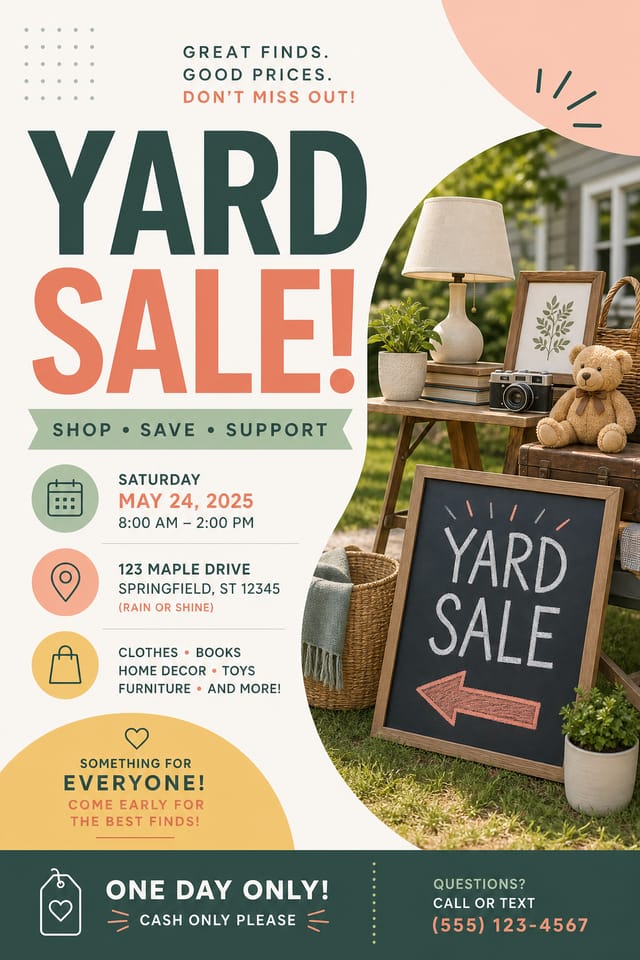
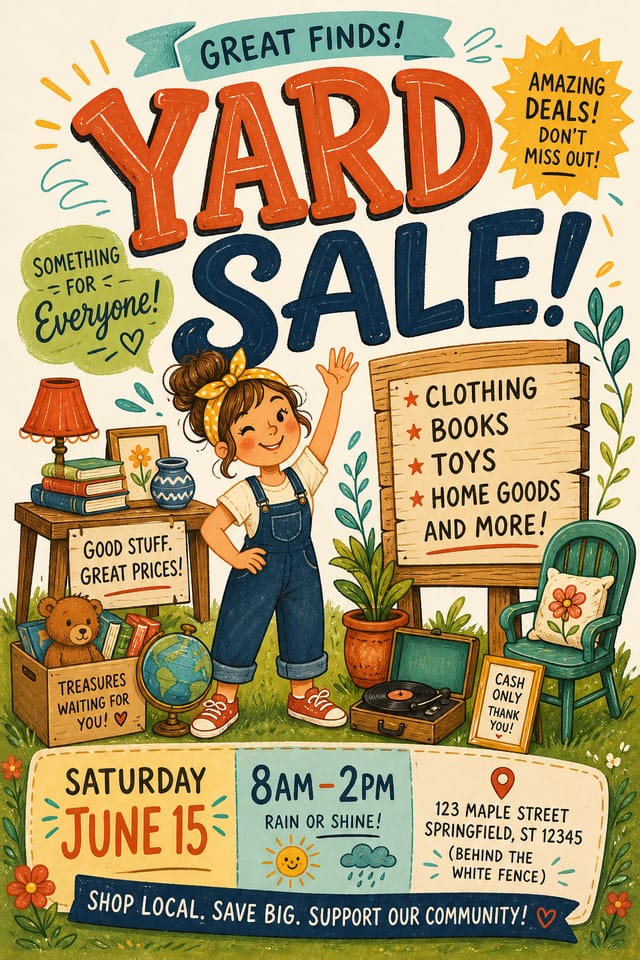
Avoiding Yard-Sale Flyer Mistakes: Rules Worth Following
Maintain brand alignment
Keep your yard-sale flyer design consistent with existing brand colors, fonts, and visual language for a cohesive identity.
Optimize for the display medium
Tailor your yard-sale flyer resolution, color space, and text size to the specific platform or physical context where it will appear.
Test with real content
Never finalize a yard-sale flyer with placeholder text. Real copy often has different lengths and line breaks that affect the design.
Forget the call to action
A yard-sale flyer without a clear next step for the viewer is a missed opportunity. Always include direction on what to do next.
Ignore accessibility
Low-contrast text and tiny font sizes in your yard-sale flyer exclude a significant portion of your potential audience.
Skip proofreading
Typos and grammatical errors on a yard-sale flyer undermine credibility instantly. Always have someone else review the final text.
How AI Translates Yard-Sale Style: What the AI Understands
What Makes Yard-Sale Flyer Design Work
The gap between a professional yard-sale flyer and a mediocre one usually comes down to design decisions made early in the process: palette selection, type hierarchy, and compositional structure.
These choices determine whether the final output reads as yard-sale or just looks generic.
Pixazo's AI makes these foundational decisions based on your prompt.
Specify a yard-sale flyer and the system selects design parameters that match yard-sale visual expectations, giving you a solid starting point rather than a blank-slate template.
Core of Yard-Sale Flyer AI: Professional Features
No Design Software Required
Create professional yard-sale flyers without Photoshop, Illustrator, or other design applications. The AI handles all technical production.
Commercial Use Rights
Designs generated with Pixazo are yours to use commercially. No additional licensing required for yard-sale flyer projects.
Consistency Across Variants
Generate multiple yard-sale flyers for a project and maintain visual consistency across the set. Specify your core design parameters and vary secondary elements.
Fast Generation
Complete yard-sale flyer designs generate in seconds. No rendering queues, no waiting for batch processing.
Subcategory Awareness
The AI distinguishes between design subcategories. A yard-sale flyer request produces yard-sale-appropriate output, not a generic design with yard-sale text added.
Yard-Sale Flyers Across Fields: From Hobby to Pro
Event Promotion
Create yard-sale event flyers that establish the right visual mood before the event. Yard-Sale design signals quality and sets expectations.
Professional Projects
Create yard-sale flyers for client work, commercial campaigns, and professional applications where quality and style accuracy matter.
Trade Show and Conference Materials
Generate yard-sale flyers for booth displays, attendee handouts, and event signage. Professional materials that represent your brand in competitive environments.
Small Business Marketing
Produce yard-sale marketing flyers without a design agency budget. Get professional results from a text description.
Yard-Sale Flyer Tech Specs: Capabilities at a Glance
Yard-Sale Flyer File Formats: Format Guide
Print-ready format for yard-sale flyer files that preserves fonts, colors, and layout across different devices and print services.
SVG
Scalable format for yard-sale flyer designs that need to render crisply at any resolution, commonly used for web and responsive layouts.
PNG
Lossless image format ideal for yard-sale flyer designs with transparency, sharp text, and web display at predictable file sizes.
JPG
Compressed image format suited for yard-sale flyer designs with photographic elements where smaller file size matters more than pixel-perfect edges.
TIFF
High-fidelity format for yard-sale flyer files destined for professional printing, supporting CMYK color and lossless compression.
From Prompt to Yard-Sale Flyer: Three Easy Steps
Compose Your Request
Describe what you want your yard-sale flyer to look like. Include the mood, color palette, typography preference, and content hierarchy. Pixazo reads all of this and uses it to generate an appropriate design.
Peruse the AI Generation
The AI produces a yard-sale flyer based on your description. If the first result isn't exactly right, adjust the prompt to address what needs changing. Most designs reach the target within a few iterations.
Take It to Production
Download your completed yard-sale flyer in the format that fits your use case. High-resolution files for print, web-optimized versions for digital, or PDF for production-ready delivery.
Watch: Creating Yard Sale Flyer designs step by step
Yard-Sale Flyer Aesthetics: Visual Approaches
Minimalist Yard-Sale
Stripped-back yard-sale approach. Fewer elements, more negative space, typography carries more visual weight.
Contemporary Yard-Sale
Current yard-sale design sensibility with updated proportions, modern typefaces, and contemporary color relationships.
Atmospheric Yard-Sale
Yard-Sale flyer design where mood takes priority. Color and composition work together to create a specific feeling.
Editorial Yard-Sale
Text-dominant yard-sale flyer layout inspired by print publication design. Typographic variety creates visual rhythm.
Classic Yard-Sale
Traditional yard-sale design principles applied to modern flyer format. Clean composition, conventional hierarchy, time-tested visual decisions.
Inside the Yard-Sale Community: Work in the Wild
Real creators sharing their yard sale designs made with Pixazo AI.

Full-bleed background yard-sale flyer, image or texture extends to edges, foreground elements float above, headline anchored to center
Cool palette yard-sale flyer, slate and steel tones, sans-serif typography, contemporary yard-sale sensibility, precise alignment
Yard-Sale flyer in 18x24 inch print format, museum-quality composition, generous margins, elegant serif headline, muted earth tonesSample Yard-Sale Flyer Prompt Examples
Copy any prompt below and paste it into Pixazo to generate your design instantly.
Series-compatible yard-sale flyer design, visual language that extends to multiple formats, consistent design system across variantsHigh-impact yard-sale flyer, immediate visual read at thumbnail size, clear headline dominance, supporting information structured logicallyFull-bleed yard-sale flyer, background treatment extends to edges, foreground elements positioned for compositional balance, strong central hierarchyPortrait-orientation yard-sale flyer, vertical composition, headline at natural reading entry point, supporting information flows downward logicallyTextured yard-sale flyer, surface treatment adds depth without obscuring legibility, texture consistent with yard-sale aestheticFrom Brief to Yard-Sale Flyer: Stages Explained
Generate
Use AI to produce multiple yard-sale flyer variations based on your brief. Start broad and narrow down from the strongest options.
Approve
Get stakeholder approval on the finished yard-sale flyer. Verify all text is accurate and the design meets brand and technical requirements.
Brief
Establish the key message, dimensions, color preferences, and target audience for your yard-sale flyer before any design work begins.
Review
Compare generated yard-sale flyer options against your brief. Mark what works and note specific changes needed for the next iteration.
Before You Start: A Quick FAQ
You can request high-contrast or color-blind-friendly palettes in your prompt. Specify 'accessible color palette' or 'deuteranopia-safe colors' and the AI will select yard-sale-appropriate colors that maintain sufficient contrast for users with color vision deficiencies.
Specify the dimensions in your prompt. Common formats like A3, 18x24 inches, or 1080x1920 pixels for social media stories all work. The AI generates a yard-sale flyer composition appropriate for the specified aspect ratio and use case.
Professional yard-sale flyer design comes down to the right color relationships, appropriate typographic hierarchy, and compositional balance that fits yard-sale aesthetic conventions. Generic designs miss these details because they apply neutral defaults rather than style-specific decisions. Pixazo applies yard-sale design knowledge when you specify the style.
Team accounts allow multiple users to share prompts, saved yard-sale flyer designs, and brand kits within a shared workspace. Team members can iterate on each other's yard-sale flyer designs and maintain consistent output across projects.
Include the target language in your prompt when generating yard-sale flyers with non-English text. The AI selects typographic approaches appropriate for the language and applies yard-sale design conventions to the overall layout regardless of language.
Yard-Sale Flyer Constraints: Honest Expectations
Known limitations and trade-offs of AI-generated yard sale design. Transparency matters when using AI for yard-sale flyer design. The points below describe where you may need to supplement AI output with manual work.

