Communication Infographic : Create Free Communication Infographics in Minutes with AI
Create Custom Communication Infographics Quickly with Pixazo Best AI Communication Infographic Maker. Try for Free!
Get Started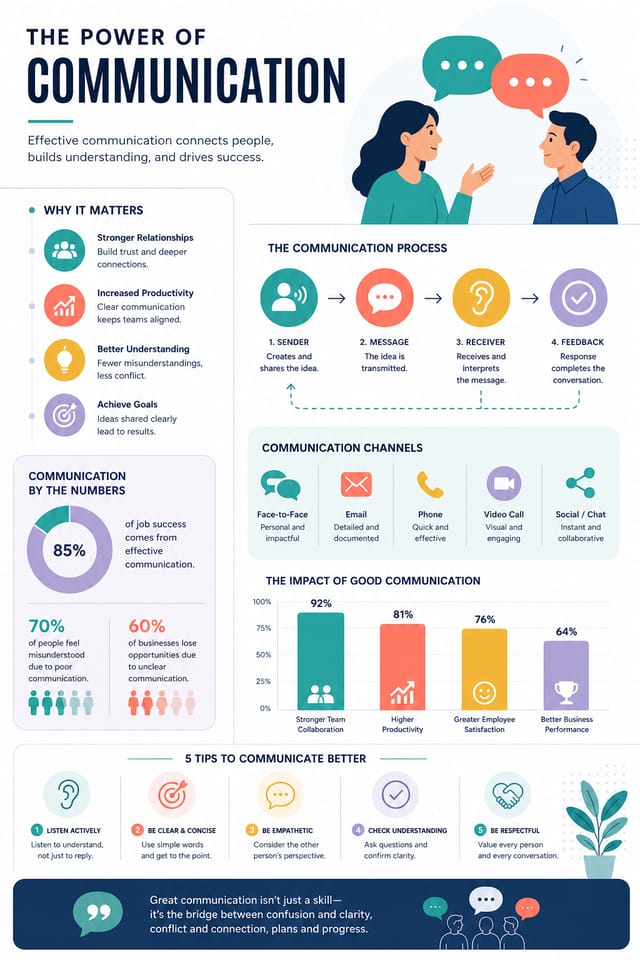
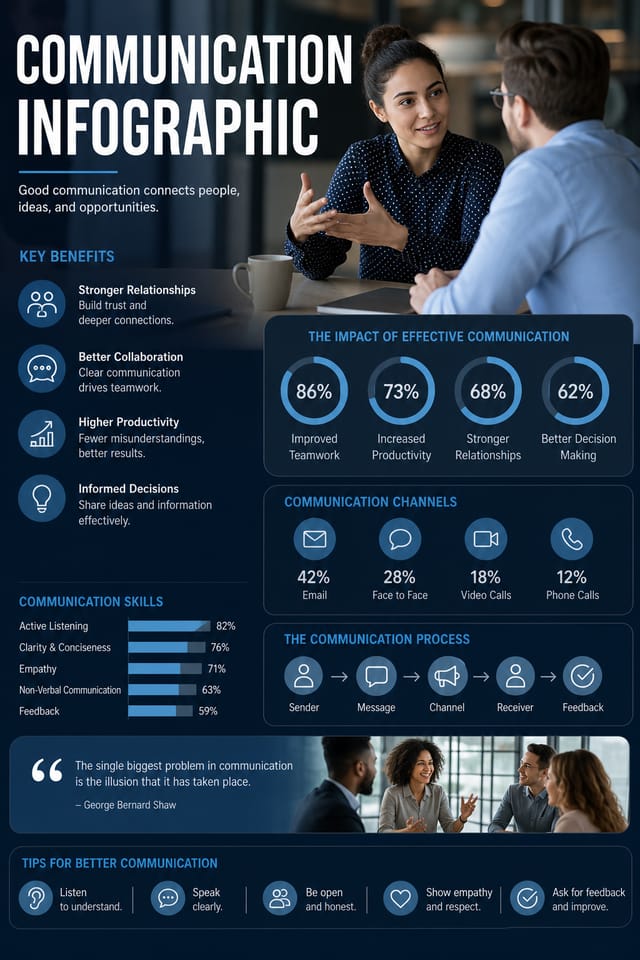
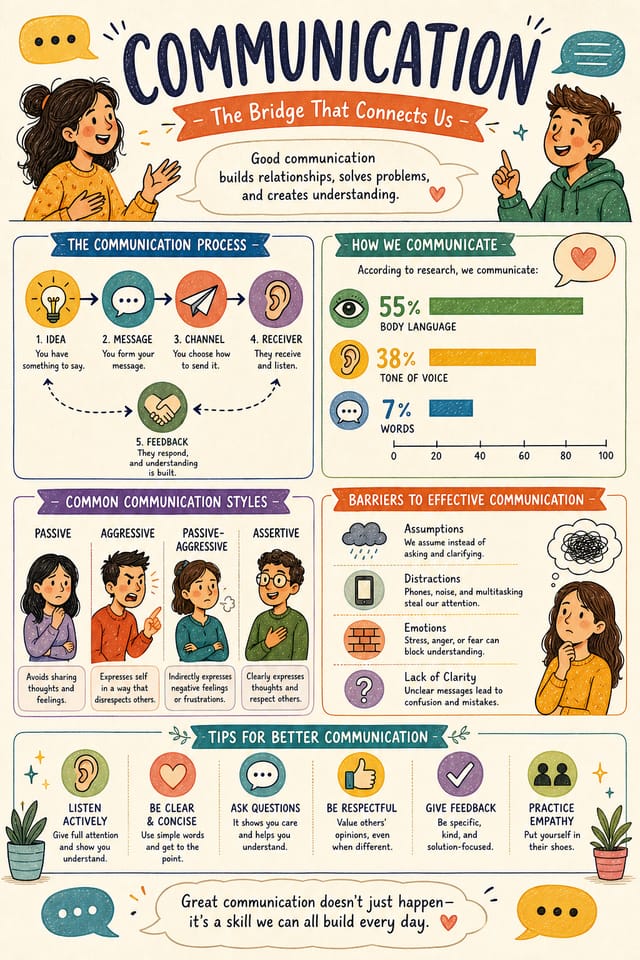
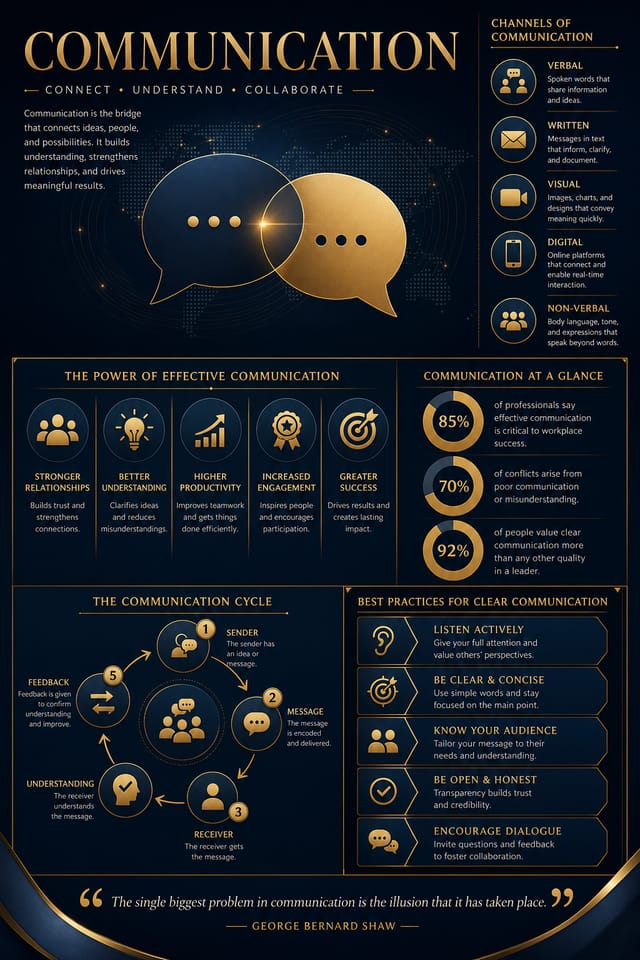
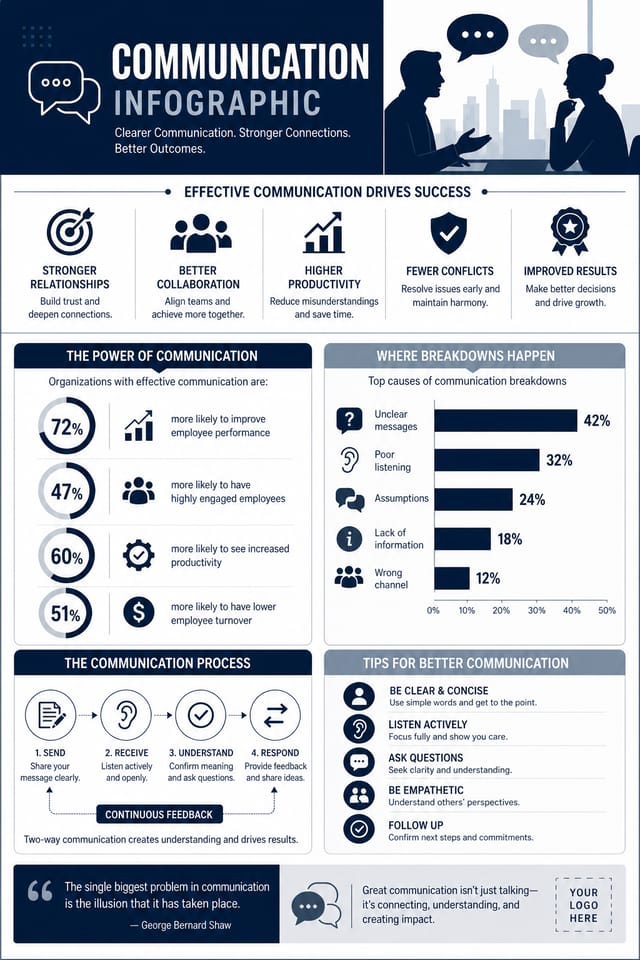
Communication Design Styles: Finding Your Look
Atmospheric Communication
Communication infographic design where mood takes priority. Color and composition work together to create a specific feeling.
Contemporary Communication
Current communication design sensibility with updated proportions, modern typefaces, and contemporary color relationships.
Textured Communication
Communication design with added surface depth. Background treatments add visual interest without disrupting legibility.
Classic Communication
Traditional communication design principles applied to modern infographic format. Clean composition, conventional hierarchy, time-tested visual decisions.
High-Contrast Communication
Bold communication visual treatment with strong tonal contrast. Elements read clearly at any viewing distance.
Communication Infographic Quality Checklist: Practical Guidelines
Use a consistent visual hierarchy
Structure your communication infographic so the viewer's eye follows a clear path from headline to supporting details to call-to-action.
Optimize for the display medium
Tailor your communication infographic resolution, color space, and text size to the specific platform or physical context where it will appear.
Keep the message focused
A strong communication infographic communicates one primary idea clearly. Supporting details should reinforce, not compete with, the main message.
Use grids and alignment
Structured layouts in your communication infographic create a sense of order and professionalism that unstructured designs cannot match.
Overcrowd the layout
Filling every pixel of your communication infographic with content makes it harder to read and reduces the impact of every individual element.
Skip proofreading
Typos and grammatical errors on a communication infographic undermine credibility instantly. Always have someone else review the final text.
Forget the call to action
A communication infographic without a clear next step for the viewer is a missed opportunity. Always include direction on what to do next.
Rely solely on AI output
AI-generated communication infographic designs are a starting point. Human review catches issues with context, tone, and accuracy that AI can miss.
Precision Communication Infographic Tools: Design Powers
Text Placement Options
Describe where you want text elements positioned in your communication infographic. The AI follows compositional direction about headline placement and body copy layout.
Compositional Structure
Layout and hierarchy decisions reflect communication design patterns. The proportions and arrangement match how communication designs are conventionally structured.
Negative Space Handling
The AI manages whitespace in communication infographic designs according to communication aesthetic conventions, not generic poster defaults.
Color Palette Intelligence
Colors are chosen with communication style awareness. The AI builds palettes that fit communication design conventions rather than selecting arbitrarily.
Instant Iterations
Generate multiple communication infographic variations from a single prompt. Compare options and refine until the design matches your vision.
Communication Infographic Production Steps: The Full Process
Refine Polish the design
Apply targeted edits to your selected communication infographic. Adjust typography, spacing, and color until every element meets your quality standard.
Review Evaluate and refine
Compare generated communication infographic options against your brief. Mark what works and note specific changes needed for the next iteration.
Generate Create initial designs
Use AI to produce multiple communication infographic variations based on your brief. Start broad and narrow down from the strongest options.
Research Gather references
Collect examples of effective communication infographic designs, note what works, and identify patterns relevant to your project goals.
The Reach of Communication Infographics: Across Industries
Podcast and Media Branding
Generate communication infographics for podcast covers, episode artwork, and media channel identity. Consistent visual branding across audio and video platforms.
Real Estate Marketing
Create communication infographics for property listings, open houses, and agent branding. Professional visuals that elevate property presentation.
Music and Audio Production
Produce communication infographics for album covers, playlist artwork, and music event promotion. Visual identity that matches the sound.
Freelance Design Work
Use Pixazo to generate communication infographic concepts for client review. Present multiple directions quickly before committing to detailed execution.
Interior Display
Generate communication infographics for home and office wall display. Get print-ready files that look considered rather than stock-photo generic.
The Communication Infographic Process: What Actually Happens
Formulate the Request
Describe what you want your communication infographic to look like. Include the mood, color palette, typography preference, and content hierarchy. Pixazo reads all of this and uses it to generate an appropriate design.
Critique the Draft
Pixazo generates your communication infographic in seconds. Review the design and adjust your prompt to refine specific elements: change the color palette, shift the layout weight, or add visual elements you want included.
Package Your Design
Export your communication infographic in the format you need. PNG for web and social, PDF for print production, JPG for email and lightweight sharing. The file is yours to use commercially without restrictions.
Watch: Creating Communication Infographic designs step by step
Communication Infographic Quality Numbers: Output Benchmarks
From initial prompt to finished communication infographic in
From initial prompt to finished communication infographic in a simple workflow
Number of communication infographic variations you can gener
Number of communication infographic variations you can generate per session
Output formats available for every communication infographic
Output formats available for every communication infographic generation
Pro Tips for Communication Infographic Design: From Experienced Designers
Use High Contrast for Readability
Whether your communication infographic is displayed on screen or in print, strong contrast between text and background ensures the message gets through at any size.
Get Feedback Early
Share your communication infographic draft with someone outside the project. Fresh eyes catch issues you have become blind to after hours of refinement.
Start with a Clear Brief
Before generating any communication infographic, write down the core message, target audience, and intended use. A focused brief produces better results than iterating from a vague idea.
Keep Typography Simple
Use no more than two typefaces per communication infographic. One for headlines, one for body text. Consistency in typography signals professionalism.
Prioritize Hierarchy
Every communication infographic needs a clear reading order. Make sure the most important information is the largest and most prominent element in the layout.
Communication Infographic Constraints: Current Boundaries
Known limitations and trade-offs of AI-generated communication design. Transparency matters when using AI for communication infographic design. The points below describe where you may need to supplement AI output with manual work.
Proven Communication Infographic Prompt Examples
Copy any prompt below and paste it into Pixazo to generate your design instantly.
Editorial-style communication infographic, text-dominant design, typographic treatment carries visual weight, layout proportions inspired by print publication designClean communication infographic design, geometric structure, disciplined typography, color accent used selectively for emphasis, printer-optimized resolutionTwo-color communication infographic design, high contrast between primary and secondary color, clean separation between graphic and text zonesPortrait-orientation communication infographic, vertical composition, headline at natural reading entry point, supporting information flows downward logicallyRefined communication infographic, sophisticated color relationships, intentional whitespace, typefaces appropriate to communication style, balanced compositionCommunication Infographic Design: Key Things to Know
Canva uses fixed templates you customize manually. Pixazo generates original communication infographic designs from your description, so every output is unique. For communication work specifically, the AI applies style-specific design decisions rather than offering generic drag-and-drop templates.
Specific prompts produce better results than vague ones. Include the visual style you want, any color preferences, the most important text to display, and the intended use. For communication design specifically, noting whether you want a contemporary or classic interpretation of communication style helps the AI make the right design decisions.
Yes. Set up separate brand kits for each client or brand, then switch between them when generating communication infographics. Each brand kit stores its own colors, fonts, and logo so the AI applies the correct identity to every communication infographic without manual reconfiguration.
Specify the dimensions in your prompt. Common formats like A3, 18x24 inches, or 1080x1920 pixels for social media stories all work. The AI generates a communication infographic composition appropriate for the specified aspect ratio and use case.
Communication Infographic Community: Real Creator Work
Real creators sharing their communication designs made with Pixazo AI.

Bold communication infographic with strong central headline, supporting information at secondary scale, background treatment consistent with communication design
Full-bleed background communication infographic, image or texture extends to edges, foreground elements float above, headline anchored to center
Square communication infographic at 1080x1080 for LinkedIn post, professional tone, balanced text-to-visual ratio, brand-safe composition
