Comparison Infographic : Create Free Comparison Infographics in Minutes with AI
Create Custom Comparison Infographics Quickly with Pixazo Best AI Comparison Infographic Maker. Try for Free!
Get Started
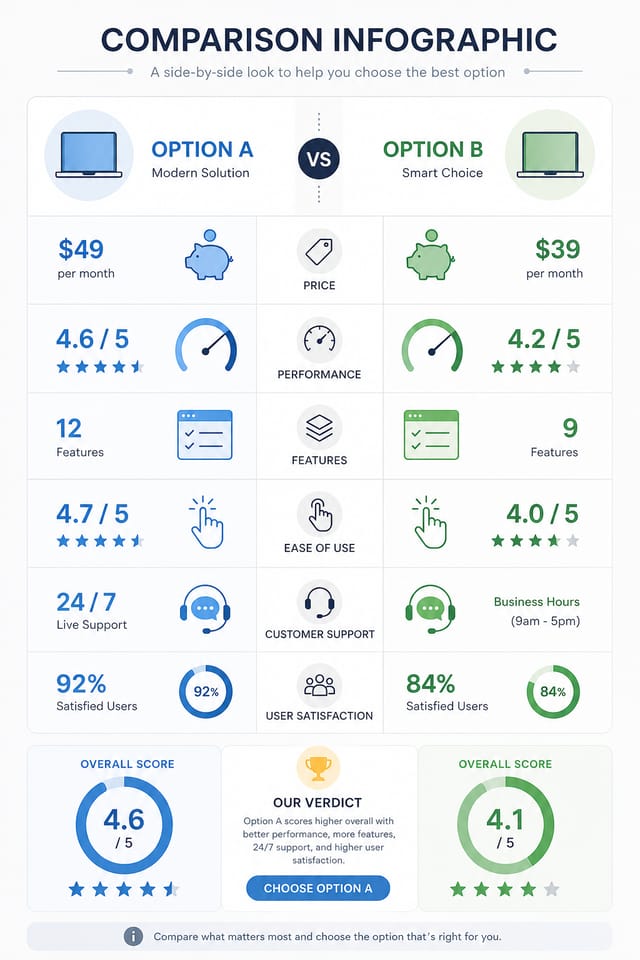
Practical Comparison Infographic Tips: Expert-Level Advice
Consider the Context
Think about where your comparison infographic will appear. A design optimized for social media needs different proportions and density than one for a physical bulletin board.
Get Feedback Early
Share your comparison infographic draft with someone outside the project. Fresh eyes catch issues you have become blind to after hours of refinement.
Check Alignment Carefully
Misaligned elements are one of the most common signs of amateur comparison infographic design. Use grid lines and snap-to features to keep things precise.
Prioritize Hierarchy
Every comparison infographic needs a clear reading order. Make sure the most important information is the largest and most prominent element in the layout.
Comparison Visual Language: A Technical Perspective
How Pixazo Reads Comparison Style Cues
Professional comparison infographic design involves more than applying a color filter to a generic layout.
The visual language of comparison design encompasses distinctive compositional approaches, characteristic color affinities, and typographic choices that signal quality and intentionality.
When you use Pixazo to create a comparison infographic, the AI applies this visual knowledge to your specific request.
The result looks deliberate and style-appropriate, not accidental or template-derived.
Behind Comparison Infographic Design: Under the Hood
Color Palette Intelligence
Colors are chosen with comparison style awareness. The AI builds palettes that fit comparison design conventions rather than selecting arbitrarily.
Consistency Across Variants
Generate multiple comparison infographics for a project and maintain visual consistency across the set. Specify your core design parameters and vary secondary elements.
Export Flexibility
Download your comparison infographic in formats suited for your use case. Web-optimized versions for digital display, high-DPI files for print.
Print-Ready Output
Generated comparison infographics are sized and structured for professional printing. Download high-resolution files ready for production.
Avoiding Comparison Infographic Mistakes: Common Pitfalls
Maintain brand alignment
Keep your comparison infographic design consistent with existing brand colors, fonts, and visual language for a cohesive identity.
Optimize for the display medium
Tailor your comparison infographic resolution, color space, and text size to the specific platform or physical context where it will appear.
Test with real content
Never finalize a comparison infographic with placeholder text. Real copy often has different lengths and line breaks that affect the design.
Keep the message focused
A strong comparison infographic communicates one primary idea clearly. Supporting details should reinforce, not compete with, the main message.
Skip proofreading
Typos and grammatical errors on a comparison infographic undermine credibility instantly. Always have someone else review the final text.
Ignore accessibility
Low-contrast text and tiny font sizes in your comparison infographic exclude a significant portion of your potential audience.
Overcrowd the layout
Filling every pixel of your comparison infographic with content makes it harder to read and reduces the impact of every individual element.
Real Comparison Infographics: Community Creations
Real creators sharing their comparison designs made with Pixazo AI.

Warm palette comparison infographic, ochre and brown tones, serif typography, traditional comparison design reference, tactile feeling
A3 landscape comparison infographic for conference booth, informational layout with three columns, clear section headers, QR code placement zone
Comparison infographic designed for dark mode display, OLED-optimized black background, vibrant accent colors, high contrast textThe Reach of Comparison Infographics: Real Applications
Travel and Tourism Promotion
Design comparison infographics for destinations, tour packages, and hospitality brands. Aspirational visuals that inspire booking decisions.
Retail and Hospitality
Produce comparison in-store and venue infographics that communicate quality through design. Comparison aesthetics signal attention to customer experience.
Music and Audio Production
Produce comparison infographics for album covers, playlist artwork, and music event promotion. Visual identity that matches the sound.
Political and Advocacy Campaigns
Create comparison campaign infographics for candidates, ballot measures, and social causes. Persuasive designs that mobilize and inform.
Creating Your Comparison Infographic: Behind the Scenes
Transmit the Brief
Start with a text description of your comparison infographic concept. Specify the visual style, colors, layout direction, and key text. Detailed prompts produce more accurate comparison infographic designs than general ones.
Watch: Creating Comparison Infographic designs step by step
Current Comparison Infographic Directions: What Is Popular Now
Asymmetric Composition
Breaking grid symmetry in comparison infographic layouts creates visual tension and a modern, editorial feel that stands out.
Hand-Drawn Elements
Illustrations, doodles, and hand-lettering bring a personal, approachable quality to comparison infographic designs in an era of polished digital output.
Data-Driven Visuals
Incorporating charts, statistics, and structured data directly into comparison infographic layouts helps communicate complex messages at a glance.
Brutalist Design
Raw, intentionally unpolished comparison infographic aesthetics with stark contrasts and unconventional layouts are carving a niche in creative industries.
Minimalist Layouts
Stripped-back comparison infographic designs with generous white space and limited elements are gaining favor for their clarity and elegance.
Bold Typography
Oversized type and expressive fonts are dominating comparison infographic design, turning headlines into visual centerpieces rather than just text.
Styling Your Comparison Infographic: Aesthetic Choices
Textured Comparison
Comparison design with added surface depth. Background treatments add visual interest without disrupting legibility.
Geometric Comparison
Structured comparison composition using grid systems and angular forms. Order and precision define the visual approach.
Editorial Comparison
Text-dominant comparison infographic layout inspired by print publication design. Typographic variety creates visual rhythm.
High-Contrast Comparison
Bold comparison visual treatment with strong tonal contrast. Elements read clearly at any viewing distance.
Atmospheric Comparison
Comparison infographic design where mood takes priority. Color and composition work together to create a specific feeling.
Writing Comparison Infographic Prompts to Try
Copy any prompt below and paste it into Pixazo to generate your design instantly.
Portrait-orientation comparison infographic, vertical composition, headline at natural reading entry point, supporting information flows downward logicallyEditorial-style comparison infographic, text-dominant design, typographic treatment carries visual weight, layout proportions inspired by print publication designProfessional comparison infographic, minimalist comparison approach, negative space used intentionally, readable at multiple viewing distances, print-ready compositionGeometric comparison infographic, structured grid system, angular composition, colors in blocks rather than gradients, modern clean finishComparison infographic with strong visual hierarchy, largest element reads clearly, supporting elements organized by importance, clean background treatmentBeing Realistic About Comparison Infographics: What to Expect
Known limitations and trade-offs of AI-generated comparison design. Understanding what the AI handles well and where it falls short helps you structure your comparison infographic design workflow effectively.
New to Comparison Infographics? Plain Answers
Designs created with Pixazo are available for commercial use. You can use your comparison infographics for client projects, product sales, advertising, and other commercial applications without additional licensing fees.
The AI renders text as specified in your prompt, so double-check spelling and punctuation before generating. If text renders incorrectly in a comparison infographic, adjust your prompt and regenerate. The AI follows your exact text input.
Pixazo offers a free tier that lets you generate comparison infographics with standard resolution output. Paid plans unlock higher resolution, priority generation, and additional export formats. You can try comparison infographic generation free with a credit card.
A comparison infographic generates in seconds after submitting your prompt. Total time from prompt submission to downloadable file is typically under a minute, including any server processing time.
Pixazo works in any modern mobile browser. The interface adapts to phone and tablet screens so you can generate comparison infographics from anywhere. A dedicated mobile app is in development for an even smoother on-device experience.

