Fitness Infographic : Create Free Fitness Infographics in Minutes with AI
Create Custom Fitness Infographics Quickly with Pixazo Best AI Fitness Infographic Maker. Try for Free!
Get Started
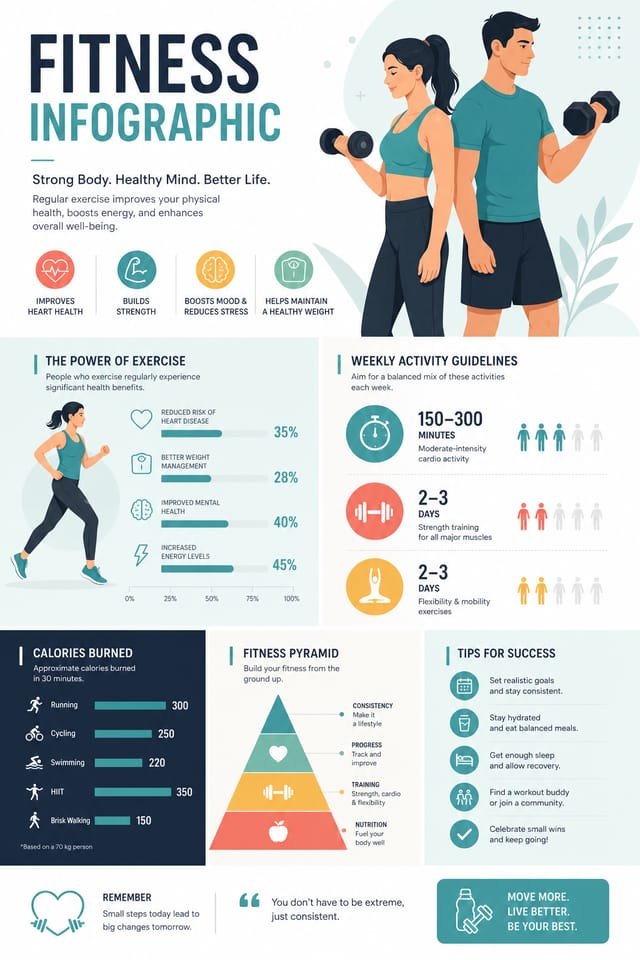
The Fitness Design Approach: Visual Processing Explained
The Logic of Fitness Infographic Design
Fitness infographic design has its own visual conventions that differ significantly from other styles.
The AI recognizes these patterns and applies them when generating your design, rather than defaulting to a generic layout.
When you describe a fitness infographic, Pixazo selects typography, color relationships, and compositional approaches appropriate to fitness aesthetics.
The result is a design that looks like it belongs in its context, not a repurposed template with the wrong visual DNA.
The Fundamentals of Fitness Infographic: A Designer's Perspective
Repetition and Consistency
Repeating visual elements in fitness infographic design creates cohesion. Consistent use of shapes, colors, and spacing makes the design feel unified rather than assembled from random parts.
Alignment and Grid
Strong fitness infographic layouts align elements to an invisible grid. Consistent alignment builds trust and professionalism, while deliberate breaks from the grid create emphasis.
Scale and Proportion
Element sizing in fitness infographic design communicates importance. The largest element gets the most attention. Scale differences between elements should be intentional and clear.
Fitness Infographic Maker Capabilities: Design Powers
Style-Accurate Generation
The AI interprets fitness design conventions and applies them to your infographic, producing output that looks correctly styled rather than generically templated.
Context-Aware Design
Describe your fitness infographic's purpose and audience. The AI adjusts visual weight, complexity, and clarity based on the intended use context.
Export Flexibility
Download your fitness infographic in formats suited for your use case. Web-optimized versions for digital display, high-DPI files for print.
Background Variation
Generate fitness infographics with different background treatments. Solid, gradient, textured, or pattern backgrounds all available for fitness style.
Sample Fitness Infographic Prompt Inspiration
Copy any prompt below and paste it into Pixazo to generate your design instantly.
Contemporary fitness infographic design, grid-based layout, typographic precision, restrained color palette, no decorative excessFitness aesthetic infographic, palette drawn from fitness design tradition, layout proportions consistent with fitness conventions, purposeful use of each elementMonochromatic fitness infographic, single-hue palette with value variation for contrast, typographic hierarchy creates visual interest without color complexityGeometric fitness infographic, structured grid system, angular composition, colors in blocks rather than gradients, modern clean finishSeries-compatible fitness infographic design, visual language that extends to multiple formats, consistent design system across variantsThe Path to Your Fitness Infographic: The Workflow Explained
Pitch Your Design Idea
Write a prompt describing your fitness infographic. Include style preferences, color direction, the most important text to display, and any specific visual elements you want. The more specific your description, the more targeted the output.
Rate the Design
Your fitness infographic generates immediately after submission. Evaluate the design against your requirements and refine the prompt to correct any elements that don't match your intent.
Elevate the Quality
Refine the fitness infographic by updating your description with precise changes. Add constraints you didn't include initially or remove elements that aren't working. The AI responds to specific direction.
Take It to Production
Download your completed fitness infographic in the format that fits your use case. High-resolution files for print, web-optimized versions for digital, or PDF for production-ready delivery.
Watch: Creating Fitness Infographic designs step by step
Fitness Infographic Design Rules: Practical Guidelines
Use grids and alignment
Structured layouts in your fitness infographic create a sense of order and professionalism that unstructured designs cannot match.
Optimize for the display medium
Tailor your fitness infographic resolution, color space, and text size to the specific platform or physical context where it will appear.
Keep the message focused
A strong fitness infographic communicates one primary idea clearly. Supporting details should reinforce, not compete with, the main message.
Maintain brand alignment
Keep your fitness infographic design consistent with existing brand colors, fonts, and visual language for a cohesive identity.
Forget the call to action
A fitness infographic without a clear next step for the viewer is a missed opportunity. Always include direction on what to do next.
Skip proofreading
Typos and grammatical errors on a fitness infographic undermine credibility instantly. Always have someone else review the final text.
Use too many fonts
More than two or three typefaces in a single fitness infographic creates visual noise and makes the design feel disjointed.
Fitness Infographic Workflow Stages: How It All Connects
Refine Polish the design
Apply targeted edits to your selected fitness infographic. Adjust typography, spacing, and color until every element meets your quality standard.
Export Deliver final files
Export your fitness infographic in the required formats and resolutions. Organize deliverables for handoff to the production or publishing team.
Brief Define requirements
Establish the key message, dimensions, color preferences, and target audience for your fitness infographic before any design work begins.
Research Gather references
Collect examples of effective fitness infographic designs, note what works, and identify patterns relevant to your project goals.
Approve Final sign-off
Get stakeholder approval on the finished fitness infographic. Verify all text is accurate and the design meets brand and technical requirements.
Where Fitness Infographics Shine: In the Real World
Tournament Brackets and Schedules
Design fitness infographics displaying tournament draws, league tables, and fixture schedules. Clear information hierarchy for quick reference.
Youth Academy Recruitment
Create fitness infographics for sports academies, tryouts, and training camps. Designs that appeal to young athletes and their parents.
Match Day Announcements
Create fitness infographics that announce upcoming games, fixtures, and match schedules. Include team names, venue, and kickoff details in a design that builds anticipation.
Sports Event Sponsorship
Produce fitness infographics for sponsors and partners of fitness events. Co-branded materials that satisfy both event organizers and corporate partners.
Award and Achievement Displays
Generate fitness infographics celebrating player milestones, team records, and season achievements. Commemorative designs for trophy cabinets and social media.
Practical Fitness Infographic Tips: From Experienced Designers
Match Tone to Audience
A fitness infographic for a corporate event needs a different visual tone than one for a music festival. Let the audience guide your style choices.
Use High Contrast for Readability
Whether your fitness infographic is displayed on screen or in print, strong contrast between text and background ensures the message gets through at any size.
Check Alignment Carefully
Misaligned elements are one of the most common signs of amateur fitness infographic design. Use grid lines and snap-to features to keep things precise.
Get Feedback Early
Share your fitness infographic draft with someone outside the project. Fresh eyes catch issues you have become blind to after hours of refinement.
Iterate with Variations
Generate 3-5 versions of your fitness infographic before committing. Comparing variations side by side often reveals the strongest direction.
Style Approaches for Fitness Infographics: Aesthetic Choices
Contemporary Fitness
Current fitness design sensibility with updated proportions, modern typefaces, and contemporary color relationships.
High-Contrast Fitness
Bold fitness visual treatment with strong tonal contrast. Elements read clearly at any viewing distance.
Textured Fitness
Fitness design with added surface depth. Background treatments add visual interest without disrupting legibility.
Geometric Fitness
Structured fitness composition using grid systems and angular forms. Order and precision define the visual approach.
Creating Fitness Infographics: A Quick FAQ
Include your specific colors in the prompt, either by hex code or descriptive terms. 'Navy and copper with white text' or '#1a1a2e and #c9a84c palette' both work. The AI builds a fitness-appropriate palette around your specified colors.
Specific prompts produce better results than vague ones. Include the visual style you want, any color preferences, the most important text to display, and the intended use. For fitness design specifically, noting whether you want a contemporary or classic interpretation of fitness style helps the AI make the right design decisions.
Include the target language in your prompt when generating fitness infographics with non-English text. The AI selects typographic approaches appropriate for the language and applies fitness design conventions to the overall layout regardless of language.
Each generation uses your unique prompt text to produce a distinct fitness infographic design. Even similar prompts produce noticeably different outputs due to the AI's generative process. No two users receive identical designs.
Templates apply a fixed visual structure with placeholder content. AI generation produces original designs based on your specific description. Two fitness infographics generated from different prompts will have genuinely different layouts, not just different text in the same box positions.
Fitness Makers: Community Showcase
Real creators sharing their fitness designs made with Pixazo AI.

Refined fitness aesthetic infographic, sophisticated color relationships, intentional negative space, type selection matching fitness conventions
Square fitness infographic at 1080x1080 for LinkedIn post, professional tone, balanced text-to-visual ratio, brand-safe composition
Fitness infographic with retro 1970s color palette, warm oranges and browns, groovy display type, textured paper background feelWhat Fitness Infographic AI: Honest Expectations
Known limitations and trade-offs of AI-generated fitness design. Being specific about what AI infographic generation can and cannot do helps you plan your workflow and set accurate expectations.

