Flowchart Infographic : Create Free Flowchart Infographics in Minutes with AI
Create Custom Flowchart Infographics Quickly with Pixazo Best AI Flowchart Infographic Maker. Try for Free!
Get Started
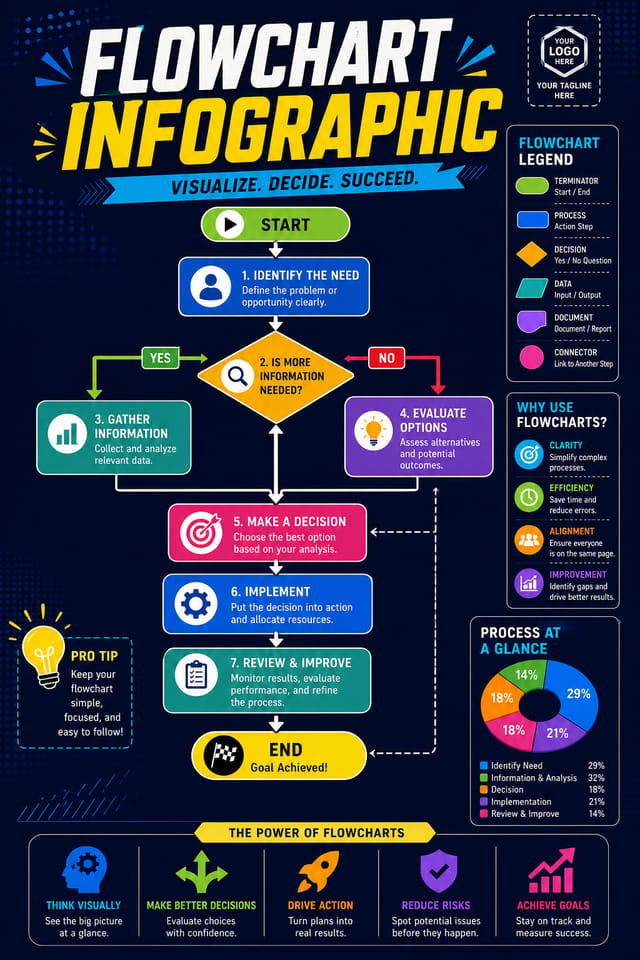
Flowchart Infographic Maker Comparison: A Neutral Comparison
| Tool | Description |
|---|---|
| Adobe Express | Streamlined creative tool backed by Adobe's design ecosystem |
| Pixazo | AI-powered flowchart infographic generator with prompt-based design and professional output quality |
| Desygner | Multi-format design tool with PDF editing and brand management |
| Snappa | Quick graphic creator focused on social media and marketing visuals |
| Crello | Template-based design tool with animation and video support |
Flowchart Creator Showcase Gallery
Real creators sharing their flowchart designs made with Pixazo AI.

Bold flowchart infographic with strong central headline, supporting information at secondary scale, background treatment consistent with flowchart design
Flowchart infographic in 18x24 inch print format, museum-quality composition, generous margins, elegant serif headline, muted earth tones
Flowchart infographic designed for dark mode display, OLED-optimized black background, vibrant accent colors, high contrast textHow Pixazo Reads Flowchart Style: Visual Processing Explained
How Pixazo Reads Flowchart Style Cues
The gap between a professional flowchart infographic and a mediocre one usually comes down to design decisions made early in the process: palette selection, type hierarchy, and compositional structure.
These choices determine whether the final output reads as flowchart or just looks generic.
Pixazo's AI makes these foundational decisions based on your prompt.
Specify a flowchart infographic and the system selects design parameters that match flowchart visual expectations, giving you a solid starting point rather than a blank-slate template.
Flowchart Infographic Applications: Who Uses Them
Historical and Project Timelines
Generate flowchart infographics mapping events, milestones, and project phases along a visual timeline. Designs that make chronology intuitive at a glance.
Comparison and Versus Charts
Create flowchart infographics for product comparisons, feature matrices, and side-by-side analyses. Layouts that make differences and similarities immediately obvious.
Organizational Charts and Hierarchies
Create flowchart infographics visualizing team structures, reporting lines, and departmental organization. Professional layouts that clarify complex organizational relationships.
Photo Collages and Montages
Design flowchart infographics arranging multiple images into cohesive visual compositions. Grid-based and freeform layouts for photo storytelling.
What Makes a Strong Flowchart Infographic: Key Principles
Contrast as Communication
Contrast in flowchart infographic design serves a purpose beyond aesthetics. High contrast draws the eye; low contrast recedes. Use this intentionally to guide the viewer's attention where it matters.
Focal Point Clarity
Every flowchart infographic design needs one primary focal point. If everything demands equal attention, nothing stands out. Guide the viewer to the single most important element first.
Compositional Balance
Visual weight in flowchart infographic design should be intentional. Asymmetric balance often creates more interest than centered symmetry, but both can work when executed with purpose.
Built for Flowchart Infographic: Feature Overview
Commercial Use Rights
Designs generated with Pixazo are yours to use commercially. No additional licensing required for flowchart infographic projects.
Compositional Structure
Layout and hierarchy decisions reflect flowchart design patterns. The proportions and arrangement match how flowchart designs are conventionally structured.
Consistency Across Variants
Generate multiple flowchart infographics for a project and maintain visual consistency across the set. Specify your core design parameters and vary secondary elements.
Instant Iterations
Generate multiple flowchart infographic variations from a single prompt. Compare options and refine until the design matches your vision.
Style-Accurate Generation
The AI interprets flowchart design conventions and applies them to your infographic, producing output that looks correctly styled rather than generically templated.
Layered Style Application
Combine flowchart style with other design parameters in a single prompt. The AI interprets complex requests and applies multiple style constraints simultaneously.
Inside Flowchart Infographic Creation: The Workflow Explained
Frame the Brief
Write a prompt describing your flowchart infographic. Include style preferences, color direction, the most important text to display, and any specific visual elements you want. The more specific your description, the more targeted the output.
View the AI Result
Your flowchart infographic generates immediately after submission. Evaluate the design against your requirements and refine the prompt to correct any elements that don't match your intent.
Transfer the File
Export your flowchart infographic in the format you need. PNG for web and social, PDF for print production, JPG for email and lightweight sharing. The file is yours to use commercially without restrictions.
Watch: Creating Flowchart Infographic designs step by step
Flowchart Infographic AI Specs: Specs and Limits
Try These Flowchart Infographic Prompt Ideas
Copy any prompt below and paste it into Pixazo to generate your design instantly.
Flowchart infographic for digital display, optimized proportions for screen viewing, colors calibrated for RGB output, legible at typical viewing distanceFlowchart infographic with strong visual hierarchy, largest element reads clearly, supporting elements organized by importance, clean background treatmentClean flowchart infographic design, geometric structure, disciplined typography, color accent used selectively for emphasis, printer-optimized resolutionFlowchart aesthetic infographic, palette drawn from flowchart design tradition, layout proportions consistent with flowchart conventions, purposeful use of each elementLarge-format flowchart infographic design, elements sized for visibility at print scale, no fine detail that would be lost in productionUnderstanding Flowchart Infographics: Questions and Answers
Adjust your prompt to change any element of the design. If a generated flowchart infographic is close but not quite right, describe what you want changed and regenerate. The AI responds to specific direction about individual elements like color, layout, or typographic weight.
You can request high-contrast or color-blind-friendly palettes in your prompt. Specify 'accessible color palette' or 'deuteranopia-safe colors' and the AI will select flowchart-appropriate colors that maintain sufficient contrast for users with color vision deficiencies.
The AI renders text as specified in your prompt, so double-check spelling and punctuation before generating. If text renders incorrectly in a flowchart infographic, adjust your prompt and regenerate. The AI follows your exact text input.
Designs generated through Pixazo are yours to use as you see fit. You retain full usage rights for commercial and personal applications. The platform does not claim ownership over your generated flowchart infographic output.
Yes. Set up separate brand kits for each client or brand, then switch between them when generating flowchart infographics. Each brand kit stores its own colors, fonts, and logo so the AI applies the correct identity to every flowchart infographic without manual reconfiguration.
Flowchart Infographic Dos and Don'ts: A Quality Guide
Maintain brand alignment
Keep your flowchart infographic design consistent with existing brand colors, fonts, and visual language for a cohesive identity.
Use a consistent visual hierarchy
Structure your flowchart infographic so the viewer's eye follows a clear path from headline to supporting details to call-to-action.
Test with real content
Never finalize a flowchart infographic with placeholder text. Real copy often has different lengths and line breaks that affect the design.
Forget the call to action
A flowchart infographic without a clear next step for the viewer is a missed opportunity. Always include direction on what to do next.
Overcrowd the layout
Filling every pixel of your flowchart infographic with content makes it harder to read and reduces the impact of every individual element.
Ignore accessibility
Low-contrast text and tiny font sizes in your flowchart infographic exclude a significant portion of your potential audience.
What Is Trending in Flowchart Infographics: Current Directions
Asymmetric Composition
Breaking grid symmetry in flowchart infographic layouts creates visual tension and a modern, editorial feel that stands out.
Data-Driven Visuals
Incorporating charts, statistics, and structured data directly into flowchart infographic layouts helps communicate complex messages at a glance.
Brutalist Design
Raw, intentionally unpolished flowchart infographic aesthetics with stark contrasts and unconventional layouts are carving a niche in creative industries.
Bold Typography
Oversized type and expressive fonts are dominating flowchart infographic design, turning headlines into visual centerpieces rather than just text.
Hand-Drawn Elements
Illustrations, doodles, and hand-lettering bring a personal, approachable quality to flowchart infographic designs in an era of polished digital output.
Retro Revival
Vintage aesthetics from the 1970s and 1990s are influencing flowchart infographic design with textured backgrounds, serif fonts, and warm gradients.
What Flowchart Infographic AI: Where It Falls Short
Known limitations and trade-offs of AI-generated flowchart design. Every AI design tool has boundaries. Knowing these limits before you start helps you get the most out of flowchart infographic generation.

