Medical Infographic : Create Free Medical Infographics in Minutes with AI
Create Custom Medical Infographics Quickly with Pixazo Best AI Medical Infographic Maker. Try for Free!
Get Started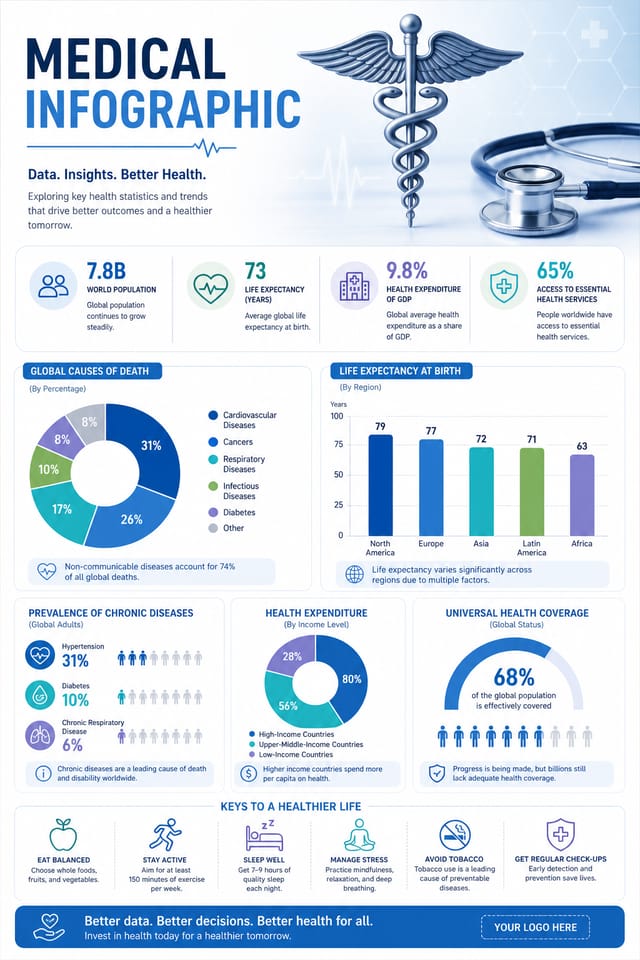
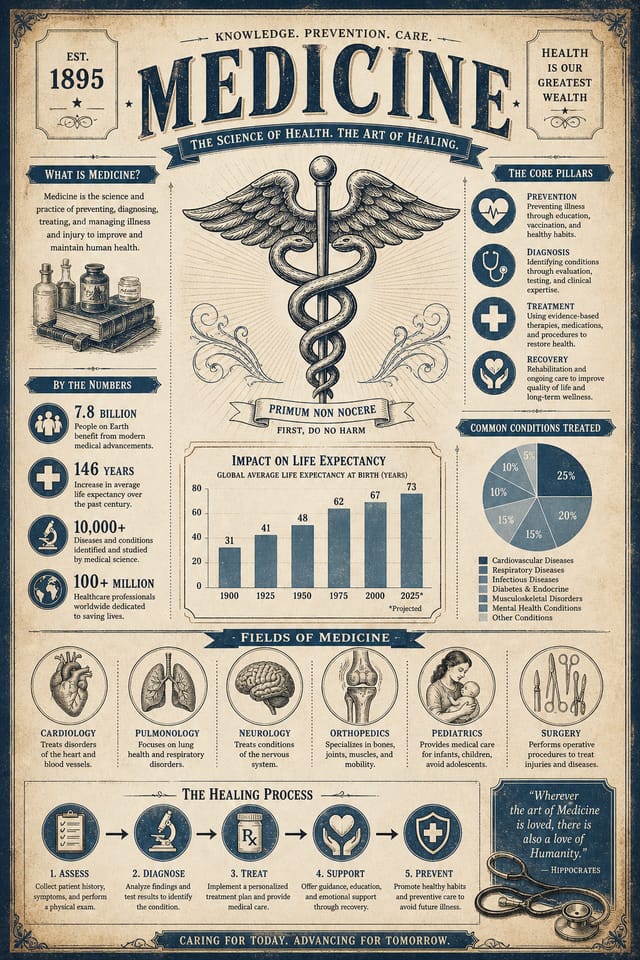
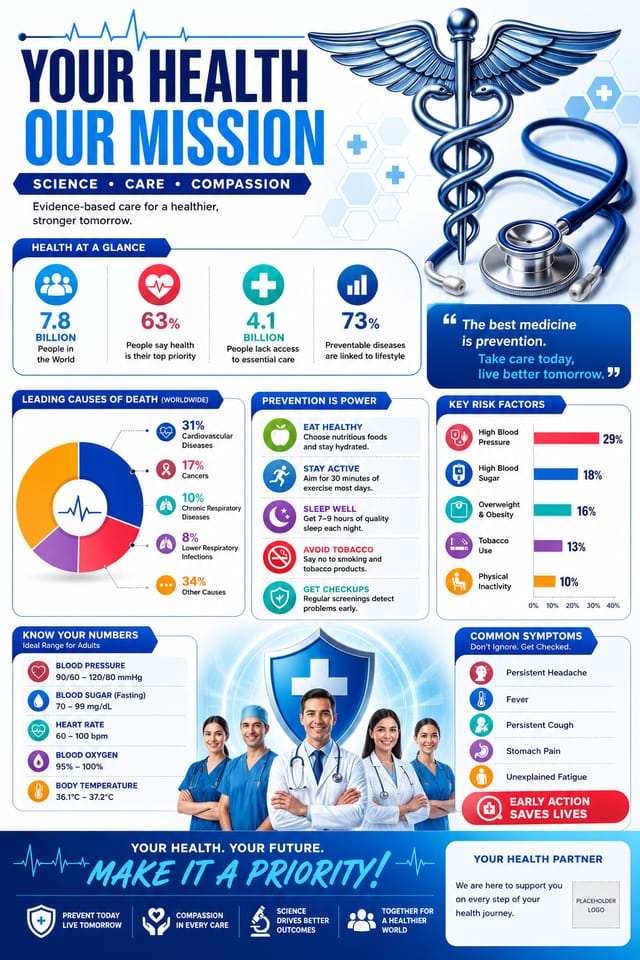
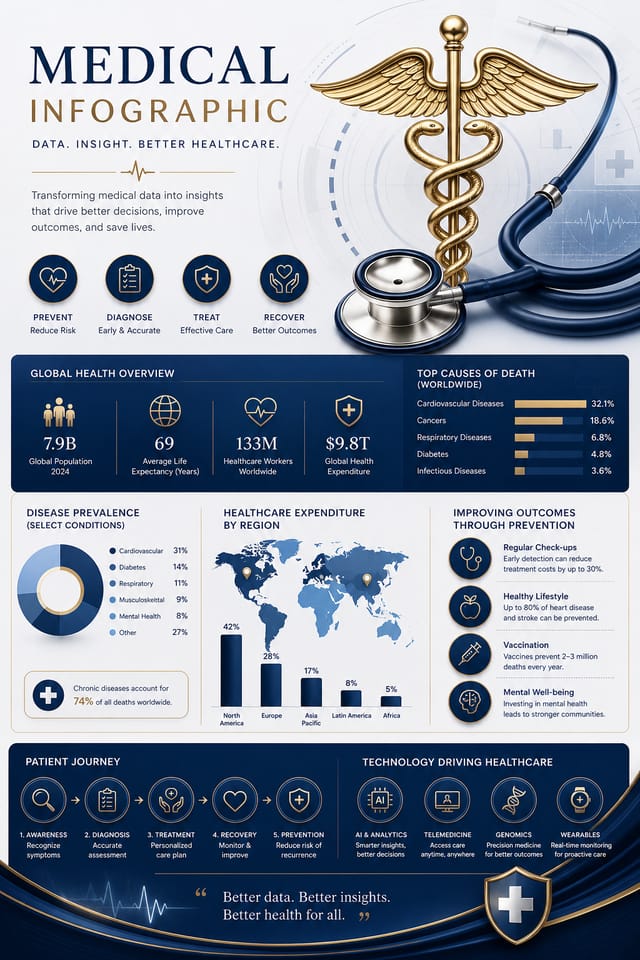
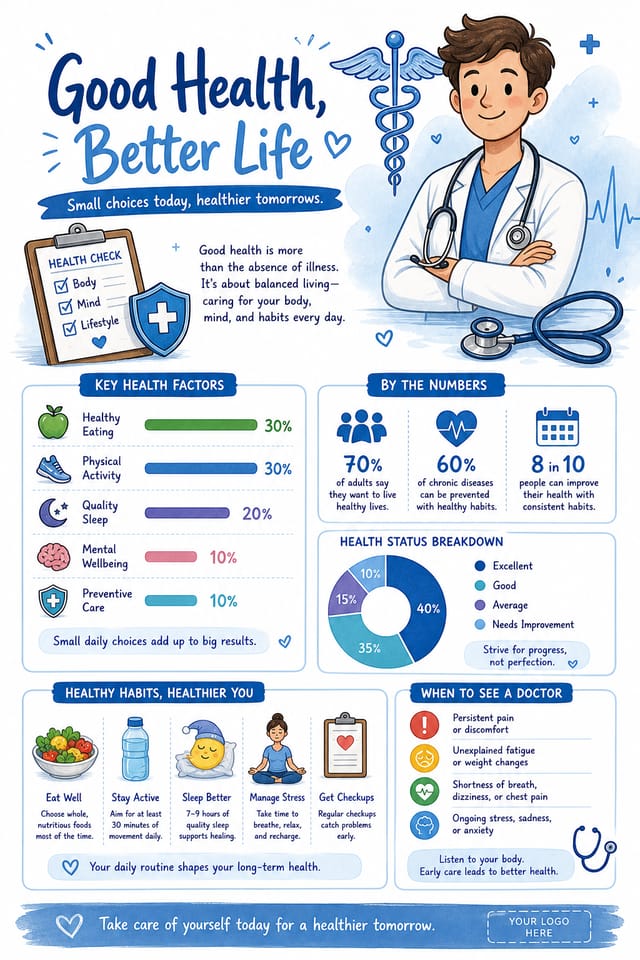
Inside the Medical Infographic Engine: Core Strengths
Background Variation
Generate medical infographics with different background treatments. Solid, gradient, textured, or pattern backgrounds all available for medical style.
Print-Ready Output
Generated medical infographics are sized and structured for professional printing. Download high-resolution files ready for production.
Compositional Structure
Layout and hierarchy decisions reflect medical design patterns. The proportions and arrangement match how medical designs are conventionally structured.
Text Placement Options
Describe where you want text elements positioned in your medical infographic. The AI follows compositional direction about headline placement and body copy layout.
Fast Generation
Complete medical infographic designs generate in seconds. No rendering queues, no waiting for batch processing.
Resolution Control
Specify output dimensions for your medical infographic. Get files sized for web display, social media, or large-format printing.
Medical Infographic Design Workflow: The Full Process
Review Evaluate and refine
Compare generated medical infographic options against your brief. Mark what works and note specific changes needed for the next iteration.
Brief Define requirements
Establish the key message, dimensions, color preferences, and target audience for your medical infographic before any design work begins.
Refine Polish the design
Apply targeted edits to your selected medical infographic. Adjust typography, spacing, and color until every element meets your quality standard.
Research Gather references
Collect examples of effective medical infographic designs, note what works, and identify patterns relevant to your project goals.
Get Your Medical Infographic: The Simple Process
Specify Your Needs
Write a prompt describing your medical infographic. Include style preferences, color direction, the most important text to display, and any specific visual elements you want. The more specific your description, the more targeted the output.
See the Initial Render
The AI produces a medical infographic based on your description. If the first result isn't exactly right, adjust the prompt to address what needs changing. Most designs reach the target within a few iterations.
Seal the Design
Export your medical infographic in the format you need. PNG for web and social, PDF for print production, JPG for email and lightweight sharing. The file is yours to use commercially without restrictions.
Watch: Creating Medical Infographic designs step by step
Getting Started with Medical Infographics: What People Ask
Professional medical infographic design comes down to the right color relationships, appropriate typographic hierarchy, and compositional balance that fits medical aesthetic conventions. Generic designs miss these details because they apply neutral defaults rather than style-specific decisions. Pixazo applies medical design knowledge when you specify the style.
Specify the dimensions in your prompt. Common formats like A3, 18x24 inches, or 1080x1920 pixels for social media stories all work. The AI generates a medical infographic composition appropriate for the specified aspect ratio and use case.
Describe your core design parameters in each prompt and vary only the specific elements that should change across the series. Maintaining consistent color palette, typographic approach, and compositional structure across medical infographic variations creates a coherent series.
The AI recognizes medical design as a distinct visual category with its own conventions. Specifying medical style in your prompt triggers appropriate design decisions around color, typography, and composition rather than defaulting to generic poster layout.
Deep Dive into Medical Infographic AI: Tools and Capabilities
Resolution Control
Export medical infographics at resolutions from web-optimized to print-quality 4K
Format Flexibility
Download your medical infographic as PNG, JPG, or PDF depending on your use case
Batch Generation
Create multiple medical infographic variations from a single prompt efficiently
How People Use Medical Infographics: Who Benefits Most
Restaurant and Food Service
Generate medical infographics for menus, seasonal promotions, and restaurant branding. Designs that reflect cuisine style and dining atmosphere.
Content Creation Workflow
Incorporate medical infographic generation into a content production workflow. Fast output enables higher publishing frequency.
Community Organizations
Create medical announcement infographics for community groups, non-profits, and local organizations without requiring design expertise.
Healthcare and Wellness
Design medical infographics for clinics, wellness centers, and health campaigns. Trustworthy visuals that communicate care and professionalism.
Wedding and Celebration Planning
Create medical infographics for invitations, signage, and event branding. Cohesive visual systems that carry a celebration's theme across every touchpoint.
Medical Infographic Design Tool Landscape: Finding the Right Fit
| Tool | Description |
|---|---|
| Fotor | Photo editing platform with design templates and batch processing |
| Desygner | Multi-format design tool with PDF editing and brand management |
| Pixazo | AI-powered medical infographic generator with prompt-based design and professional output quality |
| Stencil | Lightweight image creator optimized for fast social media graphics |
| Piktochart | Infographic and presentation maker for data-driven visuals |
Your Medical Infographic Tool: Speed and Quality
Medical Infographic Starter Prompt Collection
Copy any prompt below and paste it into Pixazo to generate your design instantly.
Professional medical infographic, minimalist medical approach, negative space used intentionally, readable at multiple viewing distances, print-ready compositionTextured medical infographic, surface treatment adds depth without obscuring legibility, texture consistent with medical aestheticTwo-color medical infographic design, high contrast between primary and secondary color, clean separation between graphic and text zonesAtmospheric medical infographic, background treatment supports the headline without competing with it, visual weight distributed intentionallyMedical style infographic, bold headline placement, supporting text at appropriate scale, color palette consistent with medical design conventionsHigh-impact medical infographic, immediate visual read at thumbnail size, clear headline dominance, supporting information structured logicallyFrom the Medical Community: A Design Gallery
Real creators sharing their medical designs made with Pixazo AI.

Two-color medical infographic, maximum contrast between primary and secondary color, typography set in one color per level
Handmade-feel medical infographic with brush stroke textures, imperfect edges, warm color palette, artisanal craft aesthetic
Medical infographic for outdoor billboard at 14x48 feet, extreme readability at distance, three-word headline max, high contrast backgroundCurrent Medical Infographic Limits: Realistic Expectations
Known limitations and trade-offs of AI-generated medical design. Transparency matters when using AI for medical infographic design. The points below describe where you may need to supplement AI output with manual work.

